Helpdesk dashboard: Channel volumes, customer mood, chats
About this demo
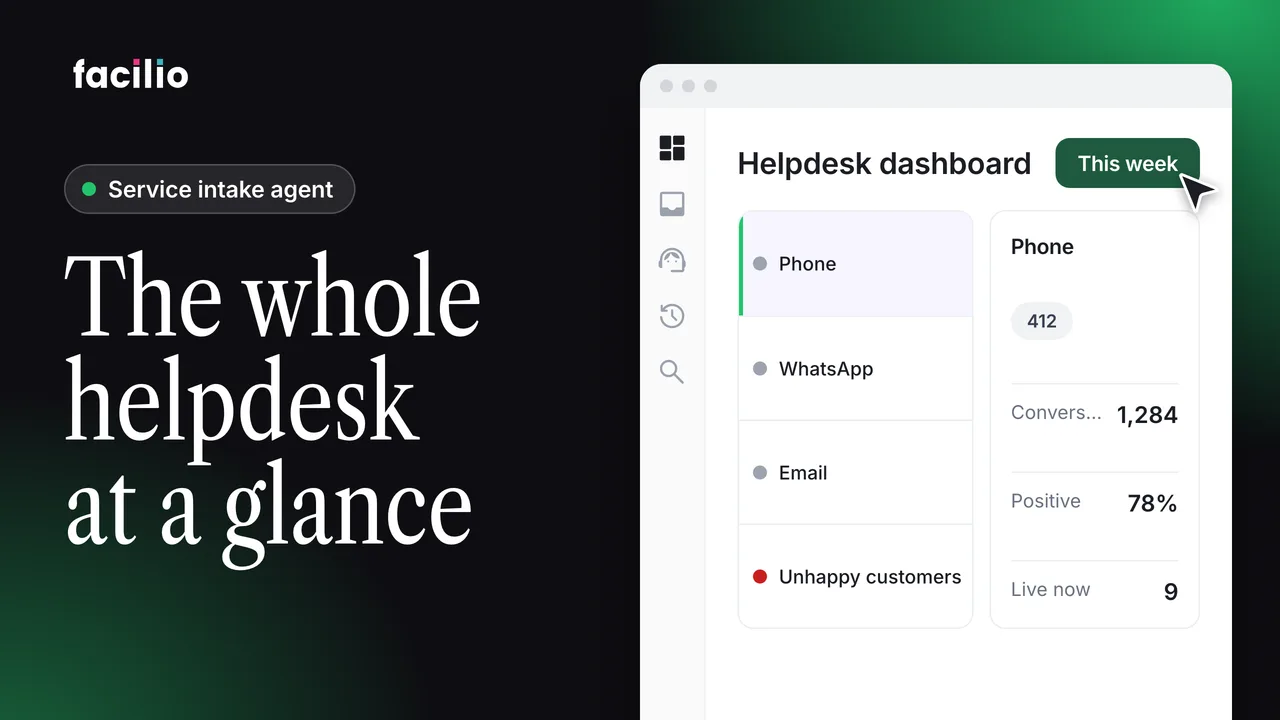
Channel volumes, customer mood and live conversations on one screen. See the facilities helpdesk dashboard in under a minute.
When requests live in different places, you never see the full picture. The helpdesk home page puts channel volumes, customer mood and the latest conversations on one screen.
- Setup checklist. A short checklist walks you through setting up the helpdesk.
- Customer mood. A live read on how customers feel across every conversation, for any time range.
- Channel cards. Volumes and trends for each channel, with exact numbers when you point at a graph.
- Latest conversations. Recent conversations sit on the right and open in full with one click.
- Widget playground. One click takes you to where you configure the web widget.
Transcript
-
When multiple activities live in different places, you never see the full picture. Helpdesk brings it all in one place. A short checklist walks you through setting up your helpdesk. Scroll down and you get a live read on customer mood across every conversation. Change the time range and the whole overview refreshes for that period. Each channel gets its own card with volumes and trends side by side. Point at a graph and the exact numbers appear.
-
On the right, your latest conversations are always within reach. Click one and the full conversation opens. Back on the home page, one click takes you to the widget playground where you can configure the web widget. Everything your helpdesk is doing on one screen.
Who it's for
Helpdesk managers
See volumes and mood without building a report.
FM operations leads
Spot a busy channel or unhappy customers early.
Support agents
Go straight to the latest conversations.