Facilio DocsHelpdesk Guide
12 / 13
12Admin

Settings

Where admins manage the team, credits, phone numbers, channels, integrations and webhooks. Everything that connects Facilio Helpdesk to the outside world lives here.

Find it inSettings (bottom of the menu)Profile menu›Settings
12 sections21 how-to guides17 min readDownload .md

12.1Find your way around Settings

Click Settings at the bottom of the menu. The menu switches to the Settings list. Click ‹ Settings at the top to go back to where you were.

Section Pages
General Profile, Users, Credit Usage
Telephony Phone Numbers, Network Info
Channels Voice, Whatsapp, Email
Website & Portal Web Chat Keys
Integrations Data Sources, Webhooks

12.2Your profile

Your own name, phone number, photo and language.
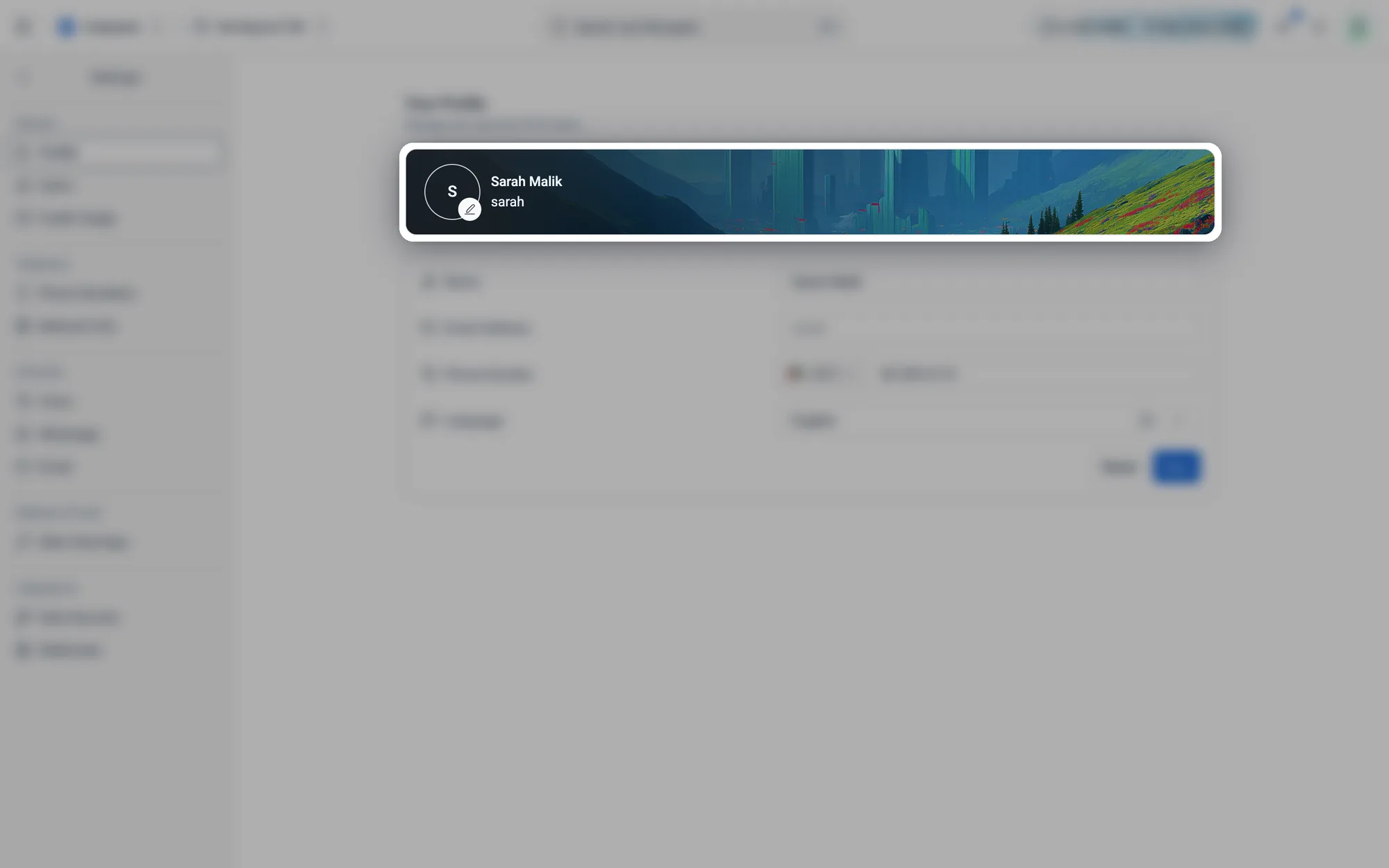
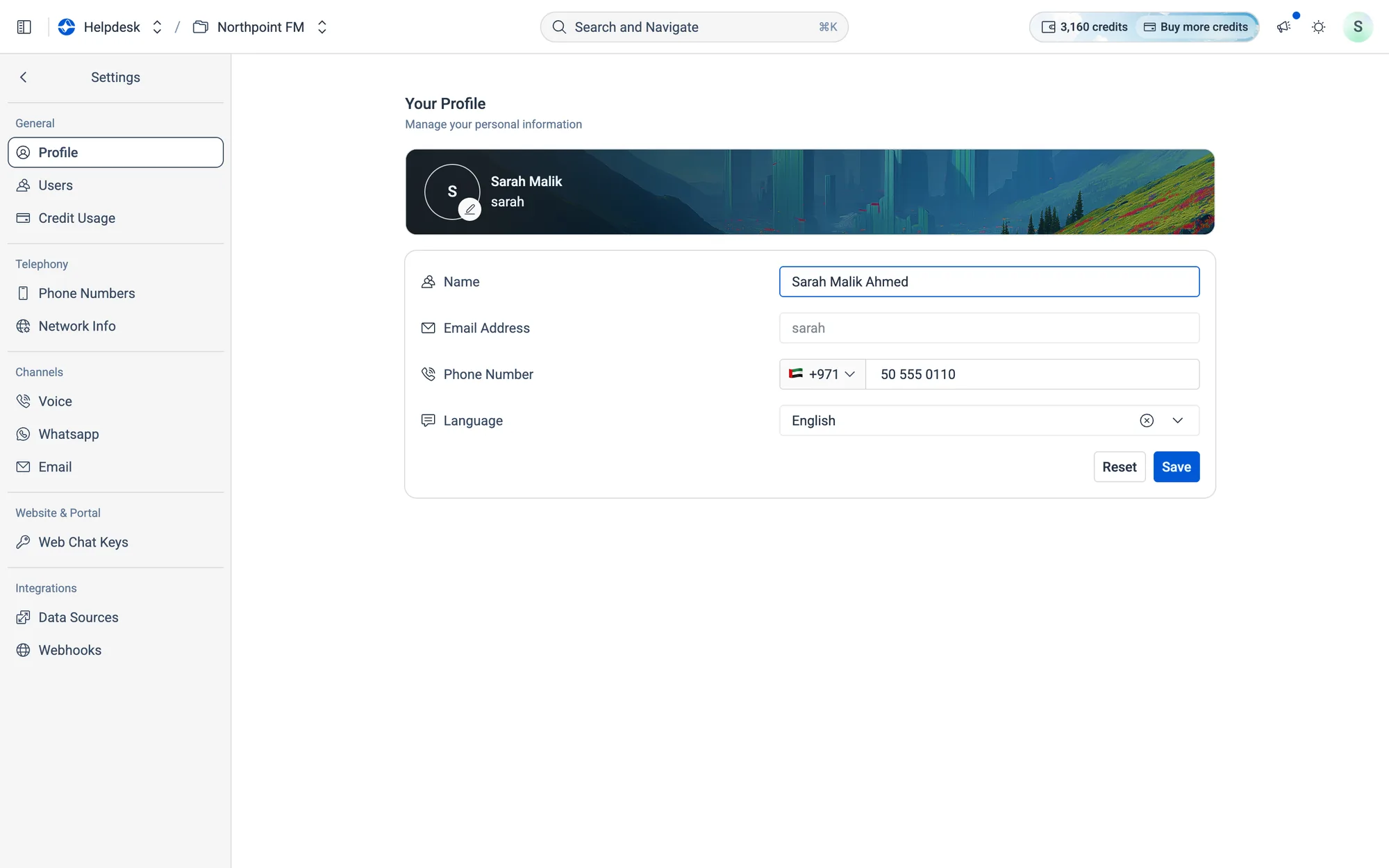
The banner with your photo and name. Click the photo to change it.
Fig. 12.1The banner with your photo and name. Click the photo to change it.
Name, Email Address, Phone Number and Language, with Reset and Save underneath.
Fig. 12.2Name, Email Address, Phone Number and Language, with Reset and Save underneath.

How to update your profile

  1. 1
    Open Settings. You land on Your Profile.
  2. 2
    To add a photo, click the picture in the banner and choose an image (under 5 MB).
  3. 3
    Change your Name, Phone Number or Language. Reset and Save buttons appear as soon as something changes.
  4. 4
    Click Save.
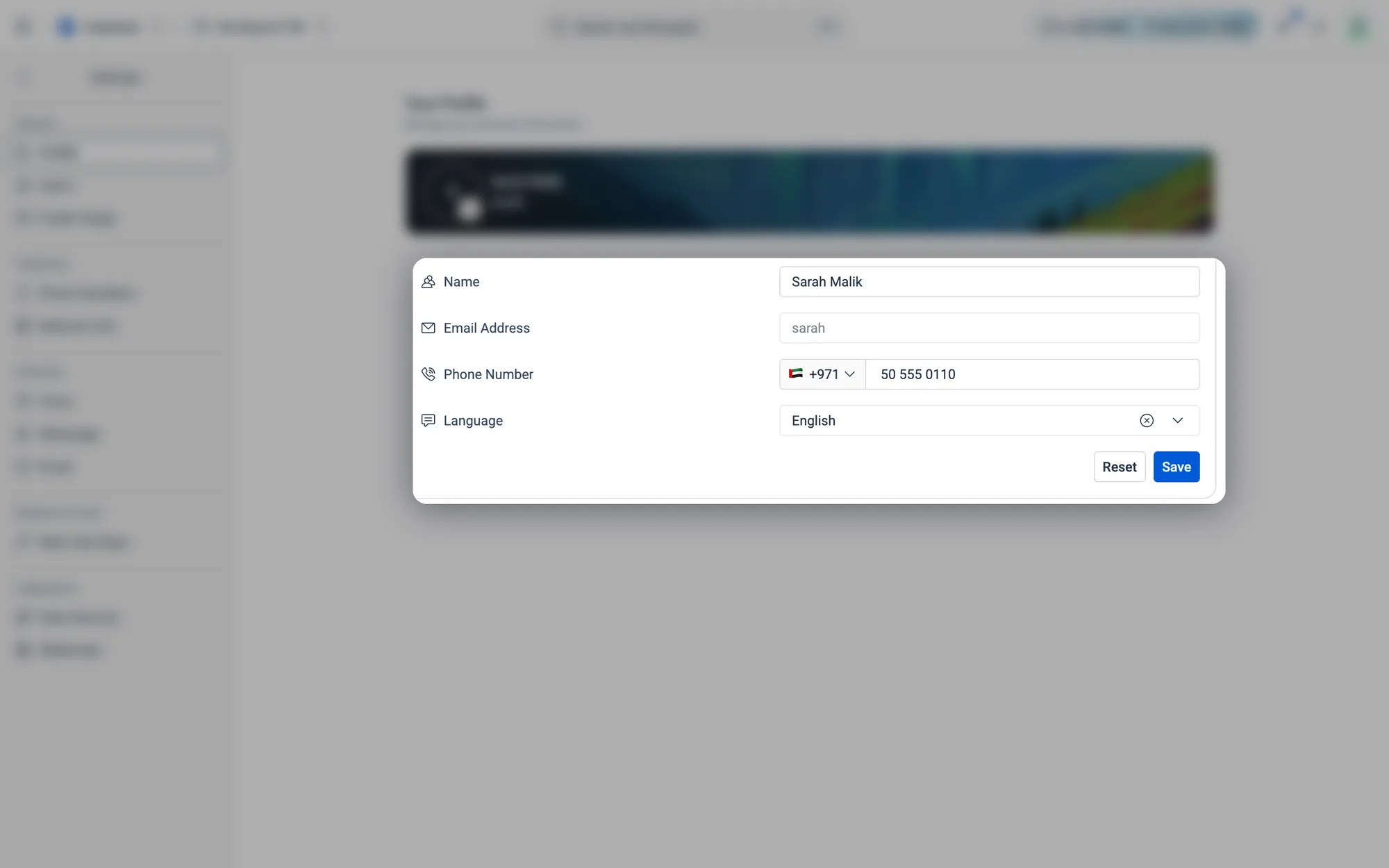
Edit any field, and the Reset and Save buttons appear at the bottom.
Fig. 12.3Edit any field, and the Reset and Save buttons appear at the bottom.

12.3Your team

Invite teammates and see who has joined.
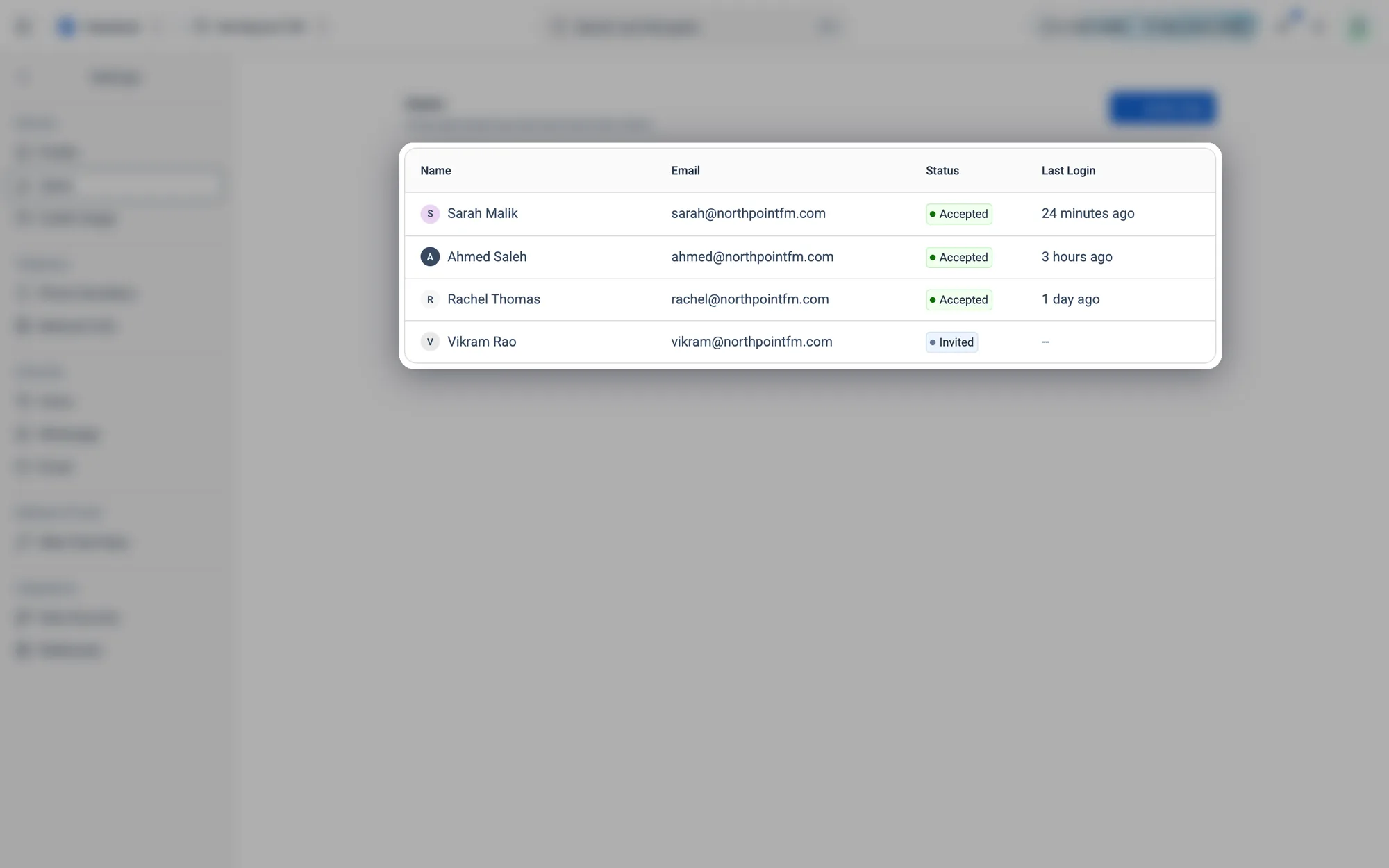
Everyone on your team, with their Status (Accepted or Invited) and Last Login.
Fig. 12.4Everyone on your team, with their Status (Accepted or Invited) and Last Login.

How to invite a teammate

  1. 1
    Go to Settings › Users and click Invite User.
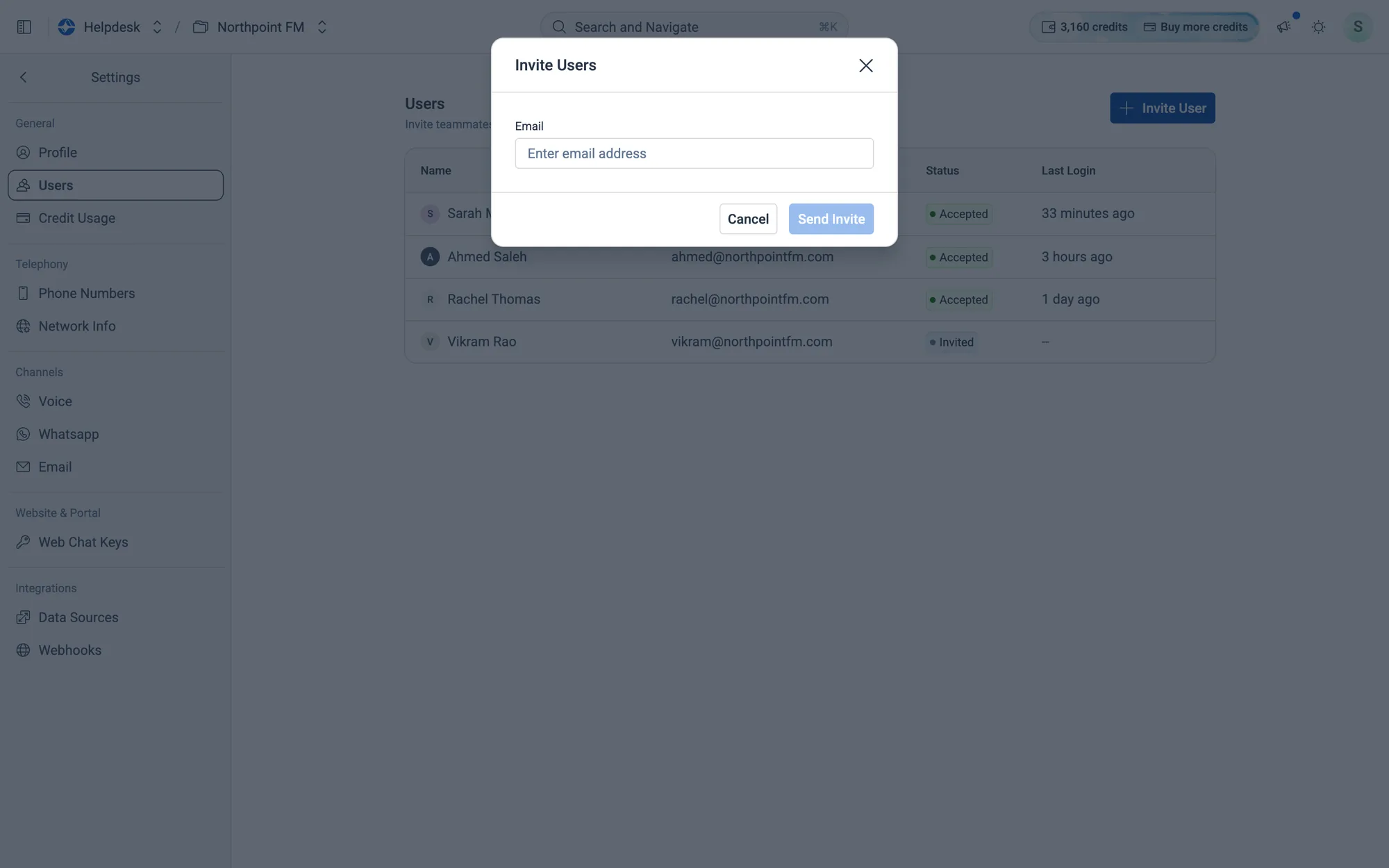
The Invite Users dialog.
Fig. 12.5The Invite Users dialog.
  1. 2
    Type your teammate's work email under Email.
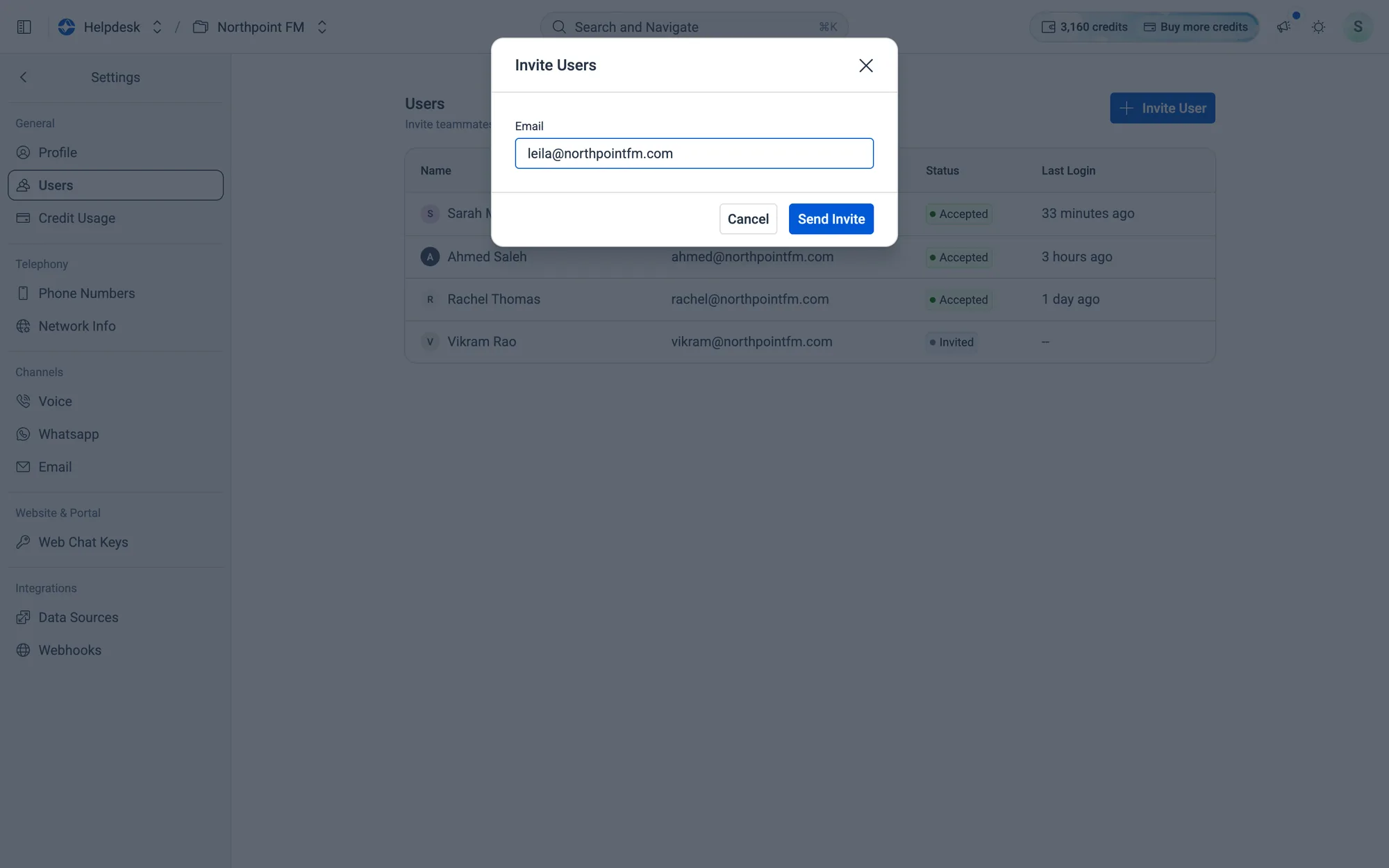
One email address per invite.
Fig. 12.6One email address per invite.
  1. 3
    Click Send Invite, or press Enter. They appear in the list as Invited until they accept.
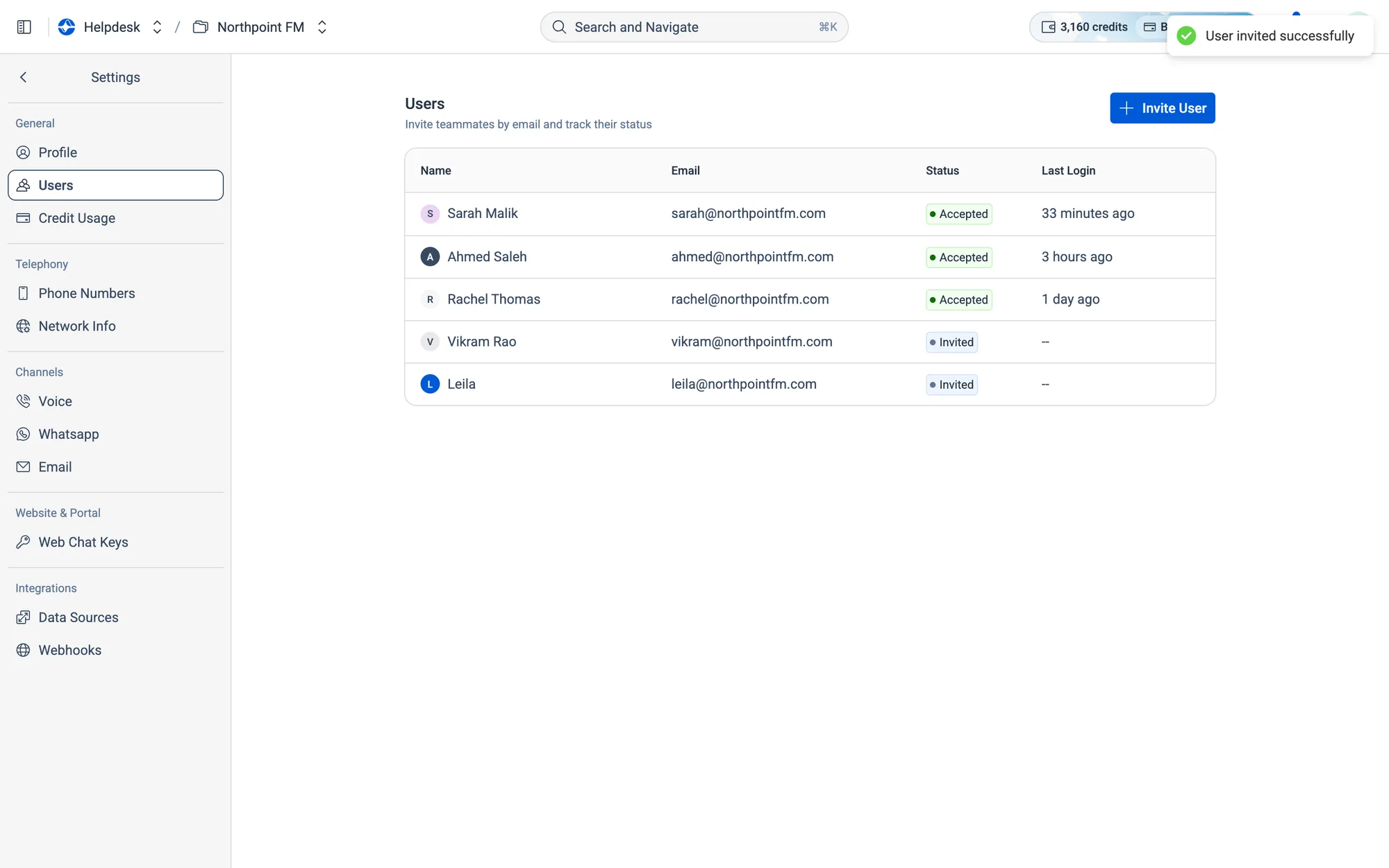
The new teammate shows as Invited. It changes to Accepted when they sign in.
Fig. 12.7The new teammate shows as Invited. It changes to Accepted when they sign in.

How to remove a teammate

  1. 1
    On Settings › Users, hover over the person's row. A delete icon appears at the end of the row.
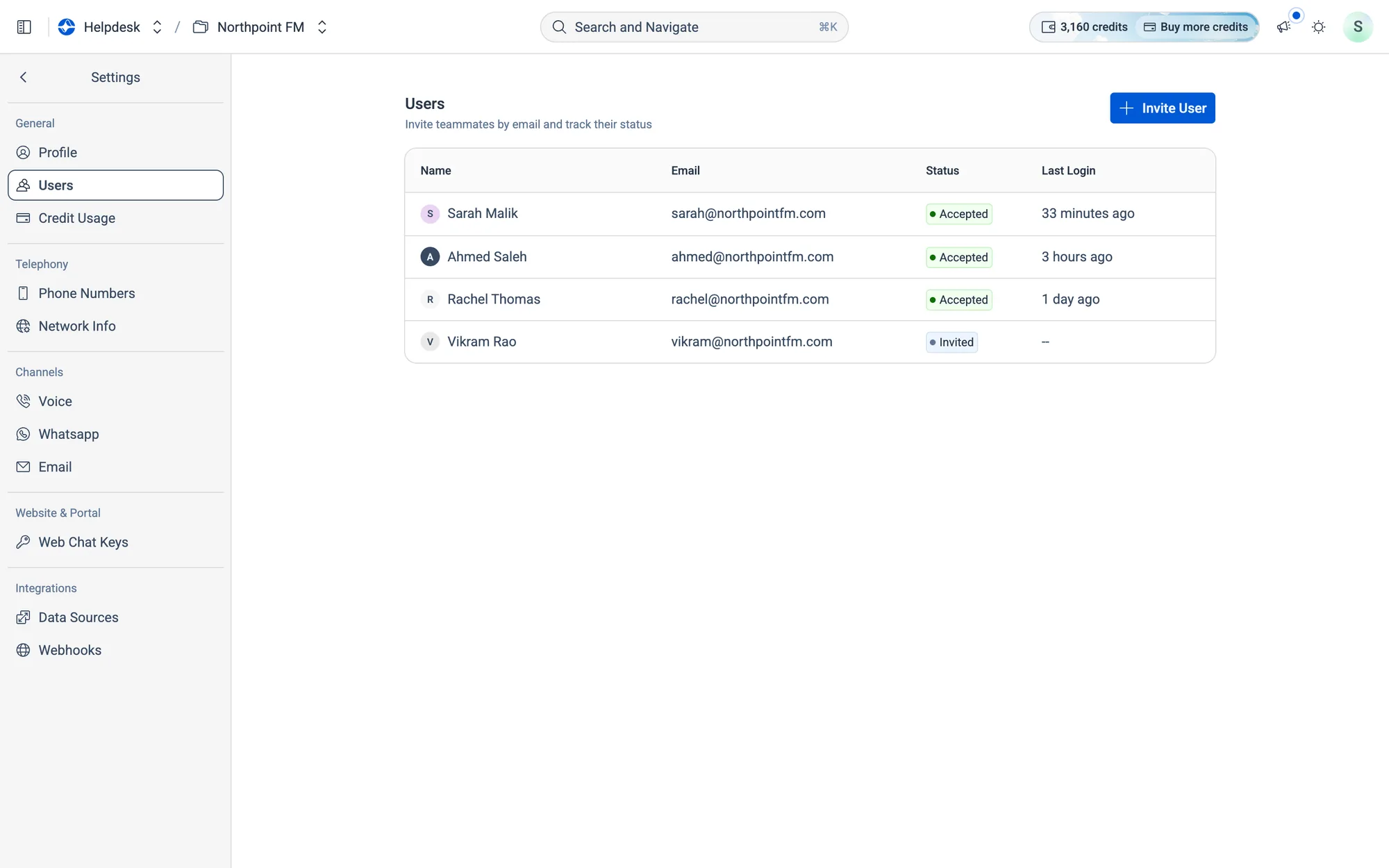
Hover over a row to show the delete icon.
Fig. 12.8Hover over a row to show the delete icon.
  1. 2
    Click the delete icon, then confirm with Delete.
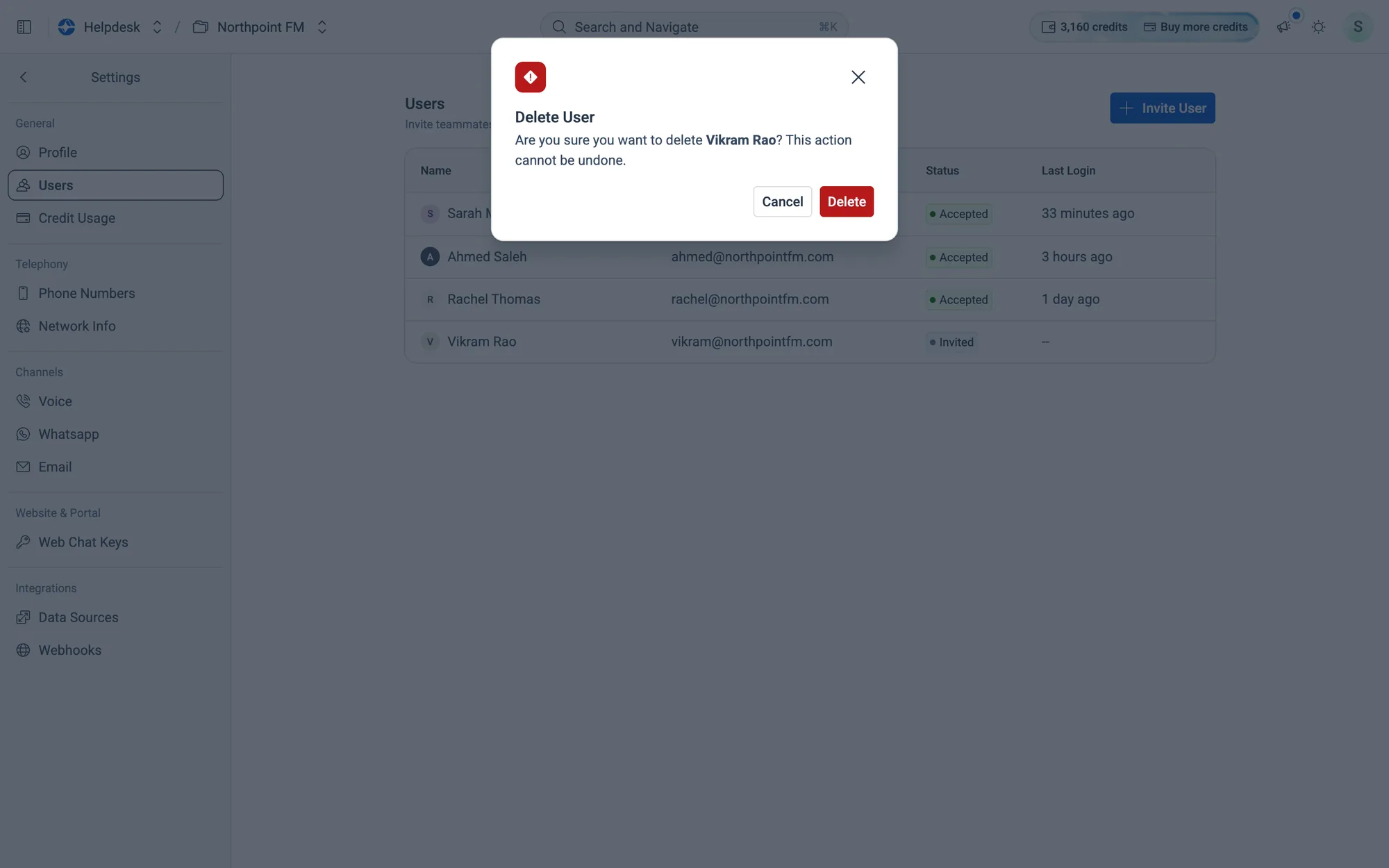
Removing someone can't be undone, so you're asked to confirm first.
Fig. 12.9Removing someone can't be undone, so you're asked to confirm first.

12.4Credits

Facilio Helpdesk runs on AI credits.
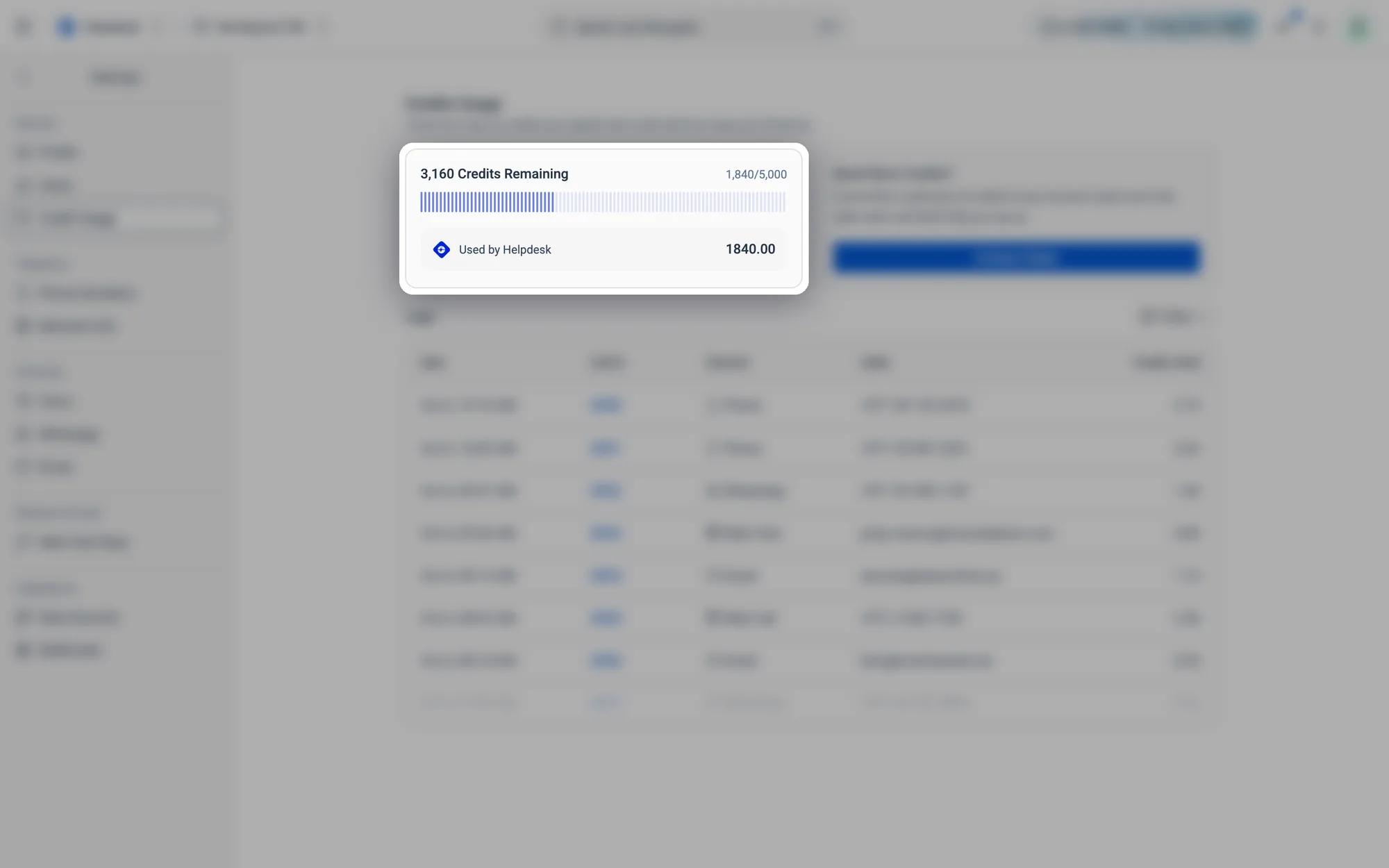
Credits Remaining out of your total, and how many Used by Helpdesk.
Fig. 12.10Credits Remaining out of your total, and how many Used by Helpdesk.
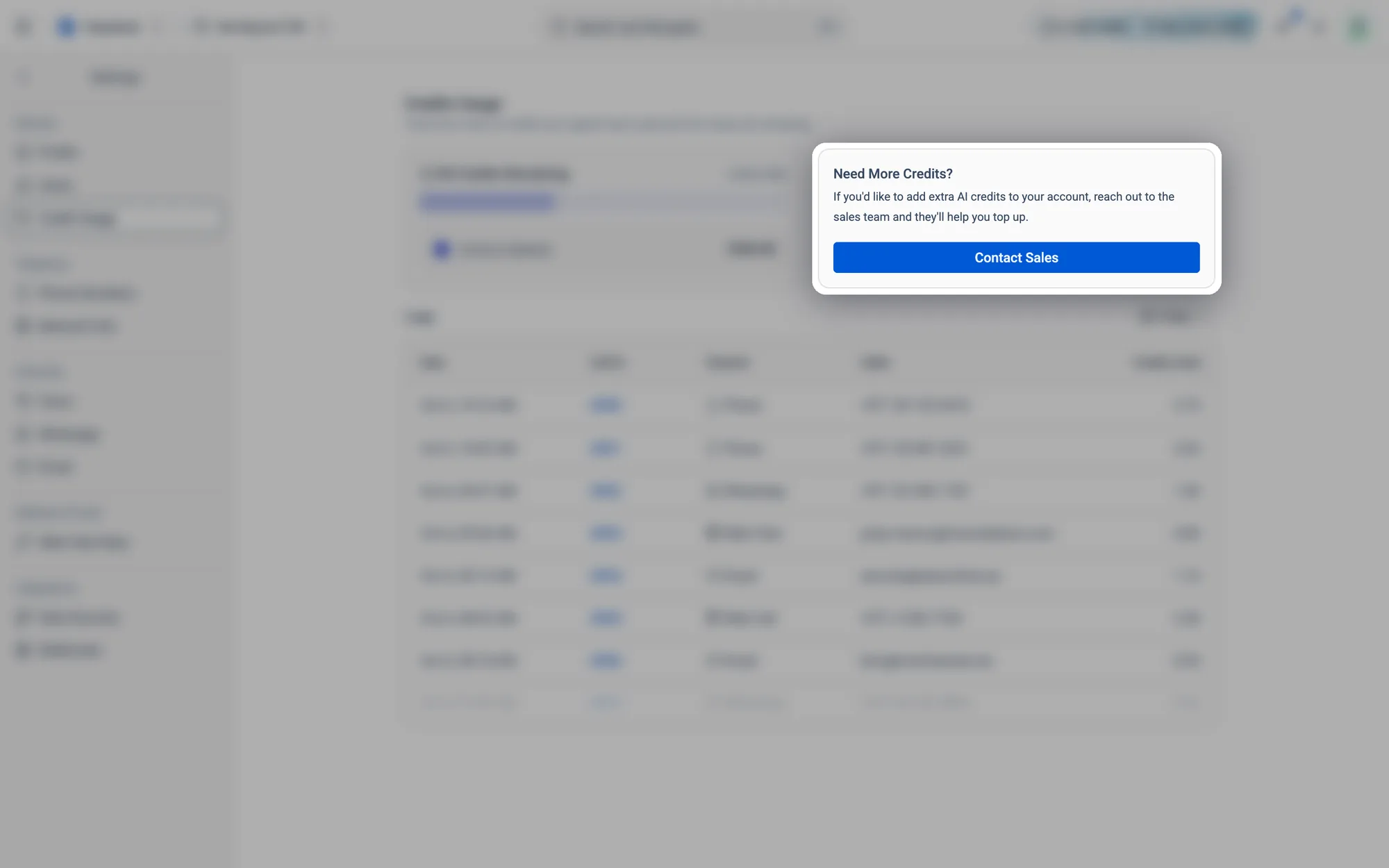
Need More Credits? Click Contact Sales to top up.
Fig. 12.11Need More Credits? Click Contact Sales to top up.
Logs: one row per conversation, with what it cost. The period chip is on the right.
Fig. 12.12Logs: one row per conversation, with what it cost. The period chip is on the right.

How to check your credit usage

  1. 1
    Go to Settings › Credit Usage, or click the credits chip at the top of any page and choose View usage.
  2. 2
    Credits Remaining shows your balance, and Used by Helpdesk shows what Helpdesk has used.
  3. 3
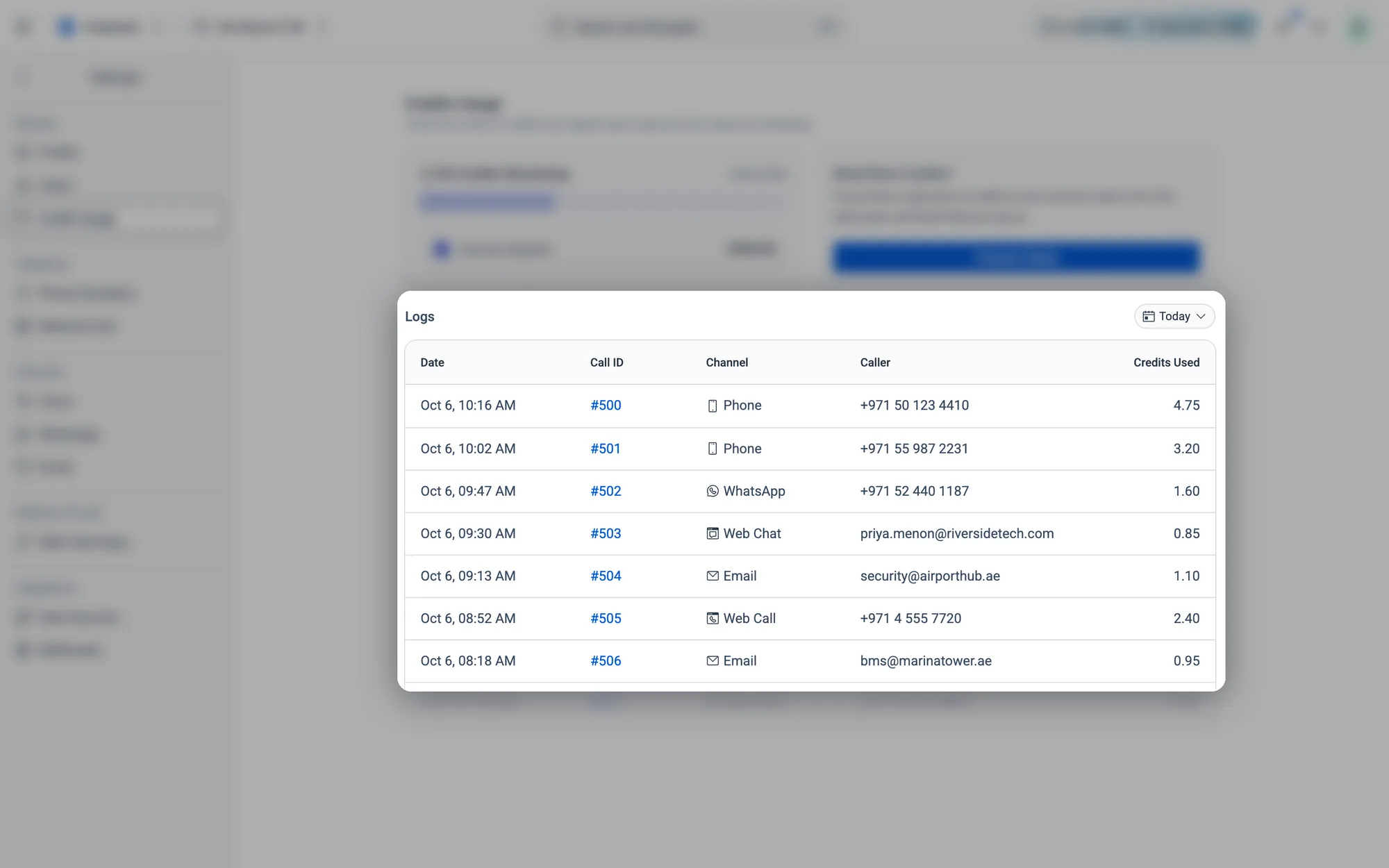
    Under Logs, each row is one conversation: its Date, Call ID, Channel, Caller and the Credits Used.
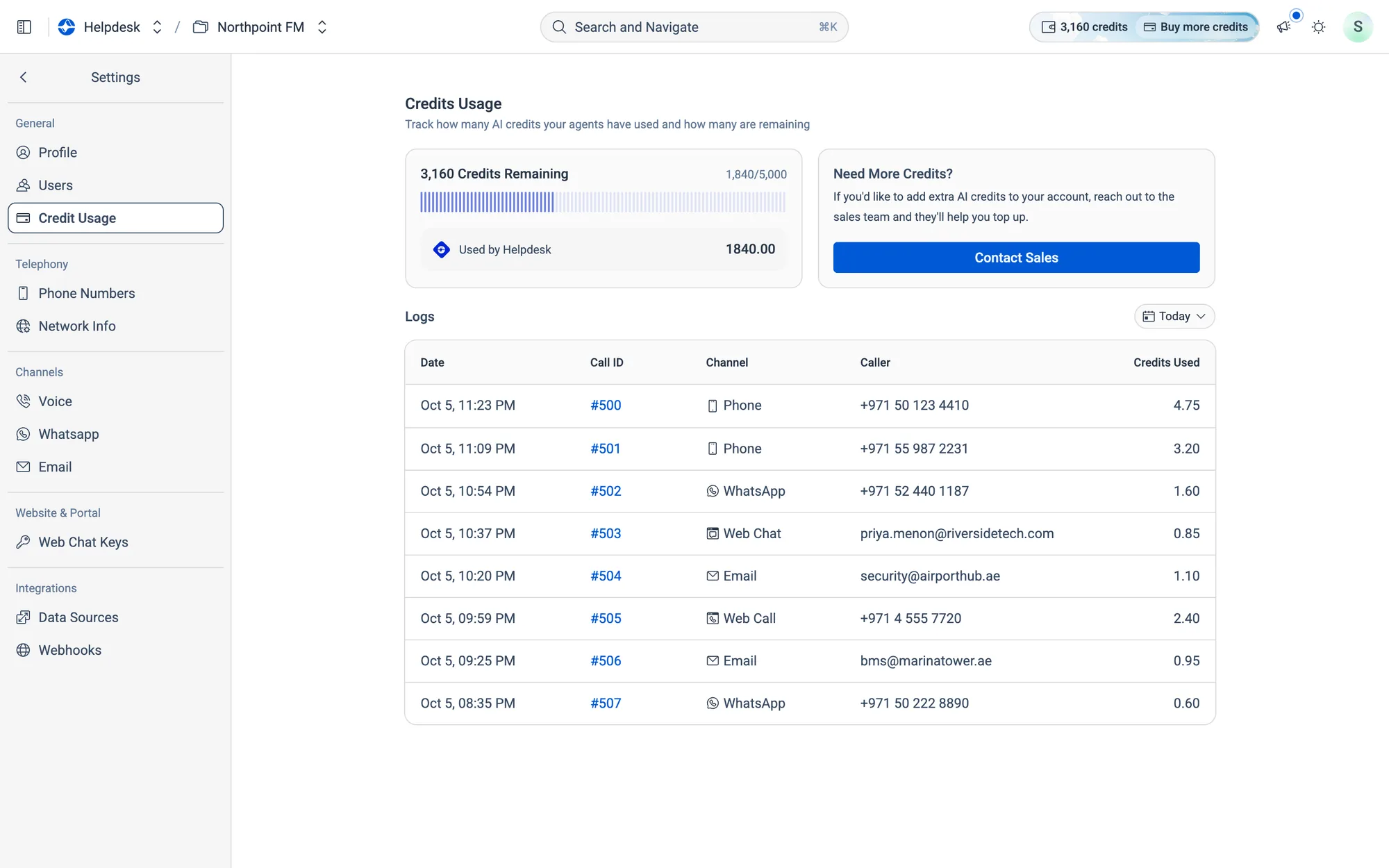
The log for today: calls, WhatsApp and web chats, web calls and emails, each with what it cost.
Fig. 12.13The log for today: calls, WhatsApp and web chats, web calls and emails, each with what it cost.
  1. 4
    Click the period chip next to Logs to change the range: Today, Yesterday, This Week, This Month or This Year.
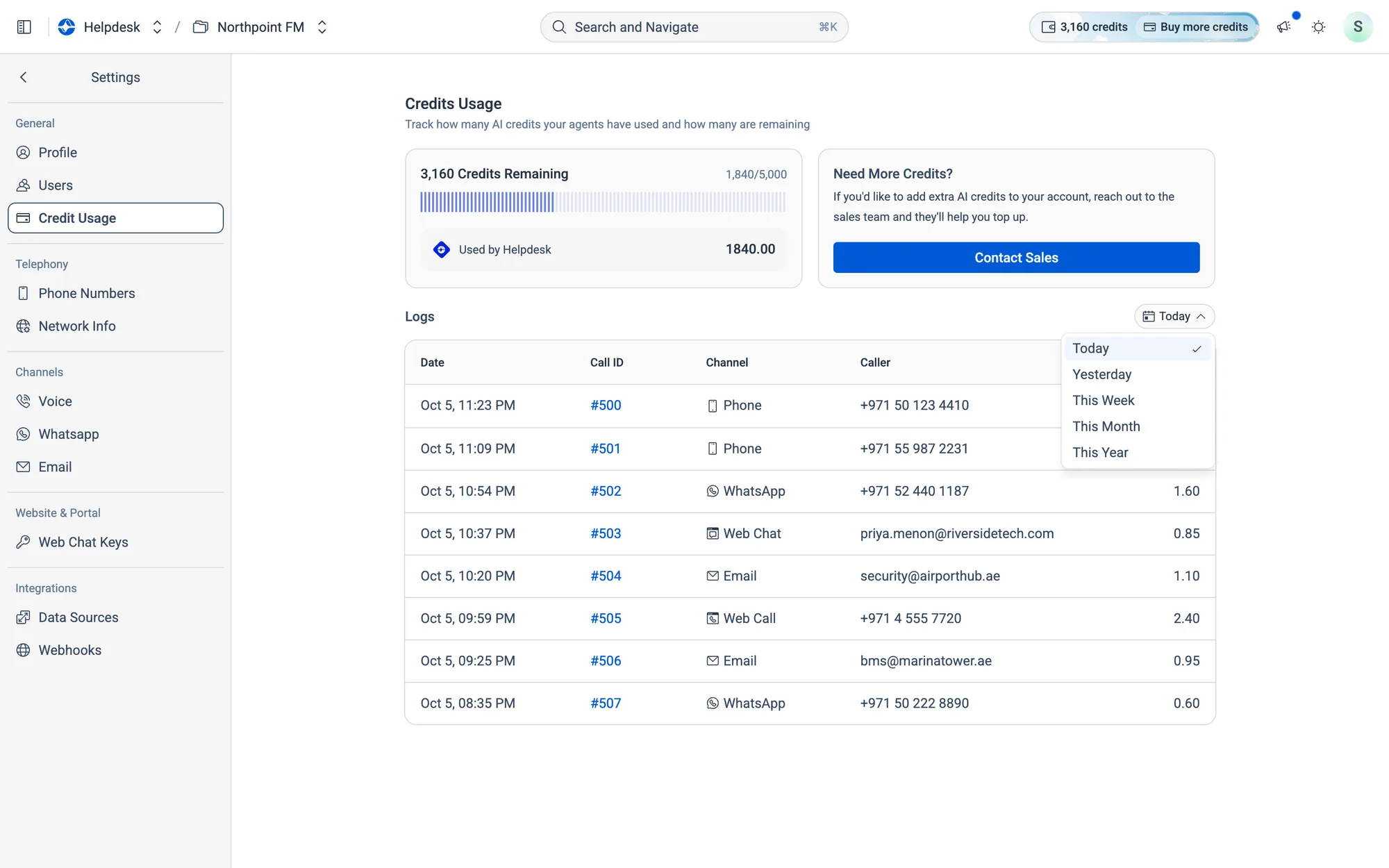
Pick a period to see what each conversation cost in that range.
Fig. 12.14Pick a period to see what each conversation cost in that range.
  1. 5
    Click a row to open that conversation in the Inbox.
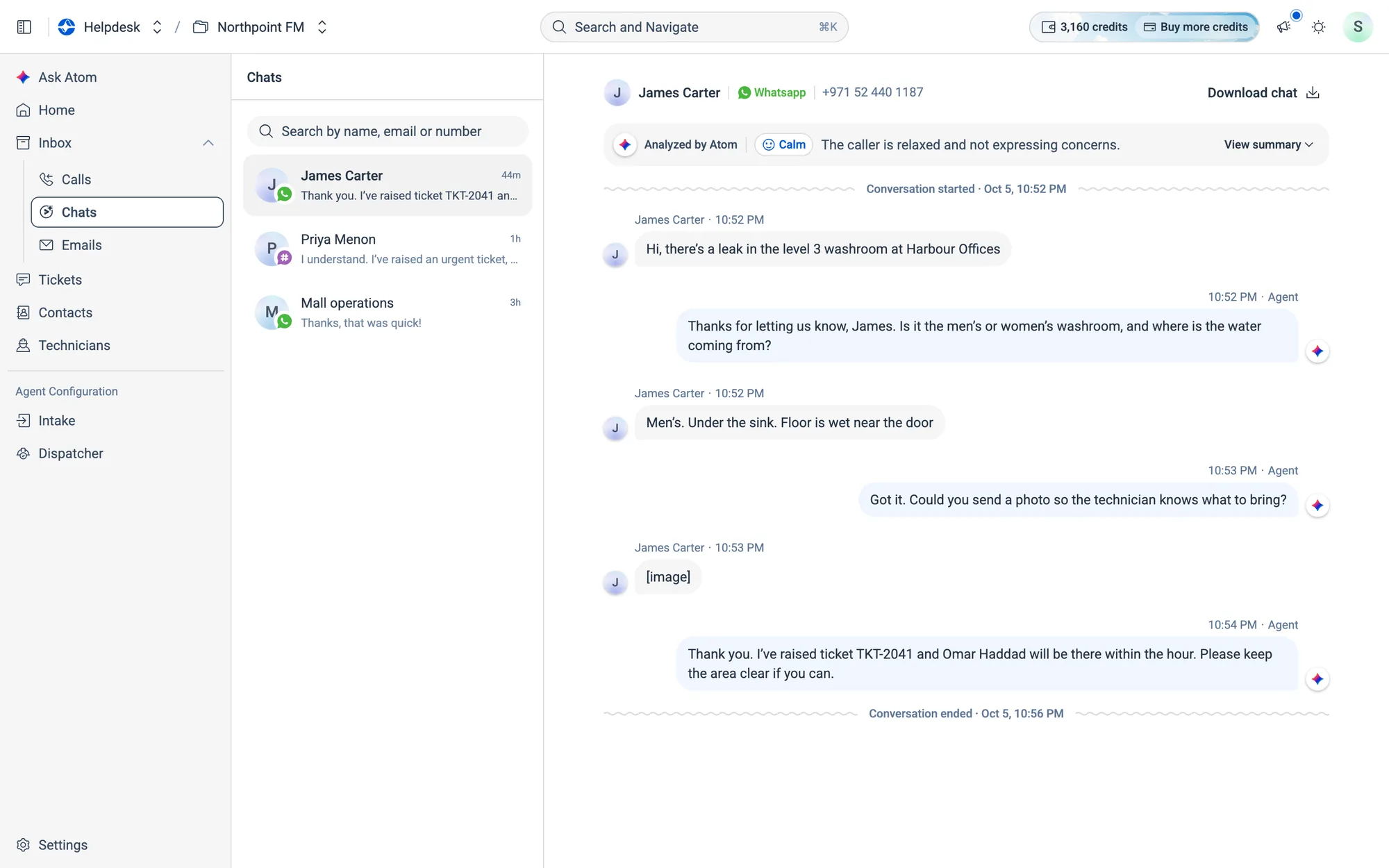
Clicking a WhatsApp row opens the chat in Inbox › Chats, with Atom's summary at the top.
Fig. 12.15Clicking a WhatsApp row opens the chat in Inbox › Chats, with Atom's summary at the top.
  1. 6
    Need more credits? Click Contact Sales.

12.5Phone numbers

The numbers your agent answers on. Numbers are available in the United States today.
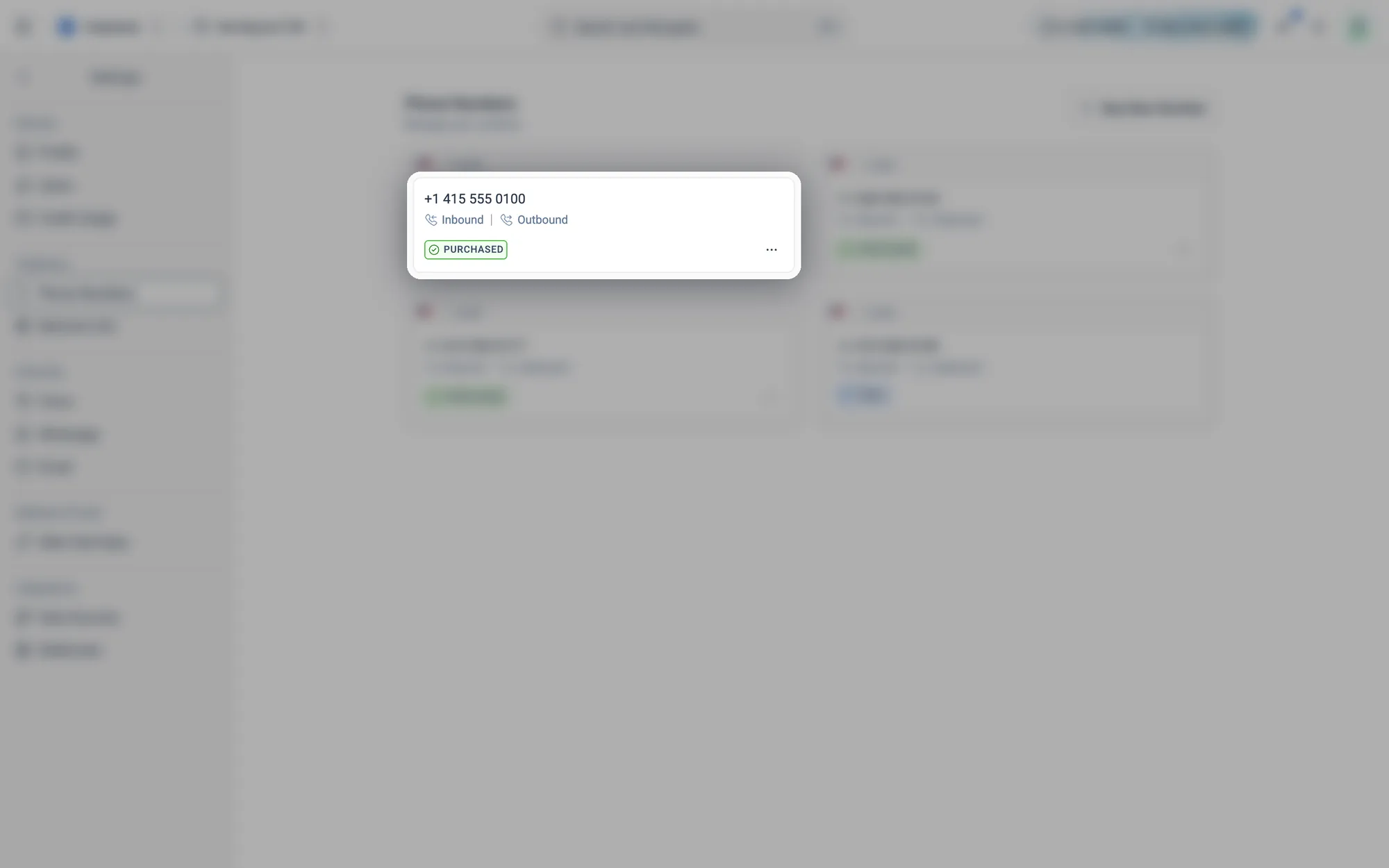
A number you bought: its country, Local or Toll Free, whether it takes Inbound and Outbound calls, and Purchased. The ⋯ menu has Release.
Fig. 12.16A number you bought: its country, Local or Toll Free, whether it takes Inbound and Outbound calls, and Purchased. The ⋯ menu has Release.
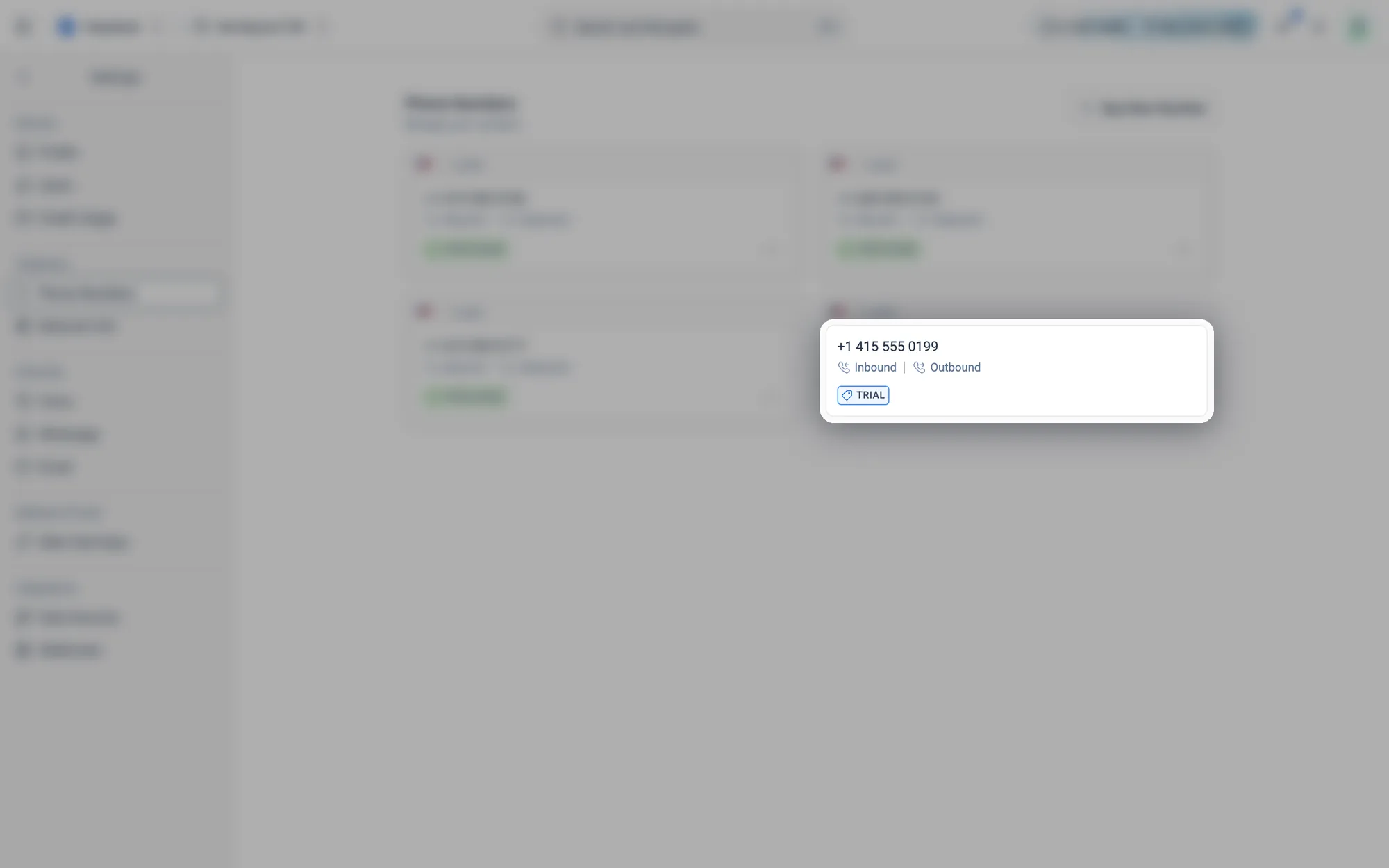
The Trial number that came with your helpdesk. It can't be released.
Fig. 12.17The Trial number that came with your helpdesk. It can't be released.

How to buy a phone number

  1. 1
    Go to Settings › Phone Numbers and click Buy New Number.
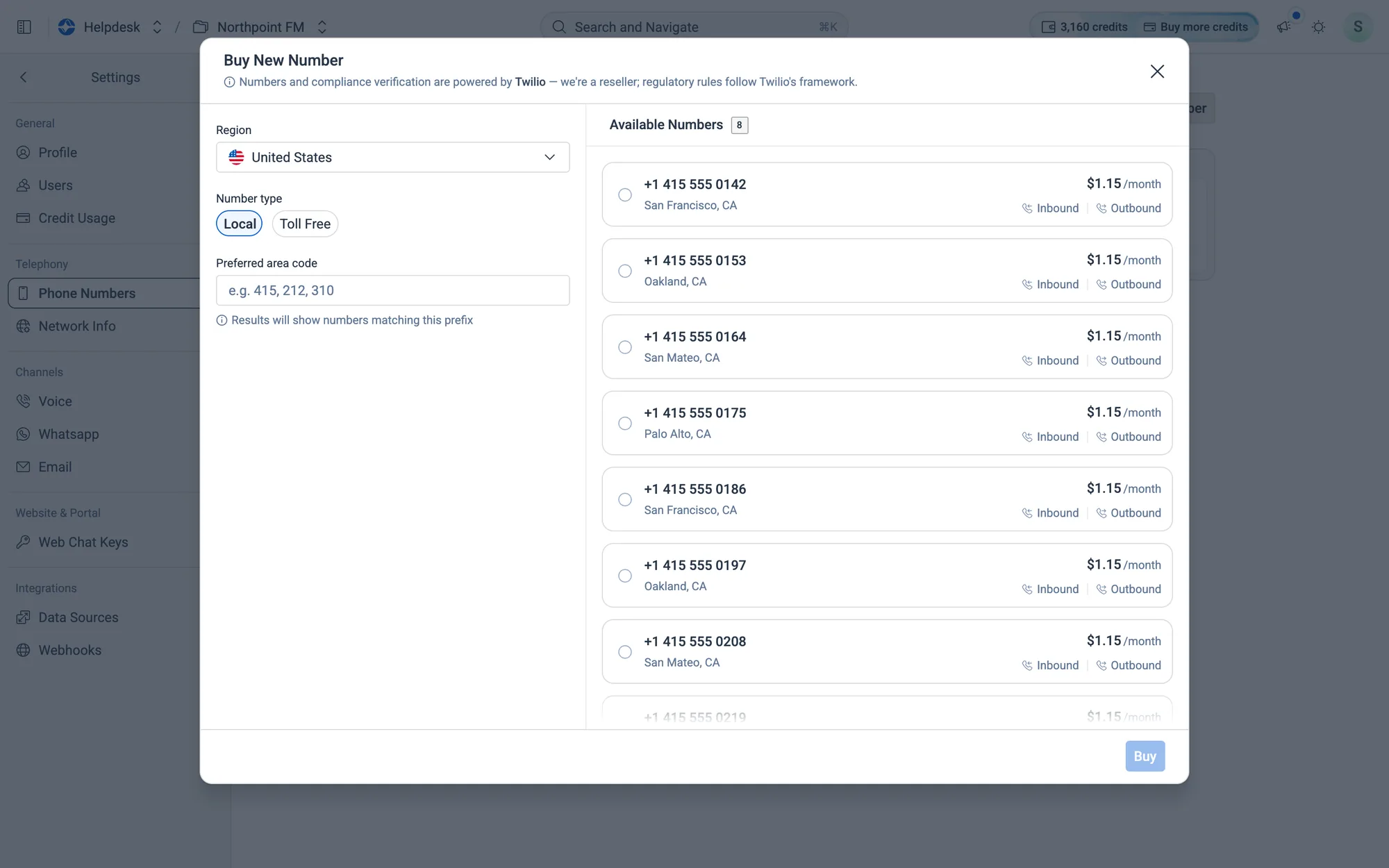
Buy New Number: filters on the left, available numbers on the right.
Fig. 12.18Buy New Number: filters on the left, available numbers on the right.
  1. 2
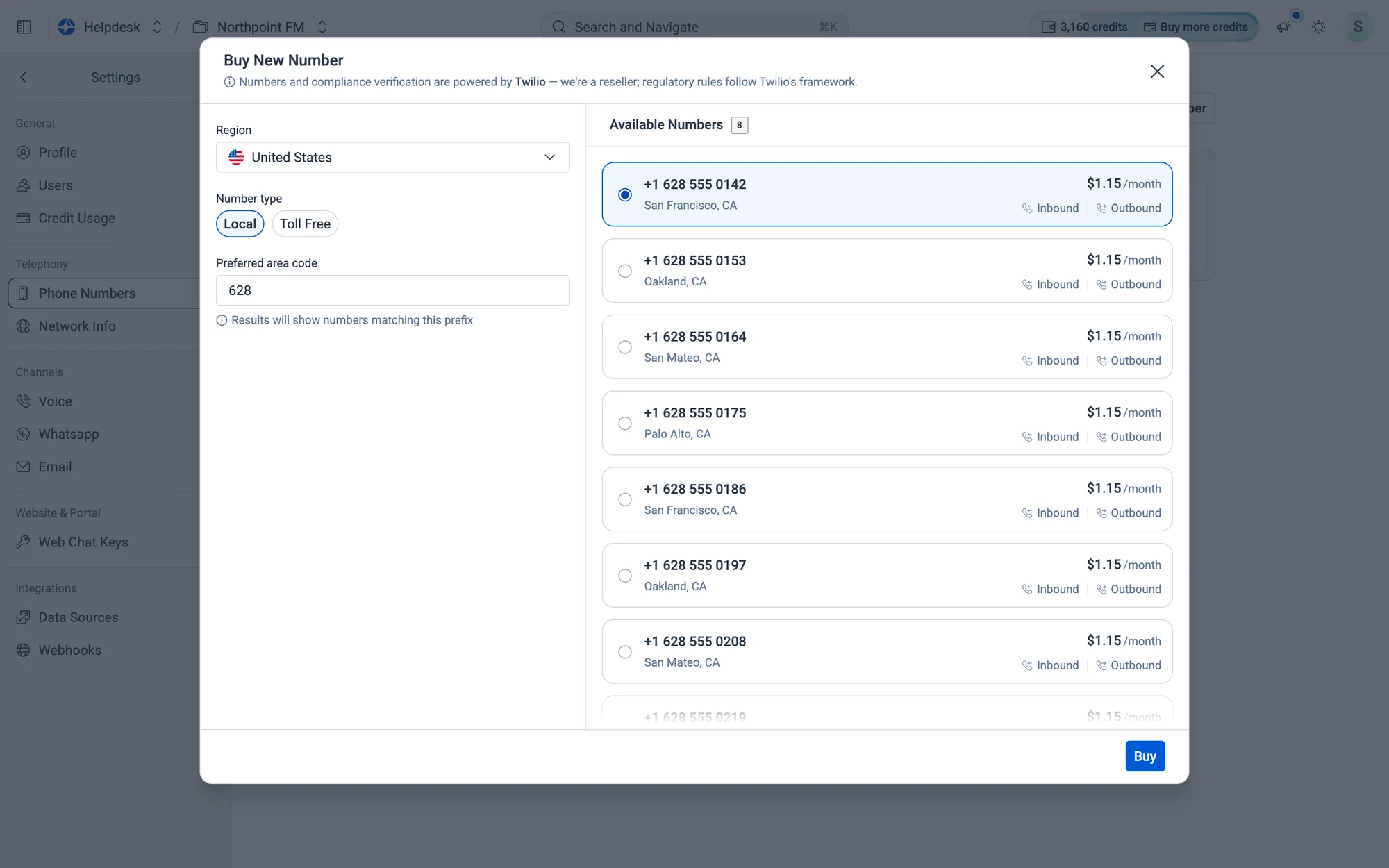
    Choose Local or Toll Free. For a local number, type a Preferred area code to narrow the list.
  2. 3
    Click the number you want.
Here the area code is 628, and the first number is selected.
Fig. 12.19Here the area code is 628, and the first number is selected.
  1. 4
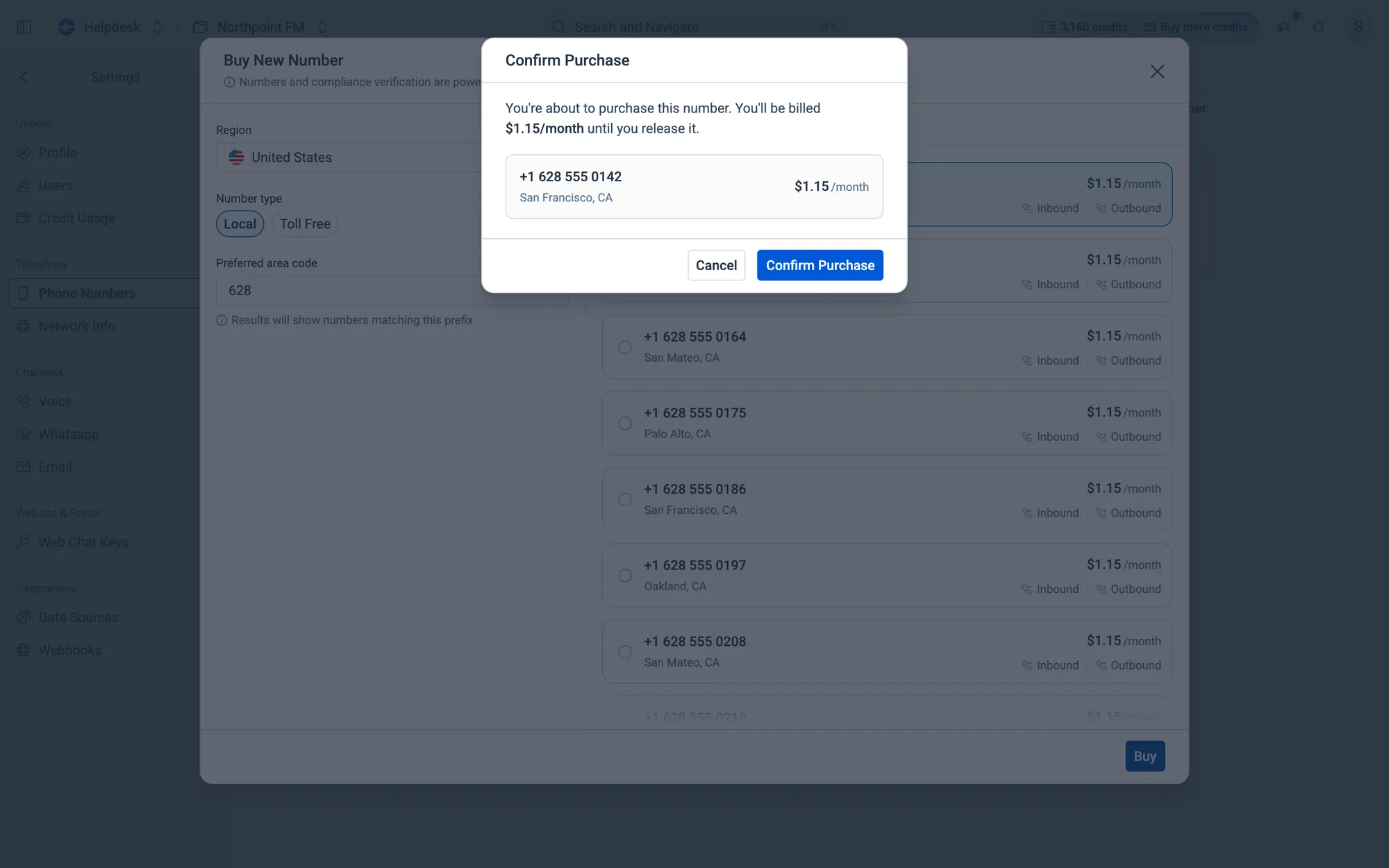
    Click Buy, check the details, then click Confirm Purchase.
Check the number and its monthly price before you confirm.
Fig. 12.20Check the number and its monthly price before you confirm.
  1. 5
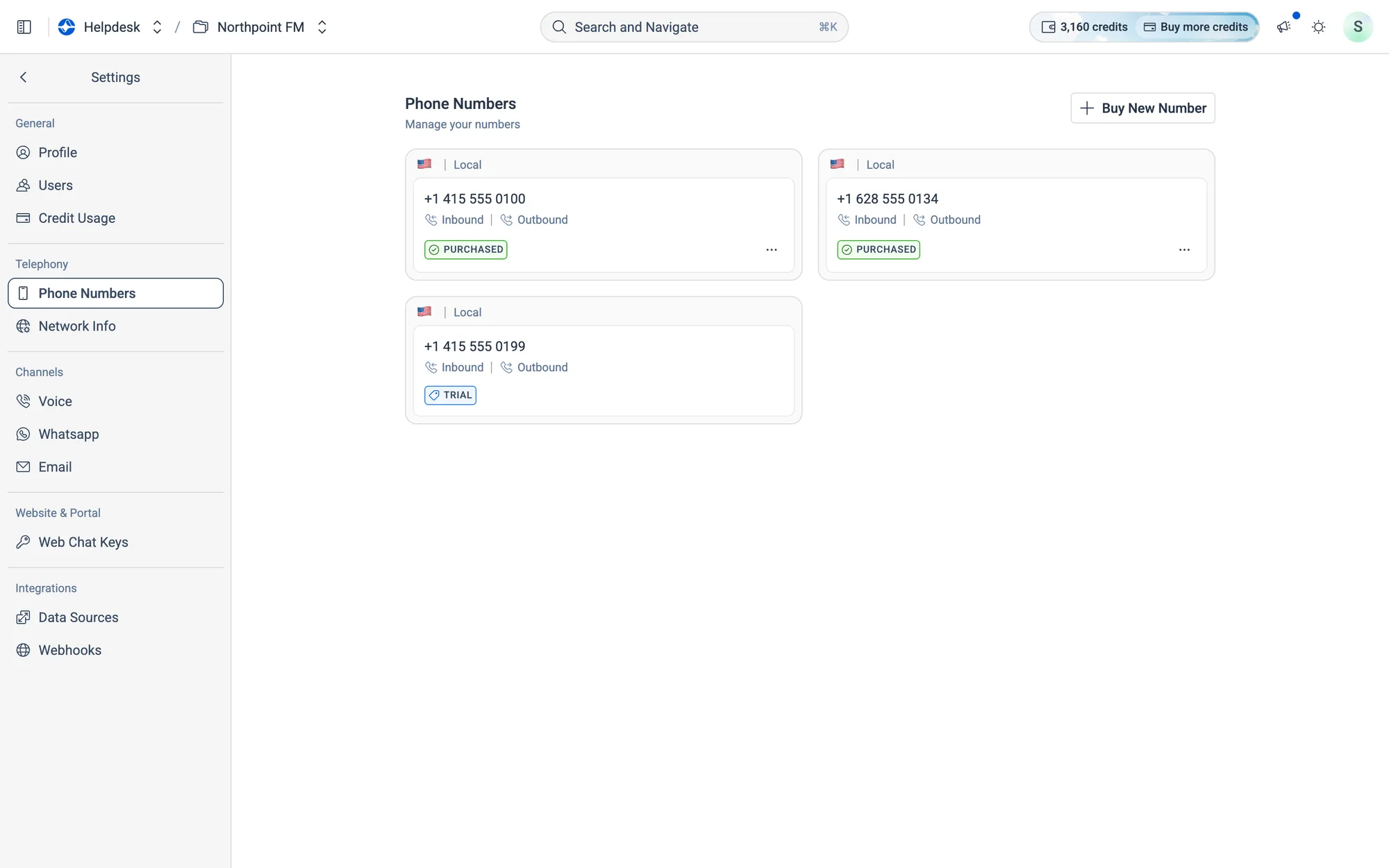
    The new number appears on the page, marked Purchased.
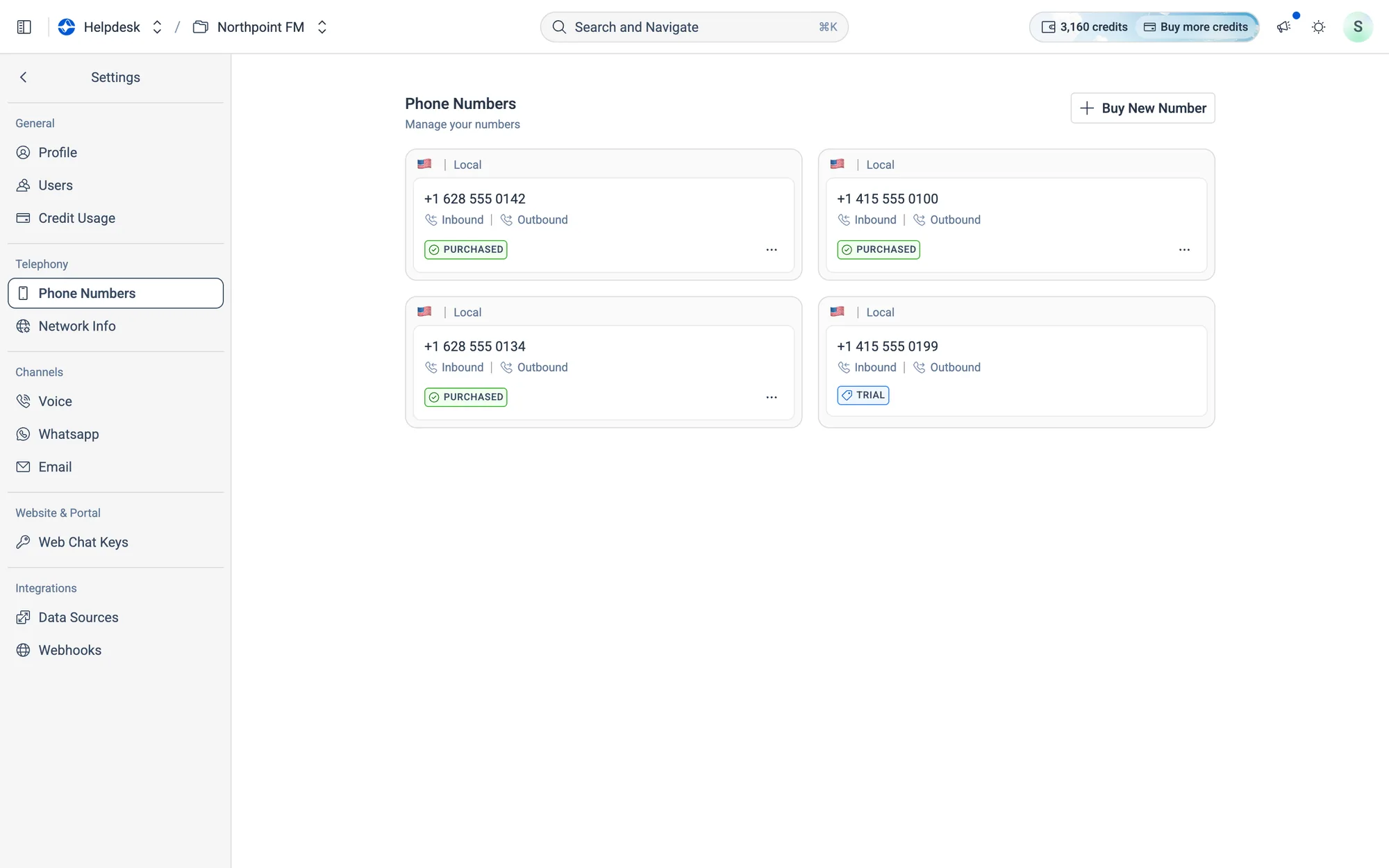
The new number is added to your list.
Fig. 12.21The new number is added to your list.

How to release a phone number

  1. 1
    On Settings › Phone Numbers, open the ⋯ menu on the number's card and choose Release.
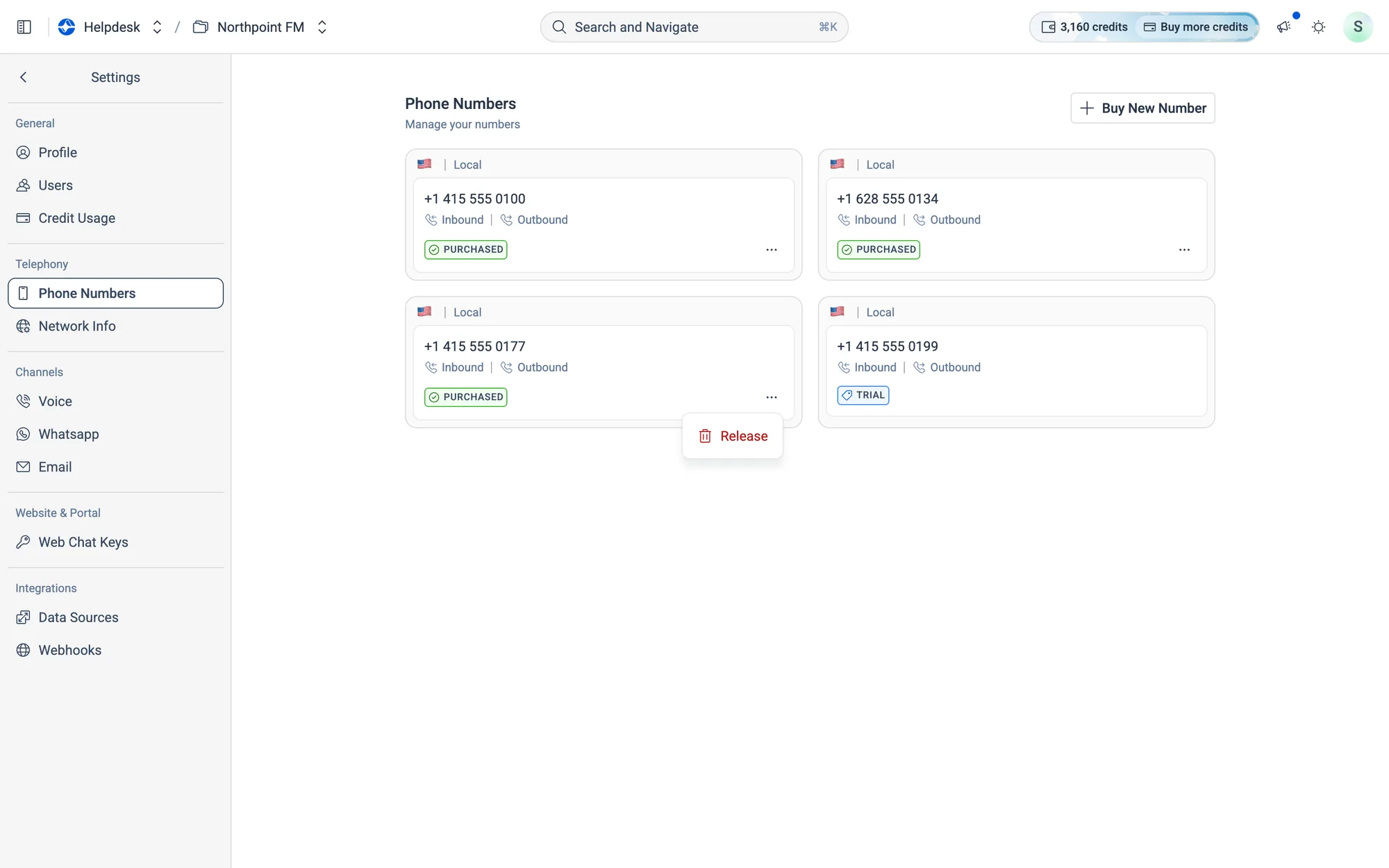
Every number you've bought has a ⋯ menu with Release.
Fig. 12.22Every number you've bought has a ⋯ menu with Release.
  1. 2
    Release this number? shows the number you're about to give up. Click Release Number.
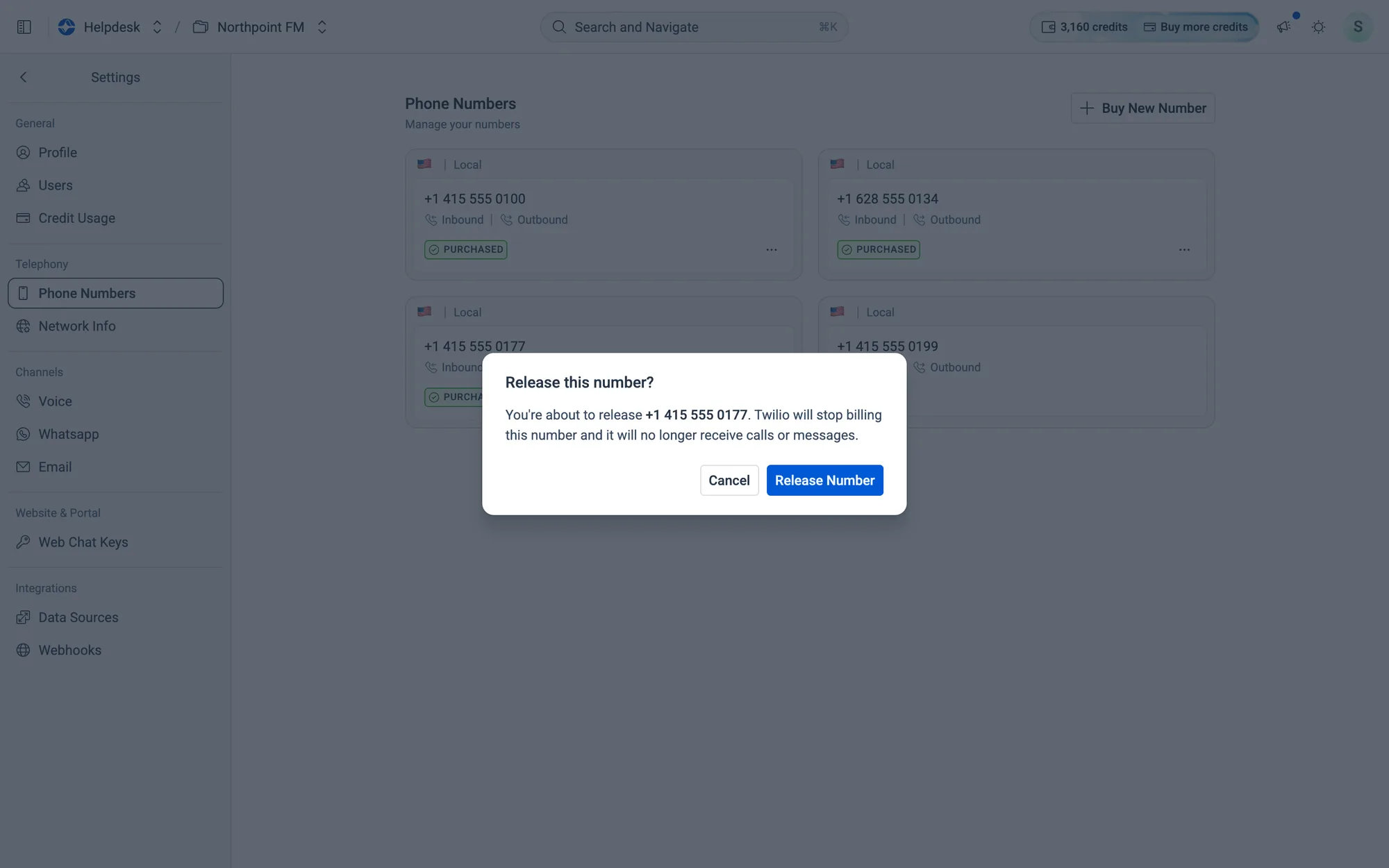
Once released, billing stops and the number no longer receives calls or messages.
Fig. 12.23Once released, billing stops and the number no longer receives calls or messages.
  1. 3
    The number disappears from the page.
The released number is gone from your list.
Fig. 12.24The released number is gone from your list.

12.6Network info

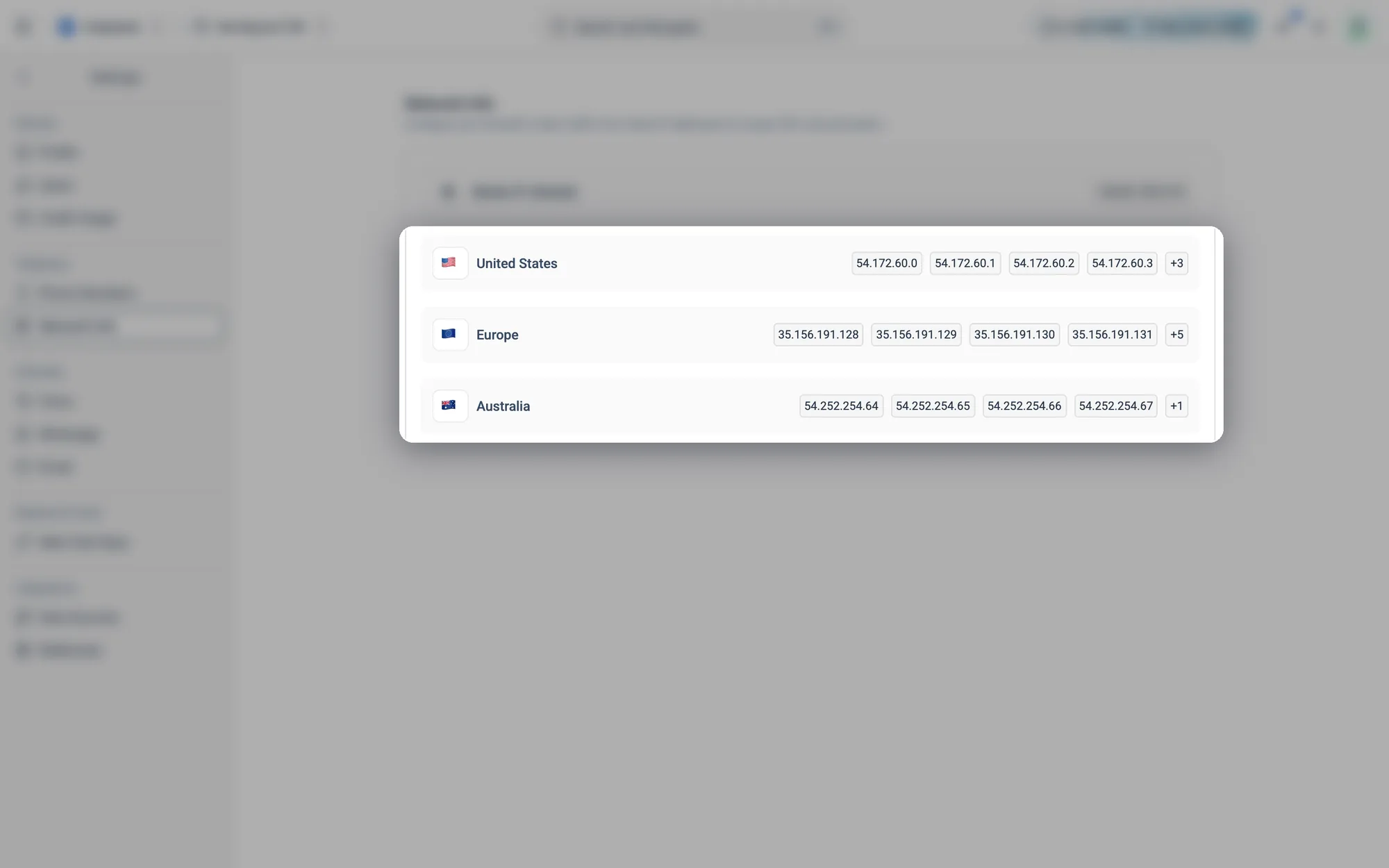
If calls reach you through your own phone system (SIP), your IT team needs to allow Facilio's IP addresses through your firewall. Settings › Network Info lists them by region. Hover over +N on a row to see the rest of the list.
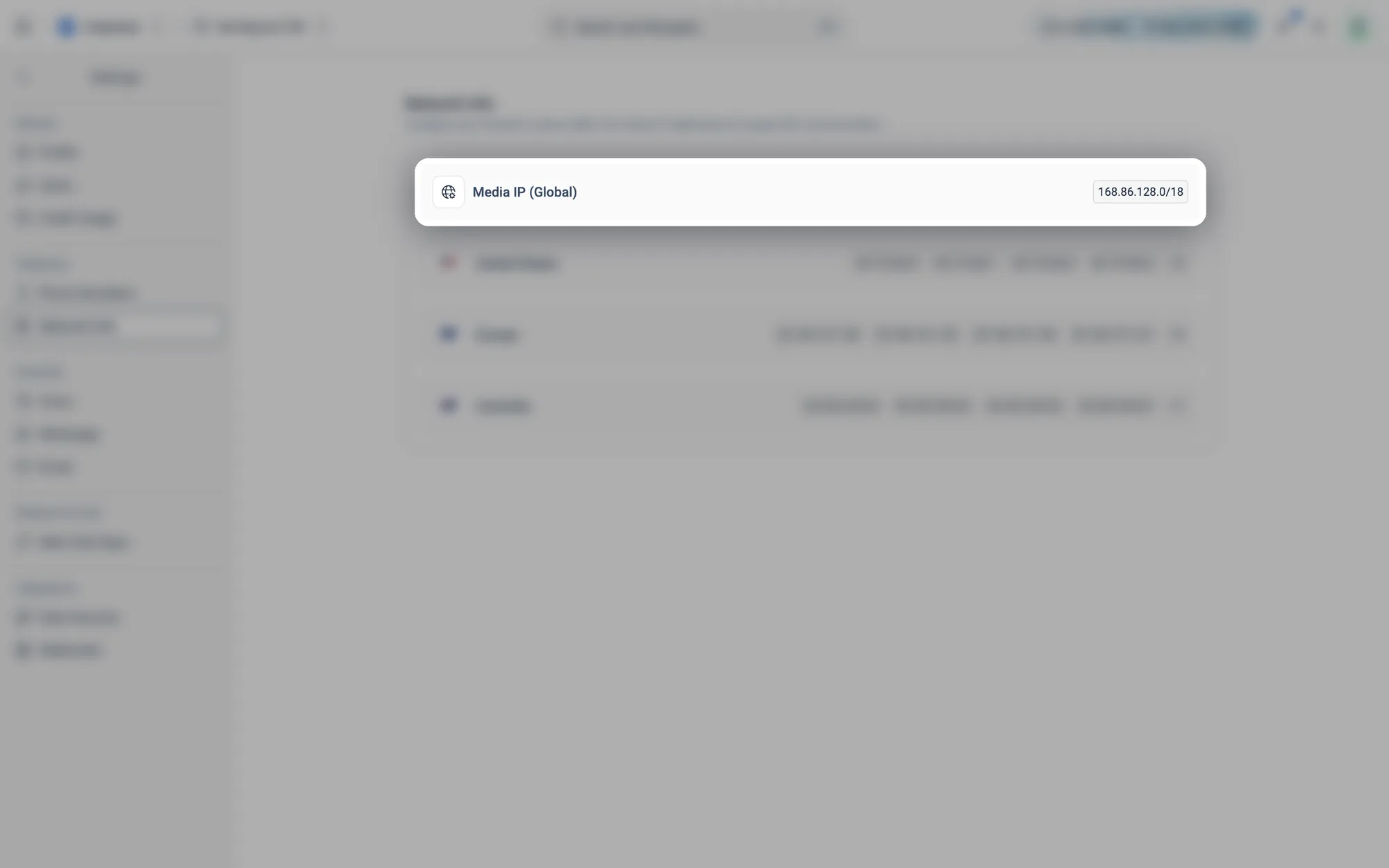
Media IP (Global): one address range that applies in every region.
Fig. 12.25Media IP (Global): one address range that applies in every region.
The addresses for each region: United States, Europe and Australia.
Fig. 12.26The addresses for each region: United States, Europe and Australia.

12.7Voice channels

A voice channel links a name to one of your phone numbers, so you can tell your lines apart.
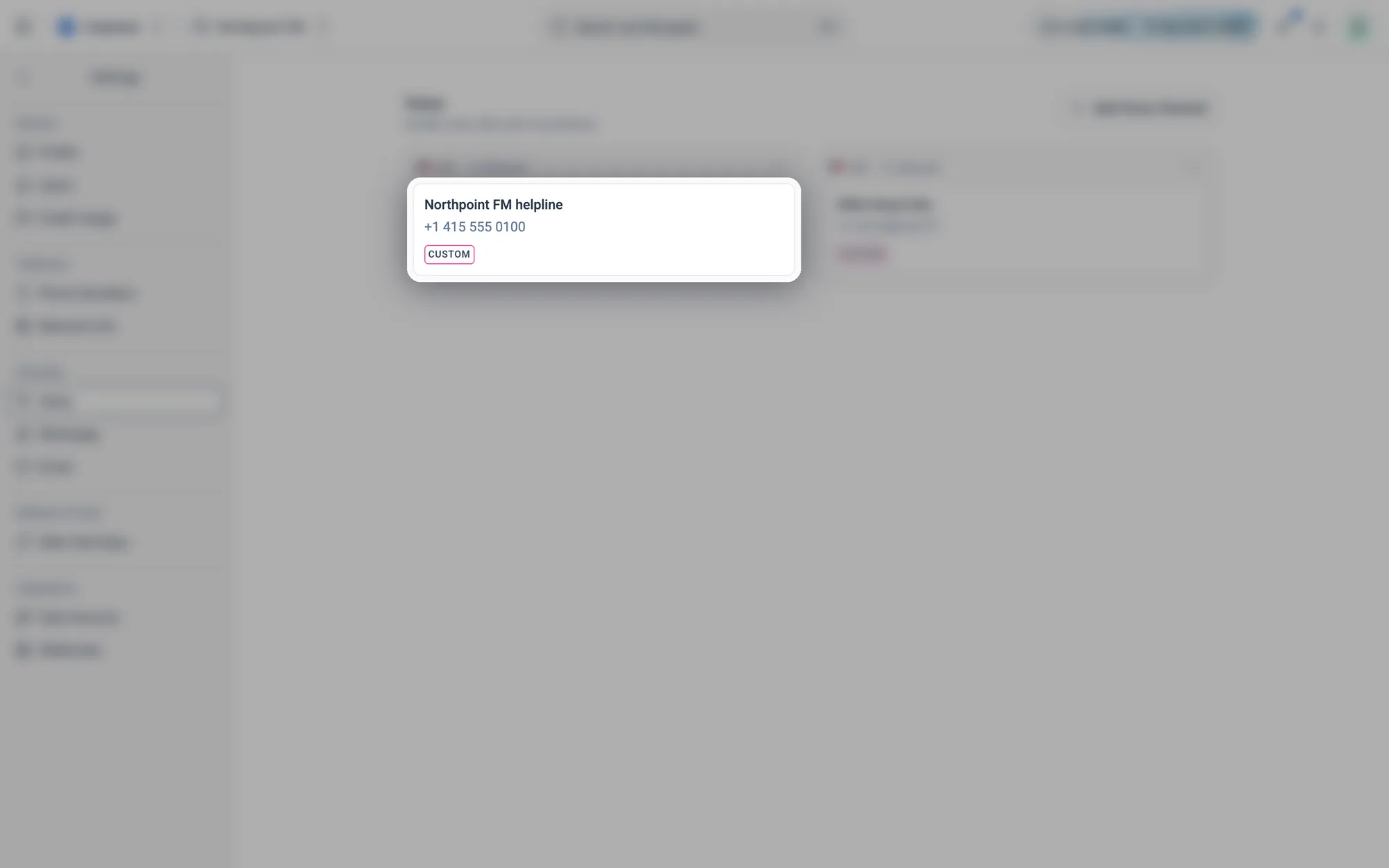
A voice channel: its name, its number, and Custom, SIP or Trial.
Fig. 12.27A voice channel: its name, its number, and Custom, SIP or Trial.

How to add a voice channel

  1. 1
    Go to Settings › Voice and click Add Voice Channel.
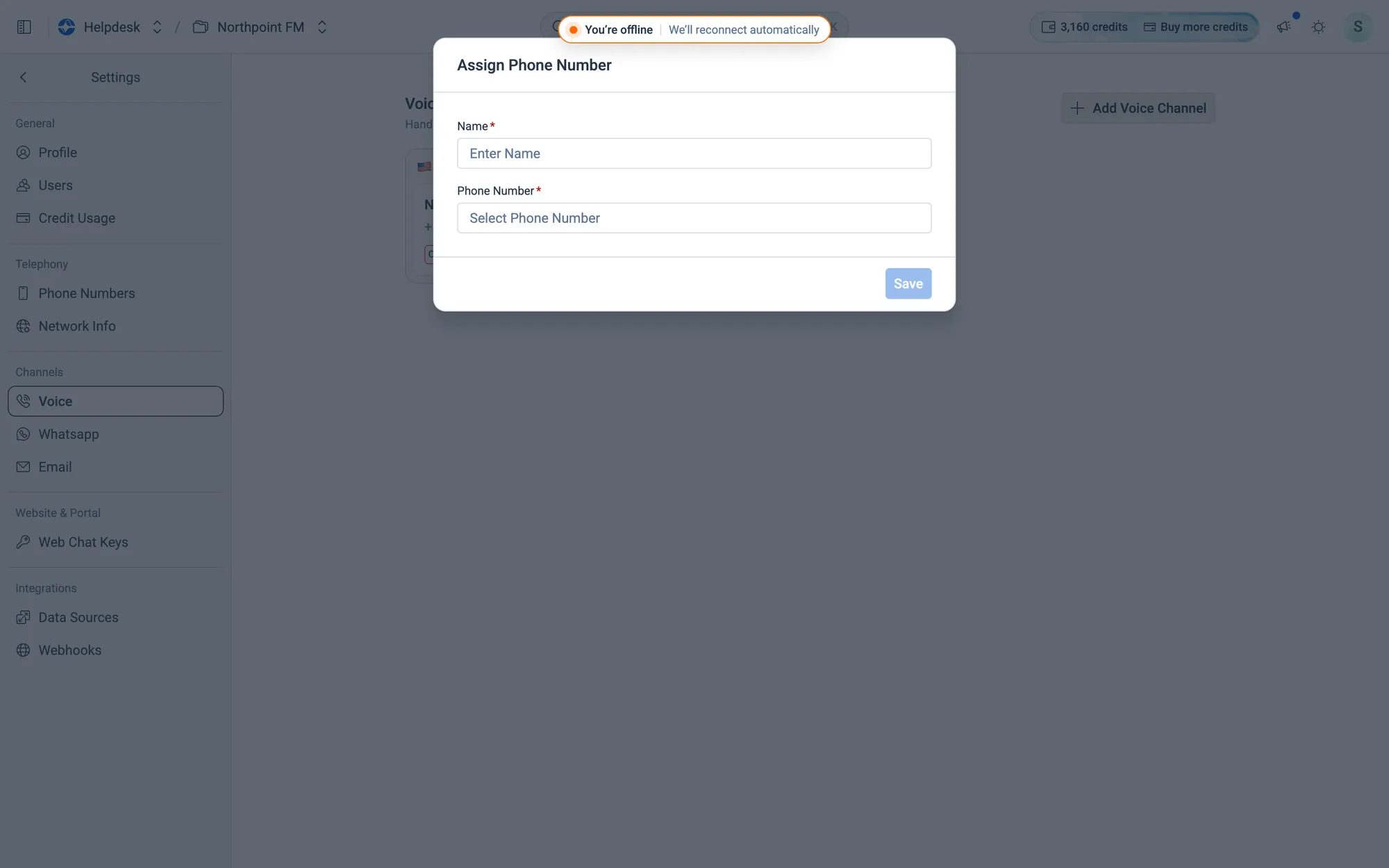
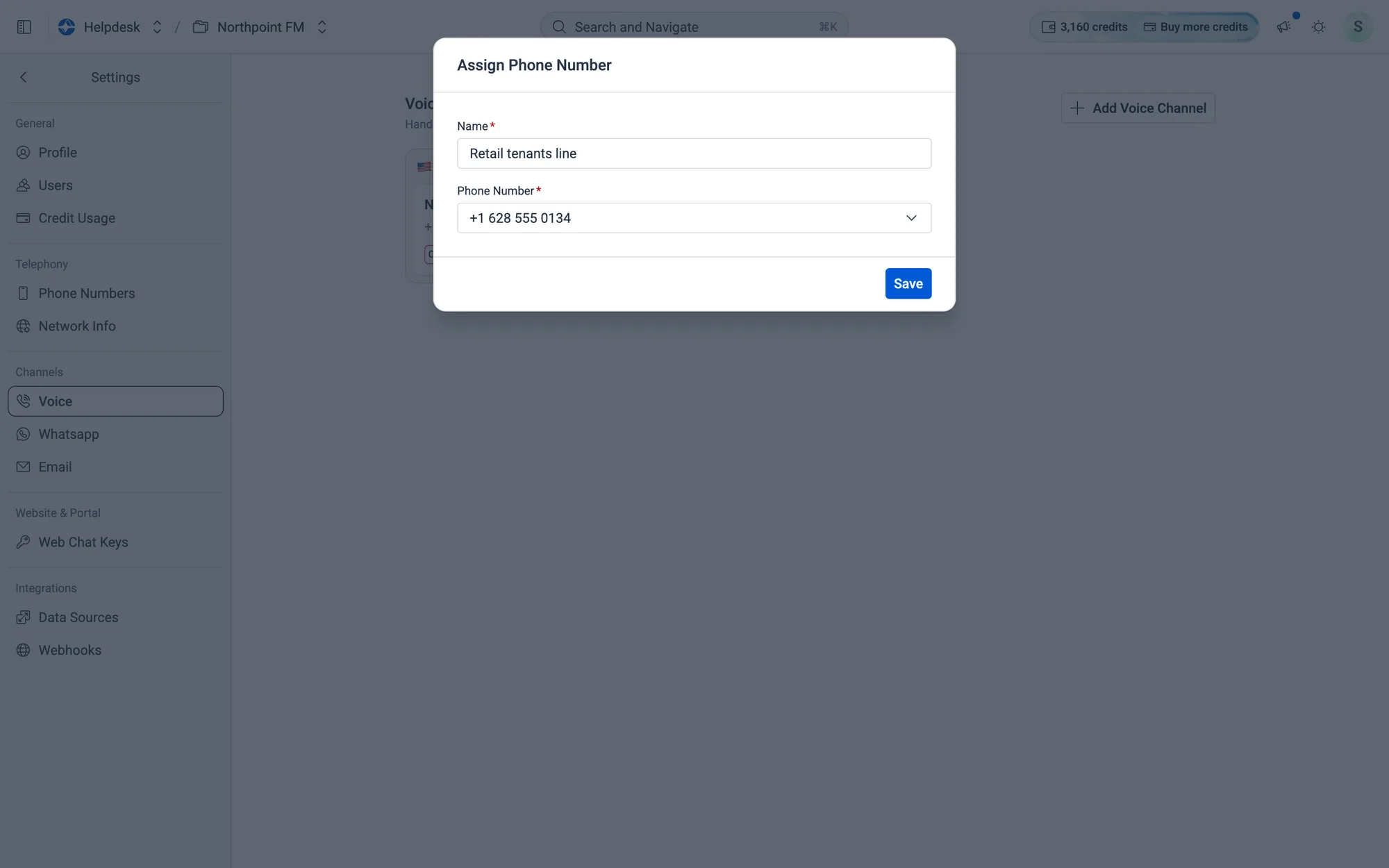
The Assign Phone Number dialog.
Fig. 12.28The Assign Phone Number dialog.
  1. 2
    Enter a Name, for example Retail tenants line.
  2. 3
    Open Phone Number and choose one of your spare numbers.
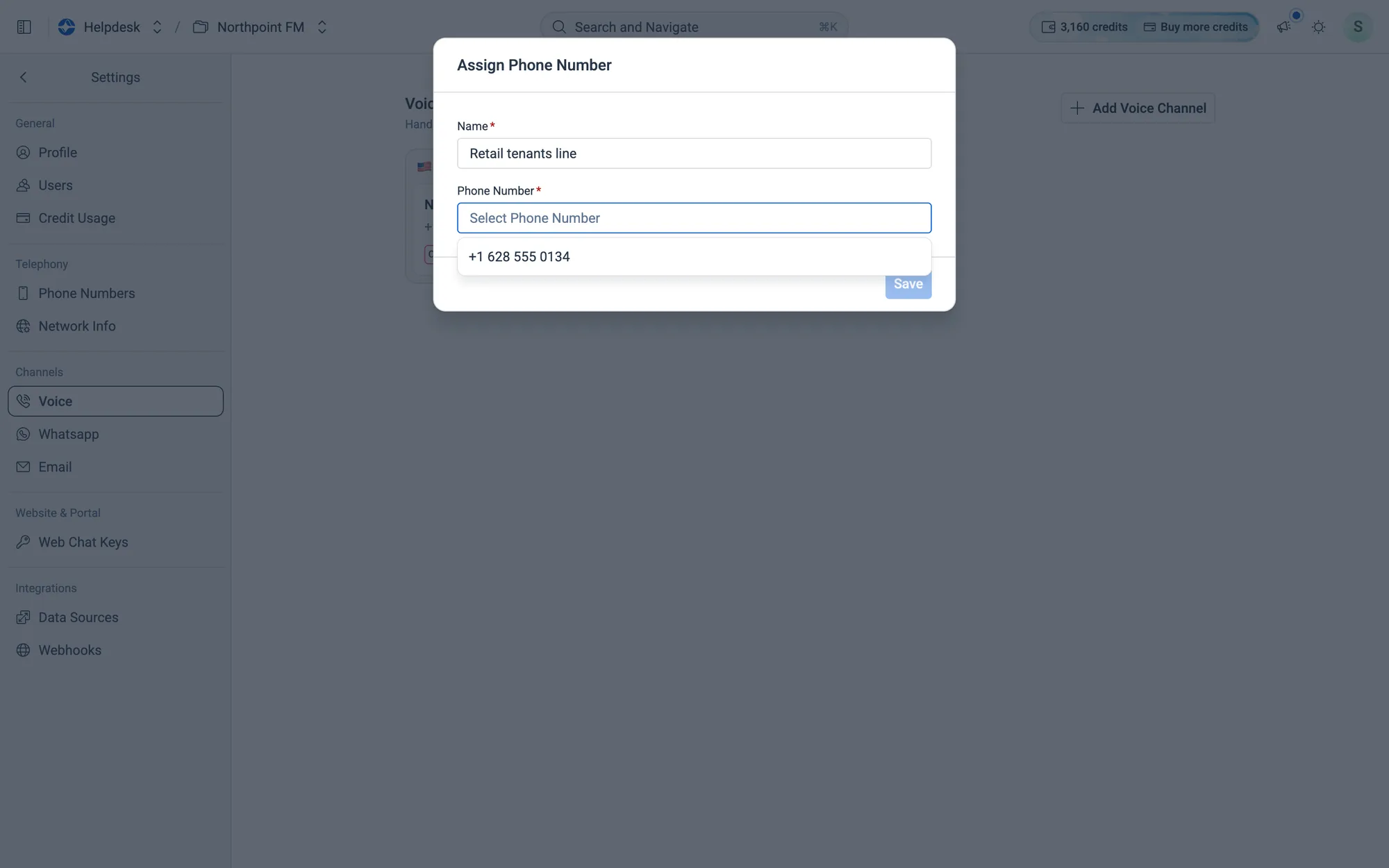
Only numbers that aren't already used by another channel are listed.
Fig. 12.29Only numbers that aren't already used by another channel are listed.
  1. 4
    Click Save.
Ready to save.
Fig. 12.30Ready to save.
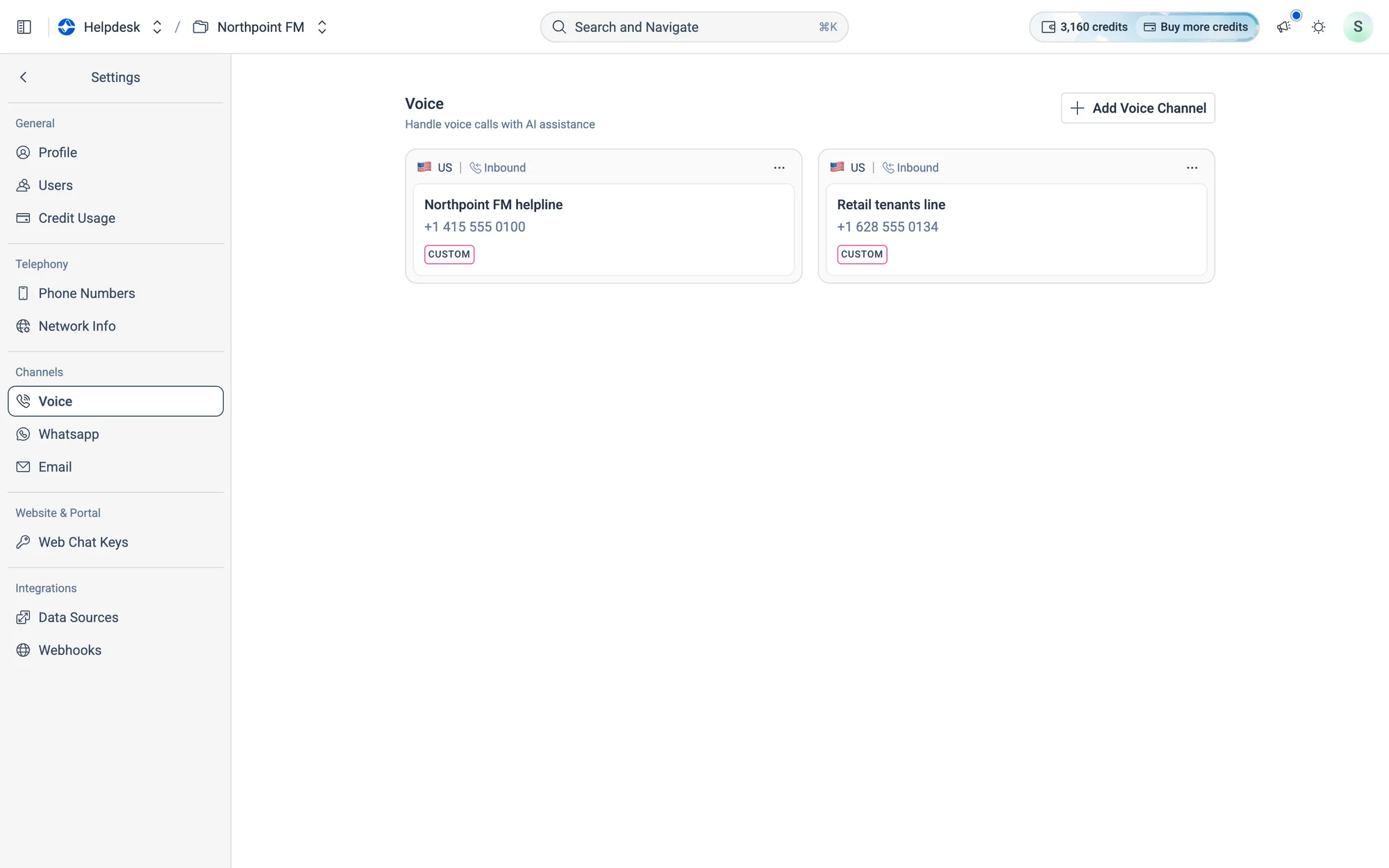
The new line appears next to your other voice channels.
Fig. 12.31The new line appears next to your other voice channels.

How to delete a voice channel

  1. 1
    On Settings › Voice, open the ⋯ menu on the channel's card and choose Delete.
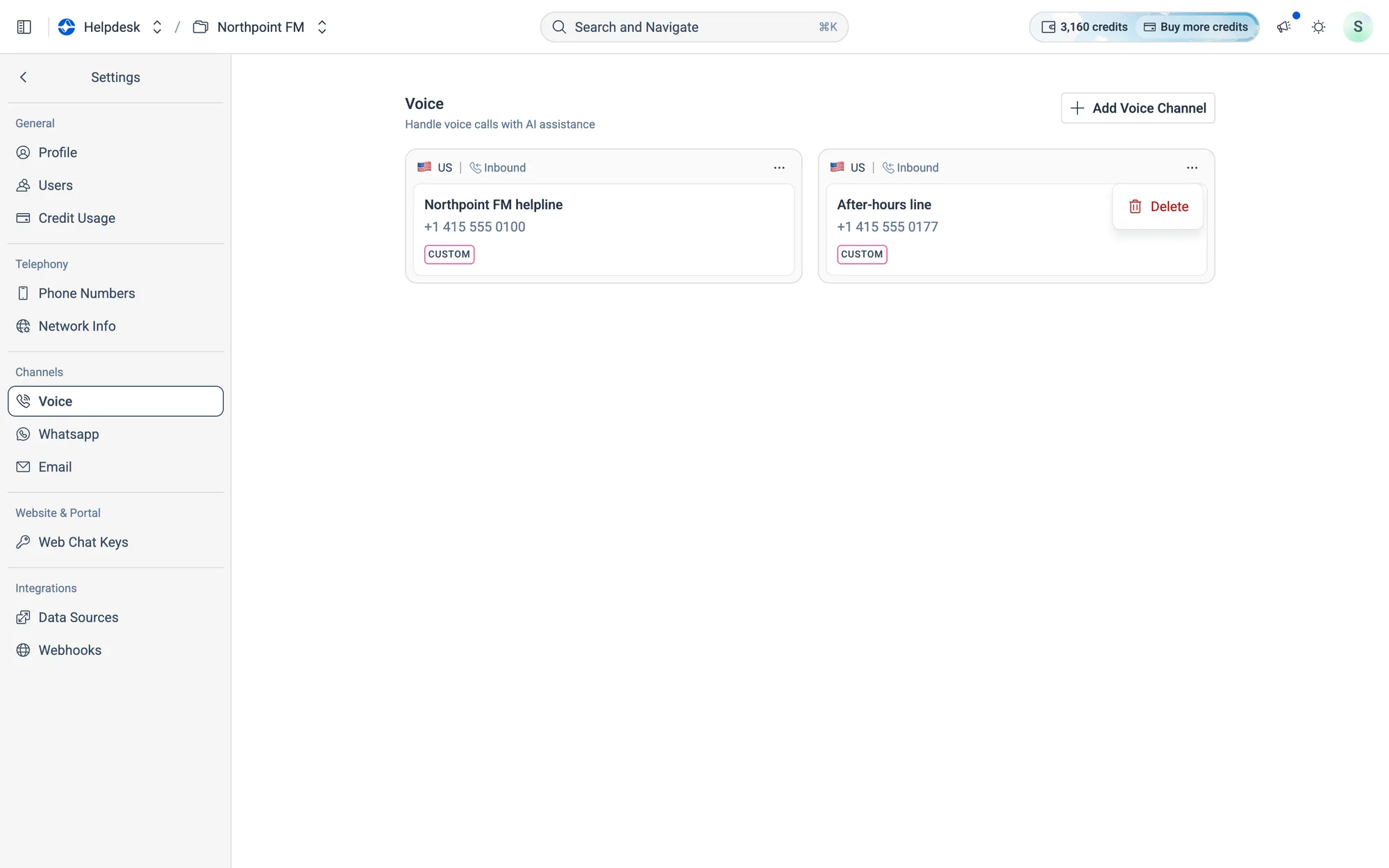
The ⋯ menu on the After-hours line.
Fig. 12.32The ⋯ menu on the After-hours line.
  1. 2
    The channel is deleted straight away, without asking you to confirm. Its phone number stays in Phone Numbers, ready to use again.
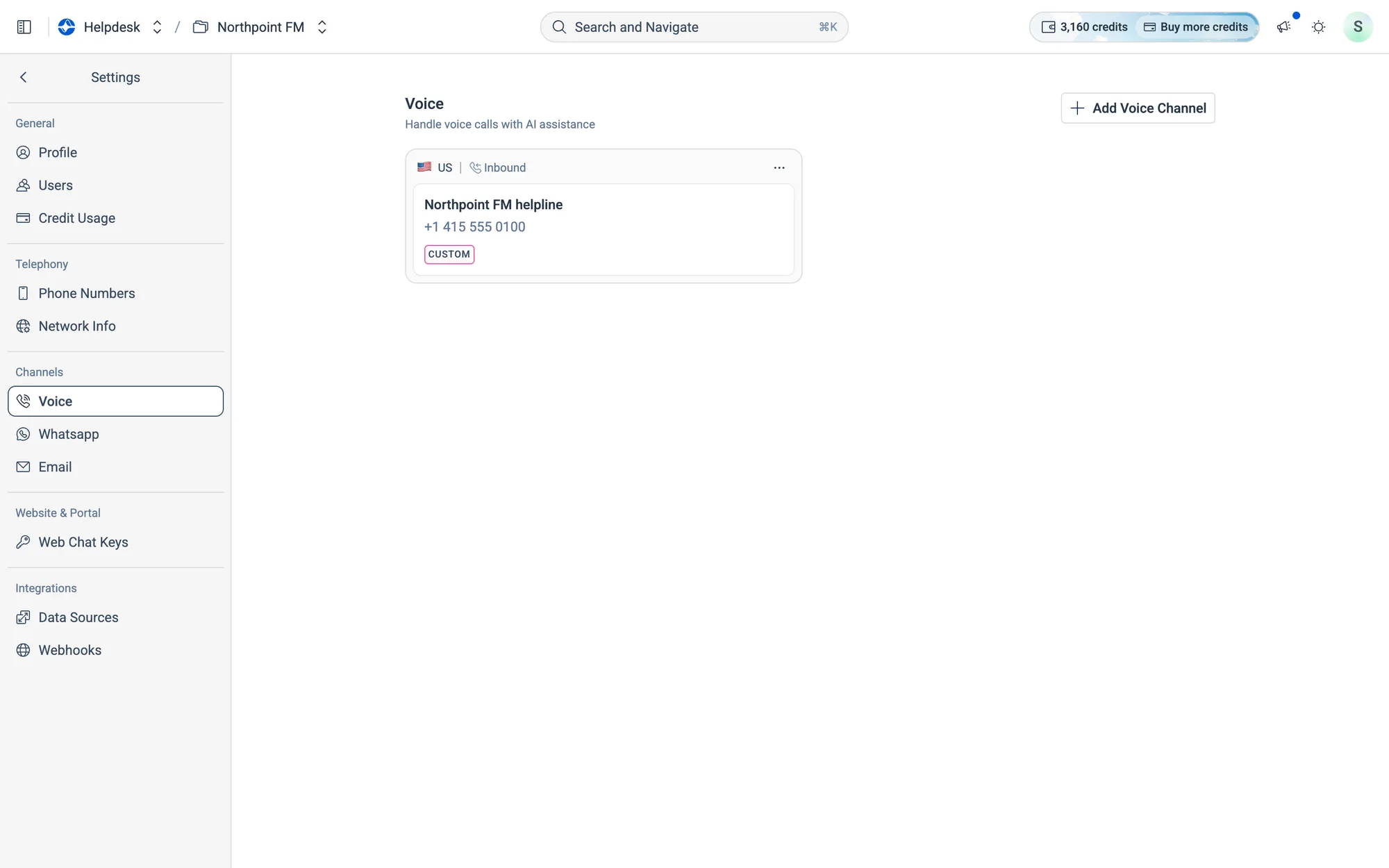
Only the main helpline is left.
Fig. 12.33Only the main helpline is left.

12.8WhatsApp

Settings › Whatsapp shows the WhatsApp numbers your agent replies on.
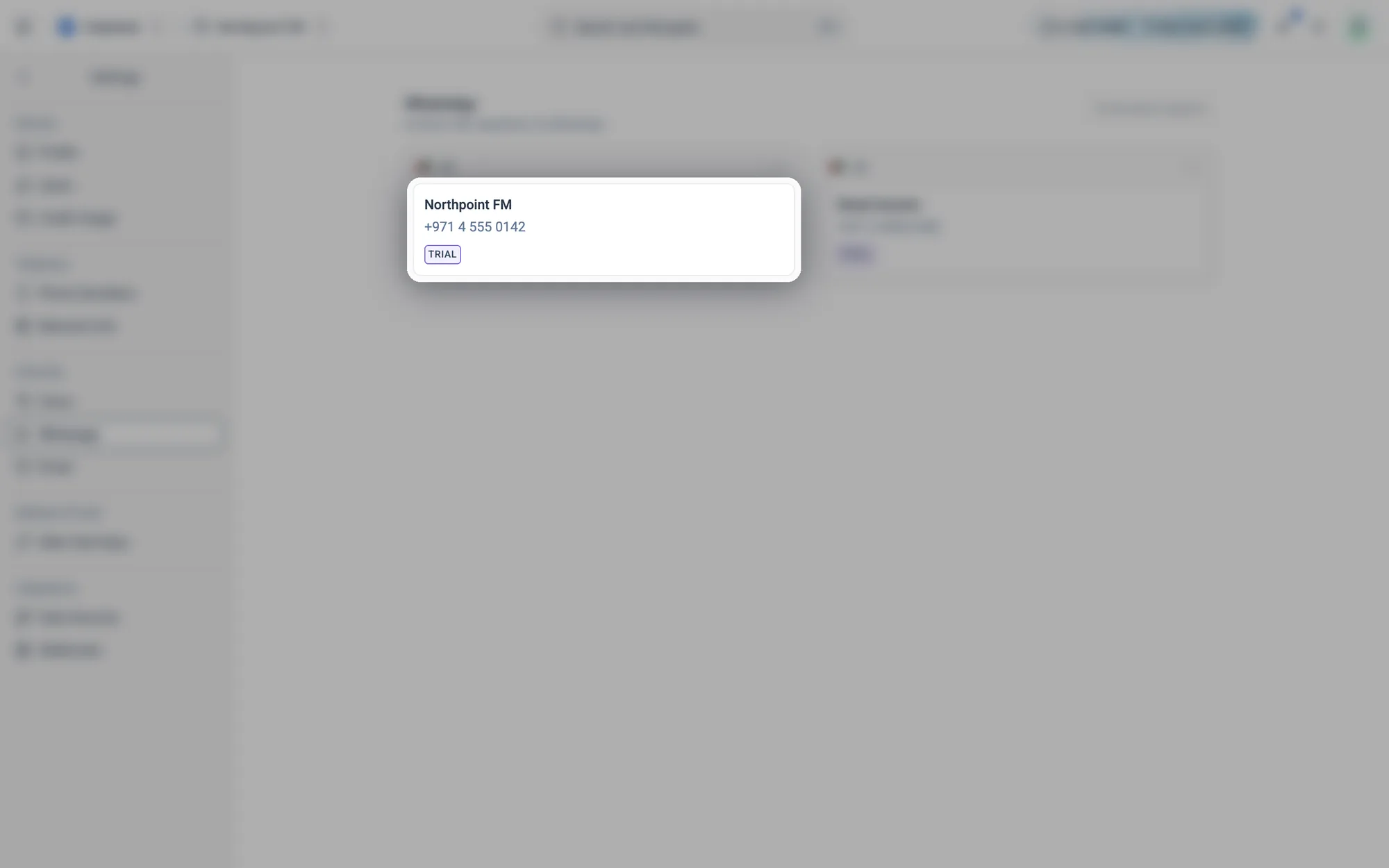
A WhatsApp channel: its name and number, and whether it's a Trial or Business Account number.
Fig. 12.34A WhatsApp channel: its name and number, and whether it's a Trial or Business Account number.

To connect your own WhatsApp Business number, click Contact Sales and the Facilio team will set it up with you.

How to delete a WhatsApp channel

  1. 1
    On Settings › Whatsapp, open the ⋯ menu on the channel's card and choose Delete.
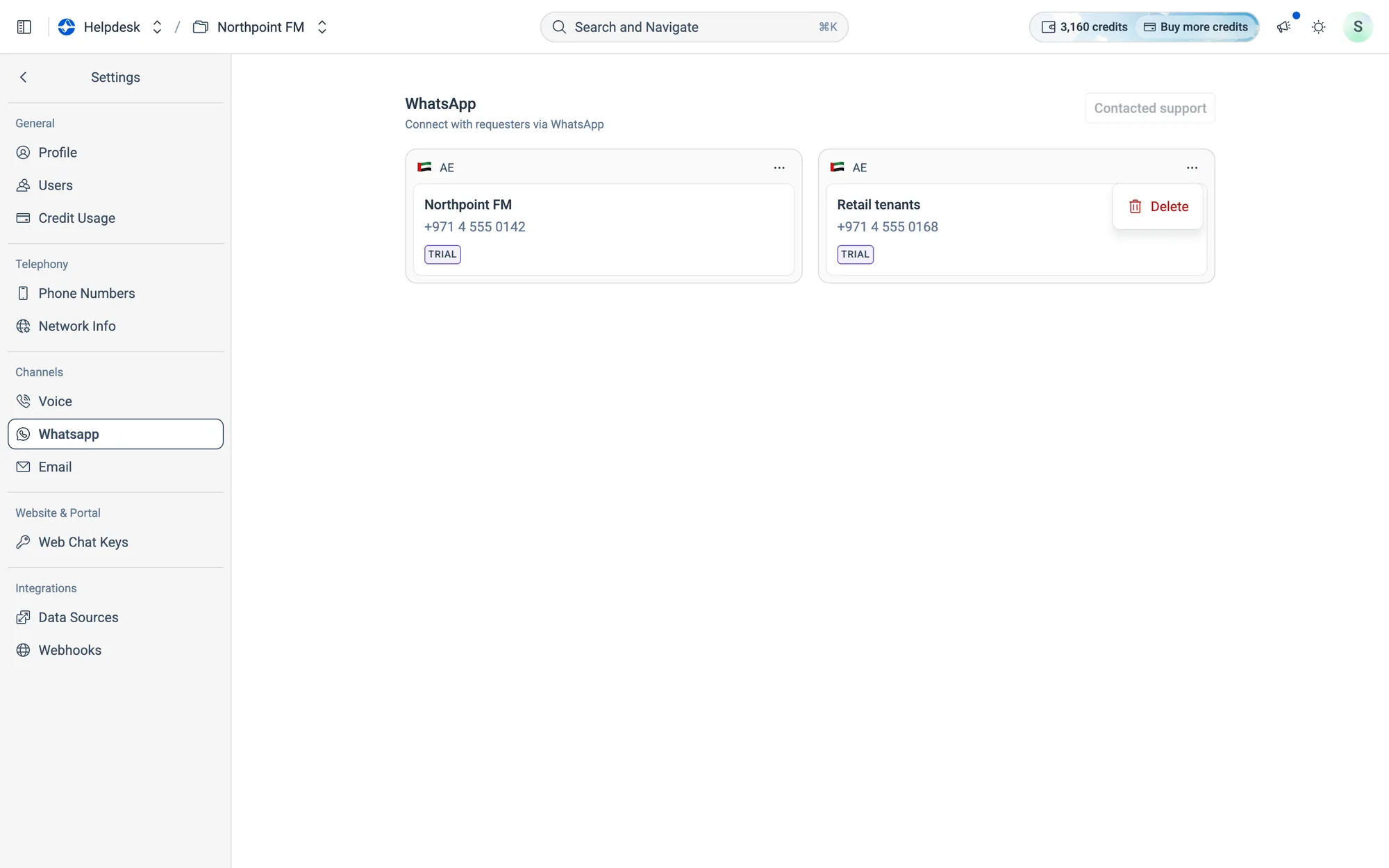
Removing the Retail tenants WhatsApp line.
Fig. 12.35Removing the Retail tenants WhatsApp line.
  1. 2
    The channel is deleted straight away, without asking you to confirm. Your agent stops replying on that number.
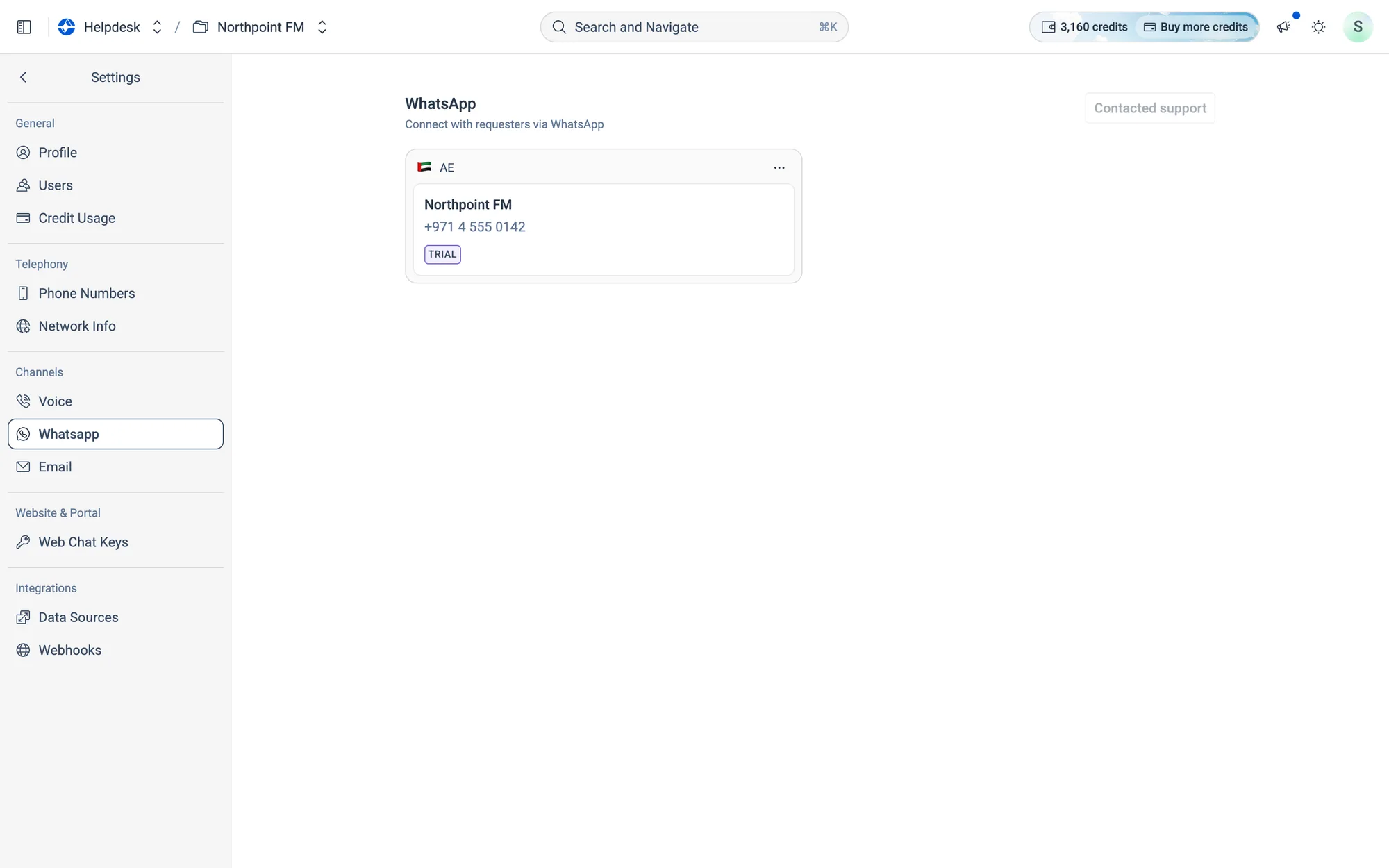
The Retail tenants line is gone.
Fig. 12.36The Retail tenants line is gone.

12.9Email inboxes

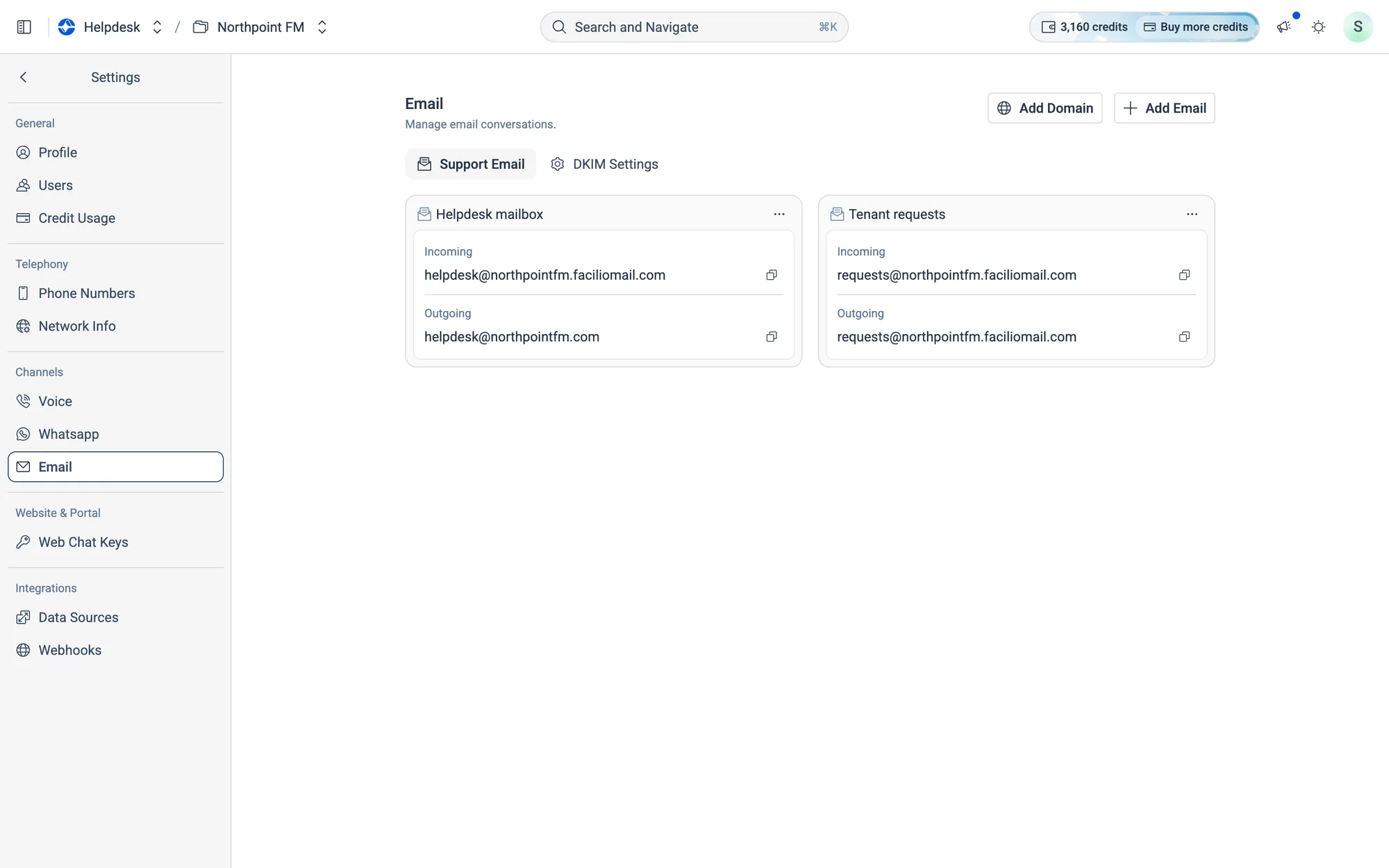
Turn a support mailbox into a channel your agent answers.
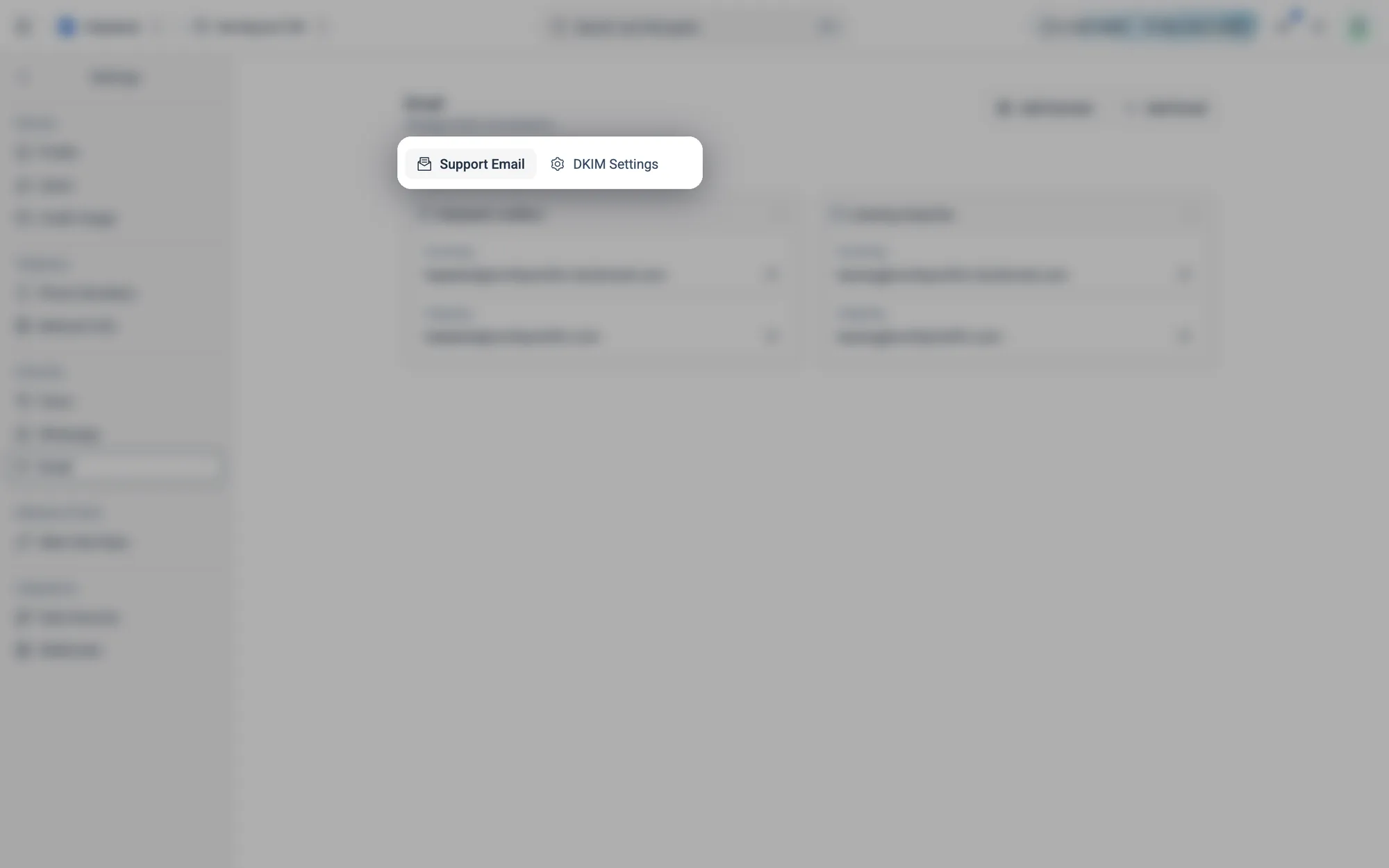
Two tabs: Support Email for your inboxes, and DKIM Settings for your own sending domains.
Fig. 12.37Two tabs: Support Email for your inboxes, and DKIM Settings for your own sending domains.
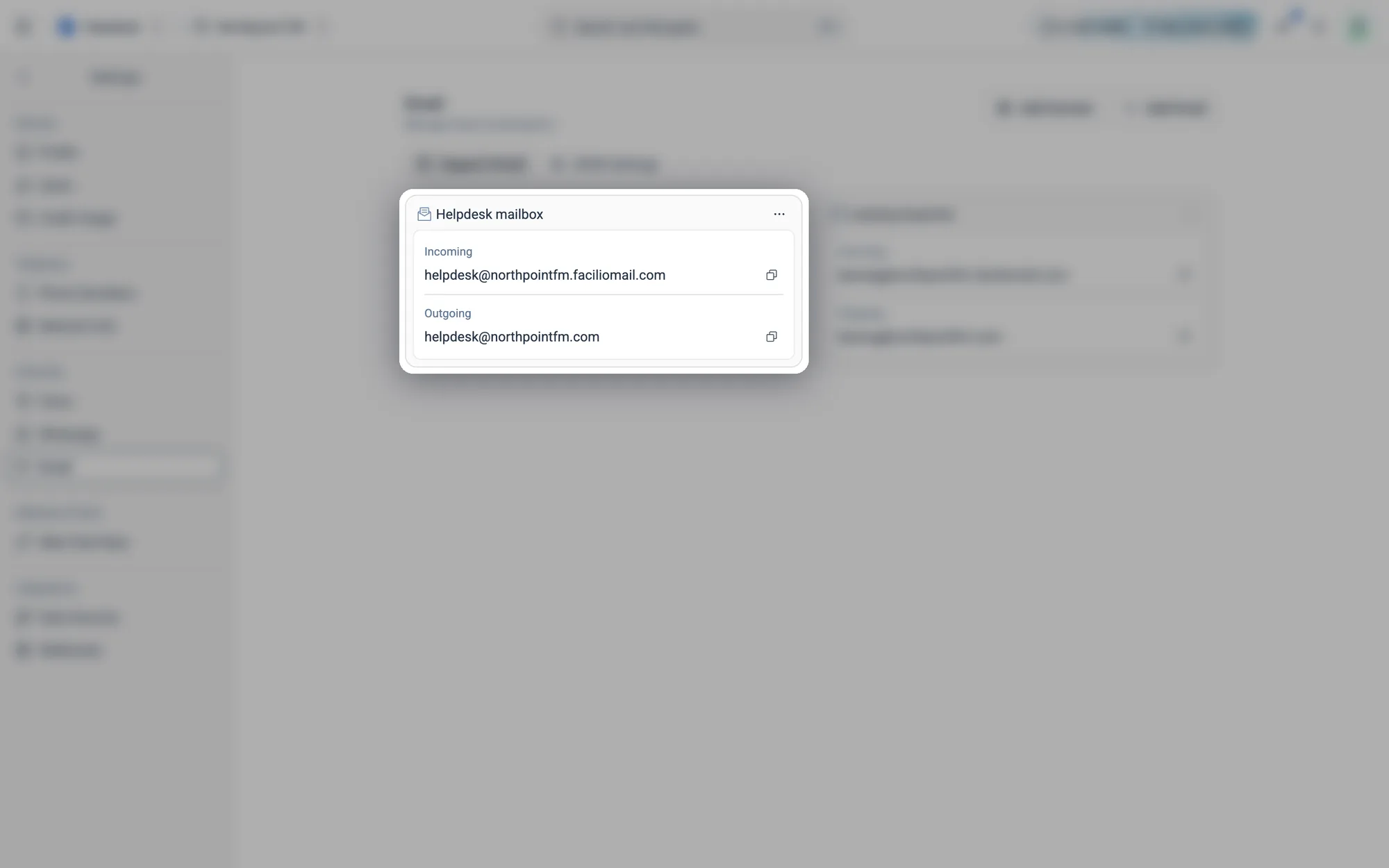
An inbox: the Incoming address tenants write to (via forwarding) and the Outgoing address replies come from. Use the copy icons to grab either.
Fig. 12.38An inbox: the Incoming address tenants write to (via forwarding) and the Outgoing address replies come from. Use the copy icons to grab either.

How to add a support email

  1. 1
    Go to Settings › Email and click Add Email.
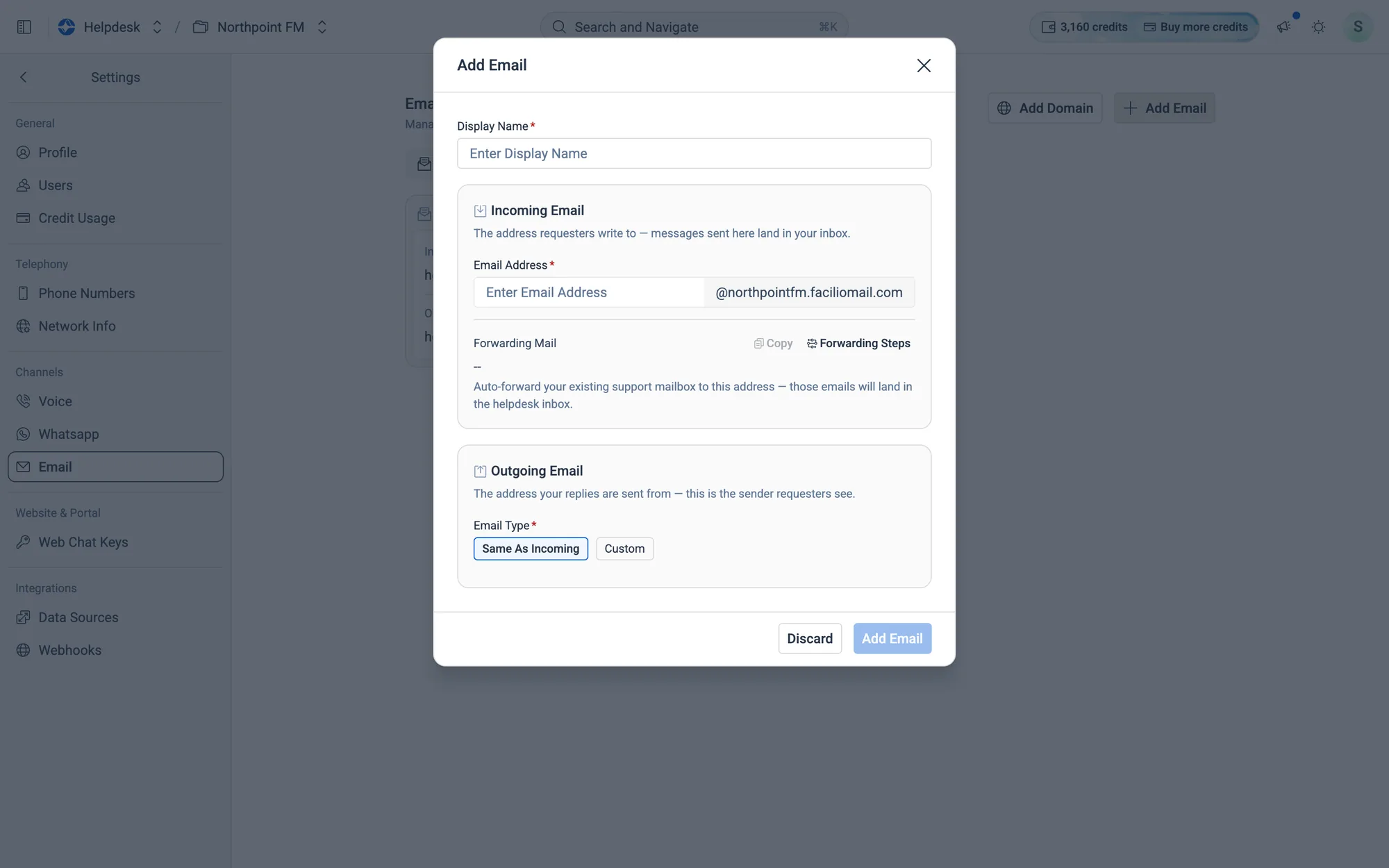
The Add Email dialog has two parts: Incoming Email and Outgoing Email.
Fig. 12.39The Add Email dialog has two parts: Incoming Email and Outgoing Email.
  1. 2
    Enter a Display Name, for example Tenant requests.
  2. 3
    Under Incoming Email, type the Email Address tenants will write to. The domain is filled in for you.
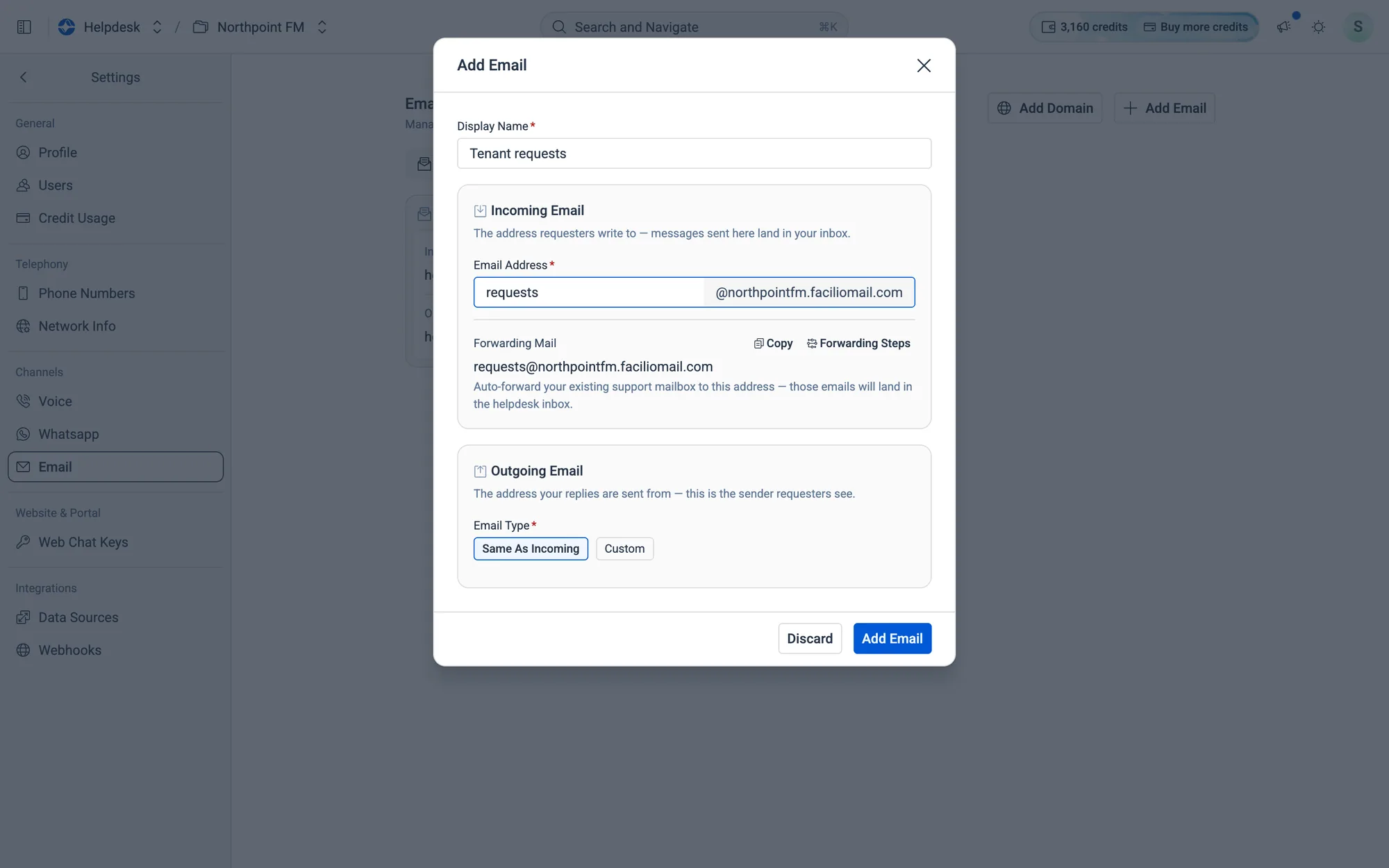
The Forwarding Mail address appears as soon as you type.
Fig. 12.40The Forwarding Mail address appears as soon as you type.
  1. 4
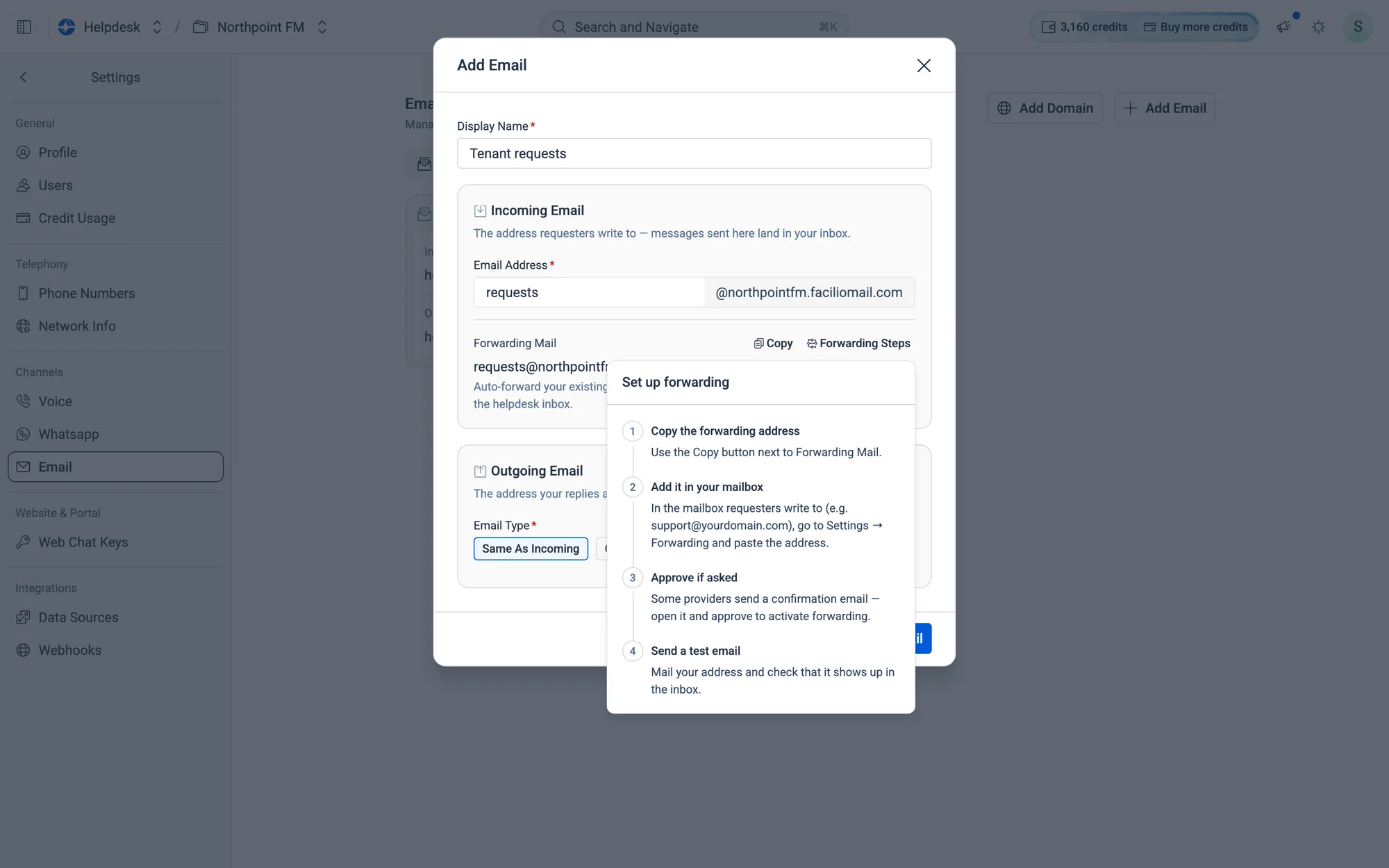
    Copy the Forwarding Mail address and set your existing support mailbox to forward to it. Click Forwarding Steps for a four-step guide.
Set up forwarding: copy the address, add it in your mailbox, approve if asked, then send a test email.
Fig. 12.41Set up forwarding: copy the address, add it in your mailbox, approve if asked, then send a test email.
  1. 5
    Under Outgoing Email, choose Same As Incoming, or Custom to reply from your own domain.
  2. 6
    Click Add Email.
The new inbox appears with its Incoming and Outgoing addresses.
Fig. 12.42The new inbox appears with its Incoming and Outgoing addresses.

How to delete a support email

  1. 1
    On Settings › Email, open the ⋯ menu on the inbox's card and choose Delete.
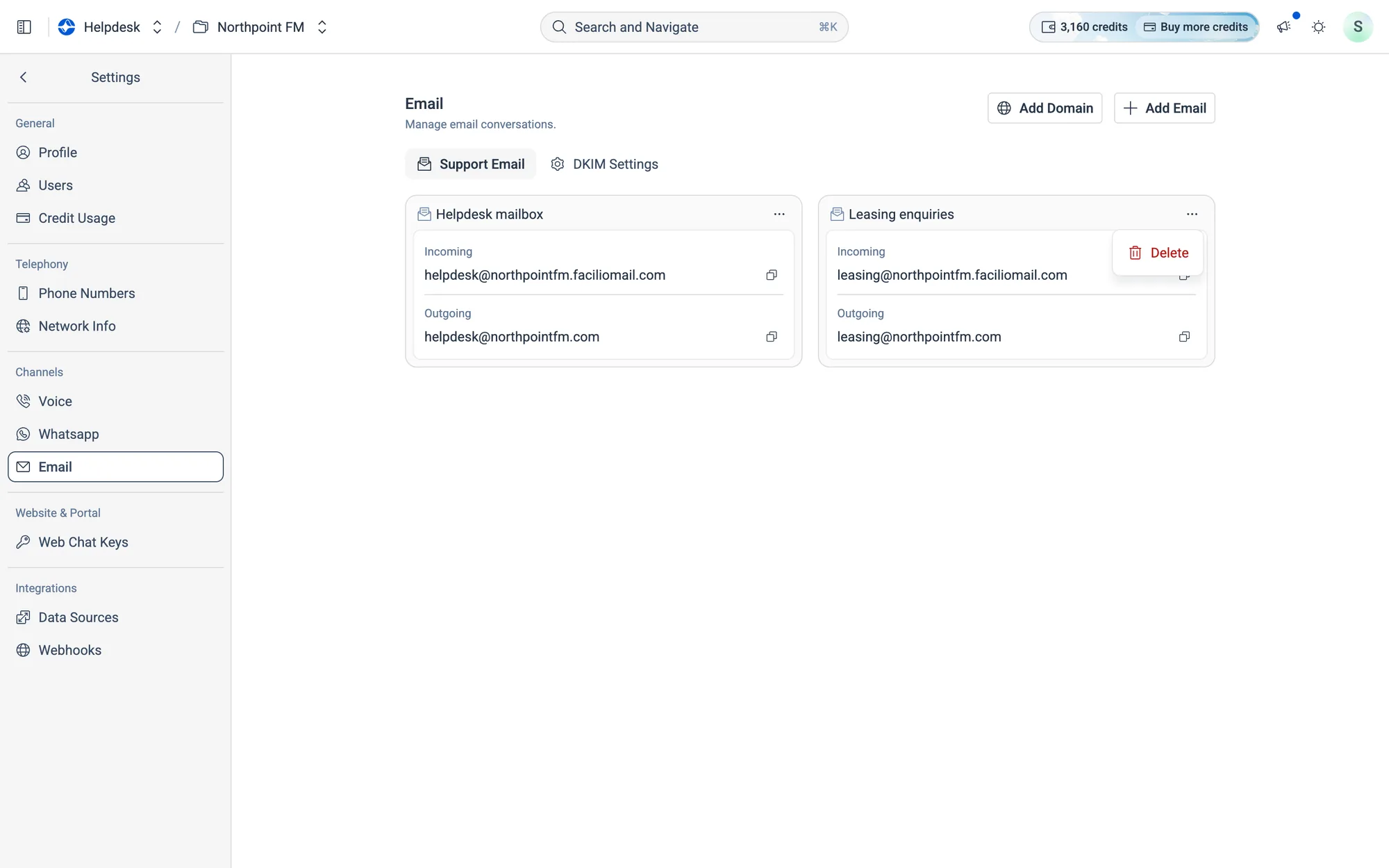
Removing the Leasing enquiries inbox.
Fig. 12.43Removing the Leasing enquiries inbox.
  1. 2
    The inbox is deleted straight away, without asking you to confirm. Emails forwarded to its address no longer reach your agent, so remove the forwarding rule in your mailbox too.
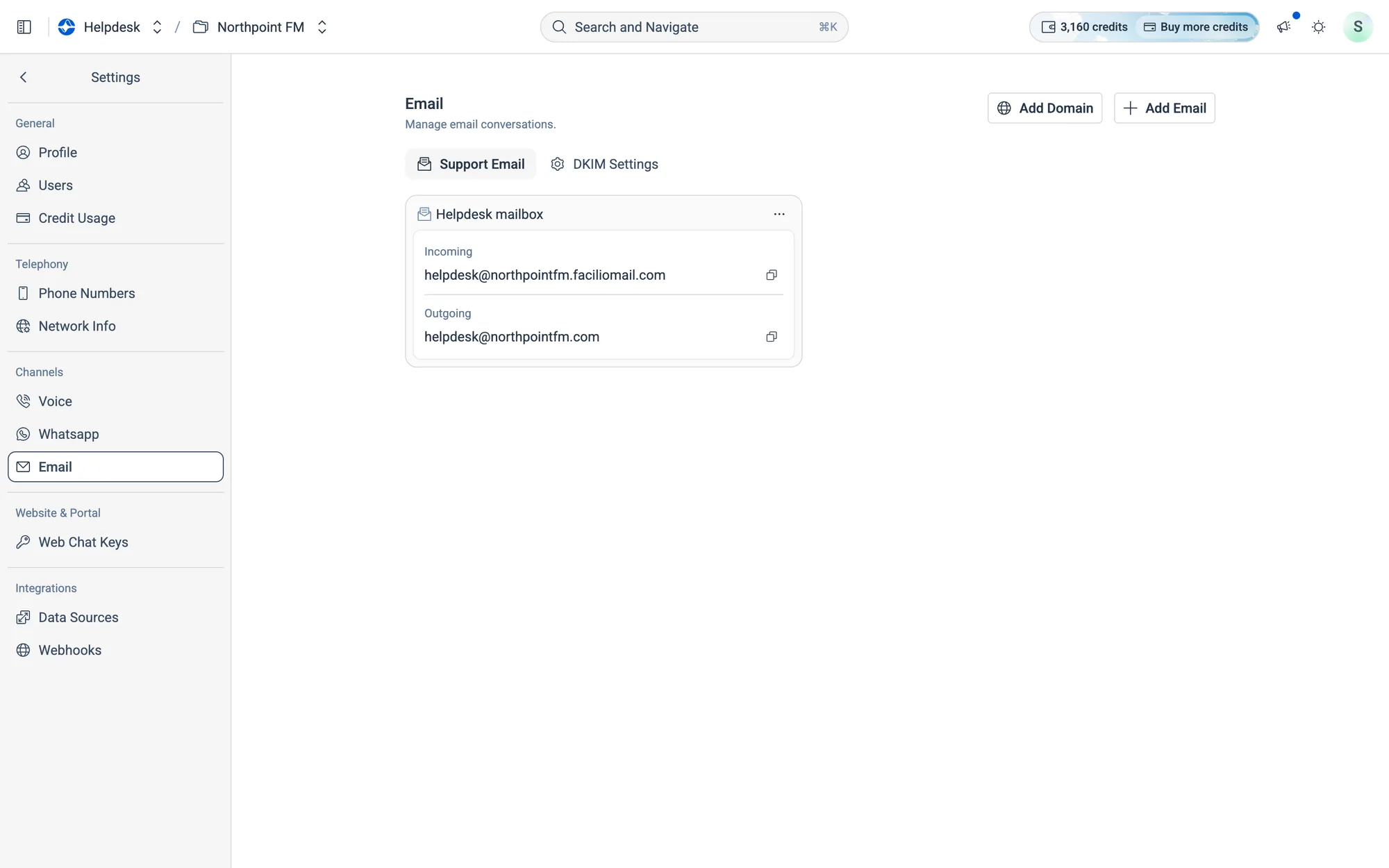
Only the Helpdesk mailbox is left.
Fig. 12.44Only the Helpdesk mailbox is left.

How to send replies from your own domain

  1. 1
    On Settings › Email, click Add Domain.
  2. 2
    Enter your Domain Name, for example northpointmall.ae, and click Add Domain.
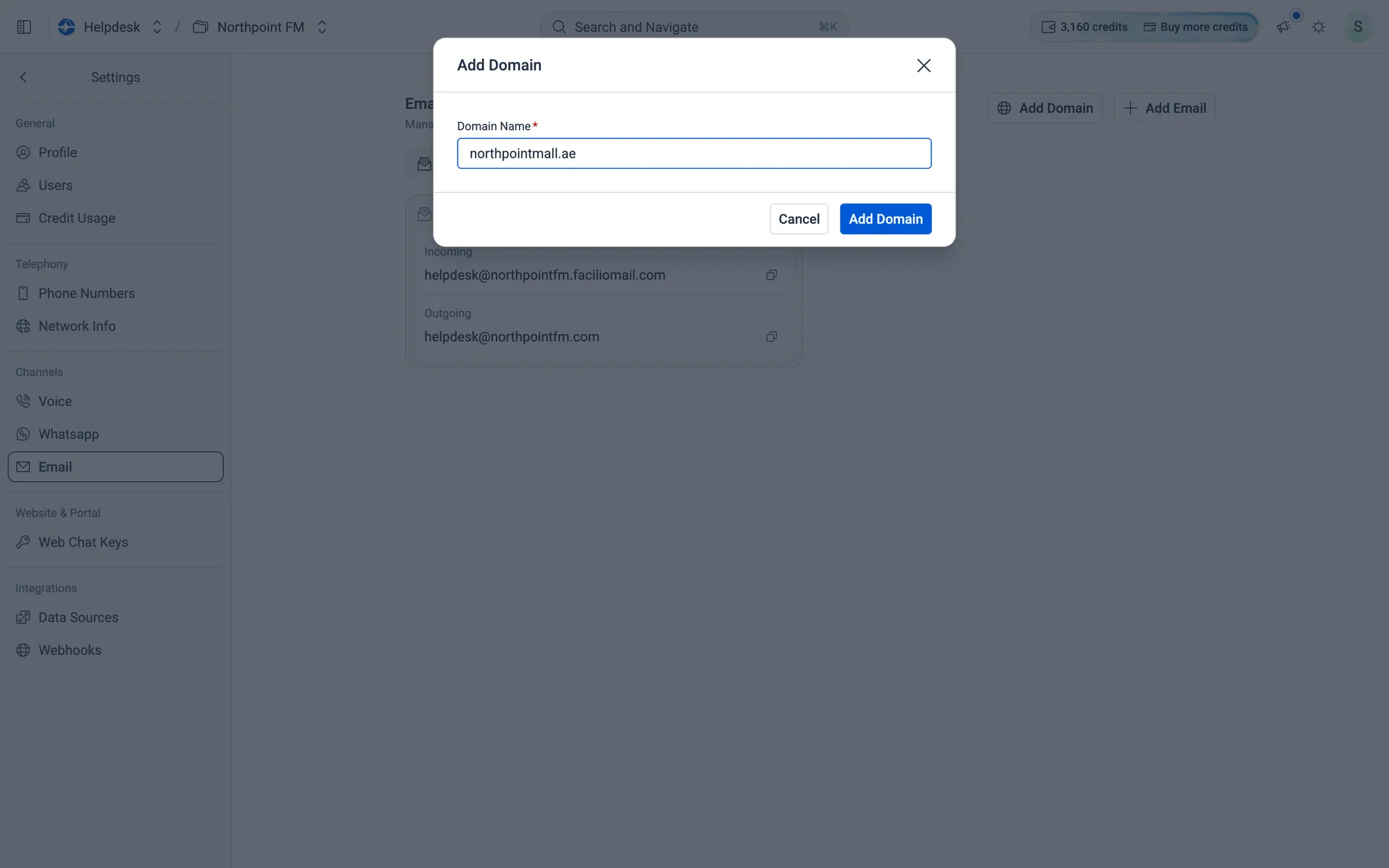
The Add Domain dialog.
Fig. 12.45The Add Domain dialog.
  1. 3
    Open the DKIM Settings tab. Your domain is listed with the DNS records to add.
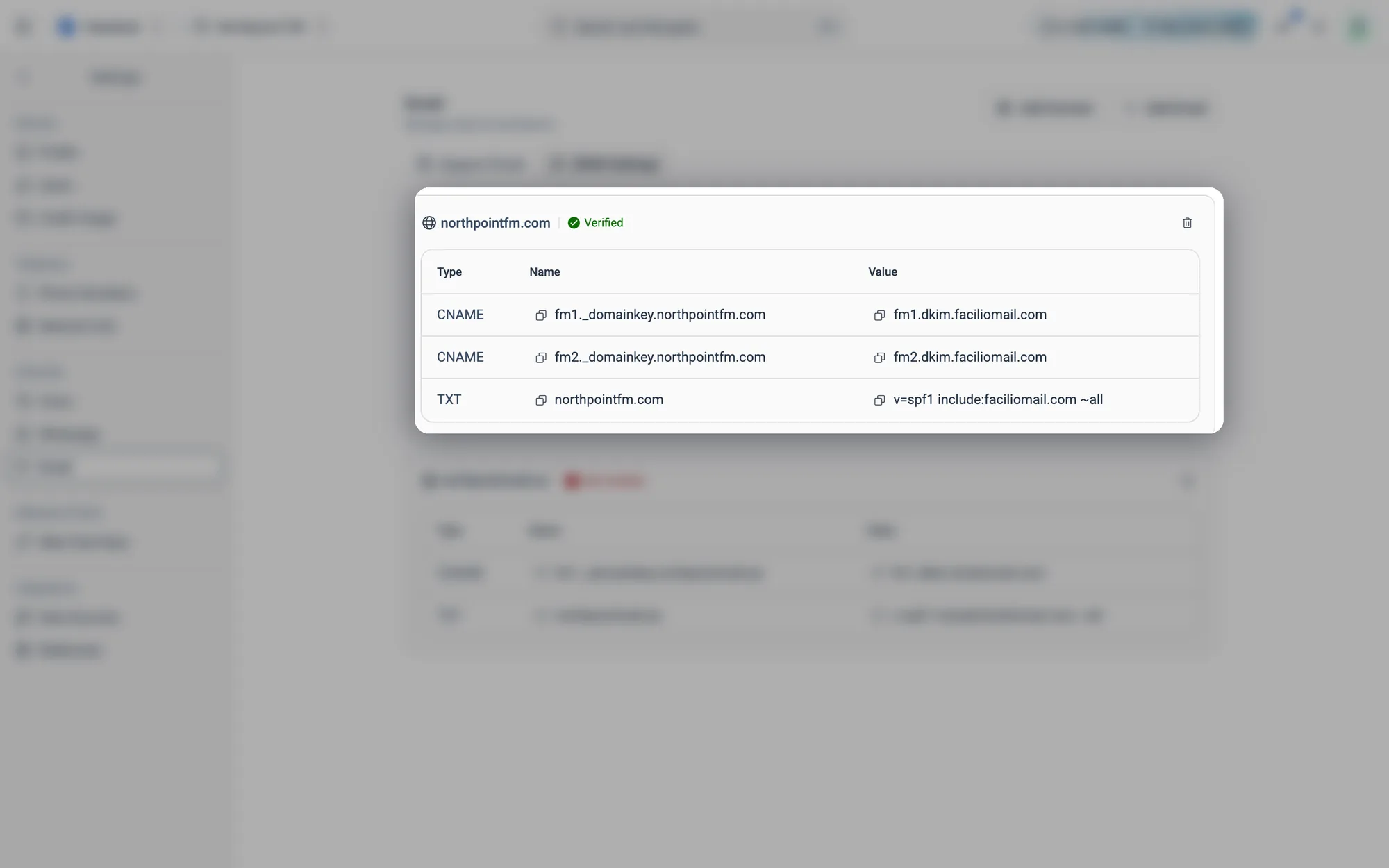
A verified domain, with the CNAME and TXT records you added to your DNS.
Fig. 12.46A verified domain, with the CNAME and TXT records you added to your DNS.
Copy each Name and Value into your domain's DNS settings. The domain changes from Not Verified to Verified once the records are found.
Fig. 12.47Copy each Name and Value into your domain's DNS settings. The domain changes from Not Verified to Verified once the records are found.
  1. 4
    When the domain shows Verified, add or edit an email and choose Custom under Outgoing Email to reply from it.

How to remove a domain

  1. 1
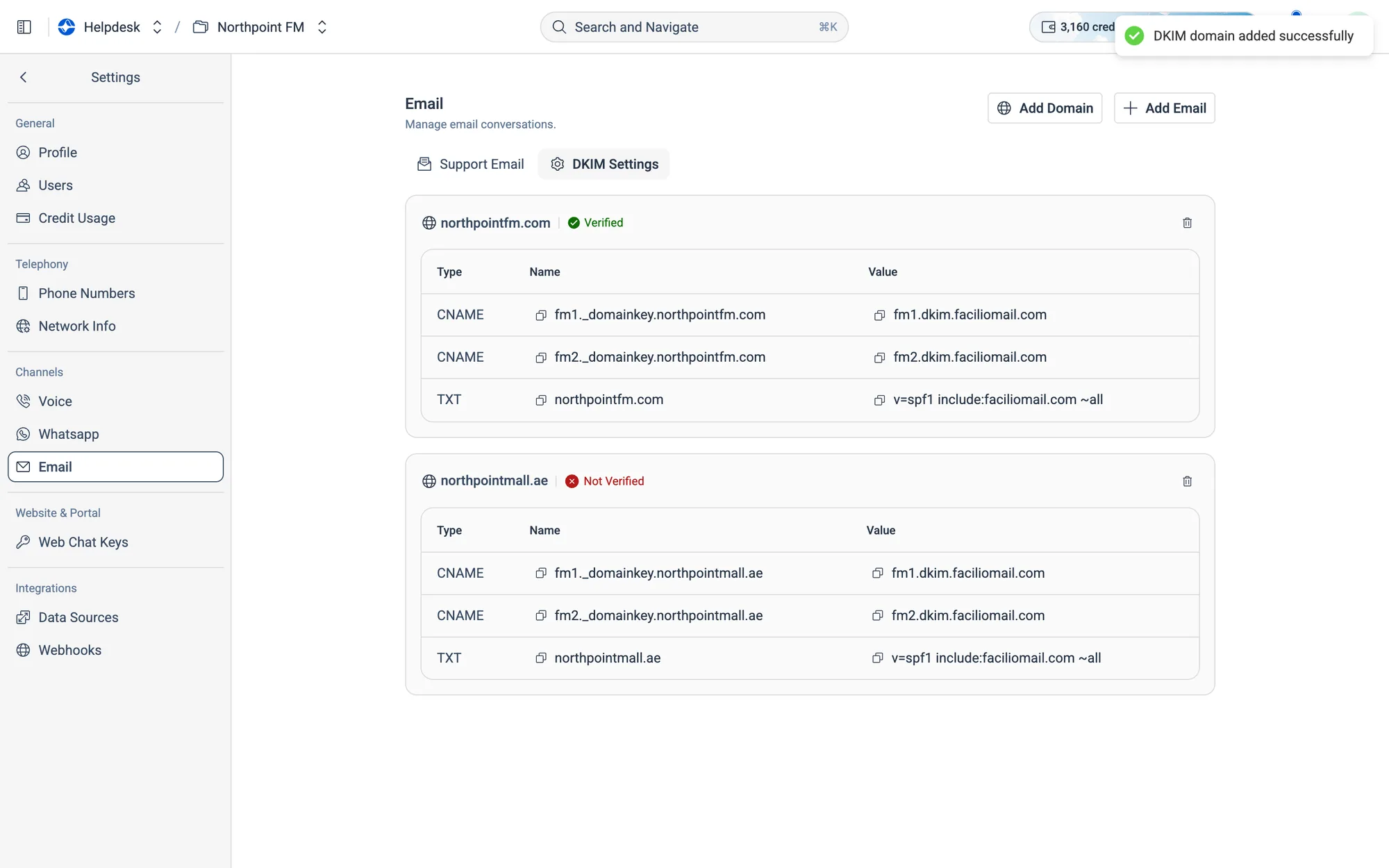
    On Settings › Email, open the DKIM Settings tab. Each domain is listed with its DNS records and whether it's Verified.
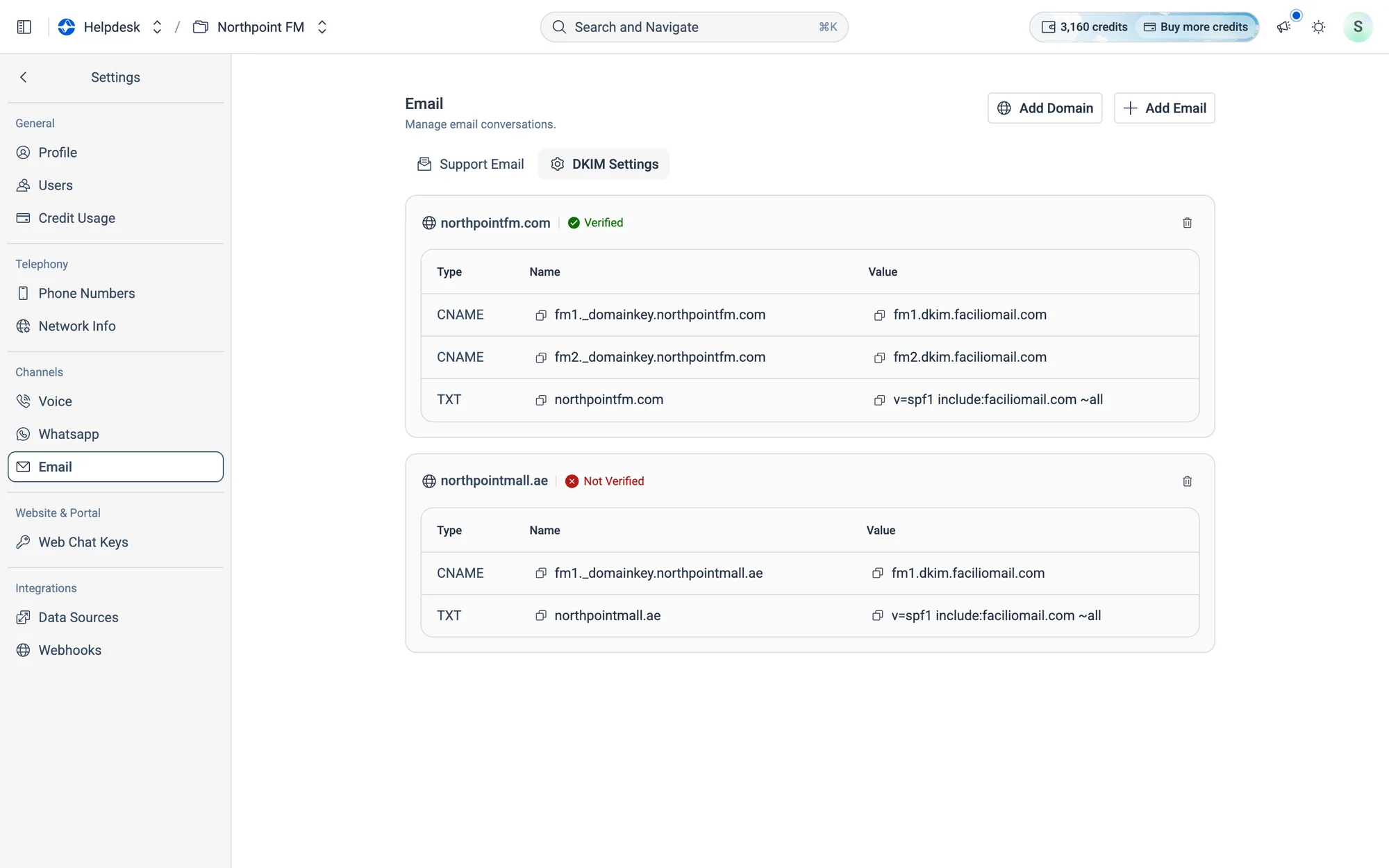
Two domains: northpointfm.com is verified, northpointmall.ae isn't.
Fig. 12.48Two domains: northpointfm.com is verified, northpointmall.ae isn't.
  1. 2
    Click the bin icon at the top right of the domain's box.
  2. 3
    Delete DKIM Domain asks you to confirm, because this can't be undone. Click Delete.
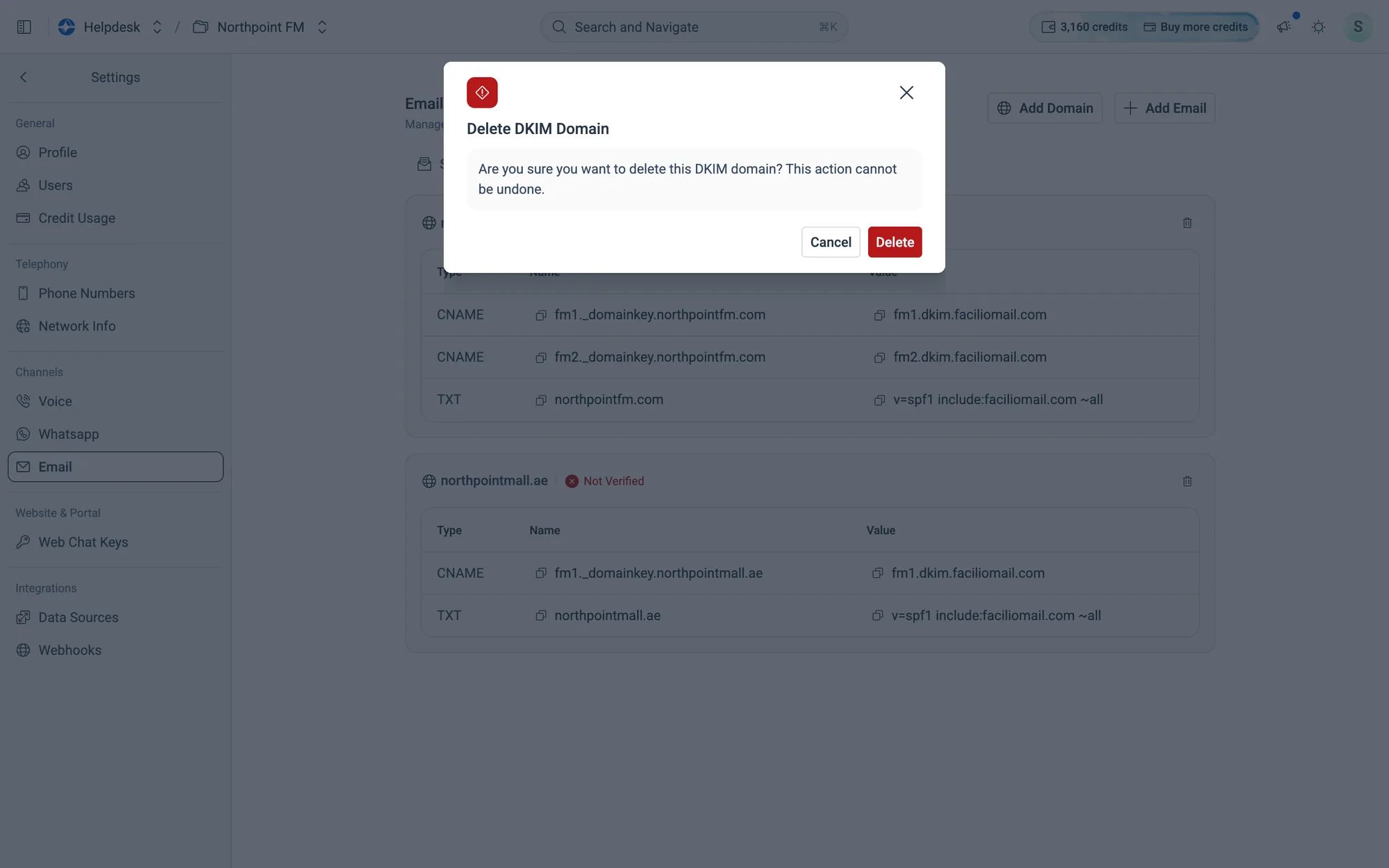
Confirm before the domain is removed.
Fig. 12.49Confirm before the domain is removed.
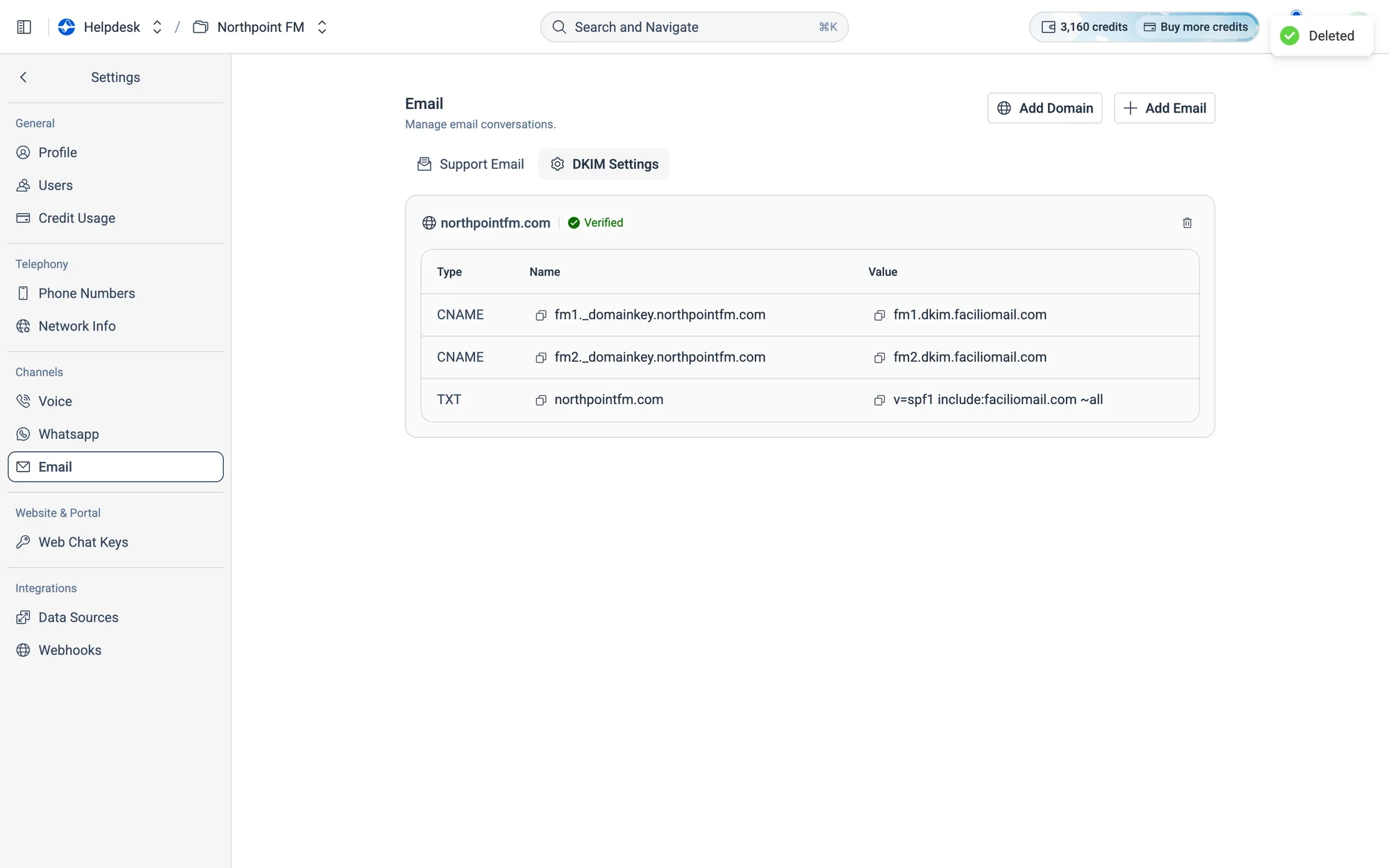
The unverified domain is removed. You can delete its DNS records from your domain provider too.
Fig. 12.50The unverified domain is removed. You can delete its DNS records from your domain provider too.

12.10Web chat keys

Web Chat Keys keep your website widget secure, so only visitors your own website has signed in can open a chat. This is a one-time task for your web developer.
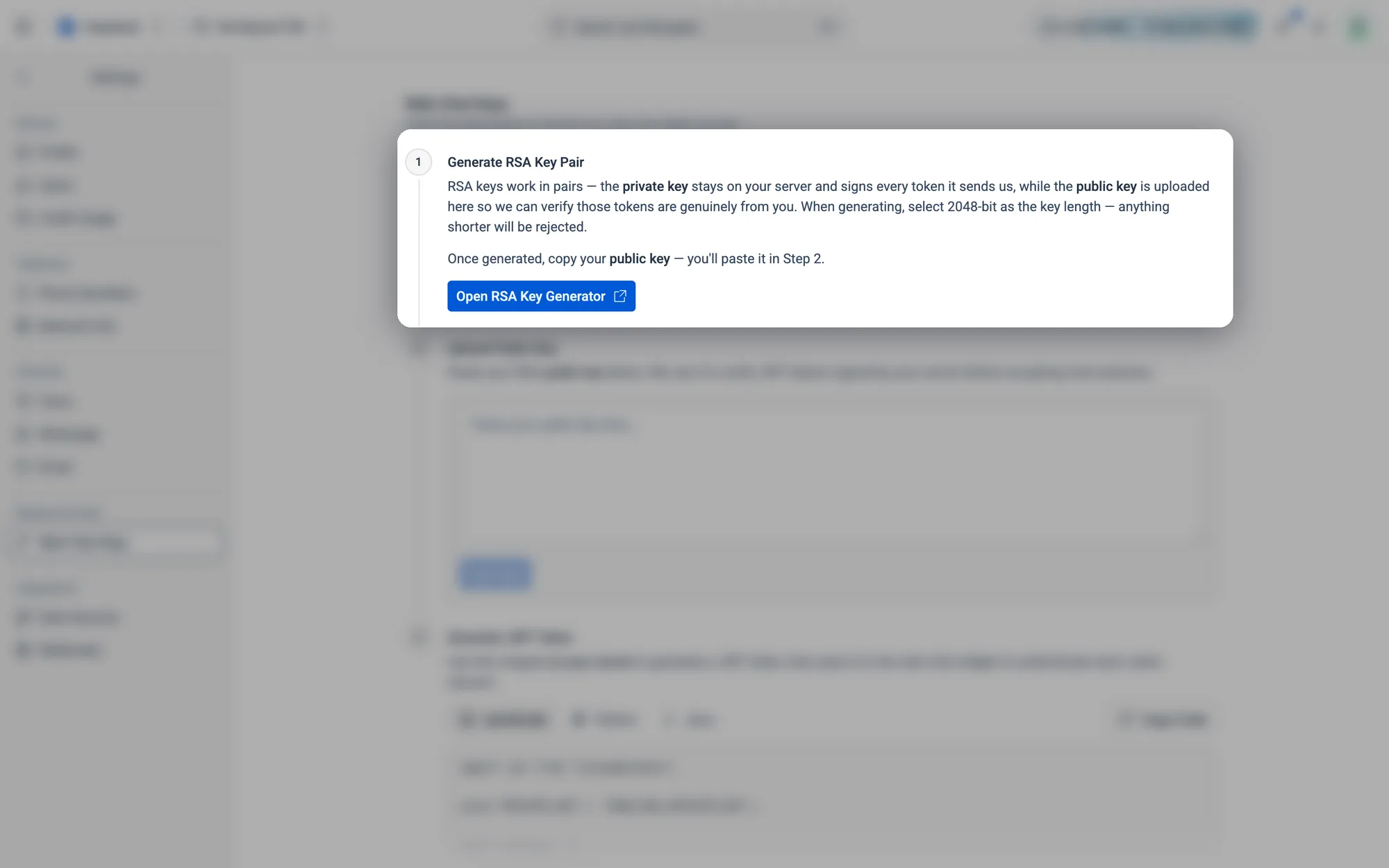
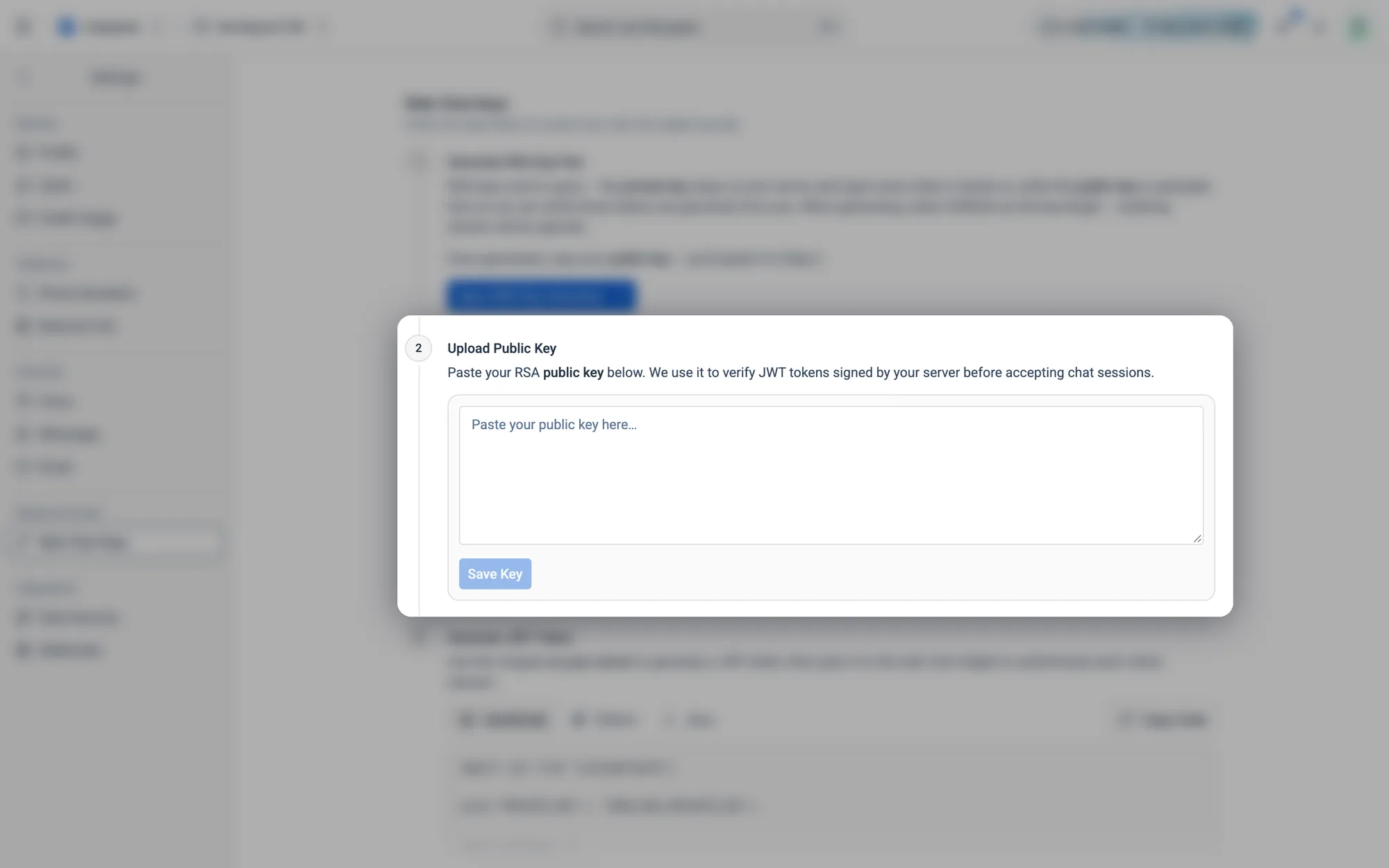
Generate RSA Key Pair: the private key stays on your server, and the public key comes here.
Fig. 12.51Generate RSA Key Pair: the private key stays on your server, and the public key comes here.
Upload Public Key: paste the public key and click Save Key.
Fig. 12.52Upload Public Key: paste the public key and click Save Key.
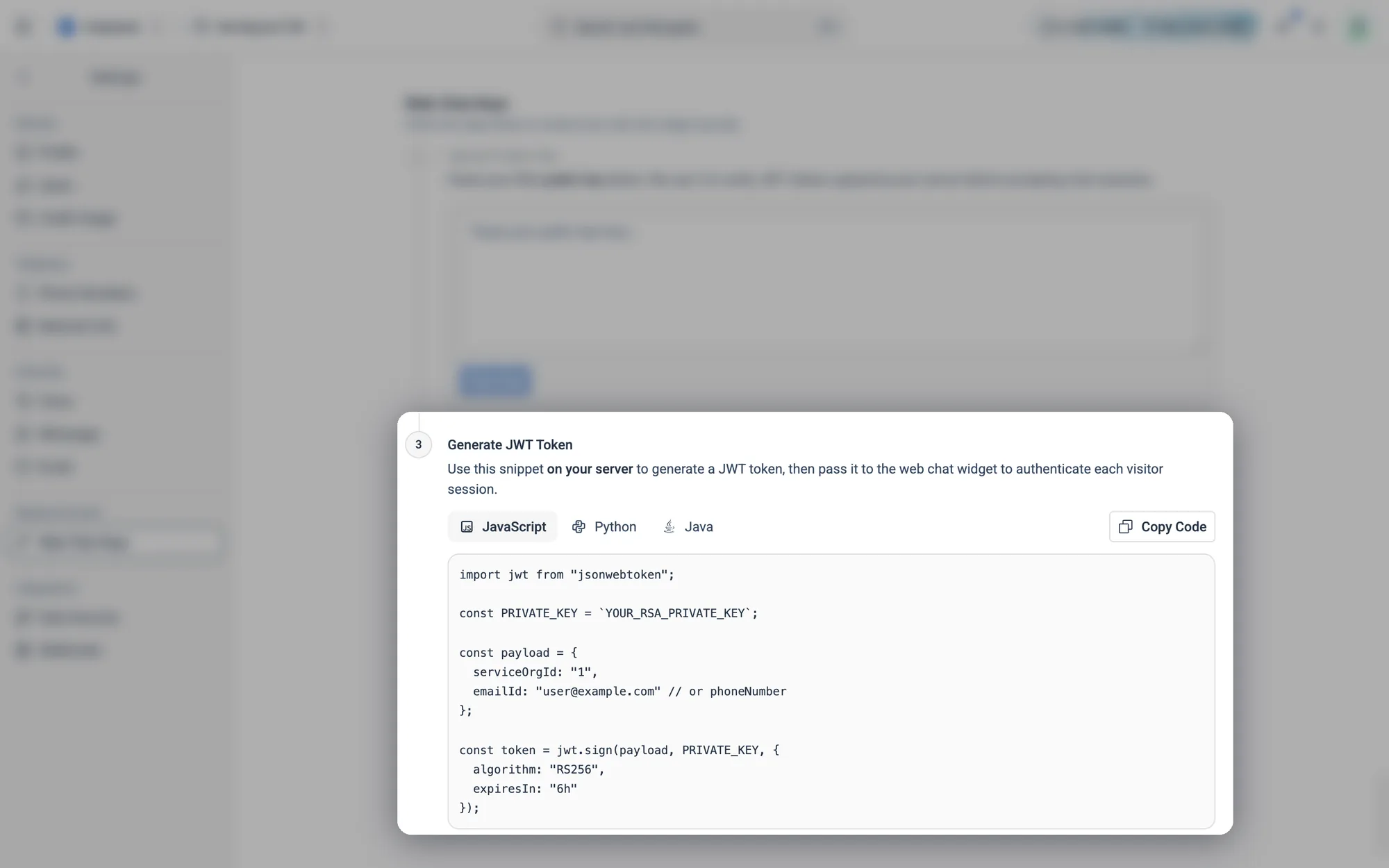
Generate JWT Token: the code your server uses to sign visitors in, in JavaScript, Python or Java.
Fig. 12.53Generate JWT Token: the code your server uses to sign visitors in, in JavaScript, Python or Java.

How to set up a web chat key

  1. 1
    Go to Settings › Web Chat Keys. The page walks through three steps.
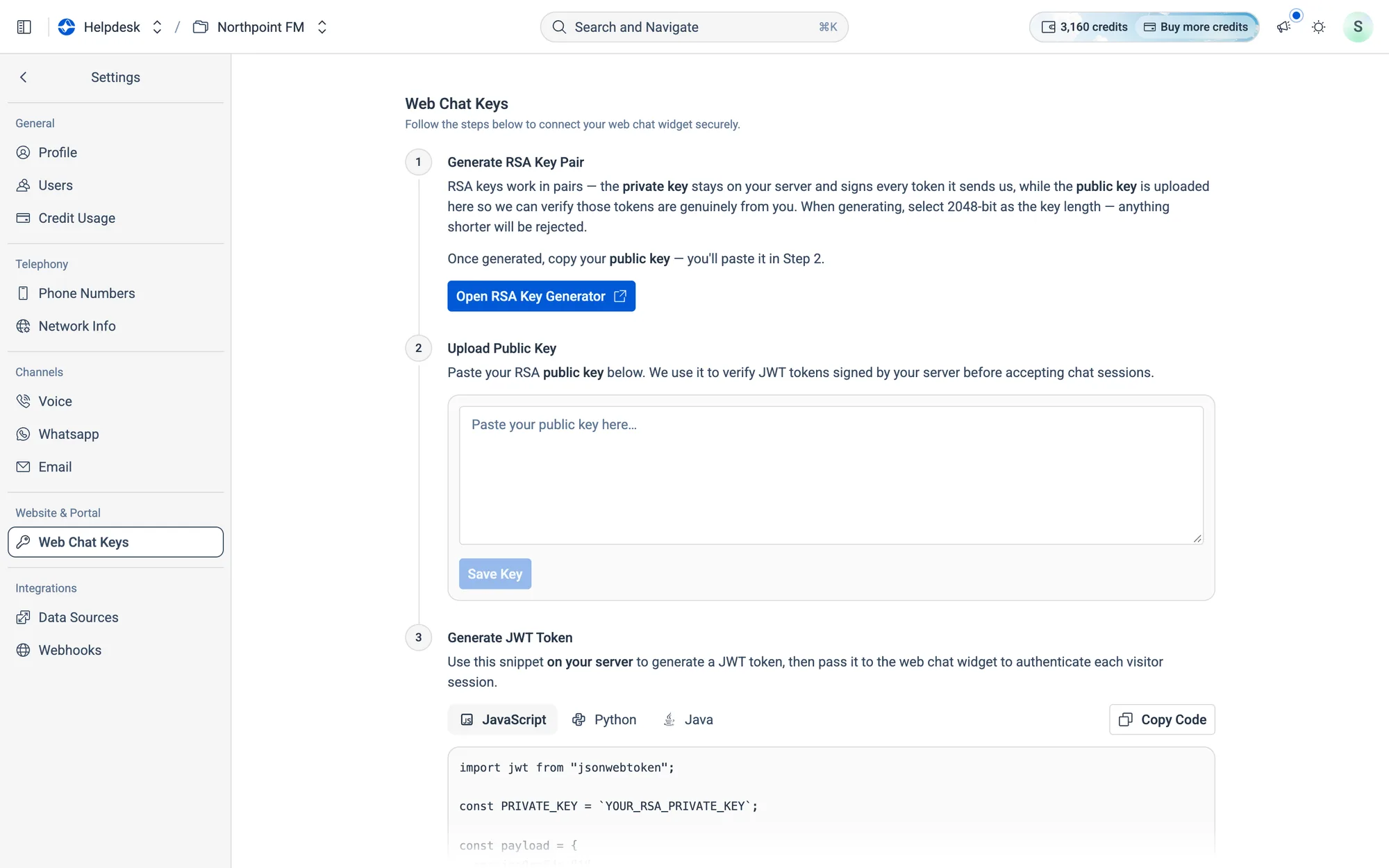
Three steps: generate a key pair, upload the public key, add the token code to your server.
Fig. 12.54Three steps: generate a key pair, upload the public key, add the token code to your server.
  1. 2
    Click Open RSA Key Generator, create a 2048-bit key pair, and copy the public key.
  2. 3
    Paste it into step 2 and click Save Key. An Active tag appears.
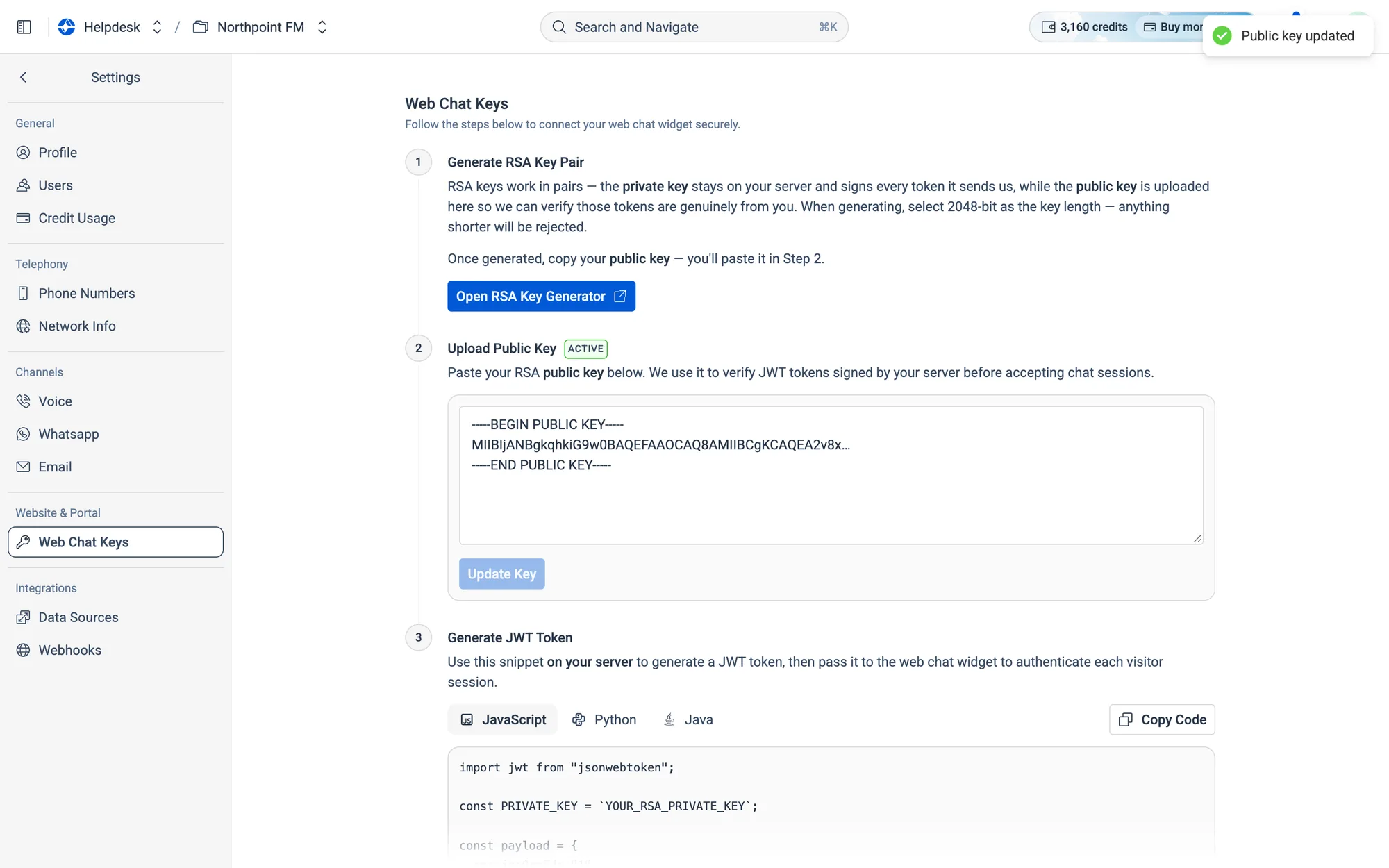
The key is saved and marked Active. The button now reads Update Key.
Fig. 12.55The key is saved and marked Active. The button now reads Update Key.
  1. 4
    In step 3, choose JavaScript, Python or Java, and click Copy Code. Your web team adds this snippet to your server.
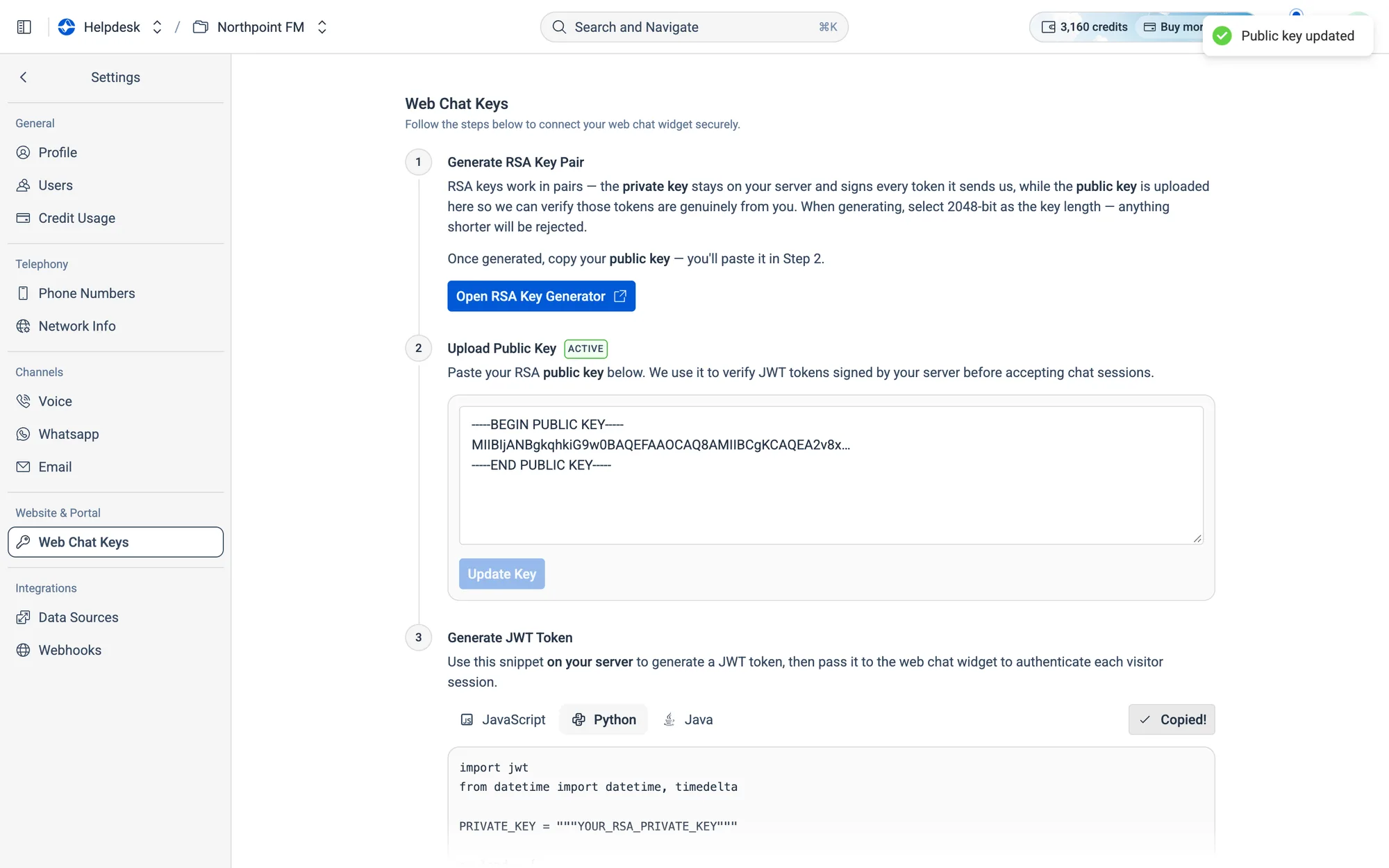
The code already includes your organisation's ID.
Fig. 12.56The code already includes your organisation's ID.

12.11Data sources

Data Sources brings records from the systems you already use into Facilio Helpdesk. Each dataset maps one module from a connected system into Tickets or Technicians. Today the live connector is Facilio (the Facilio CMMS).
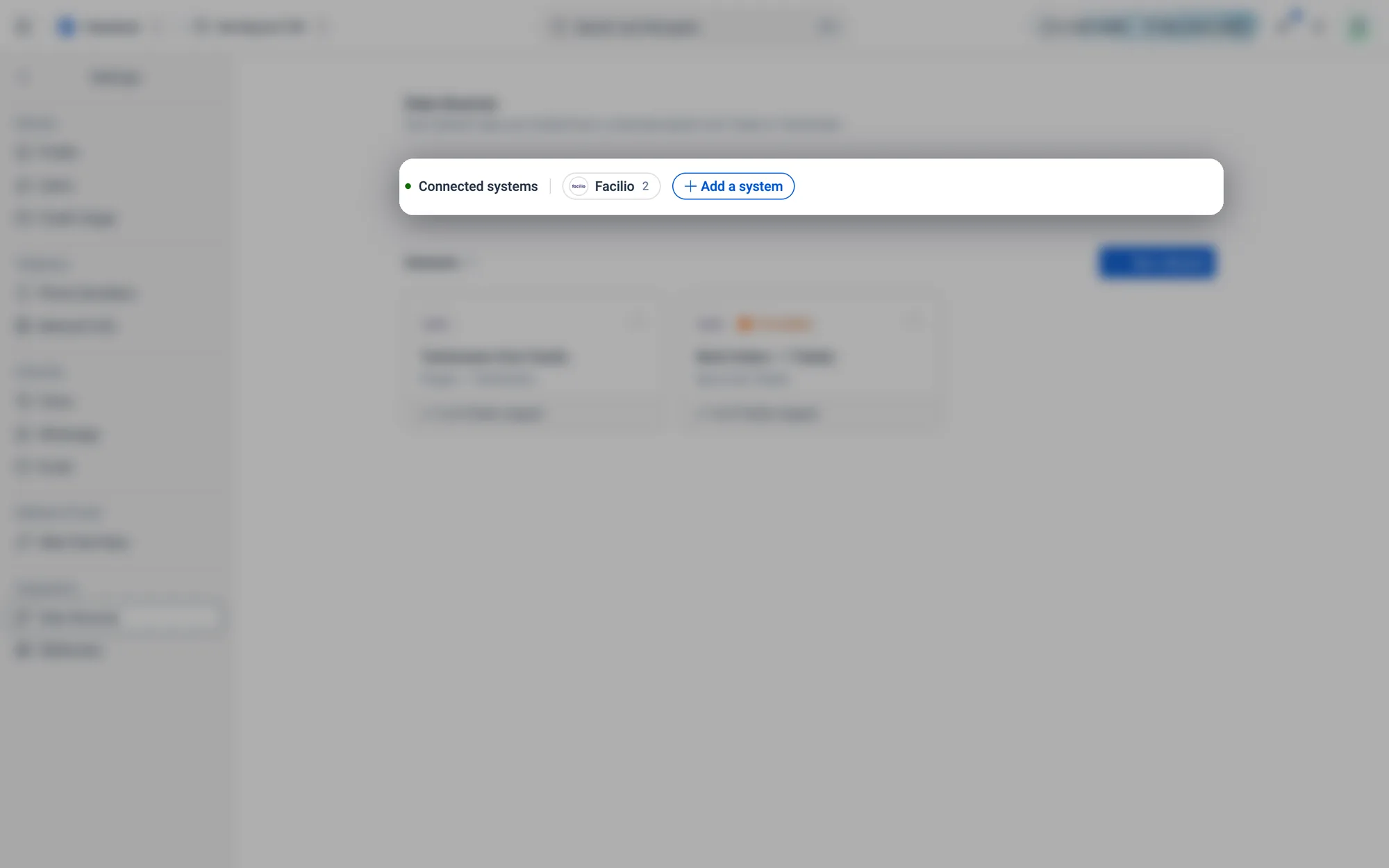
Connected systems: Facilio, with the number of datasets, and Add a system to request another.
Fig. 12.57Connected systems: Facilio, with the number of datasets, and Add a system to request another.
A dataset card: what syncs into what, how many fields are mapped, and a to review note when Atom isn't sure of a match.
Fig. 12.58A dataset card: what syncs into what, how many fields are mapped, and a to review note when Atom isn't sure of a match.

How to add a dataset

  1. 1
    Go to Settings › Data Sources and click New dataset. On a new account, click Add dataset on the Facilio card instead.
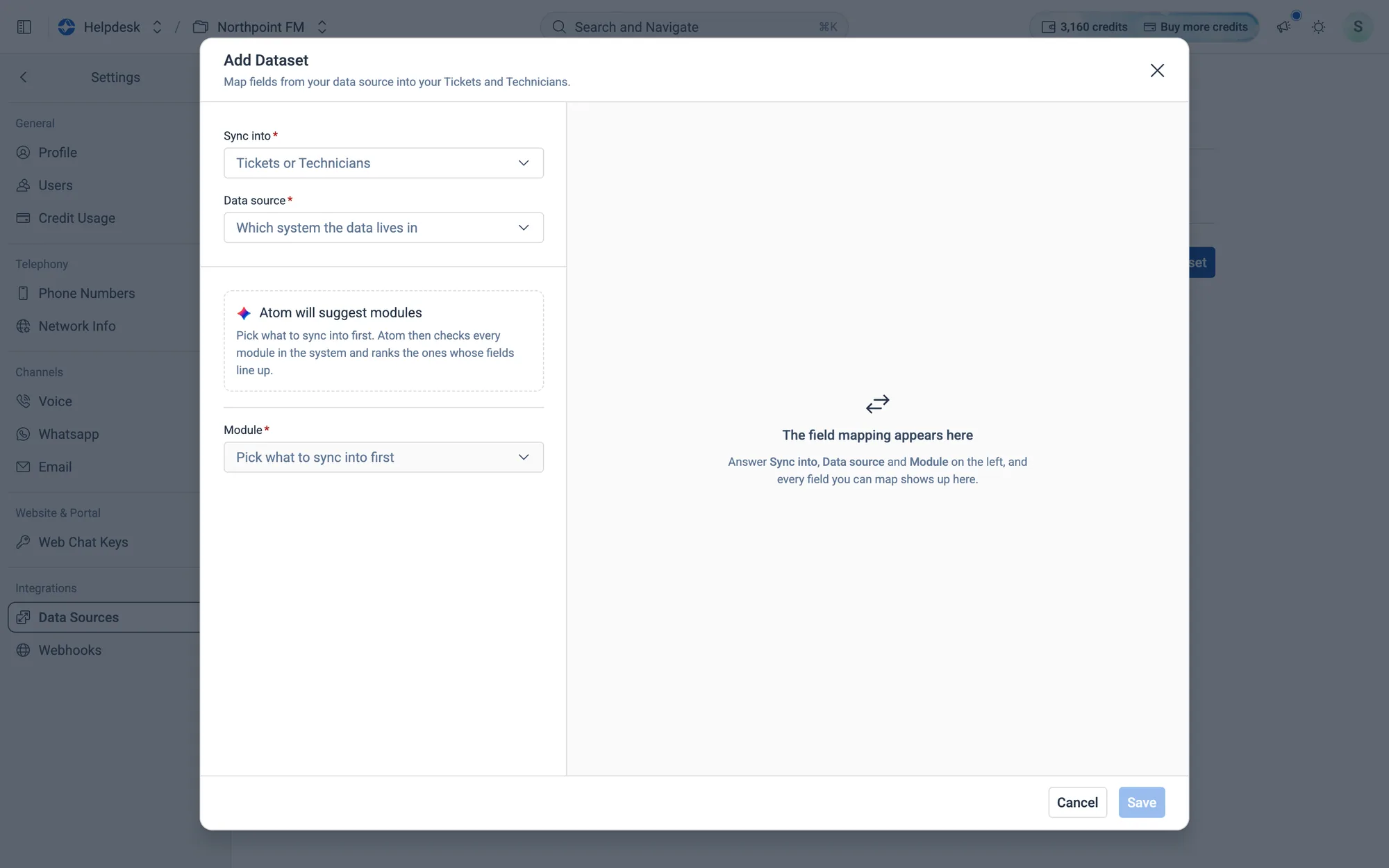
The Add Dataset dialog: questions on the left, the field mapping on the right.
Fig. 12.59The Add Dataset dialog: questions on the left, the field mapping on the right.
  1. 2
    Under Sync into, choose Tickets or Technicians.
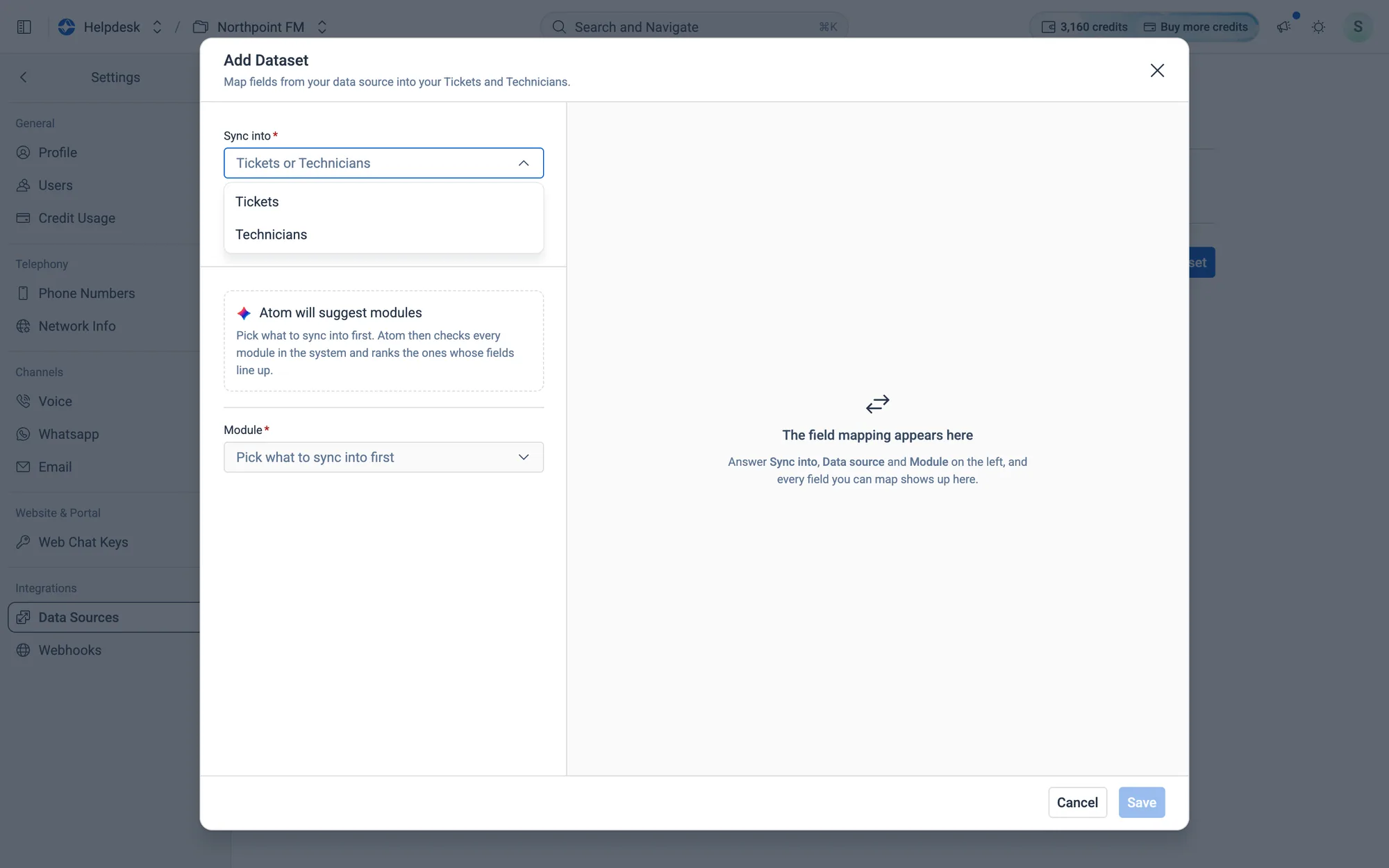
Choose what the records become in Helpdesk.
Fig. 12.60Choose what the records become in Helpdesk.
  1. 3
    Under Data source, choose Facilio. Atom checks your modules and lists the Best matching modules, ranked by how many fields each one can fill.
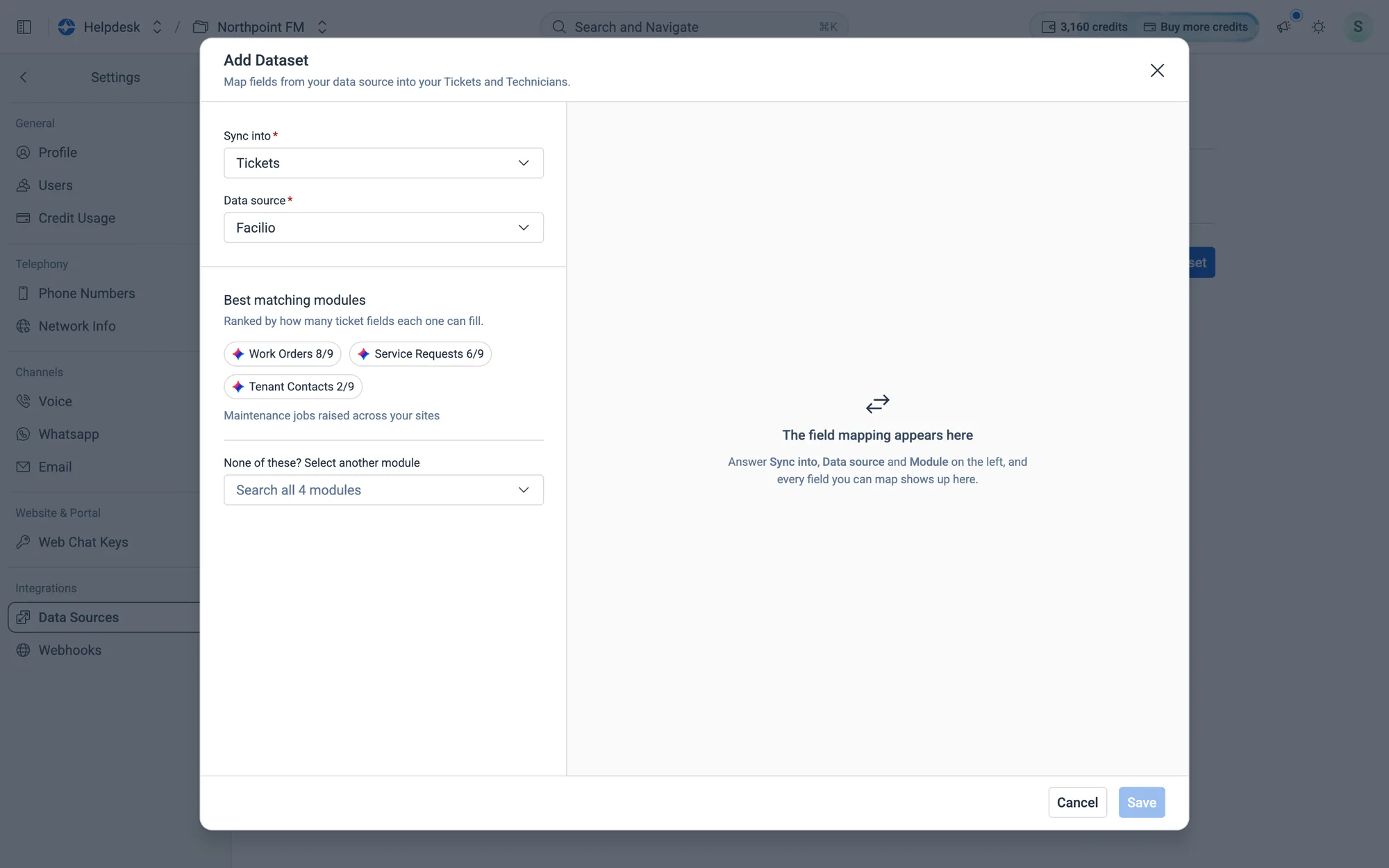
Atom suggests Work Orders as the best match for tickets.
Fig. 12.61Atom suggests Work Orders as the best match for tickets.
  1. 4
    Click a suggested module, or pick another under Module. The field mapping appears on the right.
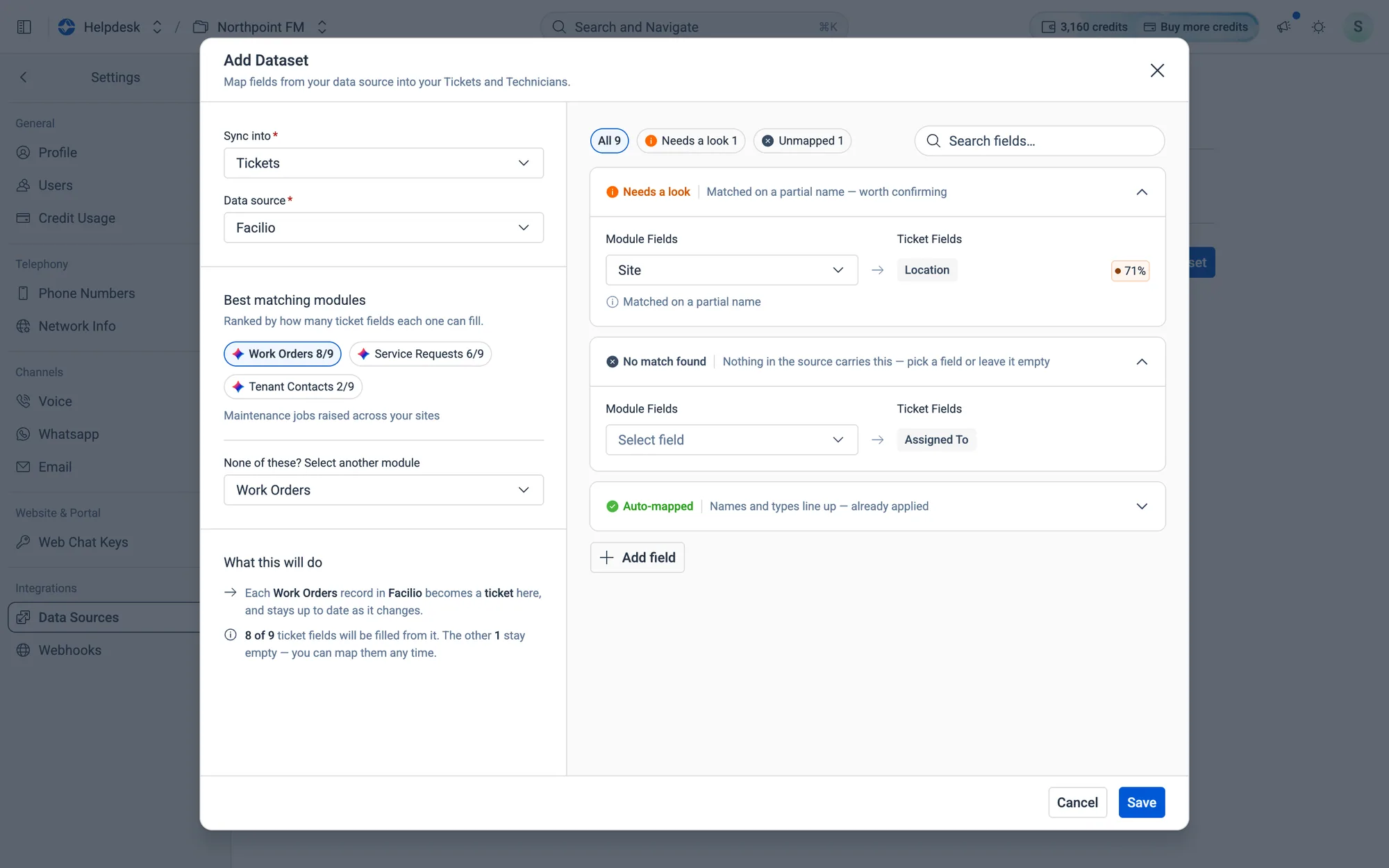
Fields are matched for you. Check anything under Needs a look, and pick a field for anything under No match found.
Fig. 12.62Fields are matched for you. Check anything under Needs a look, and pick a field for anything under No match found.
  1. 5
    Read What this will do to check the result, then click Save.
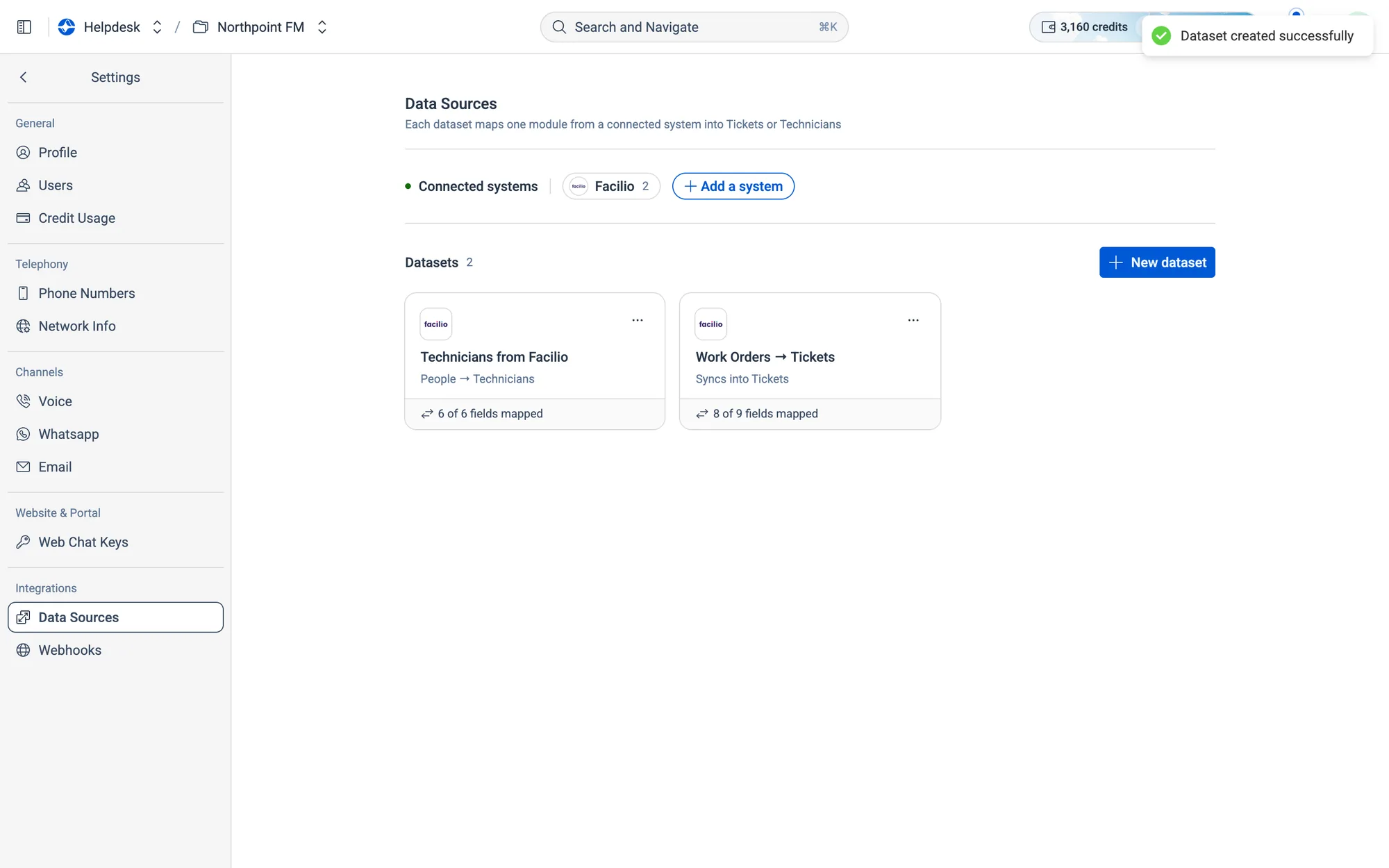
The new dataset appears in your list, and records start syncing.
Fig. 12.63The new dataset appears in your list, and records start syncing.

How to fix a dataset's field mapping

When Atom matches fields with less than full confidence, the dataset's card shows a note such as 2 to review. Check those fields so the right values sync.

  1. 1
    On Settings › Data Sources, click the dataset's card.
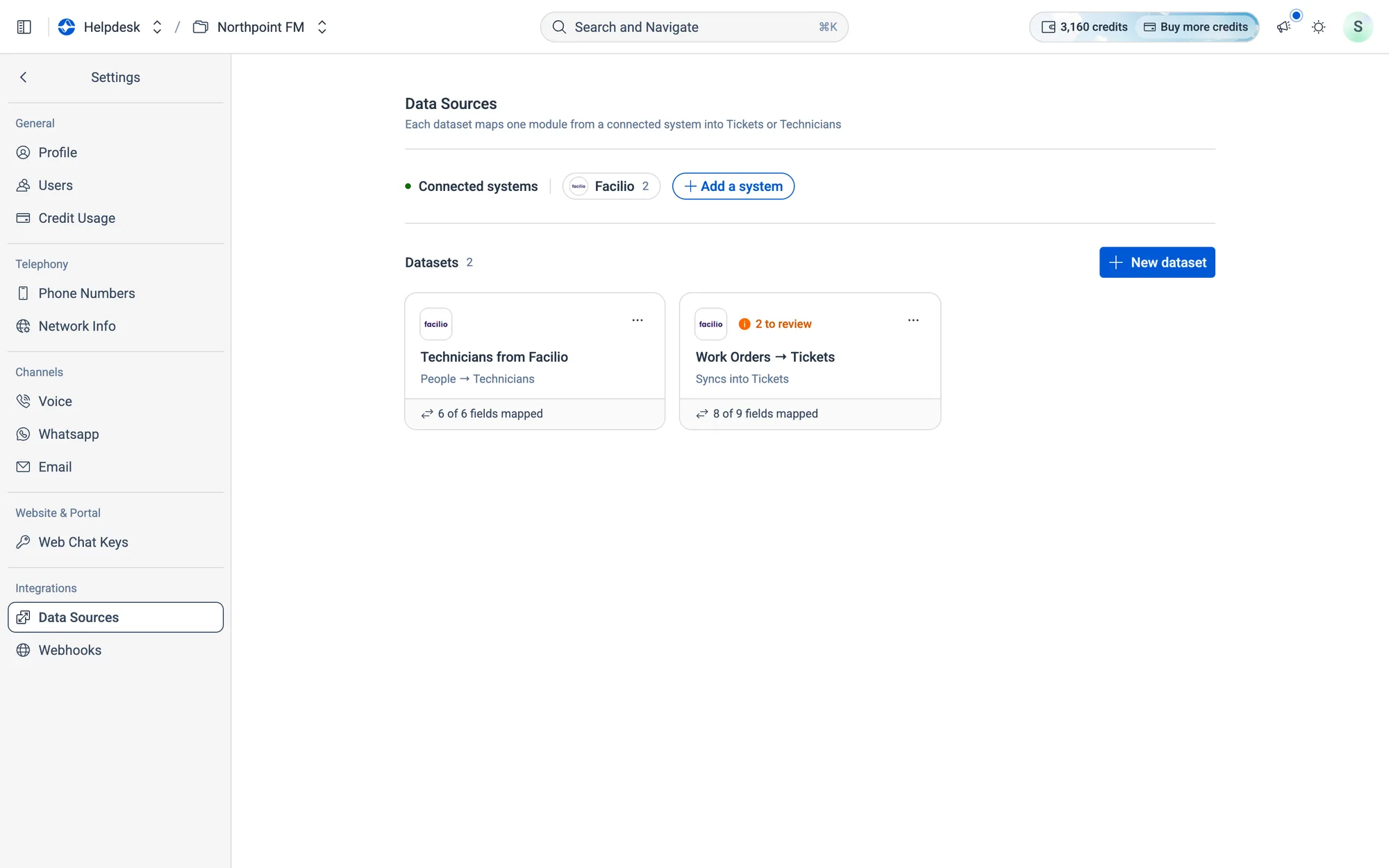
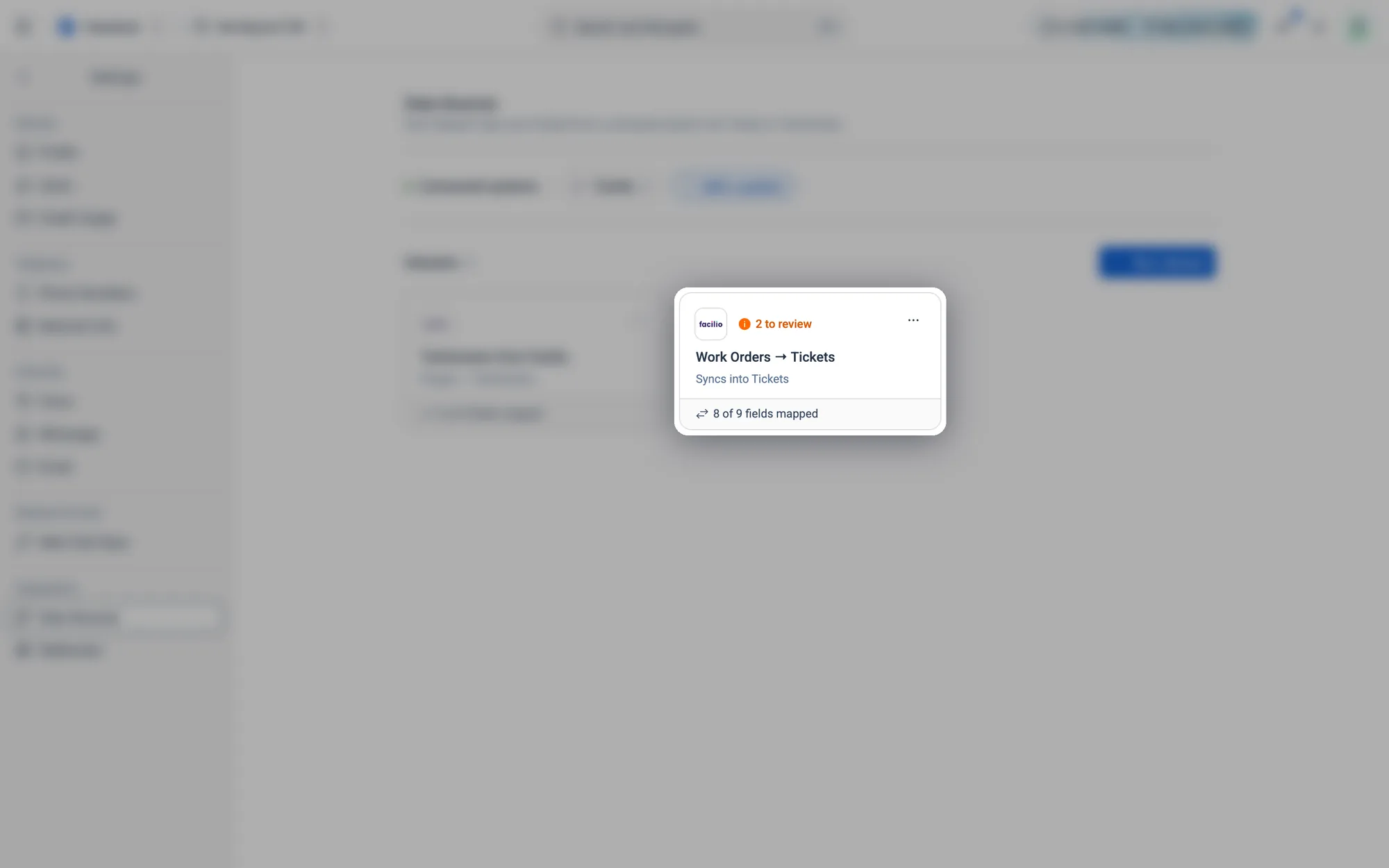
Work Orders → Tickets has 2 to review, and 8 of 9 fields mapped.
Fig. 12.64Work Orders → Tickets has 2 to review, and 8 of 9 fields mapped.
  1. 2
    Edit Dataset opens. On the right, Needs a look lists the fields Atom matched on a partial name, each with a confidence score and the reason. No match found lists fields nothing was matched to. Use the chips at the top (All, Needs a look, Unmapped) to filter.
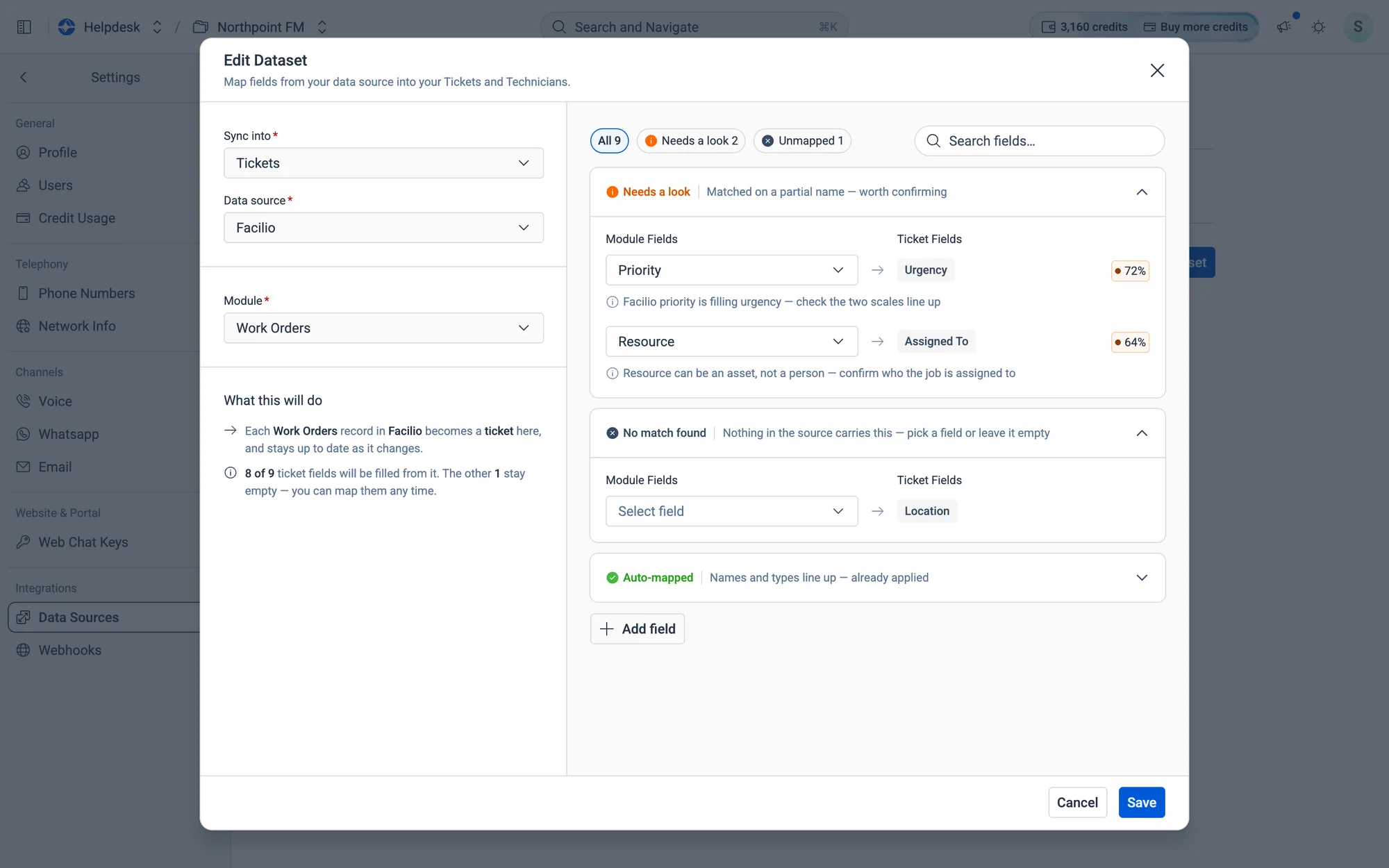
Priority was matched to Urgency (72%) and Resource to Assigned To (64%).
Fig. 12.65Priority was matched to Urgency (72%) and Resource to Assigned To (64%).
  1. 3
    For each field, click the field on the left and pick the right one from the list. Search if the list is long. Your choice moves to Set by you, and matching won't change it again.
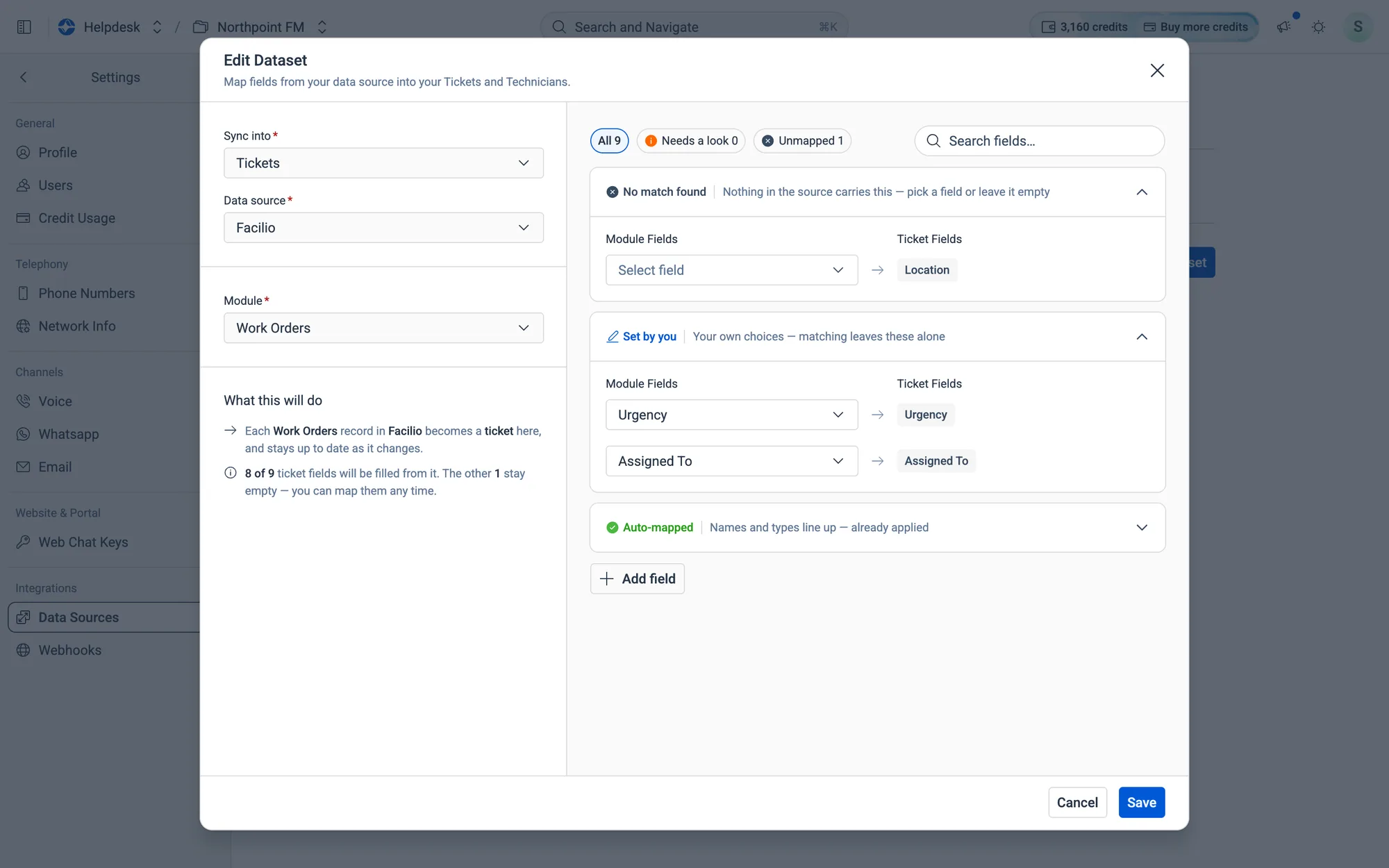
Both fields are set by hand. Location is still unmapped and will stay empty until you pick a field for it.
Fig. 12.66Both fields are set by hand. Location is still unmapped and will stay empty until you pick a field for it.
  1. 4
    Click Save. Dataset updated successfully confirms it, and the to review note disappears from the card.
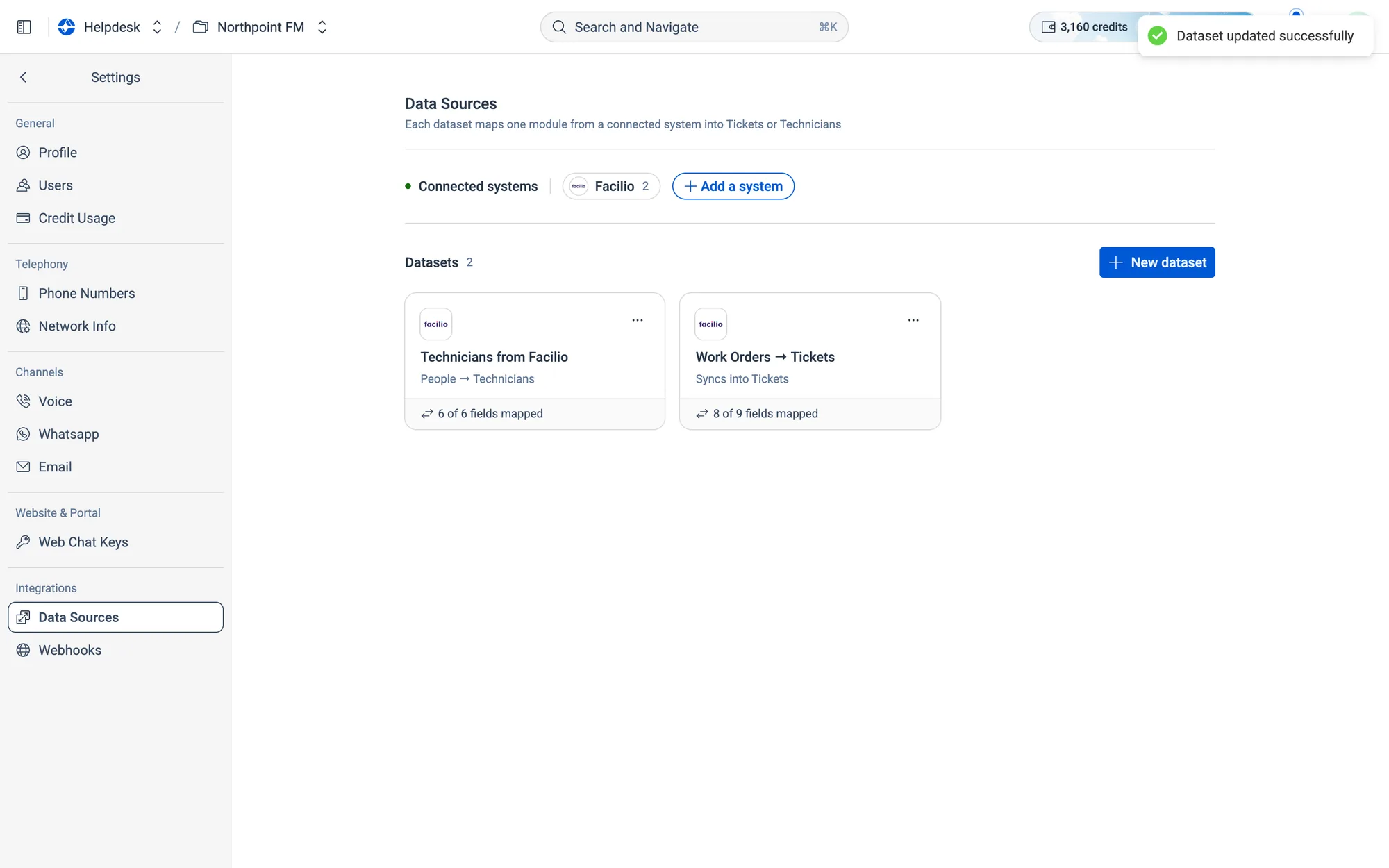
The card no longer needs a review.
Fig. 12.67The card no longer needs a review.

How to remove a dataset

  1. 1
    On Settings › Data Sources, open the ⋯ menu on the dataset's card and choose Delete dataset.
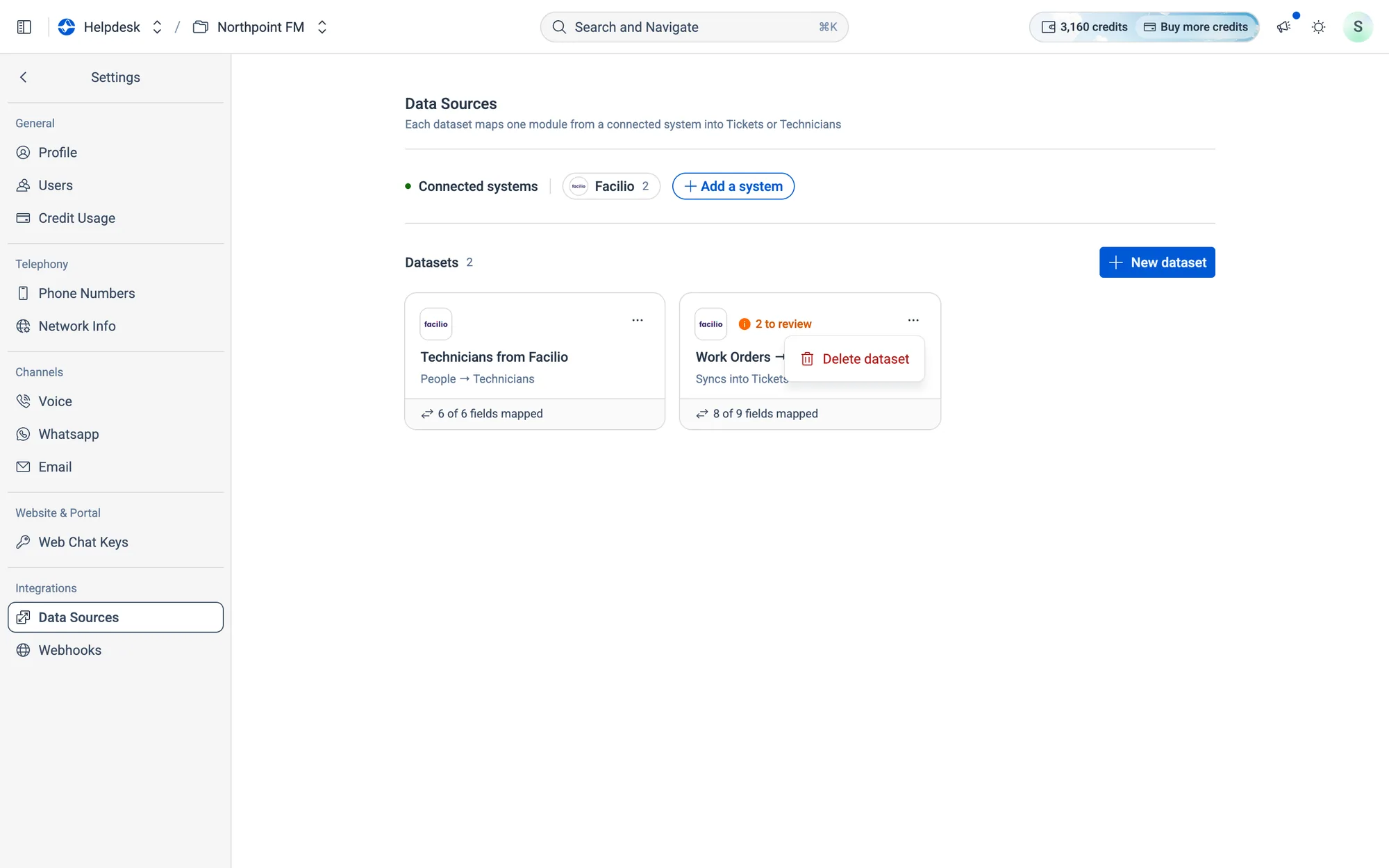
The dataset's ⋯ menu.
Fig. 12.68The dataset's ⋯ menu.
  1. 2
    Delete this dataset? explains what happens: syncing stops, and records that have already synced stay in Helpdesk. Click Delete.
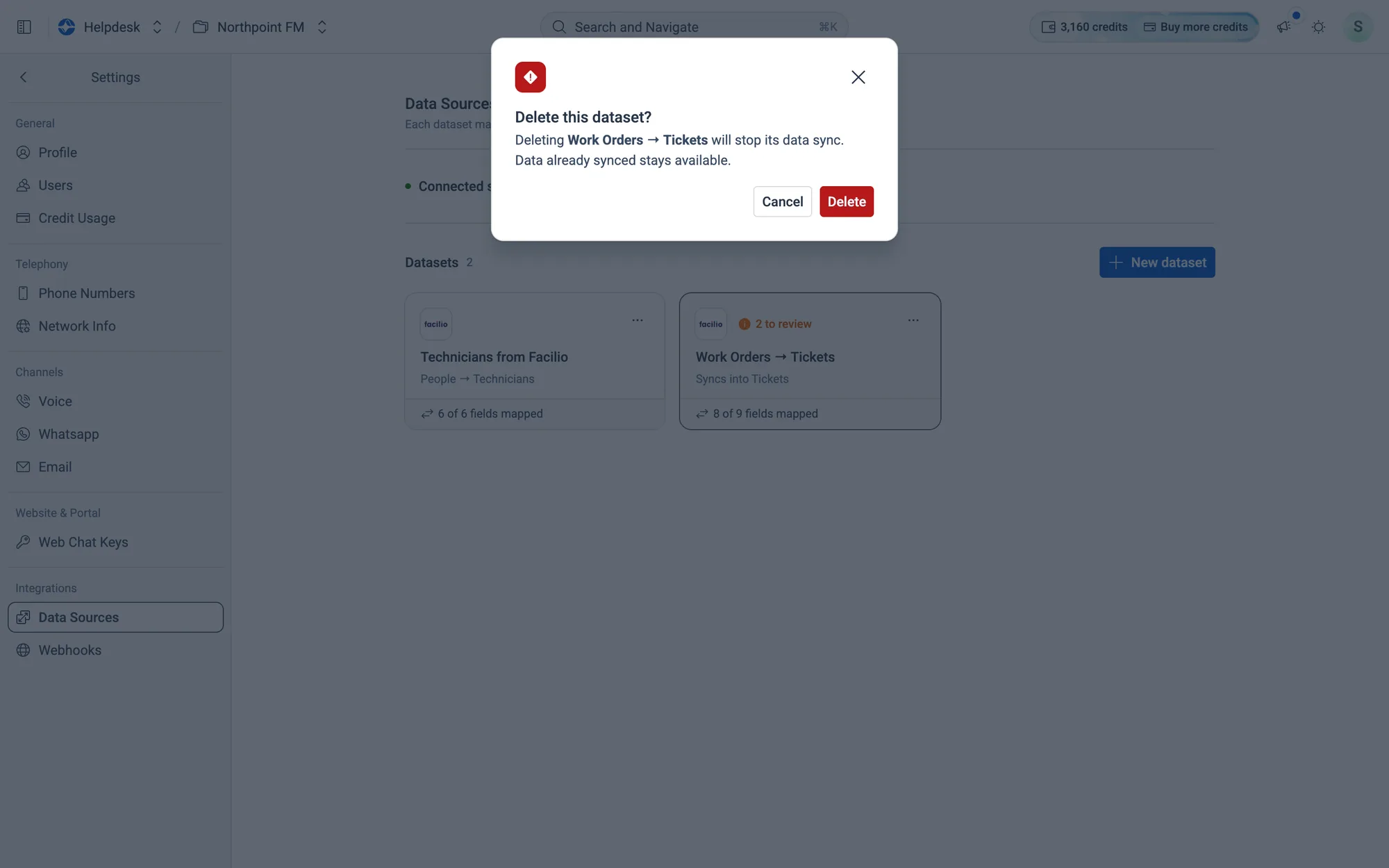
Confirm to stop the sync.
Fig. 12.69Confirm to stop the sync.

How to ask for another system

Facilio is connected today. Other systems, such as CMMS, ERP and property-management tools, are available on request.

  1. 1
    On Settings › Data Sources, click Add a system. Systems lists every system you can connect. Search at the top right.
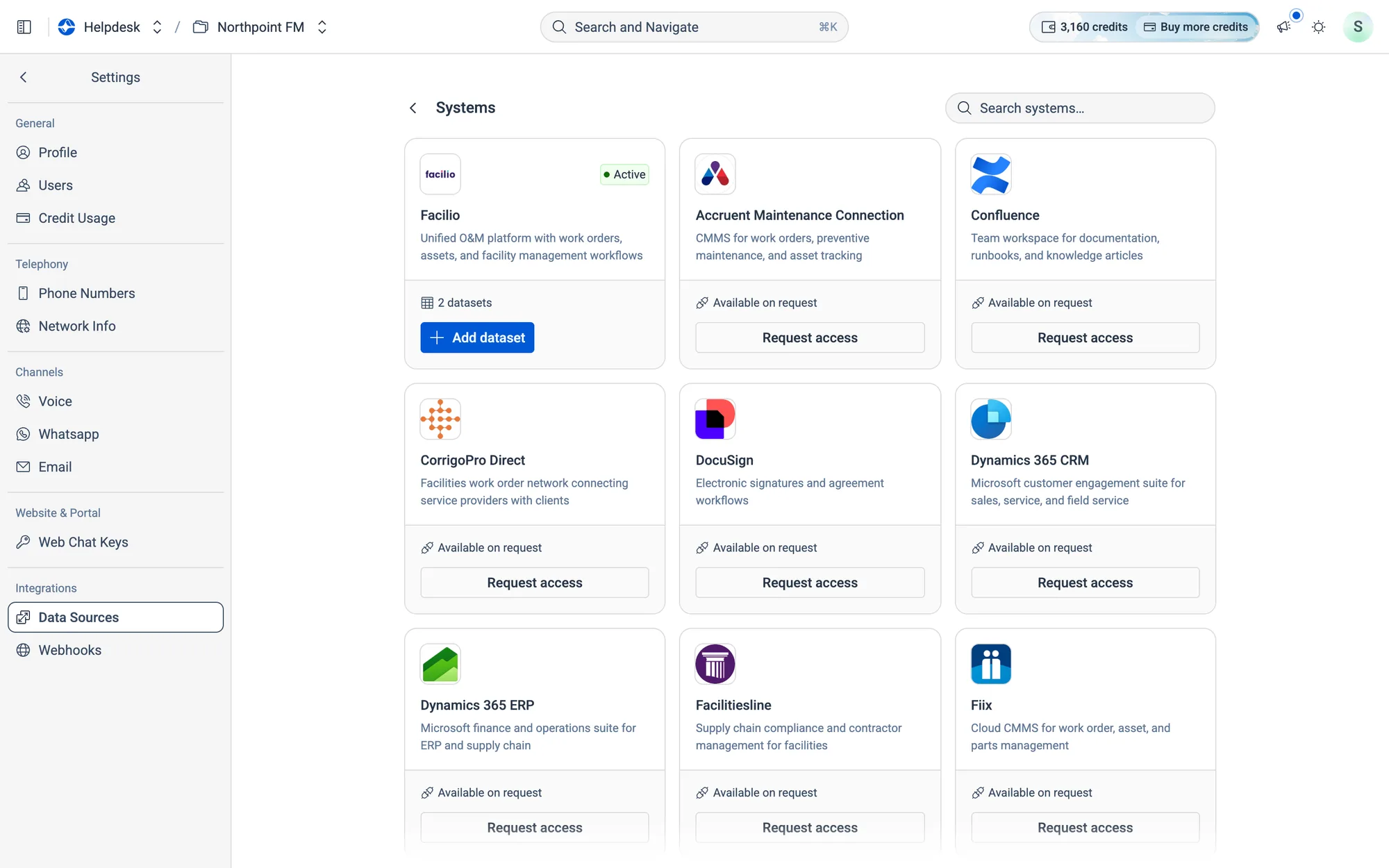
Facilio is Active. The others are Available on request.
Fig. 12.70Facilio is Active. The others are Available on request.
  1. 2
    Click Request access on the system you use. If it isn't listed, use the Don't see your system? card at the end.
  2. 3
    Under Tell us about your setup, say which system you use and which data should sync, then click Send Request.
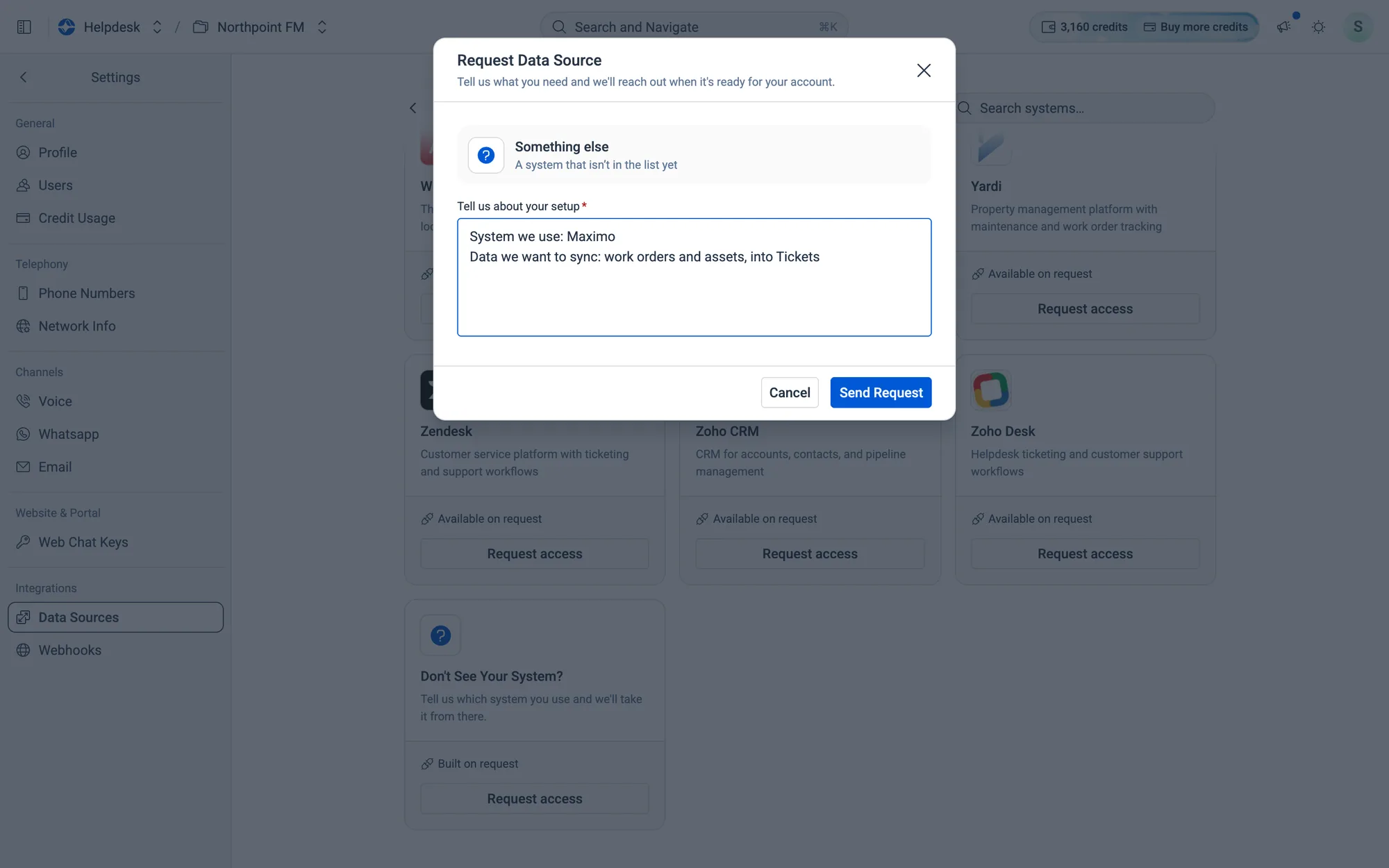
Asking for Maximo work orders and assets to sync into Tickets.
Fig. 12.71Asking for Maximo work orders and assets to sync into Tickets.
  1. 4
    A message confirms the request is sent. The Facilio team will reach out when it's ready for your account.
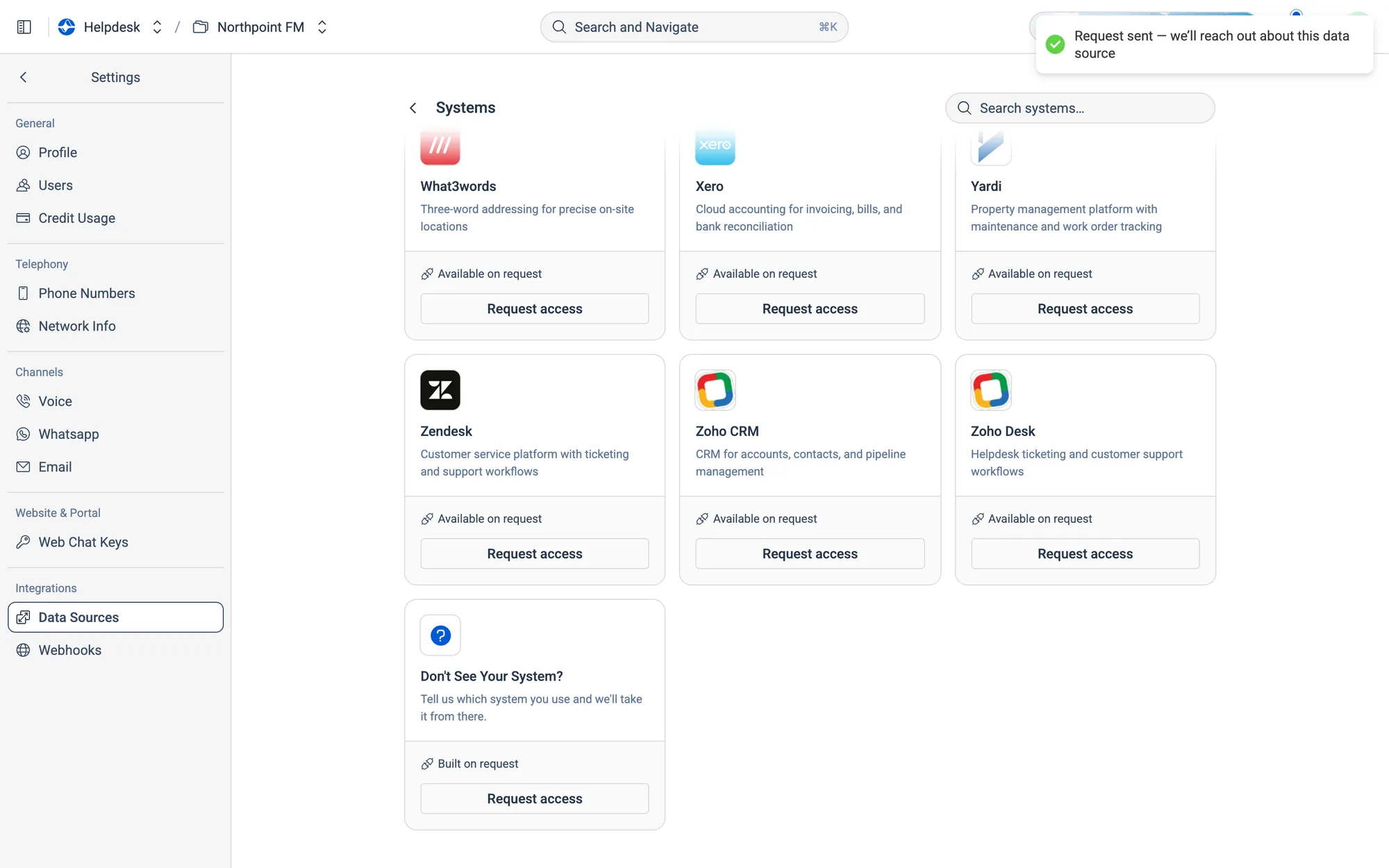
Request sent.
Fig. 12.72Request sent.

12.12Webhooks

A webhook runs an action in one of your connected apps the moment something happens in the helpdesk. For example, every new ticket can raise a work order in Facilio. You don't fill in a form: you describe the rule to Atom in one line, and Atom builds the trigger, the action and the code that runs it.

Each webhook has three parts:

Part What it decides Example
When it runs The events that set the rule off Ticket created, in Tickets
What it does The action it runs, and in which connected app Create work order, on Facilio
What it sends Where each of the action's inputs gets its value site comes from Tickets › Site

Rules can start from tickets, calls, chats, emails, feedback or technicians. An input's value can be Agent decides (the agent works it out from the conversation), a ticket field such as Tickets › Priority, or a fixed value.
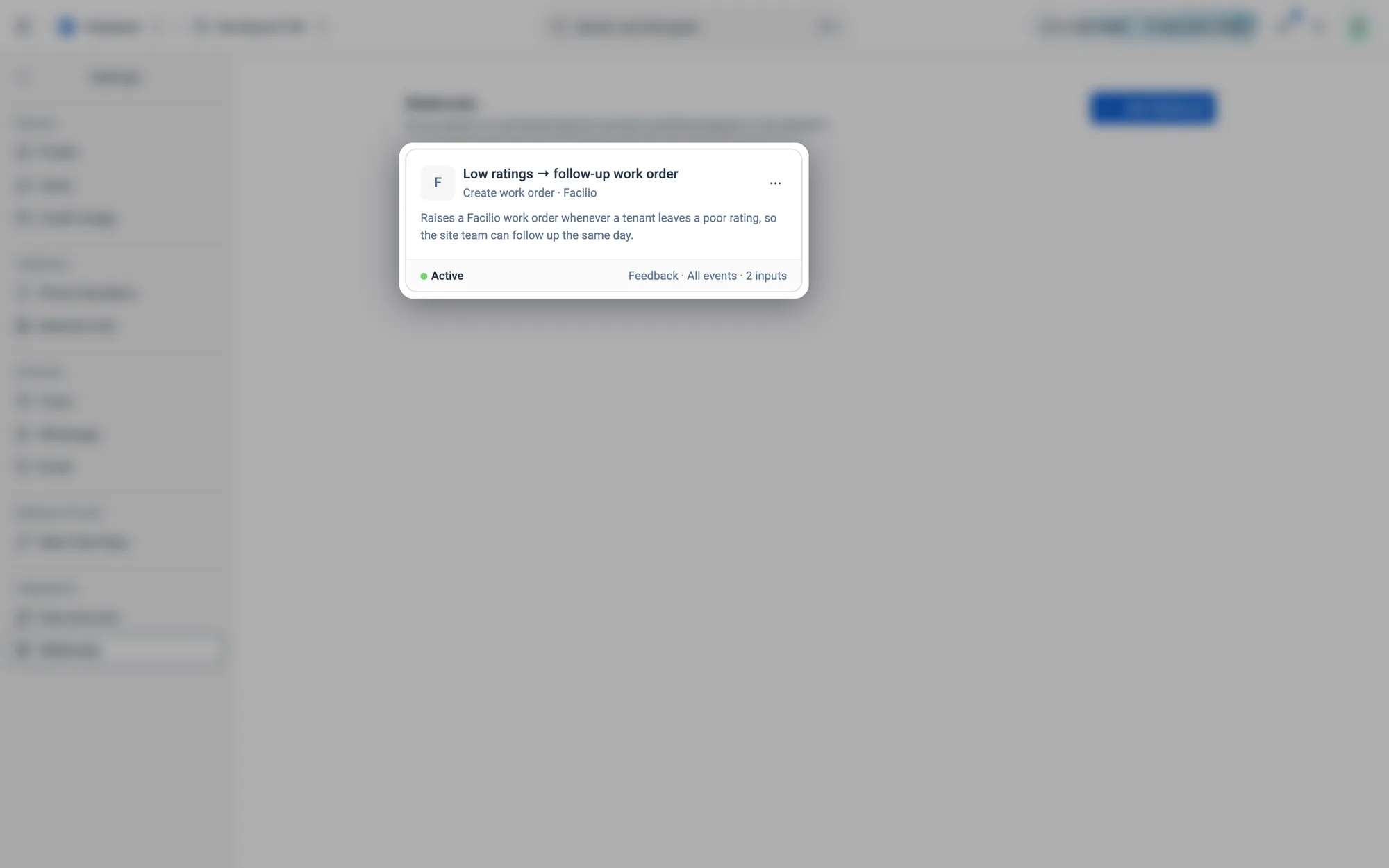
A webhook card: its name, the action and app, Atom's summary, and Active or Paused with the trigger underneath.
Fig. 12.73A webhook card: its name, the action and app, Atom's summary, and Active or Paused with the trigger underneath.

How to add a webhook

  1. 1
    Go to Settings › Webhooks. Each existing webhook is a card that shows its app, its trigger and whether it's Active.
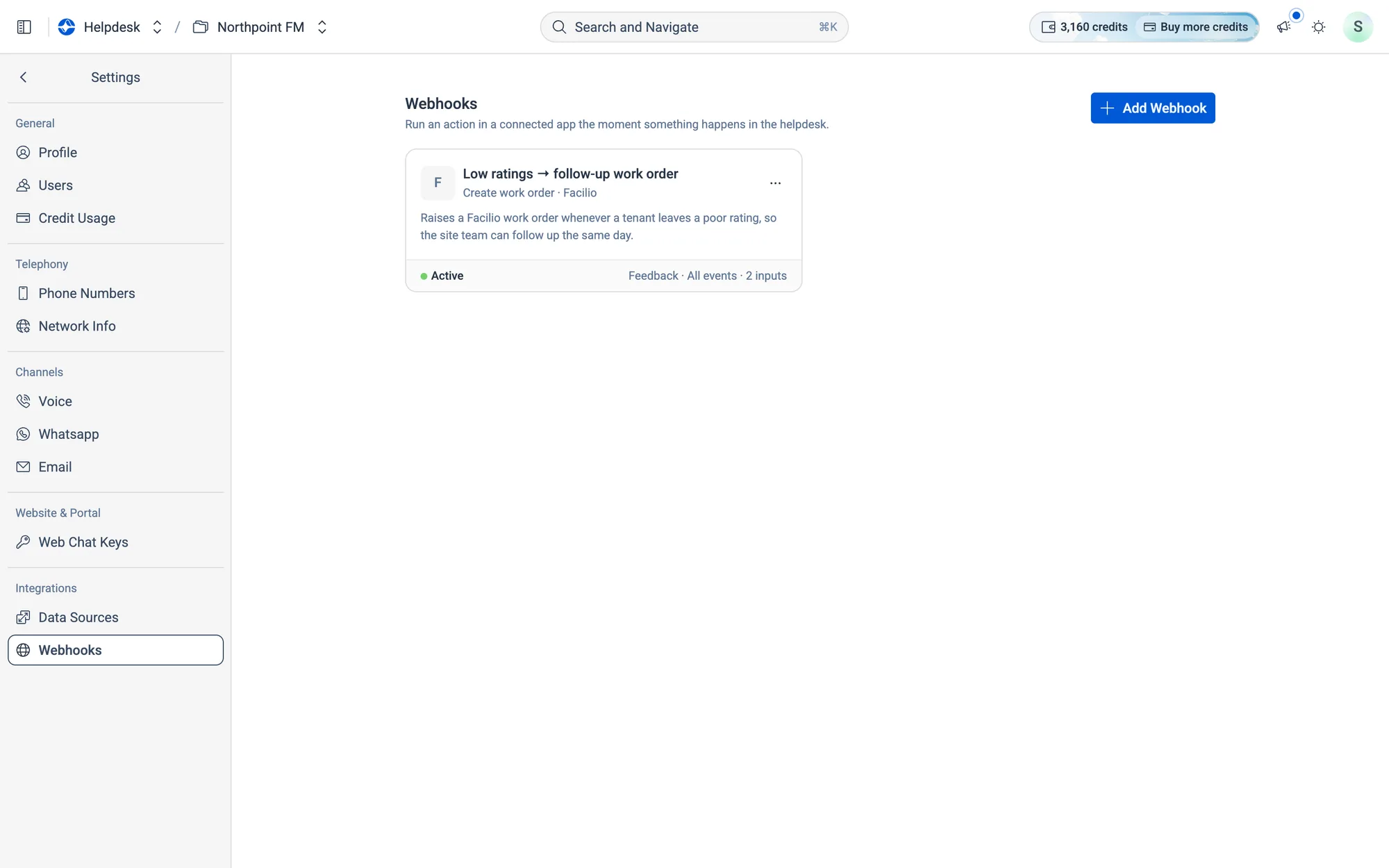
Settings › Webhooks with one webhook already running.
Fig. 12.74Settings › Webhooks with one webhook already running.
  1. 2
    Click Add Webhook. The New Webhook dialog opens: you chat with Atom on the left, and the rule builds itself on the right.
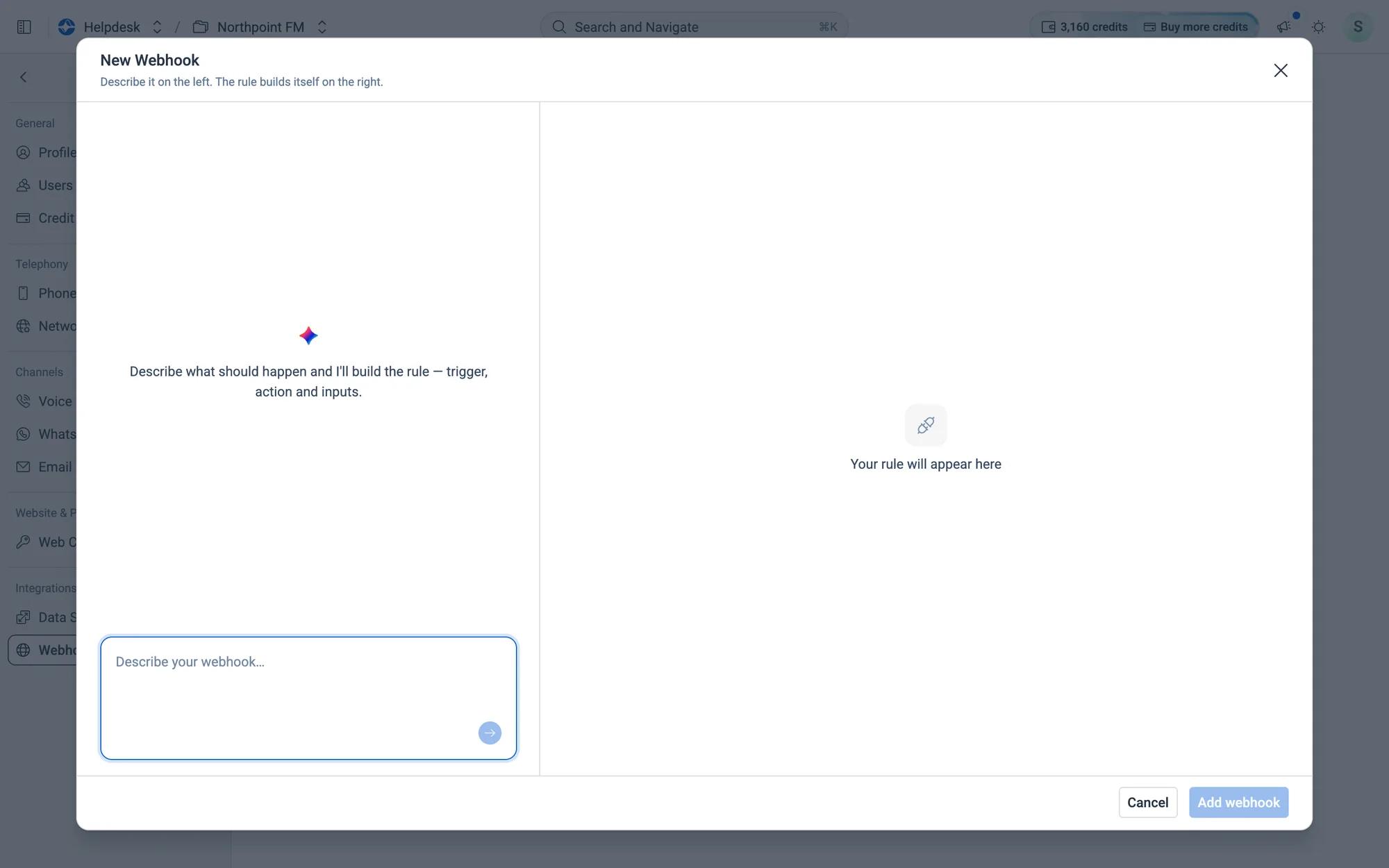
Describe what should happen and Atom builds the trigger, action and inputs.
Fig. 12.75Describe what should happen and Atom builds the trigger, action and inputs.
  1. 3
    In Describe your webhook…, write what should happen, in plain words. Name the event and the app, for example "When a new ticket is created, raise a work order in Facilio with the ticket's site and priority."
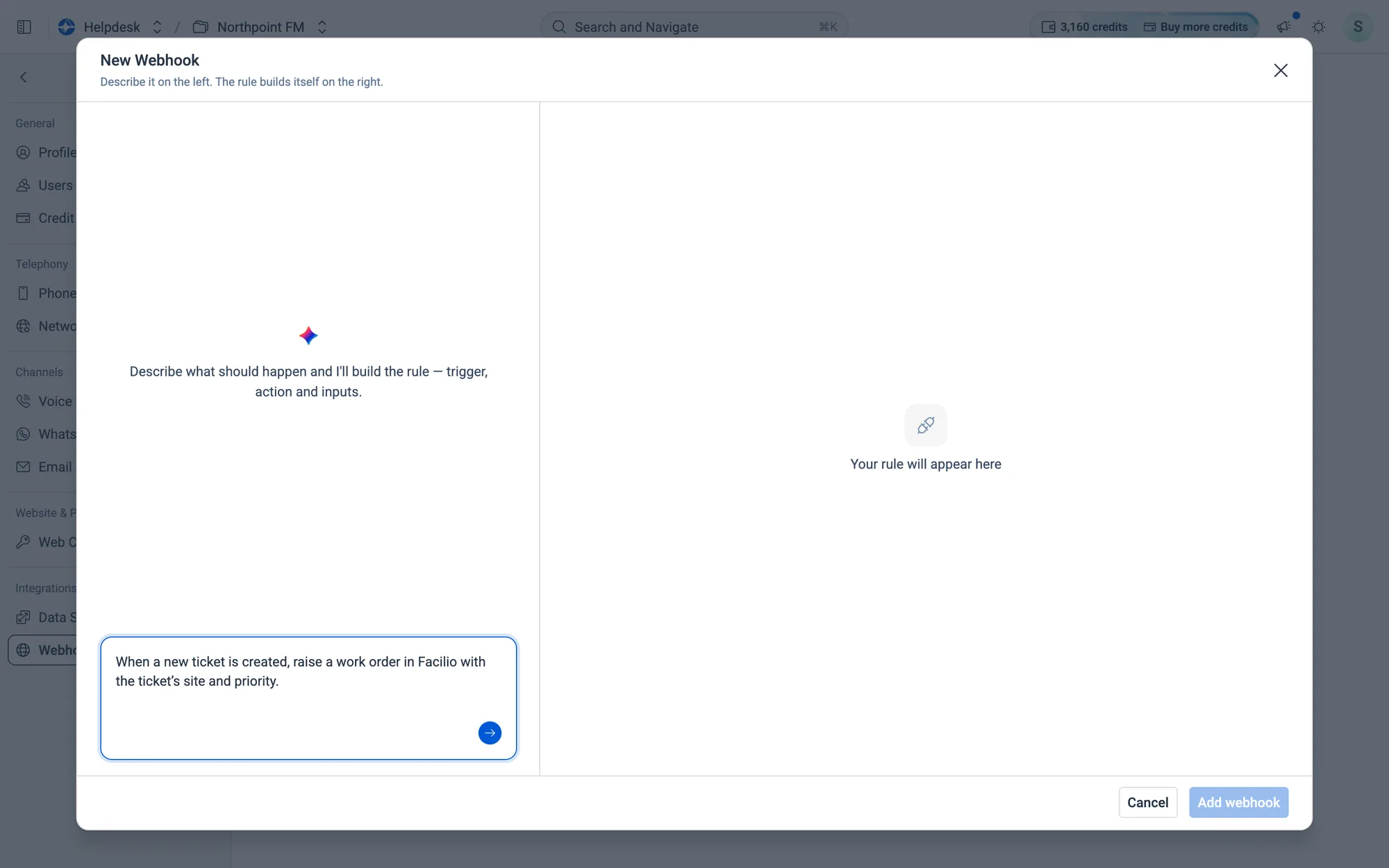
One line is enough. Atom asks if it needs anything else.
Fig. 12.76One line is enough. Atom asks if it needs anything else.
  1. 4
    Press Enter. Atom starts drafting: you'll see it choose the trigger, pick the action and map the inputs.
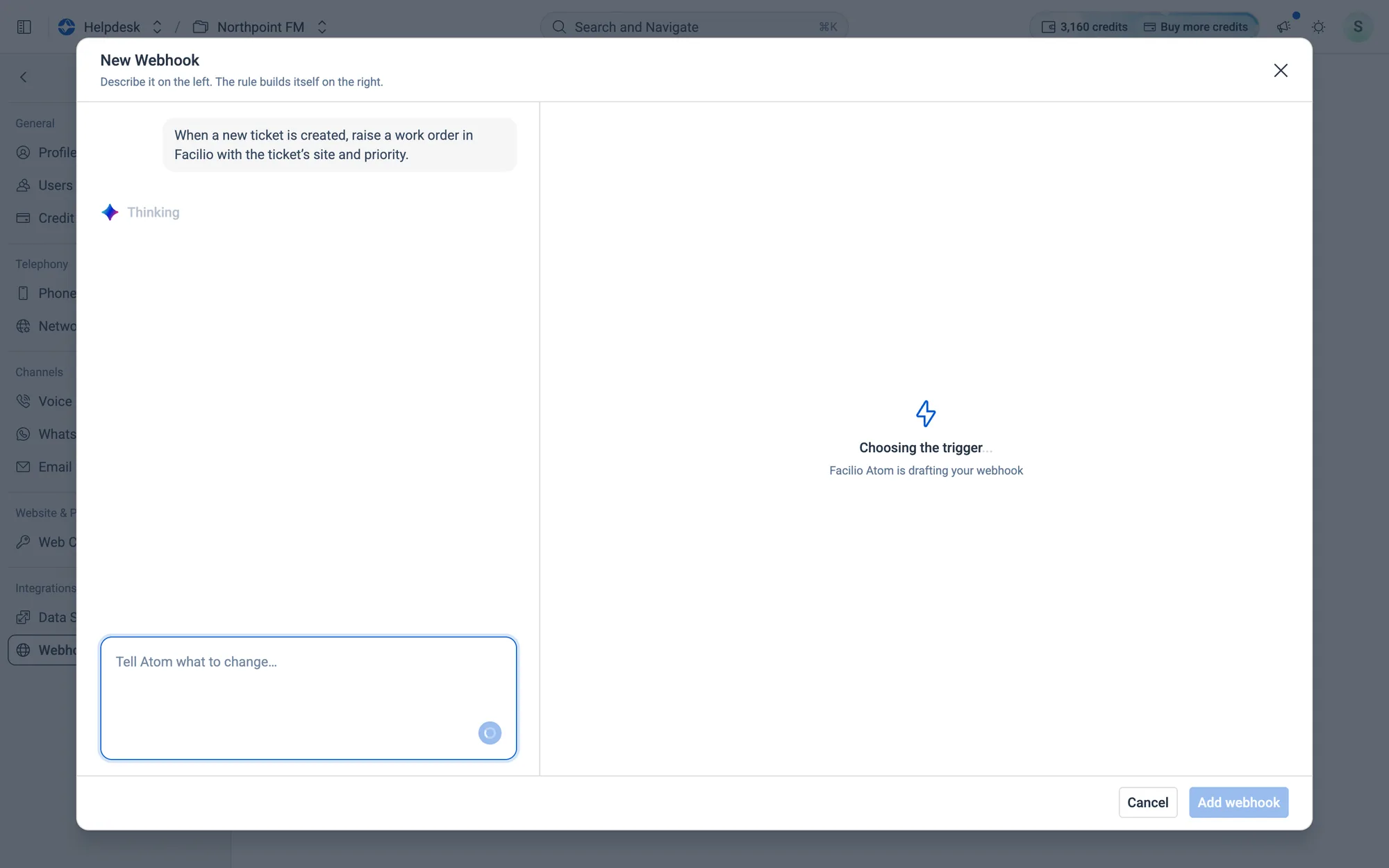
Choosing the trigger… Atom is drafting your webhook.
Fig. 12.77Choosing the trigger… Atom is drafting your webhook.
  1. 5
    Atom replies in the chat and fills in the rule. It then writes and deploys the code that runs it. This takes about half a minute.
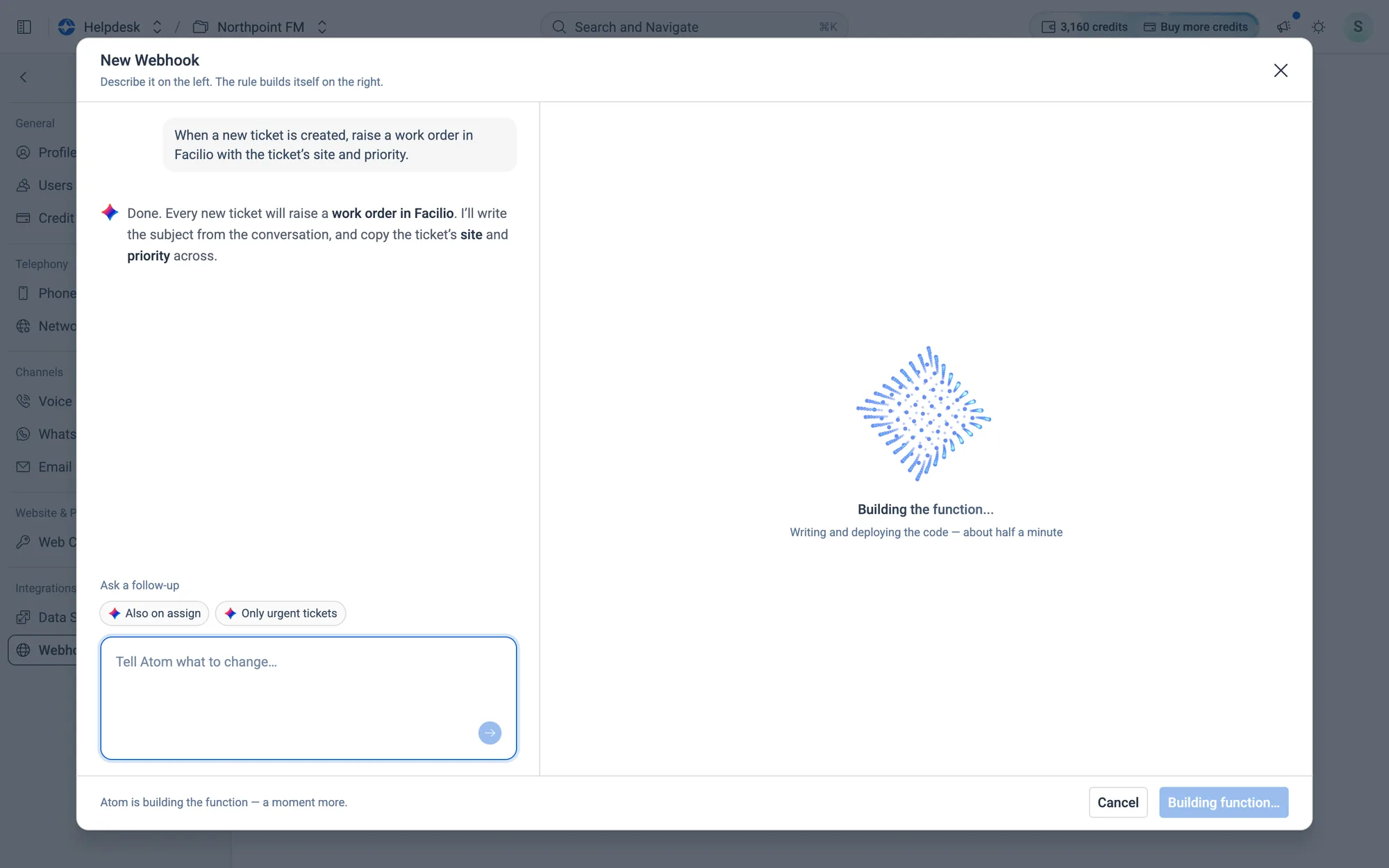
Building the function… The footer says Atom is building it, and the save button waits.
Fig. 12.78Building the function… The footer says Atom is building it, and the save button waits.
  1. 6
    Check the rule on the right: When it runs, What it does and What it sends. To change any part, click it, or click one of the Ask a follow-up chips such as Also on assign. The change goes into the chat box, and you press Enter to send it to Atom.
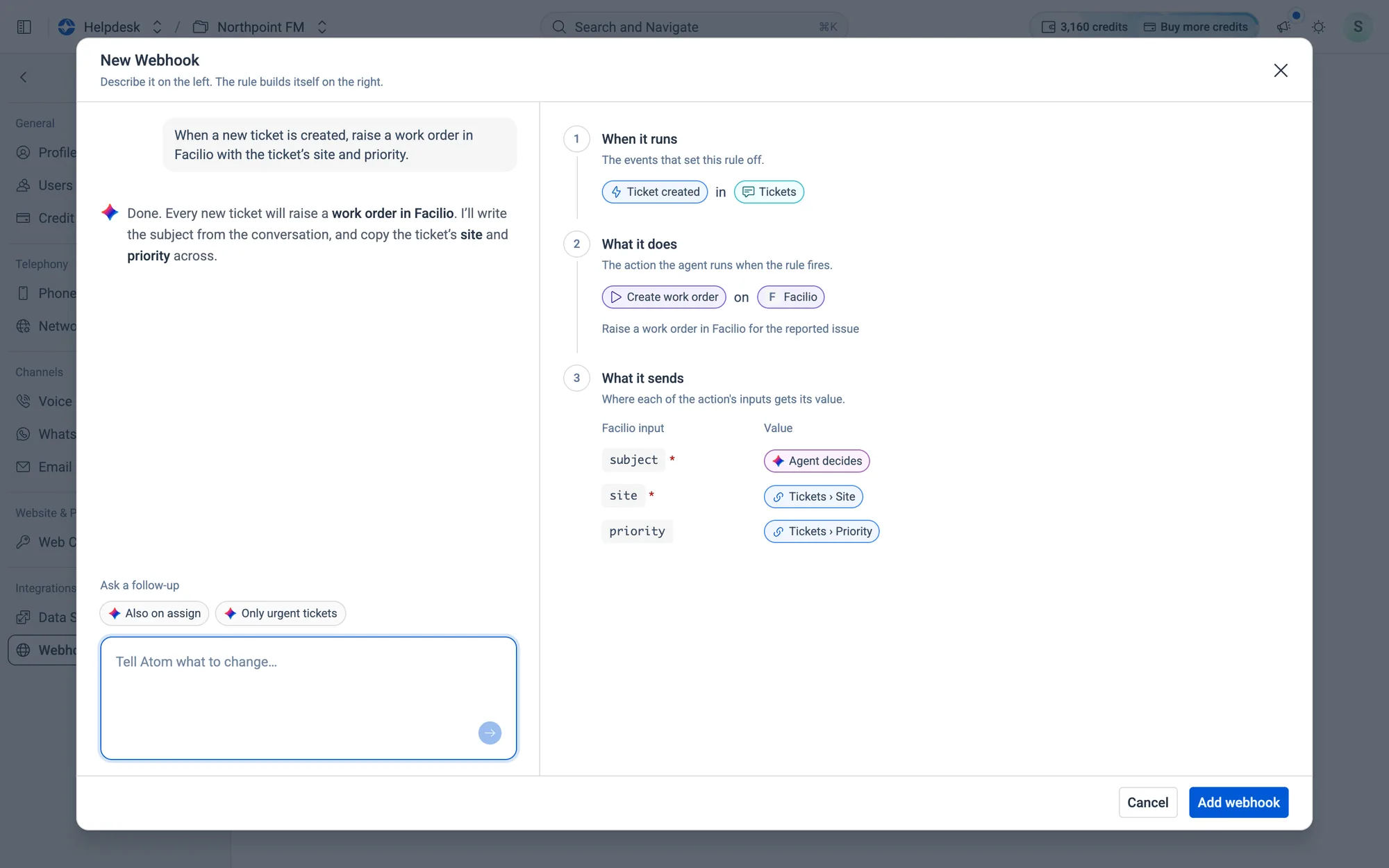
The finished rule: every new ticket raises a Facilio work order with the ticket's site and priority.
Fig. 12.79The finished rule: every new ticket raises a Facilio work order with the ticket's site and priority.
  1. 7
    Click Add webhook. The new webhook appears as a card and starts running straight away.
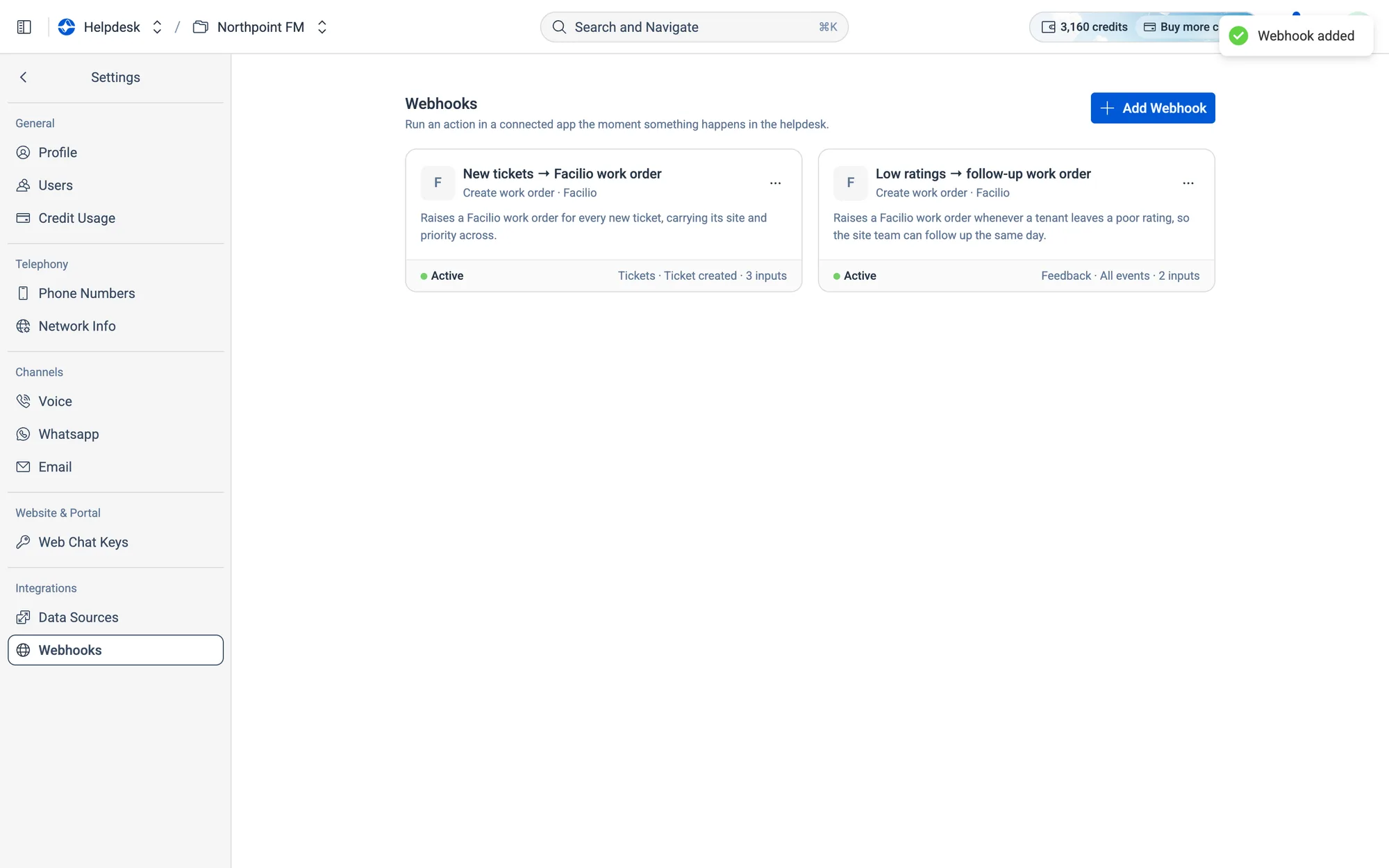
Webhook added. Atom also names the rule and writes a one-line summary for the card.
Fig. 12.80Webhook added. Atom also names the rule and writes a one-line summary for the card.

How to test a webhook

  1. 1
    Click the webhook's card. The Edit Webhook dialog opens with the rule on the right and Recent runs at the bottom.
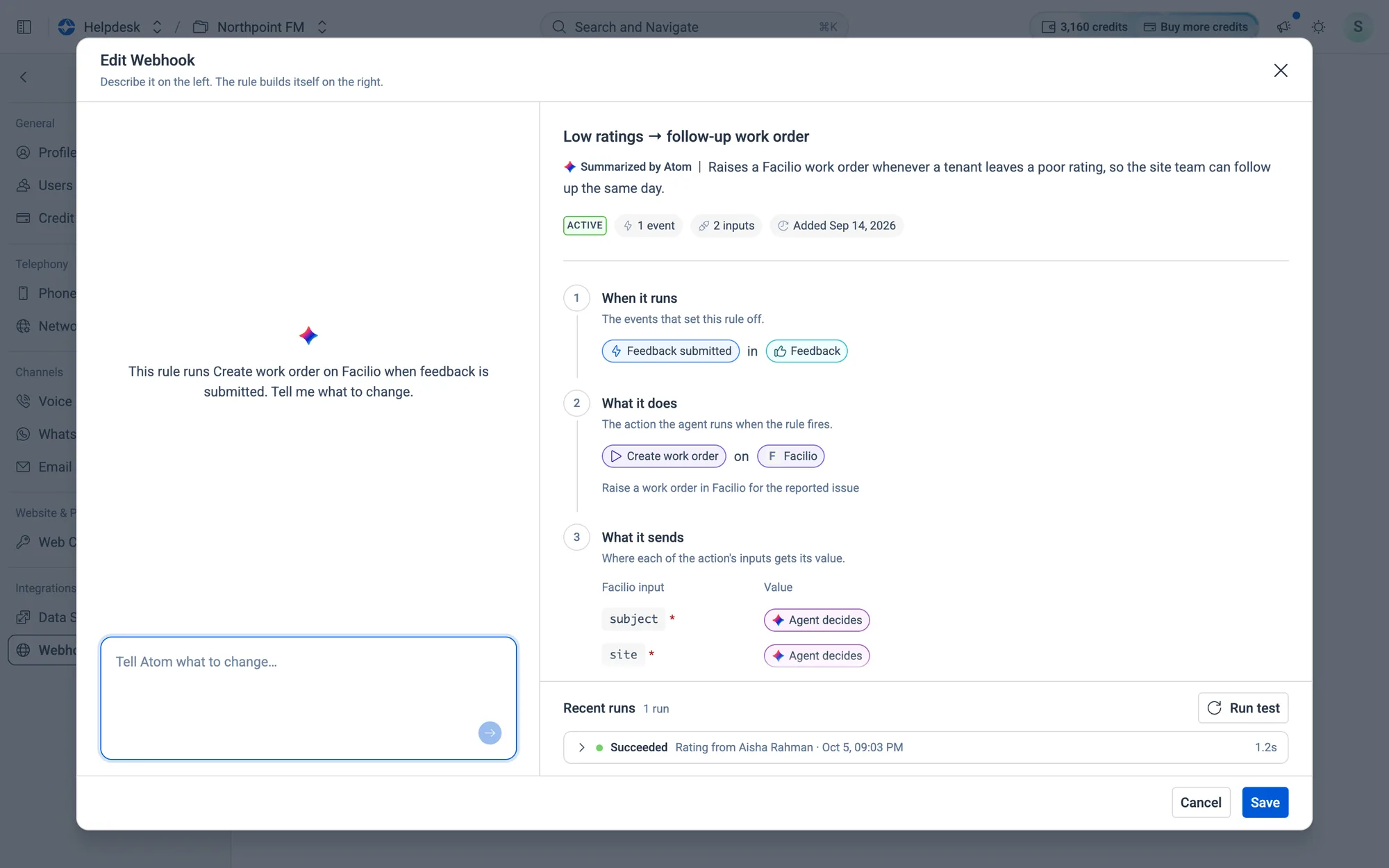
The rule as Atom summarised it, with its recent runs underneath.
Fig. 12.81The rule as Atom summarised it, with its recent runs underneath.
  1. 2
    Click Run test. The rule runs once, and the result is added to Recent runs as a Test run.
  2. 3
    Click a run to open it. Inputs sent shows each value and where it came from, and Response shows what the app sent back.
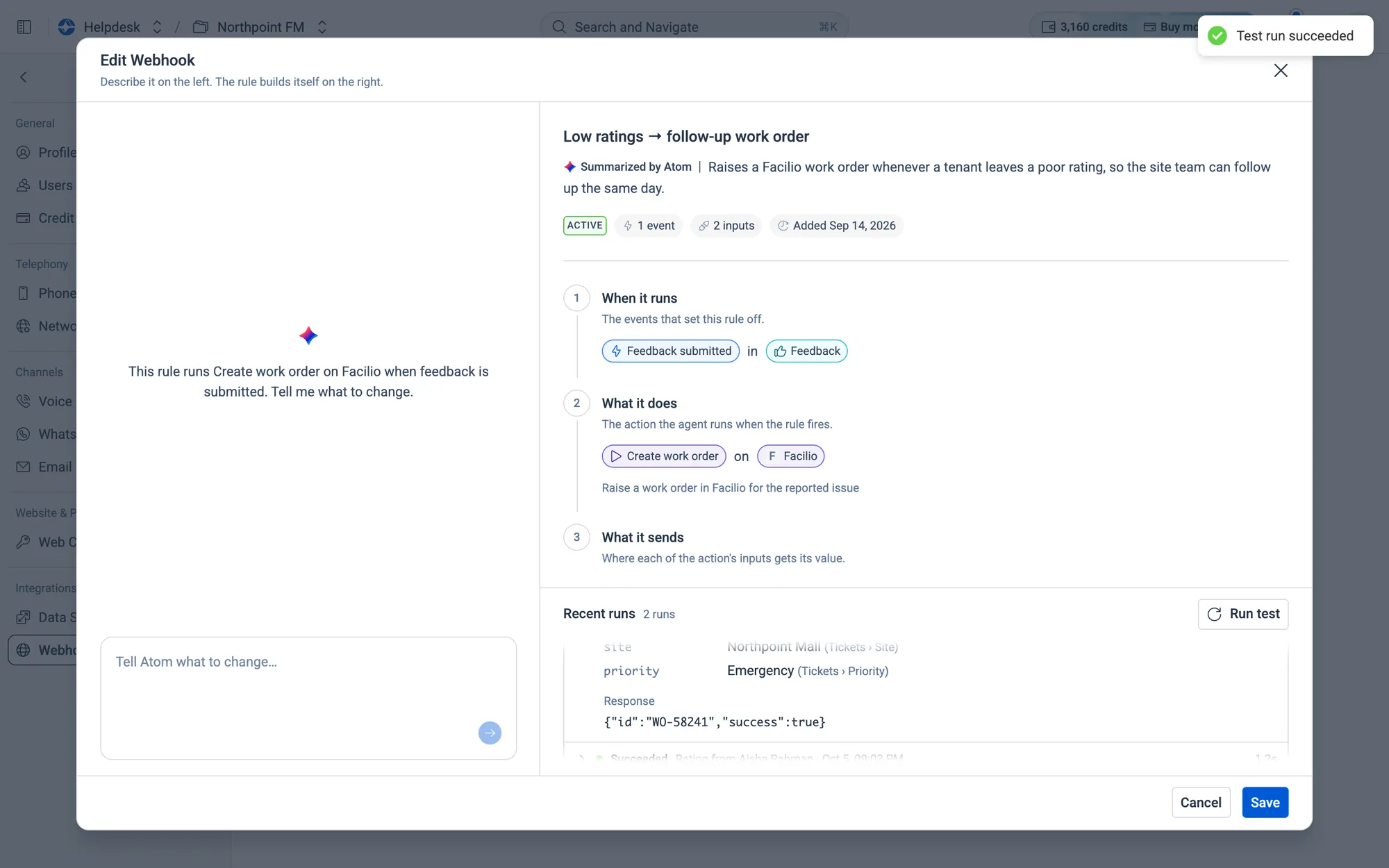
A Succeeded test run, with the inputs it sent and the work order Facilio created.
Fig. 12.82A Succeeded test run, with the inputs it sent and the work order Facilio created.

How to pause, view or delete a webhook

  1. 1
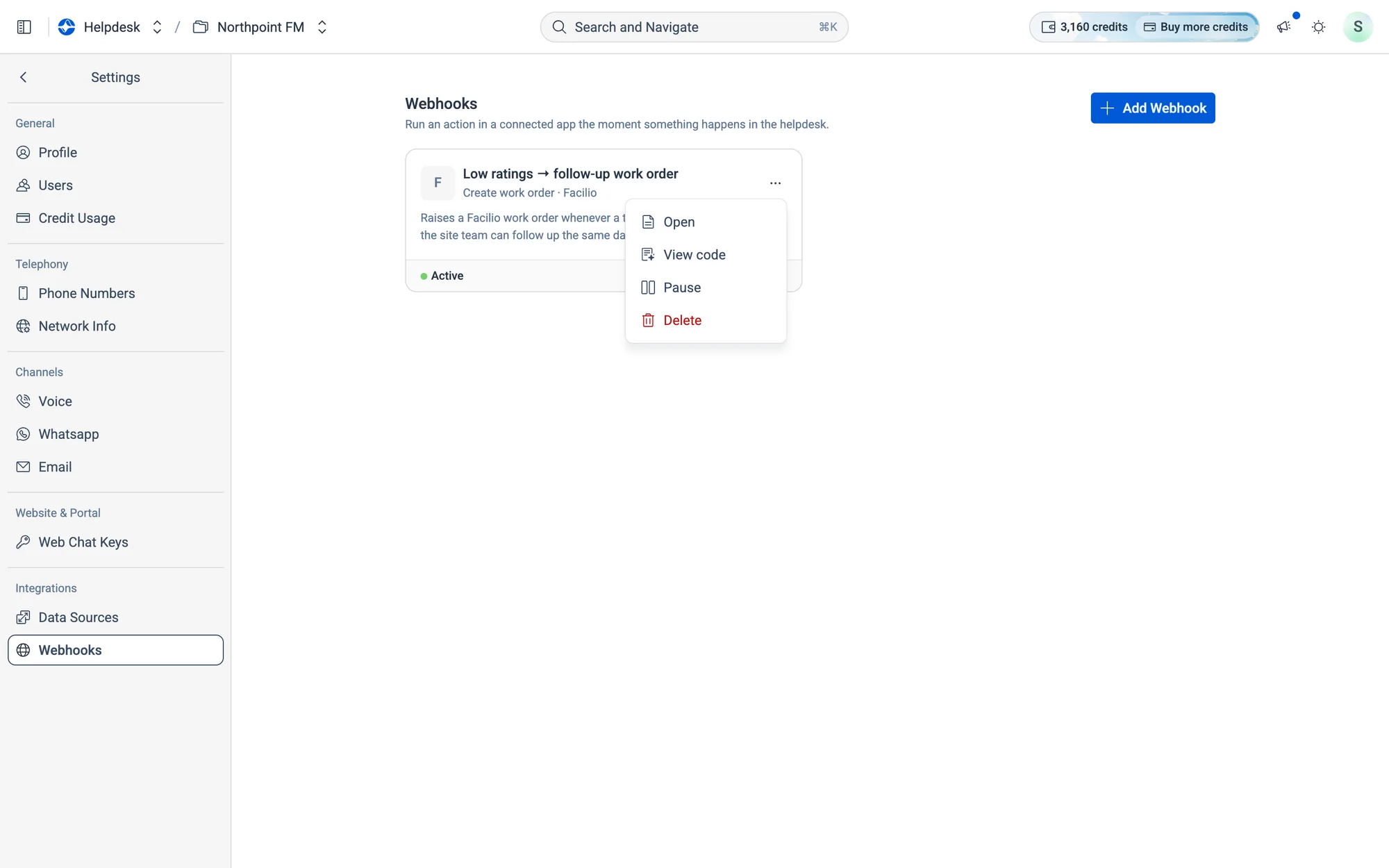
    Open the ⋯ menu on the webhook's card.
The card menu: Open, View code, Pause and Delete.
Fig. 12.83The card menu: Open, View code, Pause and Delete.
  1. 2
    Choose View code to read the code Atom wrote for this rule. It's read-only.
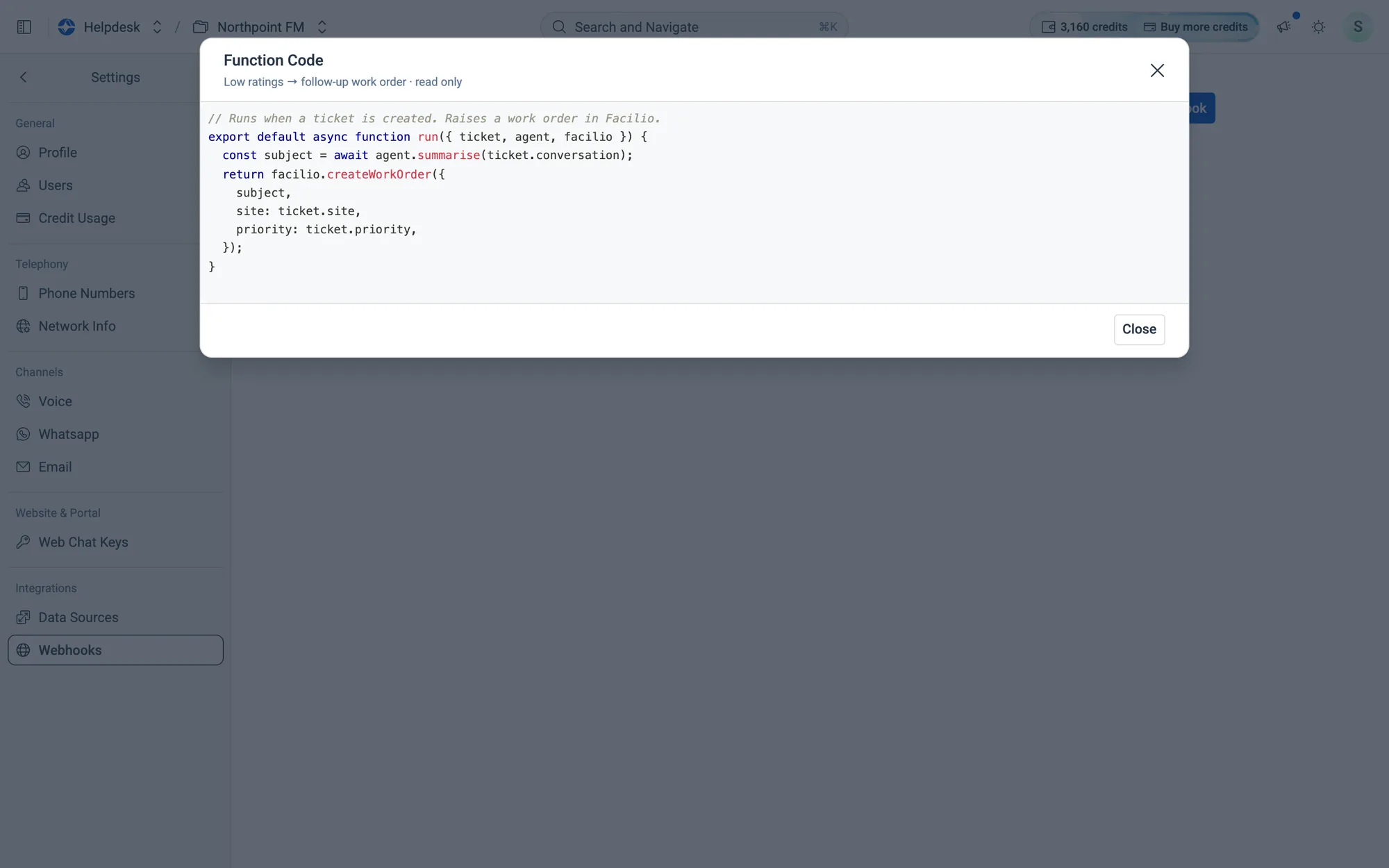
Function code for the rule.
Fig. 12.84Function code for the rule.
  1. 3
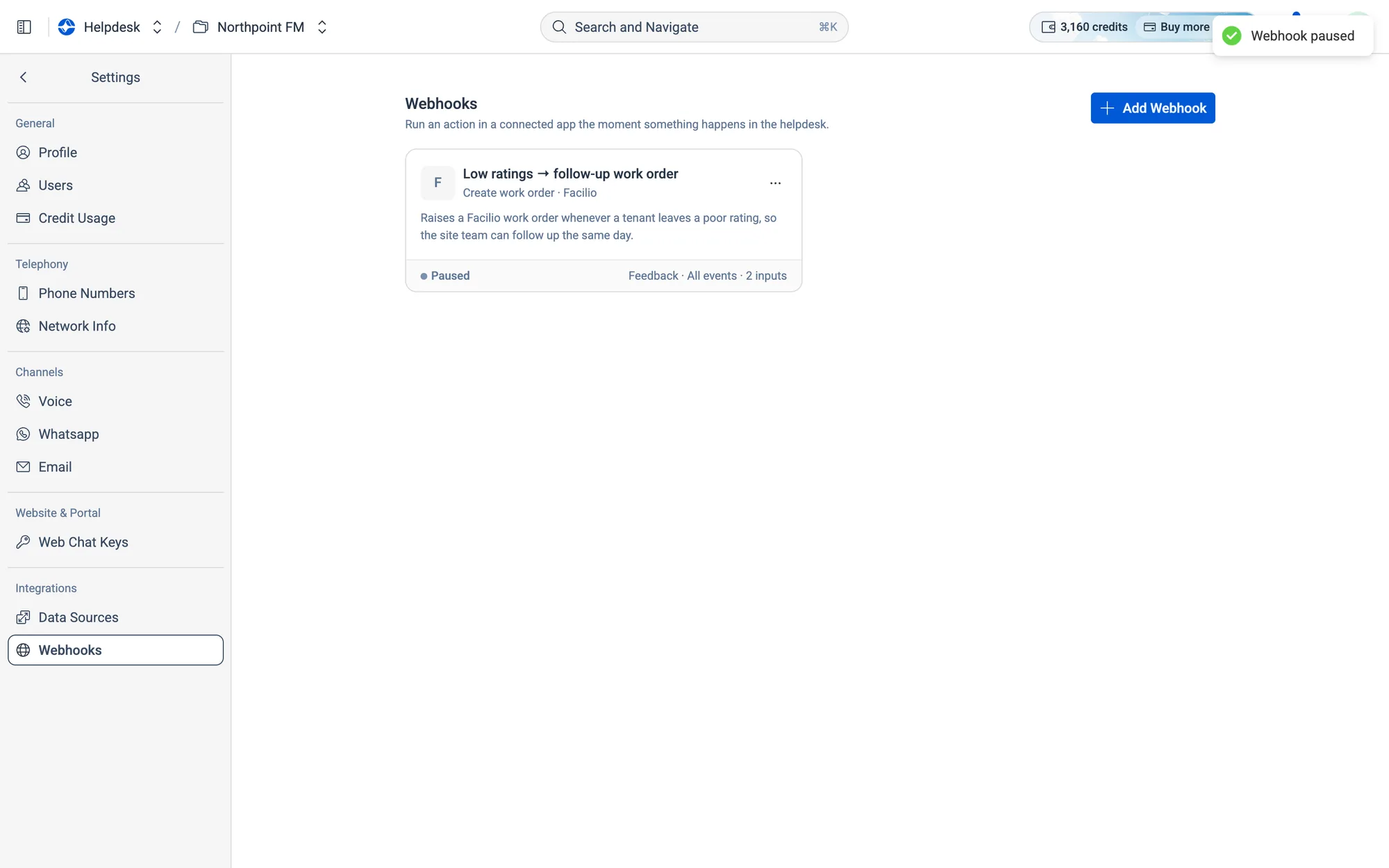
    Choose Pause to stop the webhook without deleting it. The card shows Paused until you choose Resume.
The webhook is paused.
Fig. 12.85The webhook is paused.
  1. 4
    Choose Delete and confirm with Delete. The webhook stops running. The connected app itself isn't touched.
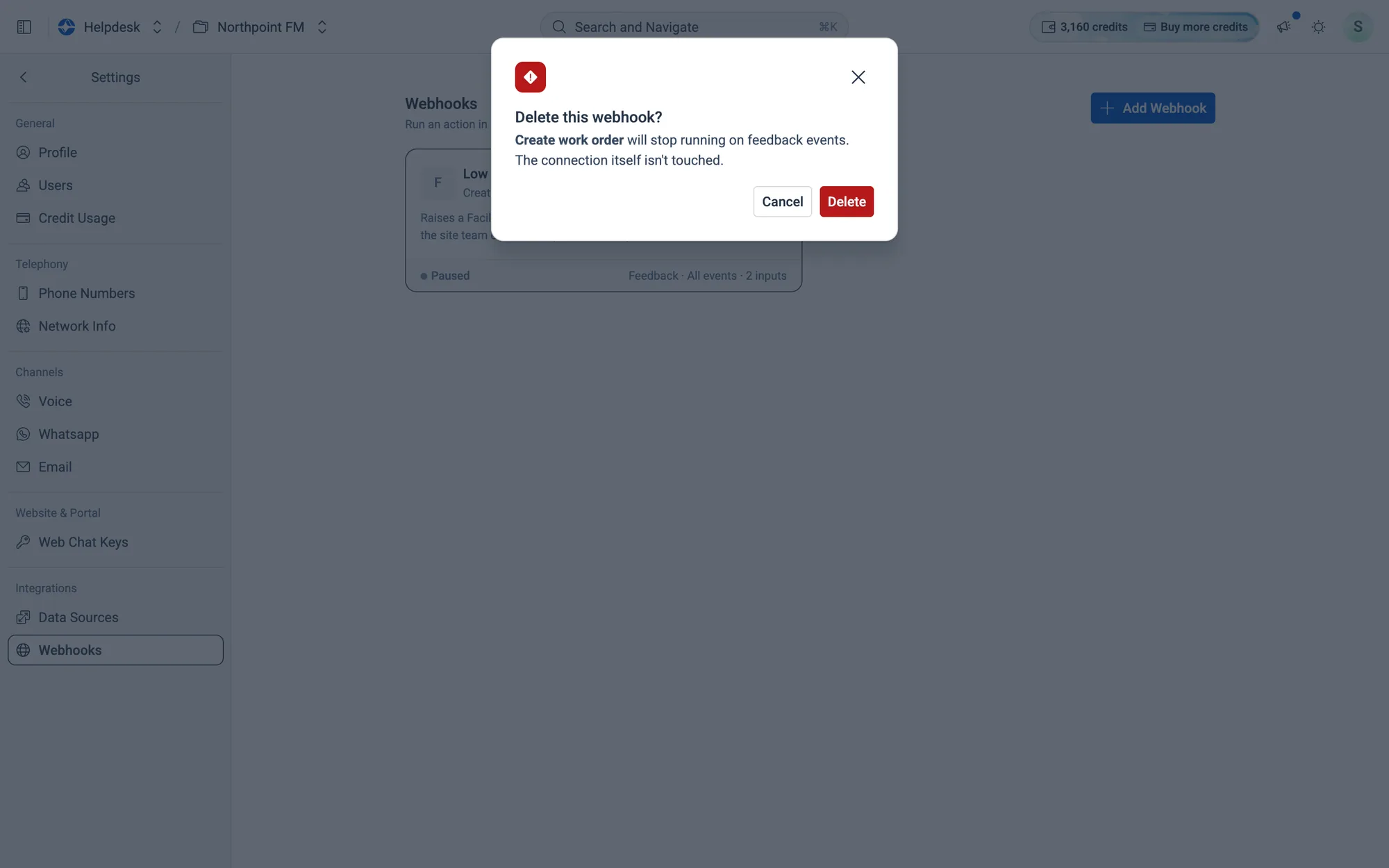
Deleting a webhook can't be undone.
Fig. 12.86Deleting a webhook can't be undone.