Tickets
Every ticket raised from calls, chats and emails across your sites, in one list. Open a ticket to see its details, the technician Atom picked, and exactly how it decided.
06.1Where tickets come from
You don't need to type tickets in. The Intake agent raises a ticket at the end of each conversation, with the subject, site, category and urgency filled in. Tickets can also sync in from the tools you already use through Data Sources.
06.2Read the list
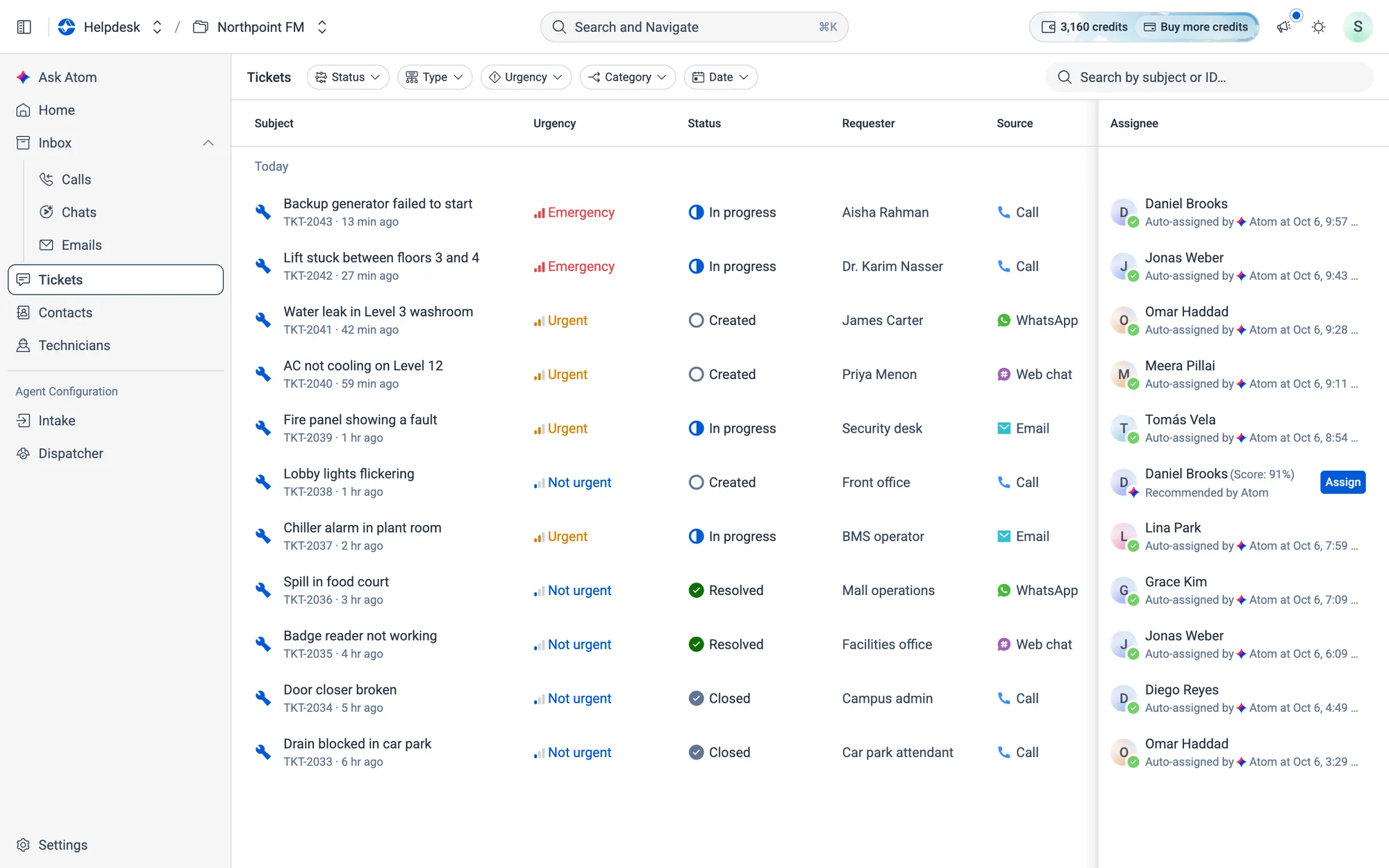
| Column | What it shows |
|---|---|
| Subject | What the issue is, with the ticket ID and how long ago it came in |
| Urgency | Emergency (3 red bars), Urgent (2 amber bars) or Not urgent (1 blue bar) |
| Status | Created, In Progress, Resolved, Closed or Rejected |
| Requester | Who reported it |
| Source | The channel it came in on: Call, WhatsApp, Web call, Web chat or Email |
| Location | The site and area, for example Northpoint Mall · Generator room |
| Category | For example HVAC, Plumbing or Electrical |
| Assignee | The technician, and whether Atom or a person assigned them |
The Assignee column can show four things:
- Auto-assigned by ✦ Atom at…: Atom assigned the technician on its own.
- Recommended by Atom with a score and an
Assignbutton: Atom suggests this technician and is waiting for you to confirm. - Finding a match…: Atom is still working on it.
- Assigned at…: someone on your team assigned it by hand.
06.3Ticket types and other fields
Every ticket has a type, a category, an urgency and a status, and you can filter the list by each of them. The category and urgency are filled in from the conversation.
Types
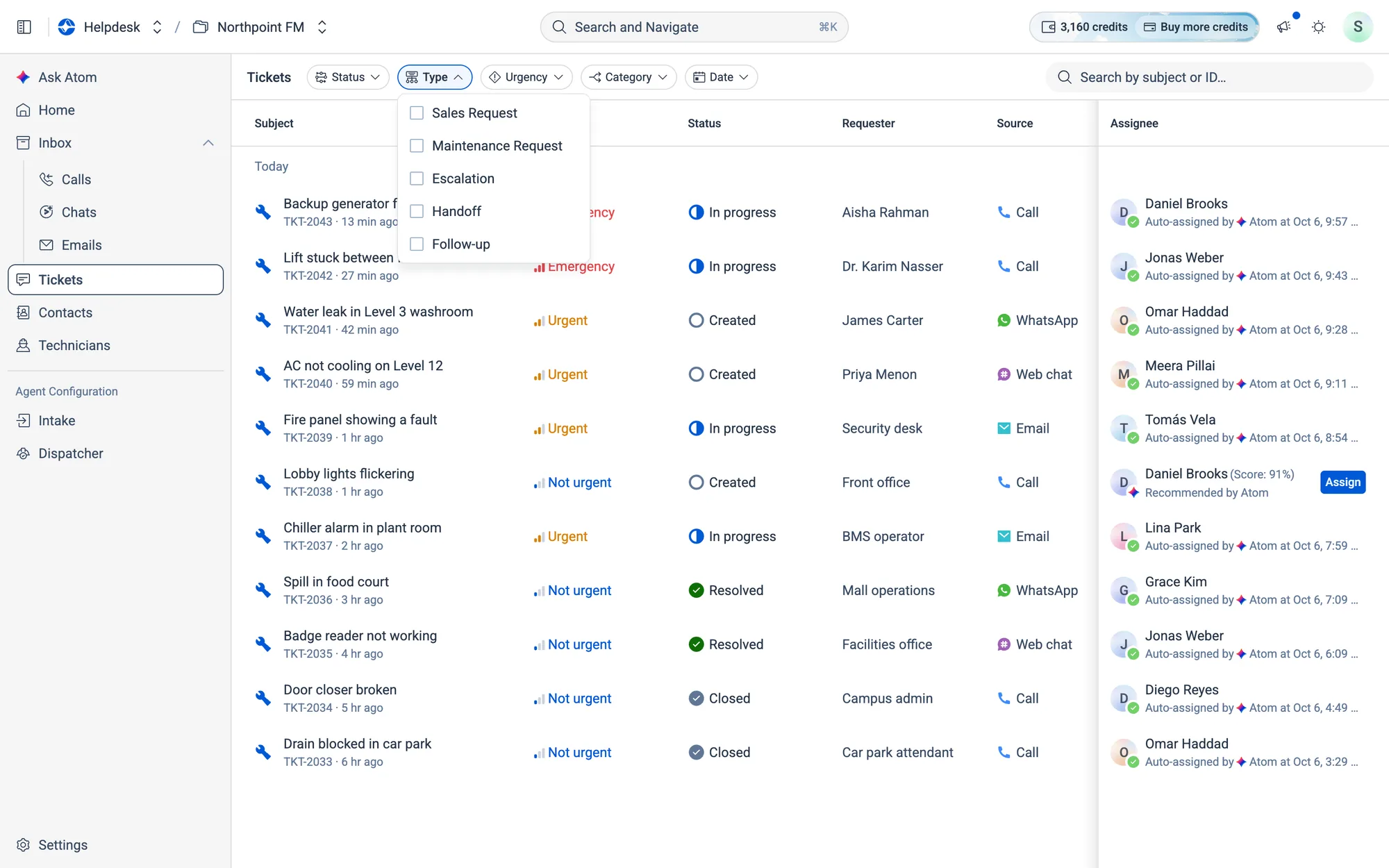
| Type |
|---|
| Sales Request |
| Maintenance Request |
| Escalation |
| Handoff |
| Follow-up |
Categories
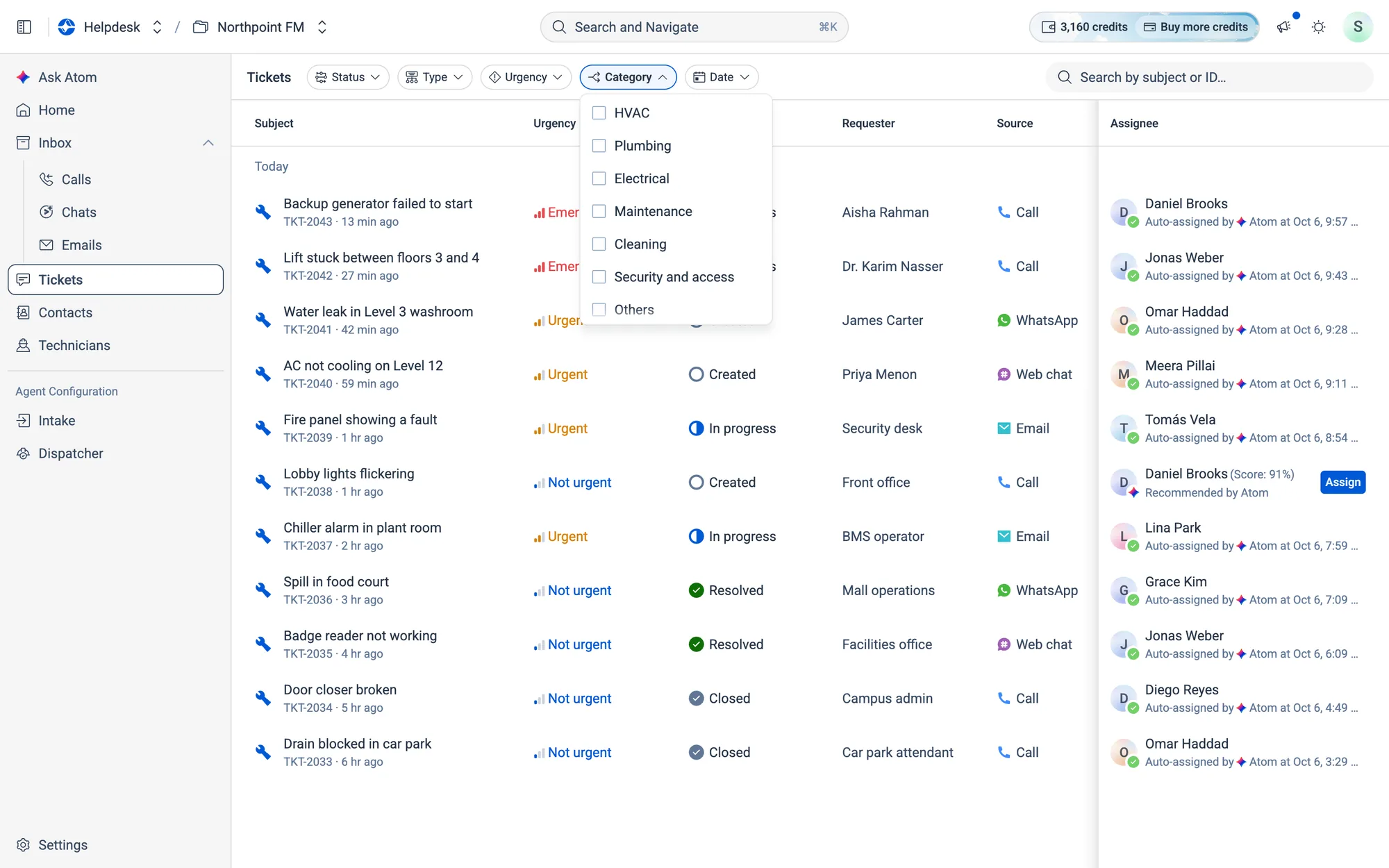
HVAC, Plumbing, Electrical, Maintenance, Cleaning, Security and access and Others. Dispatch policies can use the category to decide which tickets they handle, for example Category is Electrical.
Urgency
| Urgency | In the list |
|---|---|
| Emergency | 3 red bars |
| Urgent | 2 amber bars |
| Not urgent | 1 blue bar |
Status
Created, In Progress, Resolved, Closed and Rejected.
Date
The Date filter shows tickets from Today, Yesterday, the Last 7 days or the Last 30 days.
06.4Inside a ticket, section by section
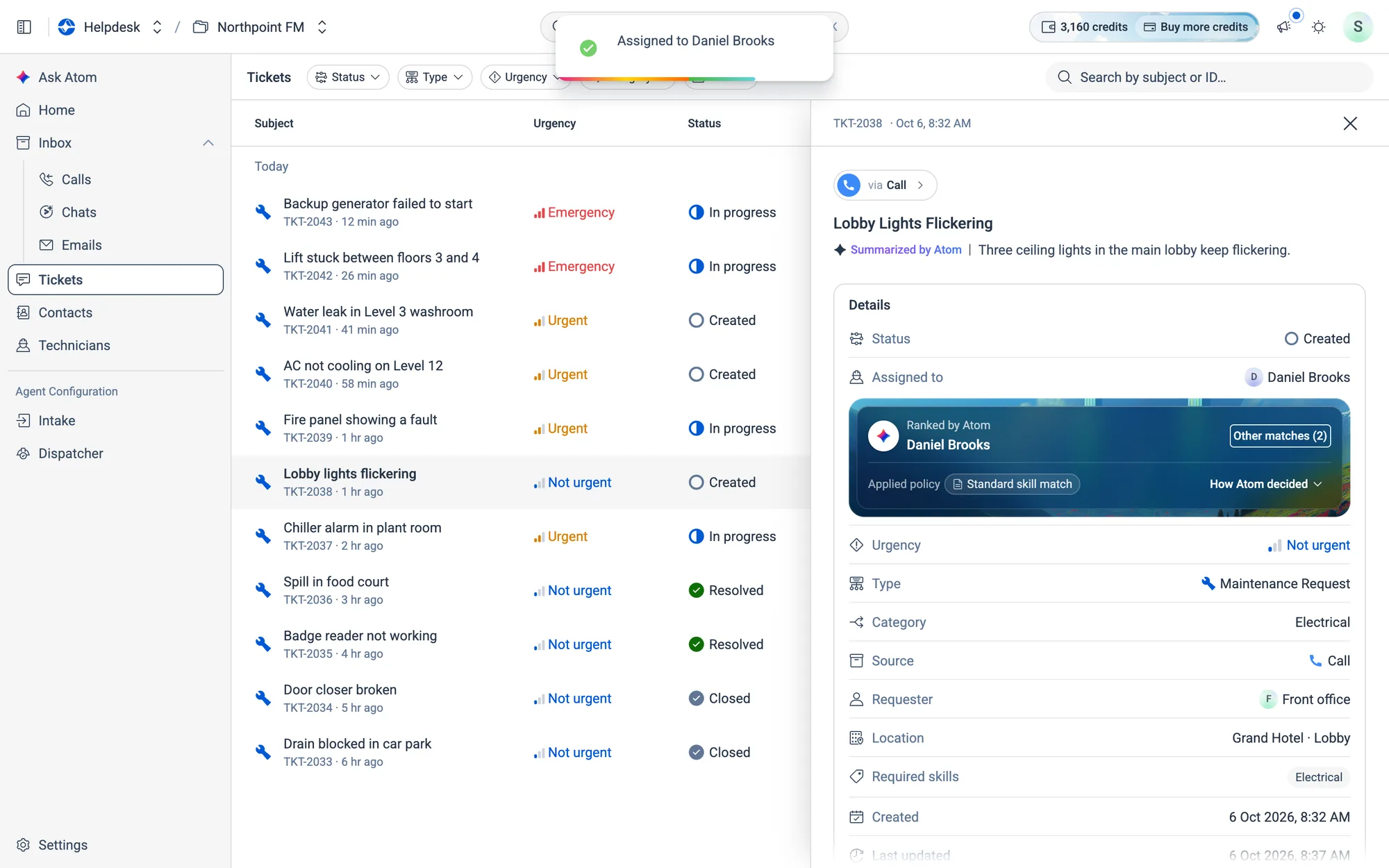
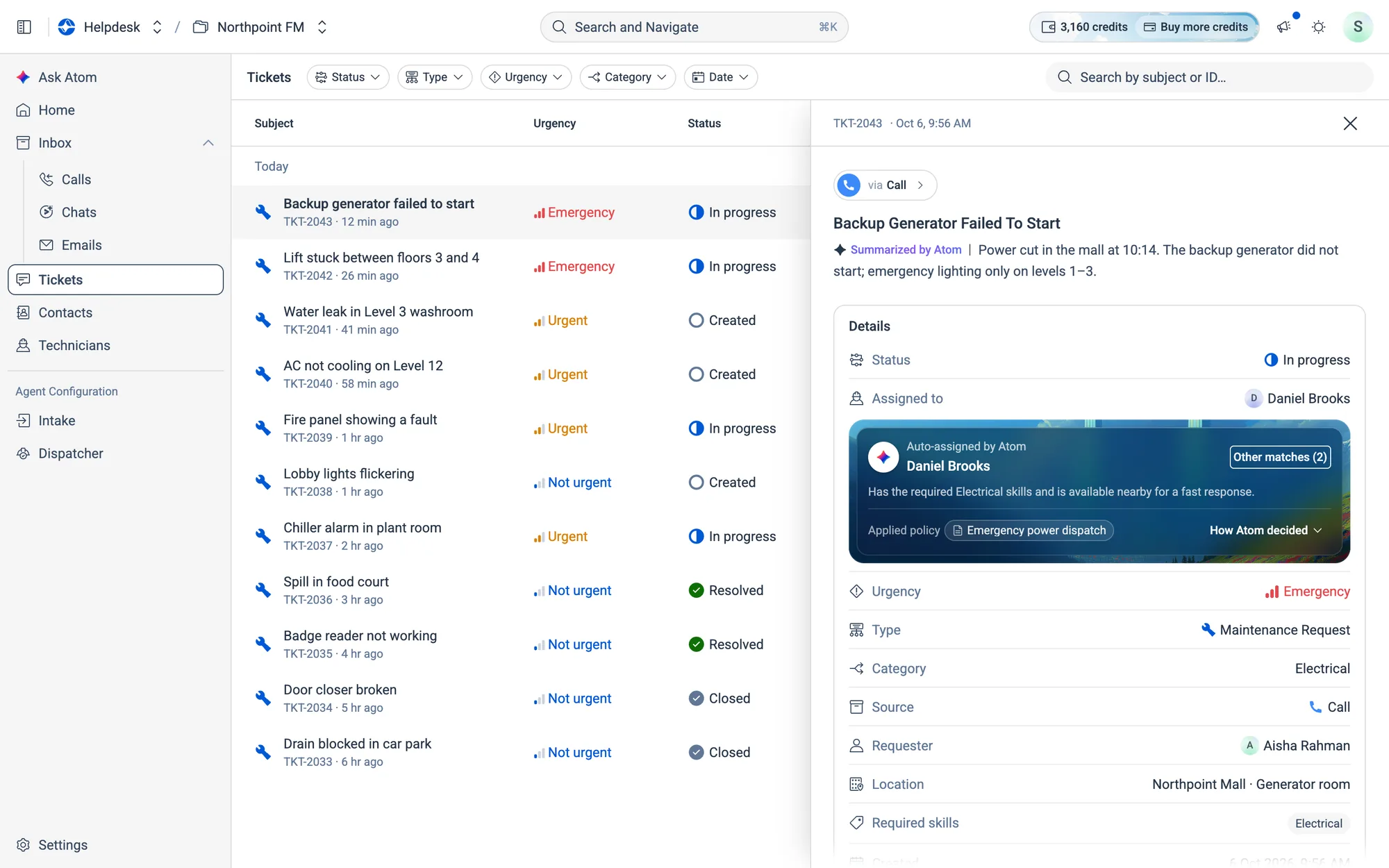
Click any ticket and it opens in a panel on the right. From top to bottom:
The header and summary
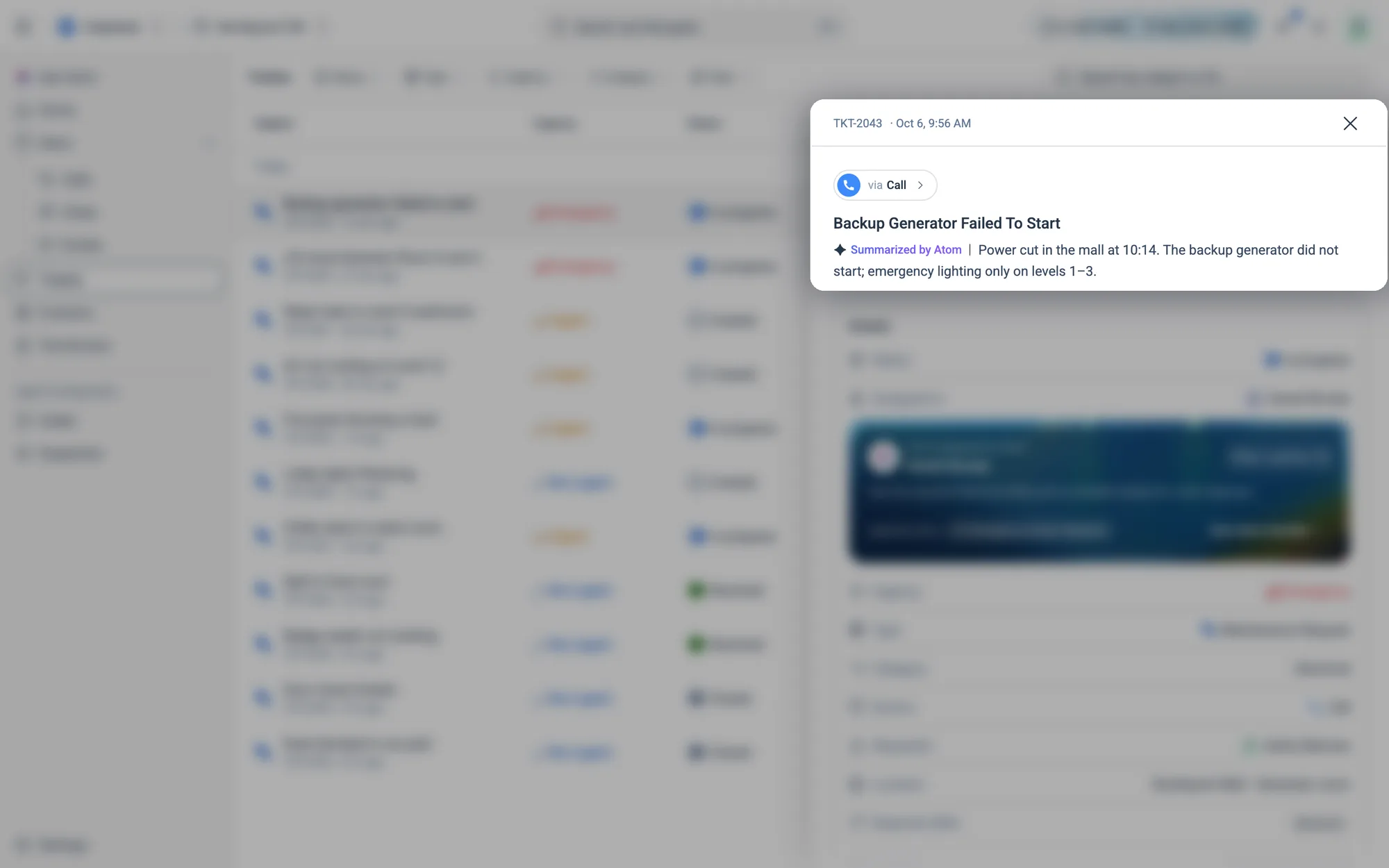
The top line shows the ticket code (for example TKT-2043) and when it was raised. via Call (or WhatsApp, Email and so on) shows the channel. Click it to open the original conversation in the Inbox. Under the title, Summarized by Atom sums up what's wrong in a sentence or two.
Who Atom assigned, and why
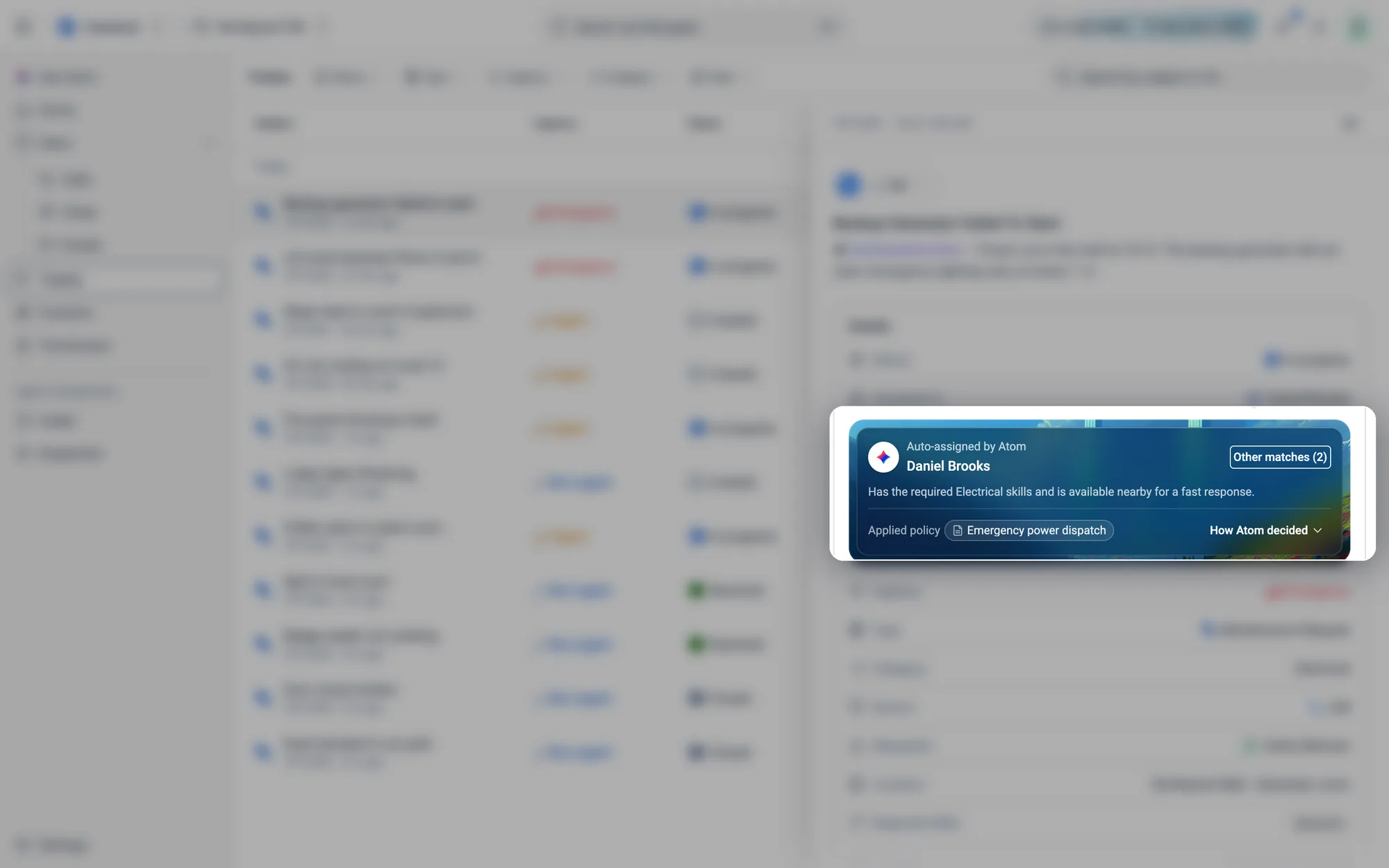
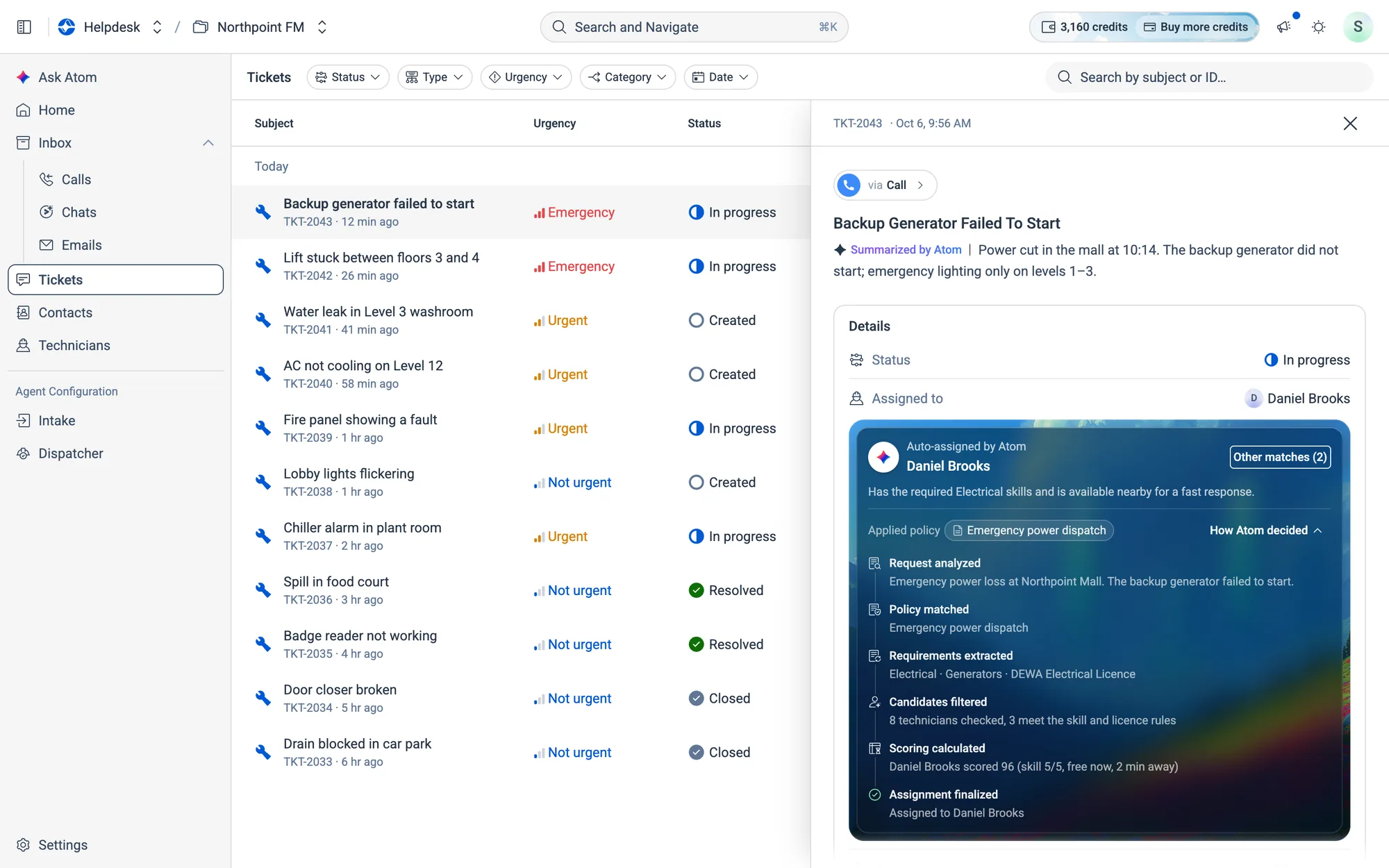
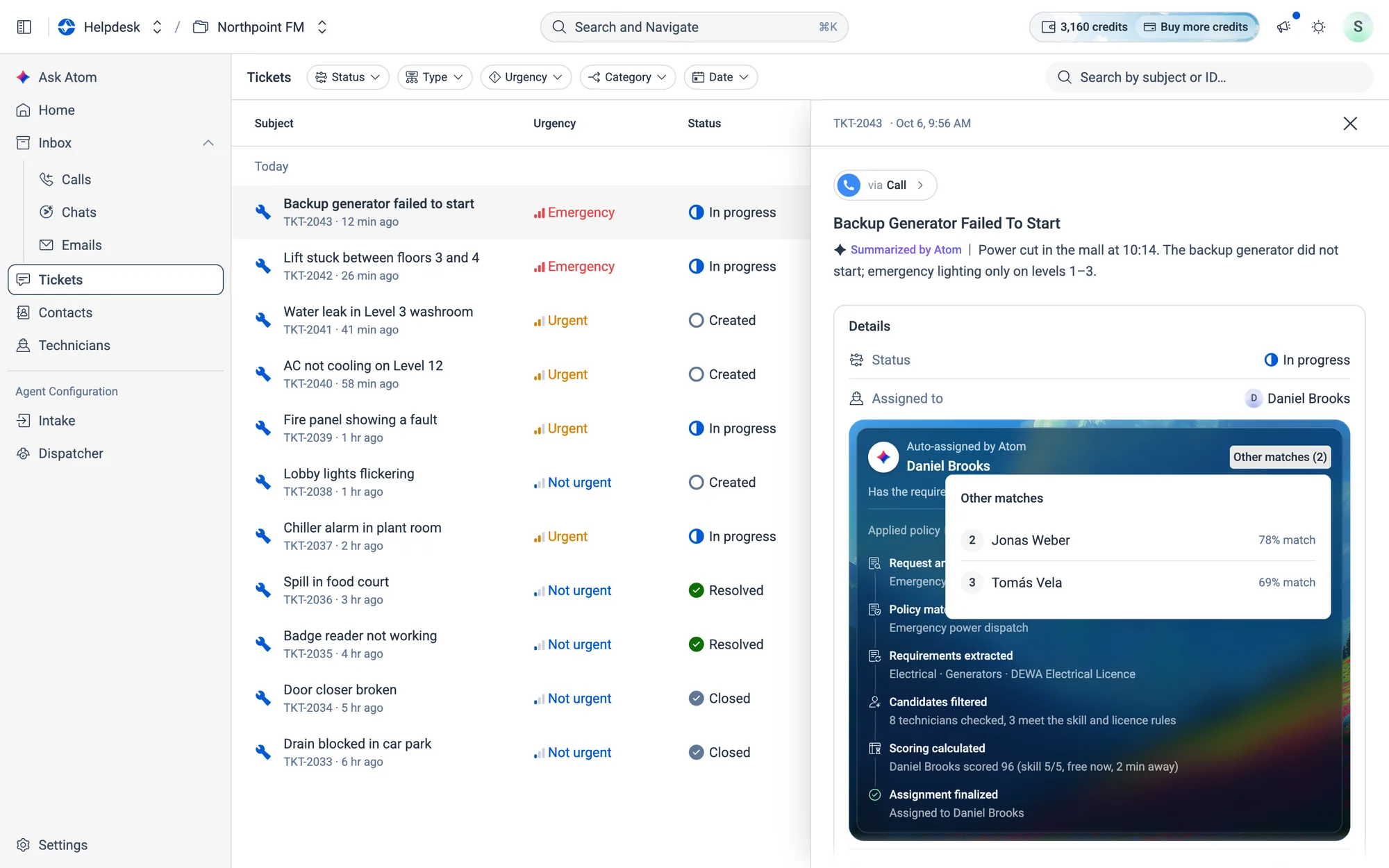
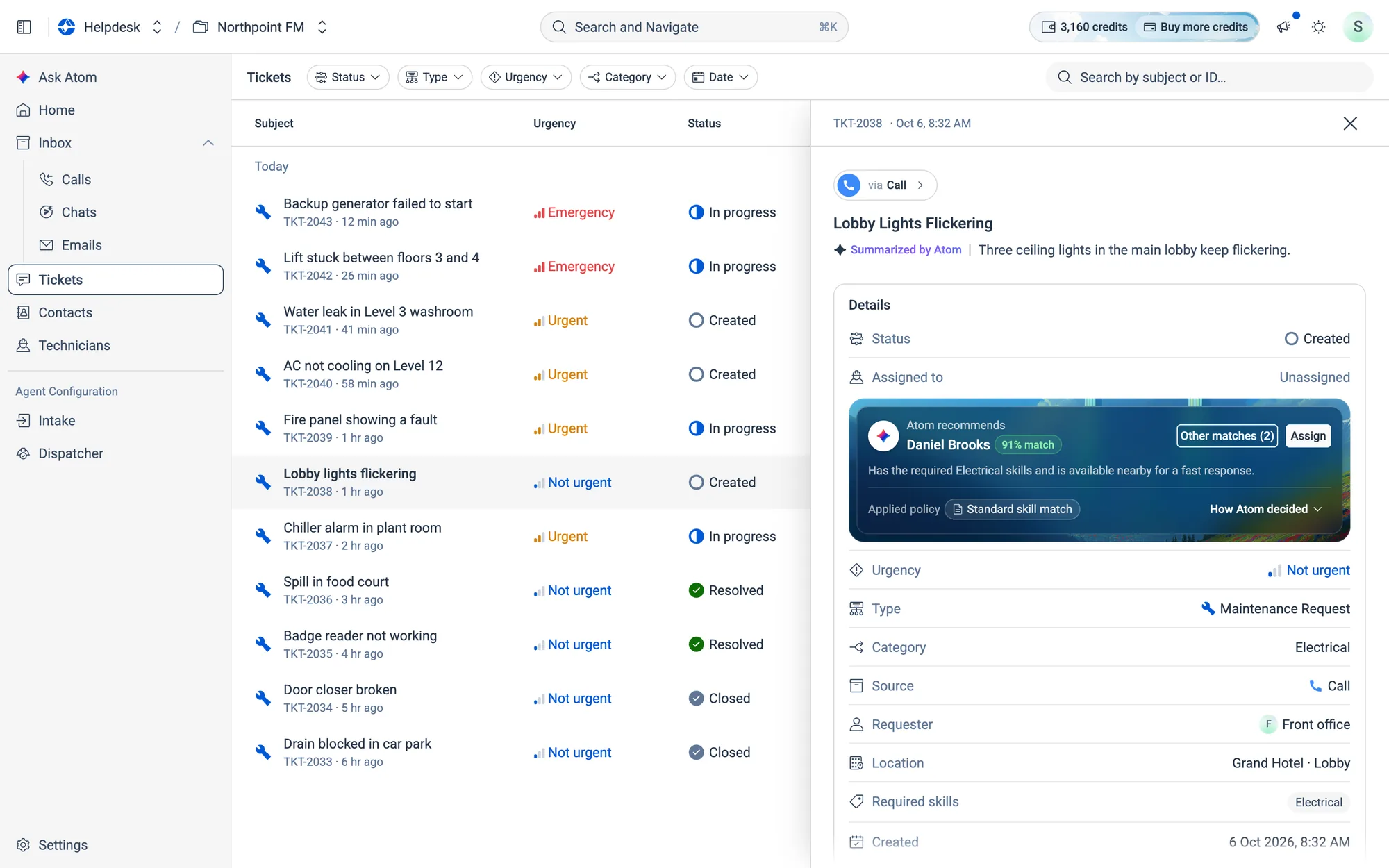
The dark card says who got the ticket (Auto-assigned by Atom, or Atom recommends while it waits for you) and gives the reason in one line. Applied policy names the dispatch policy that was used. Other matches lists the runners-up, and How Atom decided opens the steps below.
How Atom decided
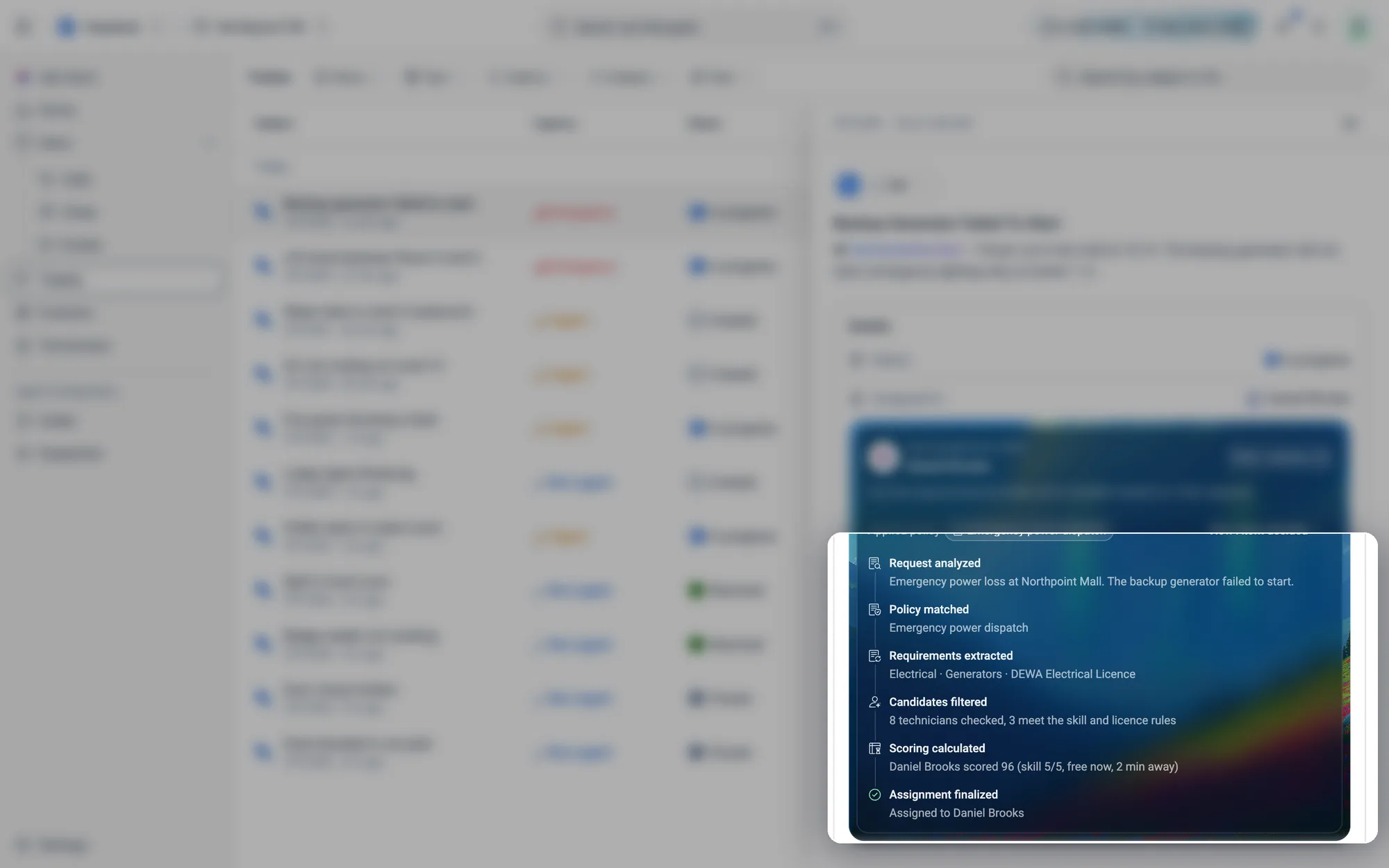
| Step | What Atom did |
|---|---|
| Request analyzed | Read the ticket and understood the problem |
| Policy matched | Picked the dispatch rule that applies |
| Requirements extracted | Worked out the skills and certifications needed |
| Candidates filtered | Removed technicians who don't meet the rules |
| Scoring calculated | Ranked the rest on skill, availability, distance and more |
| Assignment finalized | Assigned the best match, or recommended them for you to confirm |
The details
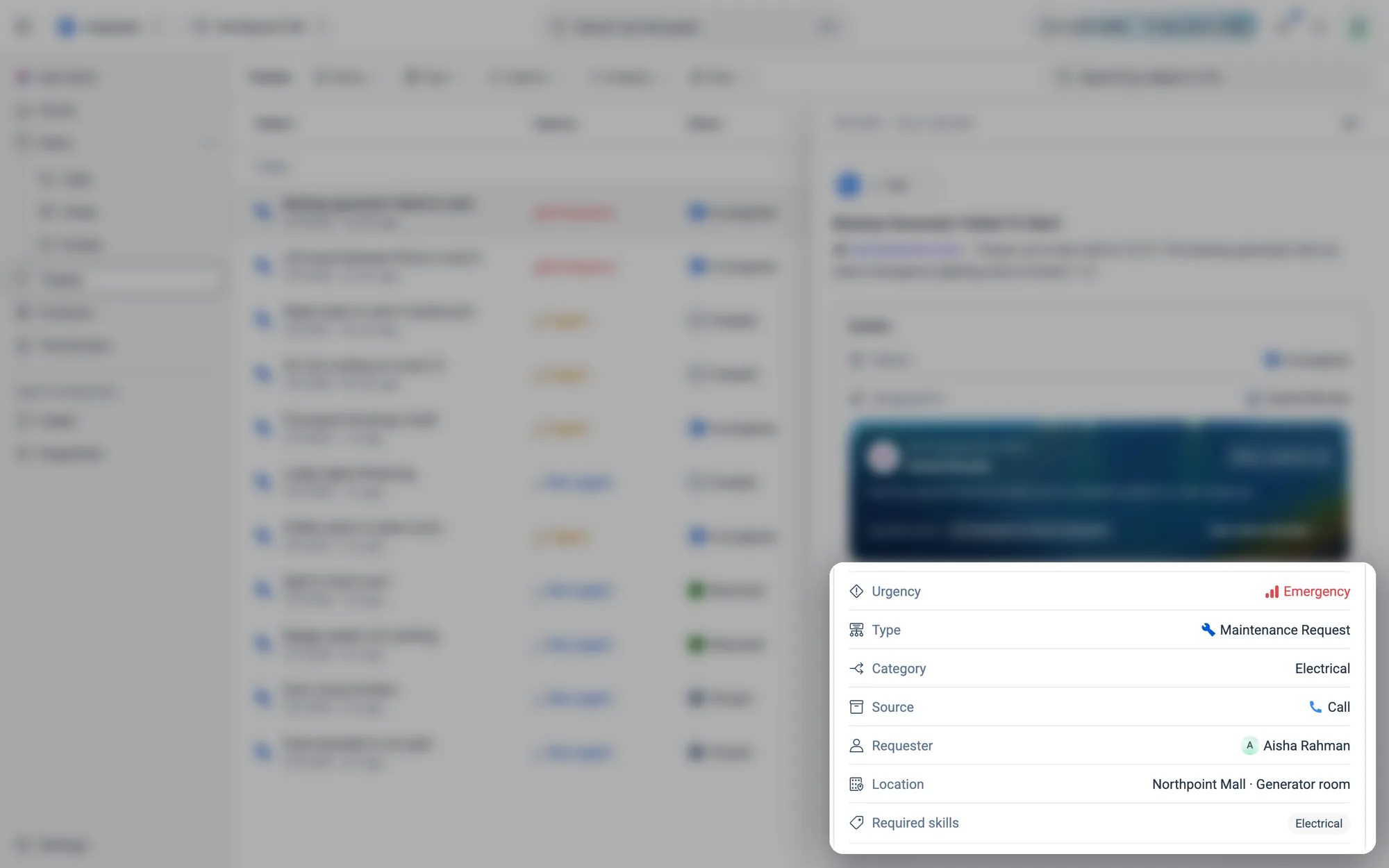
Urgency, Type, Category, Source, Requester, Location and Required skills were all filled in by the Intake agent from the conversation. Created and Last updated sit underneath, and Attachments shows any photos or files the tenant sent.
06.5Find tickets
How to filter the ticket list
- 1Open Tickets in the menu.
- 2Click a filter at the top:
Status,Type,Urgency,CategoryorDate.
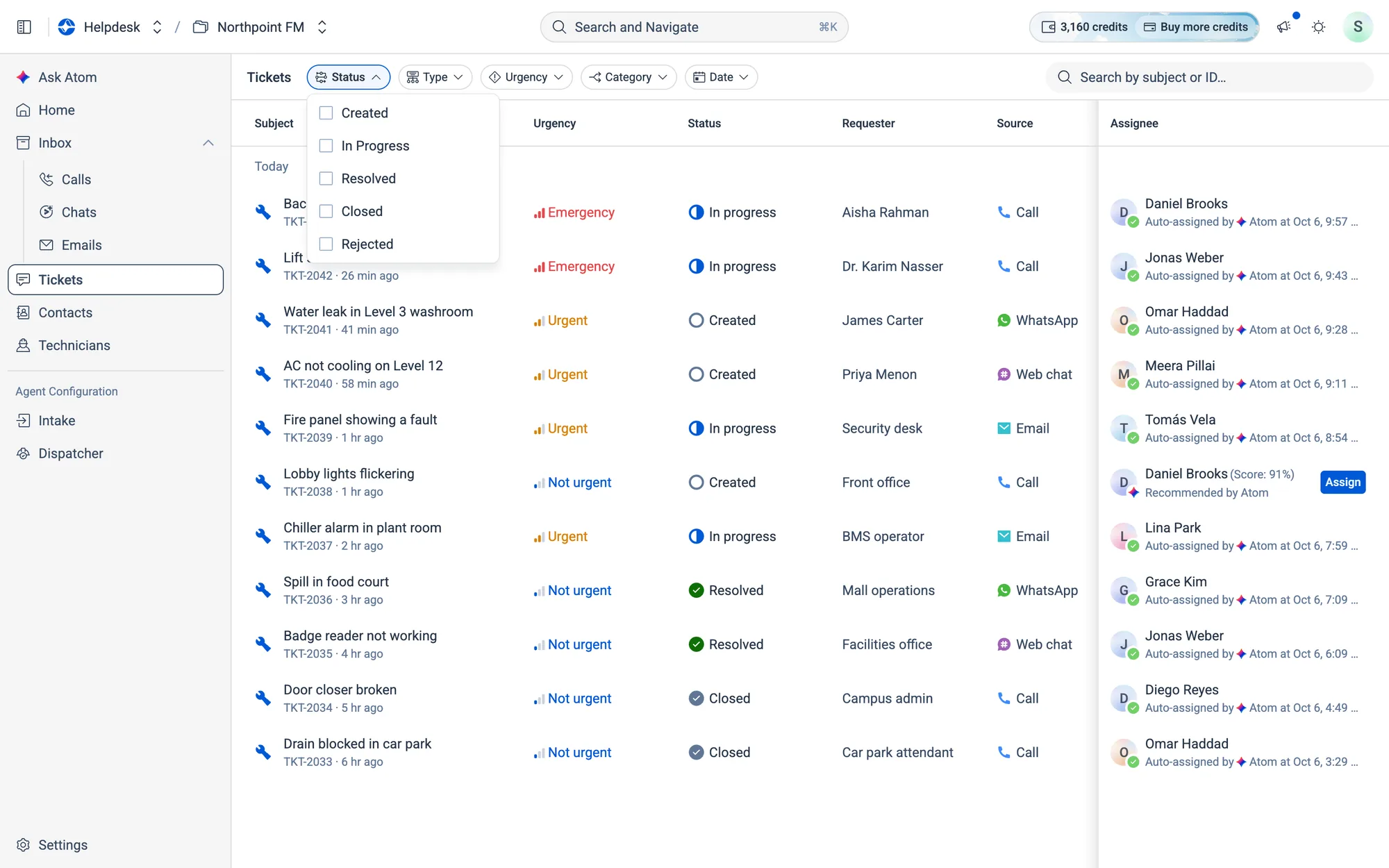
- 3Tick what you want to see, for example In Progress. The list updates straight away, and the filter shows a count such as Status (1).
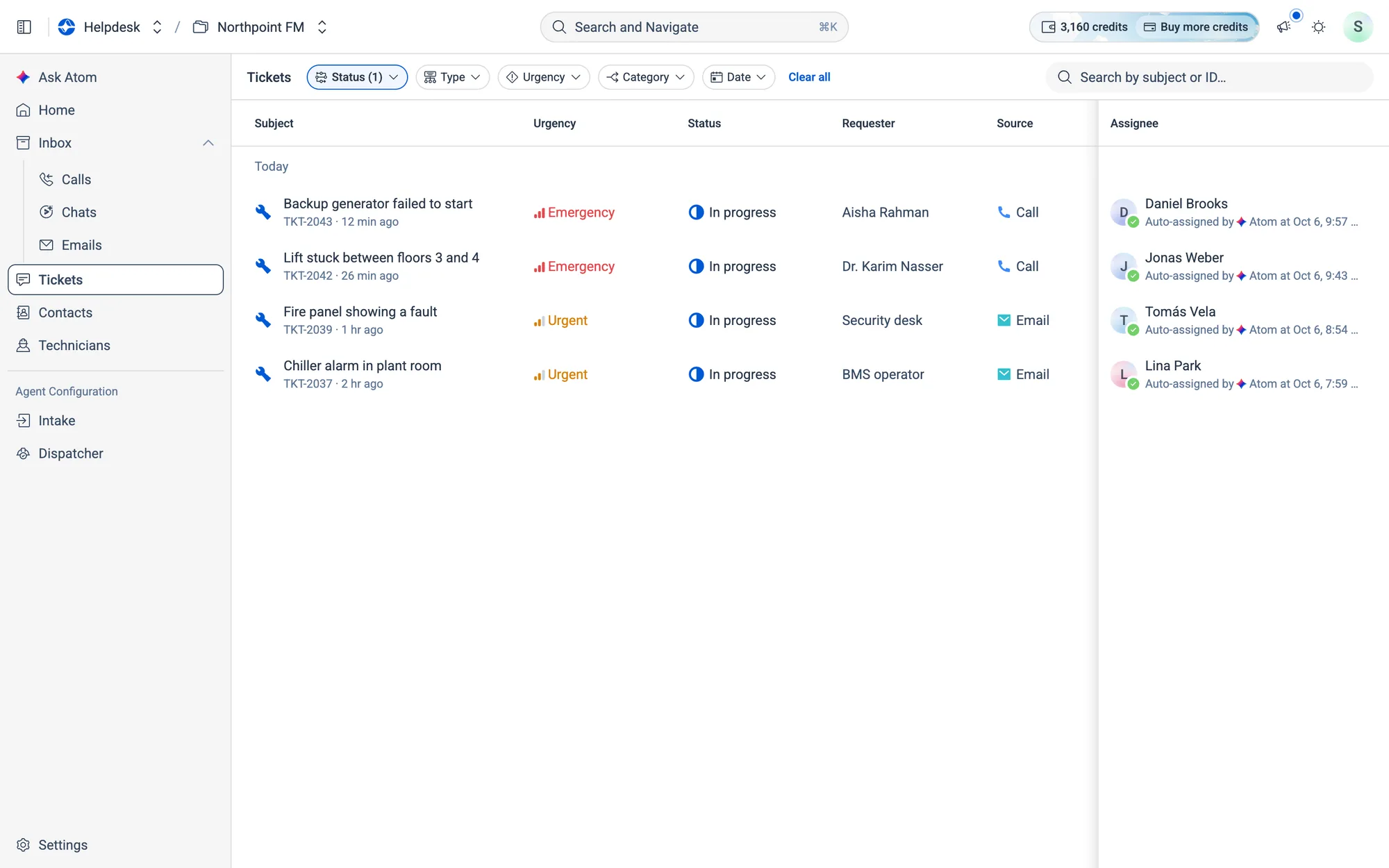
- 4To start again, click
Clearinside a filter, orClear allat the top.
How to search for a ticket
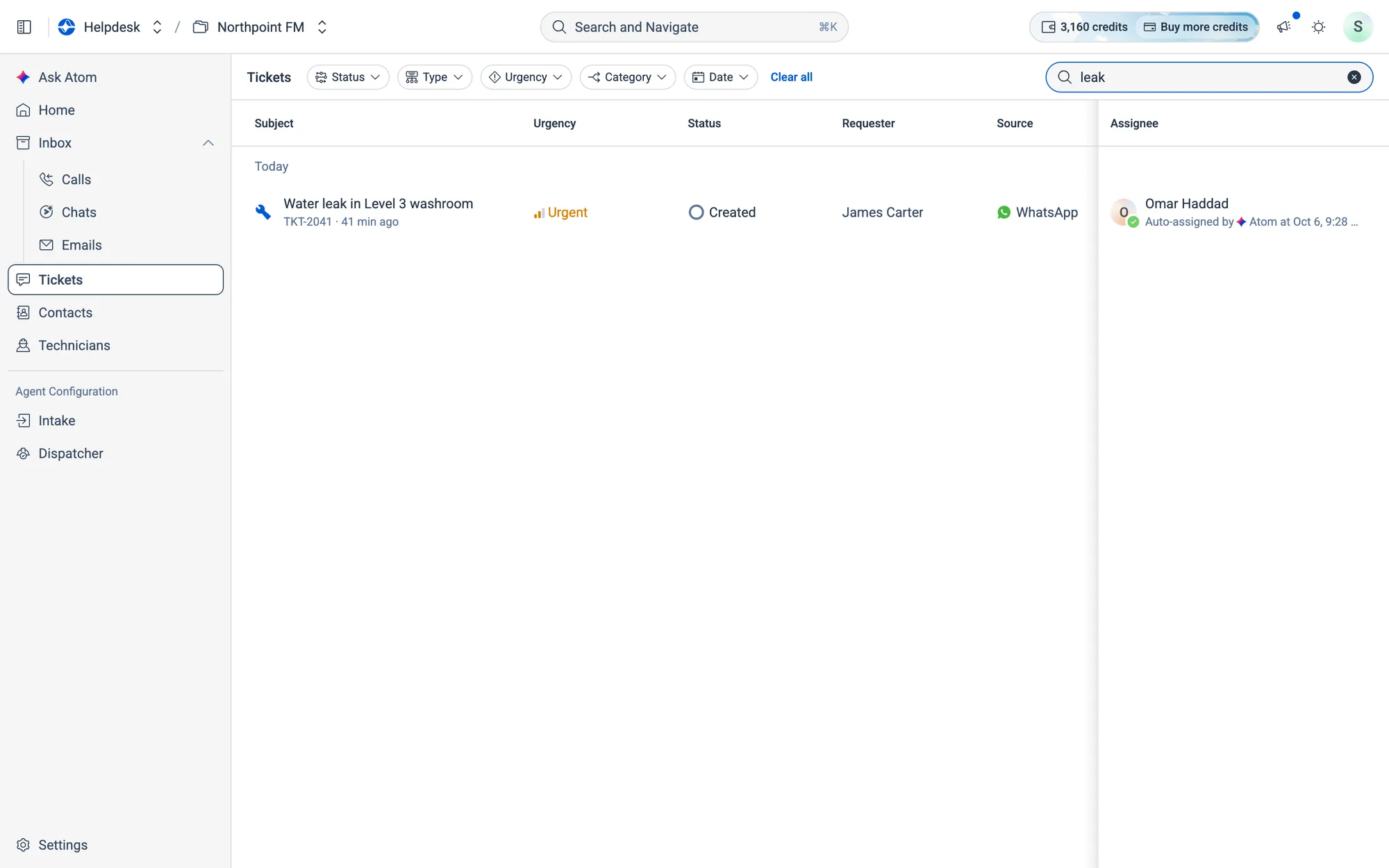
- 1Type in Search by subject or ID… at the top right of the list.
- 2The list updates as you type. Search by a word in the subject, such as leak, or by the ticket number.
06.6Work a ticket
How to open a ticket and see why Atom chose a technician
- 1Click any row. The ticket opens in a panel on the right, with its summary, the Details card and any Attachments the tenant sent.
- 2Click via Call (or WhatsApp, Email and so on) at the top to open the original conversation in the Inbox.
- 3On the Atom card, click
How Atom decidedto see each step of the decision.
- 4Click
Other matchesto see the runners-up and their match scores.
Assign button.- 5Press Esc, or click ✕, to close the panel.
How to assign a technician Atom recommends
- 1Open a ticket that shows Atom recommends. The card shows the technician and their match score.
- 2Click
Assignon the Atom card, or theAssignbutton in the list's Assignee column. - 3A message confirms Assigned to name, and the ticket shows the technician as assigned.