Home
Your helpdesk at a glance. Home shows today's tickets, how busy each channel is, how tenants are feeling and who on your team is stretched.
04.1What's on Home
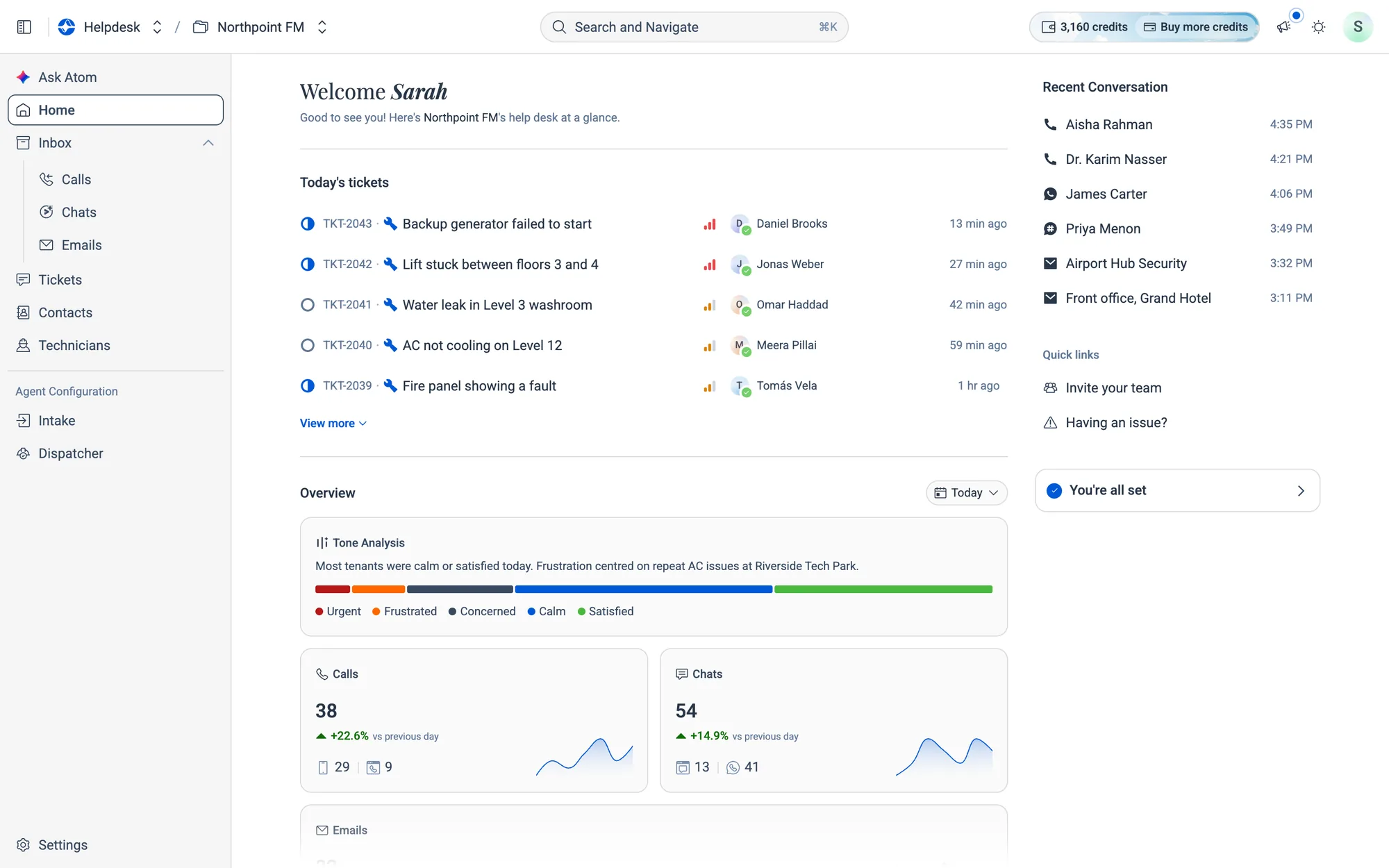
Home is the page you land on when you sign in. From top to bottom it shows:
- Today's tickets. Everything raised since midnight, newest first.
- Overview. Tenant tone, call, chat and email volume, ticket status and staff workload, all for the period you choose.
- Recent Conversation and Quick links. These are in the right-hand column on wider screens.
04.2Today's tickets
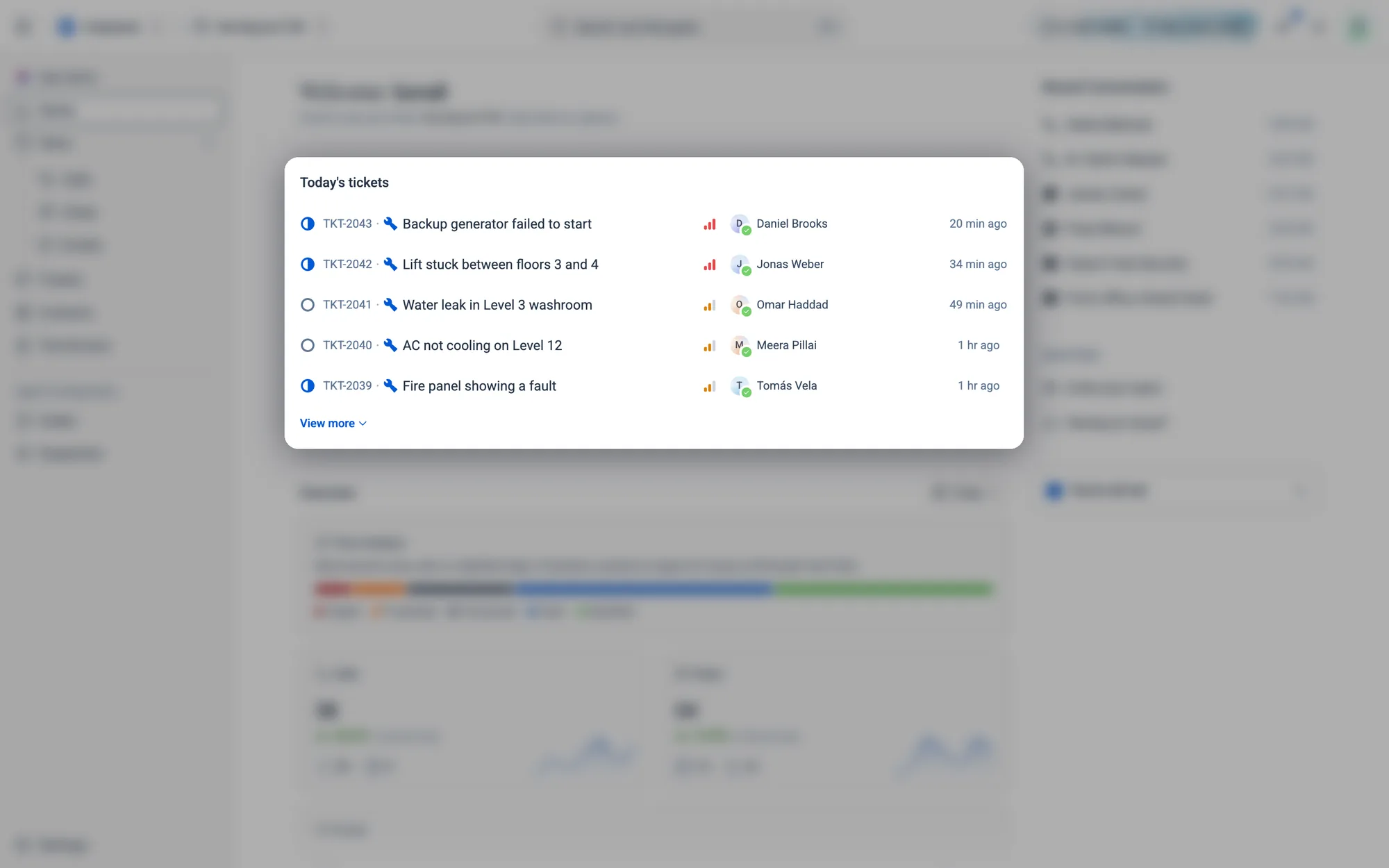
Each row shows the ticket's status, its code (for example TKT-2043), the subject, the urgency bars, who it's assigned to and how long ago it came in. Click any row to open the ticket.
The assignee column tells you what Atom has done:
| What you see | What it means |
|---|---|
| Name with a green tick | The ticket is assigned. Hover to see Auto-assigned by Atom when Atom assigned it on its own |
Name with the Atom ✦ badge and an Assign button |
Atom recommends this technician. Hover to see the match score, then click Assign to accept |
| Finding a match… | Atom is still working out who should take it |
| — | No technician yet |
Five tickets show by default. Click View more to see up to fifteen.
04.3Overview
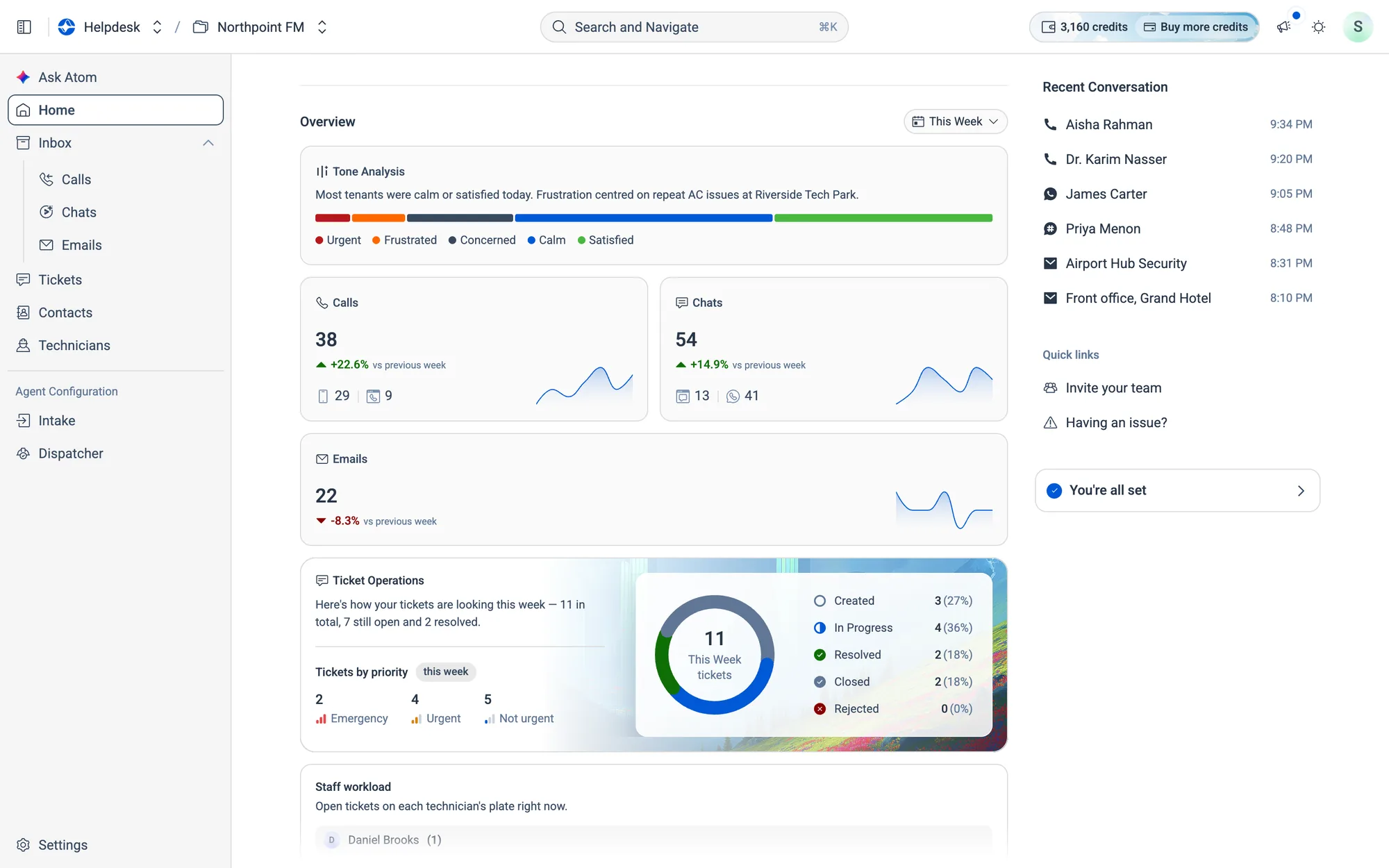
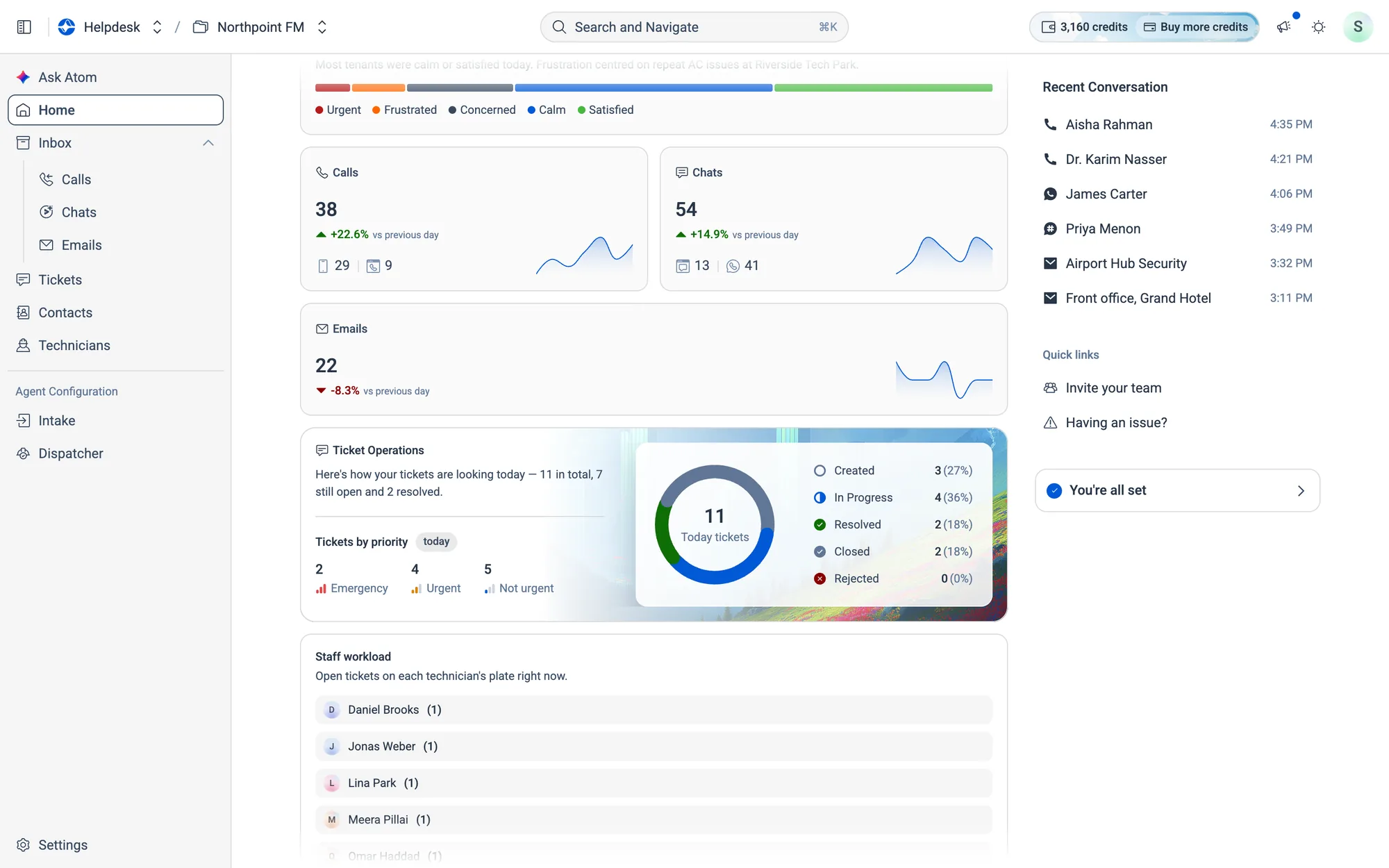
The Overview section summarises activity for one period. Everything in Overview updates together.
How to change the reporting period
- 1Scroll to Overview and click the period chip on the right (it starts on
Today).
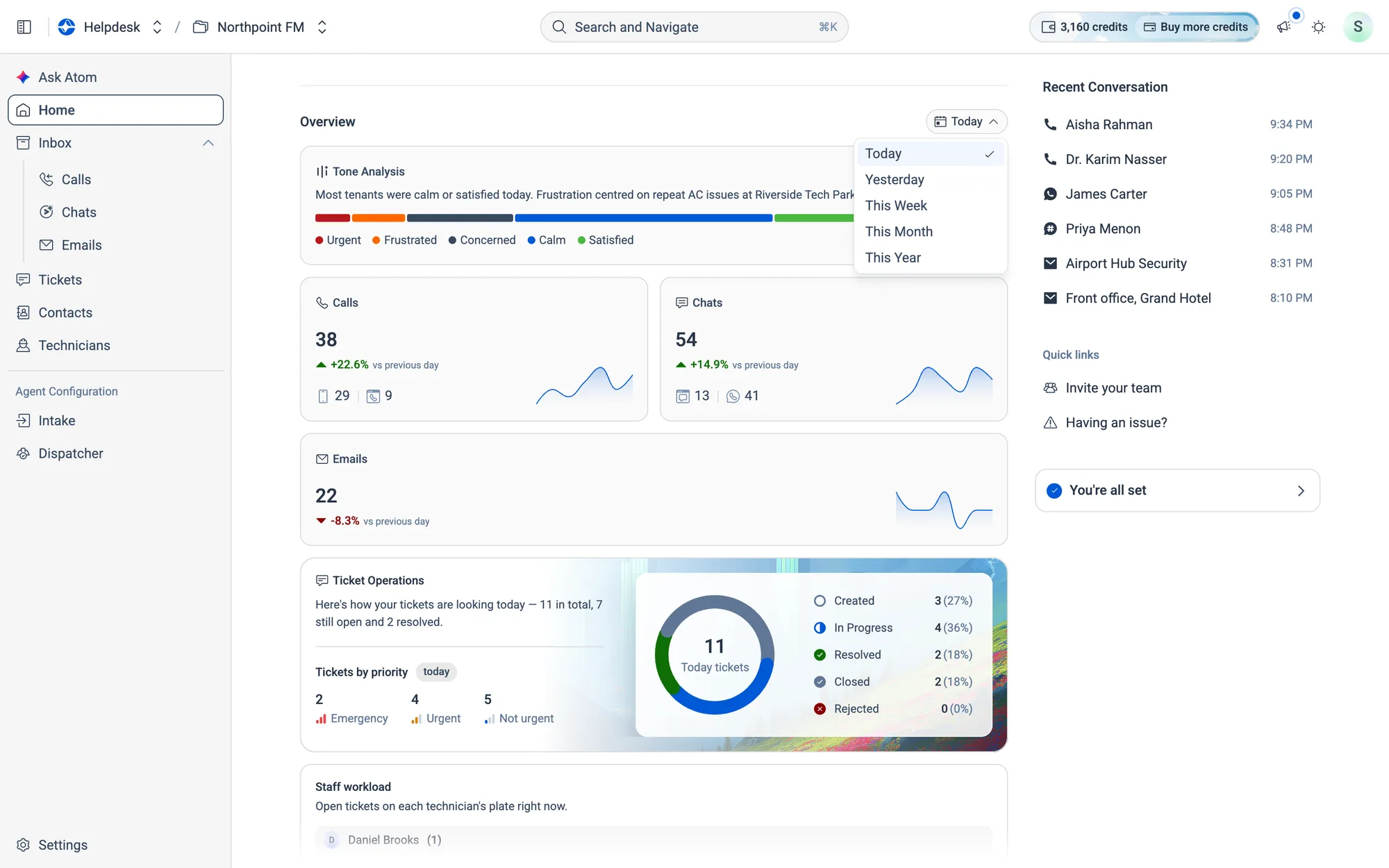
- 2Choose a period. Tone Analysis, Calls, Chats, Emails and Ticket Operations all update.
Tone Analysis
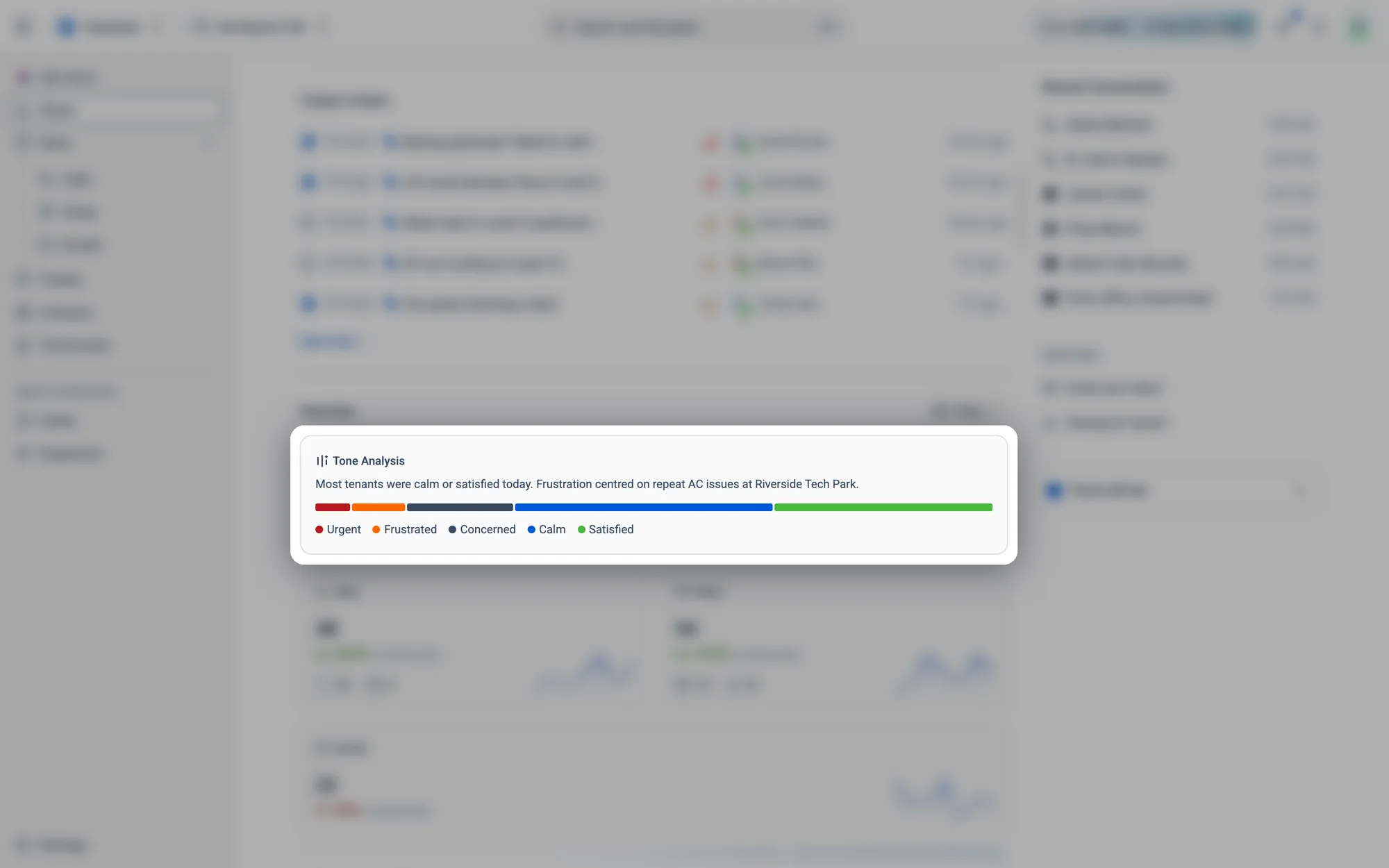
Atom reads every conversation and sorts it into one of five tones: Urgent, Frustrated, Concerned, Calm and Satisfied. A one-line summary explains the mood. Hover over a part of the bar to see the count and percentage.
Calls, Chats and Emails
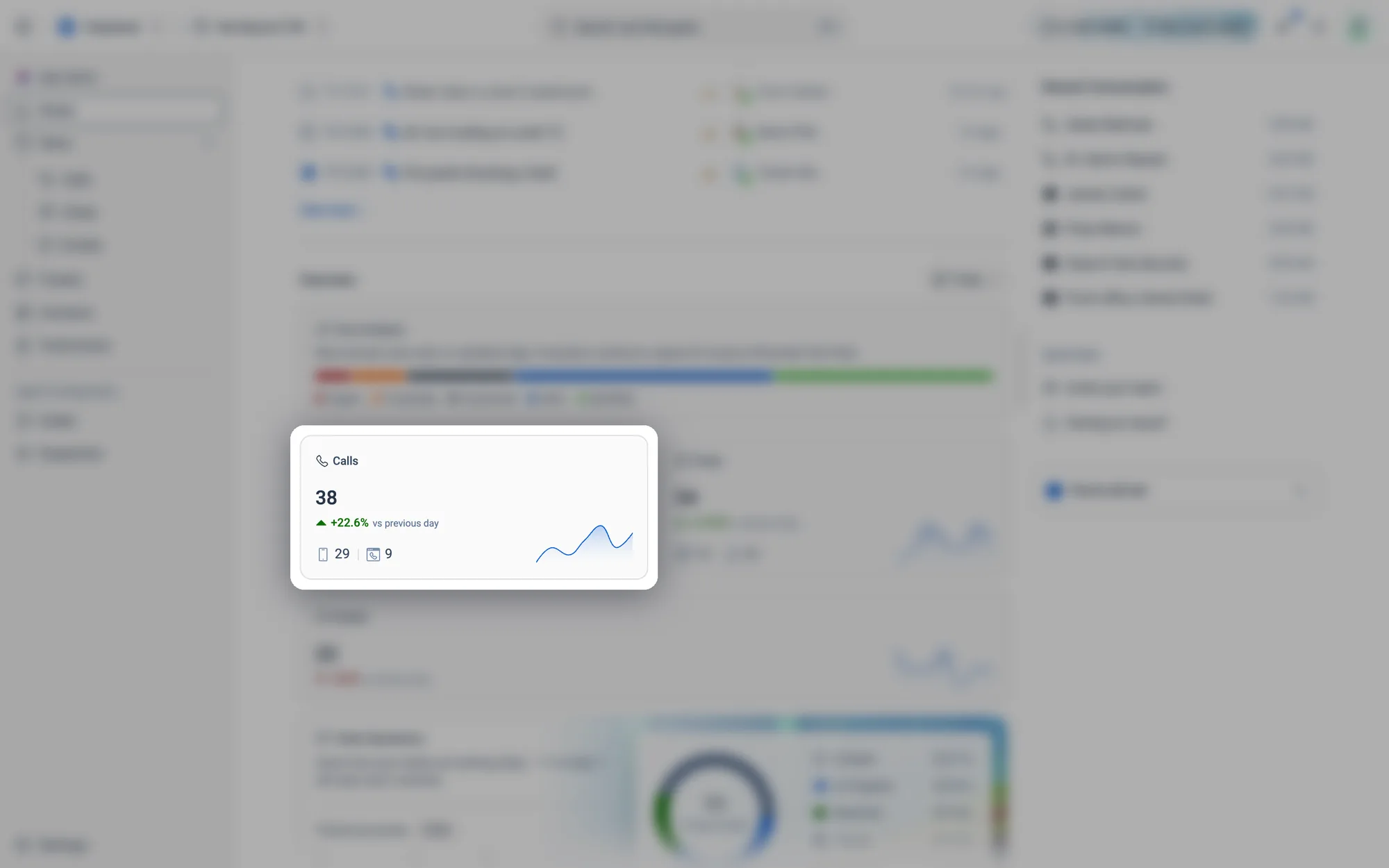
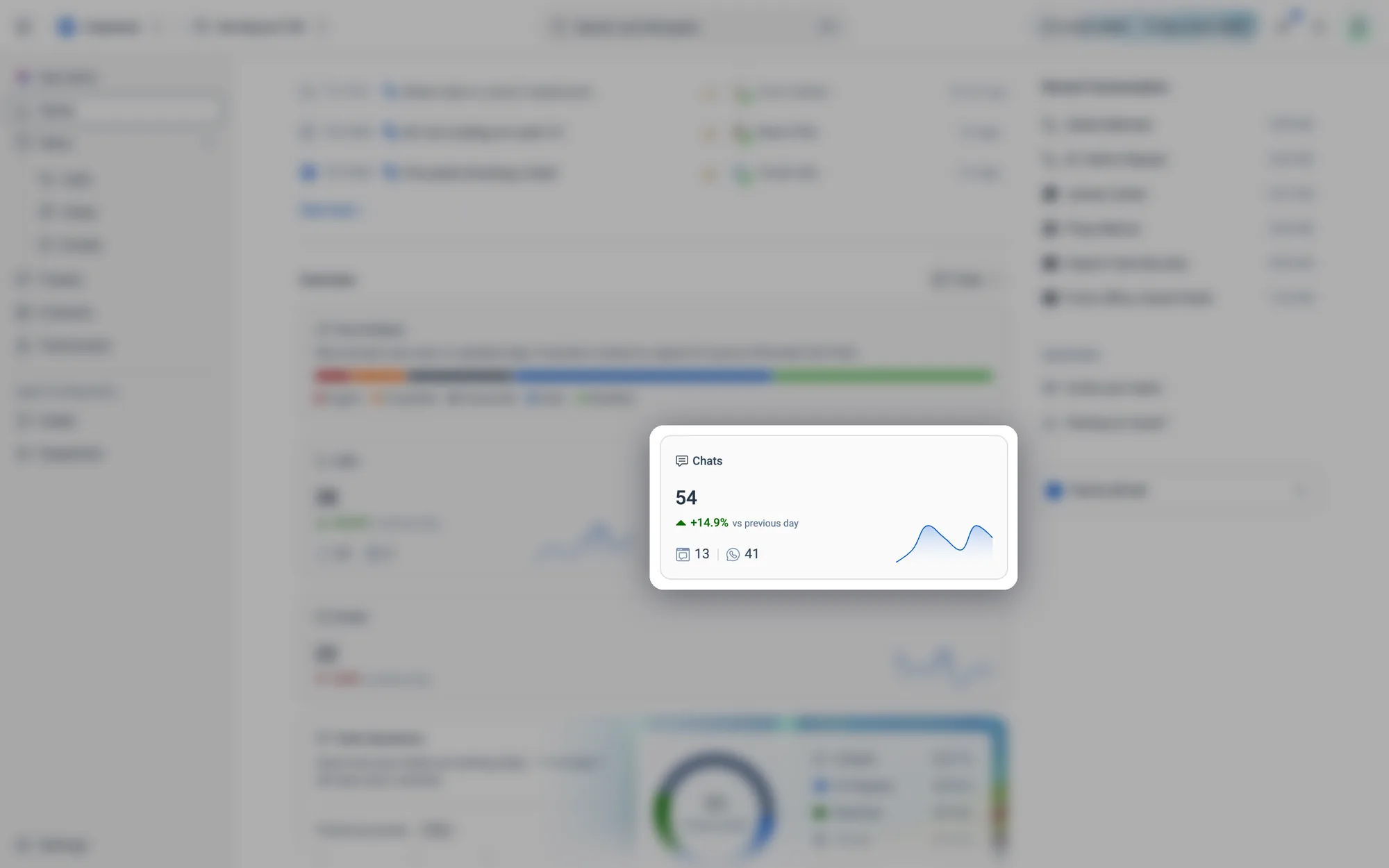
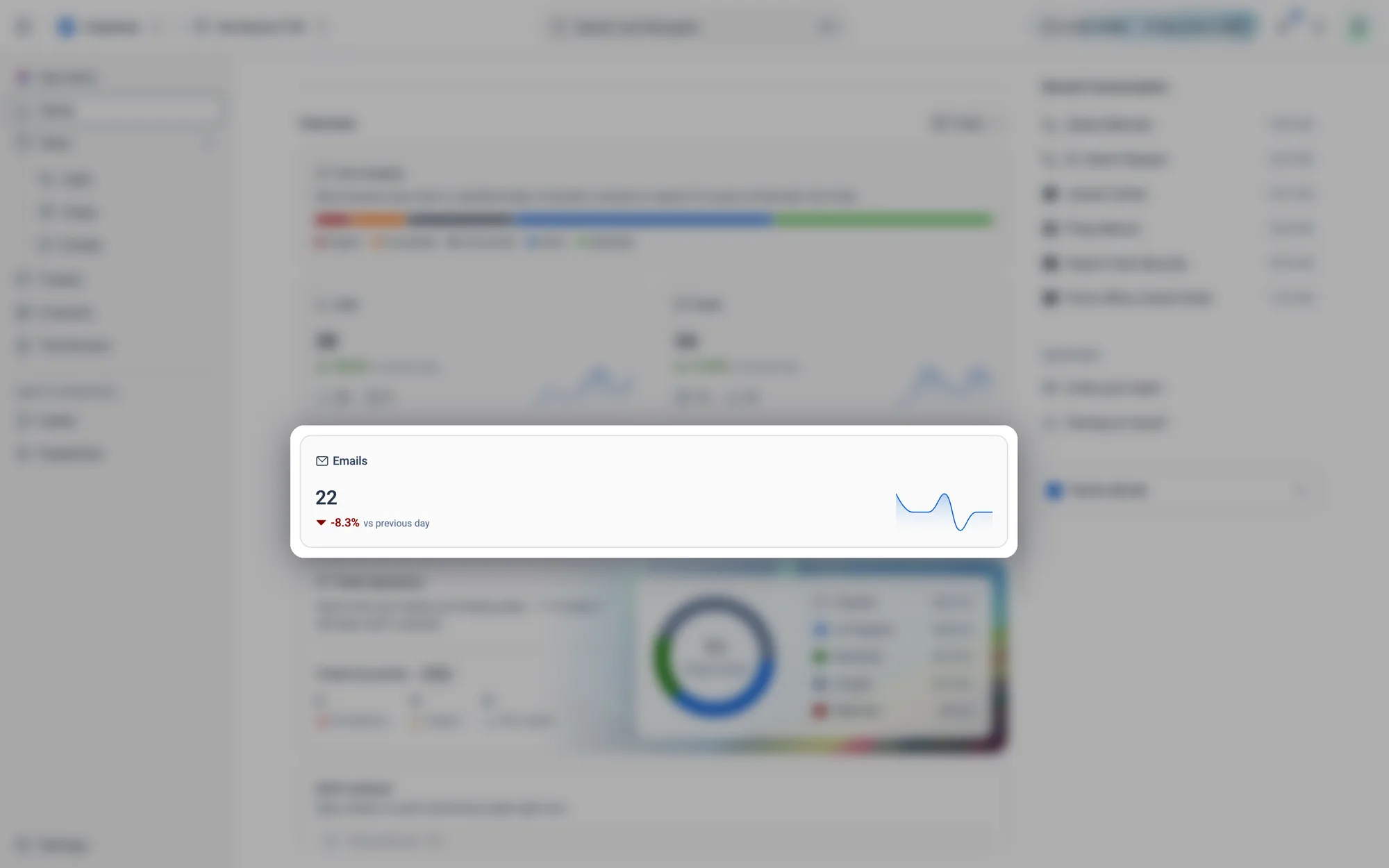
Each card shows the total for the period, the change against the previous period and a small trend line. Calls is split into phone and web calls, and Chats into WhatsApp and web chat.
Ticket Operations
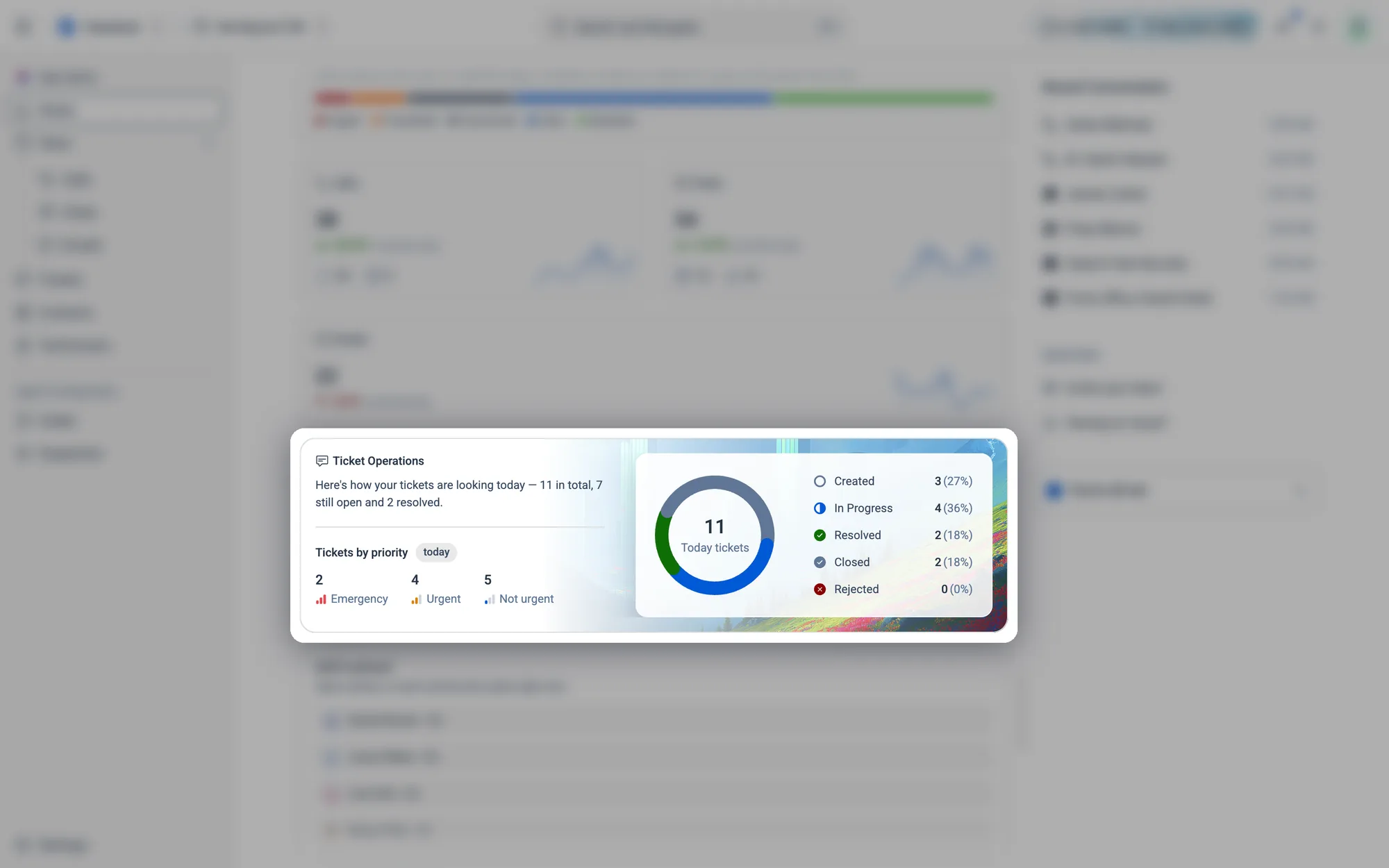
A single card showing how many tickets came in, how many are still open and how many are resolved. It breaks them down by priority (Emergency, Urgent, Not urgent) and by status (Created, In Progress, Resolved, Closed, Rejected).
Staff workload
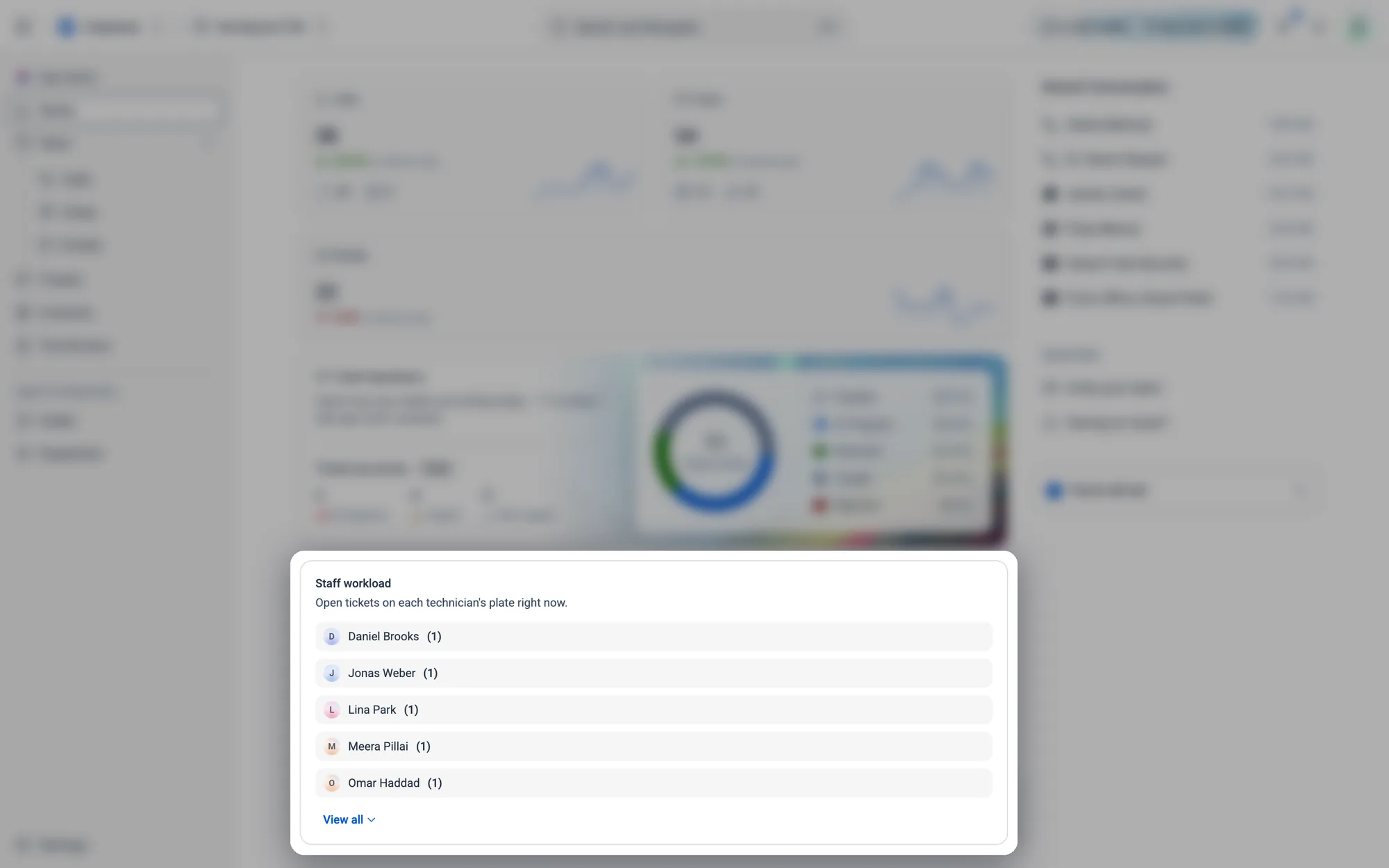
The number of open tickets each technician has right now, busiest first. Click View all for the whole team, or click a name to open that technician's profile.
04.4Recent Conversation and Quick links
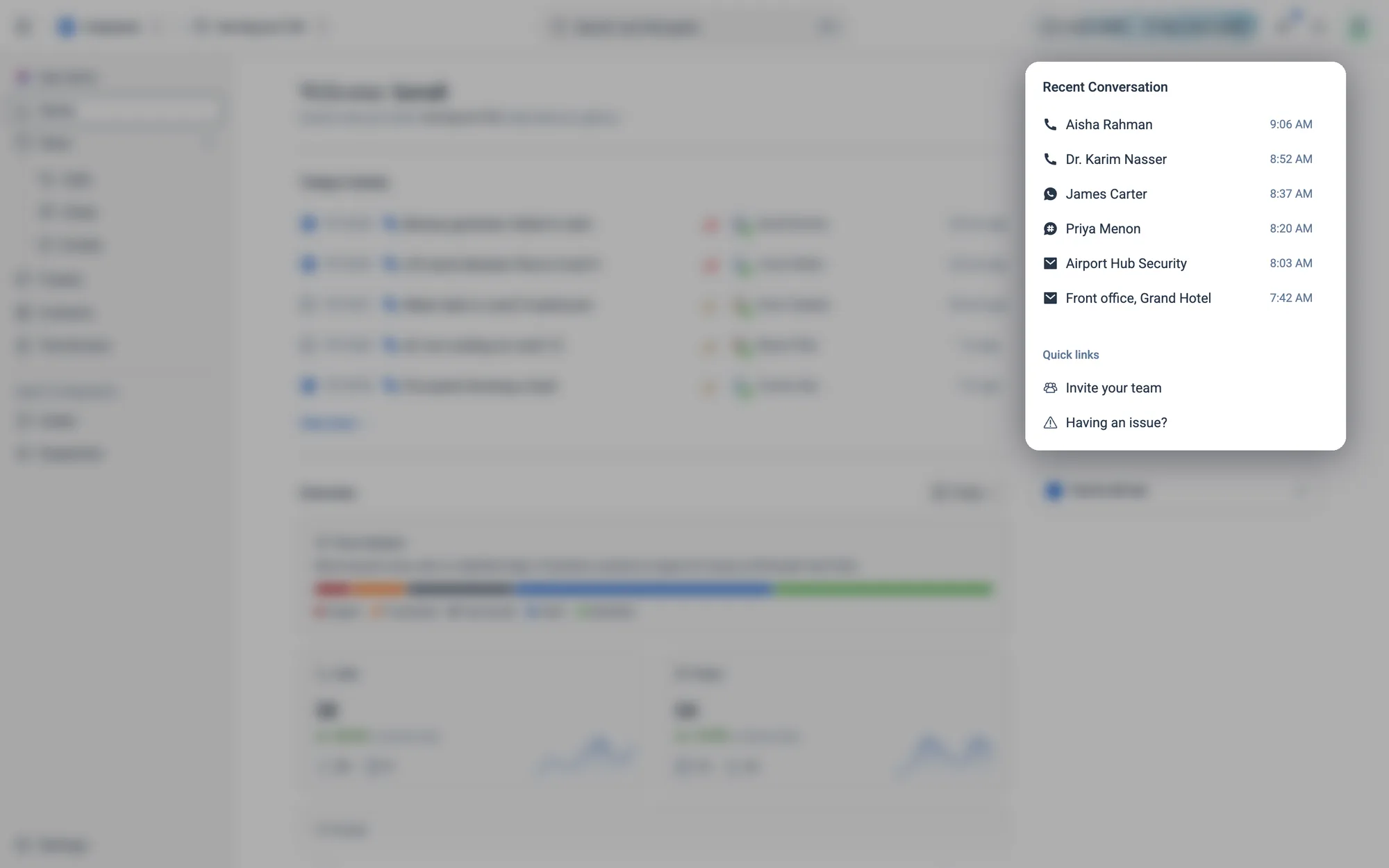
- Recent Conversation lists the latest calls, chats and emails. Click one to open it in the Inbox.
- Invite your team takes you to Settings › Users.
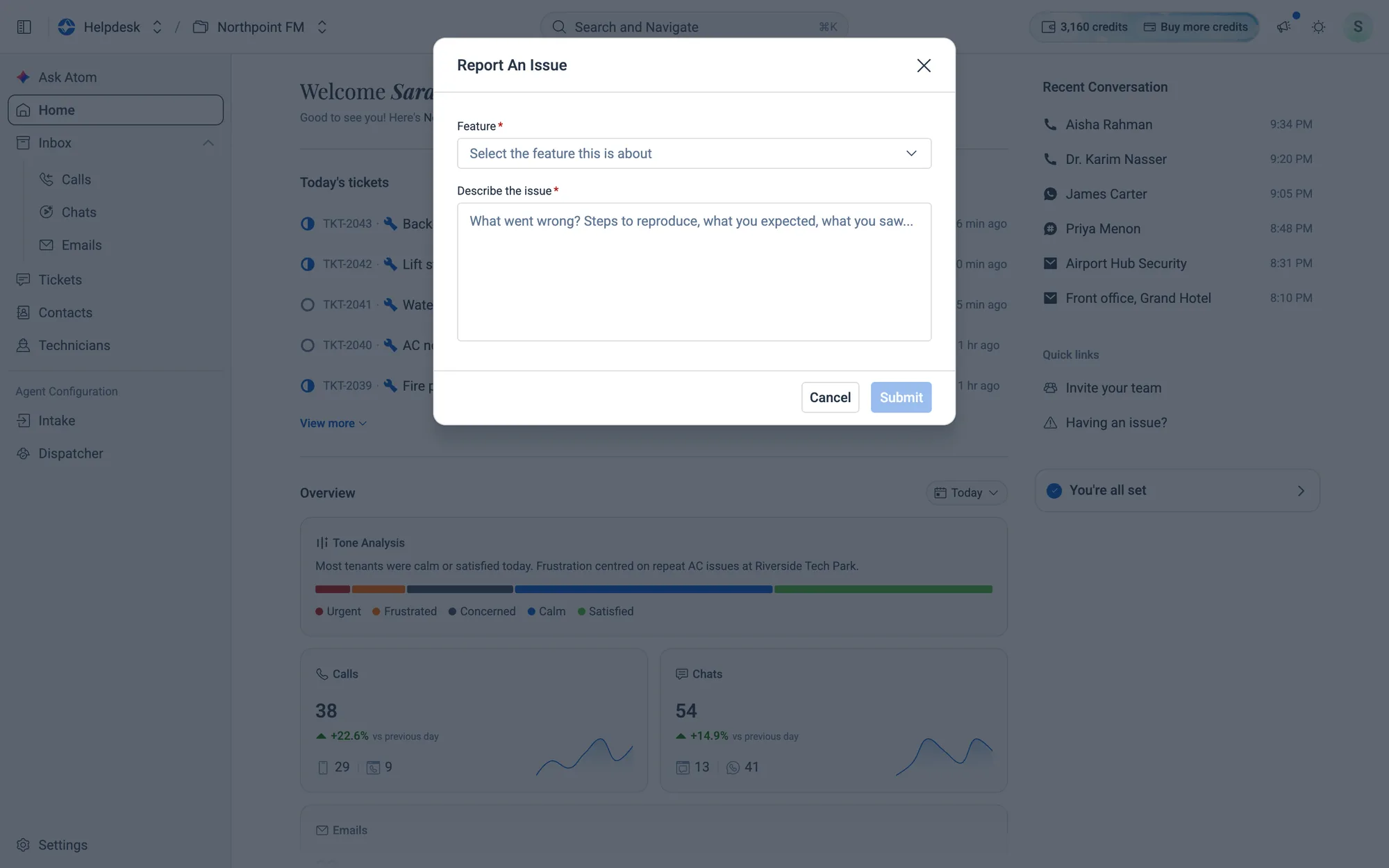
- Having an issue? opens a short form to report a problem to Facilio.
How to report a problem to Facilio
- 1On Home, click Having an issue? under Quick links.
- 2Choose the Feature it's about, describe what went wrong under Describe the issue, and click
Submit.