The Dispatcher agent
Describe in plain language how tickets should reach your technicians. Atom turns your words into a dispatch policy, uses it to recommend or assign the right technician for each ticket, and lets you test it on a real ticket first.
10.1How dispatching works
Every new ticket goes through your dispatch policies. A policy is a rule such as "power emergencies go to a licensed electrician who is free and closest". You don't fill in a form to create one. You describe the rule in a sentence, and Atom builds it.
For each ticket, Atom picks the policy that applies, removes technicians who don't qualify, scores the rest and puts forward the best match. Depending on your setup, Atom assigns that technician on its own, or recommends them for your team to confirm. You can see each step on the ticket under How Atom decided (see Tickets).
10.2Auto-assign: assign, or just recommend
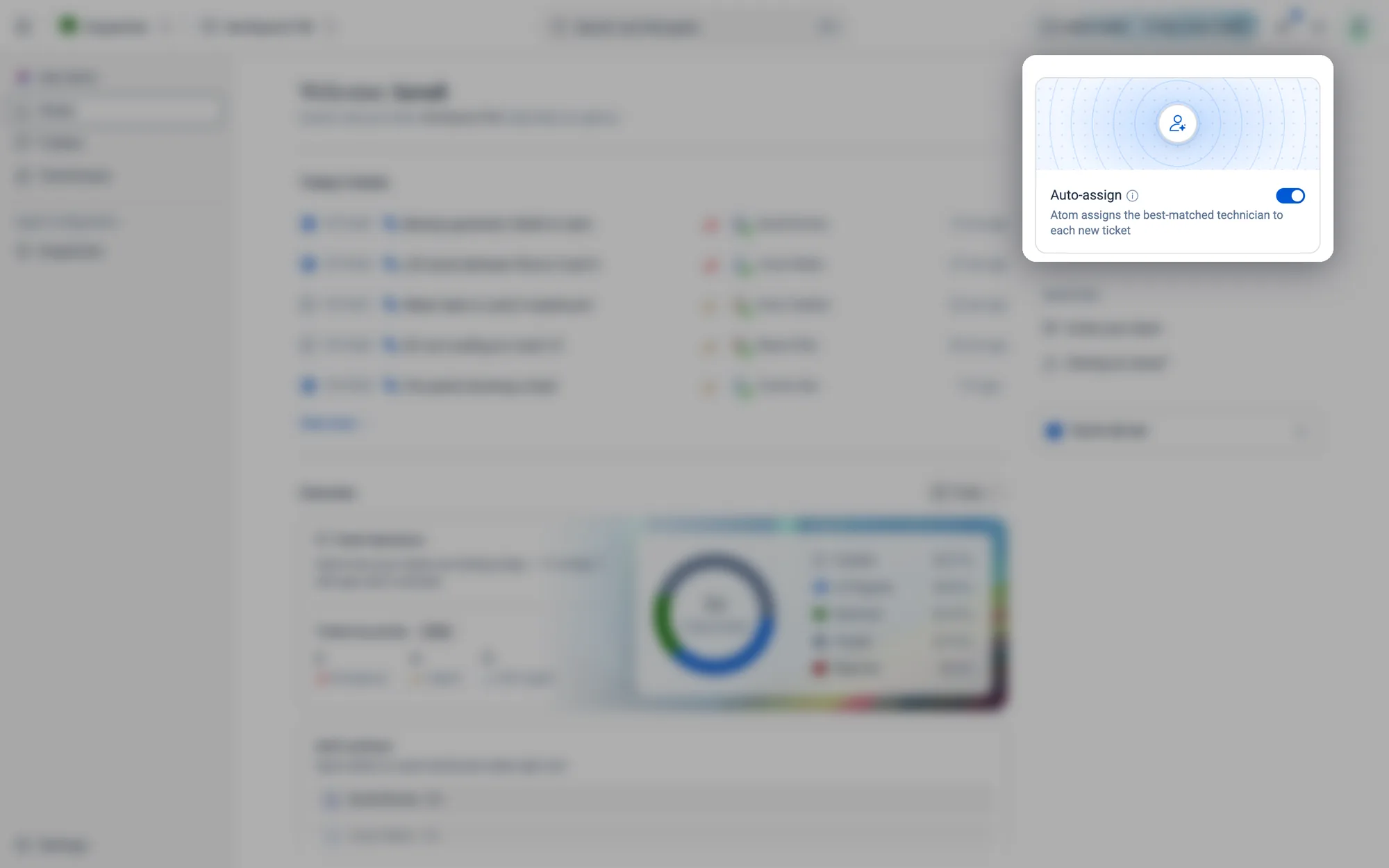
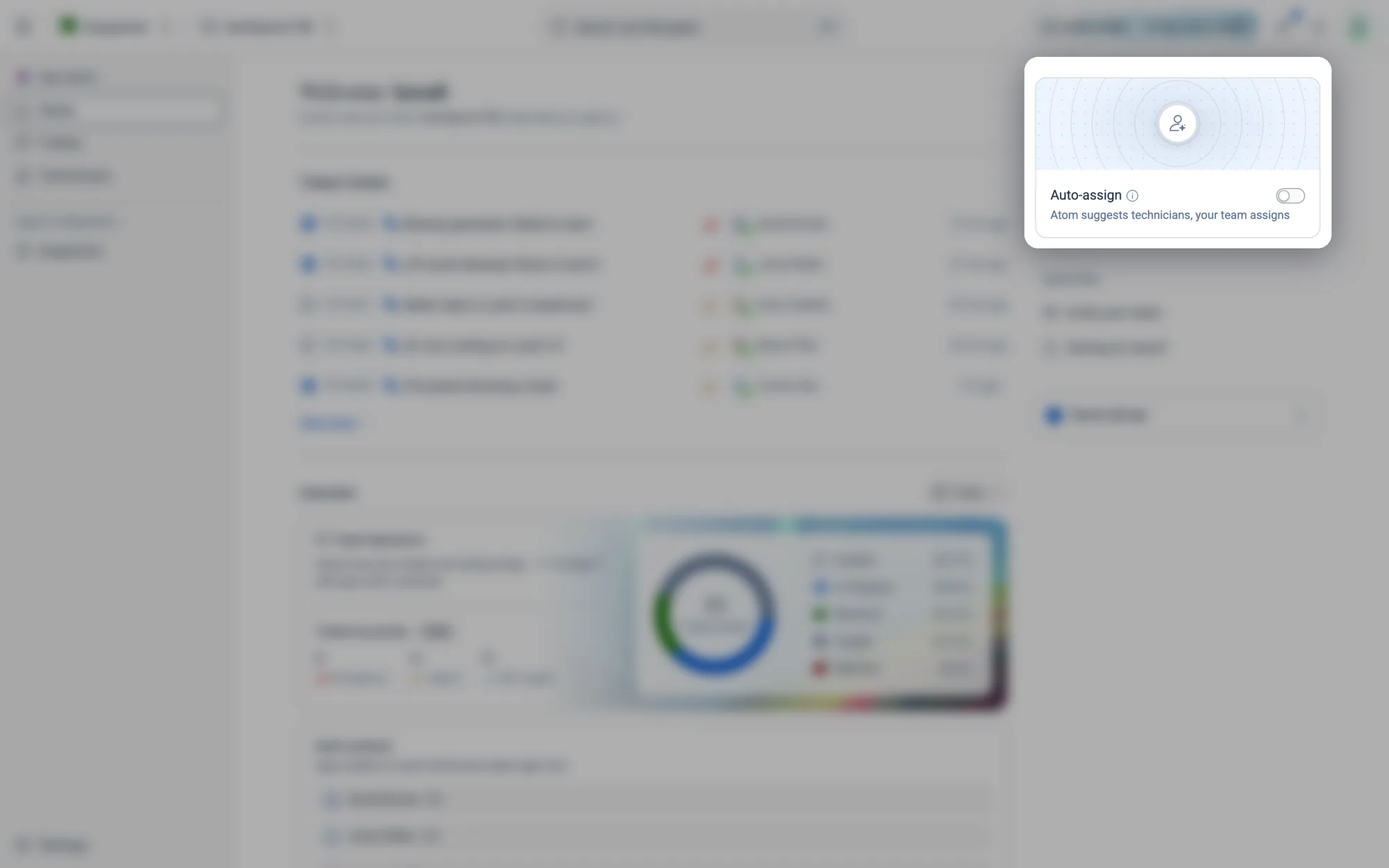
You choose whether Atom assigns technicians itself, or only recommends them for your team to confirm. The switch is the Auto-assign card in the right-hand column of Home in the Dispatcher app.
| What happens to each new ticket | What the ticket shows | |
|---|---|---|
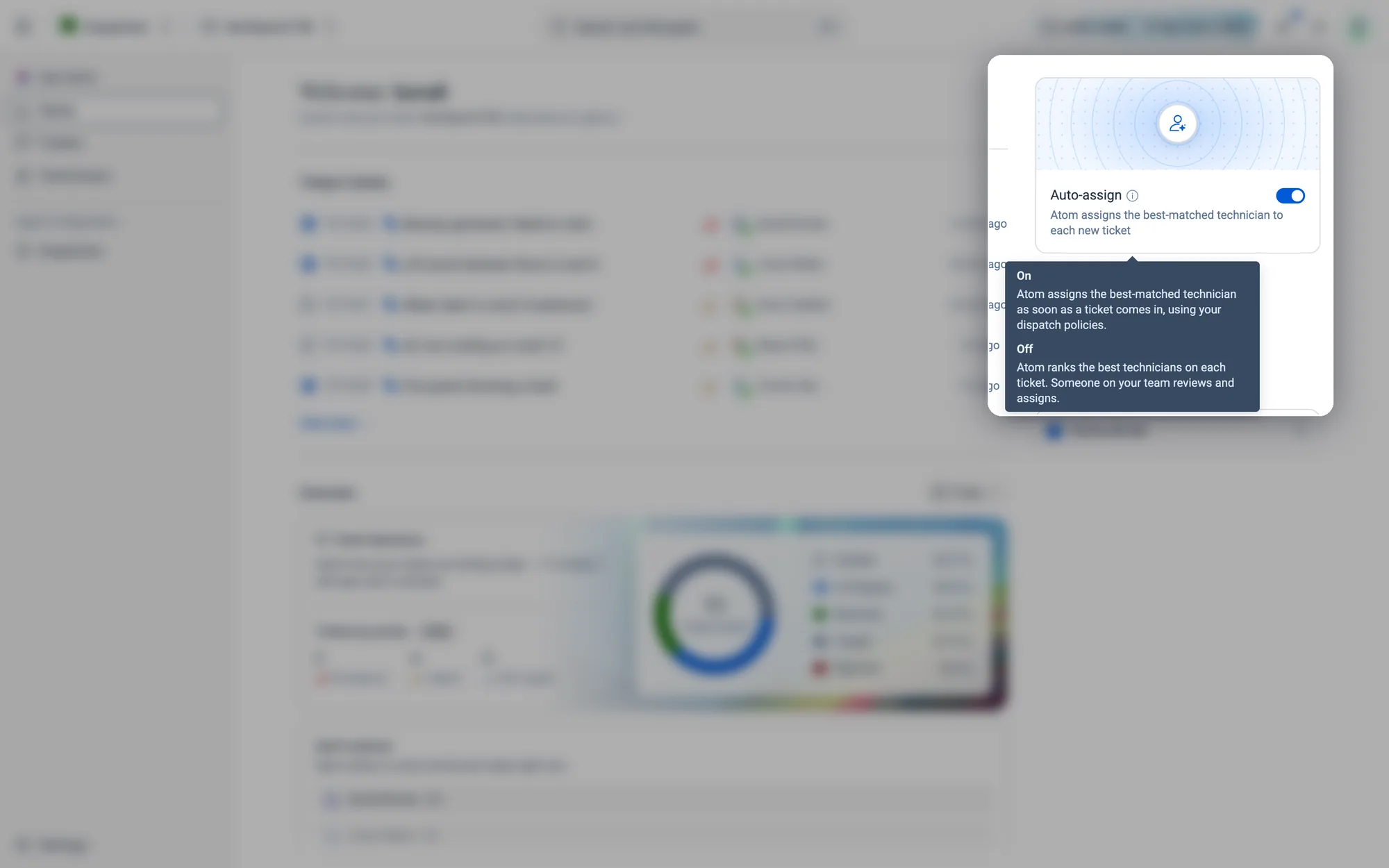
| On | Atom assigns the best-matched technician as soon as the ticket comes in, using your dispatch policies | Auto-assigned by Atom |
| Off | Atom ranks the best technicians, and someone on your team reviews and assigns | Recommended by Atom, with a match score and an Assign button |
How to turn auto-assign on or off
- 1Open Home in the Dispatcher app.
- 2Find the Auto-assign card at the top of the right-hand column.
- 3Click the switch. The card turns blue when auto-assign is on, and grey when it's off. The line under the title changes to match.
10.3The Dispatcher page
Open Dispatcher under Agent Configuration in the menu. The page has three parts.
Write a rule
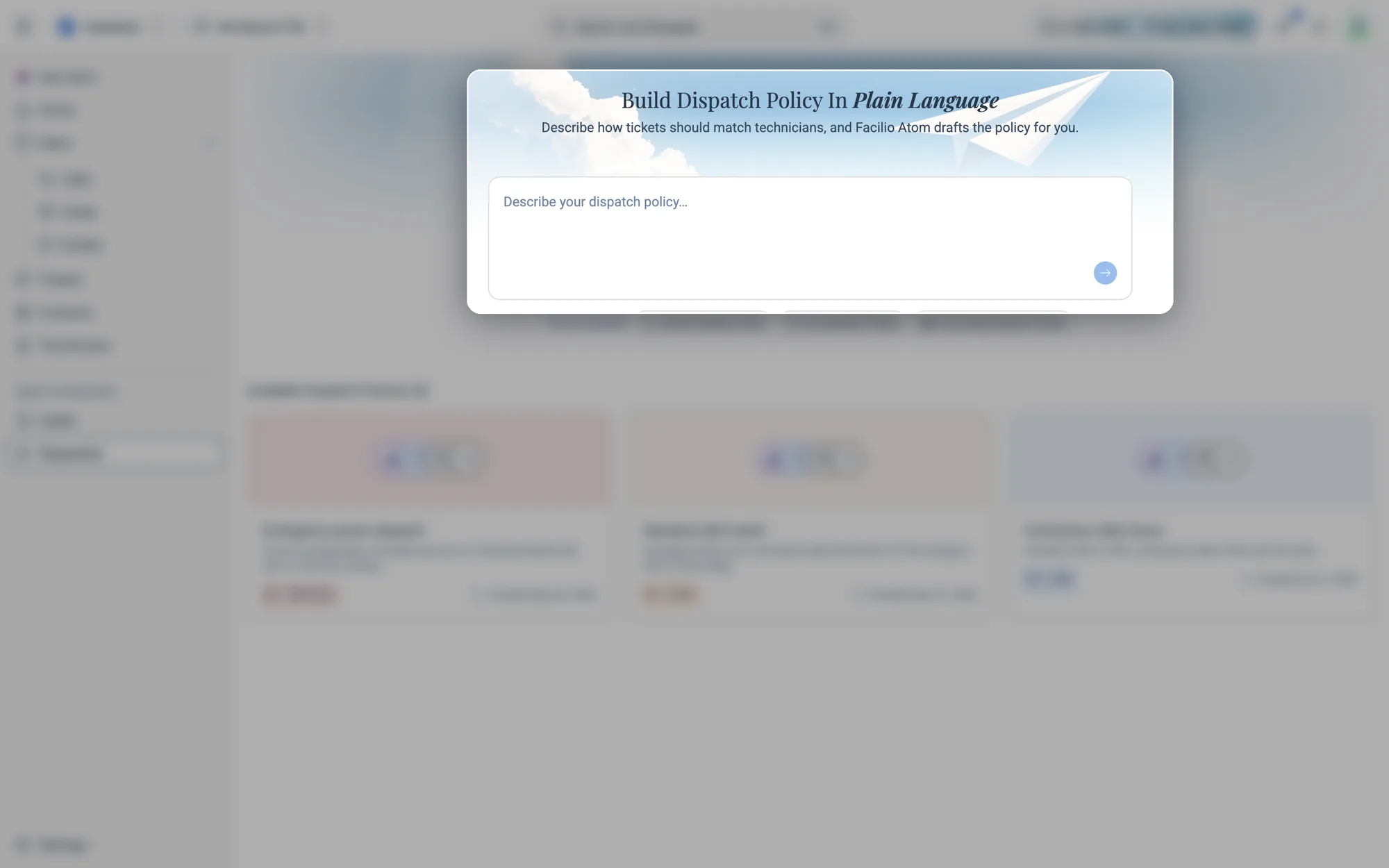
Type your rule into Describe your dispatch policy… and press Enter. Atom turns it into a policy (see How to write a new policy).
Start from an example
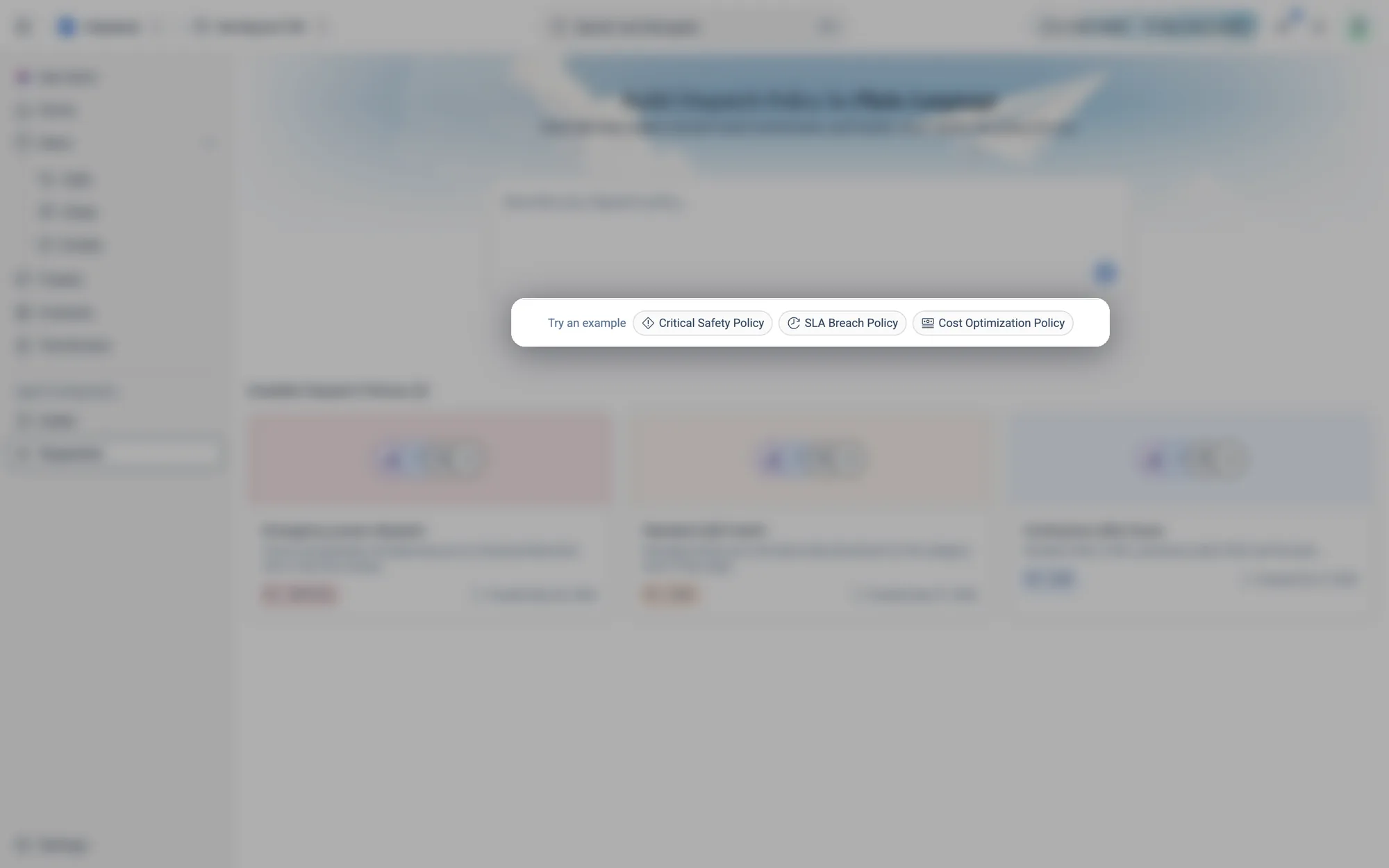
Click Critical Safety Policy, SLA Breach Policy or Cost Optimization Policy to put that rule into the box, then edit it to fit your team before you send it.
Your policies
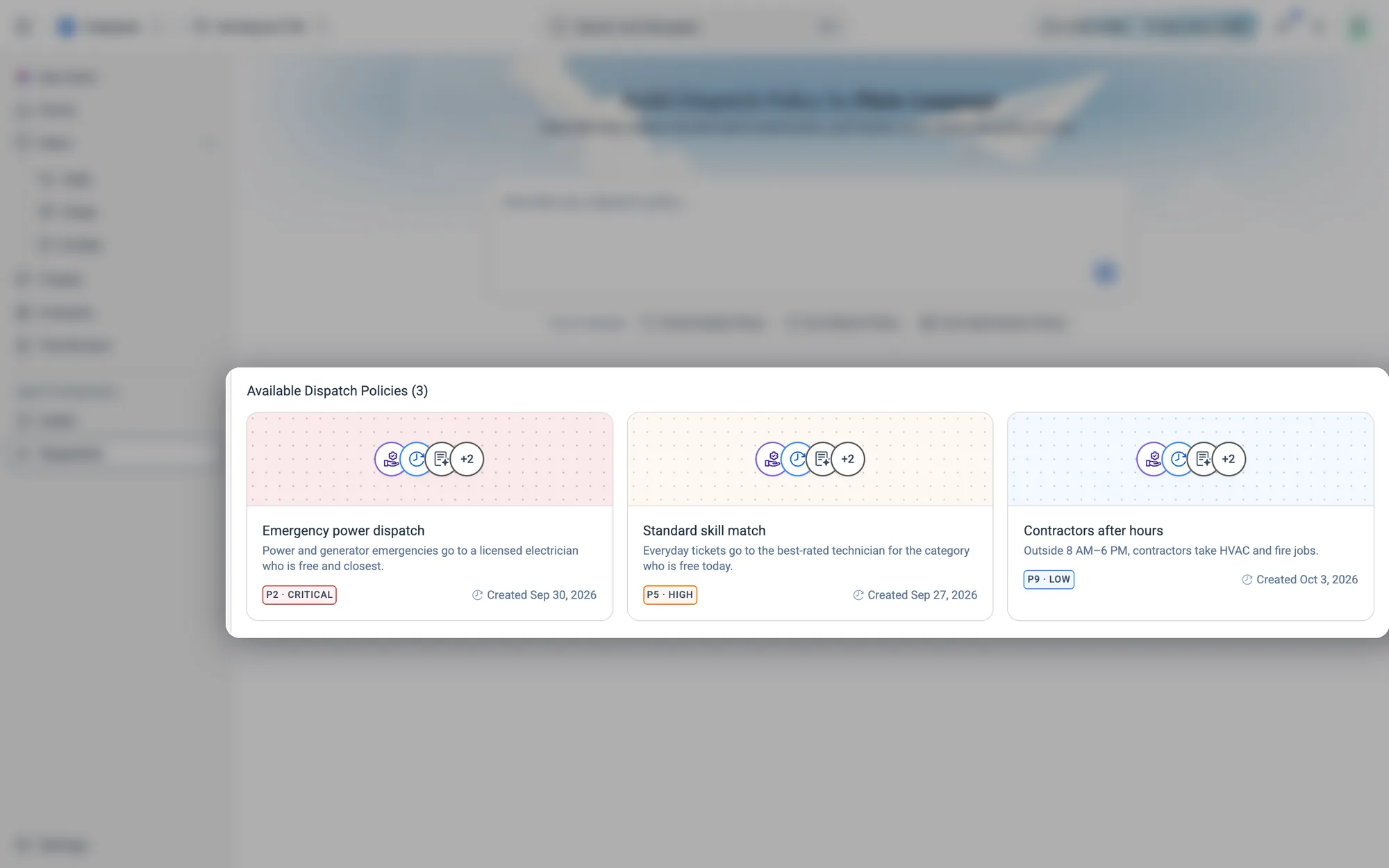
Each card shows the policy's name, its one-line summary, its priority (for example P2 · Critical) and when it was created. Click a card to open the policy.
10.4Create and change policies
How to write a new policy
- 1Open Dispatcher under Agent Configuration in the menu.
- 2Describe your rule in Describe your dispatch policy…. Or click an example under Try an example (
Critical Safety Policy,SLA Breach PolicyorCost Optimization Policy) and edit it.
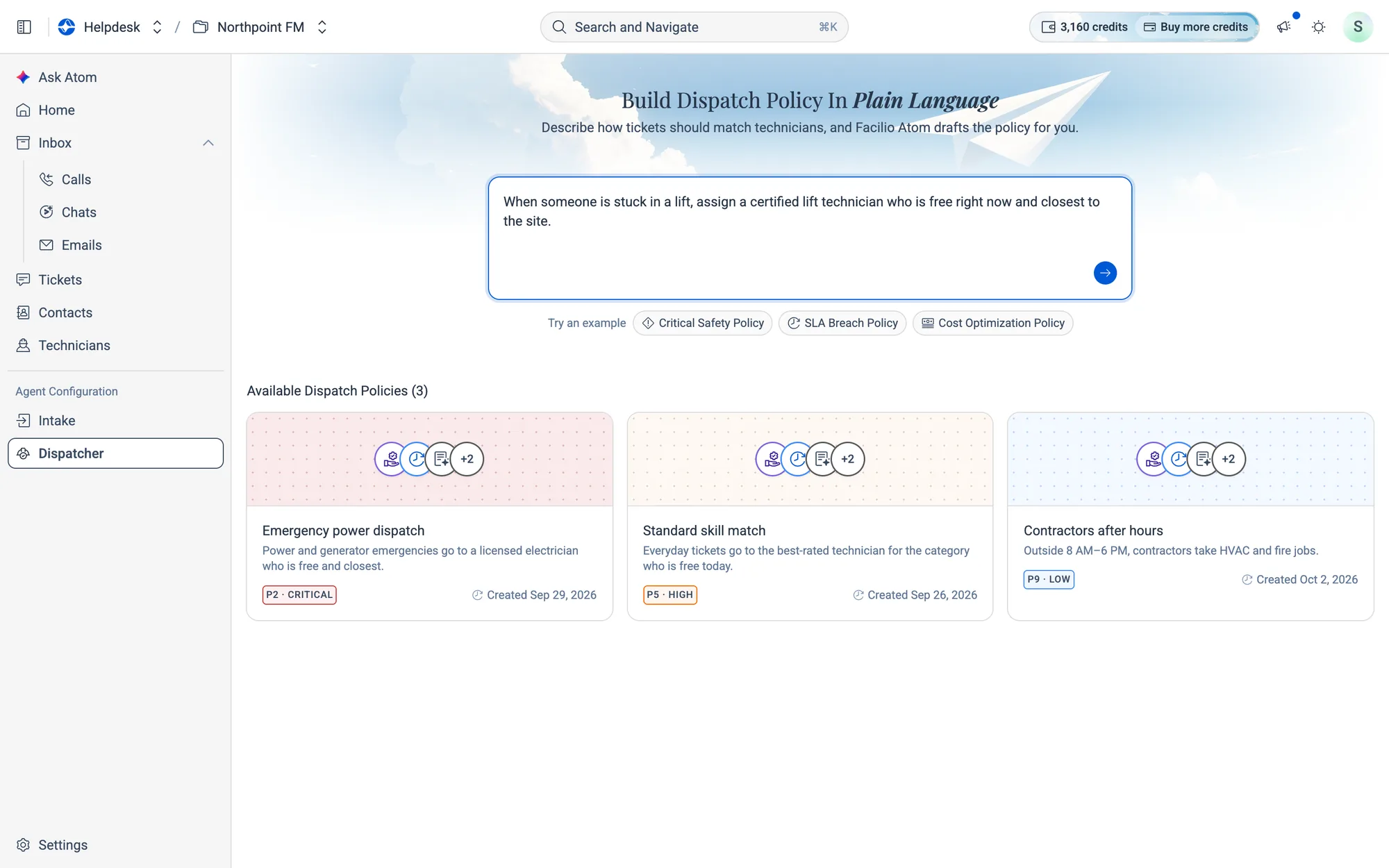
- 3Press Enter to send. Atom starts drafting the policy.
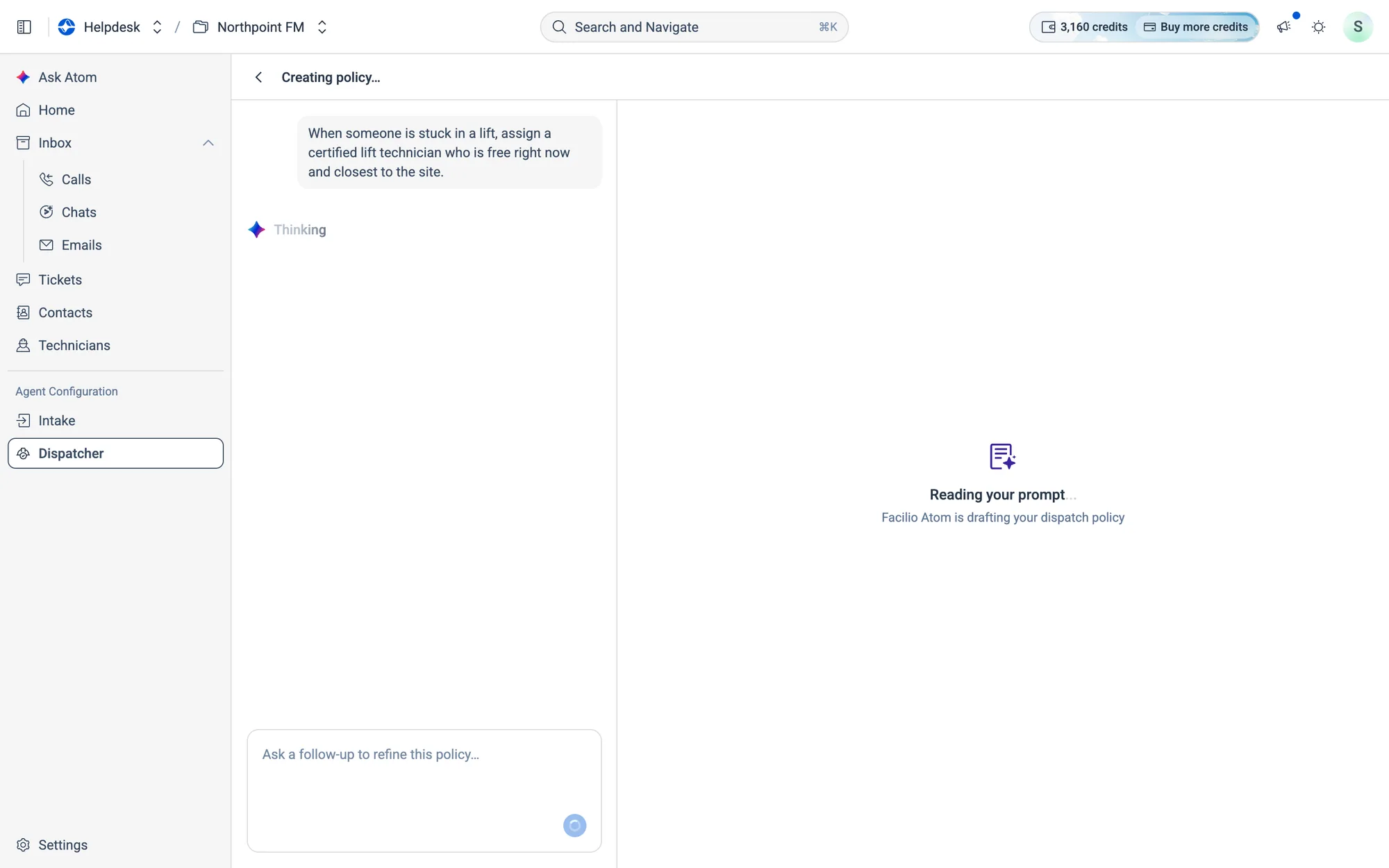
- 4In a few seconds the policy is ready, and it's saved straight away. There's no separate save step.
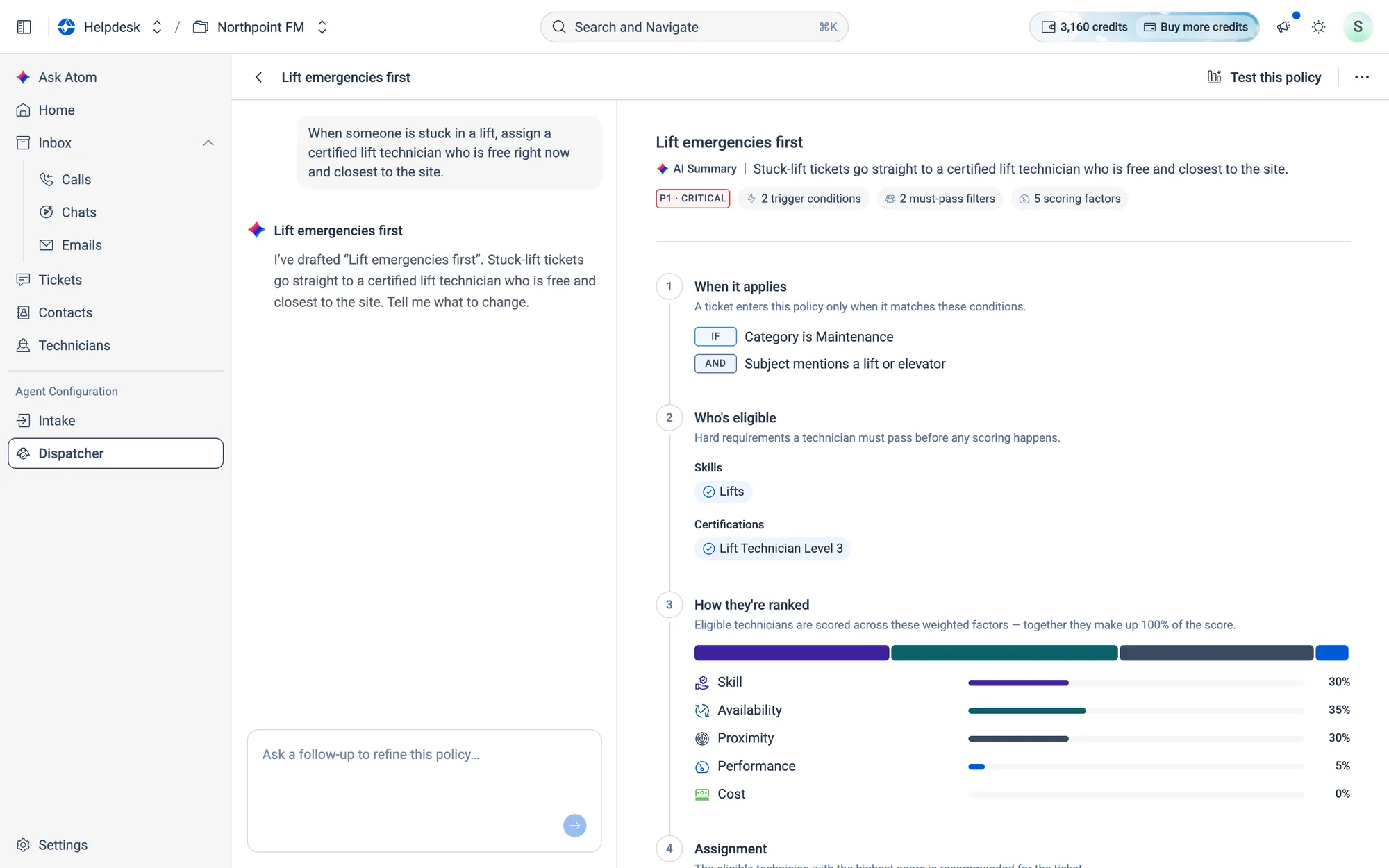
10.5Inside a policy, section by section
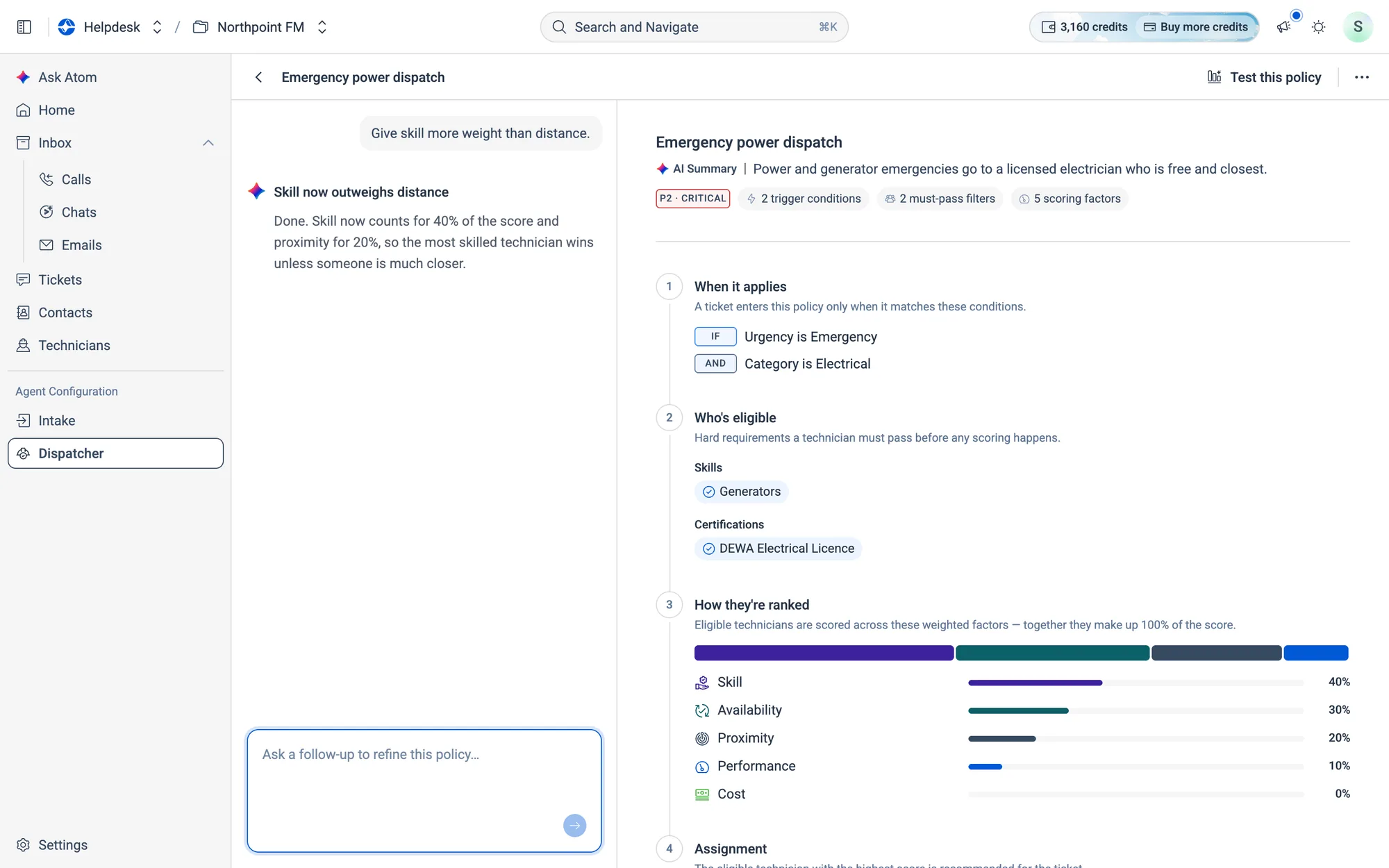
Open a policy and it splits in two: your conversation with Atom on the left, and the policy Atom built on the right.
Your conversation with Atom
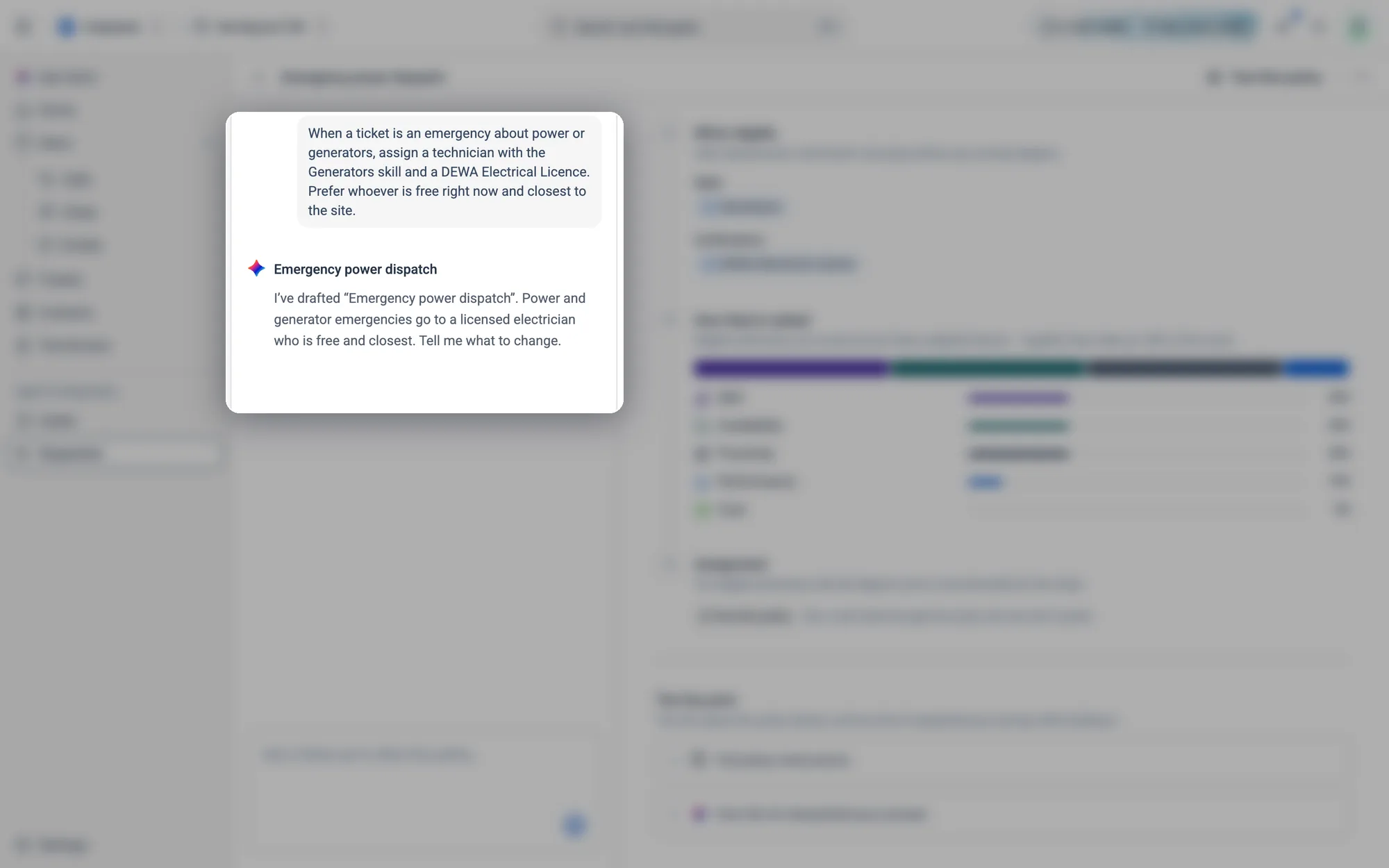
The left side keeps the whole conversation: your original rule, Atom's reply and every change you ask for afterwards. It's a record of how the policy came to be.
The policy summary
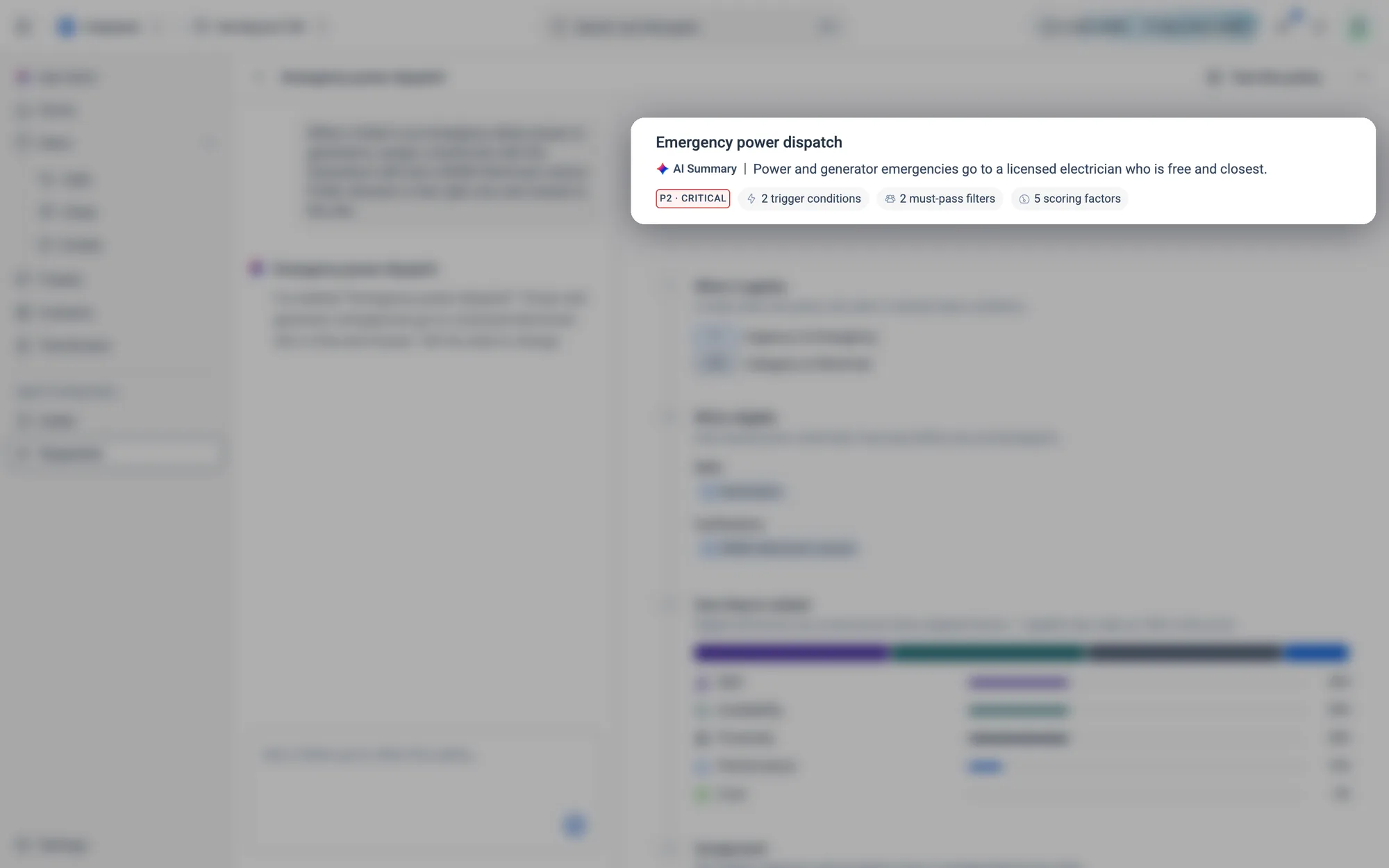
The chips tell you how much the policy checks at a glance: 2 trigger conditions, 2 must-pass filters and 5 scoring factors. Each one matches a stage below.
1 · When it applies
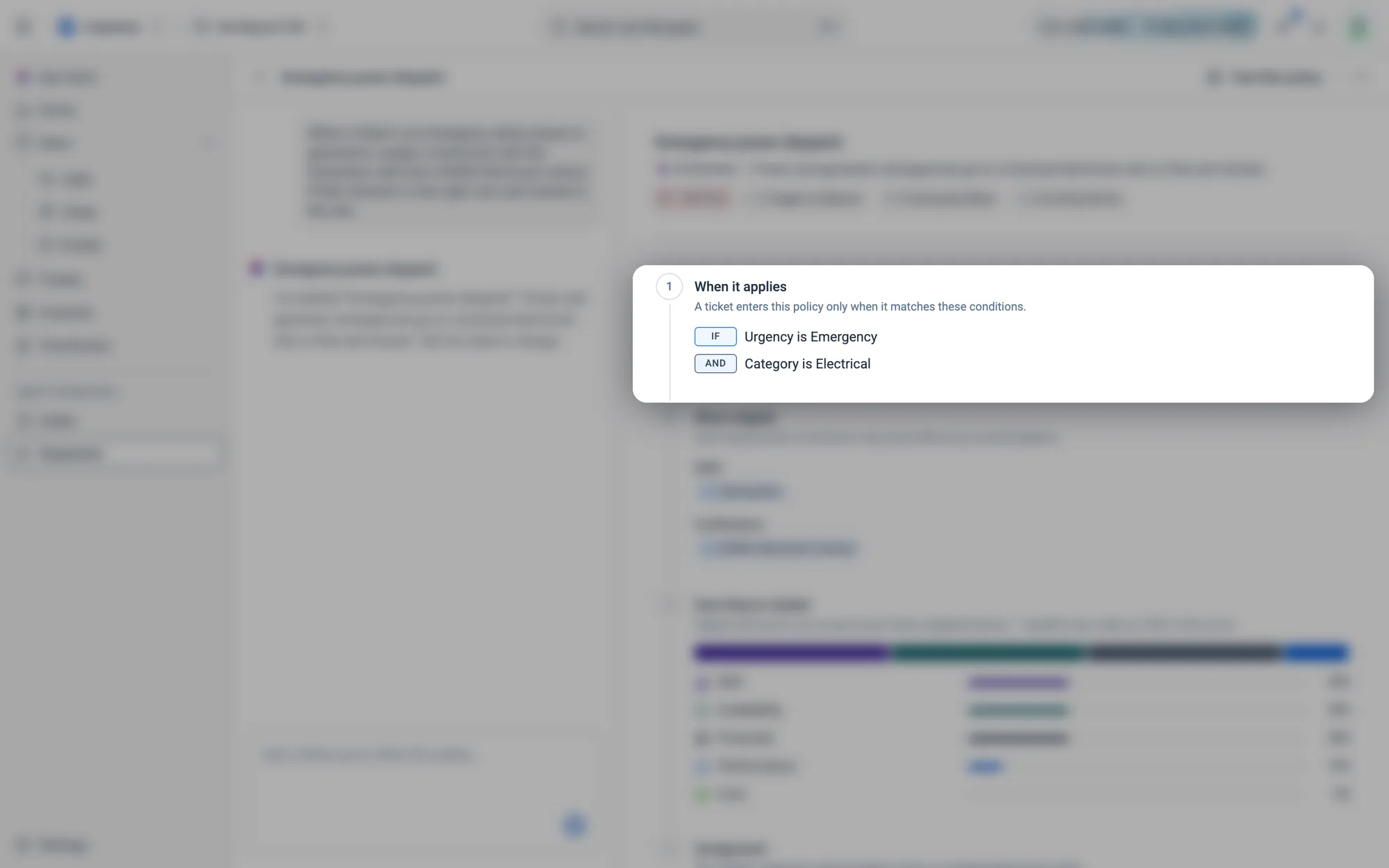
This decides which tickets the policy handles. Here a ticket only enters this policy IF its urgency is Emergency AND its category is Electrical. Every other ticket is left for your other policies.
2 · Who's eligible
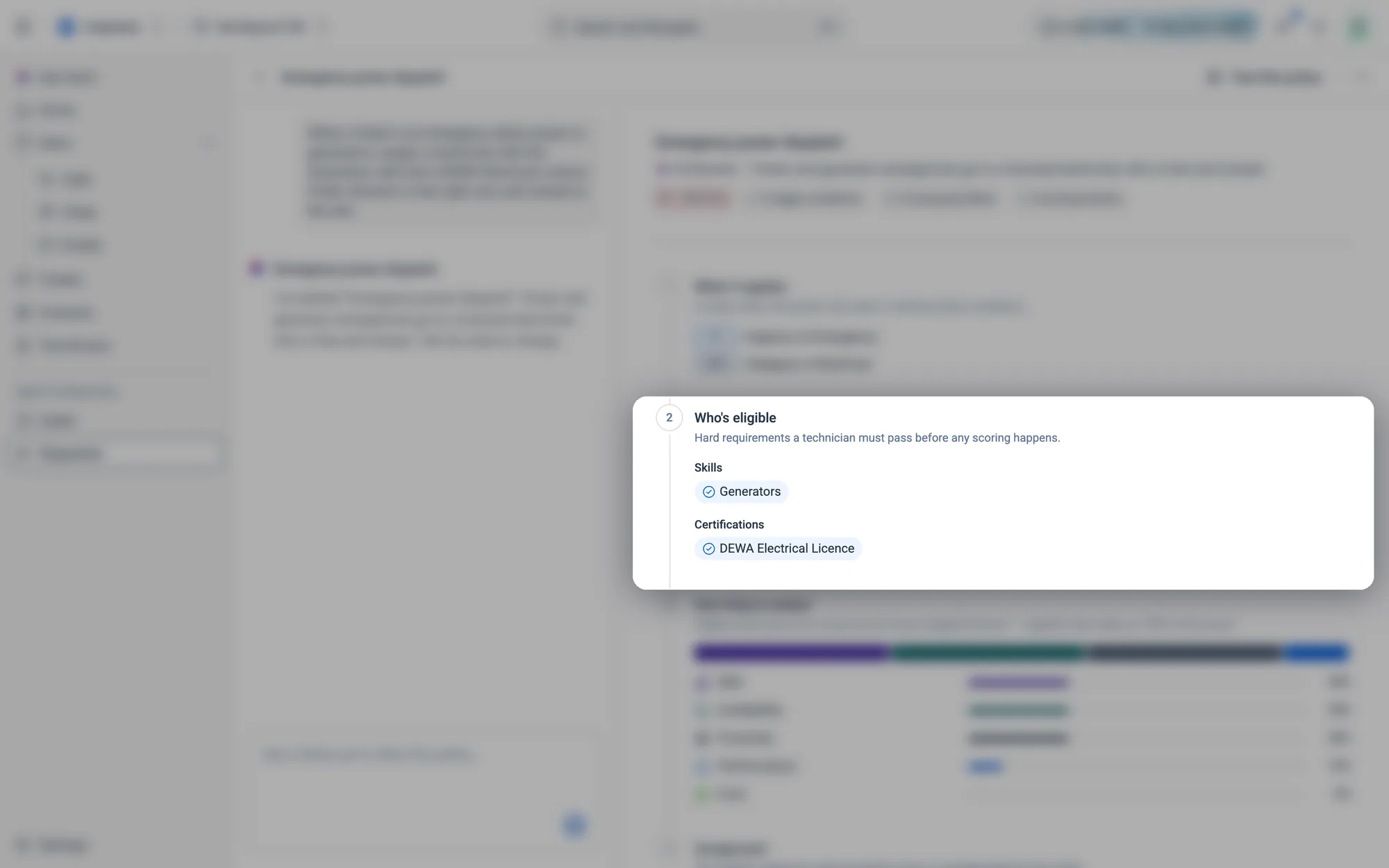
These are hard filters. A technician without every listed Skill and Certification is ruled out before any scoring happens, however close or free they are.
3 · How they're ranked
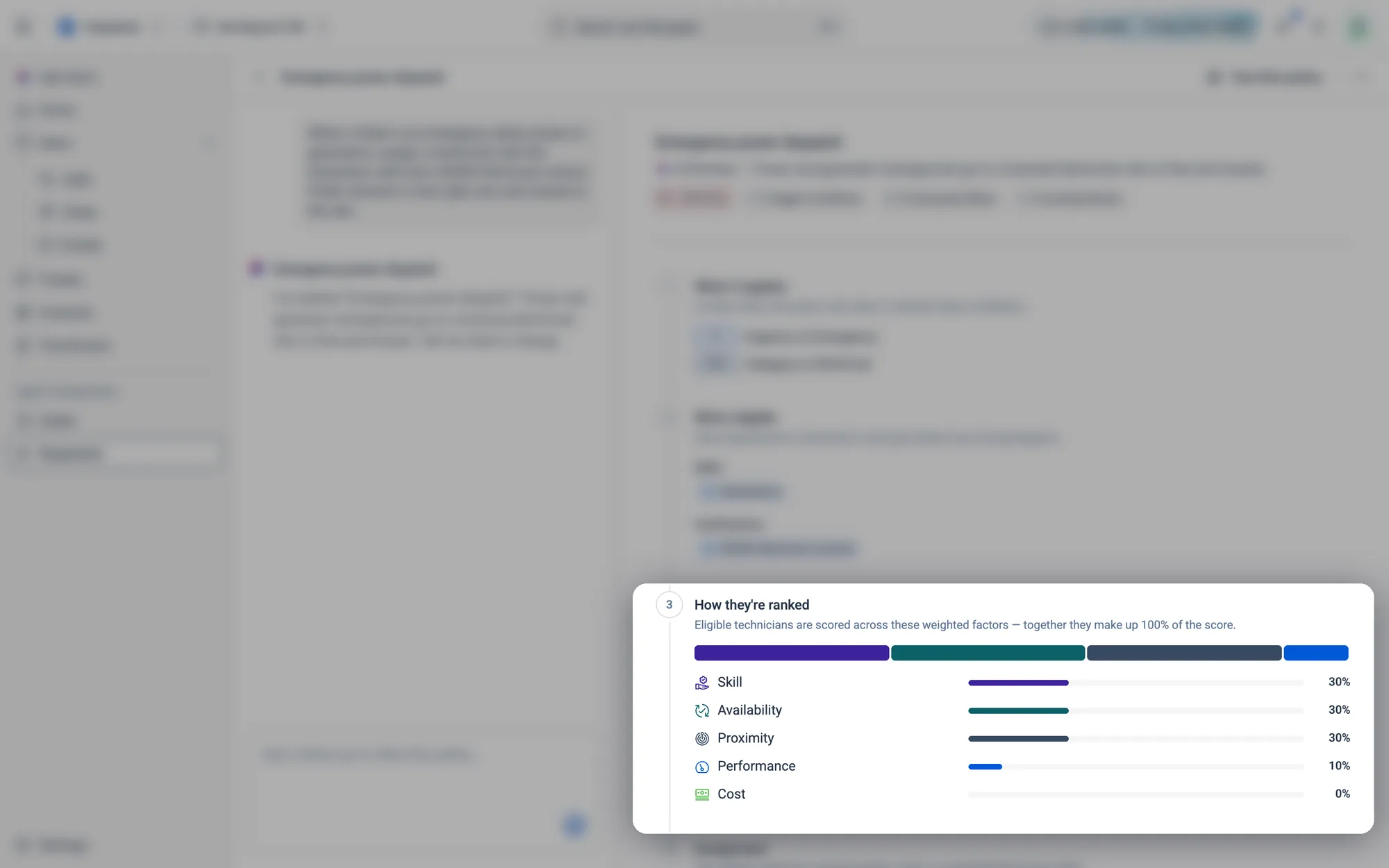
Everyone who passes stage 2 gets a score from five factors: Skill, Availability, Proximity, Performance and Cost. The percentages are how much each factor counts, and they always add up to 100%. In this policy, skill, availability and proximity count equally and cost doesn't count at all.
4 · Assignment
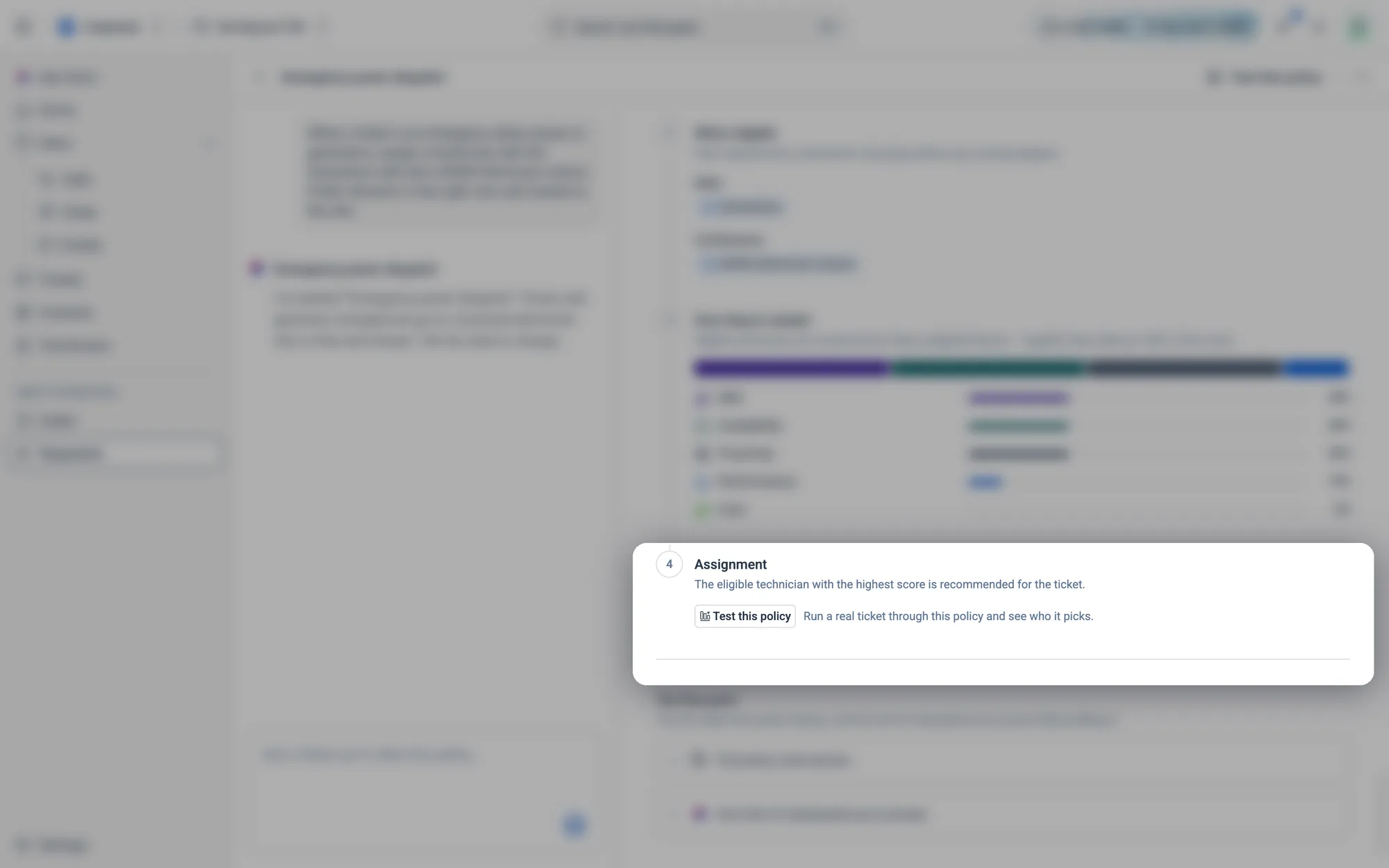
The last stage says what happens with the result. Click Test this policy here to see who would win for a real ticket (see How to test a policy).
The fine print
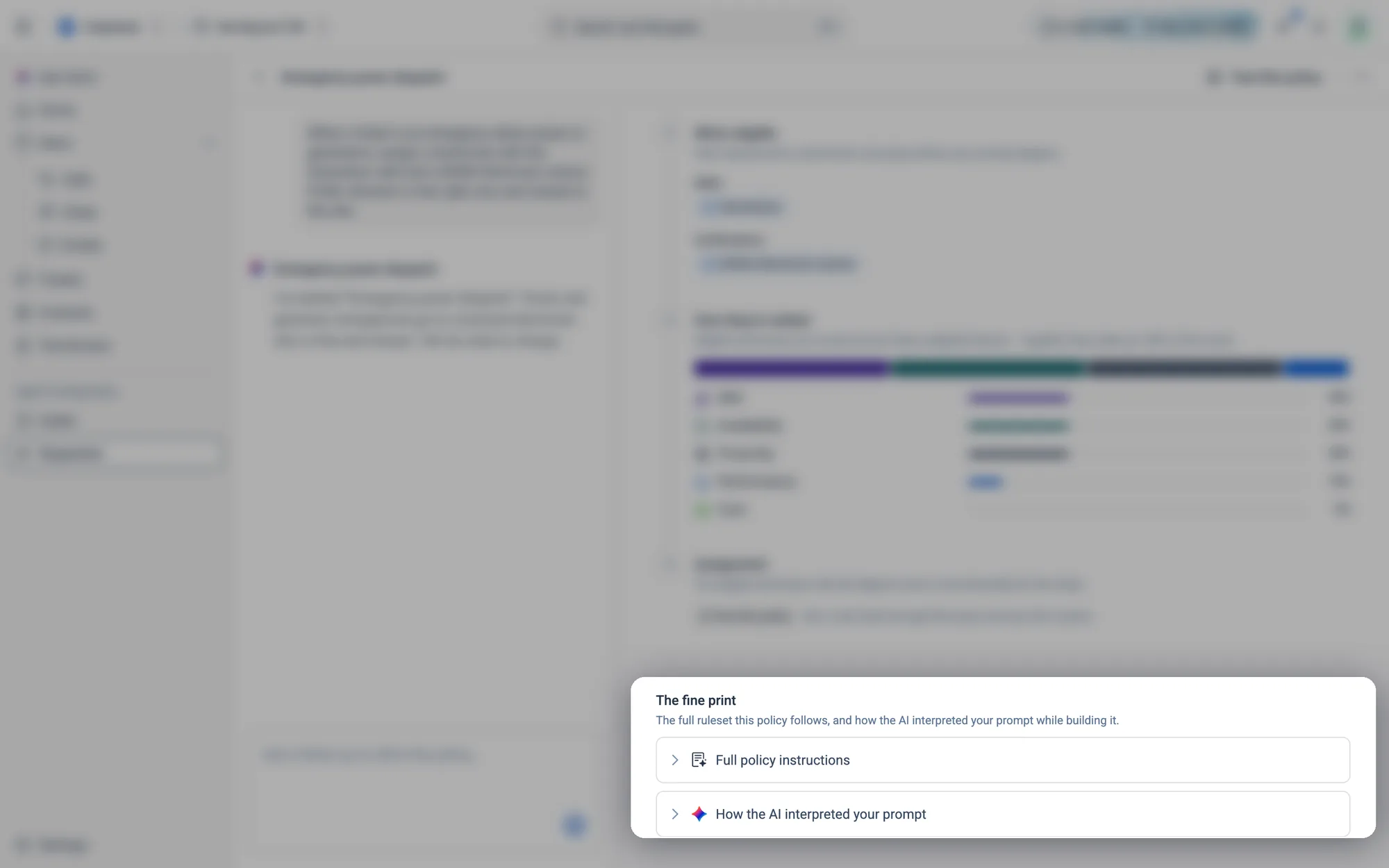
Expand Full policy instructions to read the complete rule Atom follows, word for word. Expand How the AI interpreted your prompt to check that Atom understood what you meant, line by line.
Refine it, test it
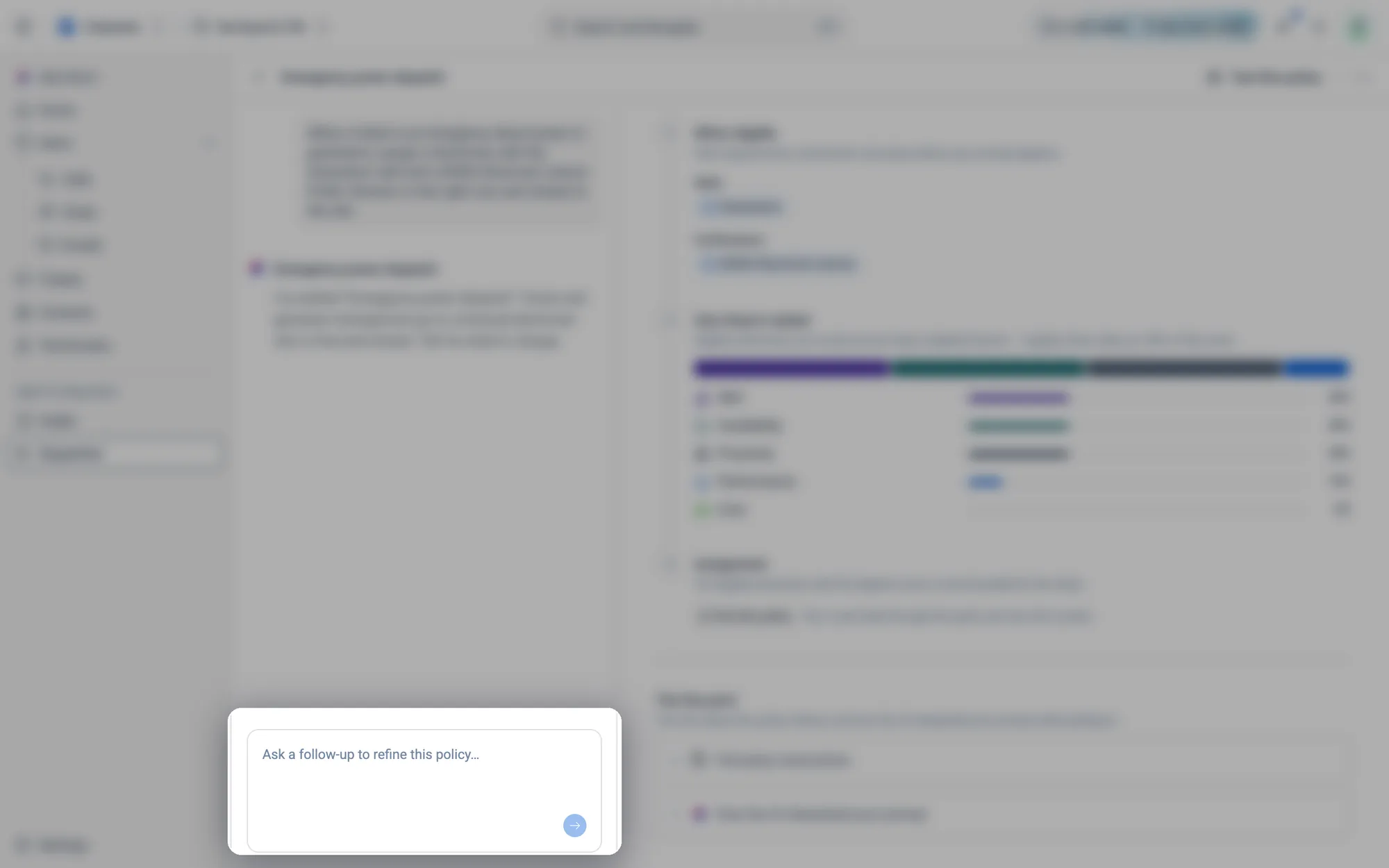
Test this policy and the ⋯ menu sit at the top right of every policy.How to change a policy
- 1Open the policy. On the left, type your change into Ask a follow‑up to refine this policy…, for example "Give skill more weight than distance."
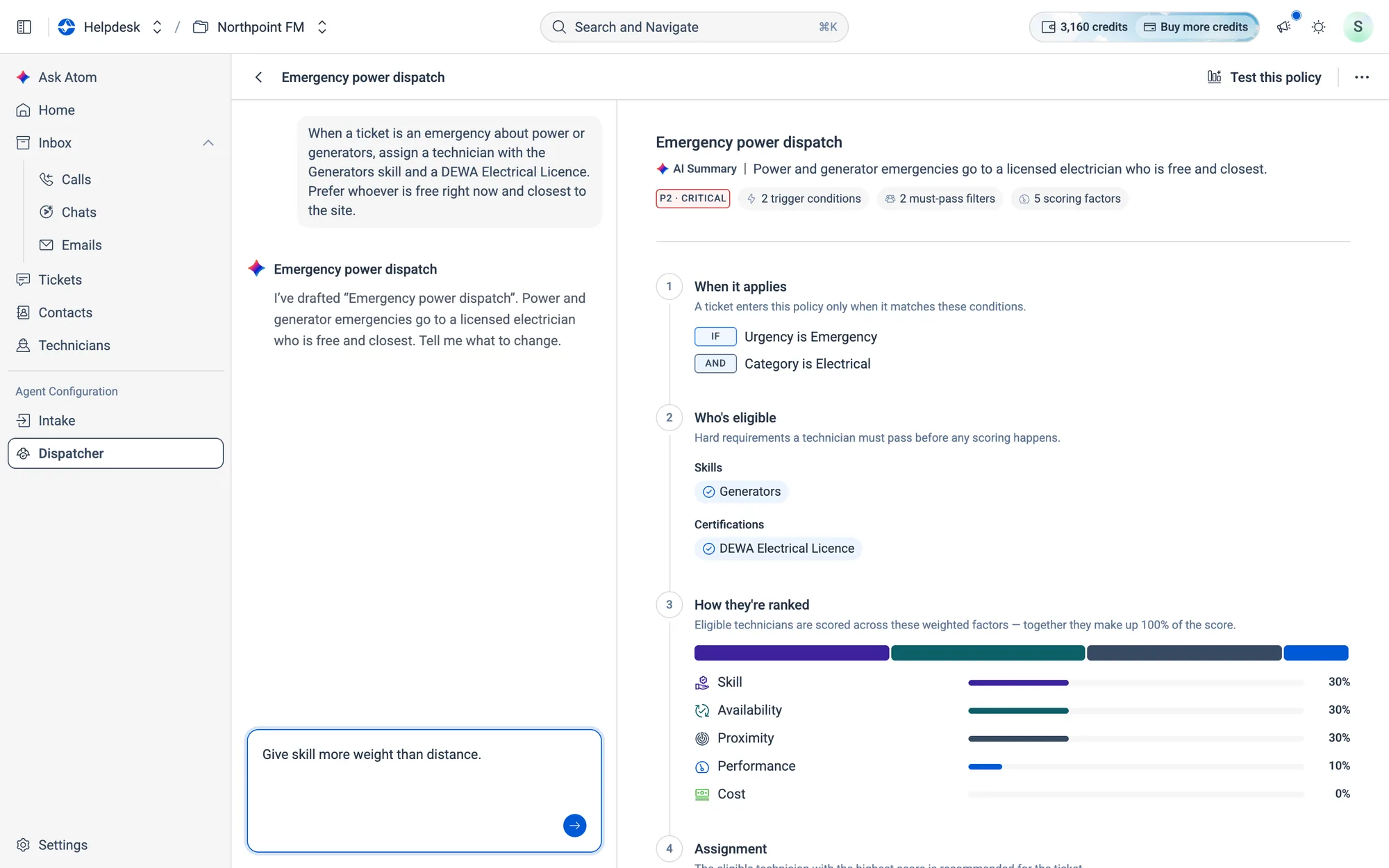
- 2Press Enter. Atom replies and the policy updates in place.
10.6Test and tidy up
How to test a policy on a real ticket
Testing shows you who a policy would pick, without assigning anyone.
- 1Click
Test this policyat the top right of the policy. The Playground opens.
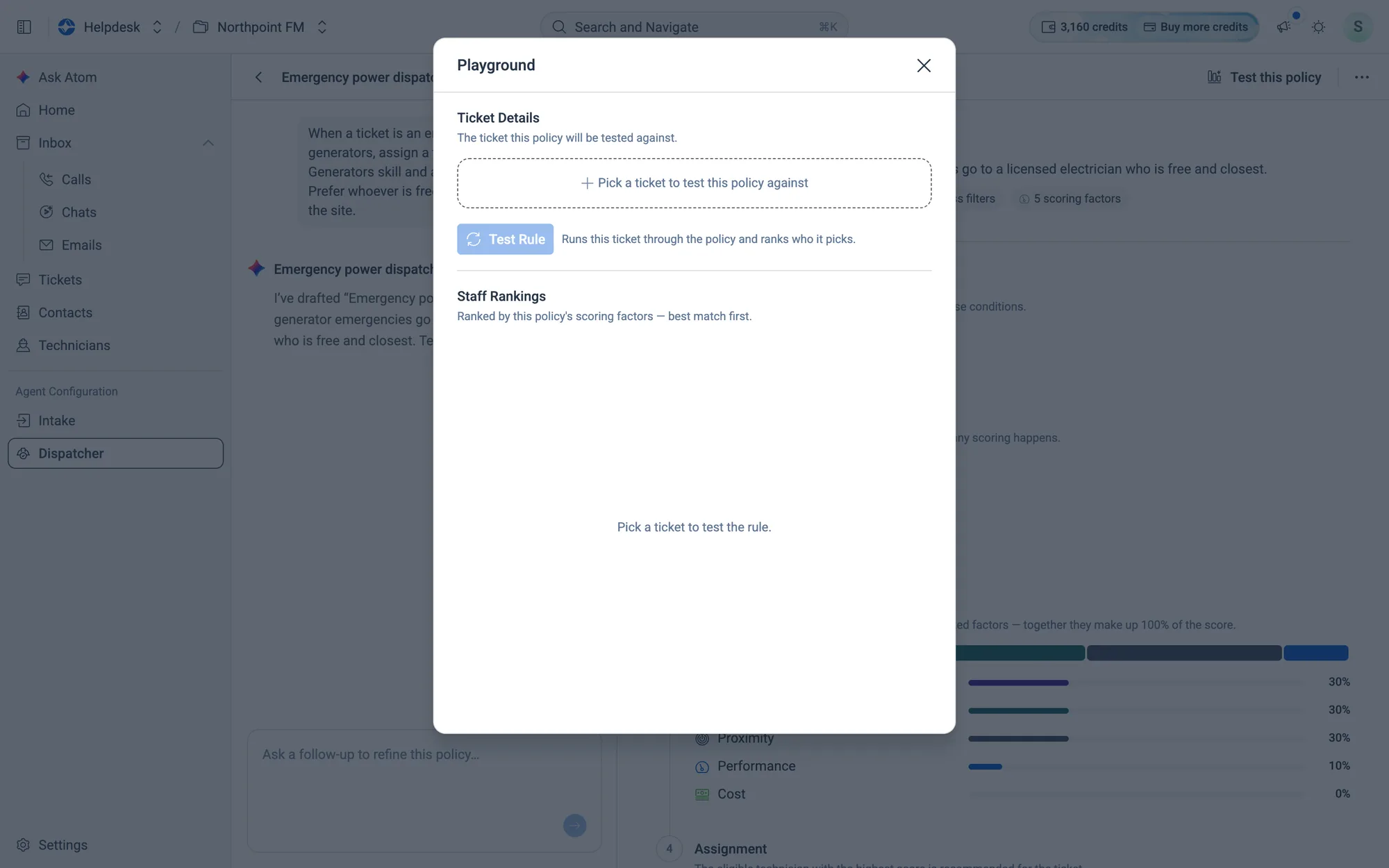
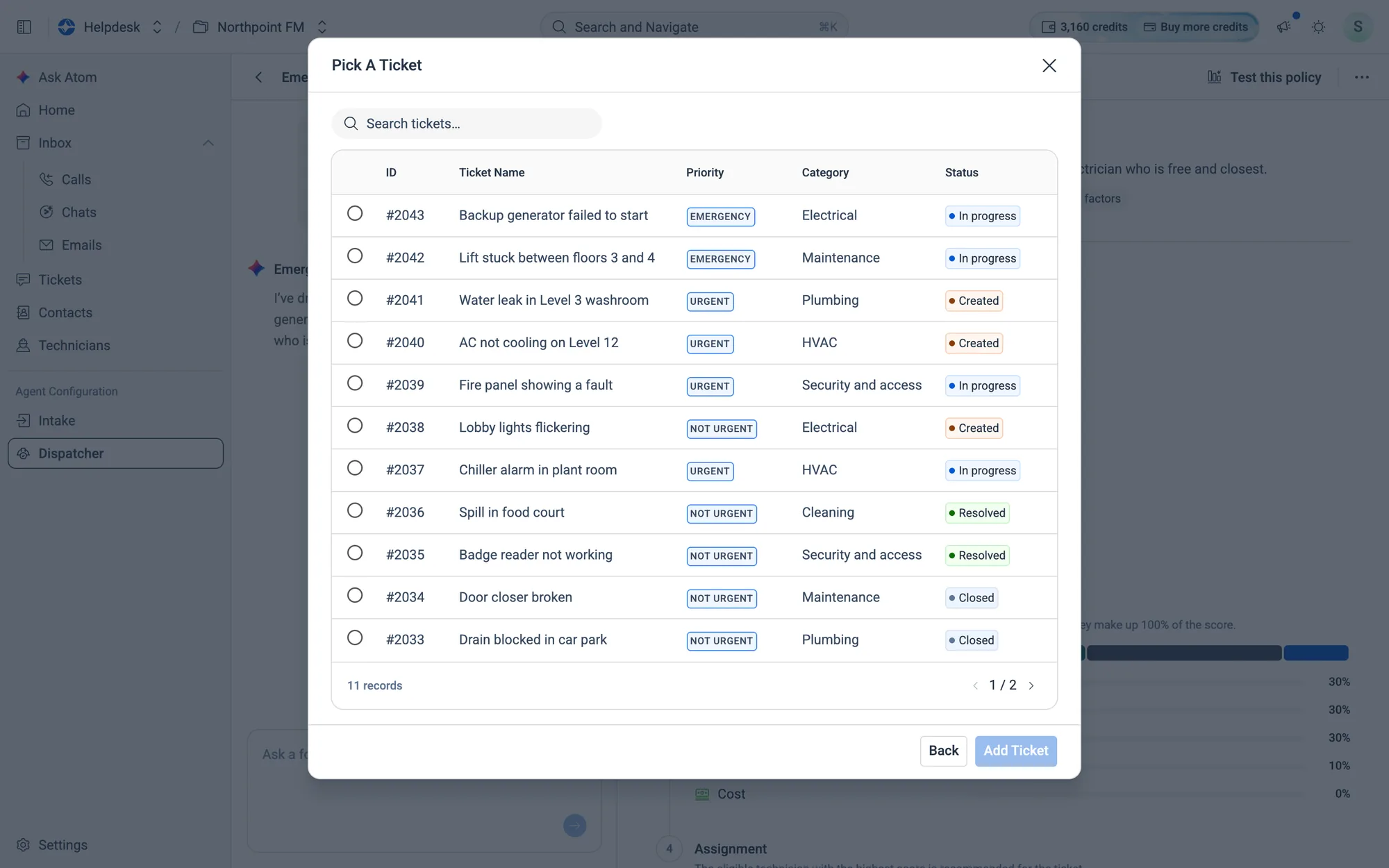
- 2Click Pick a ticket to test this policy against, choose a ticket and click
Add Ticket.
- 3Click
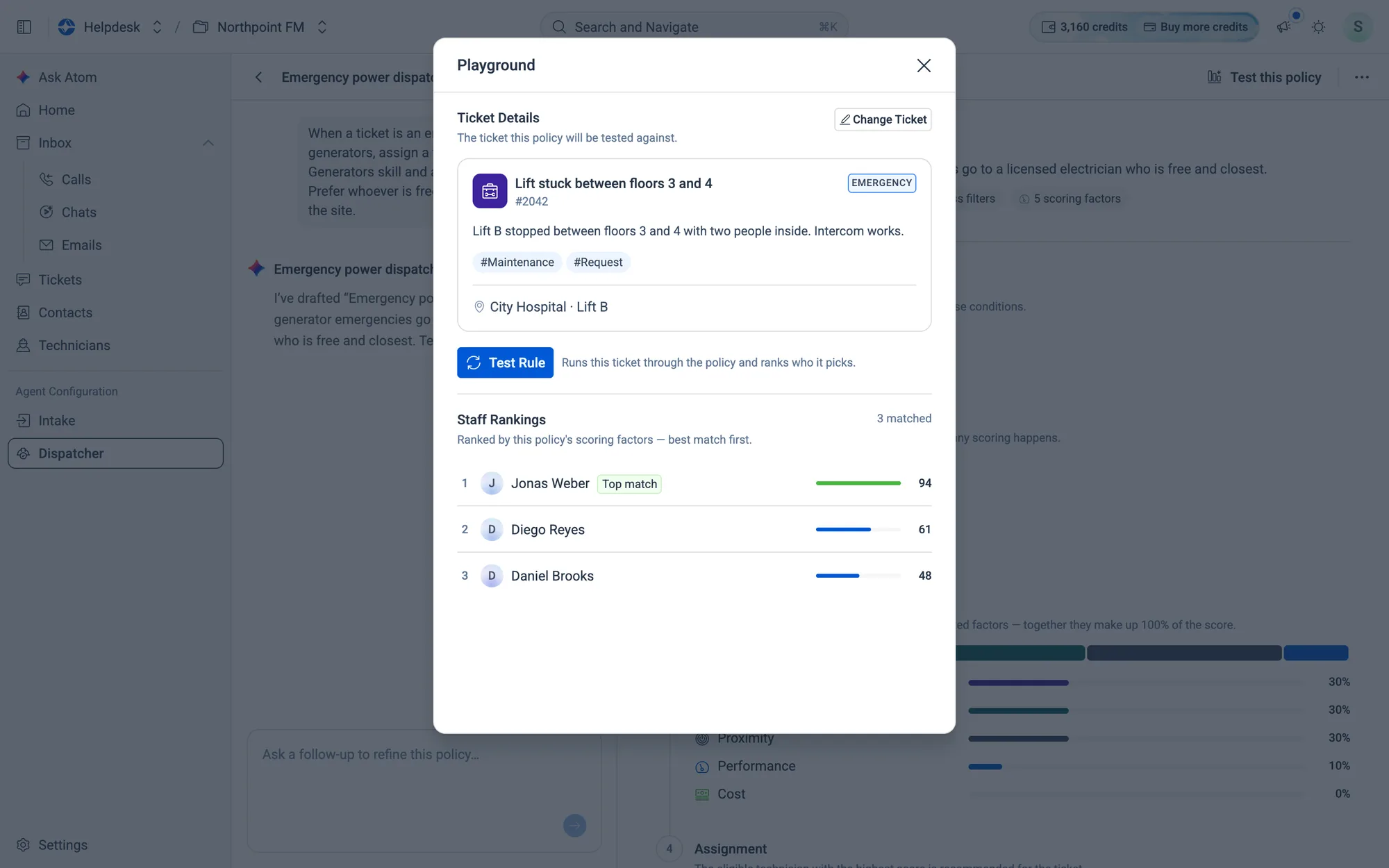
Test Rule. Staff Rankings lists the matching technicians, best first, with a Top match tag on the winner.
- 4Click
Change Ticketto try another one.
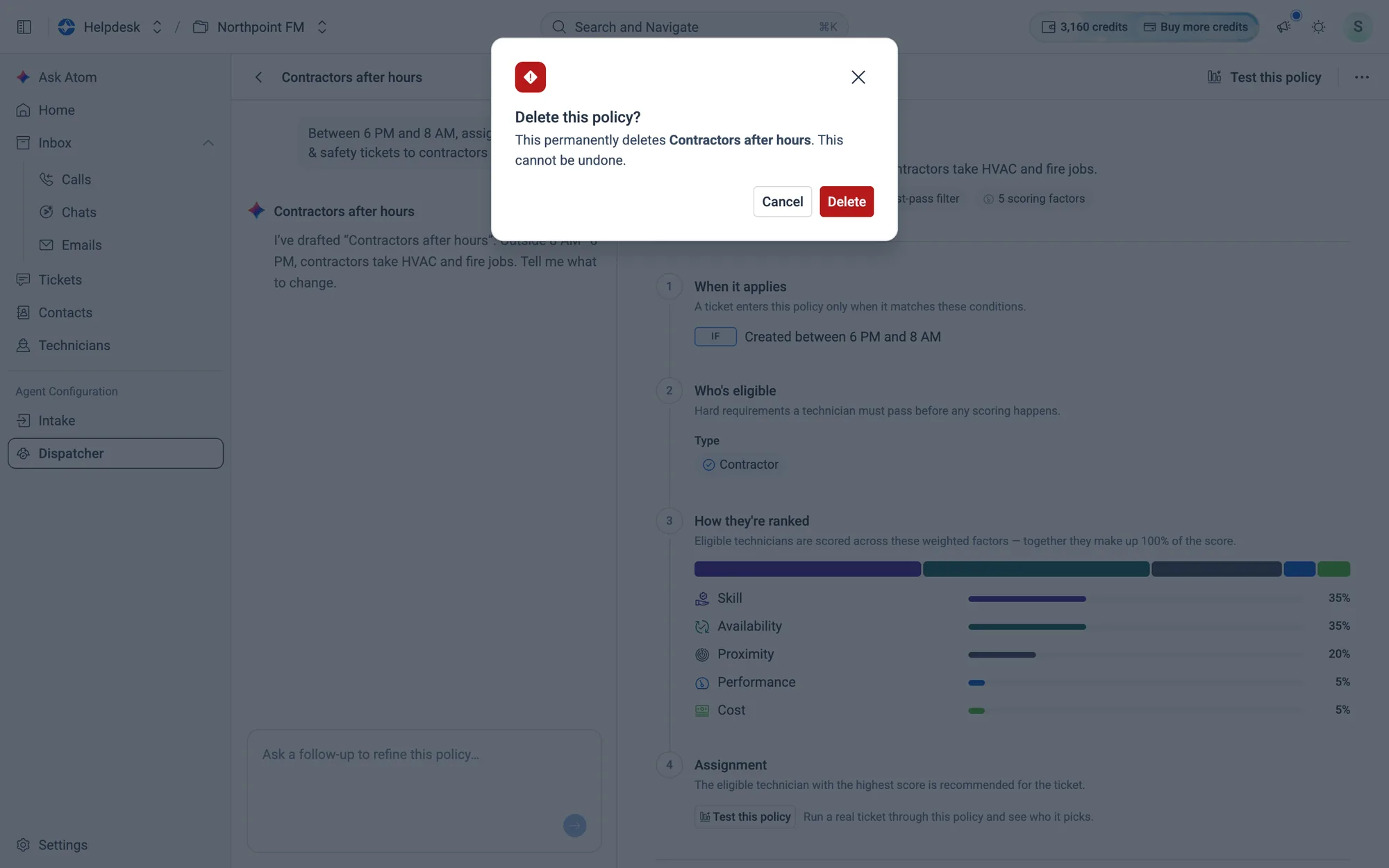
How to delete a policy
- 1Open the policy and click the ⋯ menu at the top right (or use the ⋯ on its card in the list).
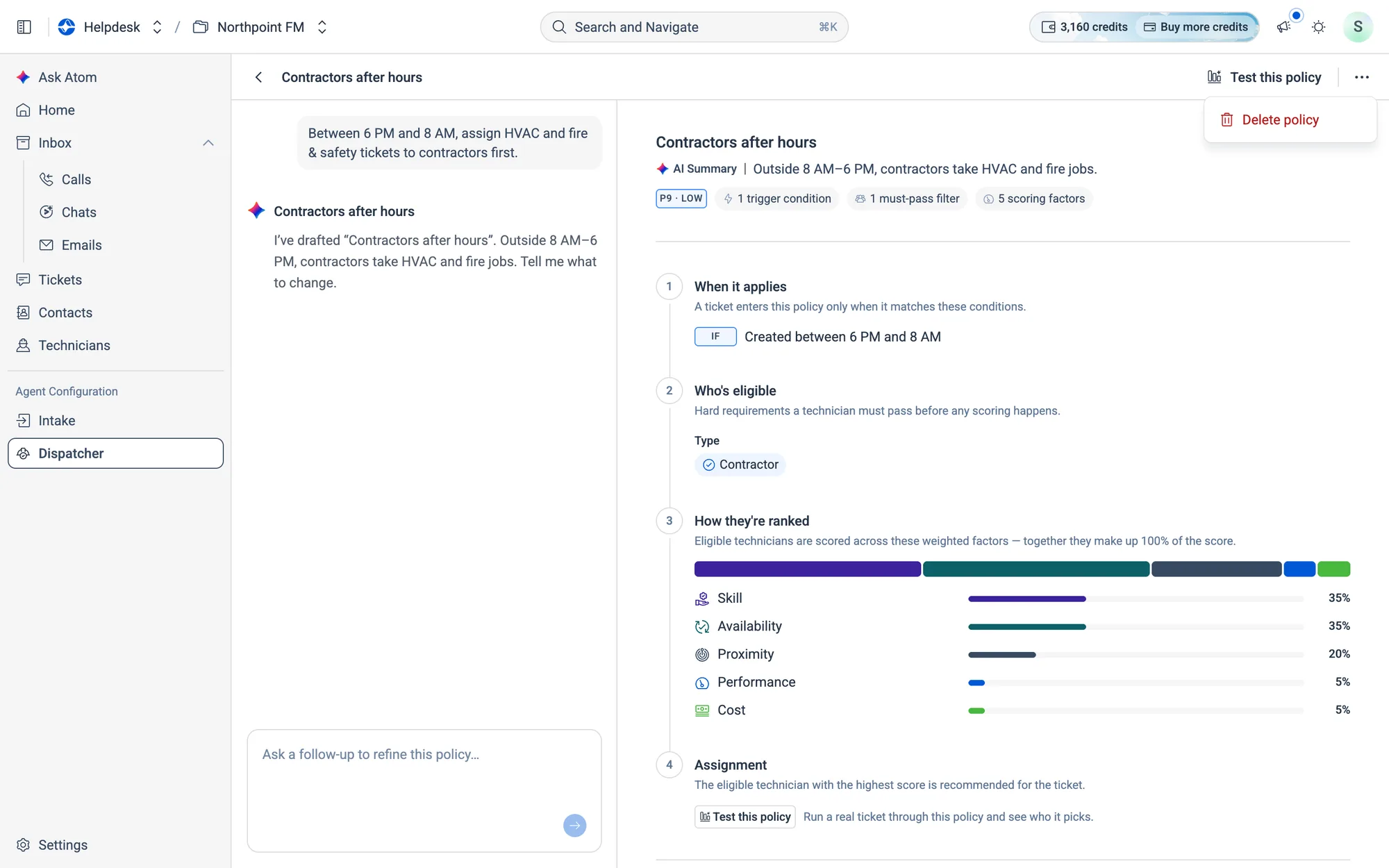
- 2Choose
Delete policyand confirm withDelete.