The Intake agent
The AI agent that answers tenants on phone, WhatsApp, your website and email. Here you decide how it sounds, what it handles and which numbers and inboxes it answers, then test it live before anyone else does.
09.1How the Intake page is laid out
Open Intake under Agent Configuration in the menu. The page is called Intake Configurations and has five tabs:
| Tab | What you set there |
|---|---|
| General | The agent's name, language, voice, greeting, tone, scope of work, example answers and how it ends conversations |
| Calls | Which phone numbers the agent answers |
| Which WhatsApp numbers the agent replies on | |
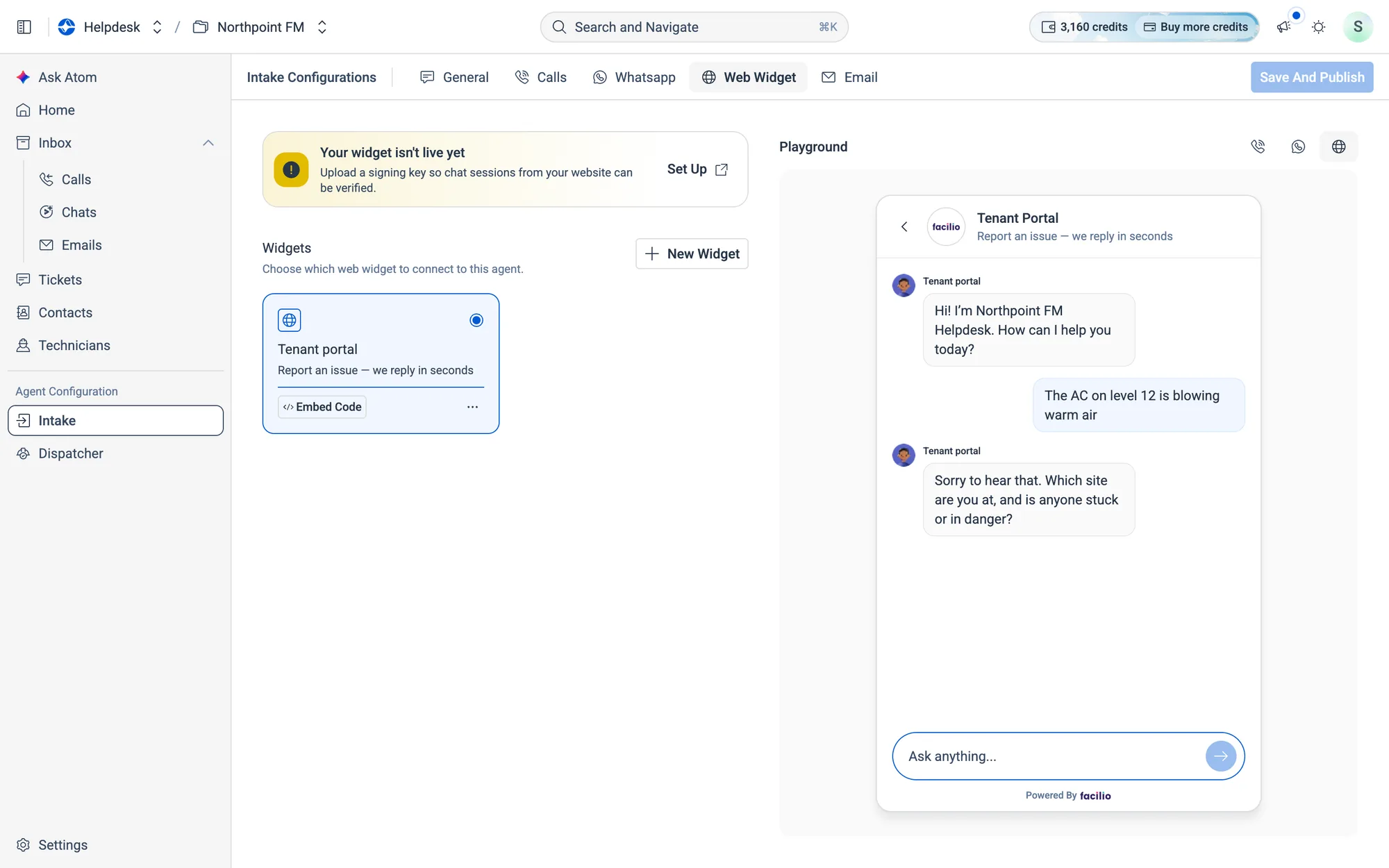
| Web Widget | The chat and call widget for your website, and its embed code |
| Which inboxes the agent reads and replies to |
On the right of every tab is the Playground, where you can talk to your agent by phone, WhatsApp or the web widget.
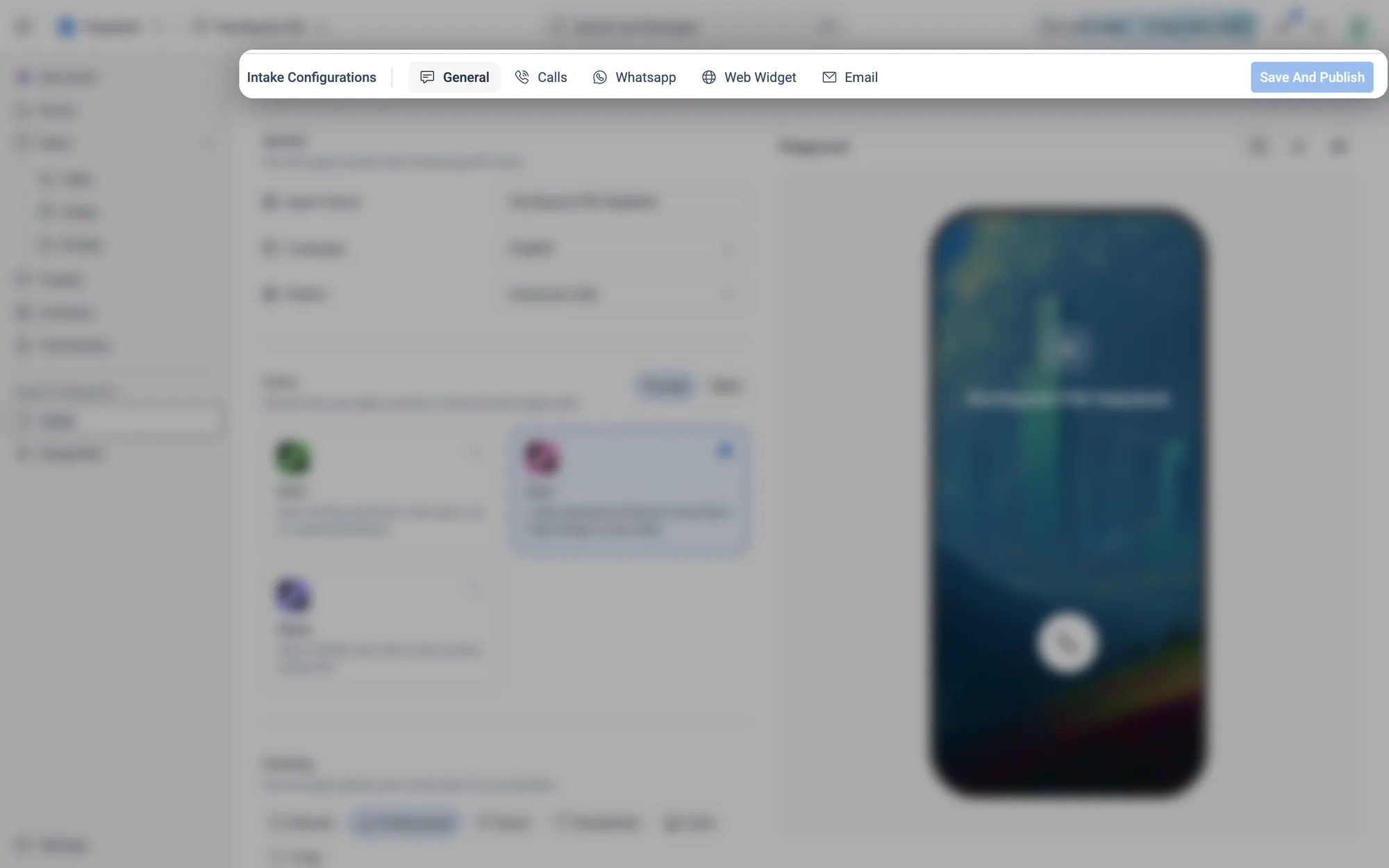
Save And Publish on the right.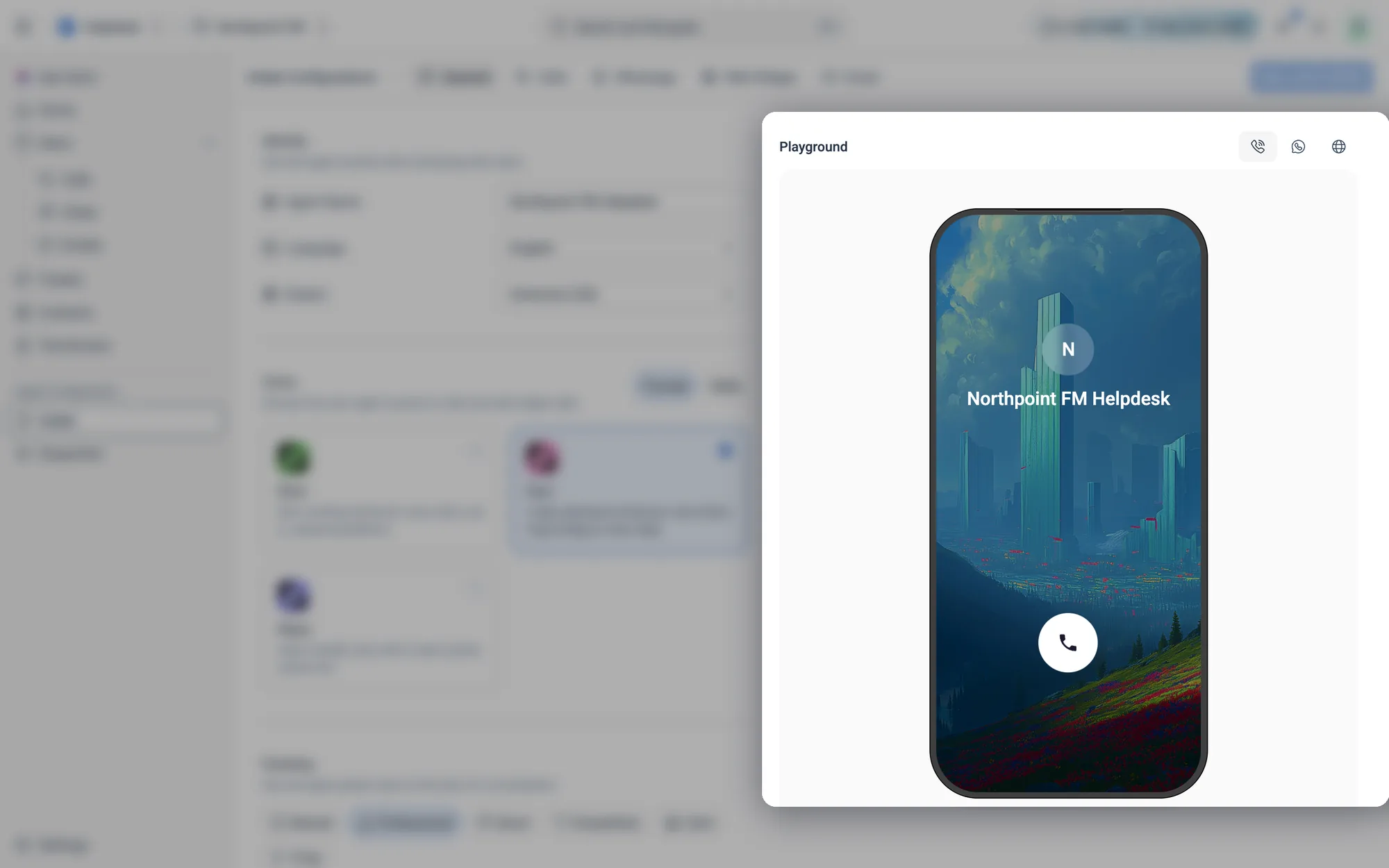
09.2The General tab, section by section
The General tab is one long page. Here's each section in order, and what it controls. The how-to guides further down walk through changing them.
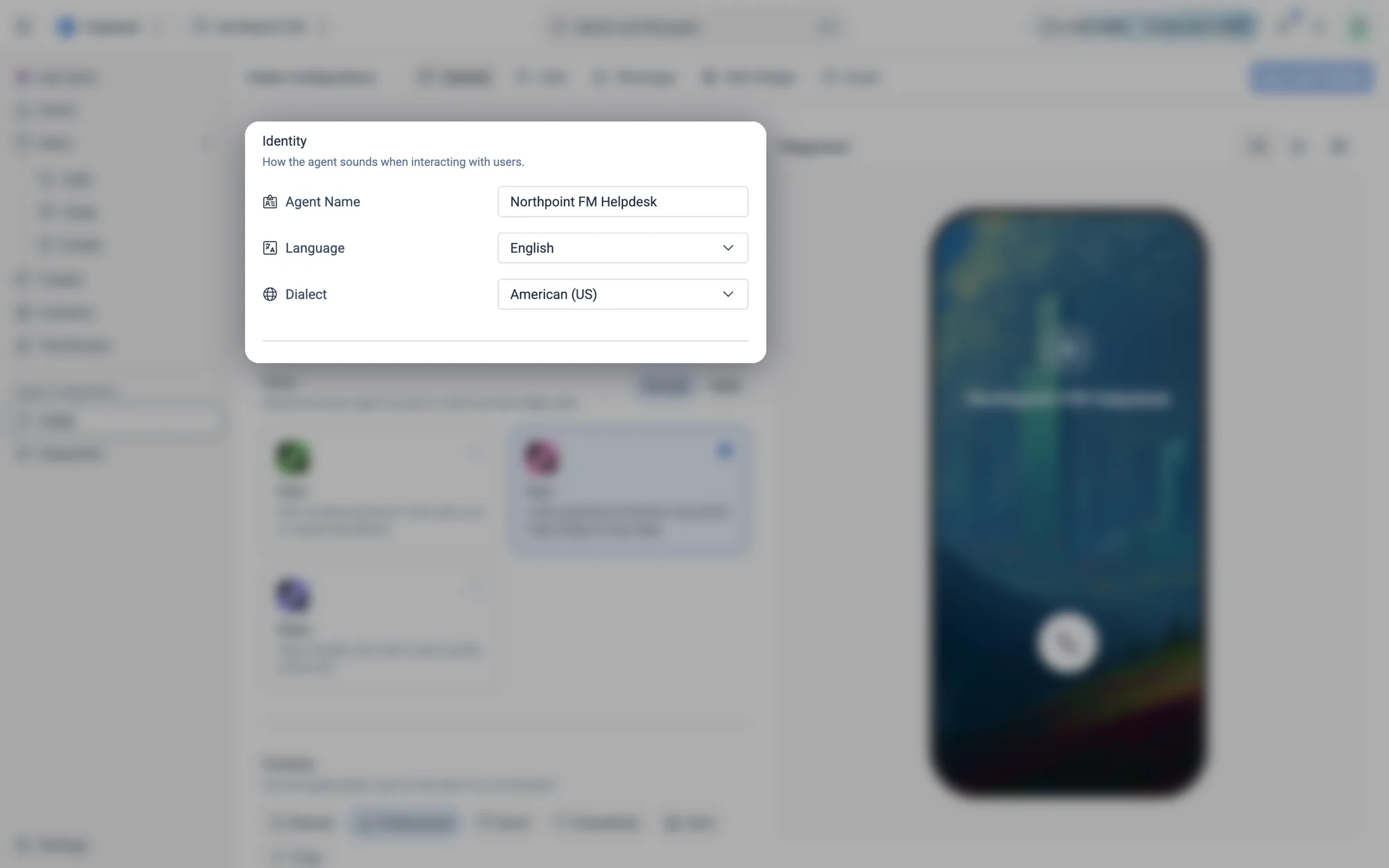
Identity
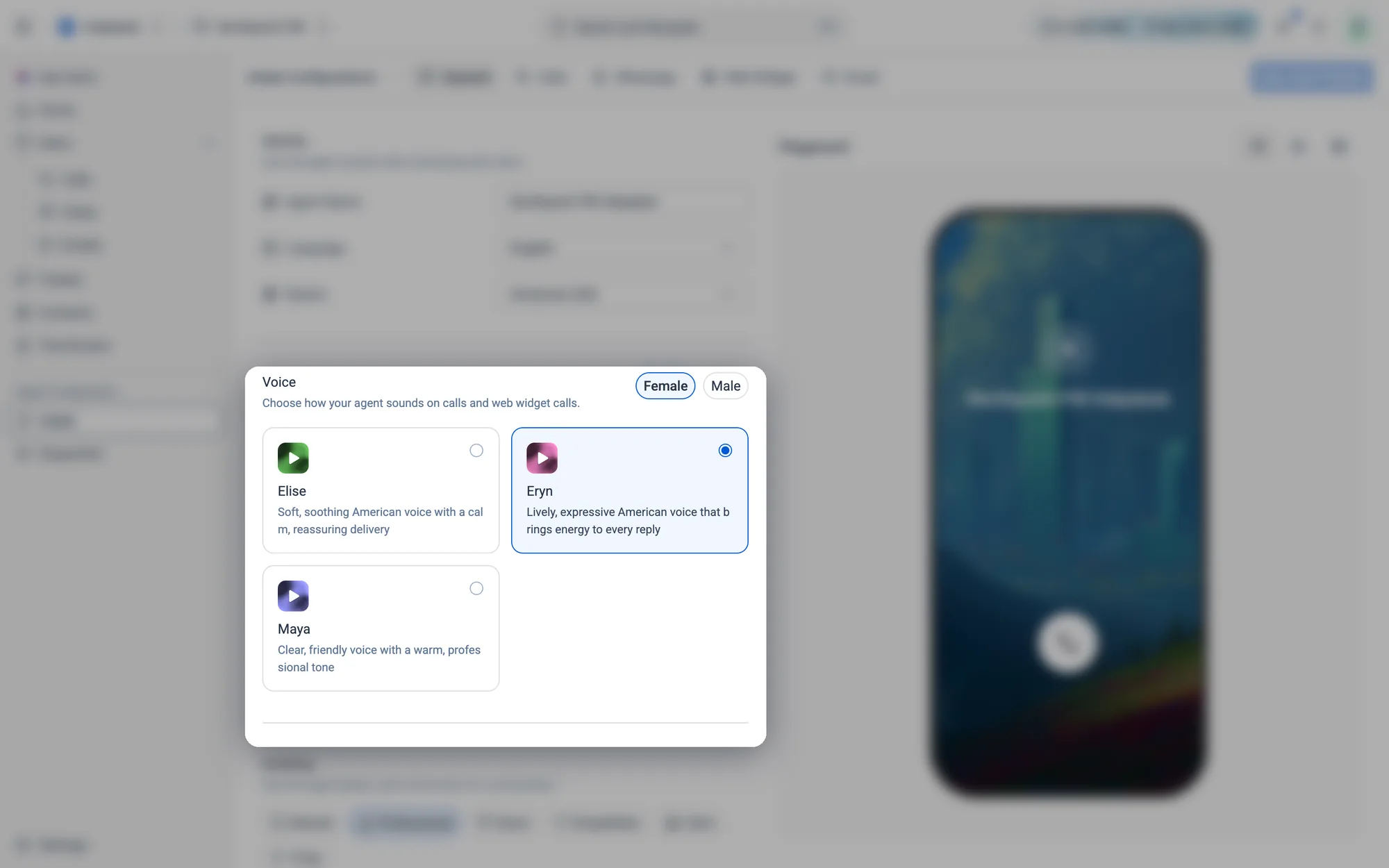
Voice
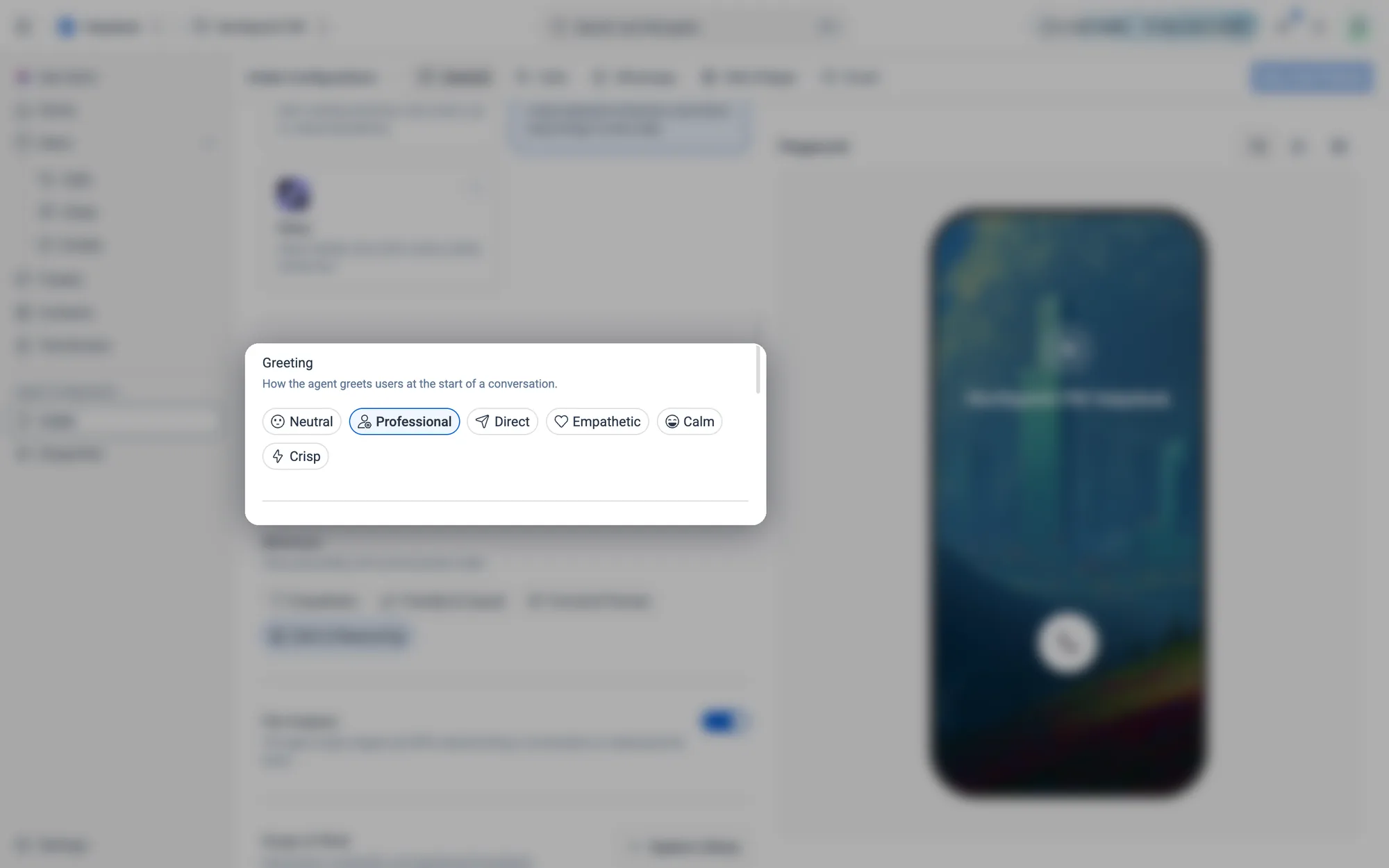
Greeting
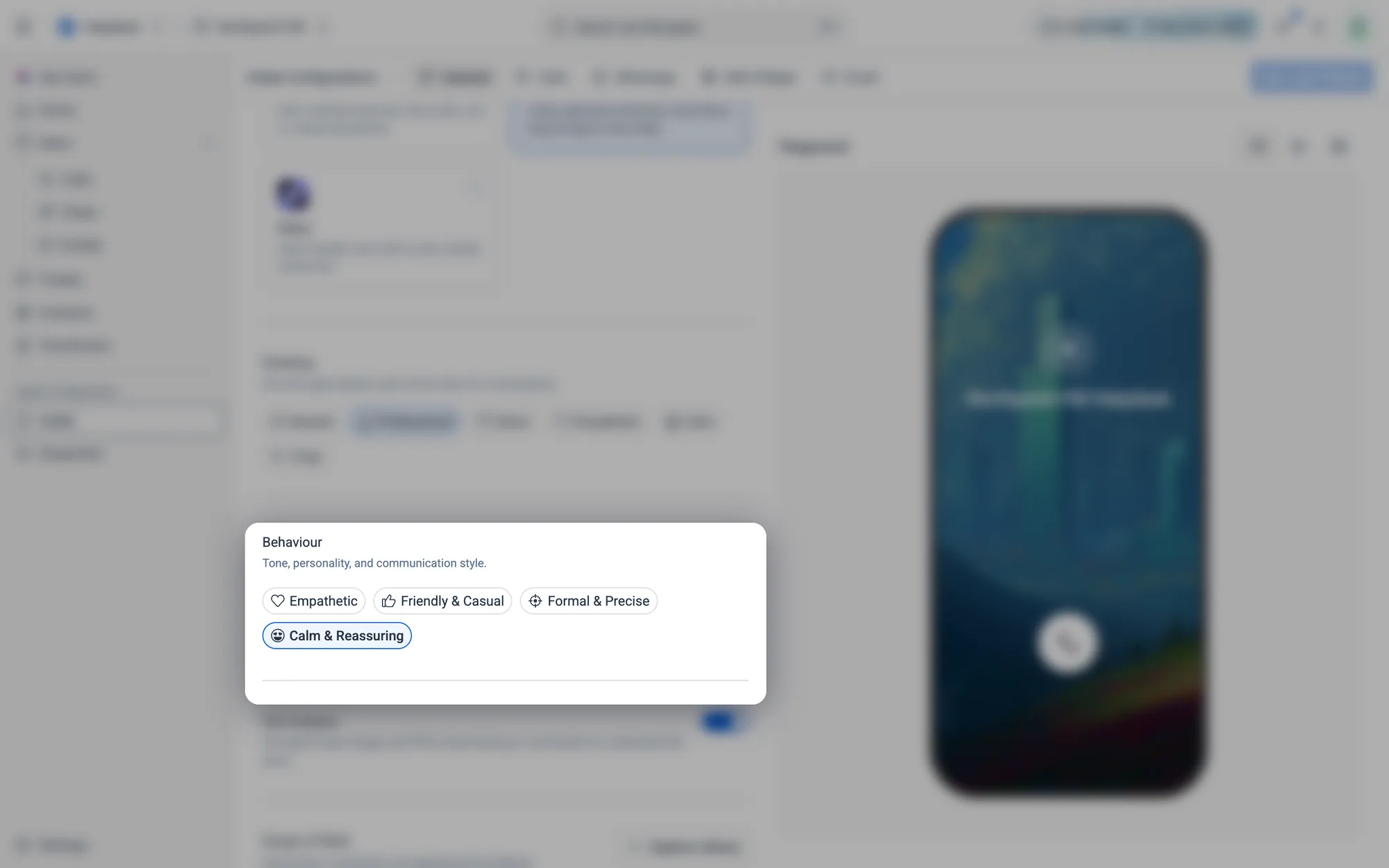
Behaviour
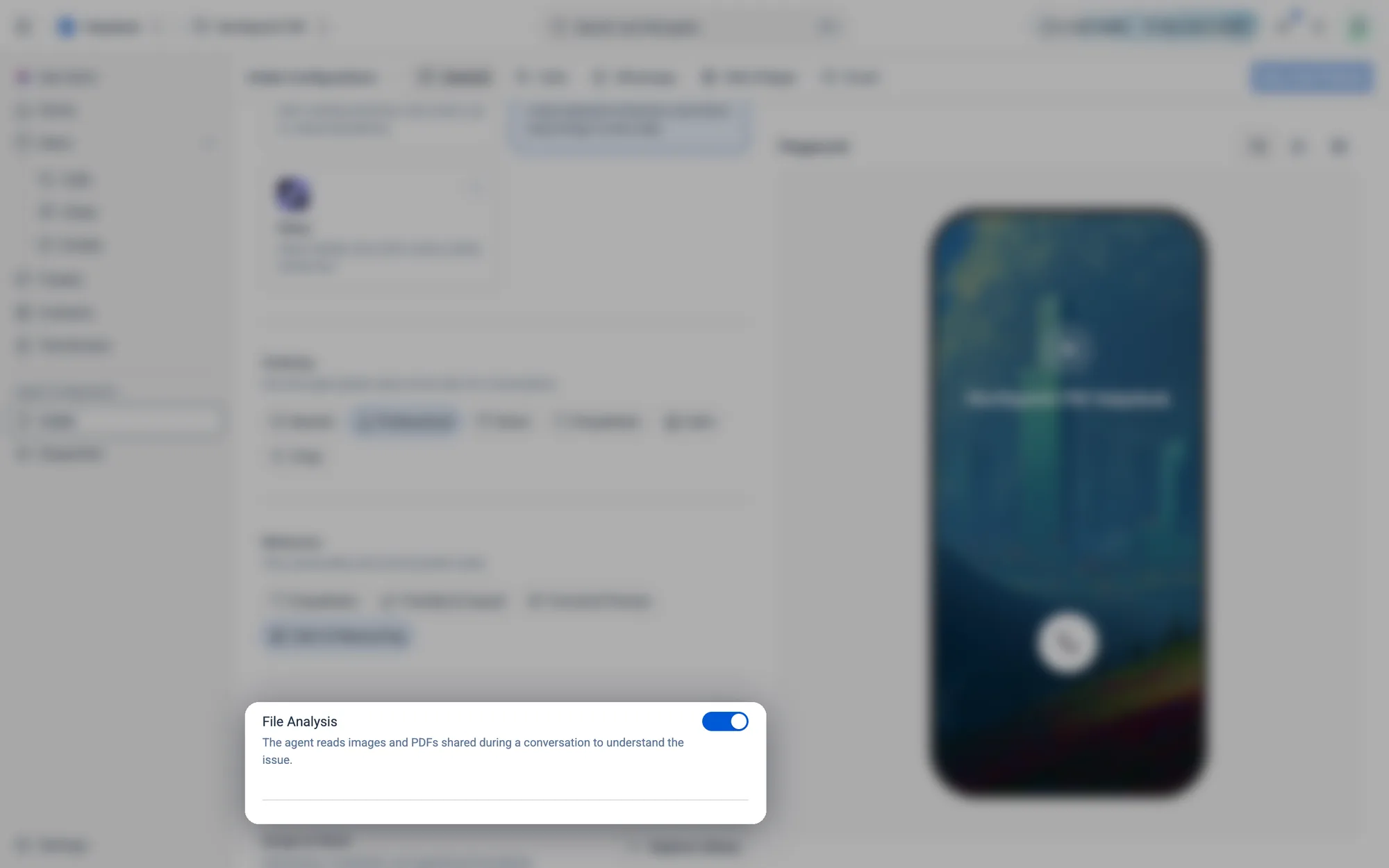
File Analysis
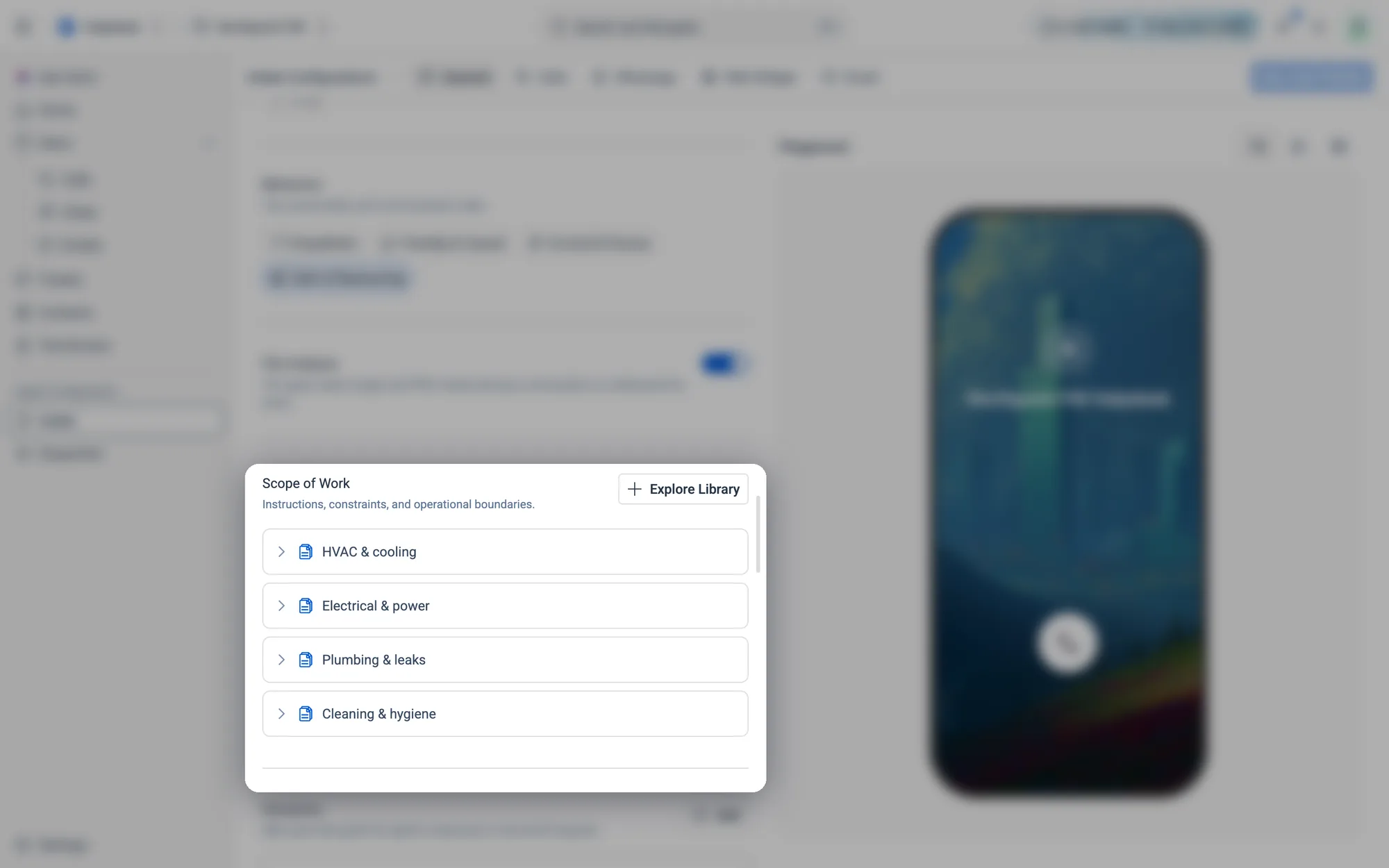
Scope of Work
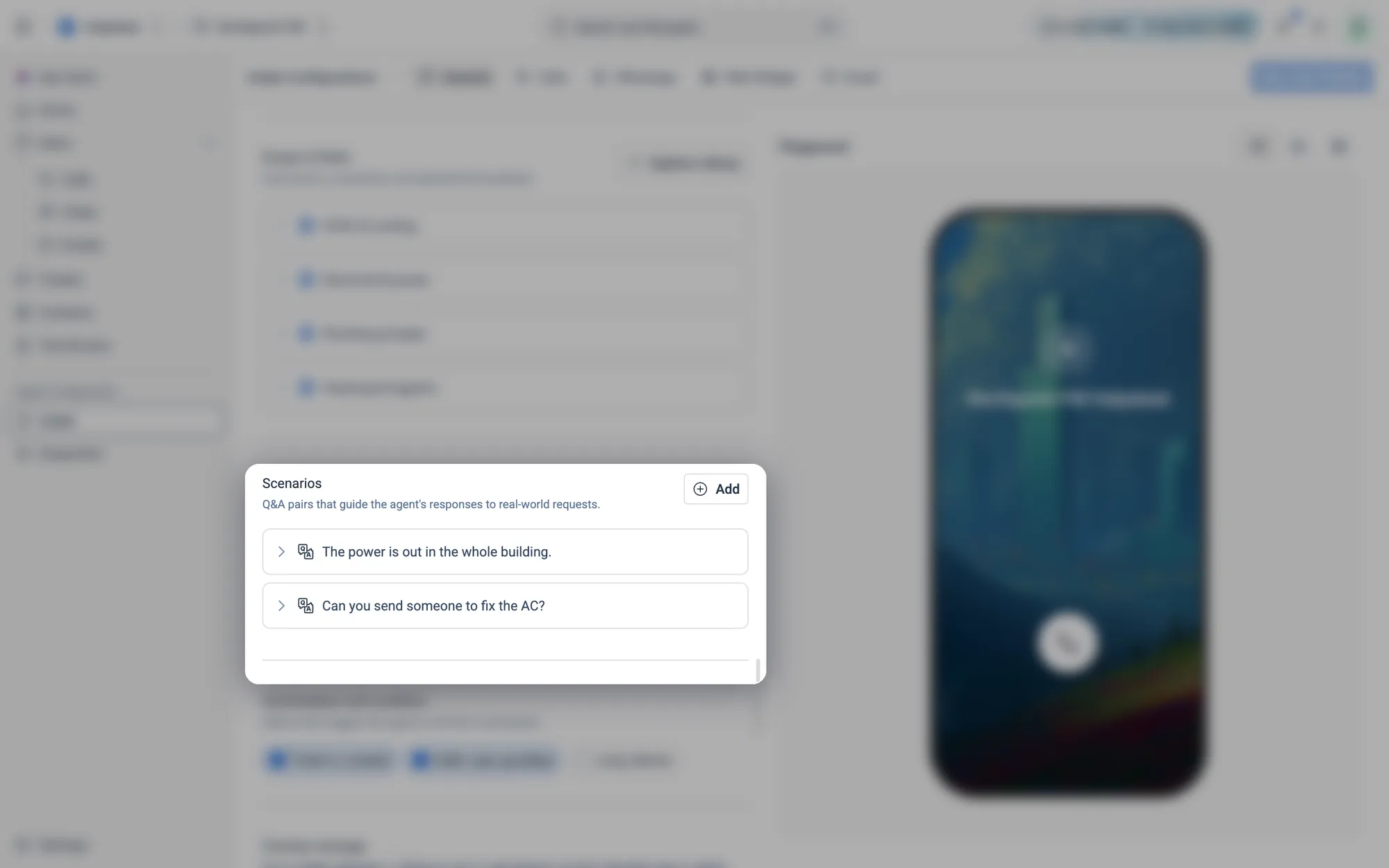
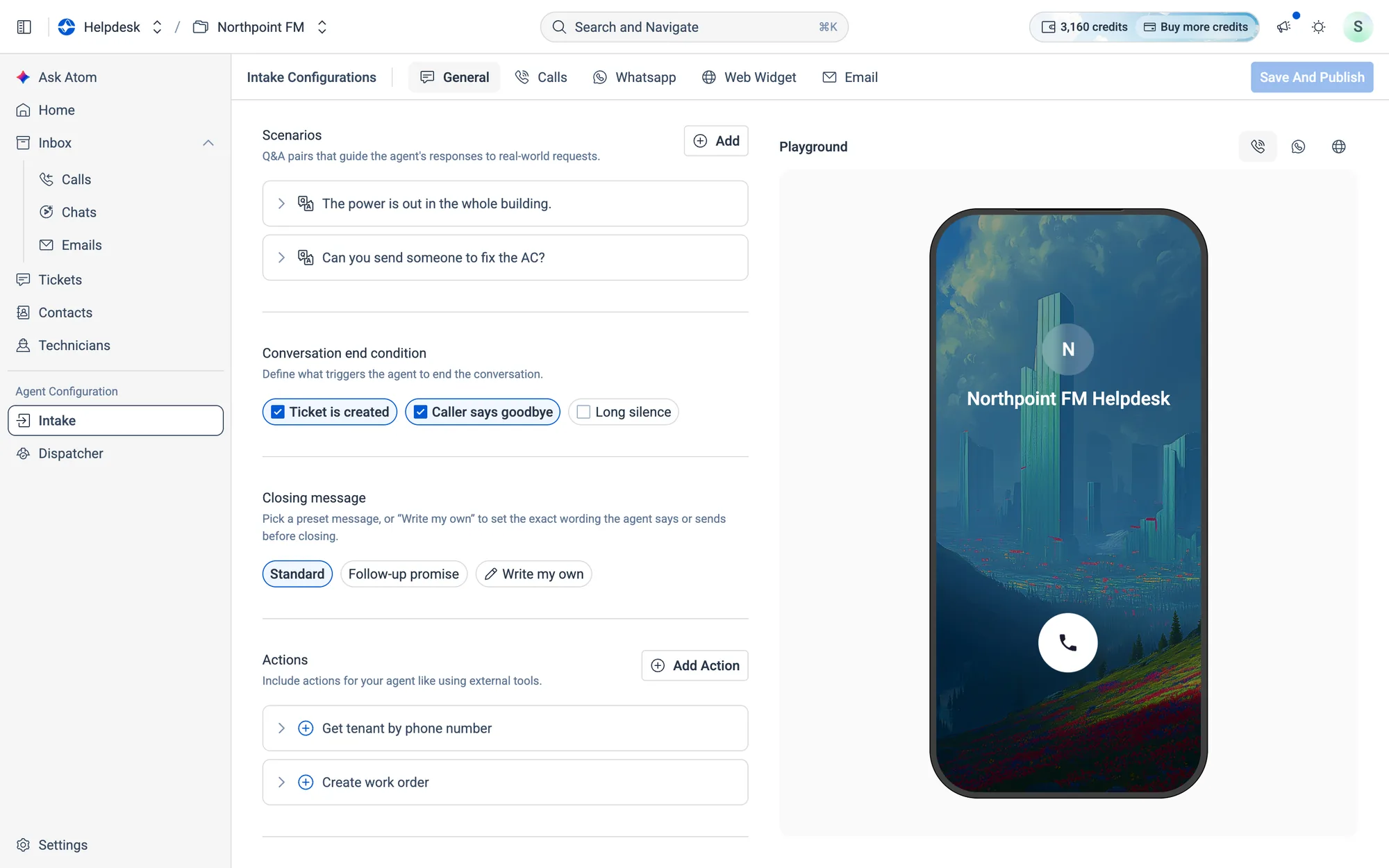
Scenarios
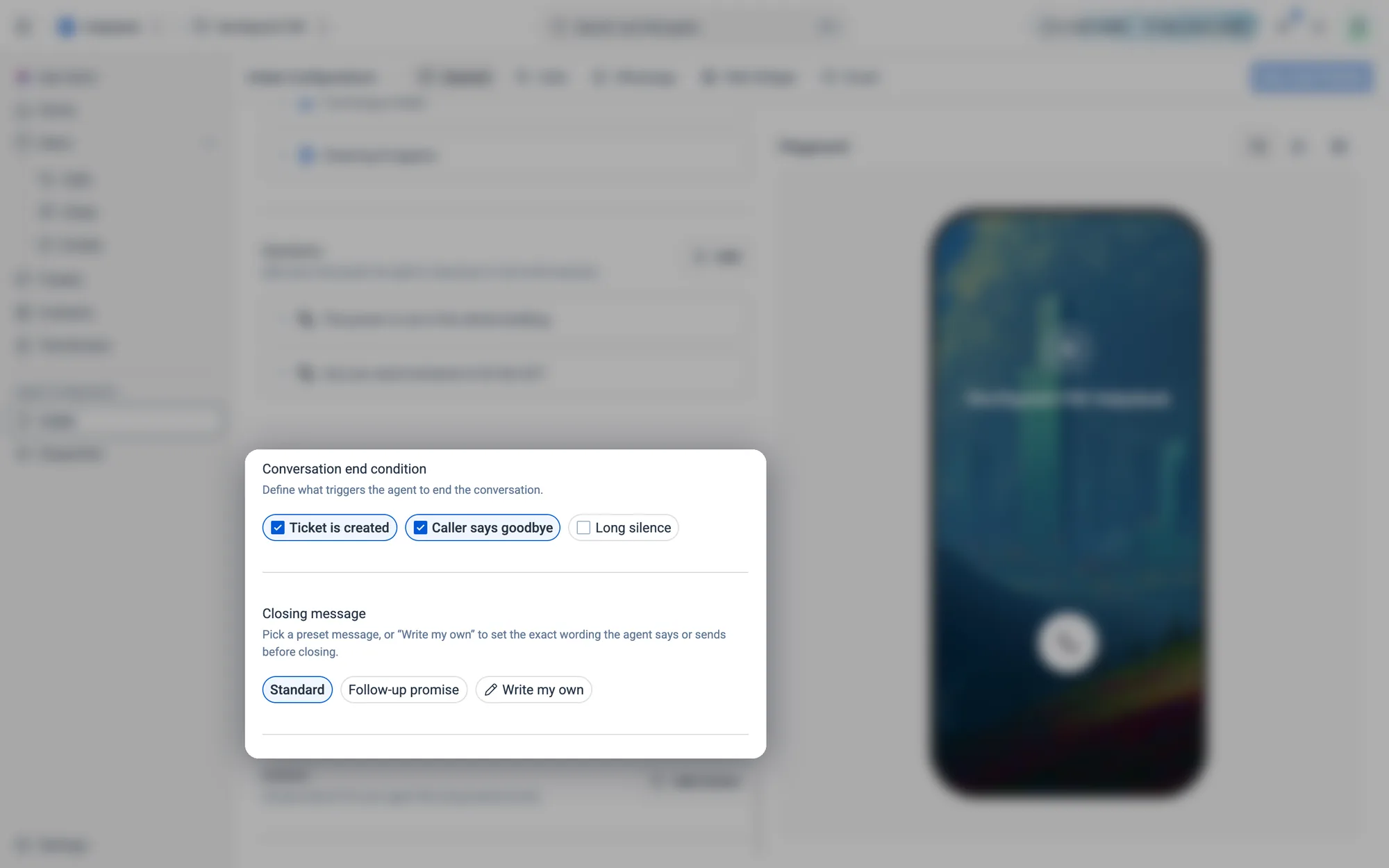
Ending the conversation
Actions
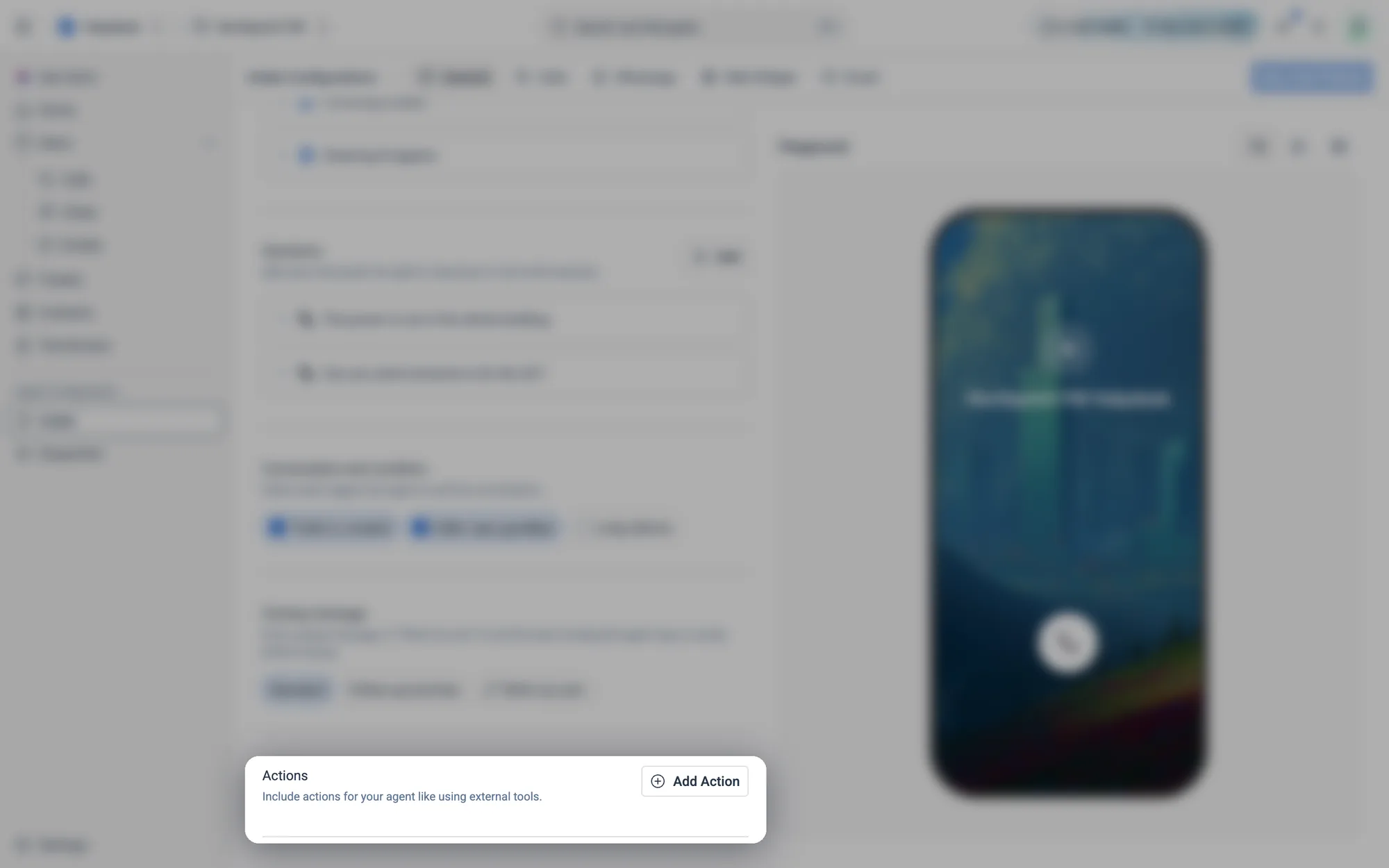
Add Action.09.3The agent's identity and voice
How to name your agent and choose its language
- 1Open Intake and stay on the General tab.
- 2Under Identity, type the Agent Name tenants will hear and see on every channel.
- 3Choose the Language, then the Dialect. Languages include Arabic (Egyptian, Emirati, Saudi), English (American, Australian, British, Indian, UAE), English & Arabic (UAE) and Hindi.
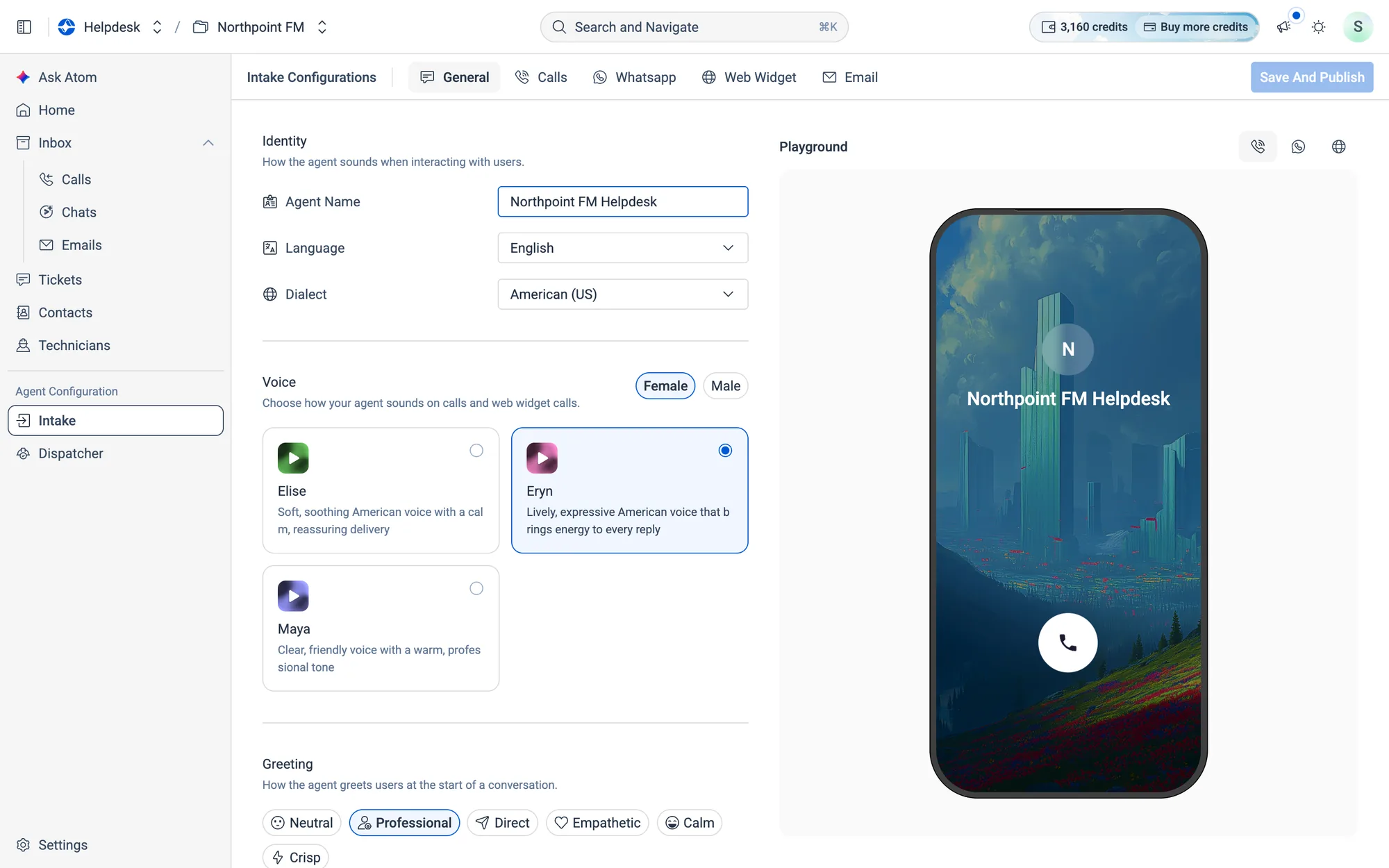
How to choose the agent's voice
- 1In the Voice section, choose
FemaleorMale. The voice cards update to match. - 2Press the play button on a card to hear the voice.
- 3Click the card to choose it.
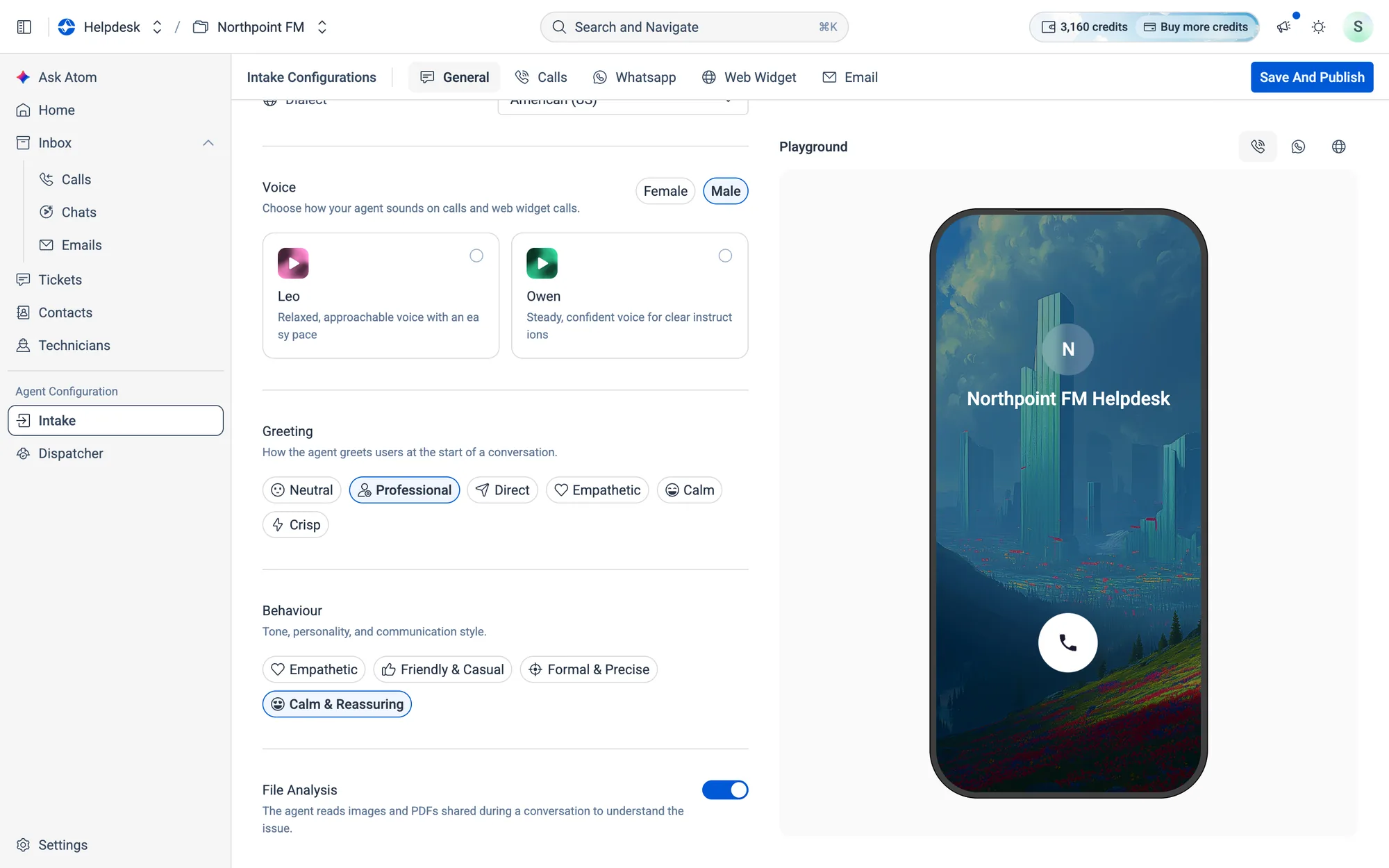
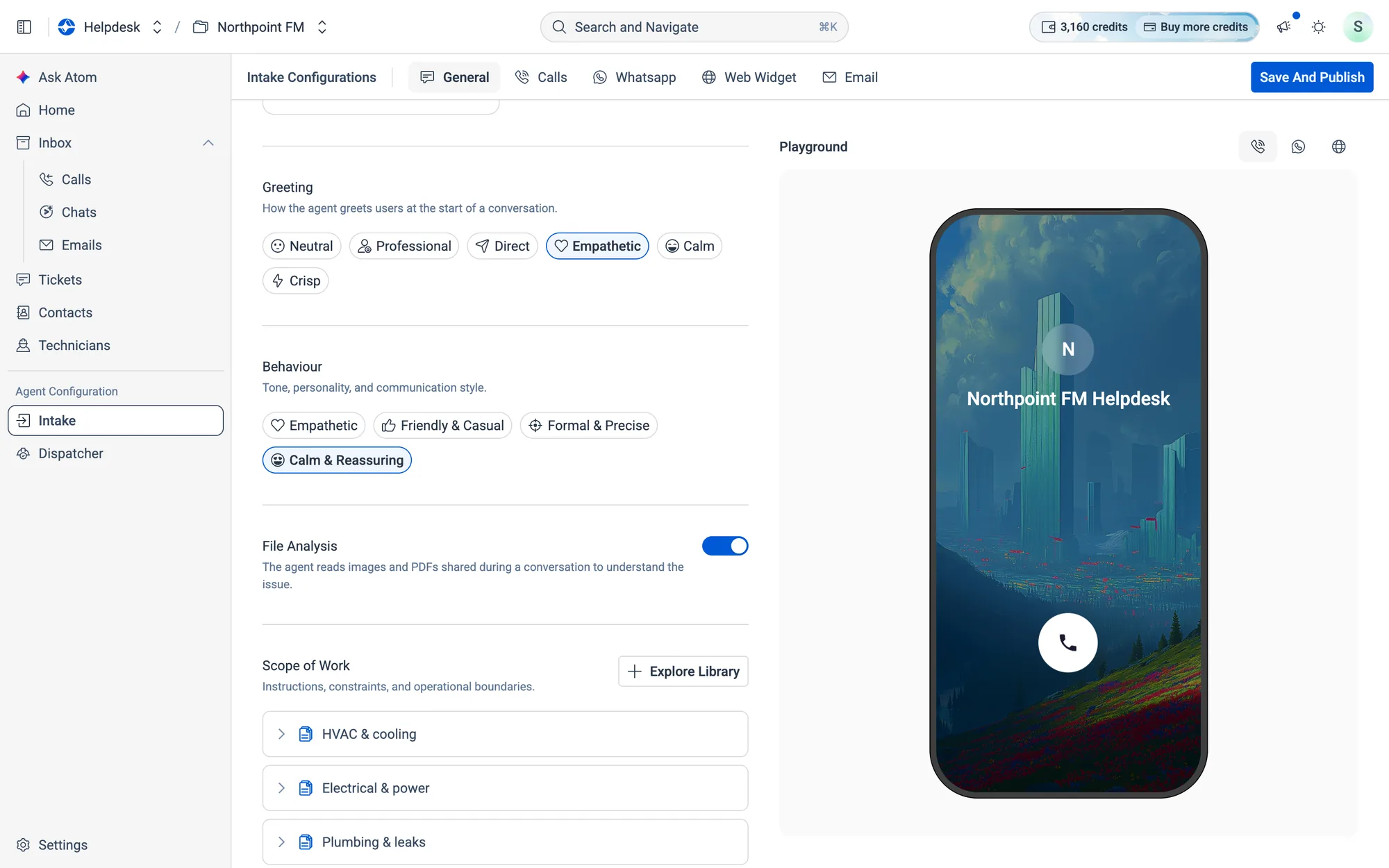
How to set the greeting and tone
- 1Under Greeting, pick how the agent opens a conversation, for example Professional, Empathetic or Direct. Hover over a chip to read the exact wording.
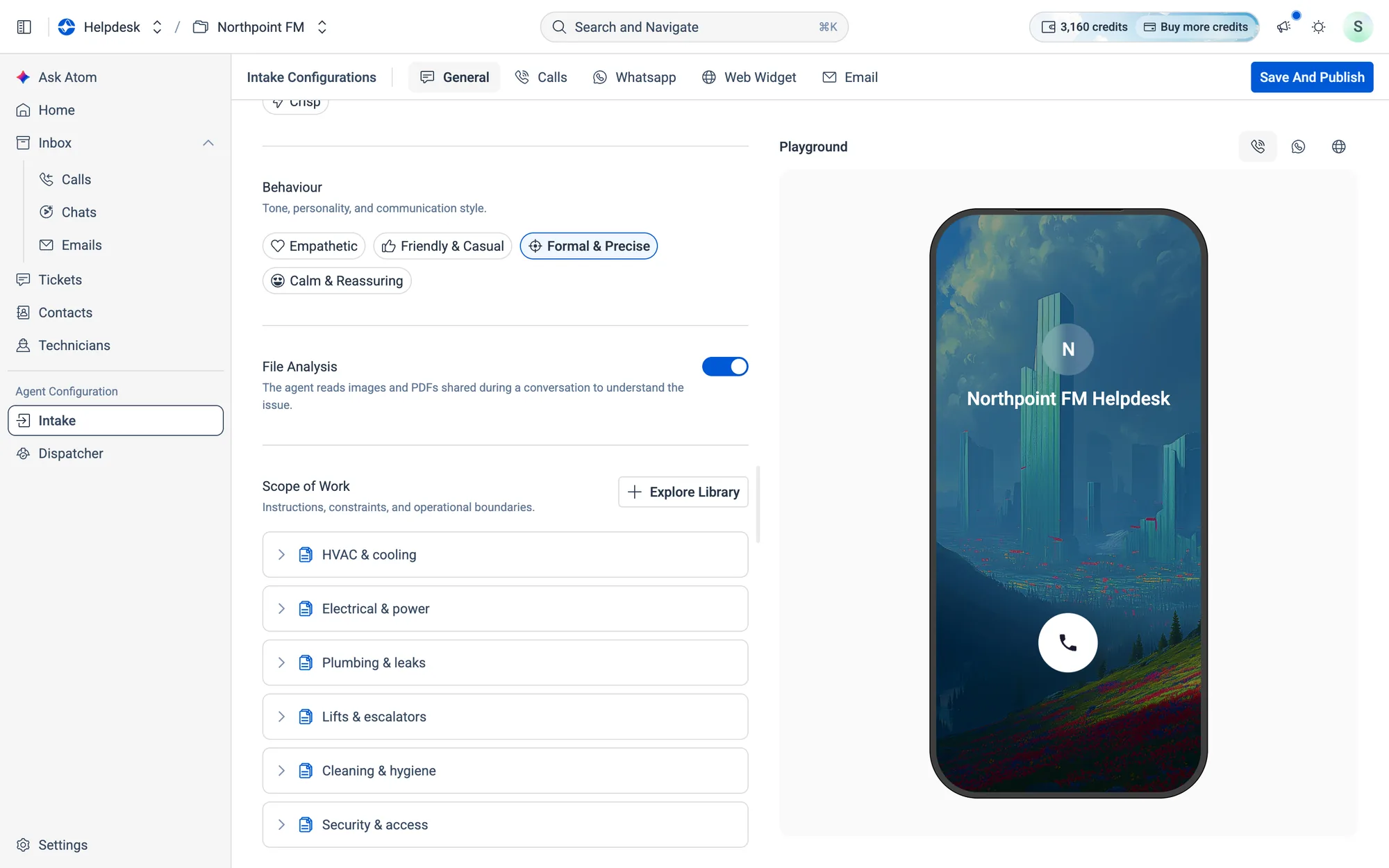
- 2Under Behaviour, pick its tone: Empathetic, Friendly & Casual, Formal & Precise or Calm & Reassuring.
- 3Leave File Analysis switched on so the agent can read the photos and PDFs tenants send.
09.4What the agent handles
How to add to the agent's scope of work
The scope tells your agent what it should handle and where to draw the line.
- 1Scroll to Scope of Work on the General tab and click
Explore Library.
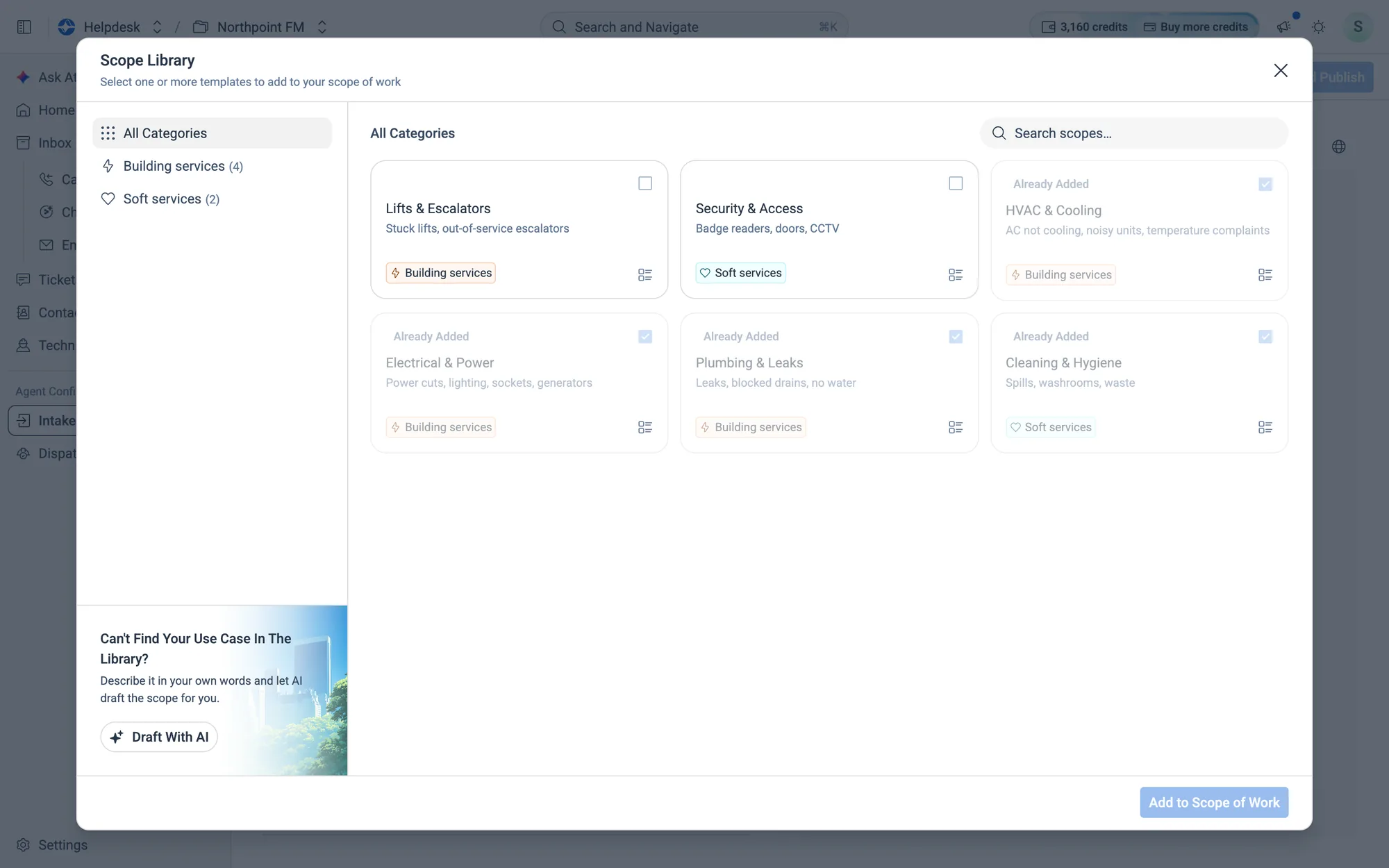
- 2In the Scope Library, browse by category on the left or search. Templates already in your scope are marked Already Added.
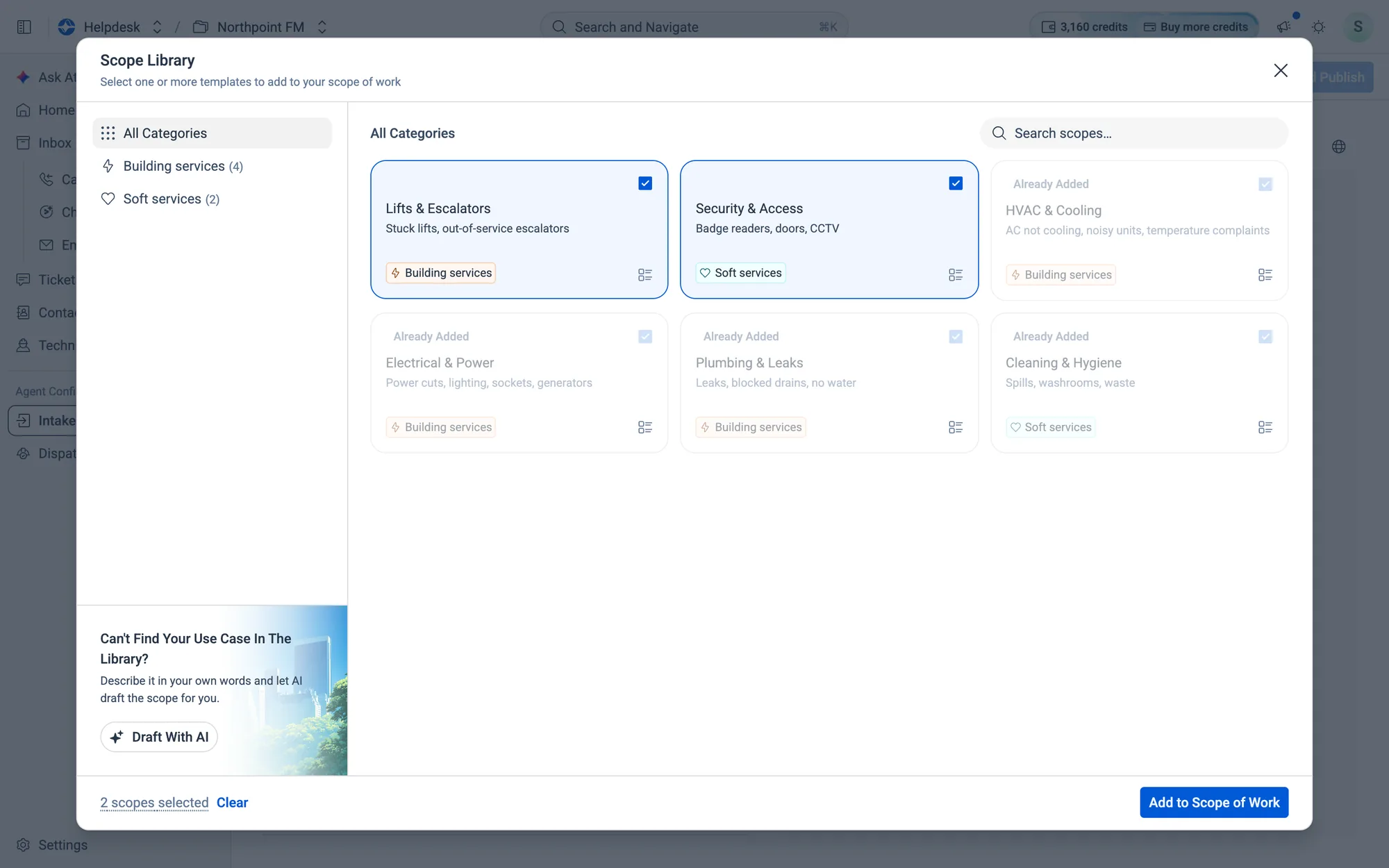
- 3Tick the templates you want to add. The count at the bottom shows how many you've selected.
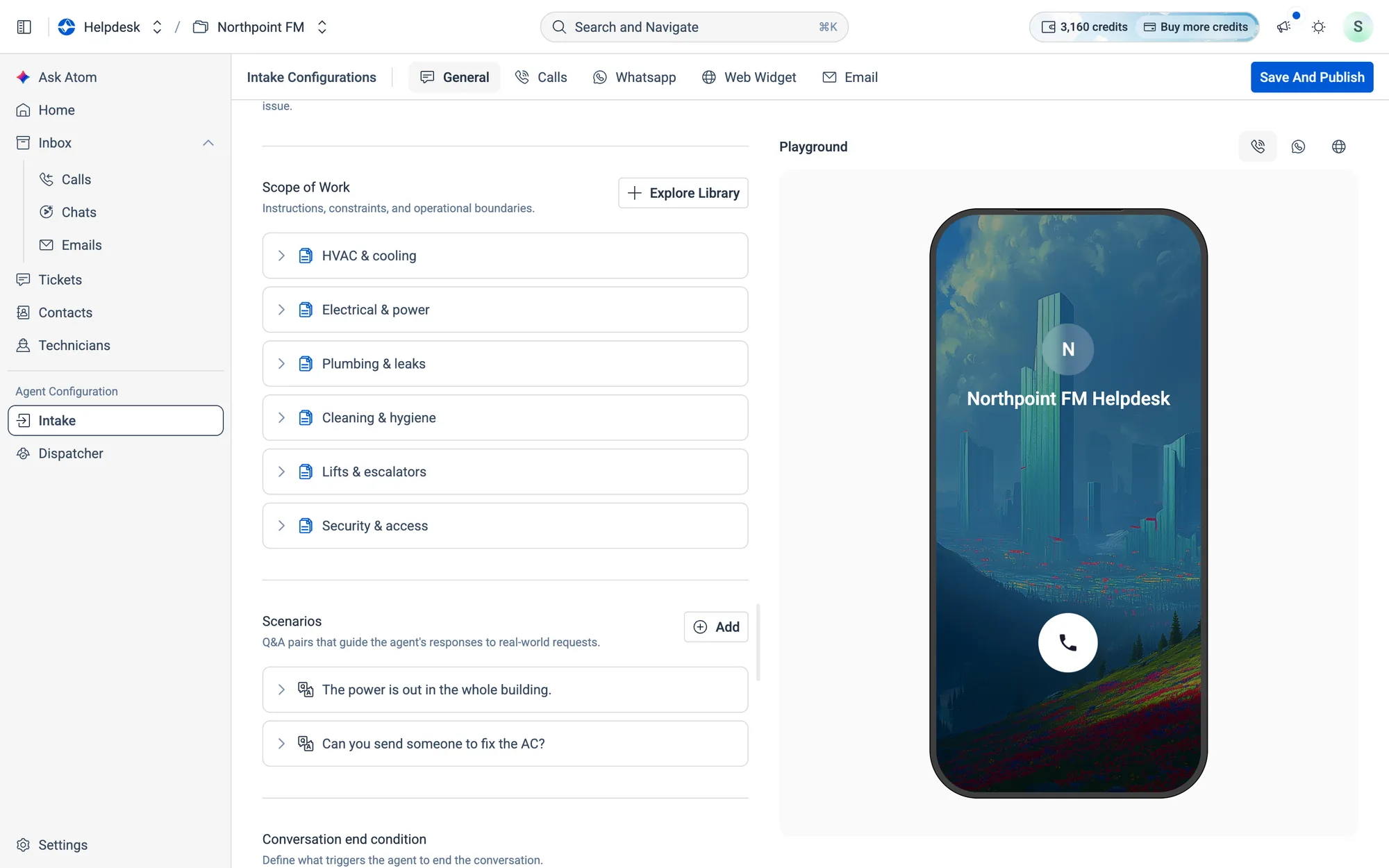
- 4Click
Add to Scope of Work. The new templates appear in the list.
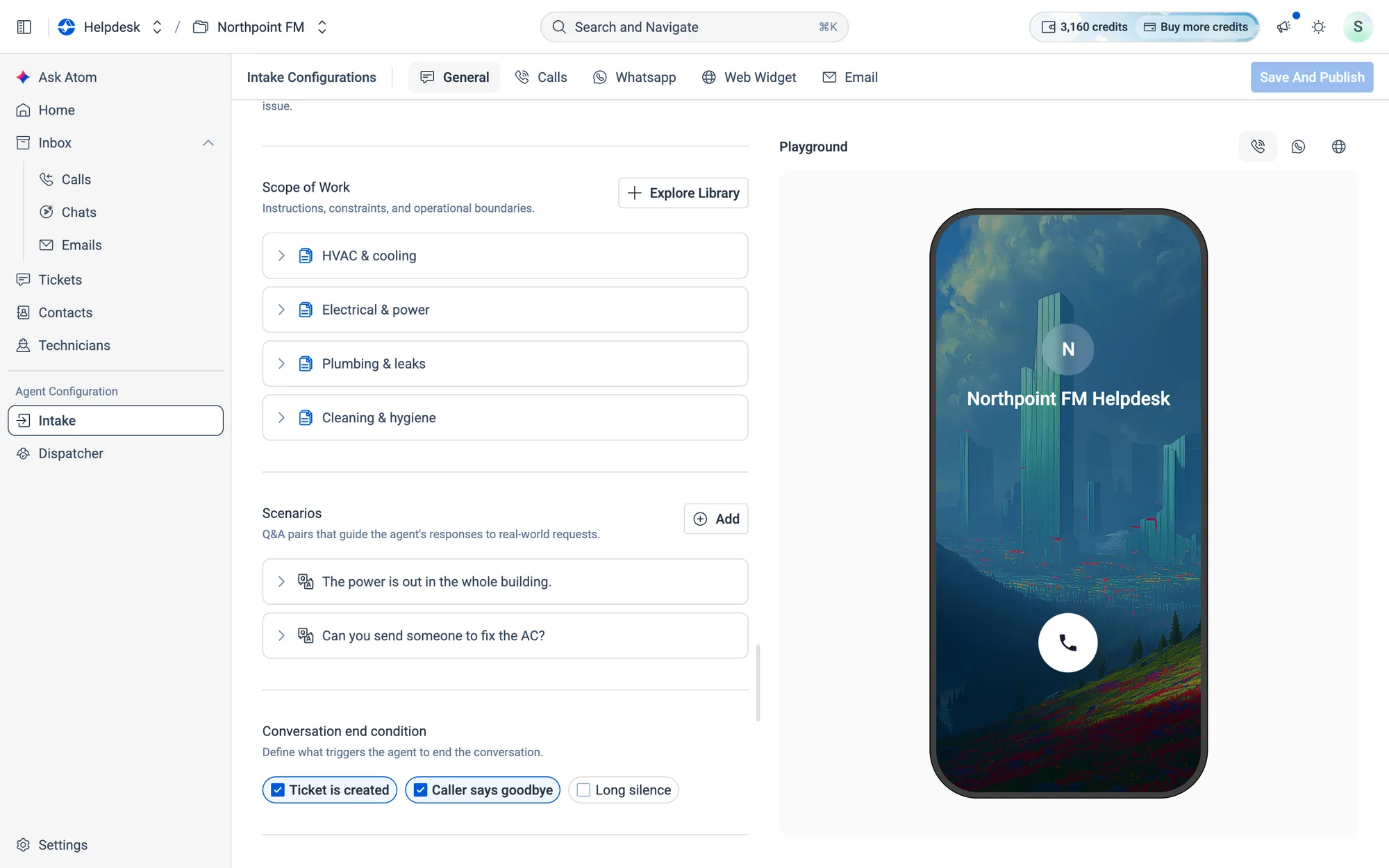
How to add a scenario
A scenario teaches the agent exactly how to answer a specific request.
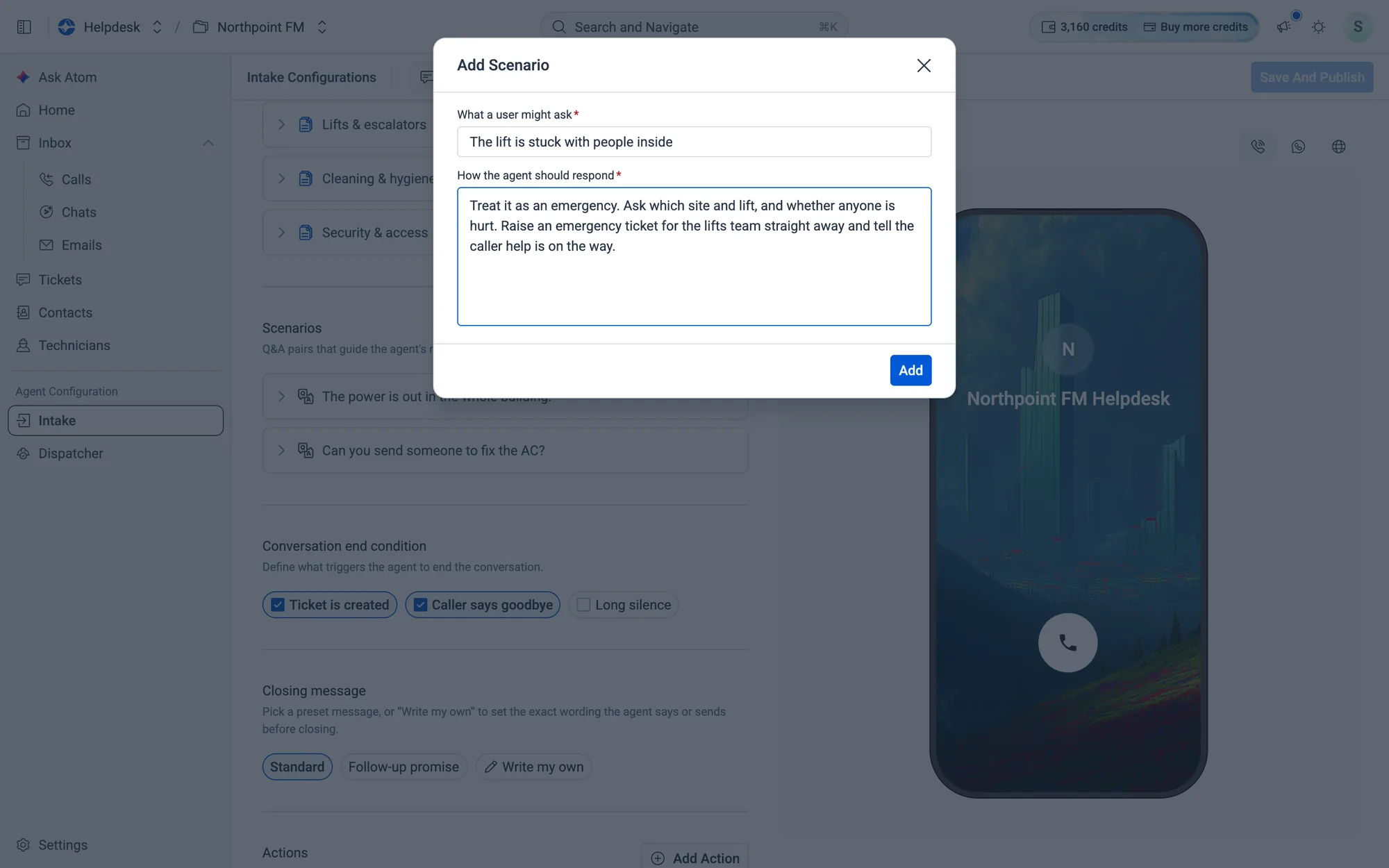
- 1Scroll to Scenarios and click
Add.
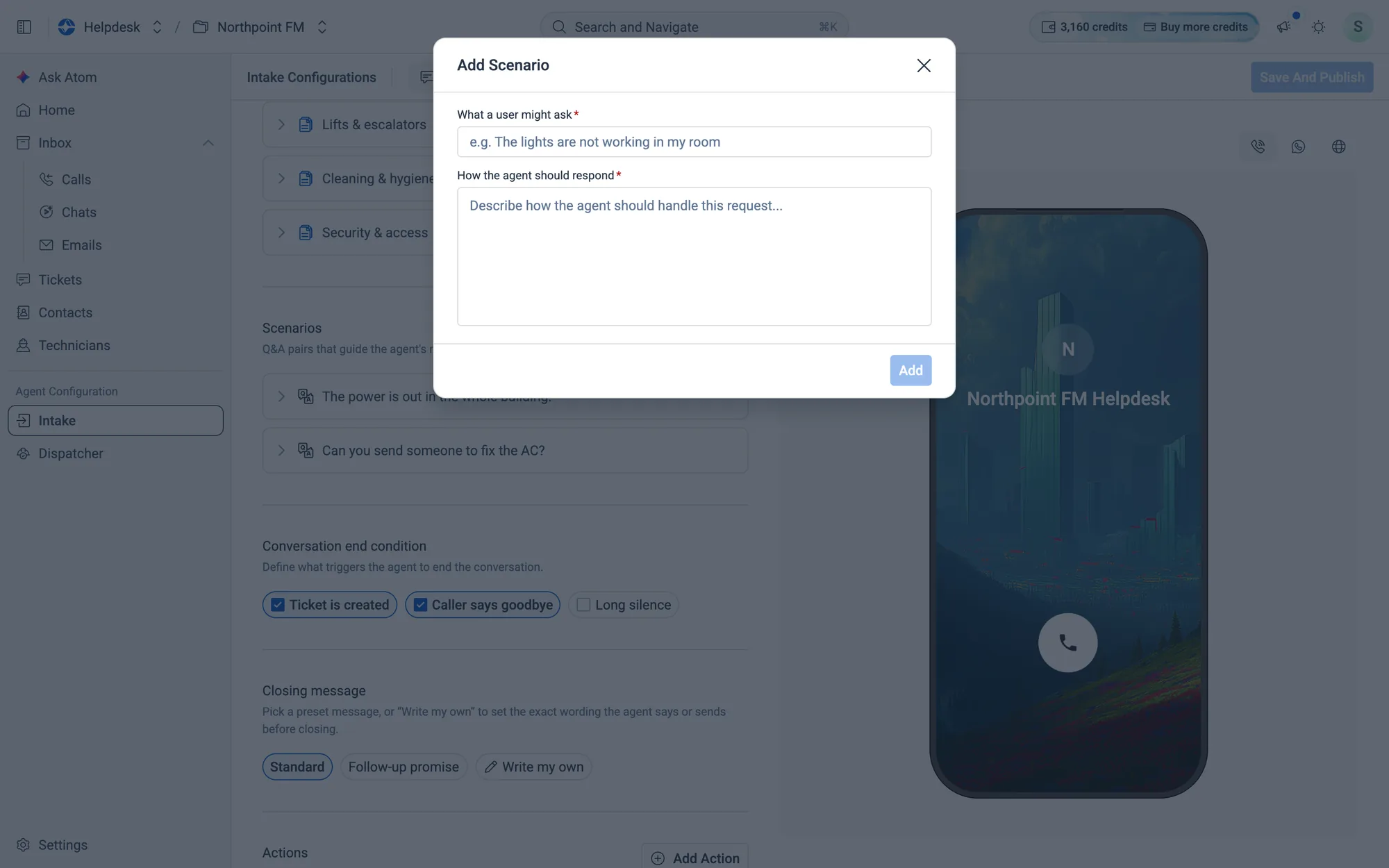
- 2Under What a user might ask, type the request, for example "The lift is stuck with people inside".
- 3Under How the agent should respond, describe what the agent should do.
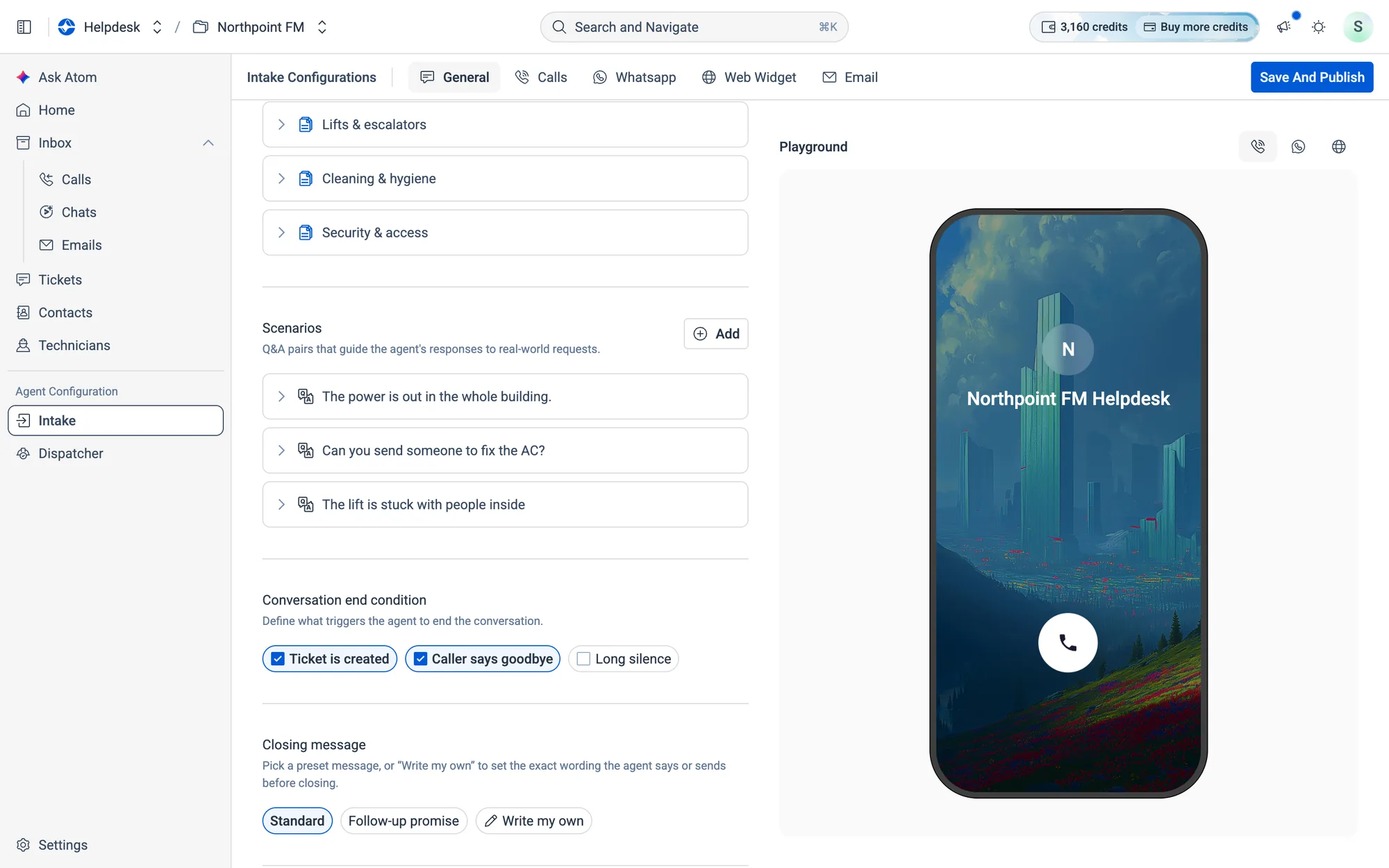
- 4Click
Add. The scenario joins the list. To change or remove it later, open its ⋯ menu and chooseEditorDelete.
09.5How conversations end
How to set when and how the agent signs off
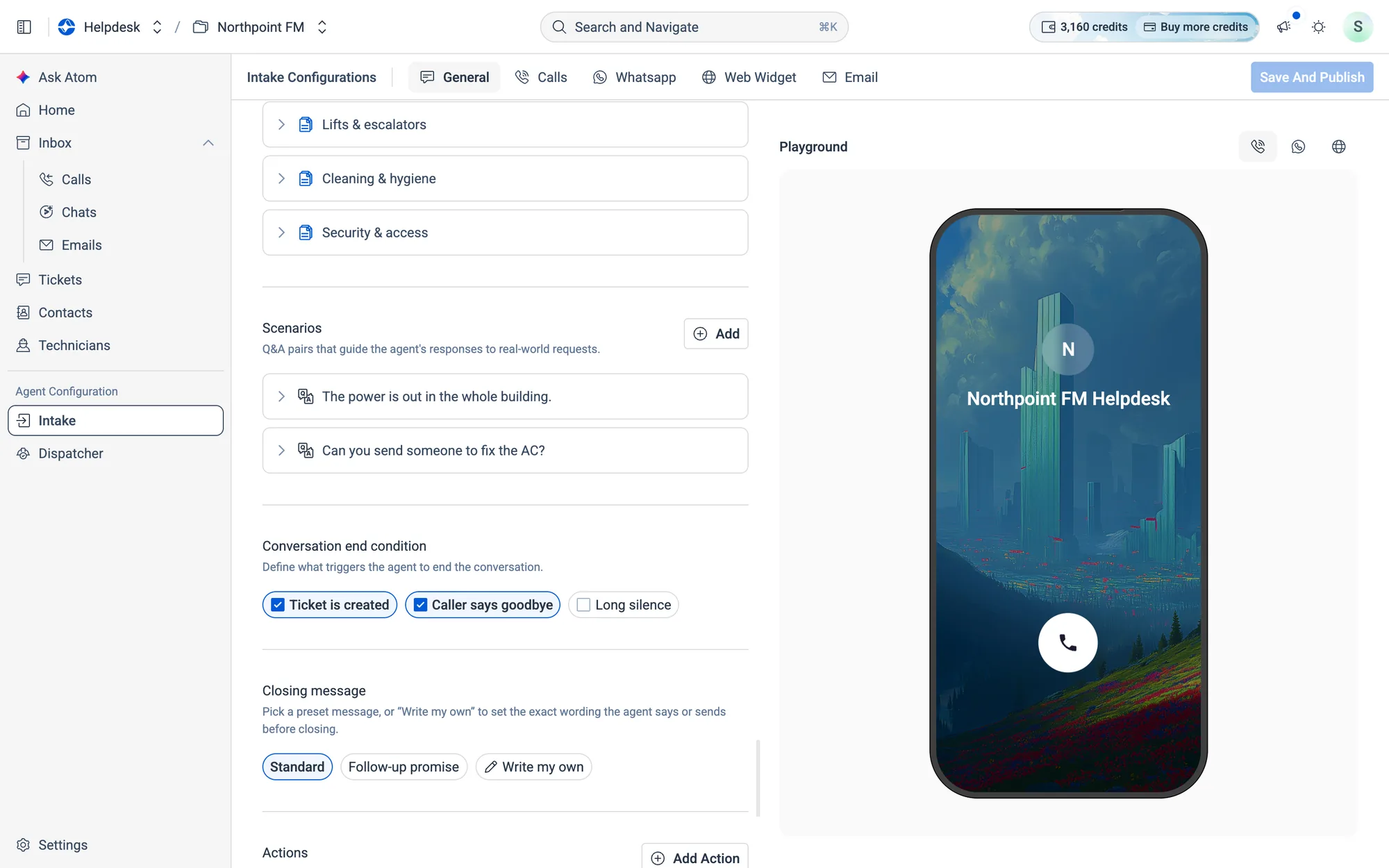
- 1Scroll to Conversation end condition and tick what should end a conversation, for example Ticket is created or Caller says goodbye.
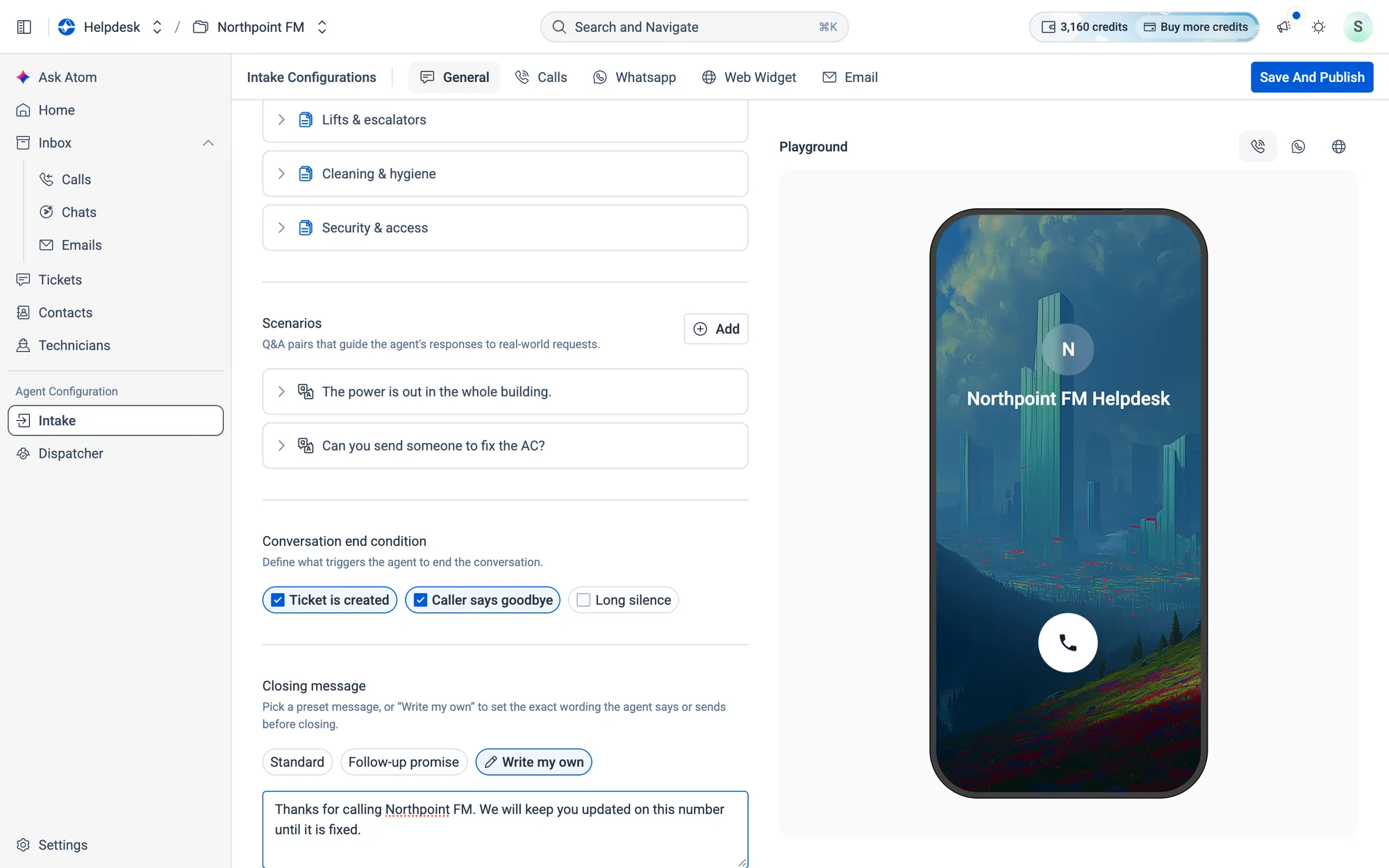
- 2Under Closing message, pick a preset, or choose
Write my ownand type the exact line the agent should say.
09.6Let the agent use your other systems
How to add an action
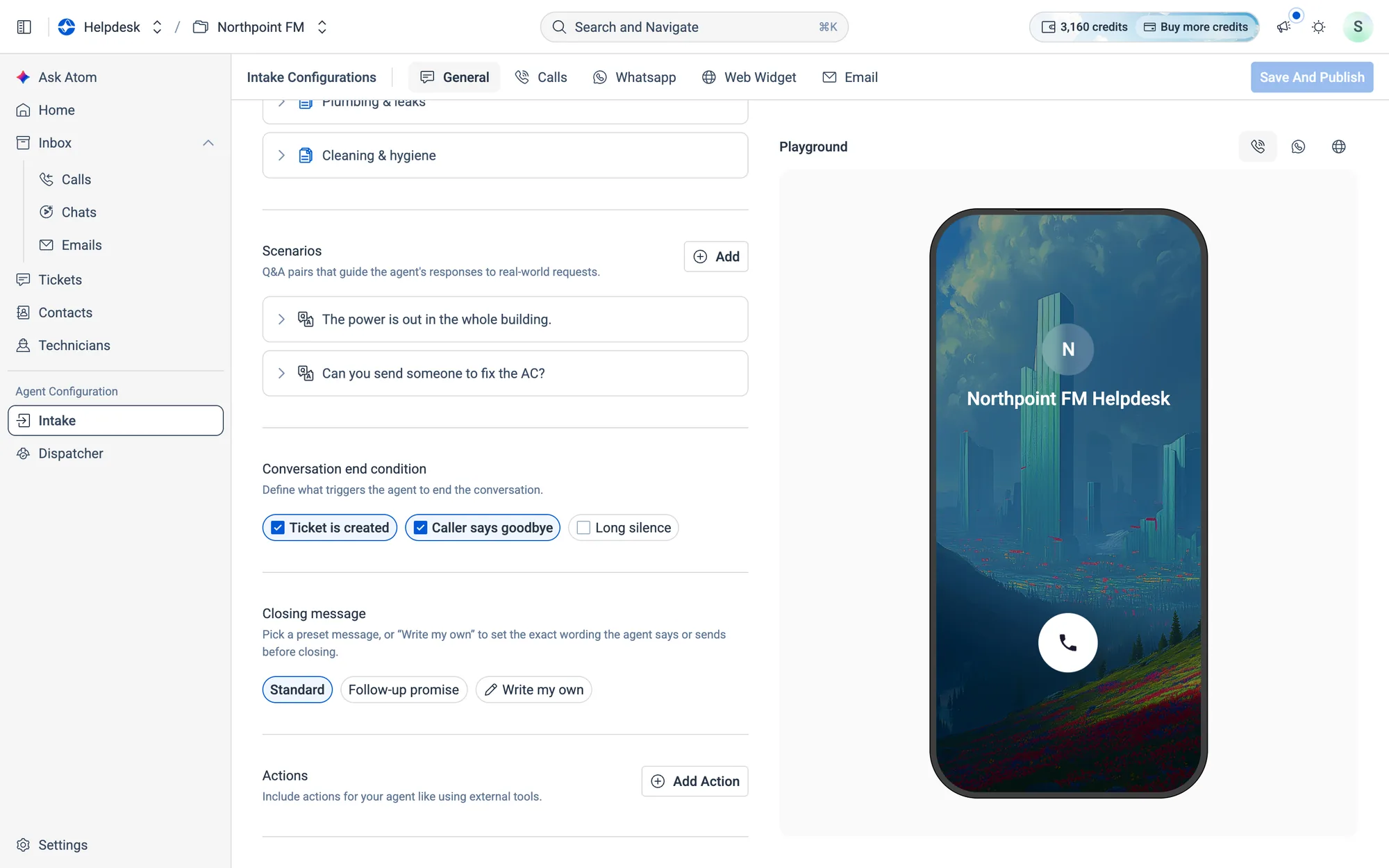
Actions let the agent look things up or do things in your other systems during a conversation. For example, it can find the caller's tenant record or raise a work order in Facilio.
- 1Scroll to Actions at the bottom of the General tab and click
Add Action.
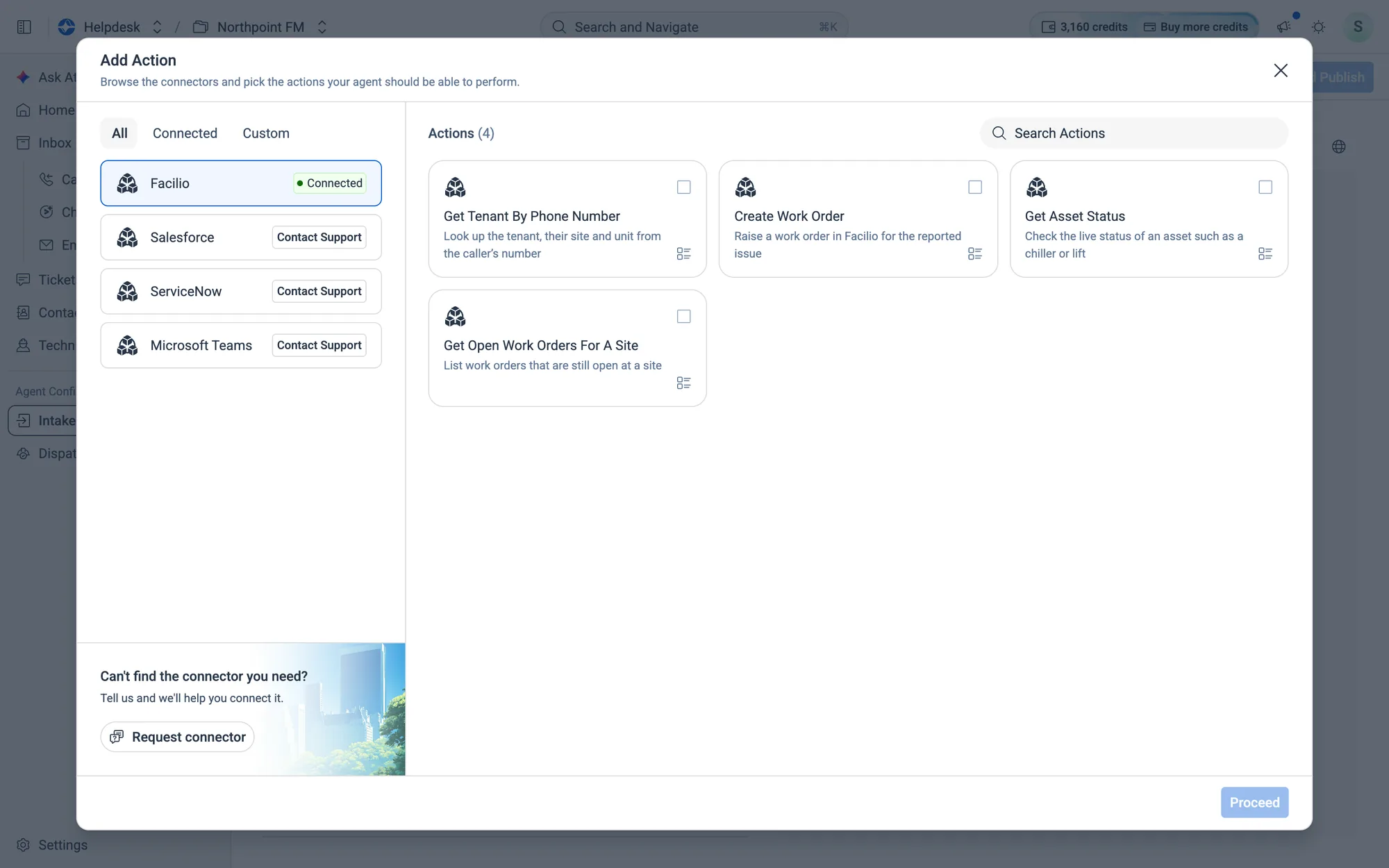
- 2The Add Action picker lists your connectors on the left and their actions on the right. Connected systems are marked Connected. For others, click
Contact Support, orRequest connectorif yours isn't listed.
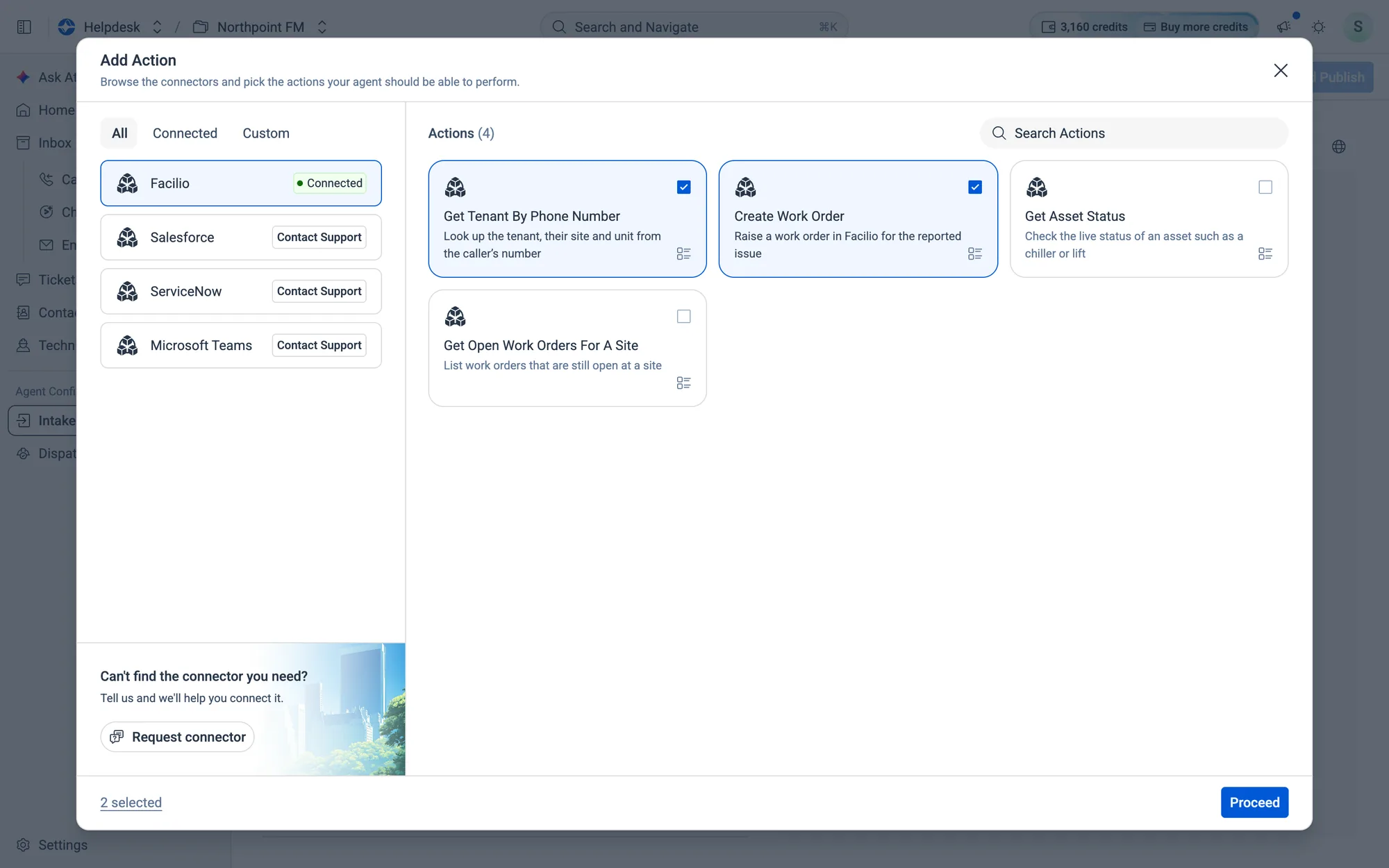
- 3Tick the actions the agent may use, then click
Proceed.
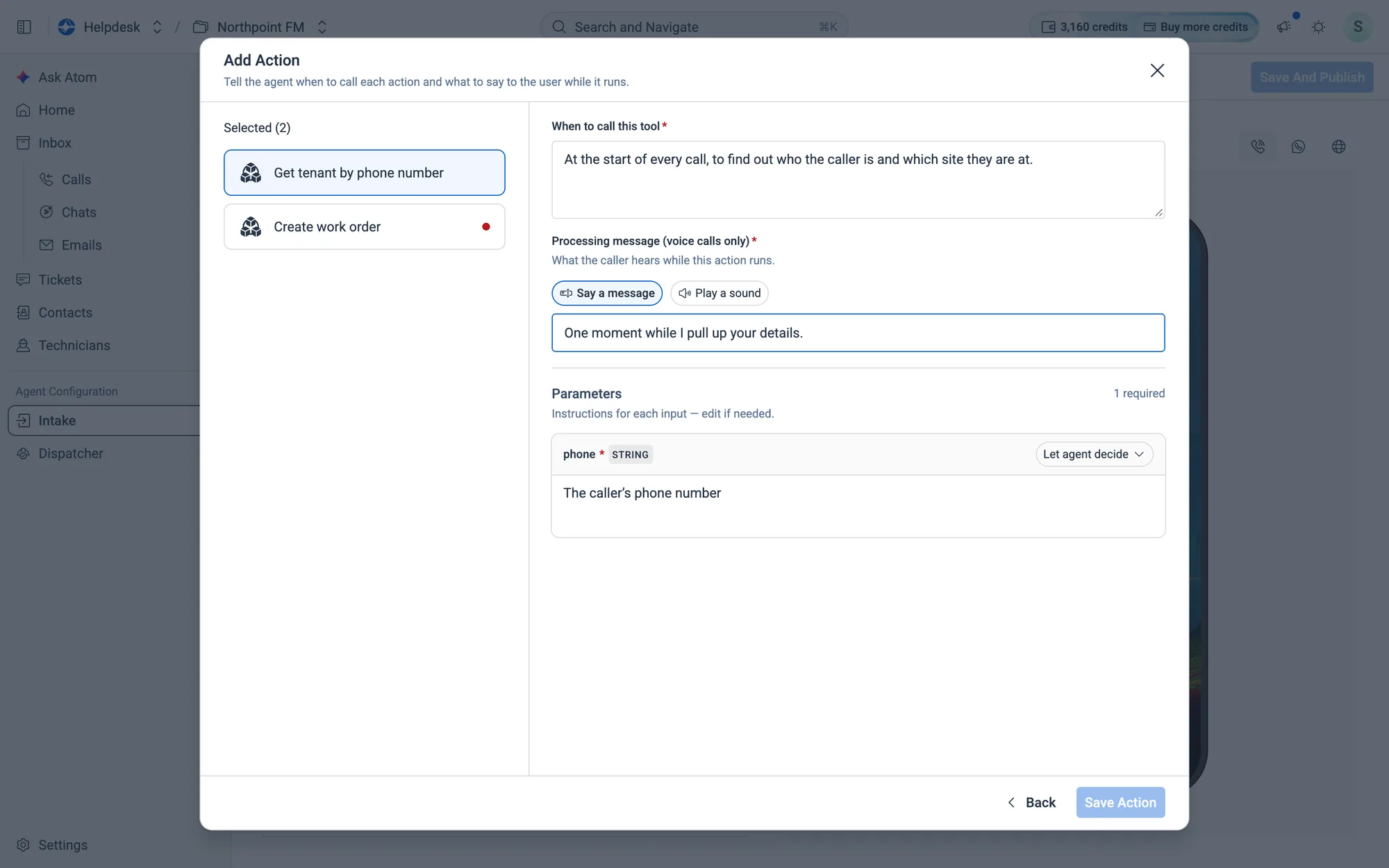
- 4For each action, write When to call this tool, in plain words. Then set the Processing message: what the caller hears while the action runs. Choose Say a message or Play a sound. Fill in the Parameters, or let the agent decide.
- 5Click
Save Action. The actions are listed under Actions and saved straight away.
09.7Publish your changes
How to save and publish
- 1Make your changes on any tab.
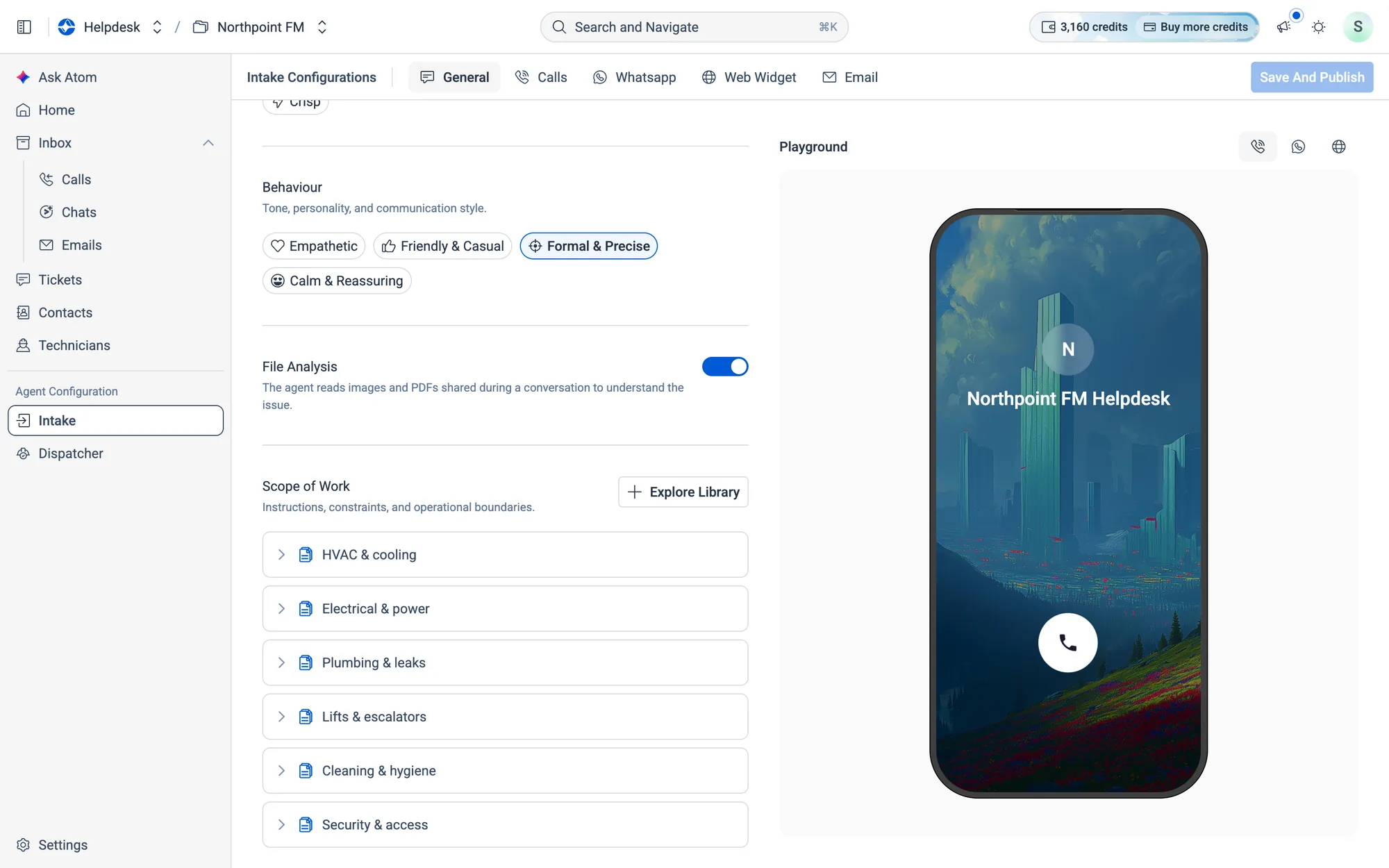
Save And Publishat the top right turns active as soon as something changes.
- 2Click
Save And Publish. All tabs are saved together, and the button greys out again until the next change.
09.8Channels the agent answers
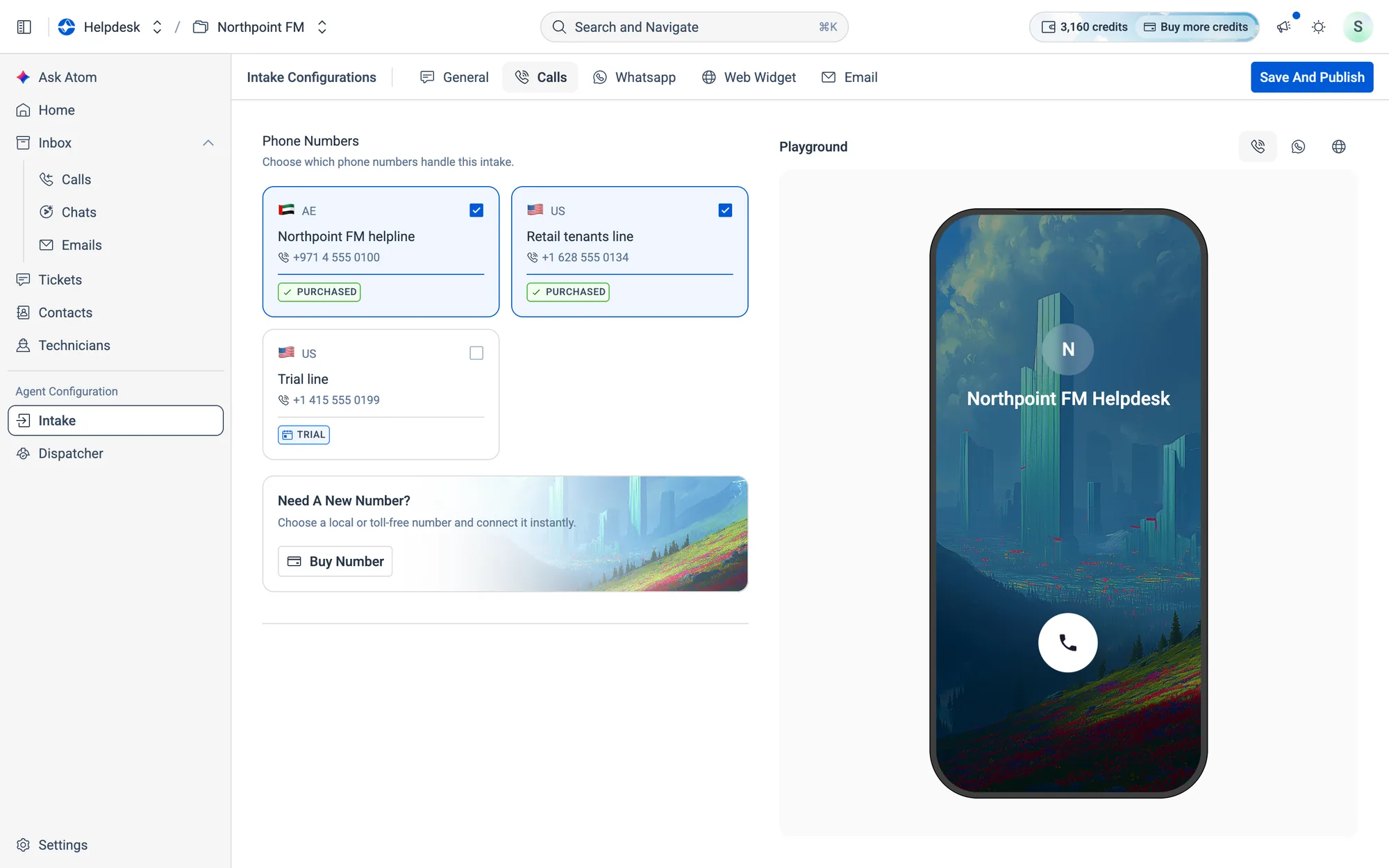
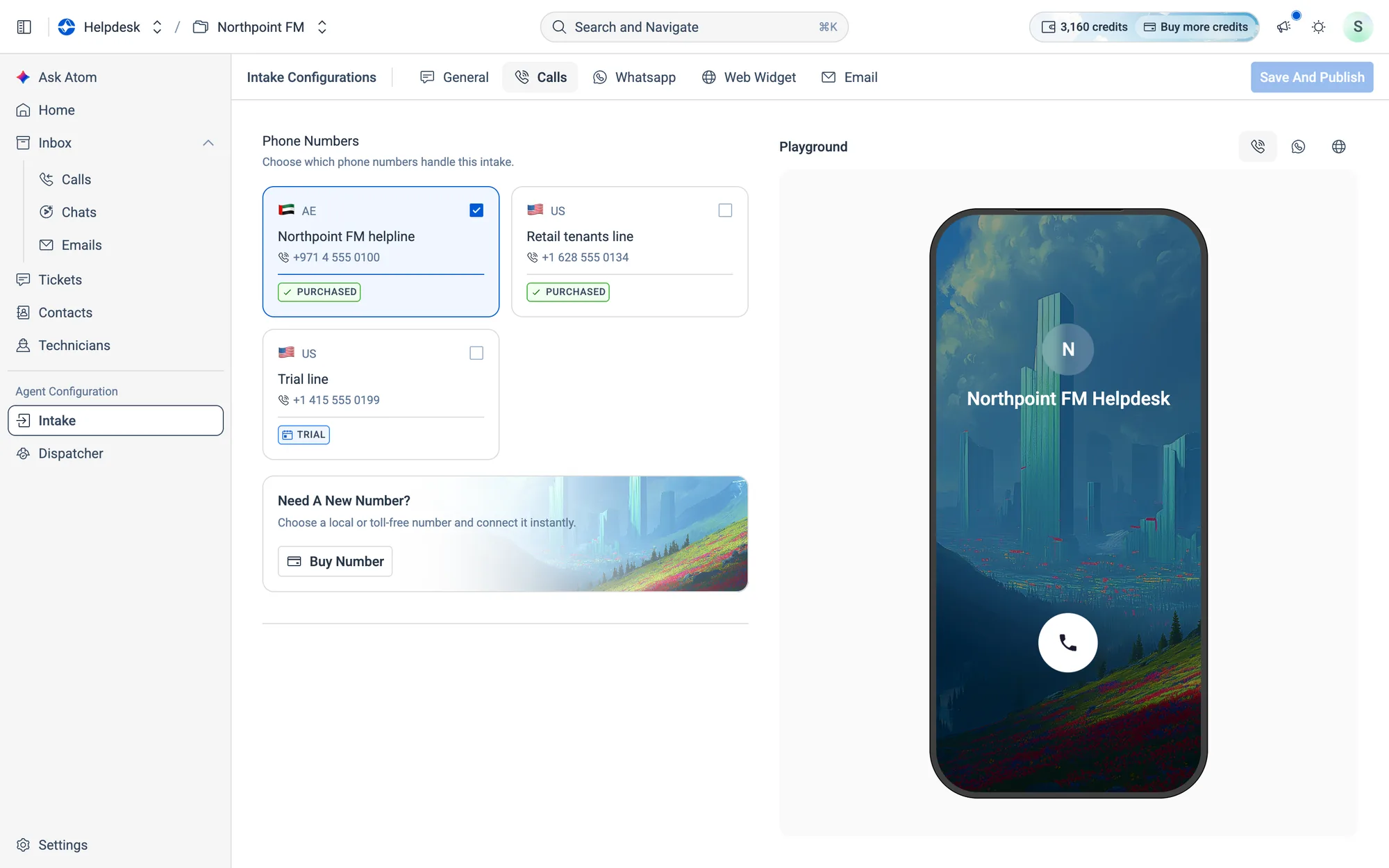
How to choose the phone numbers the agent answers
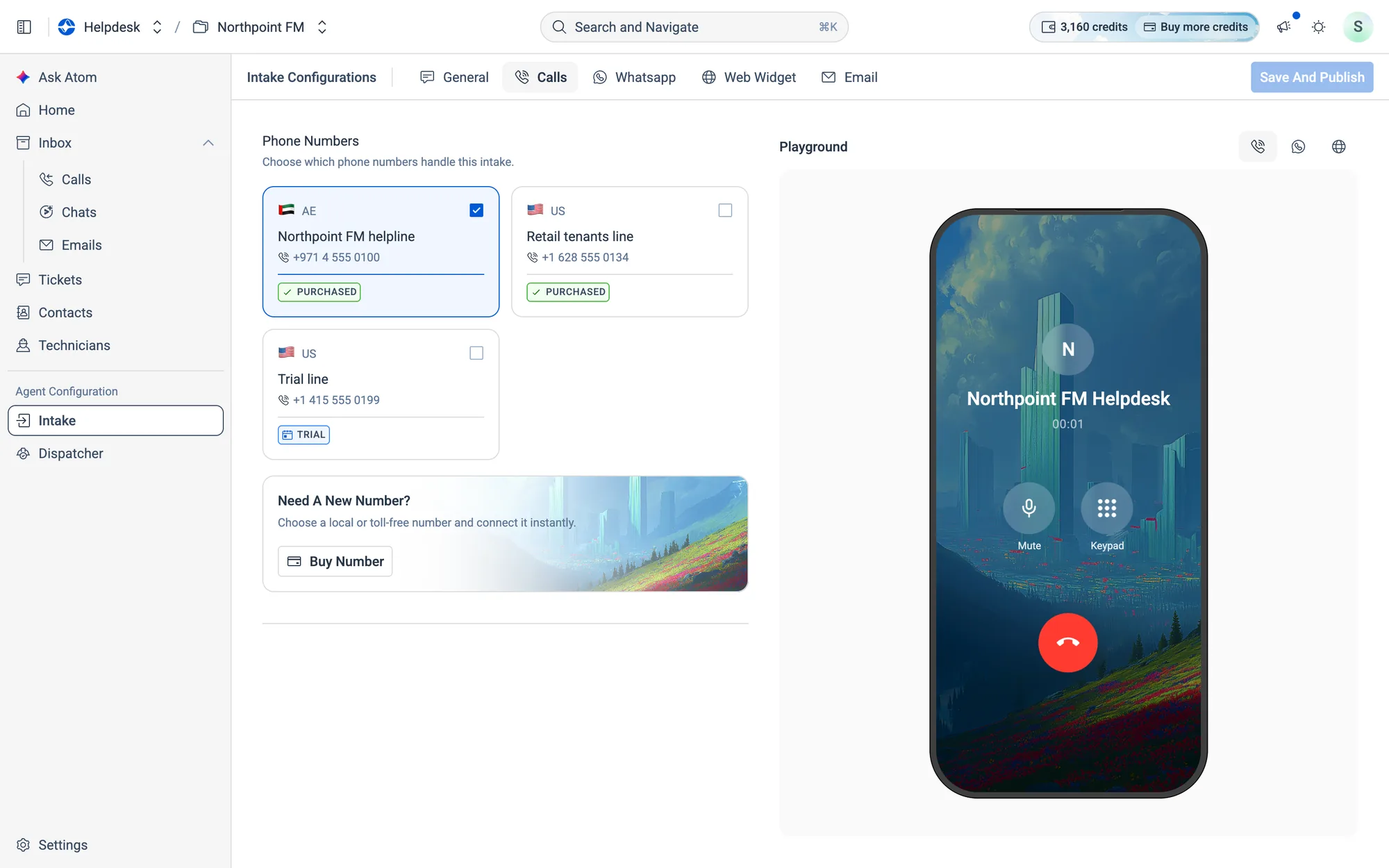
- 1Open the Calls tab. Your numbers are listed under Phone Numbers, each tagged Trial or Purchased, and SIP if it comes from your own phone system.
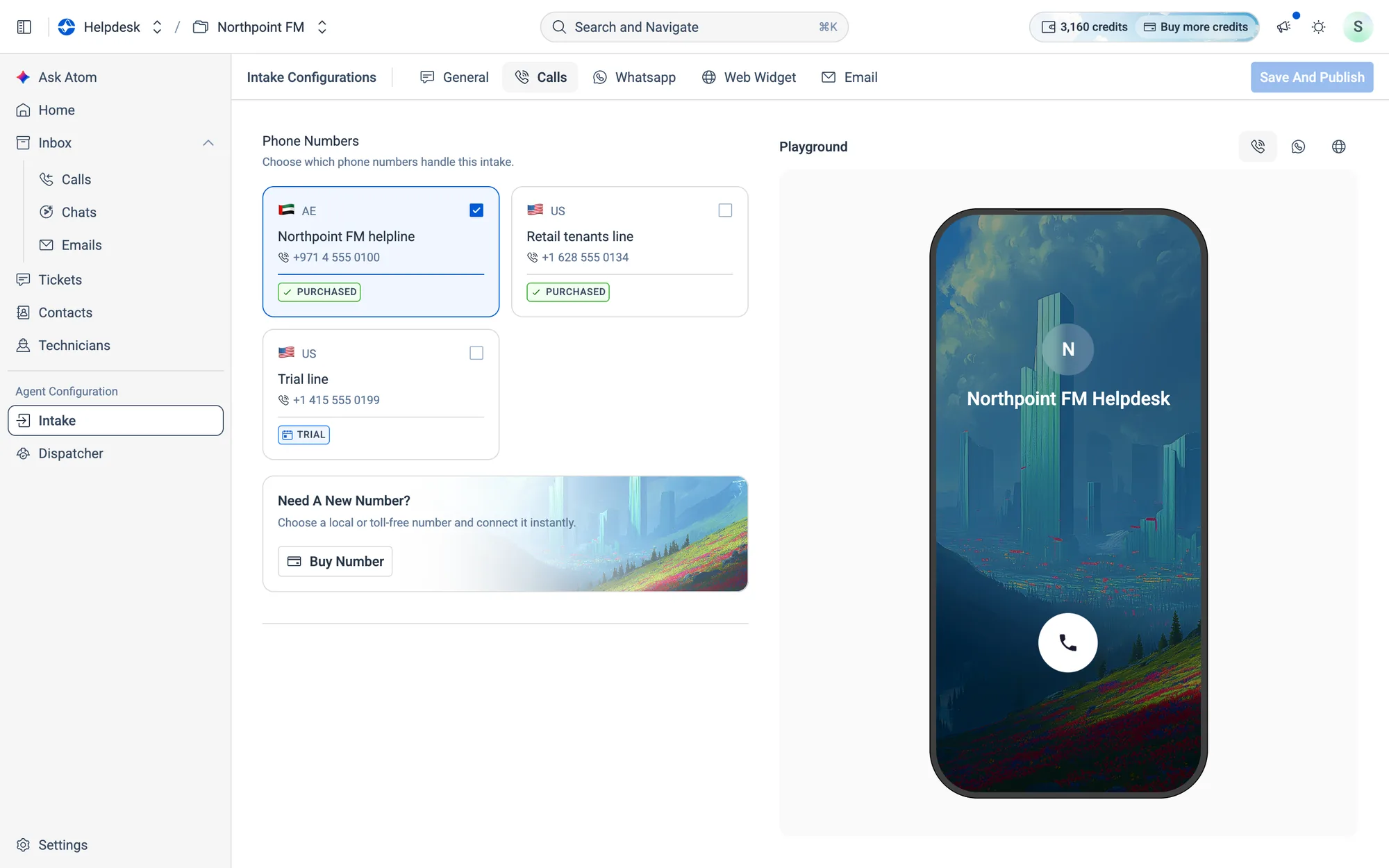
- 2Click a number card to tick it. A dimmed card is already used by another agent.
- 3Click
Save And Publish.
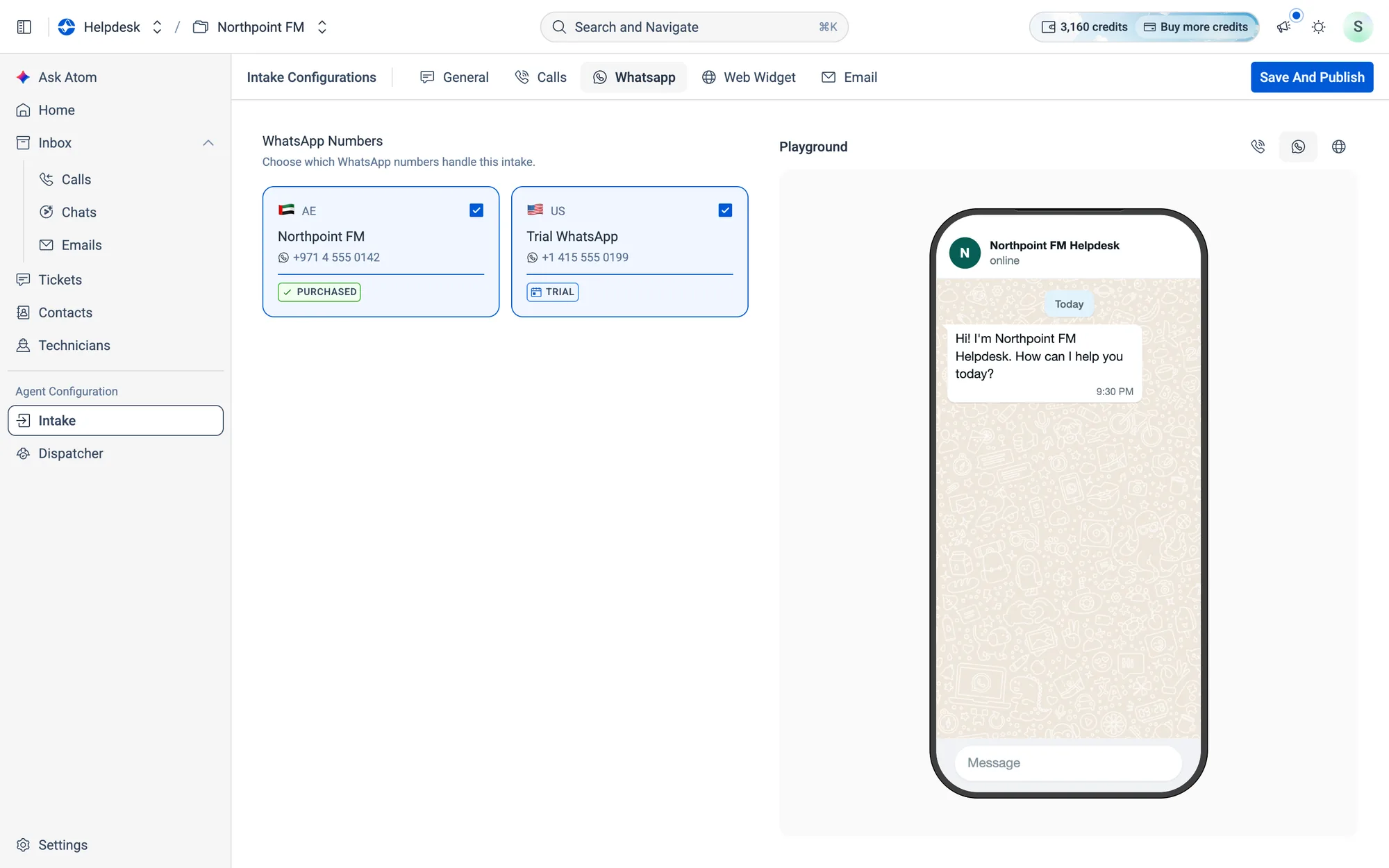
How to choose the WhatsApp numbers the agent replies on
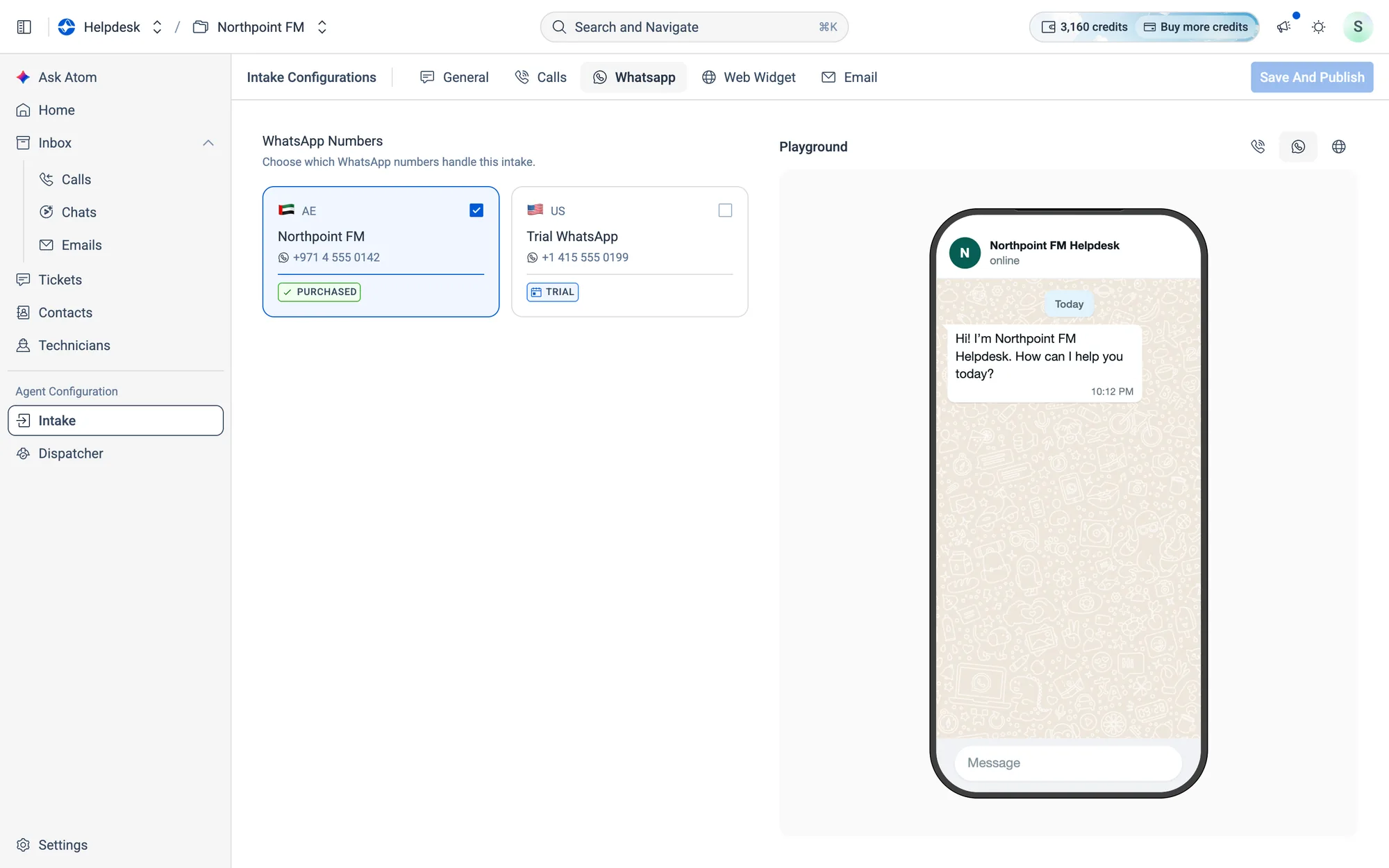
- 1Open the Whatsapp tab.
- 2Click the WhatsApp number cards the agent should reply on, then click
Save And Publish.
How to choose the inboxes the agent reads
- 1Open the Email tab.
- 2Click the inbox cards the agent should handle. Use the copy icons next to Incoming and Outgoing to grab an address.
- 3Click
Save And Publish.
.](/help/helpdesk-guide/screens/how-intake-email-1-ticked.webp)
09.9The web widget
The web widget sits on your website or tenant portal. Visitors can start a call or a chat with your agent from it.
How to create a web widget
- 1Open the Web Widget tab.
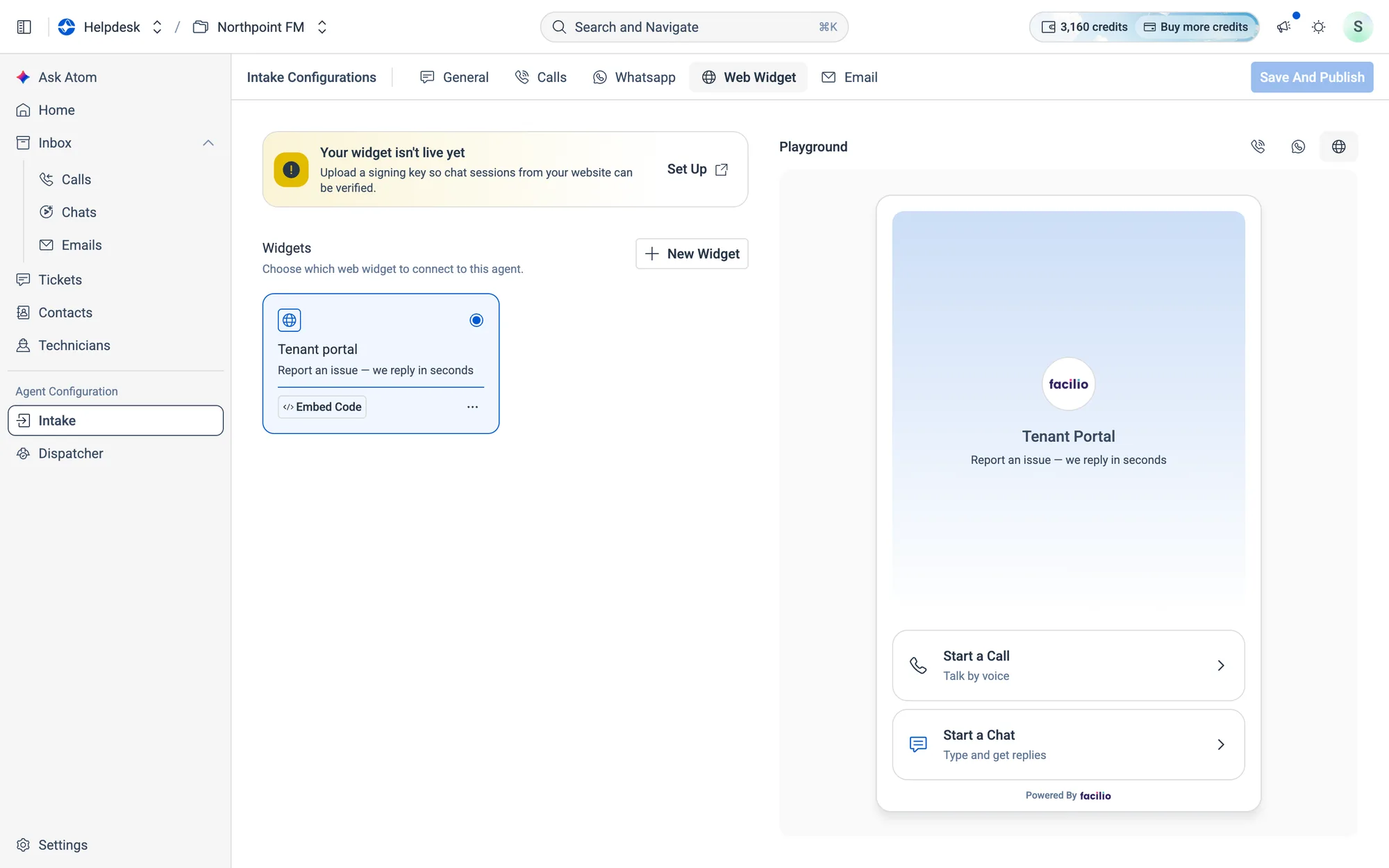
- 2If you see Your widget isn't live yet, click
Set Upand add a signing key first (see Web chat keys). - 3Click
New Widget.
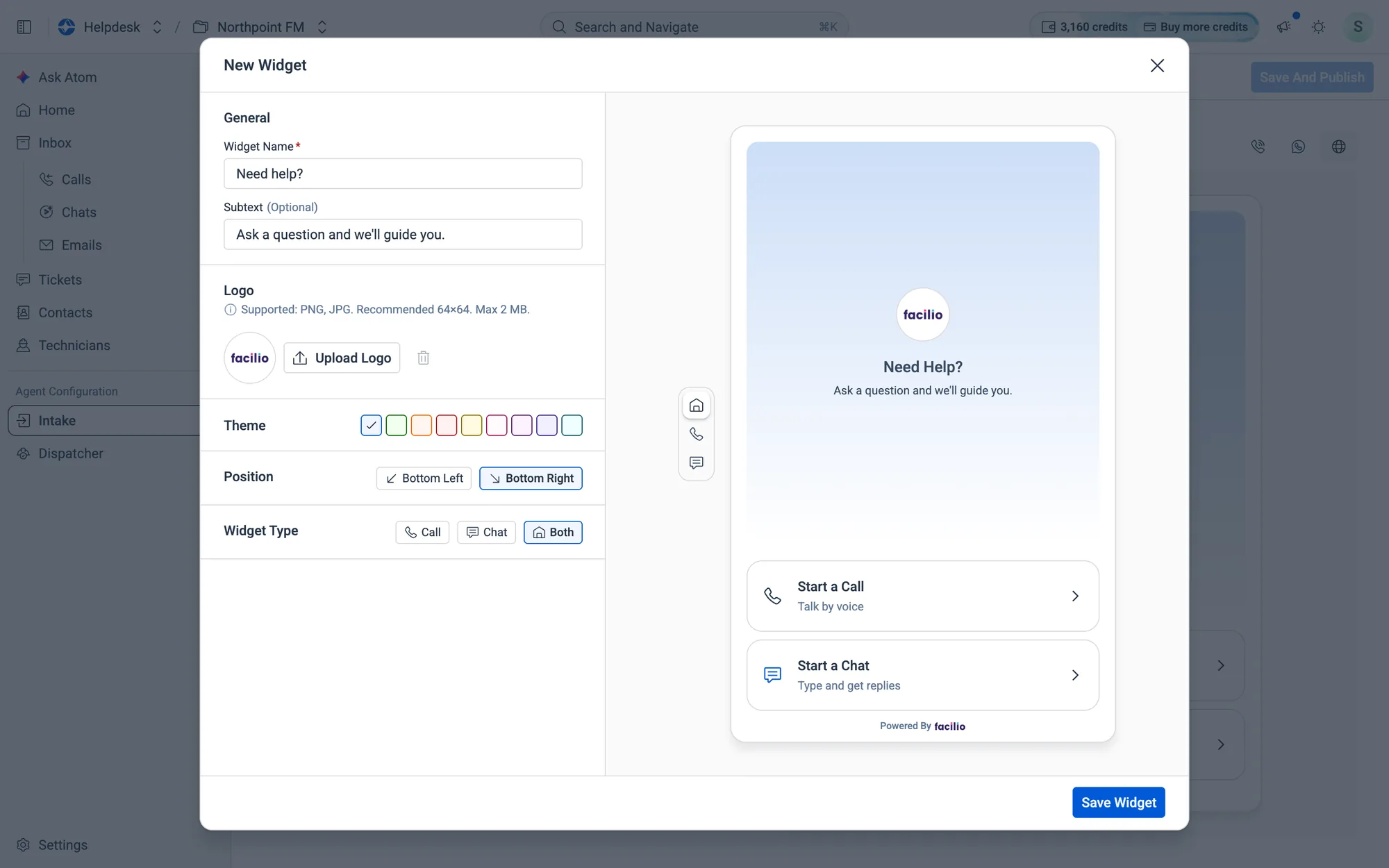
- 4Fill in the Widget Name and Subtext, and click
Upload Logoto add your logo.
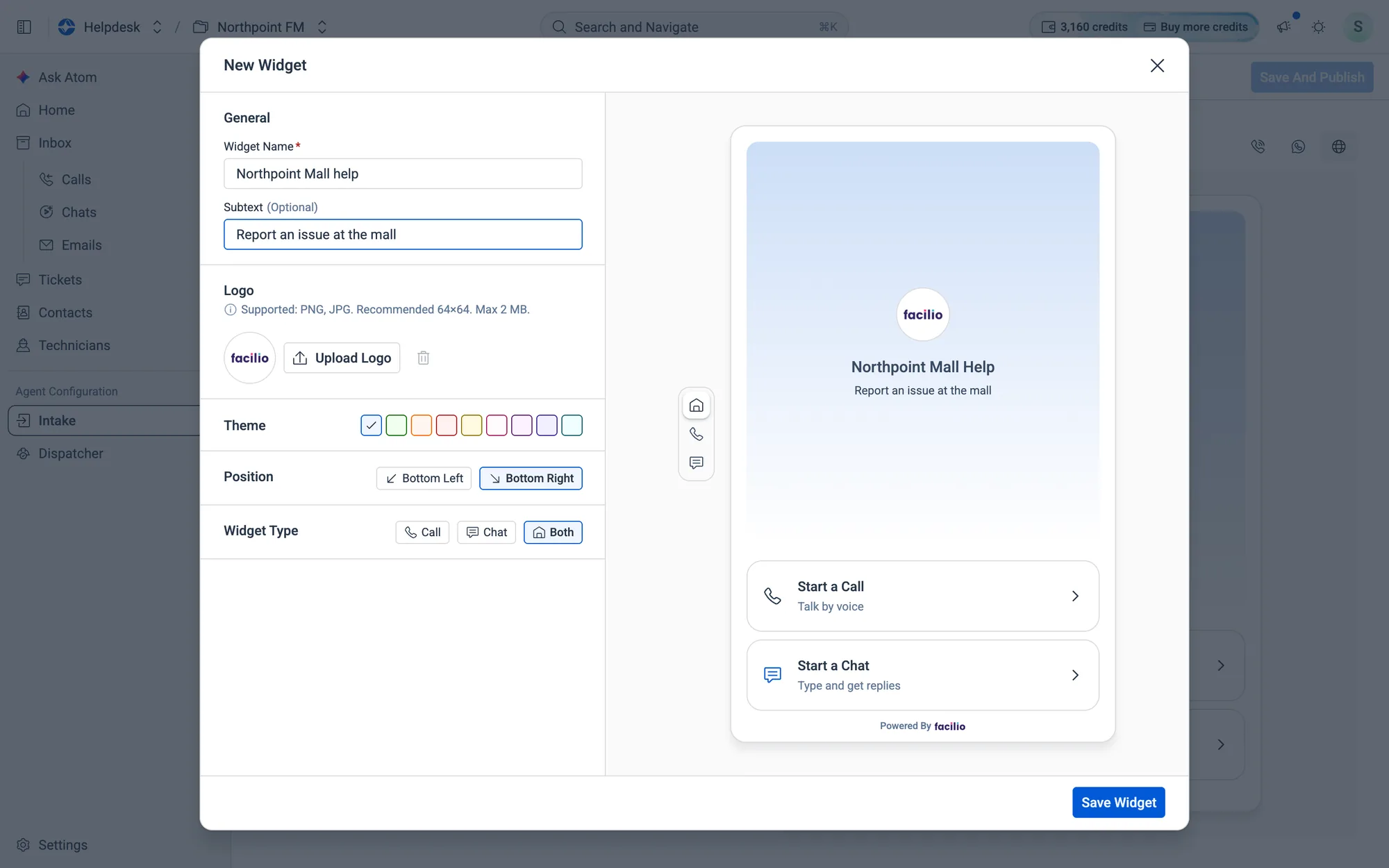
- 5Choose a Theme colour, a Position (Bottom Left or Bottom Right) and a Widget Type: Call, Chat or Both.
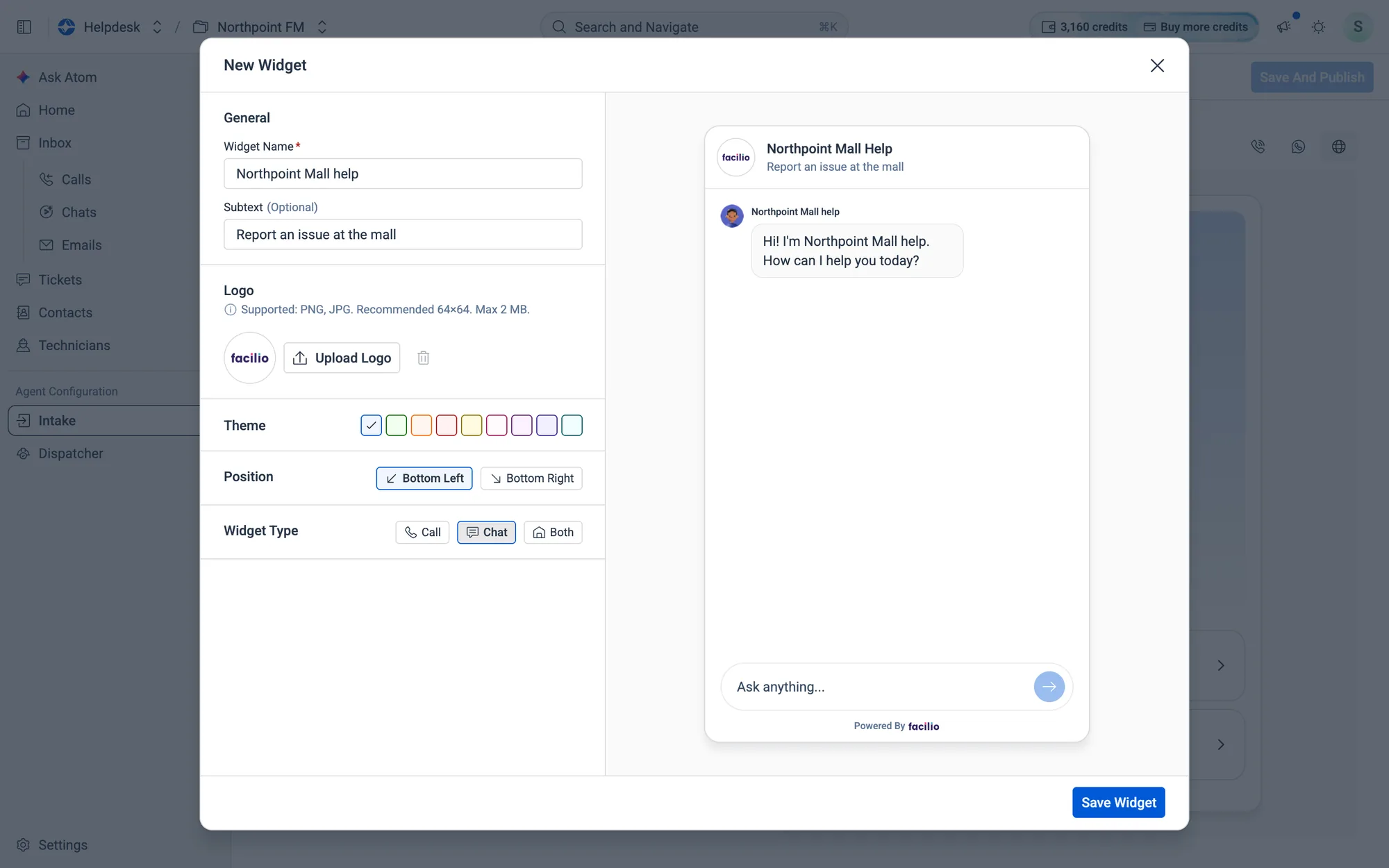
- 6Click
Save Widget. The Embed Code appears.
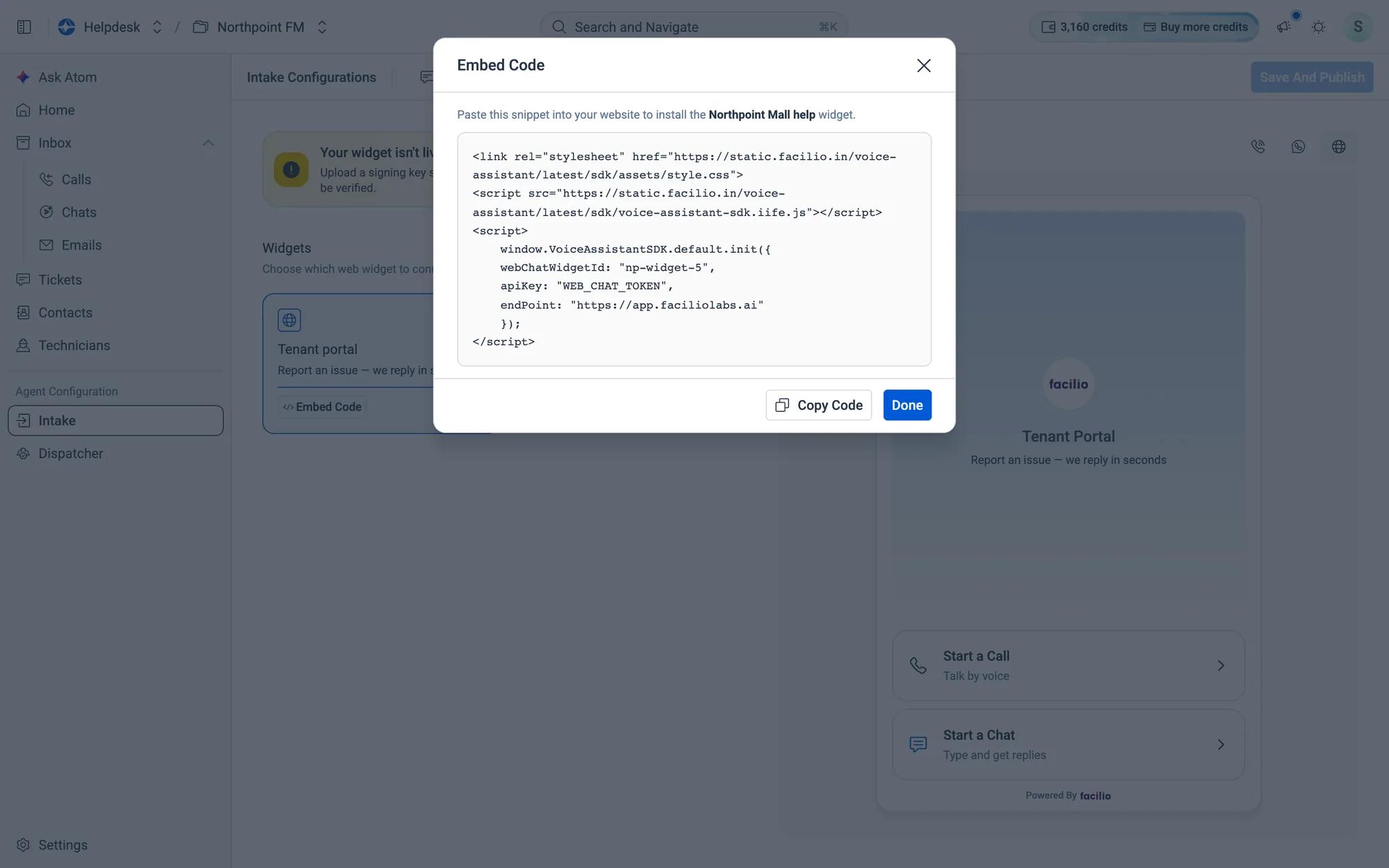
Copy Code and paste the snippet into your website.- 7Click
Done. The new widget appears on the tab. To get the code again later, clickEmbed Codeon the widget card.
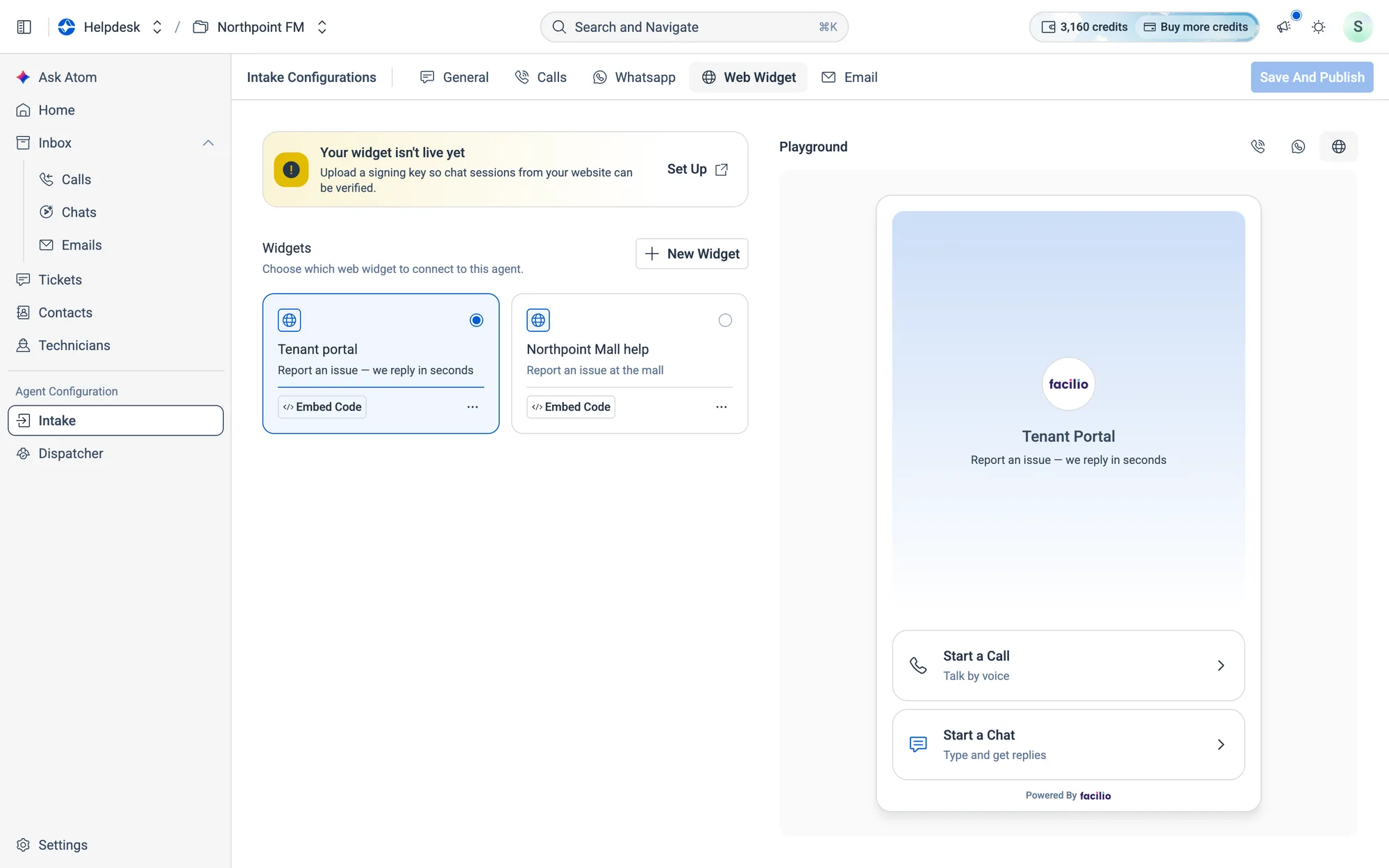
09.10Test it in the Playground
Before tenants reach your agent, try it yourself. These are real conversations with your agent as it's set up now, not a recording. The Playground follows the tab you're on, or you can switch with the three icons above it.
How to test a WhatsApp conversation
- 1Open the Whatsapp tab. The Playground shows a WhatsApp chat, and the agent greets you.
- 2Type a message in Message and press Enter. The agent replies.
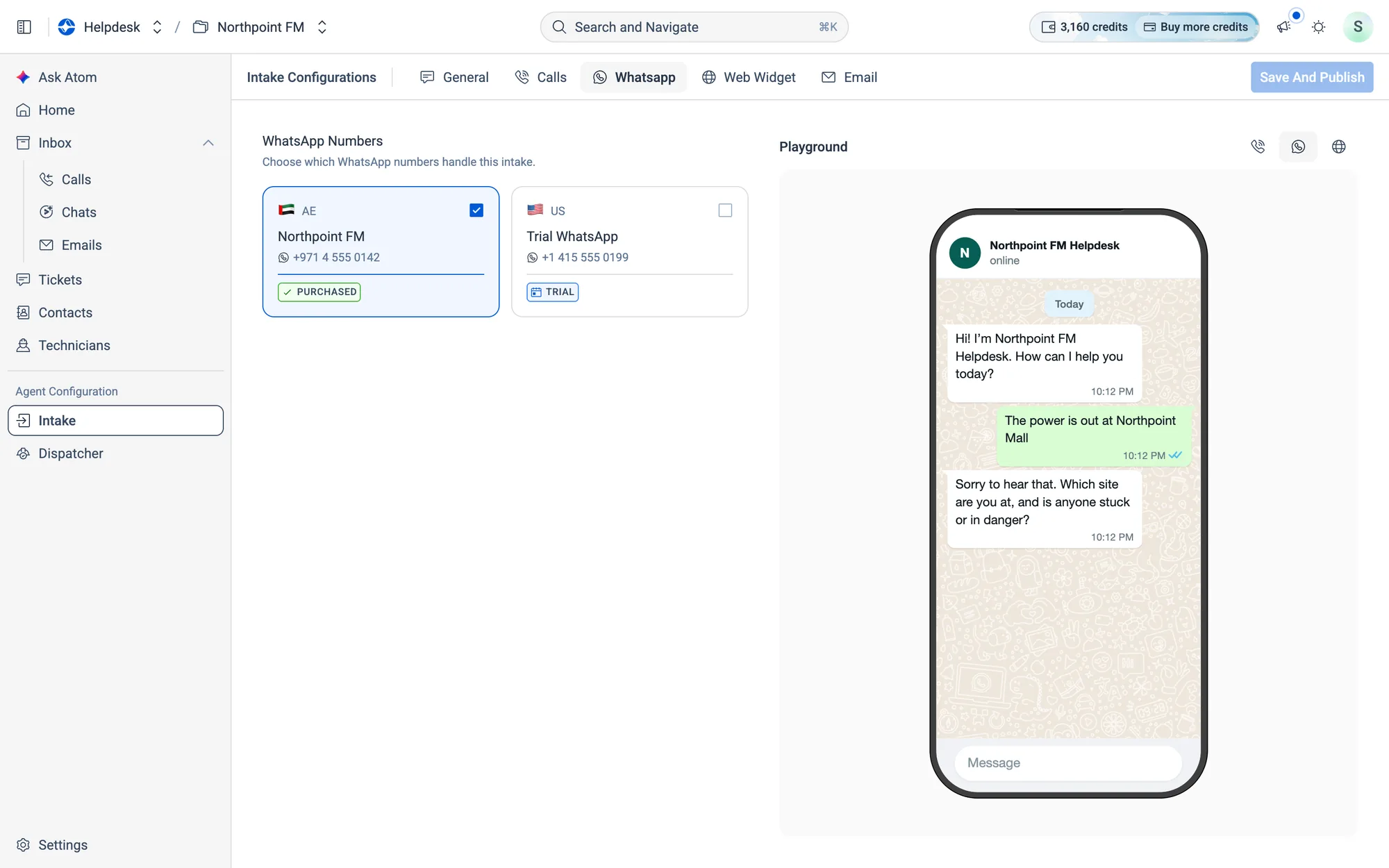
- 3Keep chatting to see the whole flow, right up to the ticket.
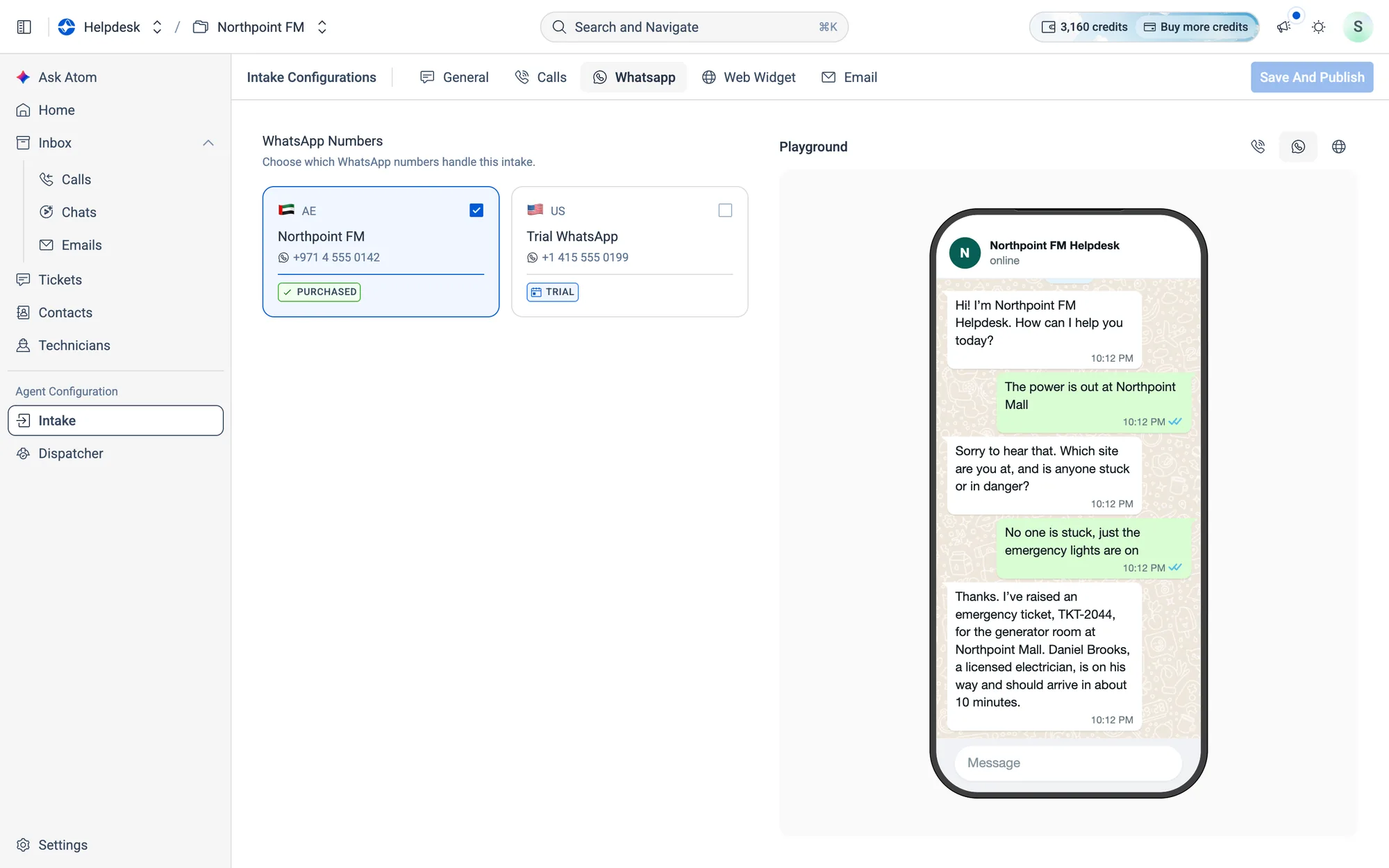
How to test a phone call
- 1Open the Calls tab and press the green call button in the Playground. Allow your browser to use the microphone.
- 2Talk to the agent as a tenant would. The call shows a timer, plus Mute, Keypad (to press numbers) and the red end-call button.
How to test the web widget
- 1Open the Web Widget tab and choose
Start a Chat(orStart a Call) in the preview. - 2Type in Ask anything... and send. The agent replies inside your widget, with your name, colours and logo.