
Getting started
A new helpdesk goes from your website address to a working AI agent in a few minutes. Then you verify your phone, hear your agent on a real call, and the Get Started checklist walks you through the rest.
02.1How first-time setup works
Setup happens in four parts, in this order:
- 1Onboarding. Give Facilio Helpdesk your website. Atom reads it and drafts your business profile. You check it, and your agent is built.
- 2The welcome card. The first time you open Home, a card shows that your helpdesk is ready and gives you a trial number.
- 3Verify your phone. Enter your mobile number and the 6-digit code you're texted. Your agent can then talk to you on the trial number.
- 4The Get Started checklist. Eight short tasks on Home. Each one takes you to the right screen and shows you exactly what to click.
02.2Step 1 · Build your agent from your website
When you sign in for the first time, onboarding opens full screen. You don't need to configure anything by hand: one website address is enough for Atom to understand your business.
How to build your agent from your website
- 1On Your Facilities, on Autopilot. Finally., type your company's website into the your-website.com field.
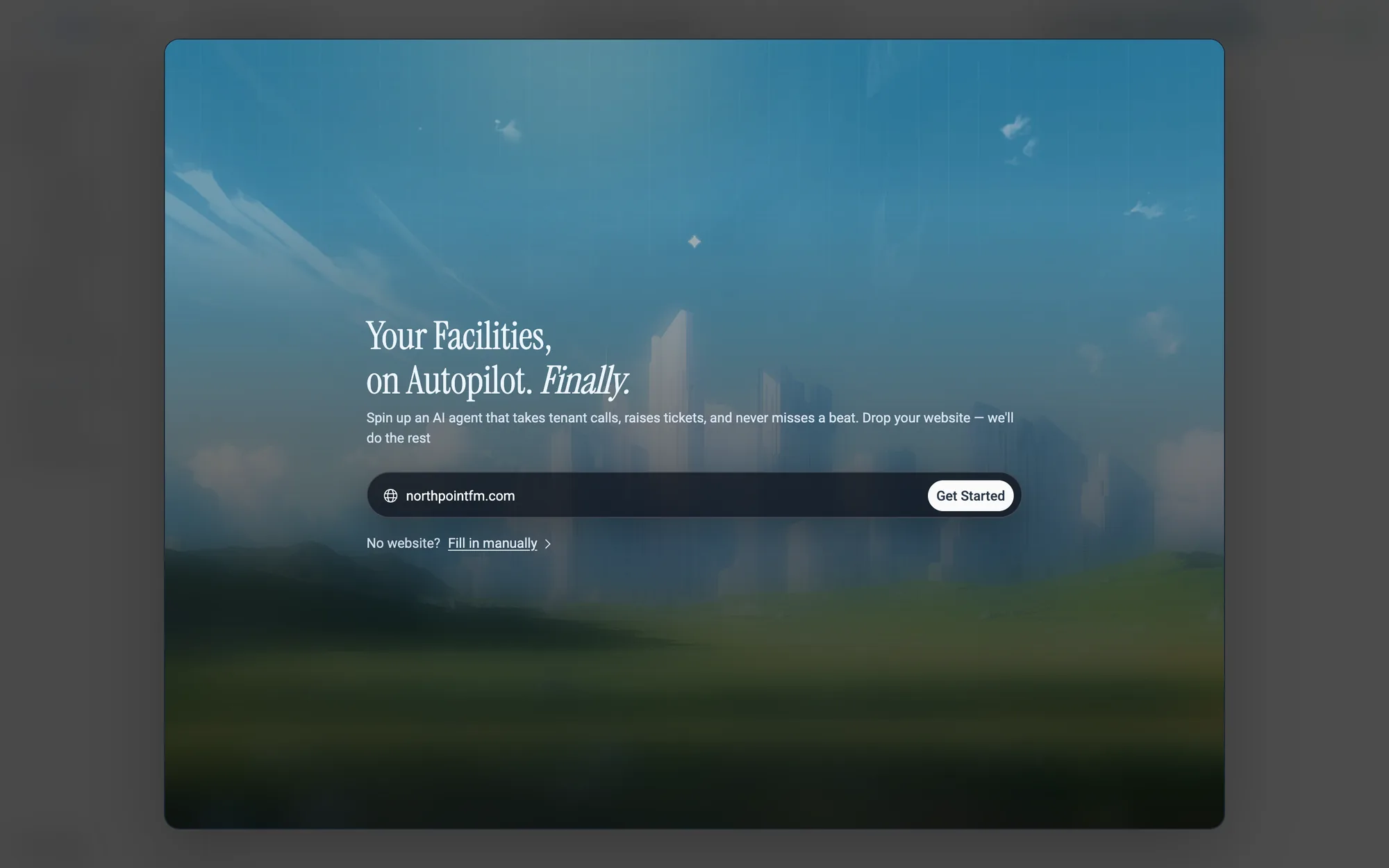
Get Started or press Enter.- 2Click
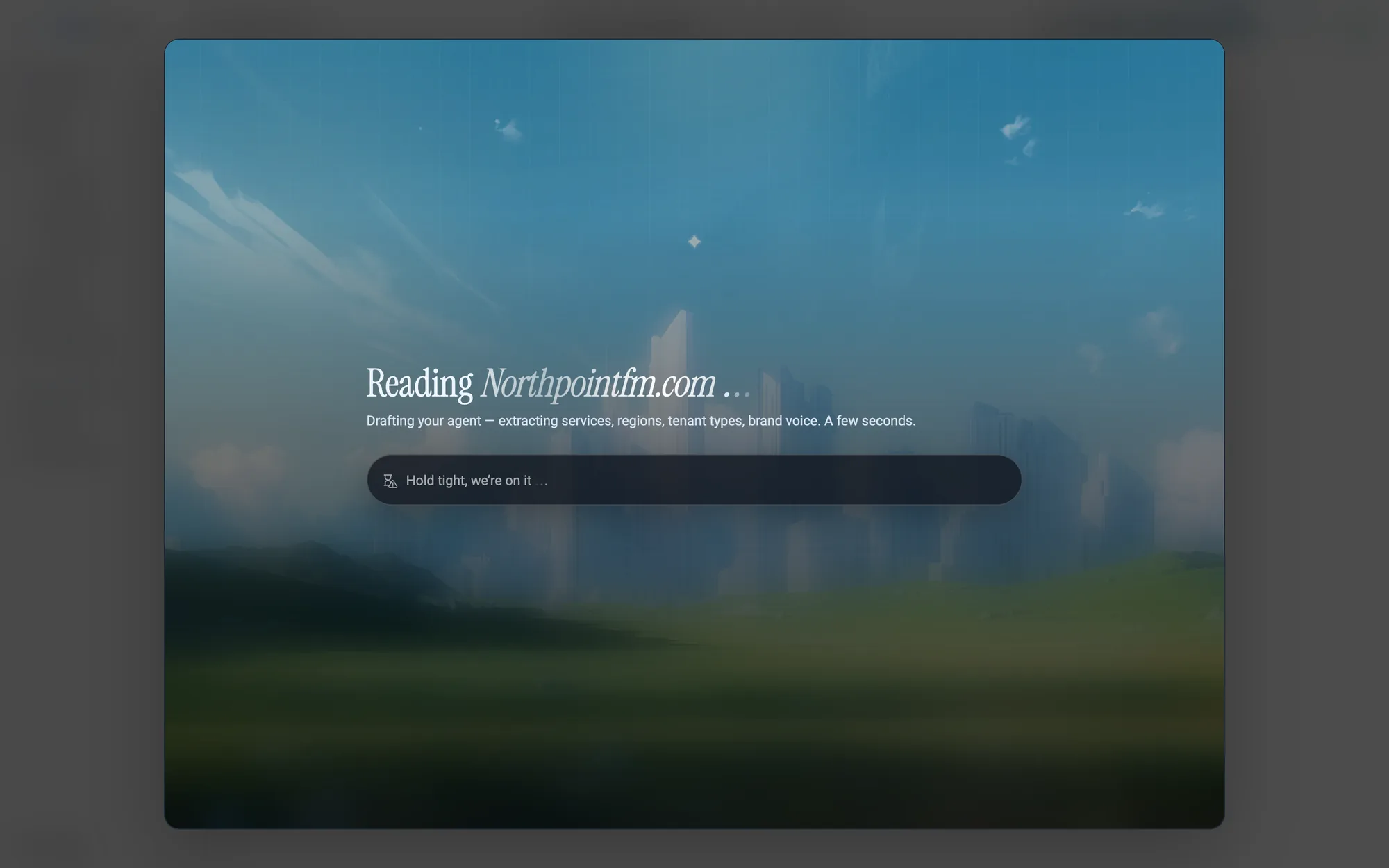
Get Started. The screen says Reading followed by your website, while Atom pulls out your services, regions, tenant types and brand voice. It takes a few seconds.
- 3When the scan finishes, you'll see Here's What We Found. Every answer is an editable list of chips, and your changes always win.
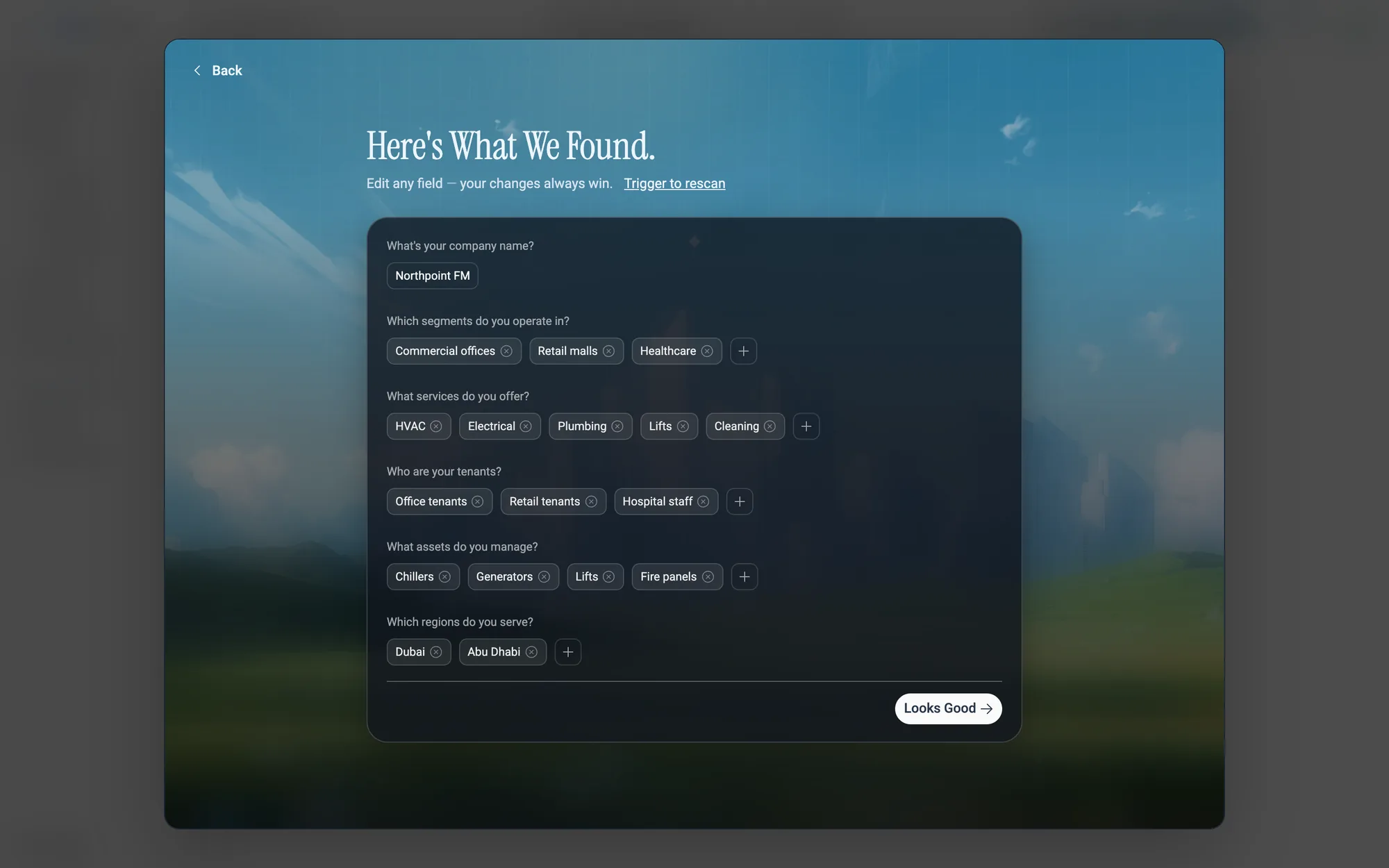
- 4Review each row. Click +, then pick a suggestion or type your own value under Type to add or search… and press Enter. If Who are your tenants? shows a warning icon, Atom couldn't find it on your website, so fill it in.
- 5Click
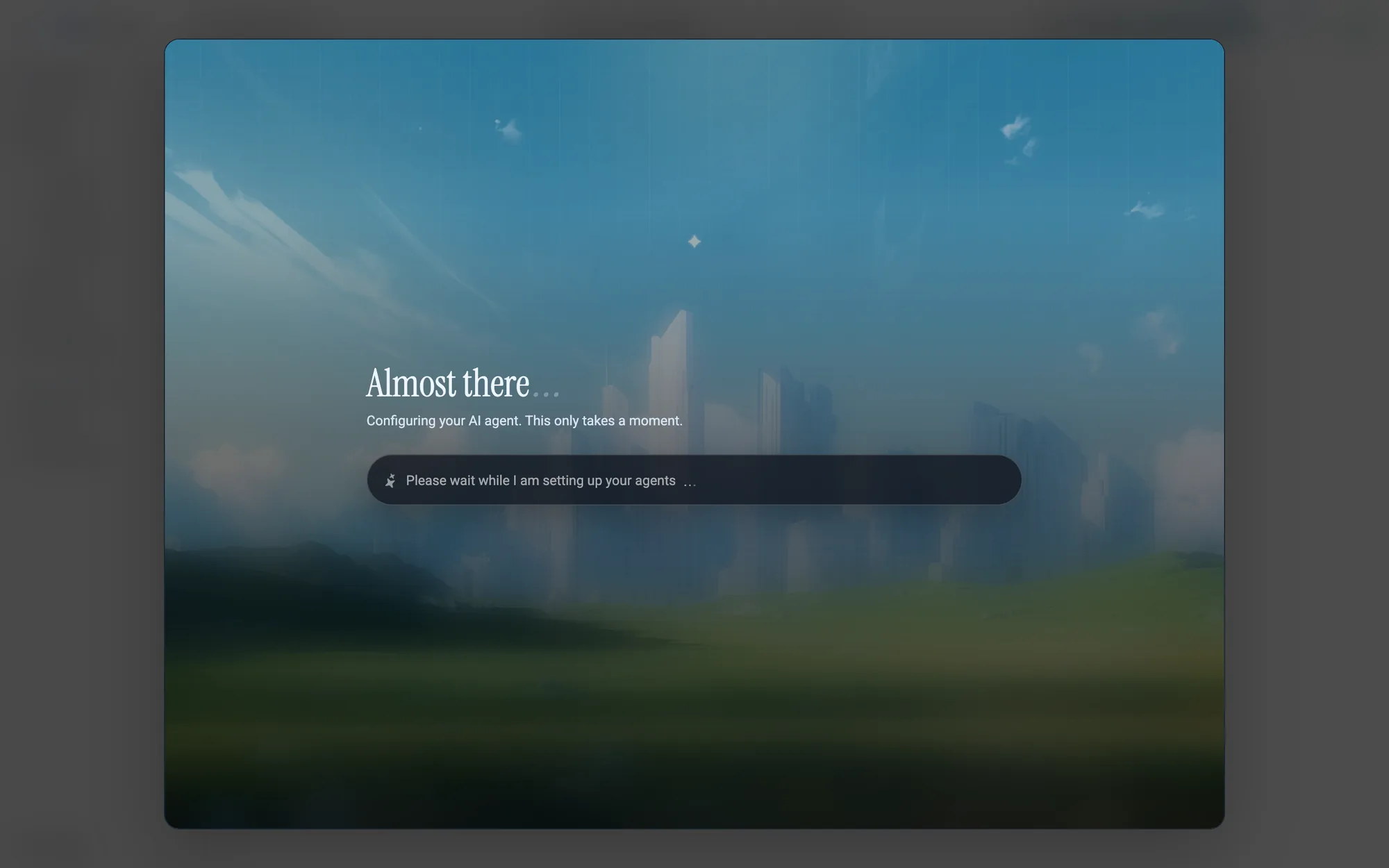
Looks Good →. You'll see Almost there… while your agent is configured. Your helpdesk opens as soon as it's ready.
The six questions are:
| Question | Example answers |
|---|---|
| What's your company name? | Northpoint FM |
| Which segments do you operate in? | Commercial offices, Retail malls, Healthcare |
| What services do you offer? | HVAC, Electrical, Plumbing, Lifts, Cleaning |
| Who are your tenants? | Office tenants, Retail tenants, Hospital staff |
| What assets do you manage? | Chillers, Generators, Lifts, Fire panels |
| Which regions do you serve? | Dubai, Abu Dhabi |
How to fill in your business manually
No website, or prefer to type it yourself?
- 1On the first screen, click
Fill in manuallynext to No website?. - 2Tell Us About Your Business. opens with the same six questions, empty. Add at least one answer to each.
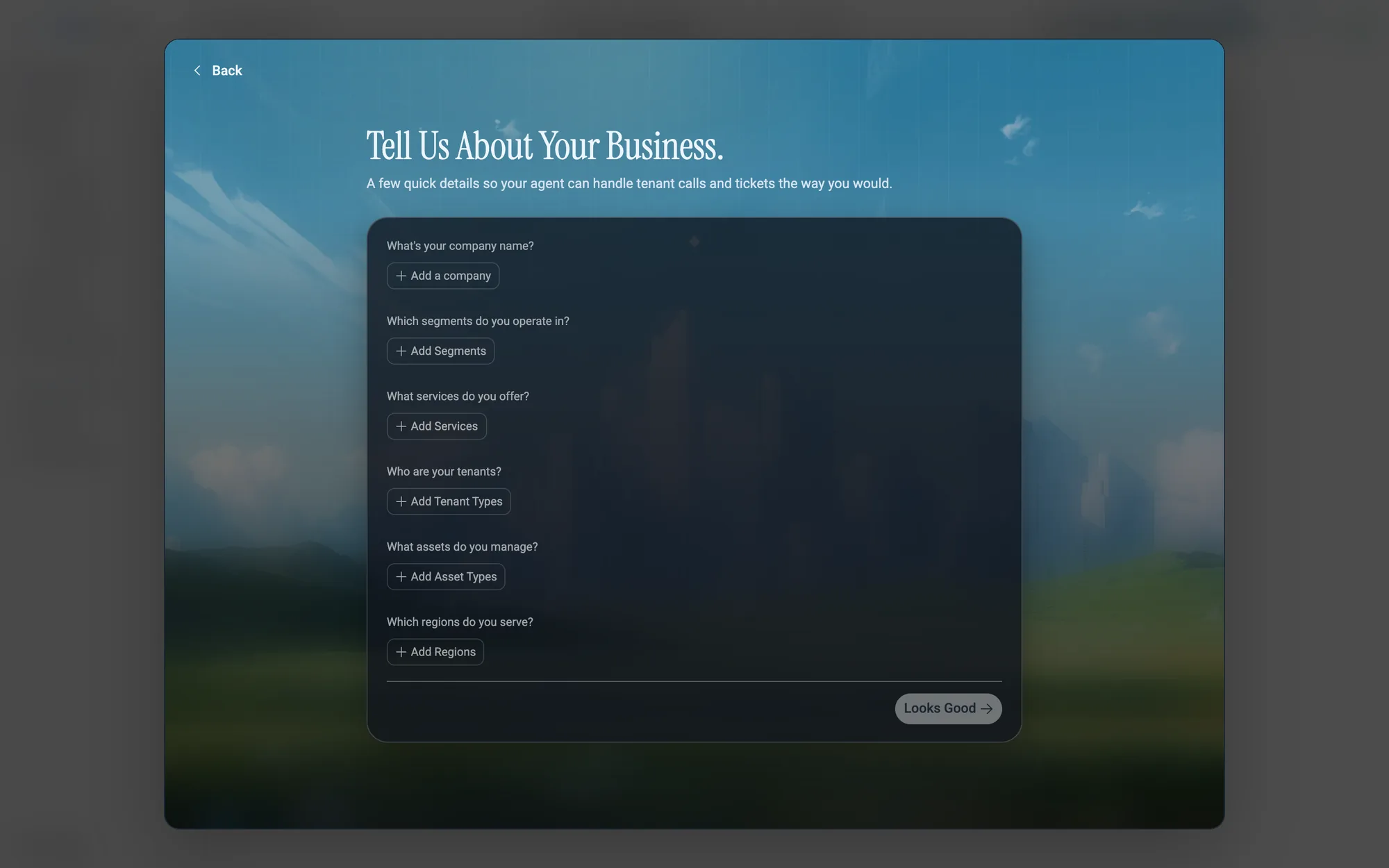
- 3Click
Looks Good →.
If Atom can't read your site
If the scan fails, you'll see We Couldn't Read Your Site.
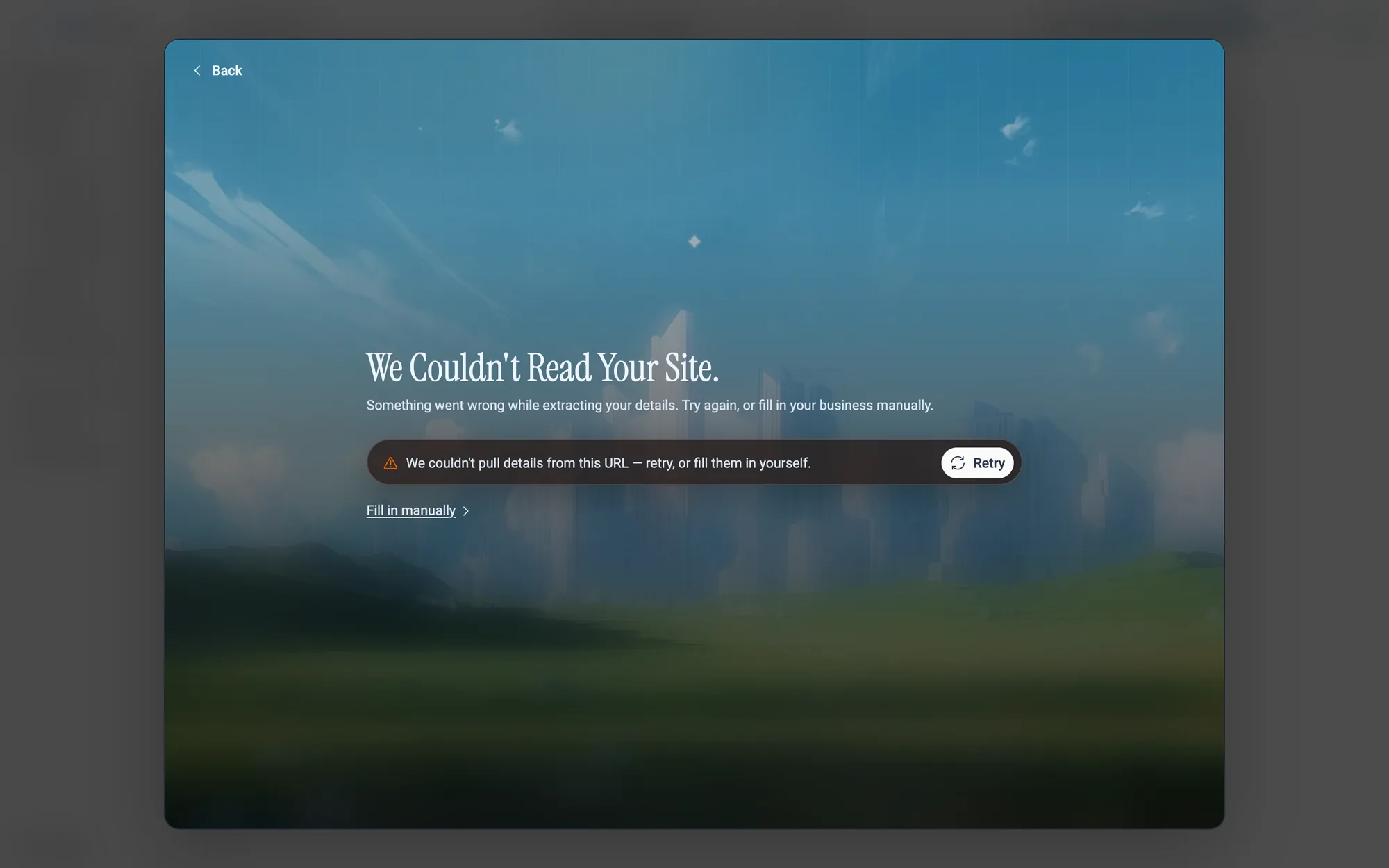
Retry to scan again, or Fill in manually to answer the questions yourself.02.3Step 2 · Verify your phone and hear your agent
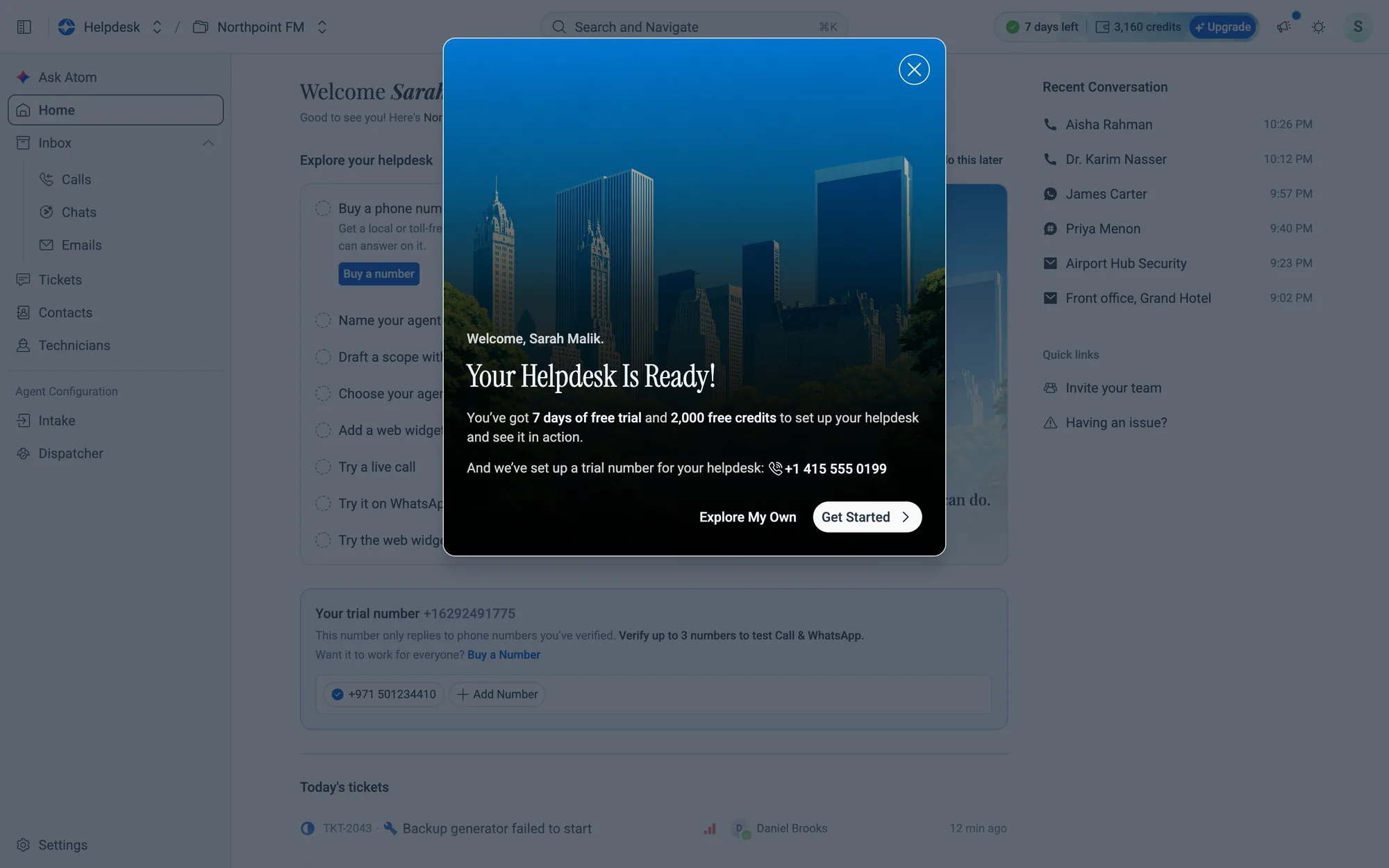
The first time you open Home, a welcome card opens: Your Helpdesk Is Ready! It shows your free trial (7 days and 2,000 credits) and the trial number set up for your helpdesk.
How to verify your phone number
- 1On the welcome card, click
Get Started. To skip this for now, clickExplore My Own.
- 2Verify Your Phone Number opens. Click the flag to choose your country code.
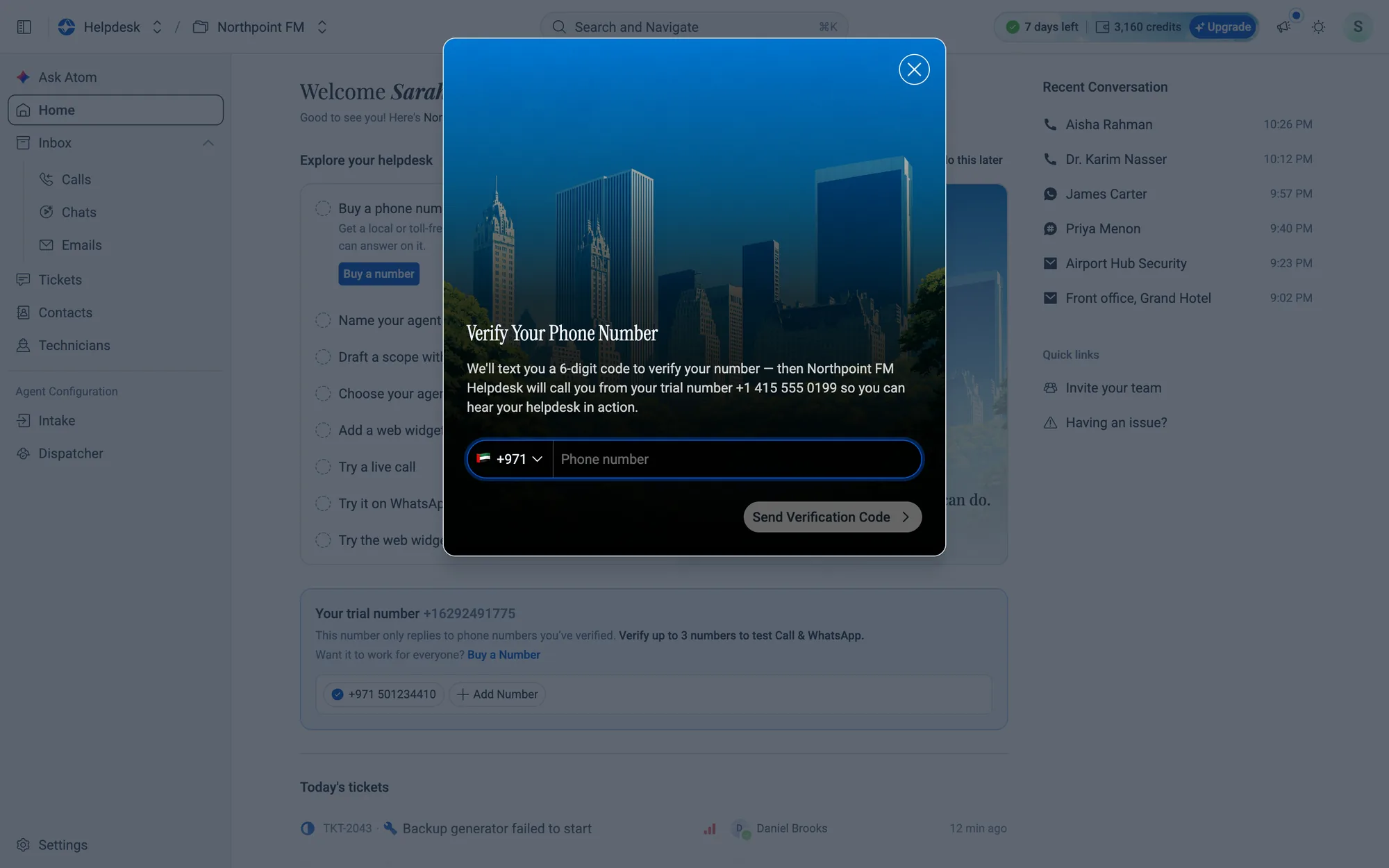
- 3Type your mobile number and click
Send Verification Code. (The button turns on once you've typed at least four digits.)
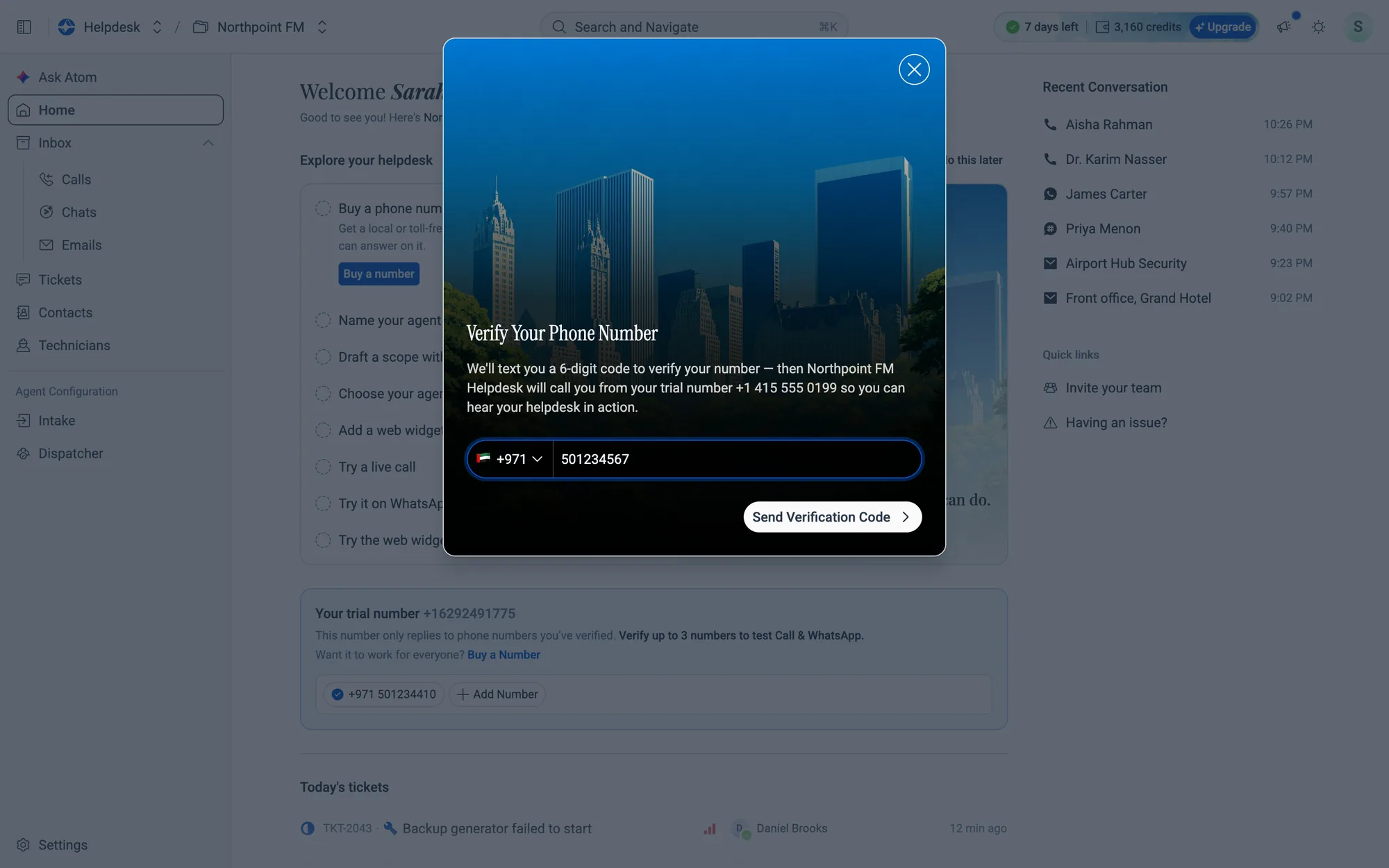
- 4Enter The Code opens and shows the end of the number it was sent to, for example +971 •••• 4567. Check your text messages for the 6-digit code.
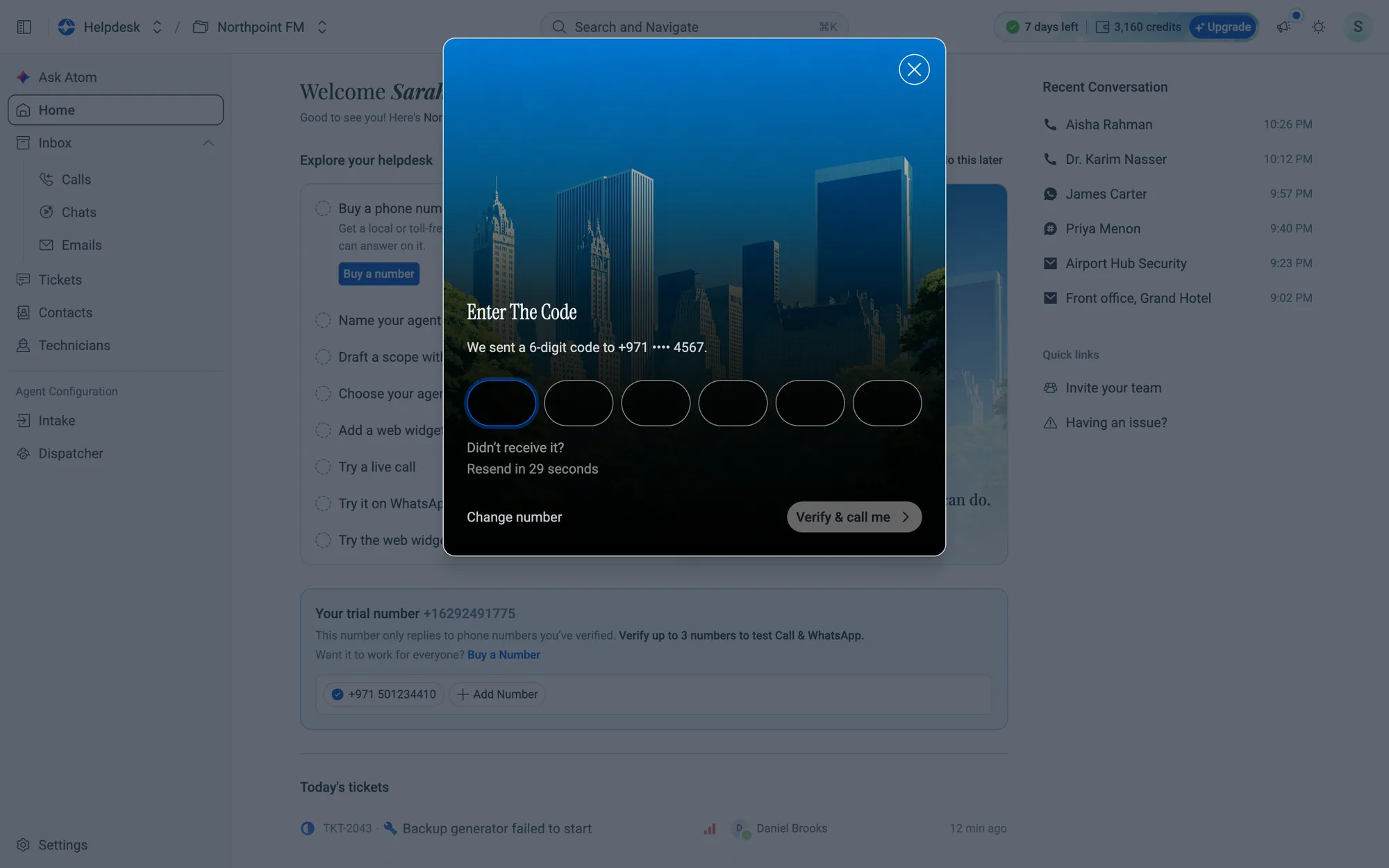
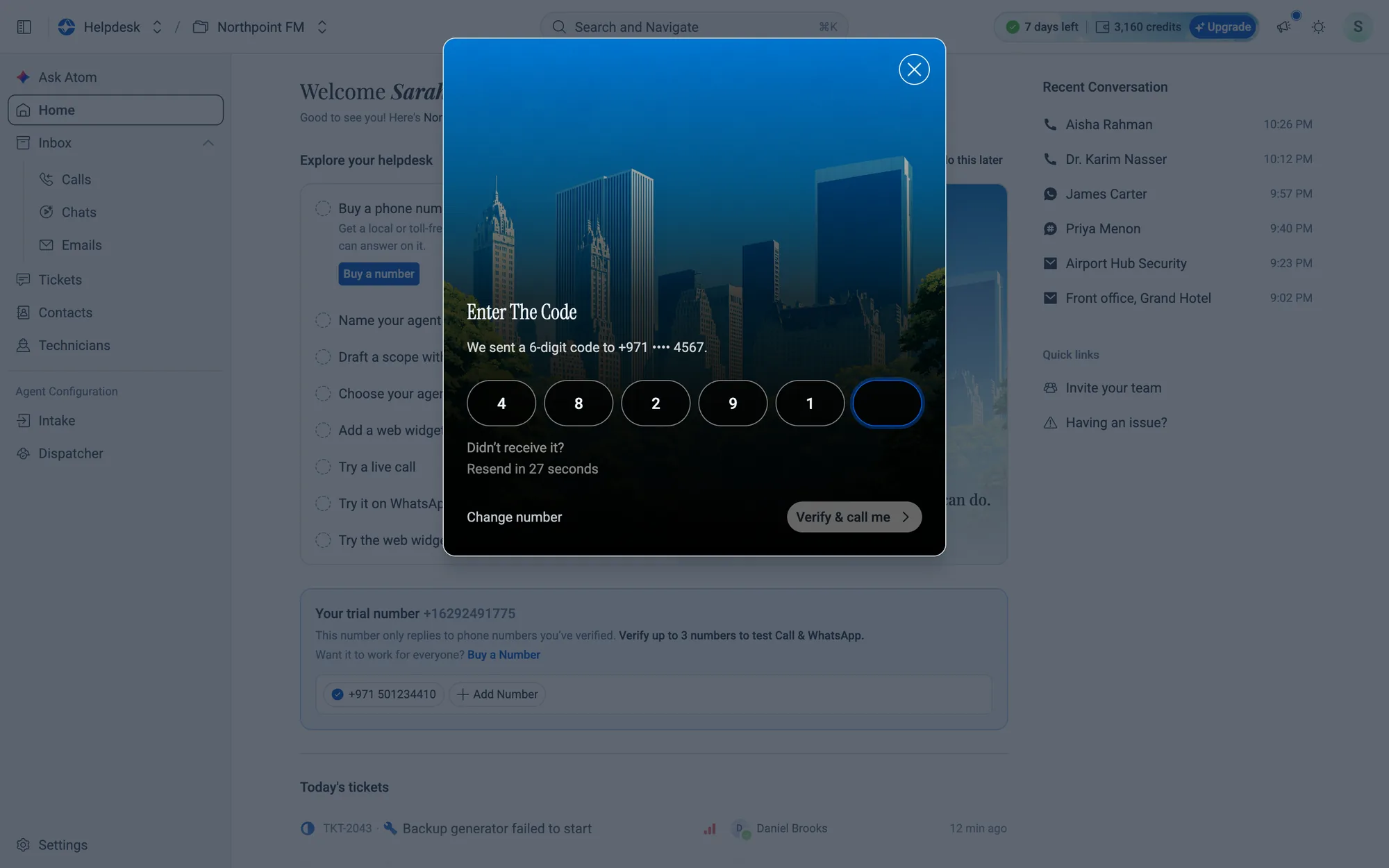
- 5Type the code. Each digit moves you to the next box, or you can paste the whole code at once. When the sixth digit goes in, the code is checked automatically. You can also click
Verify & call me.
How to hear your agent on a real call
Once your number is verified, the card shows how to reach your agent.
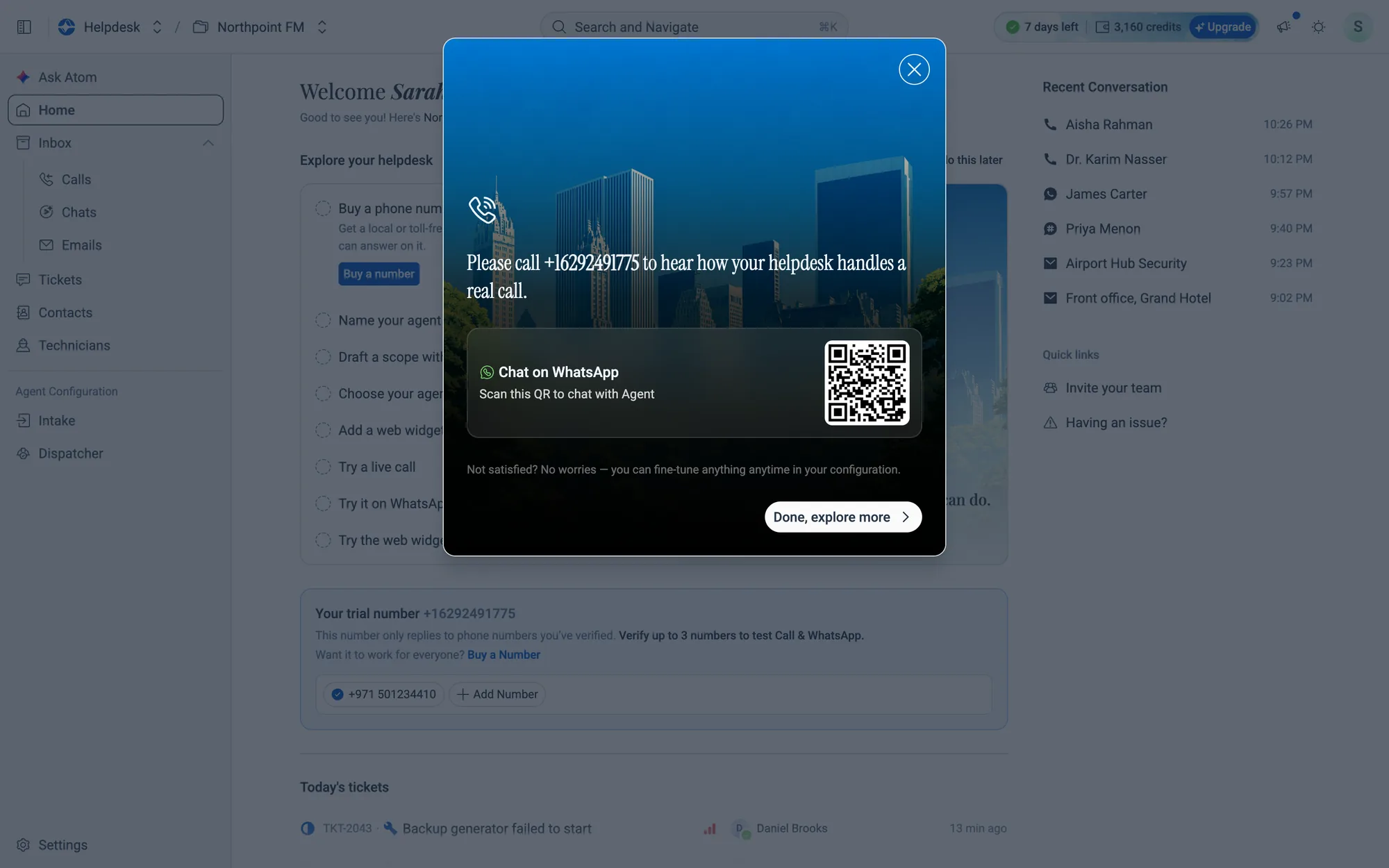
- 1Call the number shown under Please call … to hear how your helpdesk handles a real call. Talk to your agent as a tenant would.
- 2To try WhatsApp, scan the QR code under Chat on WhatsApp with your phone and send a message.
- 3Click
Done, explore moreto close the card.
02.4Your trial number
While you're on the free trial, Home shows a Your trial number card. The trial number only answers calls and WhatsApp messages from numbers you've verified. That's how you and your team can test the agent before you buy a number of your own.
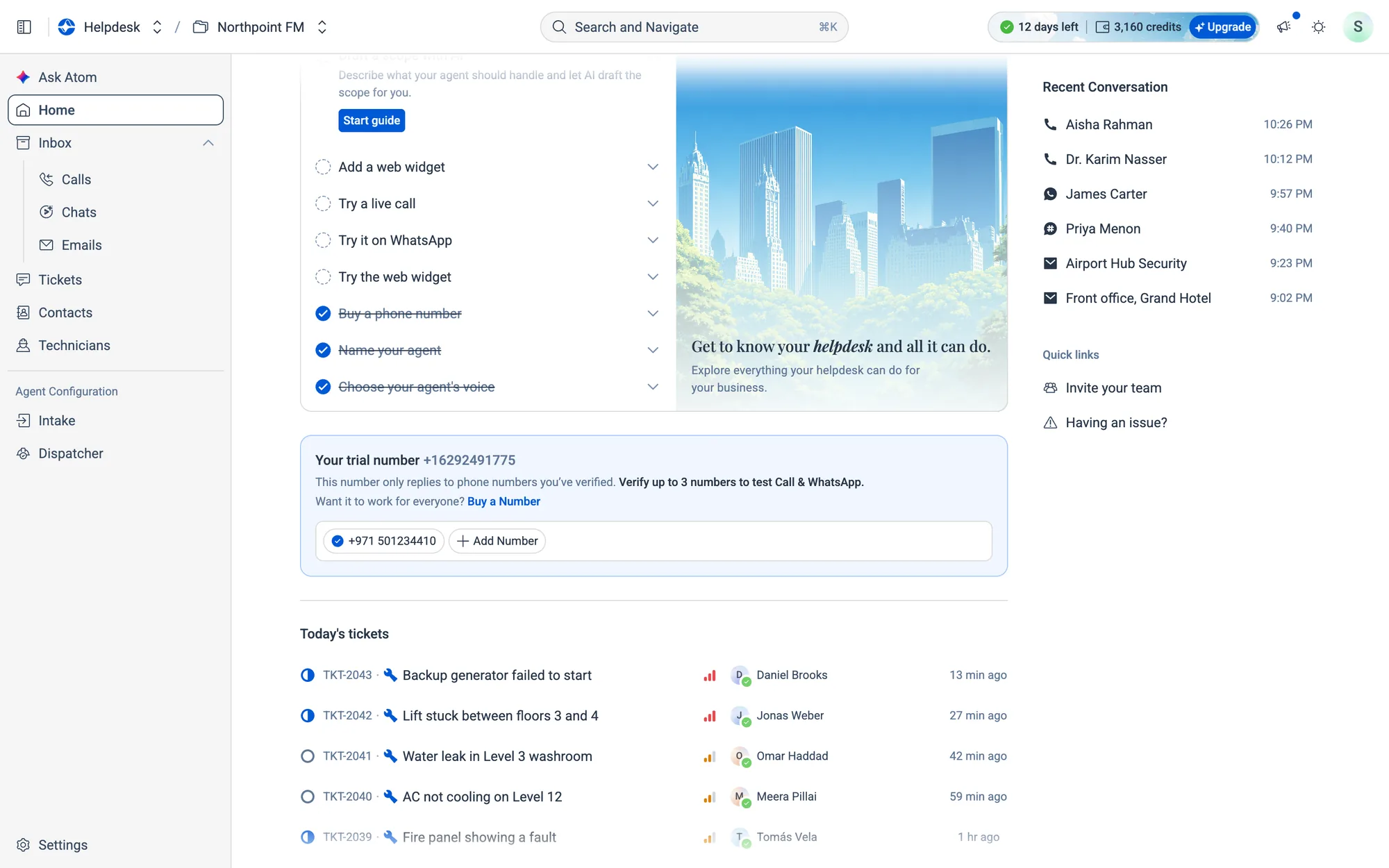
How to add a number to test with
- 1On Home, click
Add Numberin the Your trial number card.
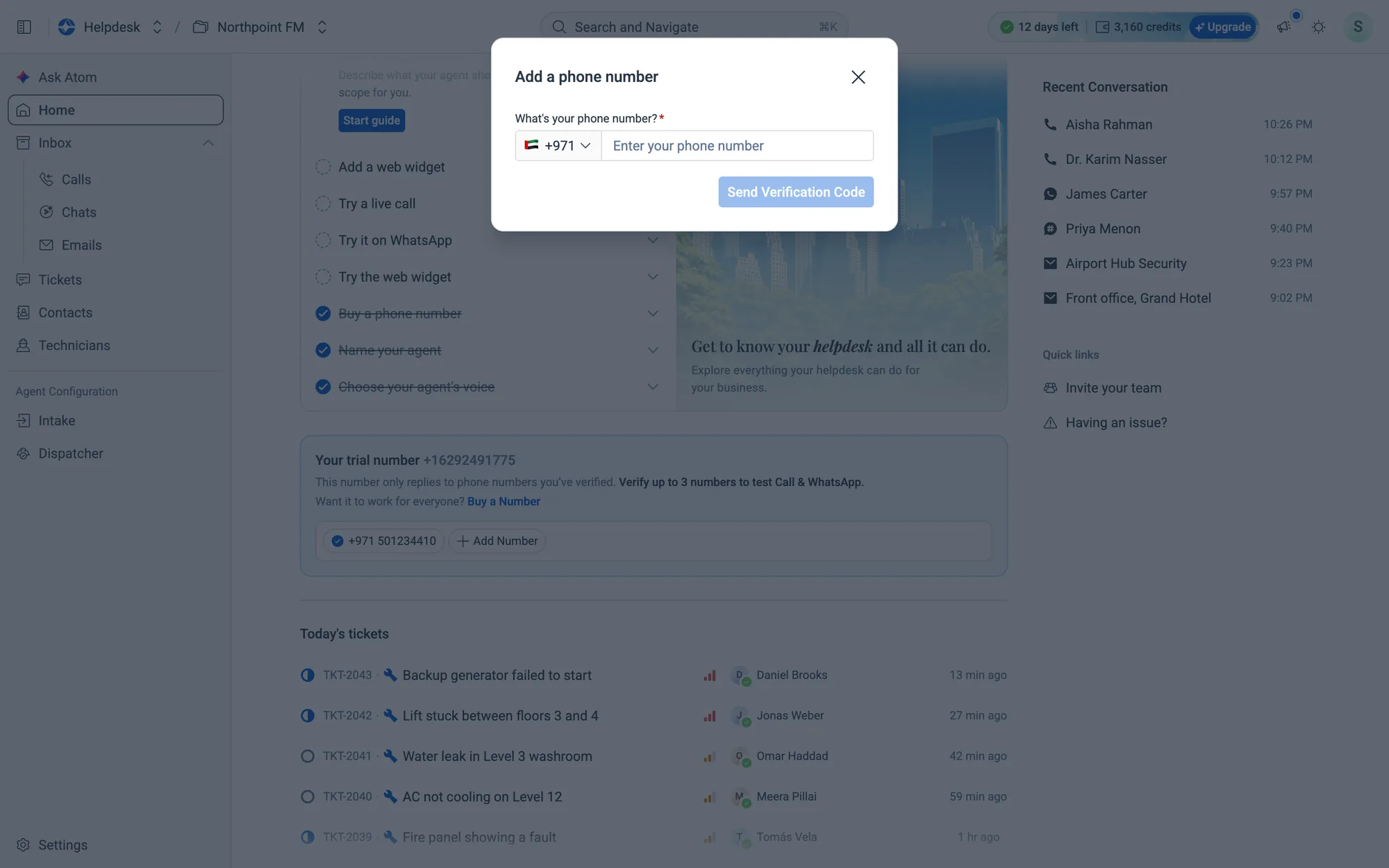
- 2Under What's your phone number?, check the country code and type the number.
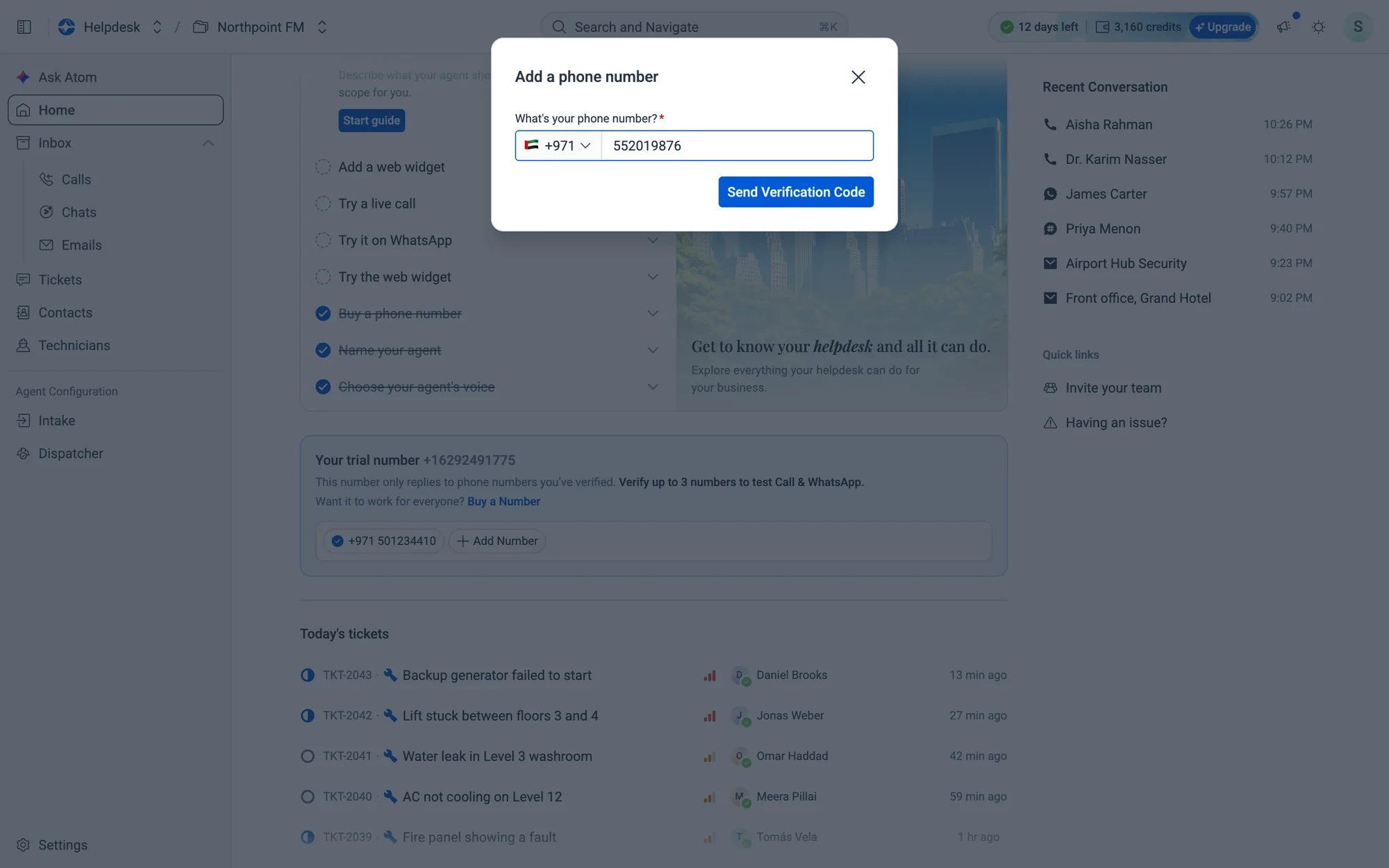
Send Verification Code.- 3Click
Send Verification Code. Enter your verification code opens. - 4Type the 6-digit code from the text message, then click
Verify.
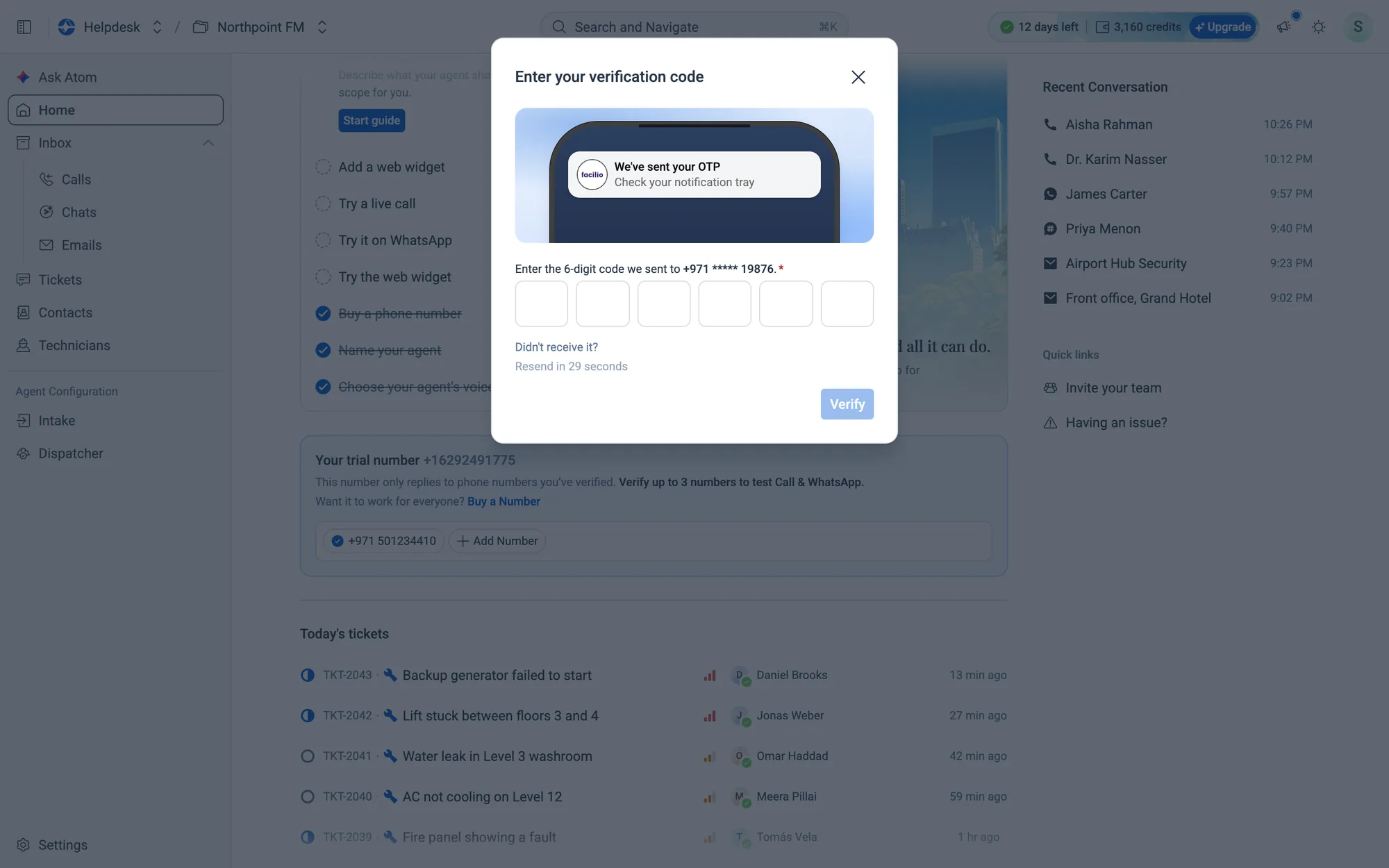
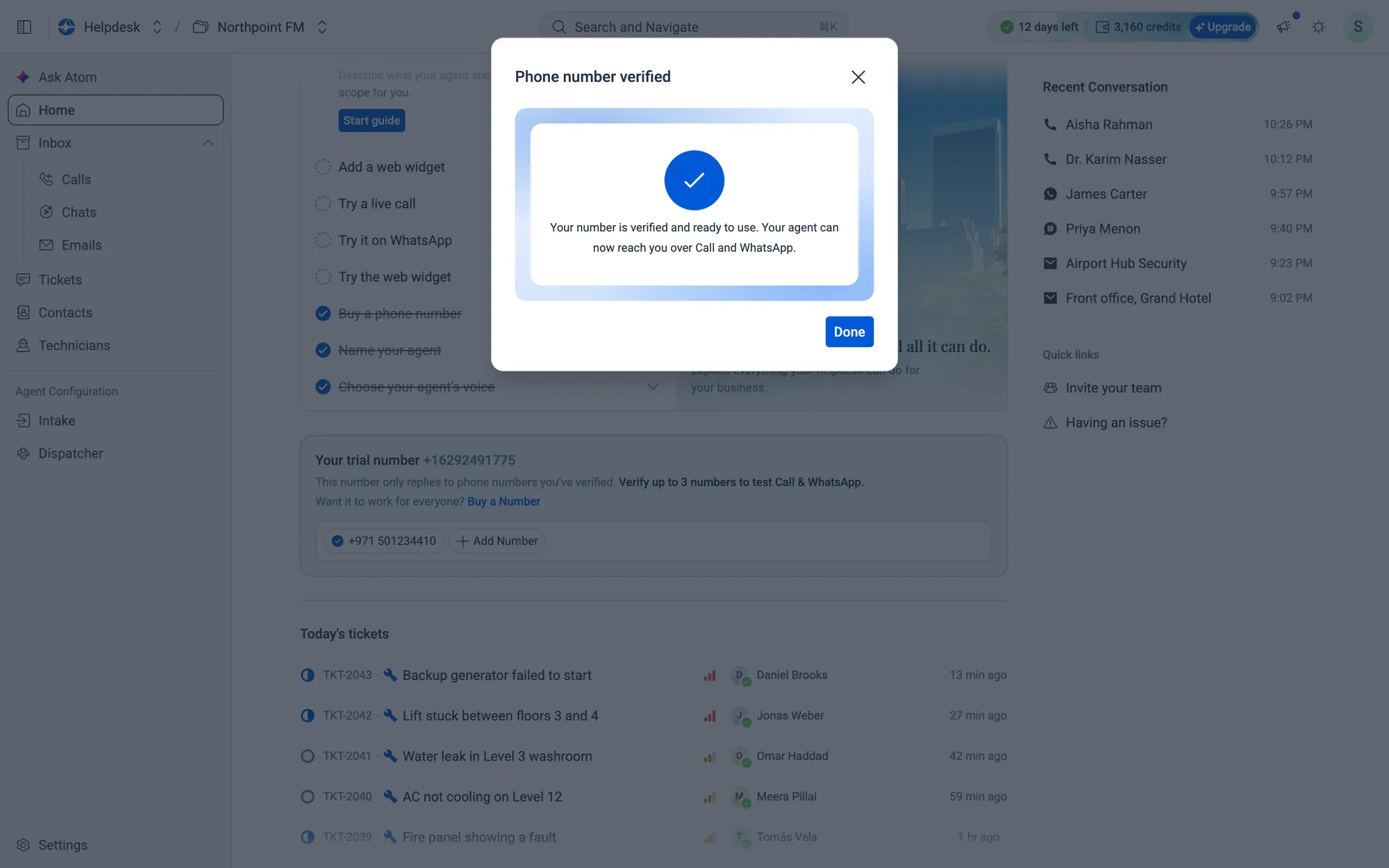
- 5Phone number verified confirms it. Click
Done.
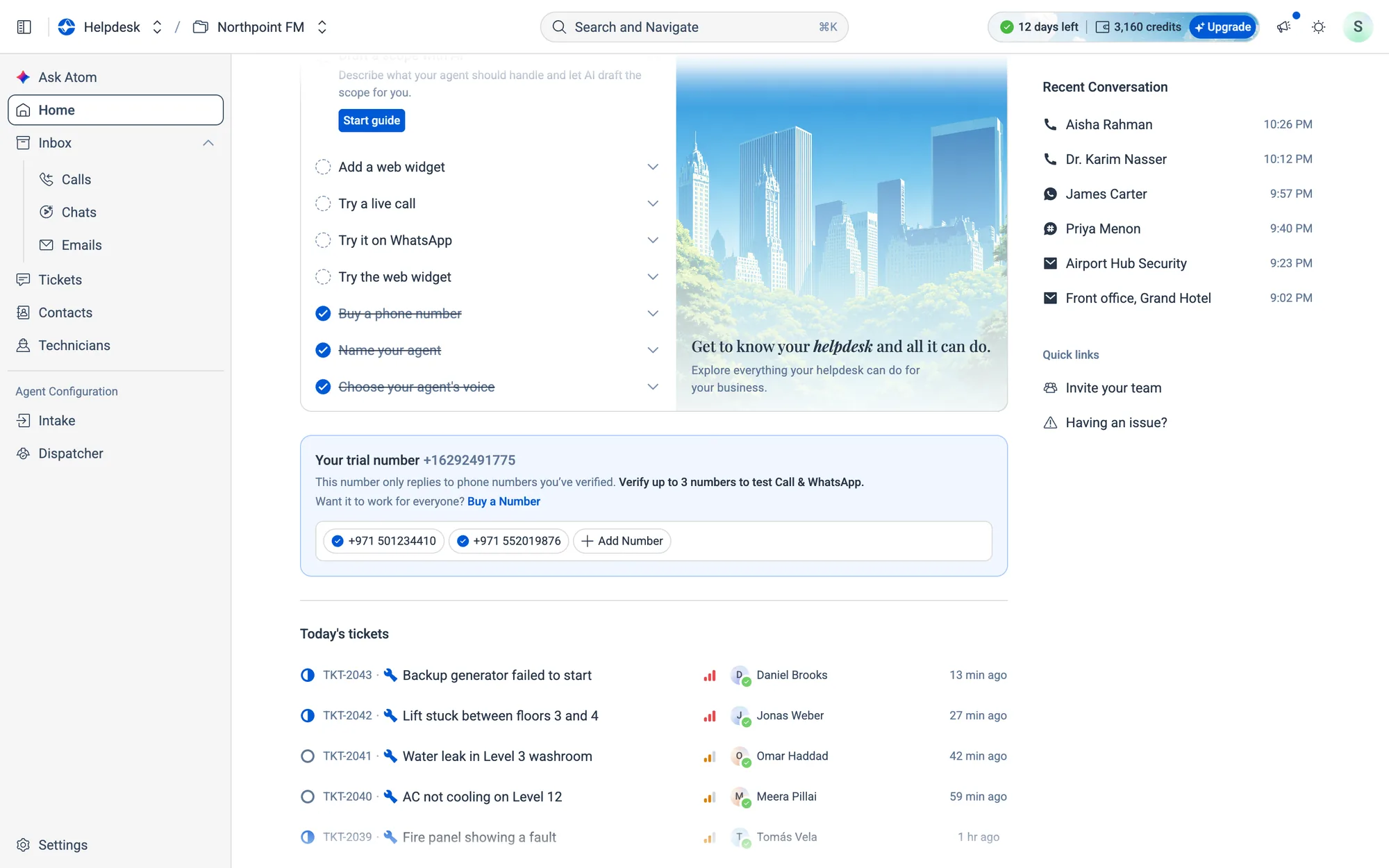
- 6The new number appears as a chip on the card.
How to remove a verified number
- 1Hover over the number's chip. Its blue tick turns into a red bin icon.
- 2Click it, then confirm with
Removeon Remove this number?. Your agent stops taking calls and WhatsApp messages from that number. You can verify it again at any time.
02.5Step 3 · Work through the checklist
Back on Home, the Explore your helpdesk card lists eight tasks and shows your progress (for example, 3/8 steps). Finished tasks are crossed out and move to the bottom.
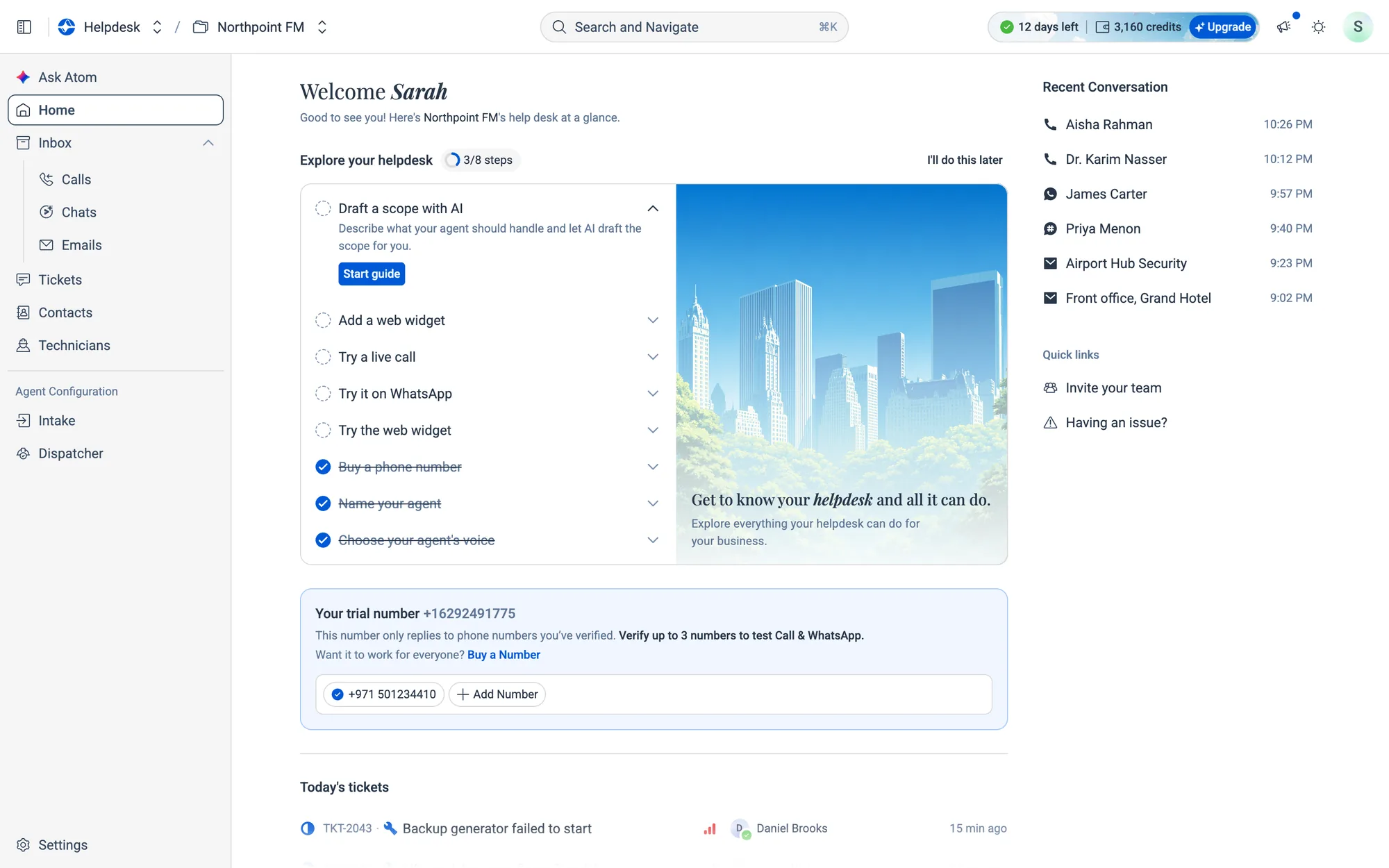
| # | Task | What it does | Button | Takes you to |
|---|---|---|---|---|
| 1 | Buy a phone number | Get a local or toll-free number for your helpdesk | Buy a number |
Settings › Phone Numbers |
| 2 | Name your agent | The name requesters hear and see on every channel | Take me there |
Intake › General |
| 3 | Draft a scope with AI | Describe what the agent should handle, and AI drafts it | Start guide |
Intake › General |
| 4 | Choose your agent's voice | Preview voices, then pick one | Take me there |
Intake › General |
| 5 | Add a web widget | Build a chat widget and copy its embed code | Start guide |
Intake › Web Widget |
| 6 | Try a live call | Talk to your agent in the browser, no phone needed | Open the call playground |
Intake › Calls |
| 7 | Try it on WhatsApp | Message your agent and watch it reply | Open the chat playground |
Intake › Whatsapp |
| 8 | Try the web widget | Chat or call through the widget your visitors will see | Open the widget playground |
Intake › Web Widget |
How to complete a checklist task
- 1Click a task to open it and read the one-line description.
- 2Click its button, for example
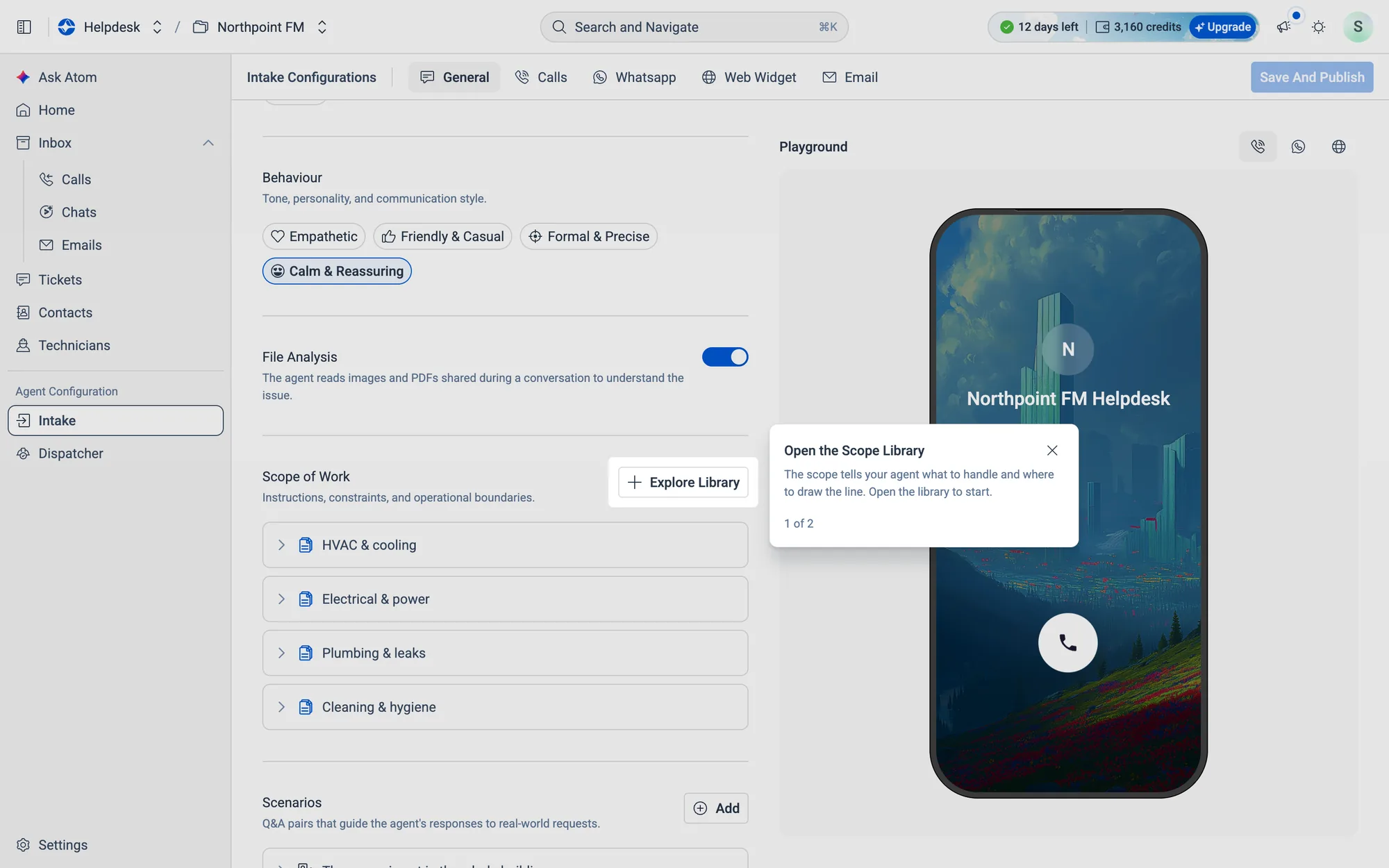
Start guide. - 3The right page opens and a spotlight tour highlights the exact control to use. Longer tours show their progress, for example 1 of 2.
- 4Do the highlighted action, or click
Next. On the last step, clickGot it. - 5When you finish a tour, its task is ticked off on Home.
How to hide the checklist for now
- 1Click
I'll do this laterat the top right of the checklist. - 2The checklist shrinks to a small Explore your helpdesk card at the top of the right-hand column, with a progress ring.
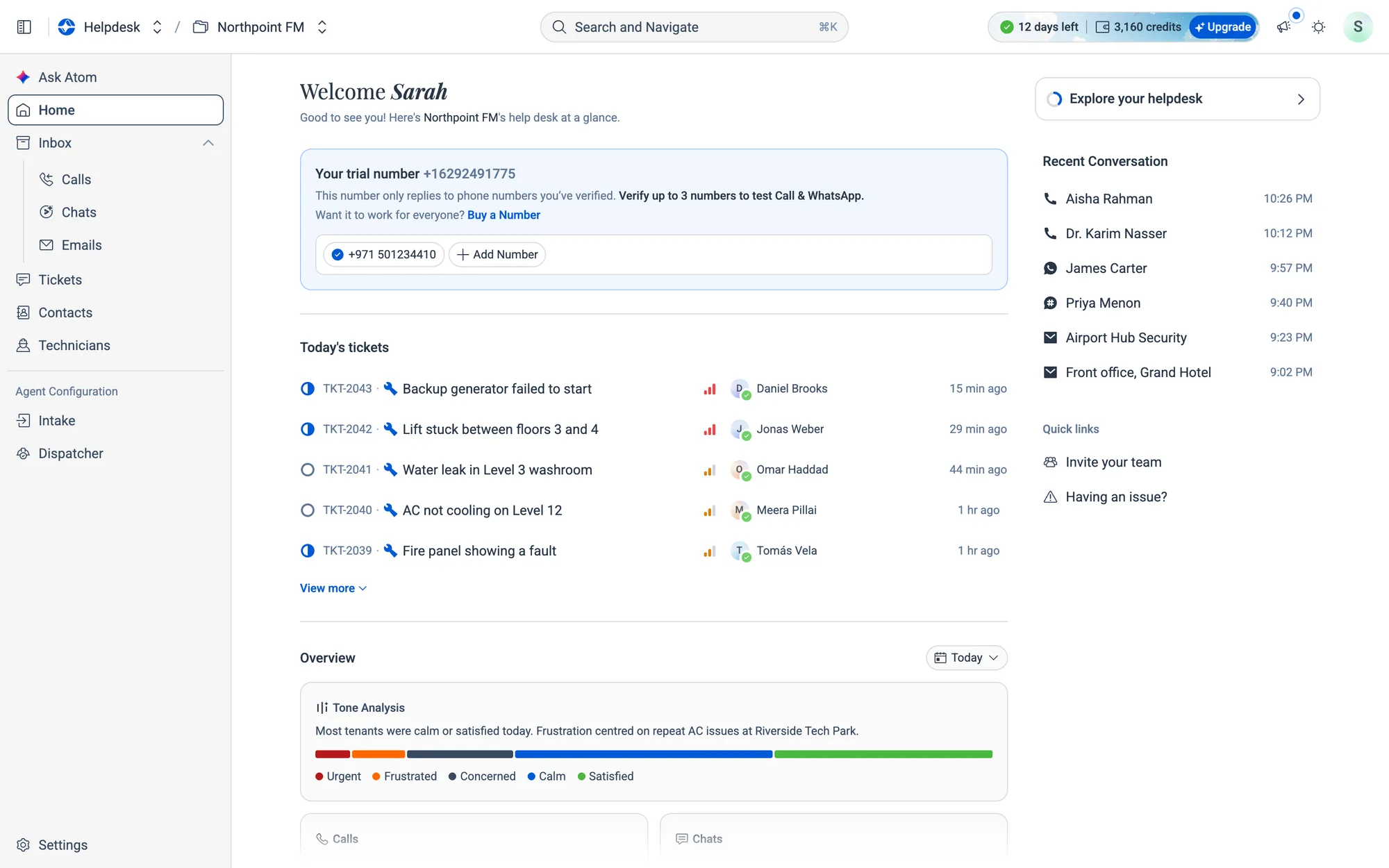
- 3Click the small card at any time to bring the full checklist back.
When all eight tasks are done, the checklist says You're all set and moves into the right-hand column.
02.6What's next
Once your agent is live, most of your day happens in Tickets and the Inbox. To fine-tune how the agent sounds and what it handles, see Intake agent.