
Contacts
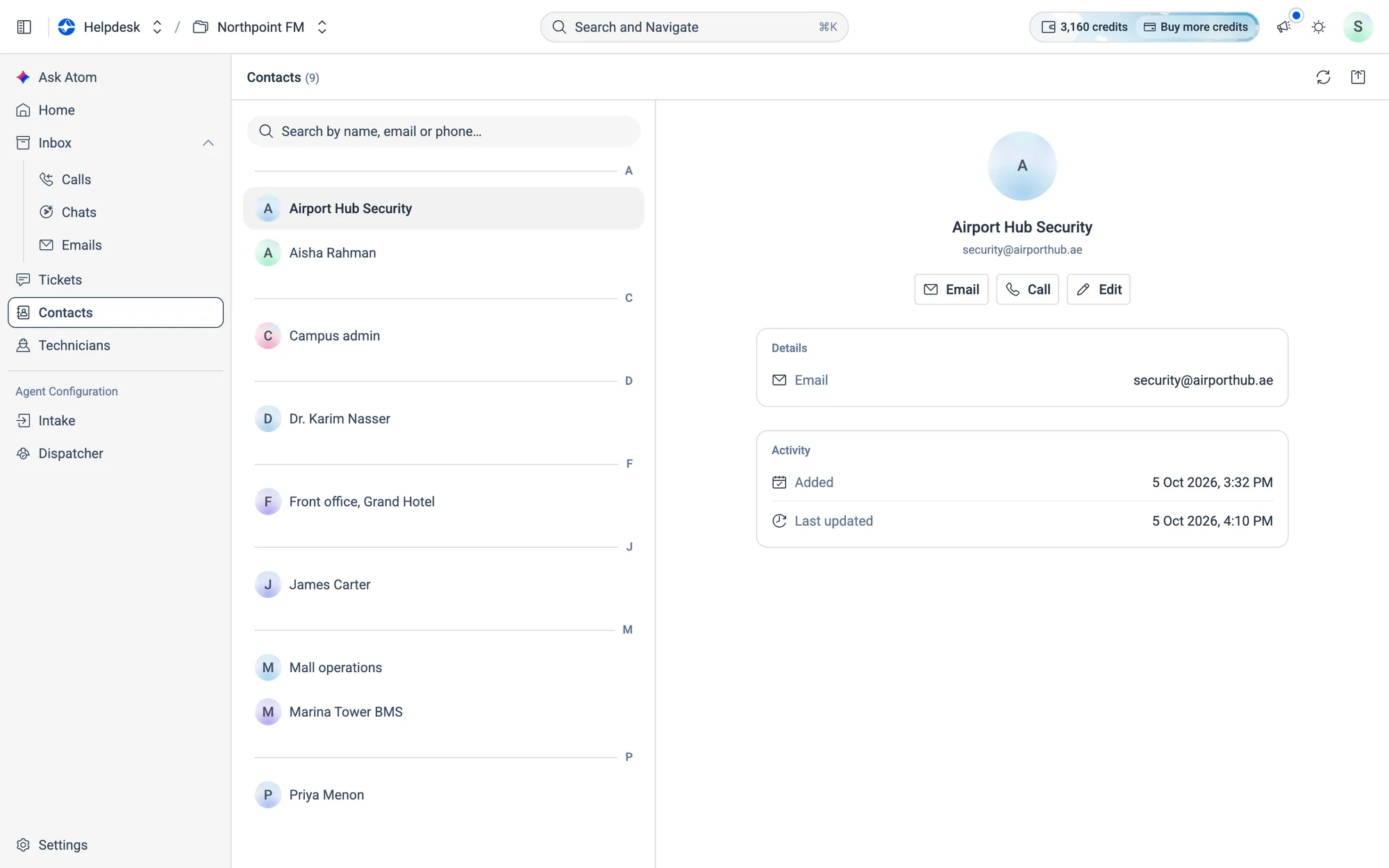
The address book of everyone who has contacted your helpdesk. Atom adds them automatically from conversations, with the channels each person uses.
Find it inContacts
07.1How contacts are created
You don't add contacts by hand. When a tenant calls, messages or emails, the Intake agent saves their name, number and email as a contact. The total appears next to the page title.
07.2Work with contacts
How to find a contact
- 1Click Contacts in the menu. The first contact opens automatically.
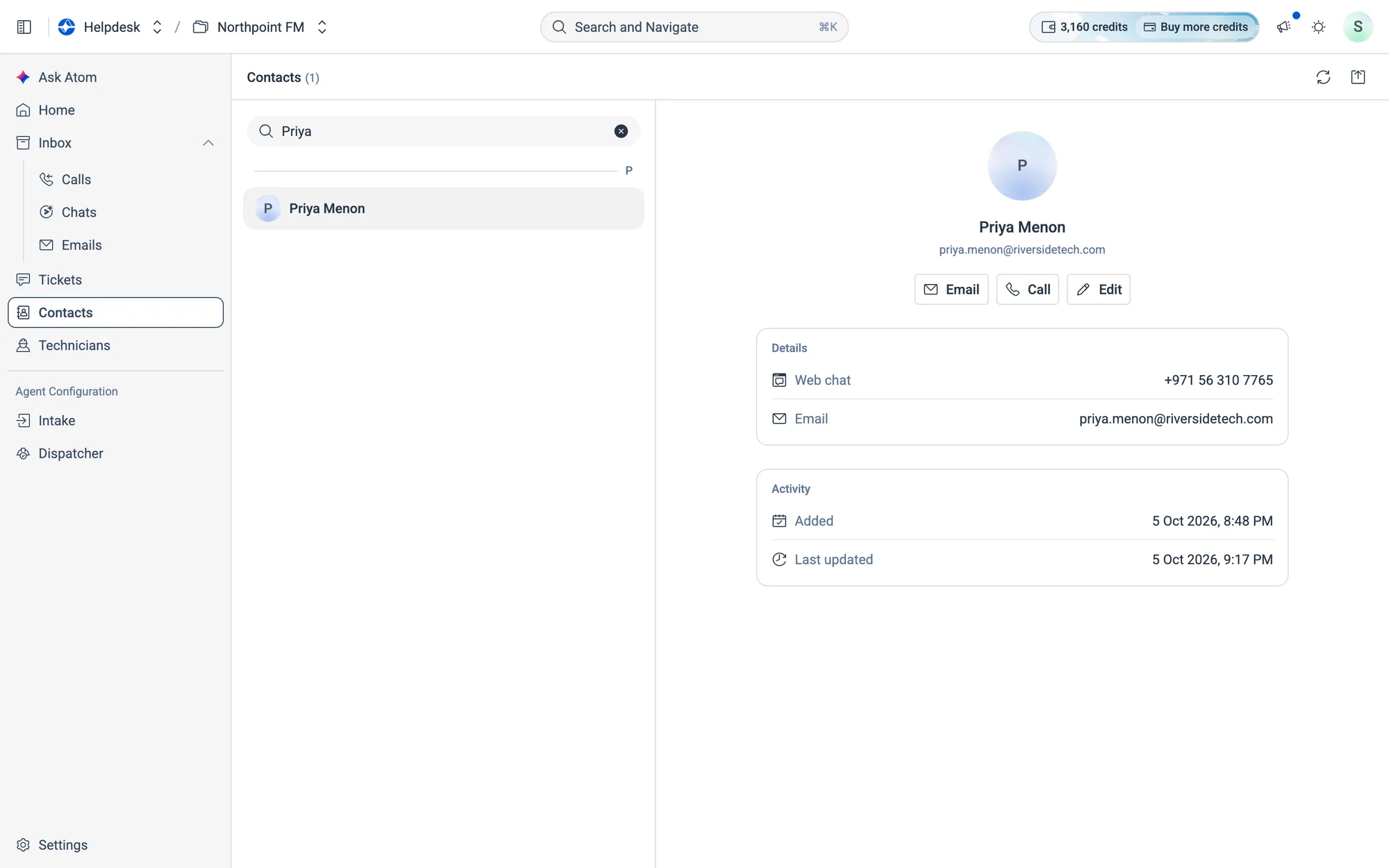
- 2Type in Search by name, email or phone…, or scroll the A–Z list.
- 3Click a name. Details lists every channel they've used, and Activity shows when the contact was added and last updated.
How to edit a contact
- 1Open the contact and click
Edit.
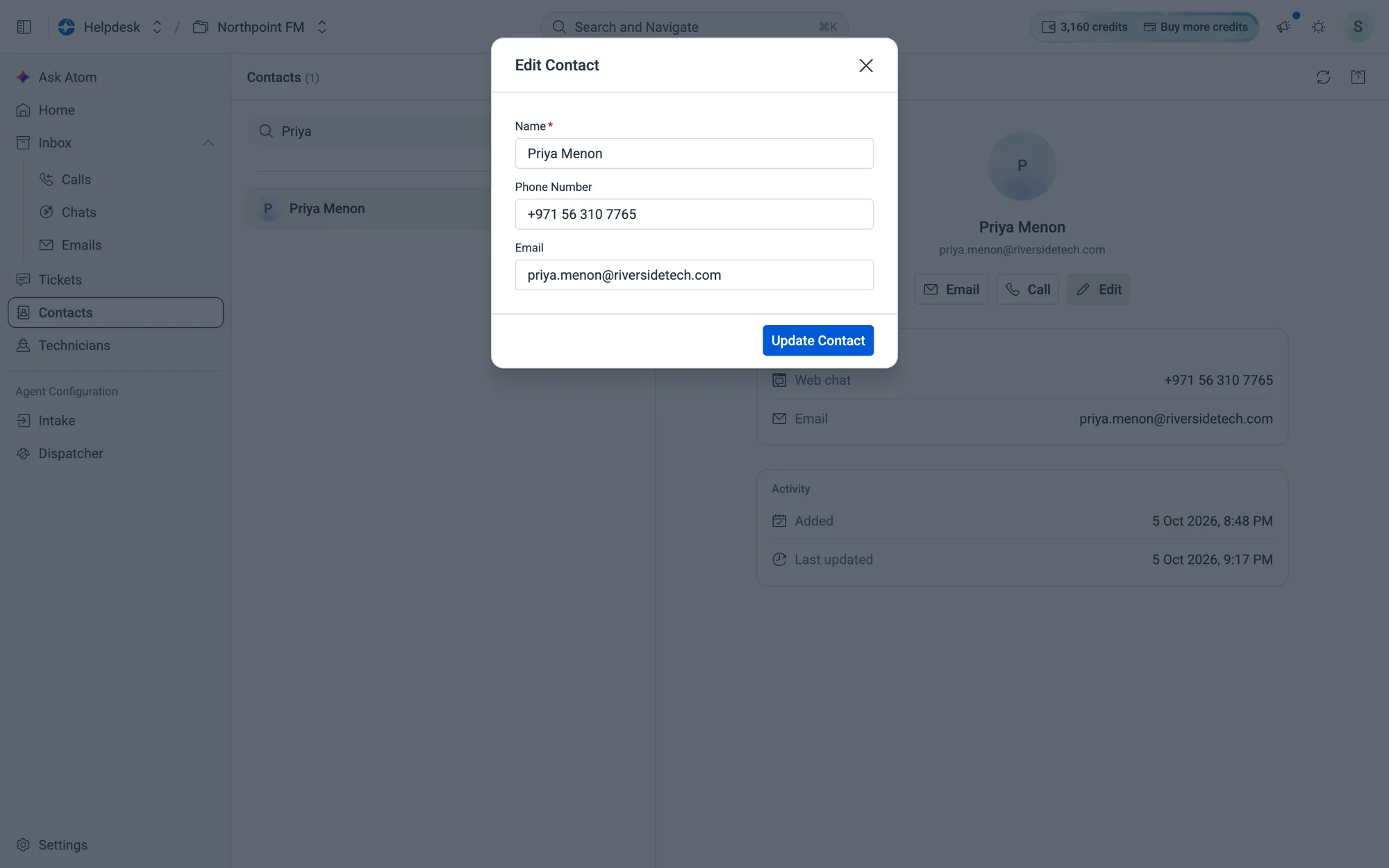
- 2Change the Name, Phone Number or Email. A contact needs a name plus a phone number or email.
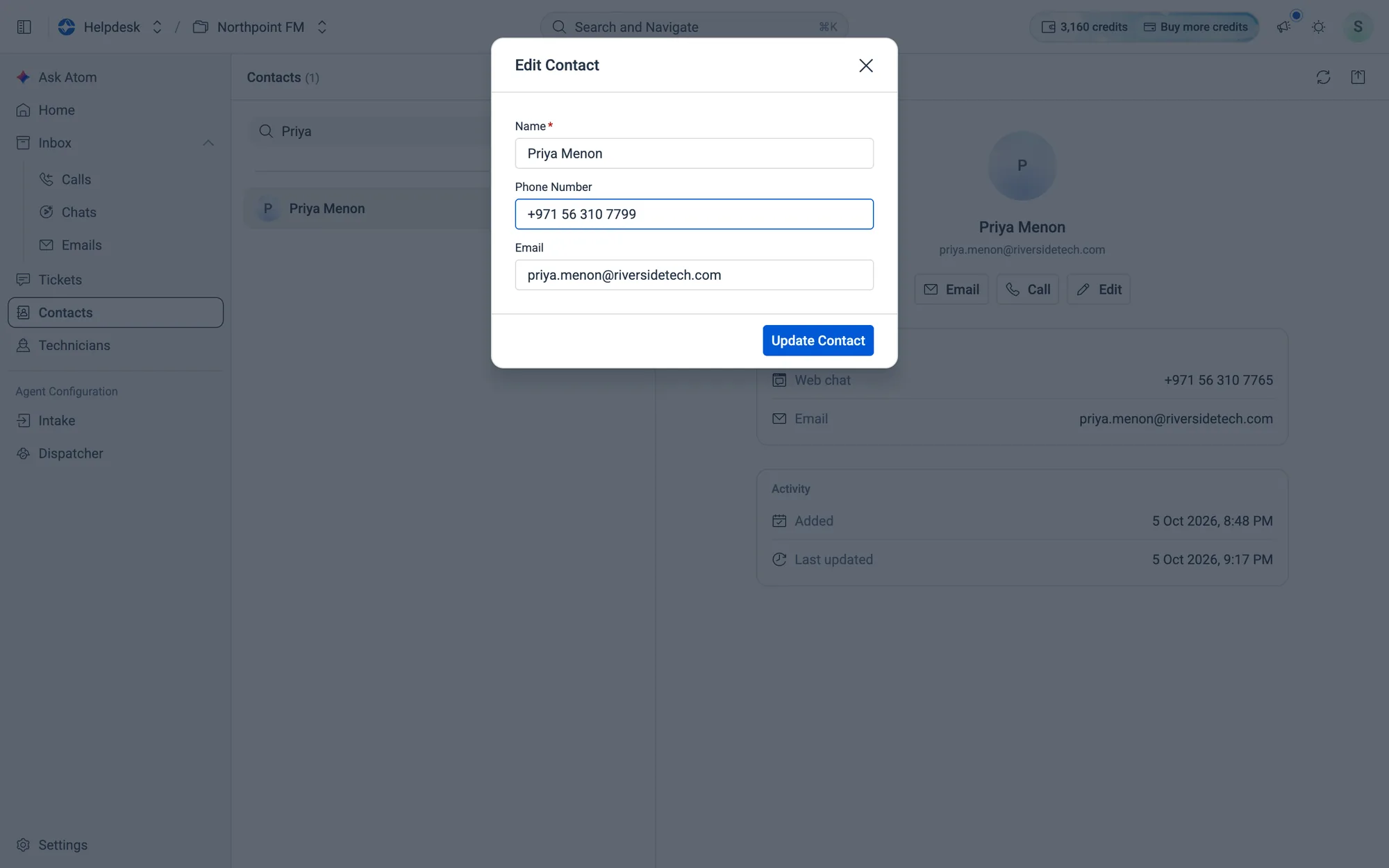
- 3Click
Update Contact. A message confirms the change, and Last updated shows it.
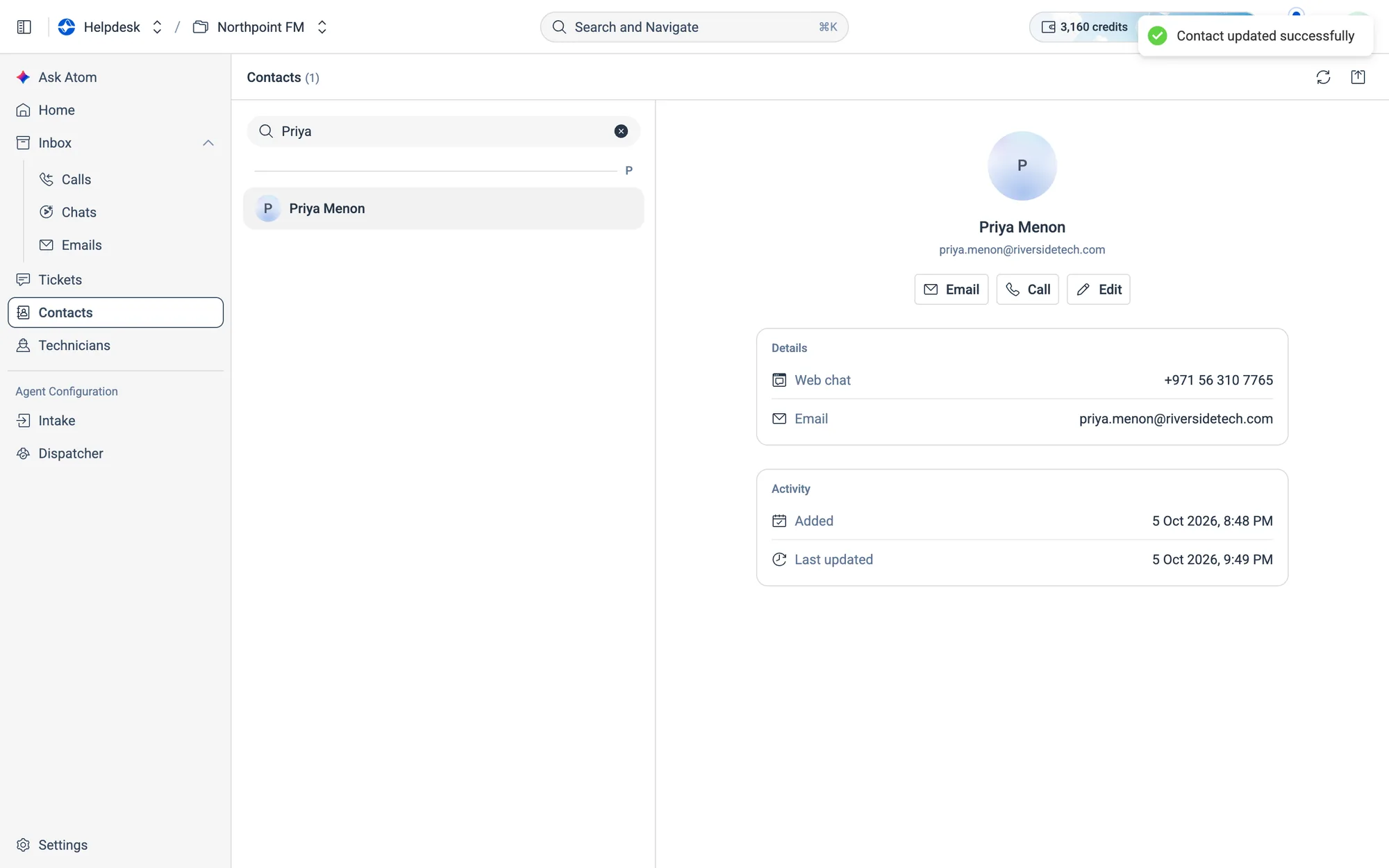
How to reach out, export or refresh
- Click
Emailto write to the contact in your mail app, orCallto dial. Each button appears only when that detail is on file. - Click the Export contacts icon at the top right to download the whole address book as a CSV file.
- Click the Refresh Contacts icon to reload the list.