
Feedback & CSAT
After a job is done, your agent asks the requester how it went. Here you decide what triggers a survey, when it's sent, which rating scale it uses, what the agent asks next, and what happens automatically when a score is low.
11.1How it works
When a ticket is resolved or closed, or a work order or service request is completed, your agent sends the requester a short satisfaction survey. They reply with a rating, the agent asks one follow-up question that depends on the score, and a poor score can trigger an automatic follow-up such as offering to reopen the ticket.
Open Feedback & CSAT under Agent Configuration in the menu. The page has two tabs:
| Tab | What you set there |
|---|---|
| General | What triggers a survey, when it's sent, the rating scale and opening message, the follow-up questions and the escalation rules |
| Channels | Which channels the survey goes out on, in what order, and the exact messages for each one |
11.2The General tab, section by section
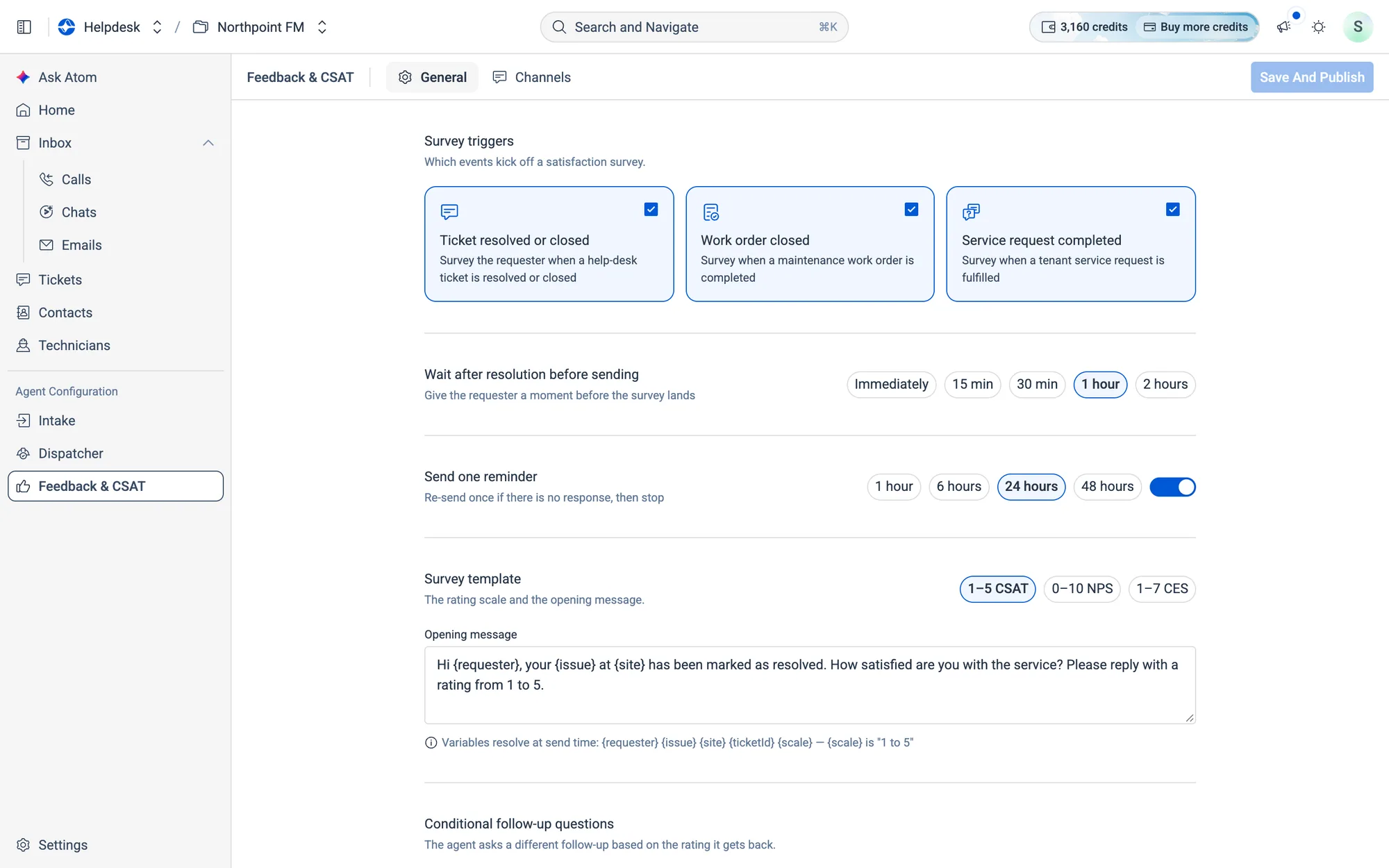
Survey triggers
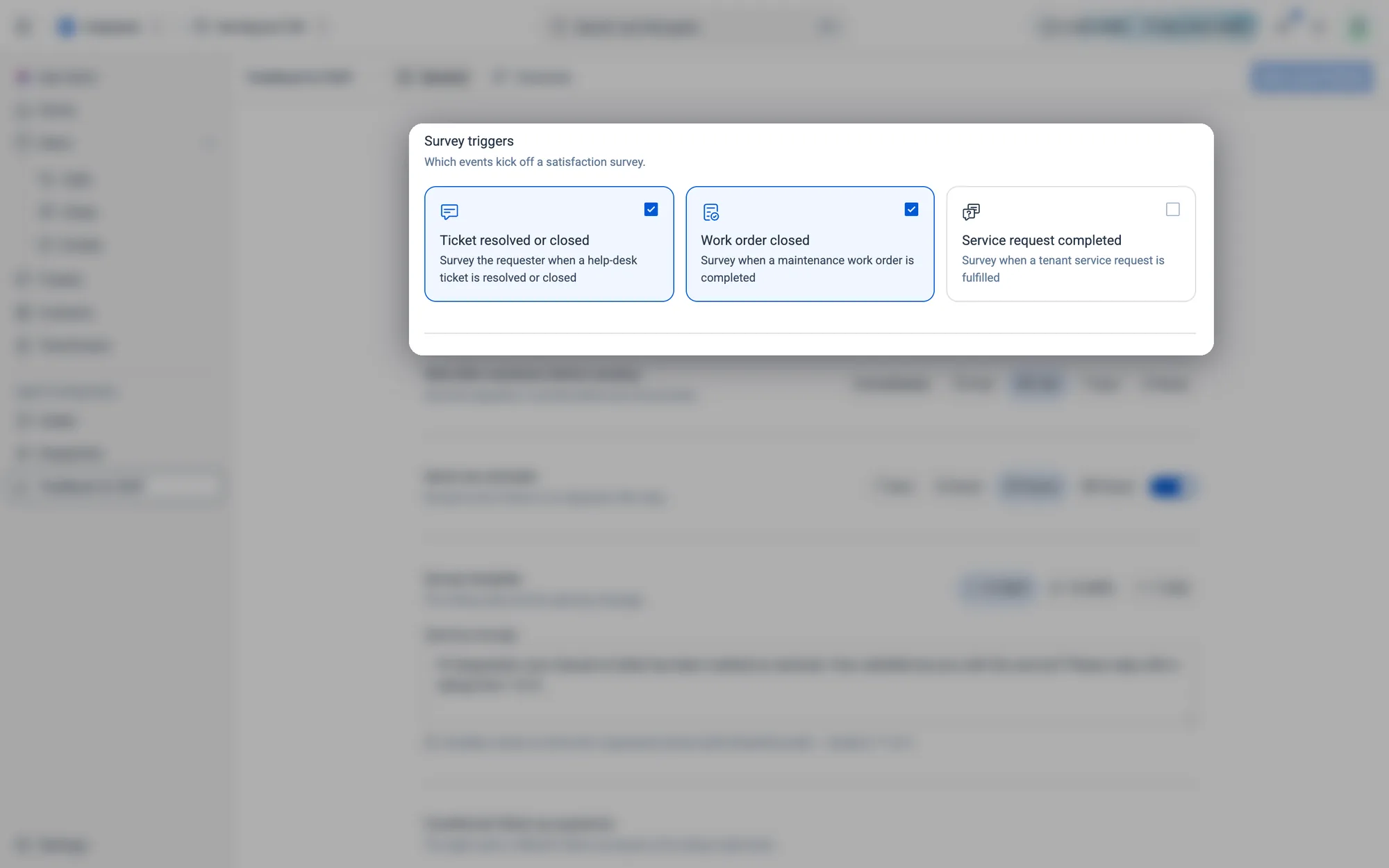
Tick any of the three: Ticket resolved or closed, Work order closed and Service request completed. The first two are on for a new helpdesk.
Wait after resolution before sending
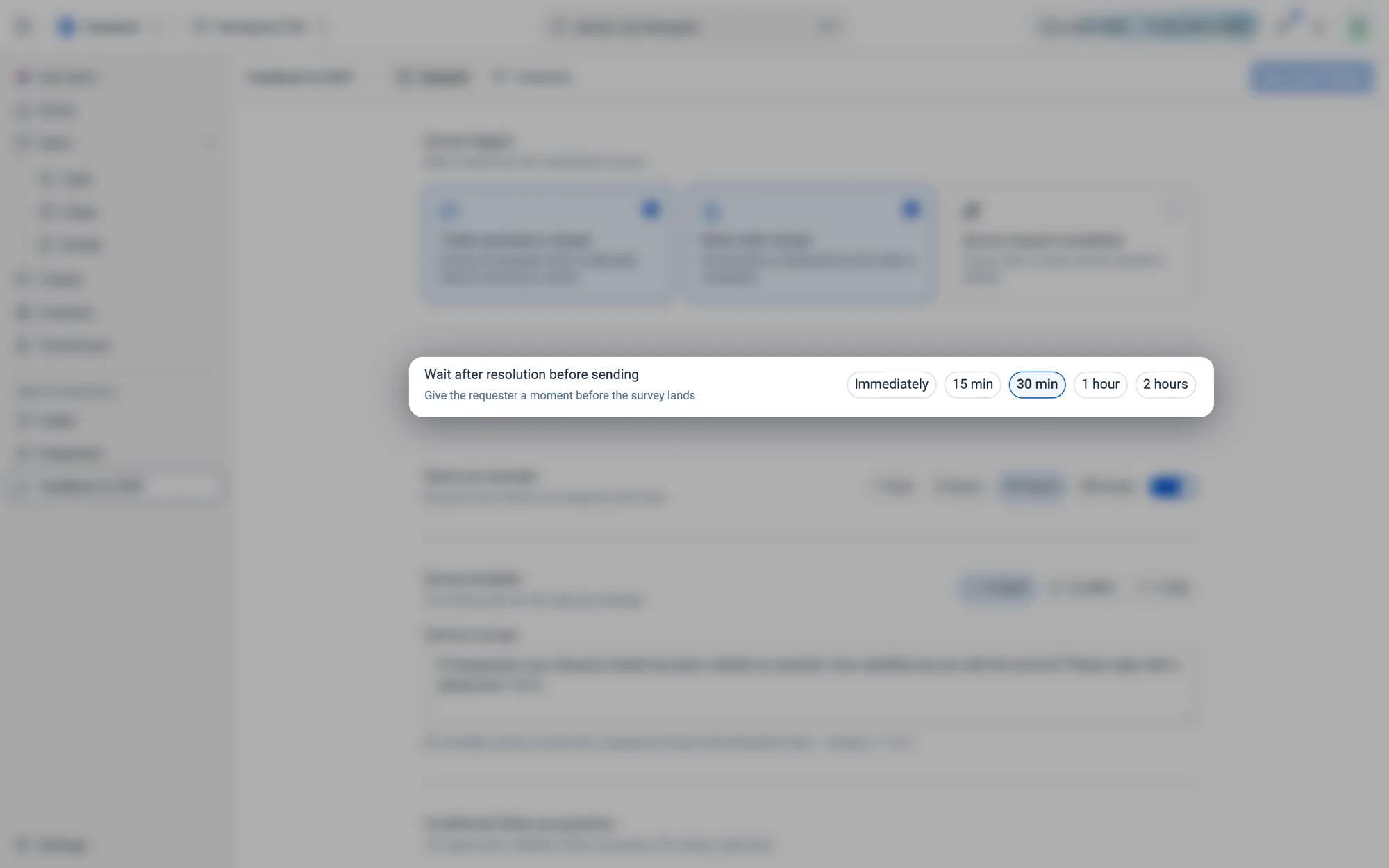
Choose Immediately, 15 min, 30 min, 1 hour or 2 hours. The default is 30 minutes.
Send one reminder
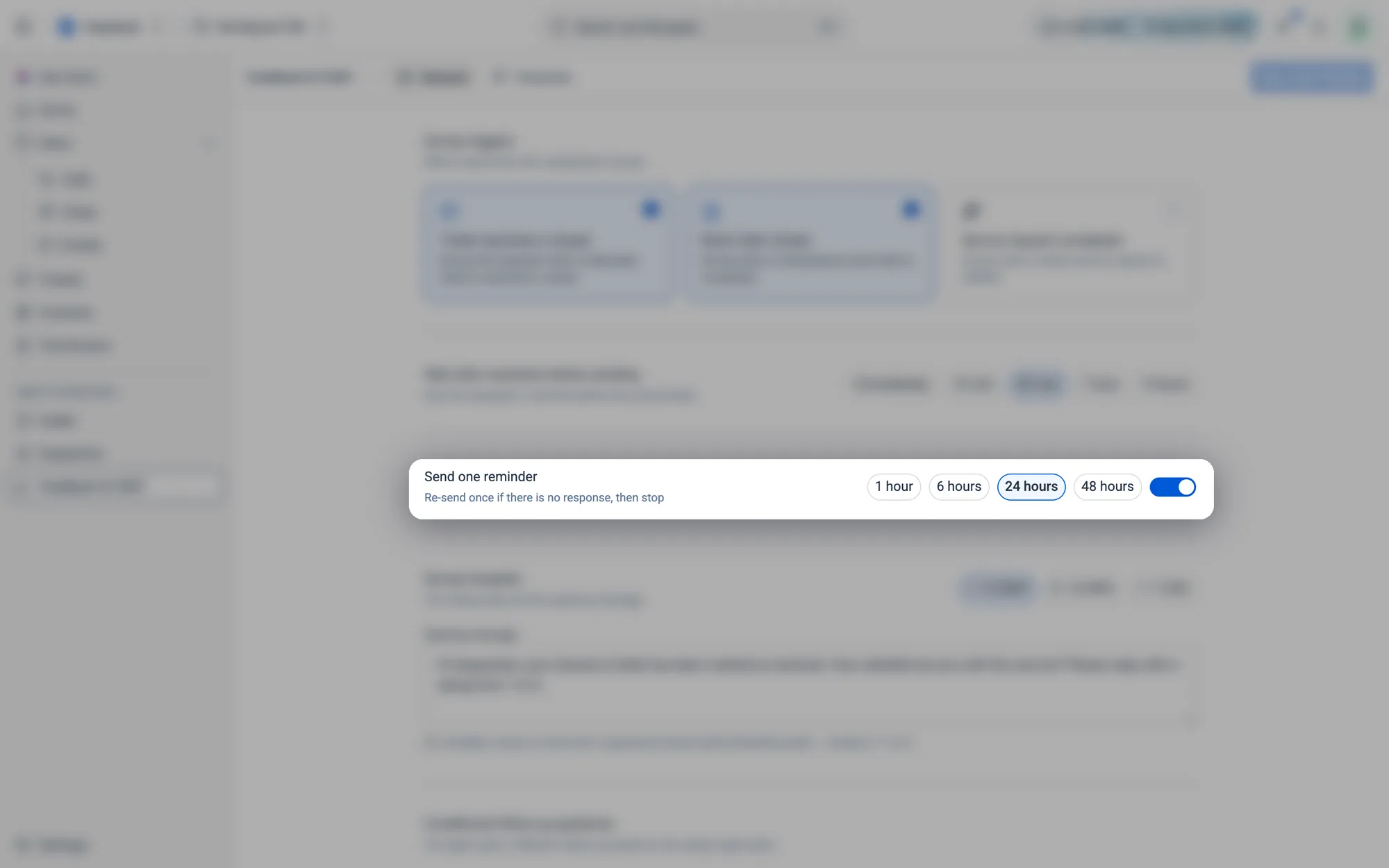
When the switch is on, choose how long to wait: 1 hour, 6 hours, 24 hours or 48 hours. The agent sends one reminder at most.
Survey template
| Scale | What it asks | Rating |
|---|---|---|
| 1–5 CSAT | How satisfied are you with the service? | 1 to 5 |
| 0–10 NPS | How likely are you to recommend our service to a colleague? | 0 to 10 |
| 1–7 CES | How easy was it to get this handled? | 1 (very difficult) to 7 (very easy) |
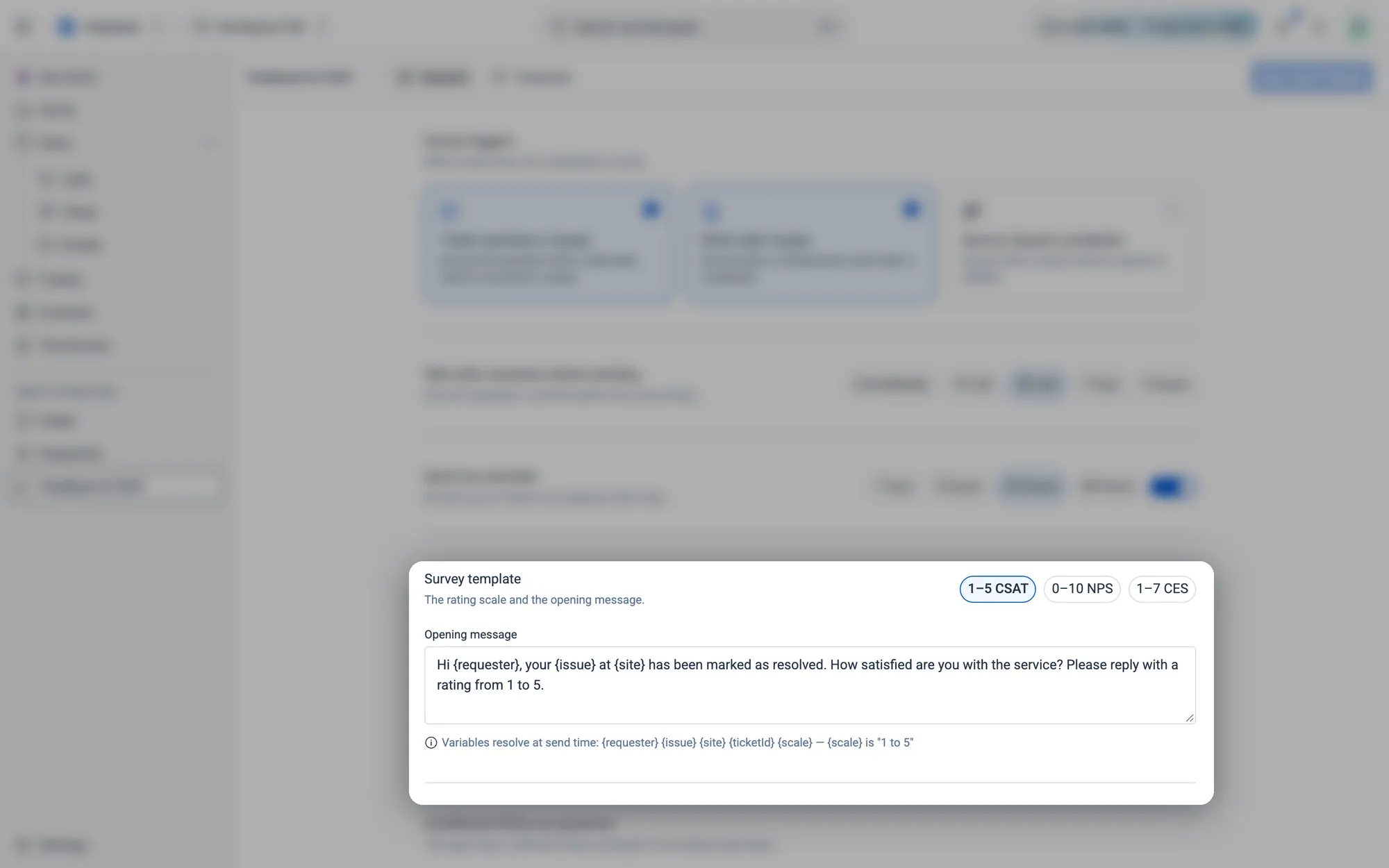
The Opening message is the first thing the requester receives. You can use these variables, and they're filled in when the survey is sent: {requester}, {issue}, {site}, {ticketId} and {scale} (for example 1 to 5).
Conditional follow-up questions
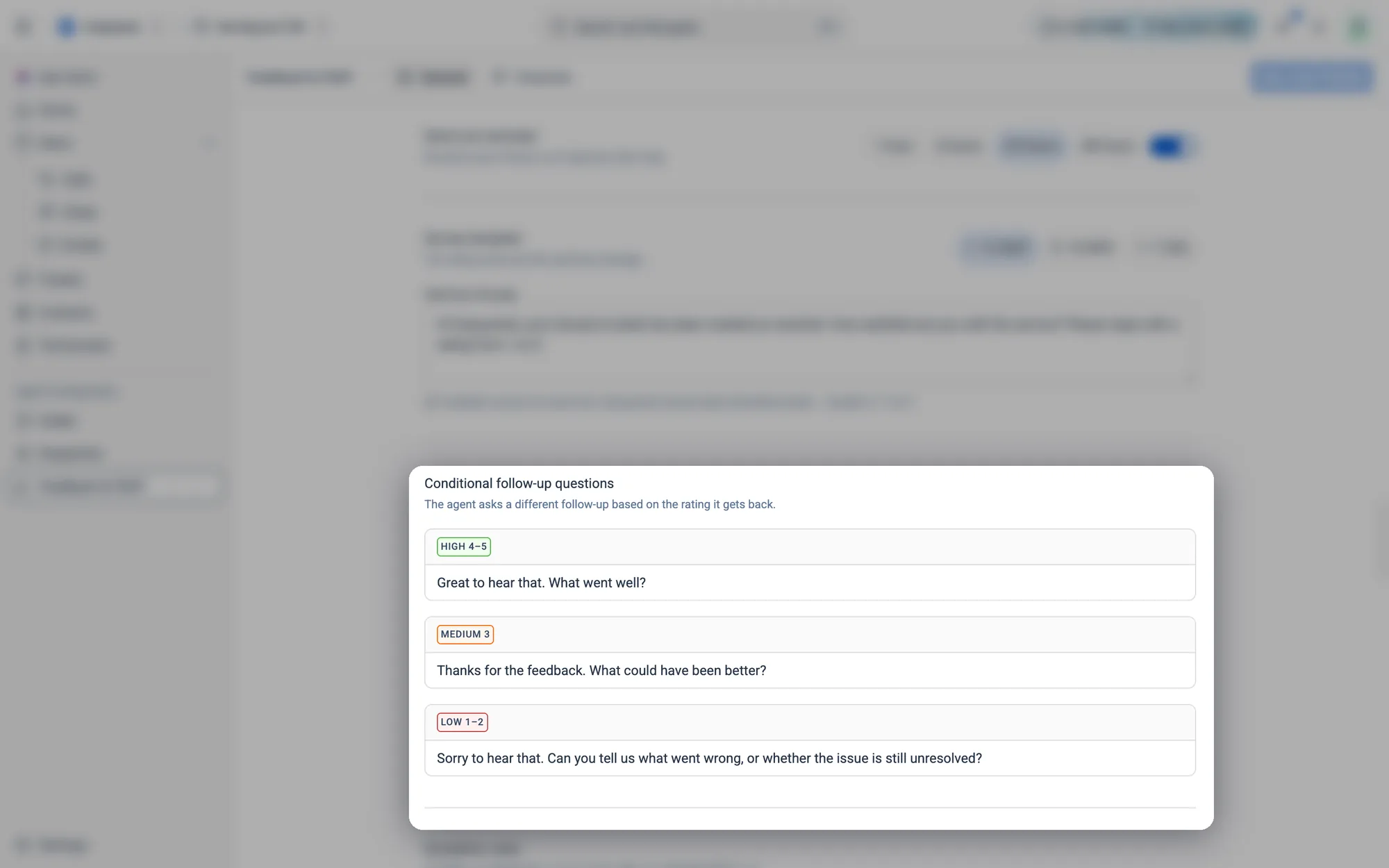
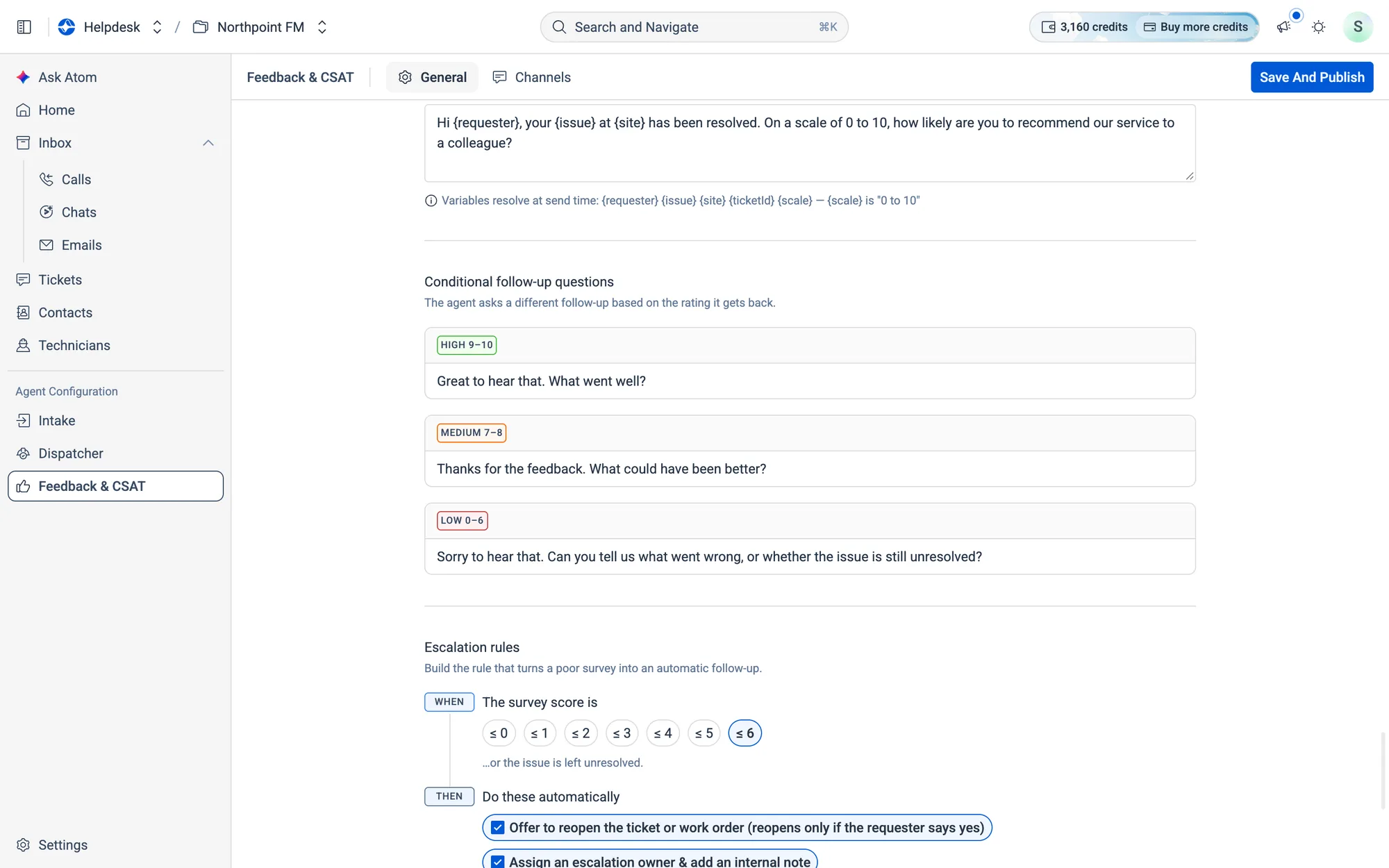
After the rating comes in, the agent follows up with the instruction for that band. For example, it asks what went well after a high score, or what went wrong after a low one. The score ranges in each tag follow the scale and the escalation threshold below.
Escalation rules
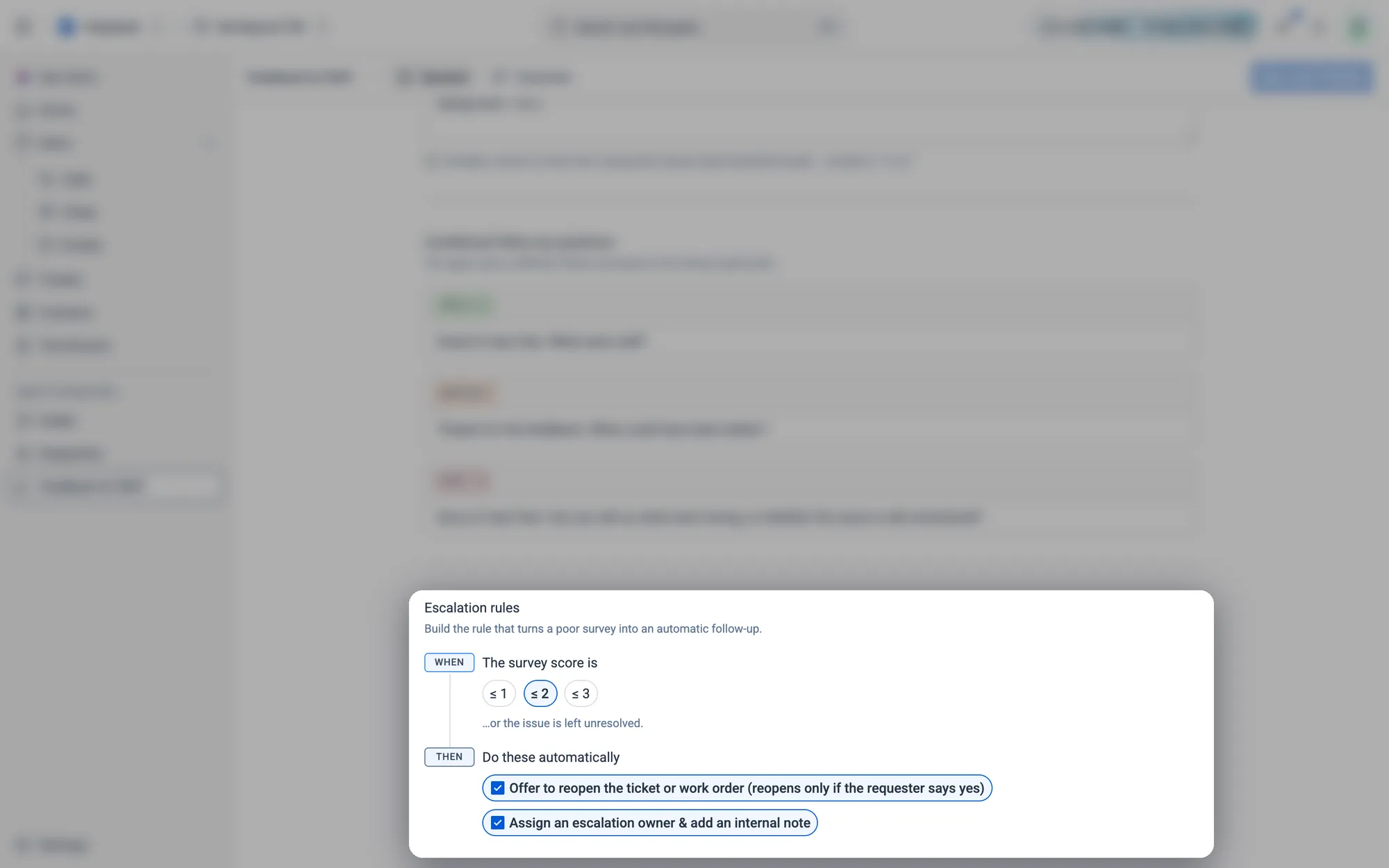
Pick the threshold under The survey score is, then choose what happens:
- Offer to reopen the ticket or work order. It reopens only if the requester says yes.
- Assign an escalation owner & add an internal note.
11.3Set up your survey
How to choose what triggers a survey and when it's sent
- 1Open Feedback & CSAT and stay on the General tab.
- 2Under Survey triggers, click a card to tick or untick it. Here Service request completed is turned on as well.
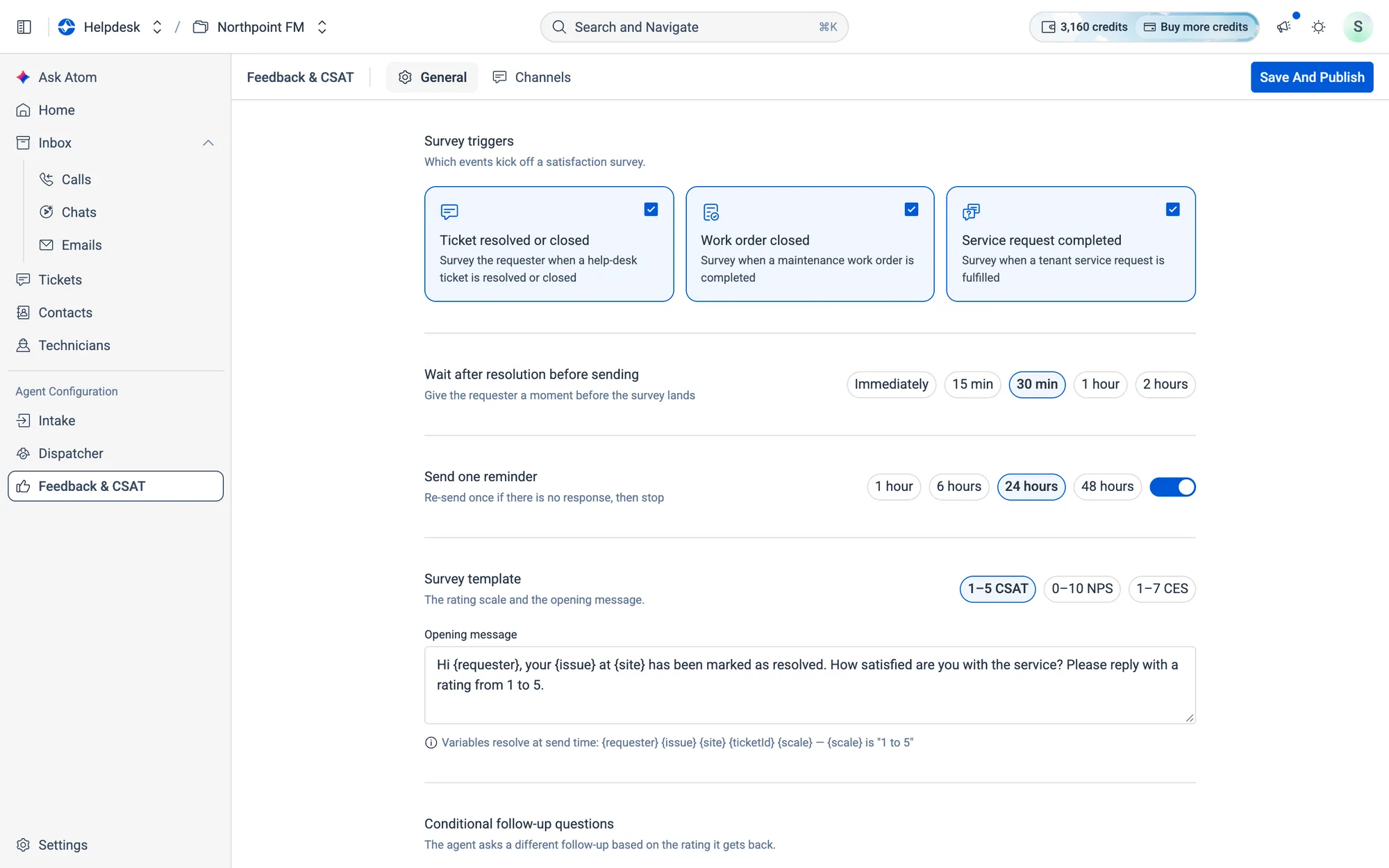
- 3Under Wait after resolution before sending, choose how long to wait.
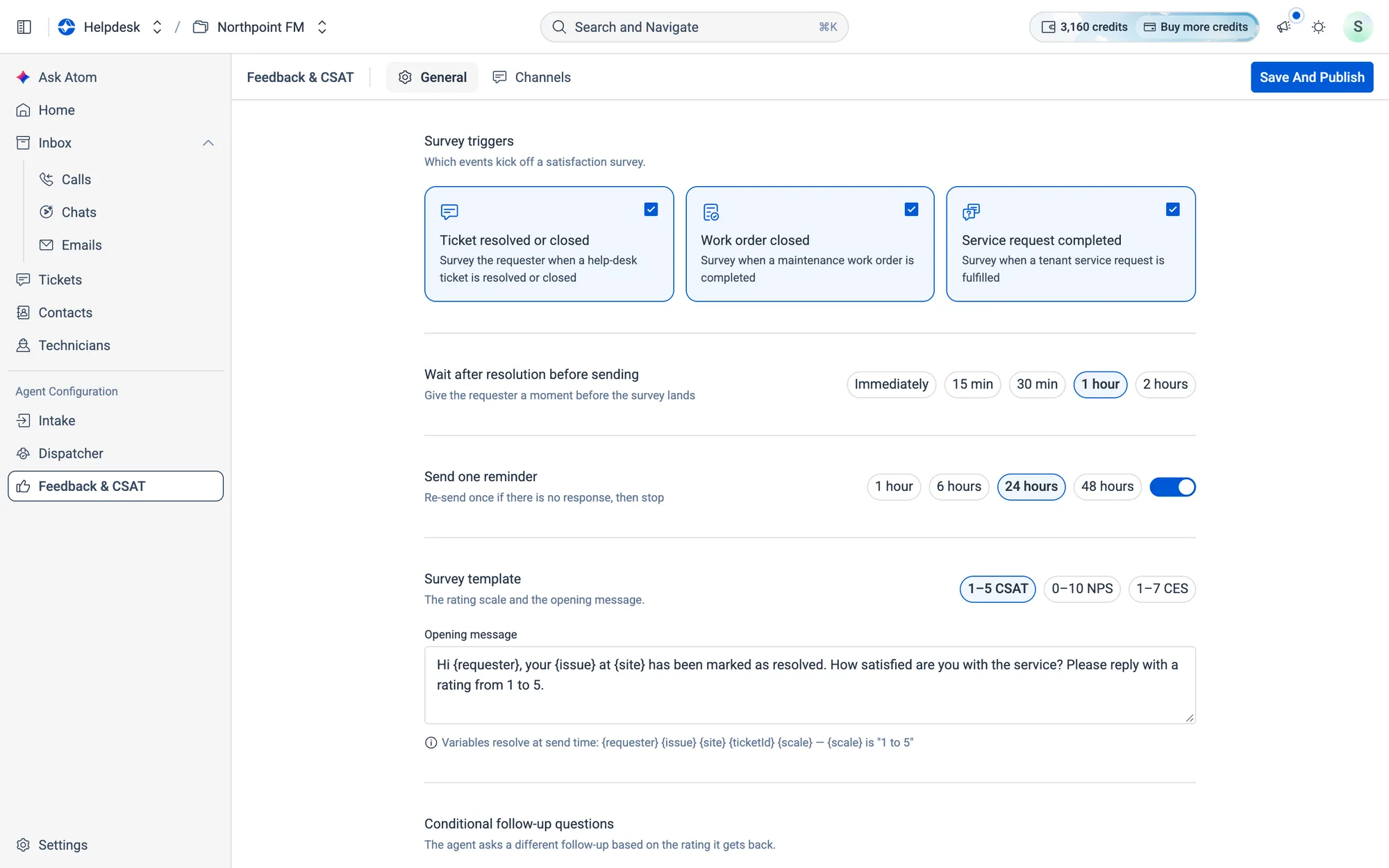
- 4Click
Save And Publish. The button greys out again once your changes are live.
How to change the rating scale
- 1Scroll to Survey template and choose 1–5 CSAT, 0–10 NPS or 1–7 CES.
- 2The Opening message switches to the matching question, unless you've already written your own.
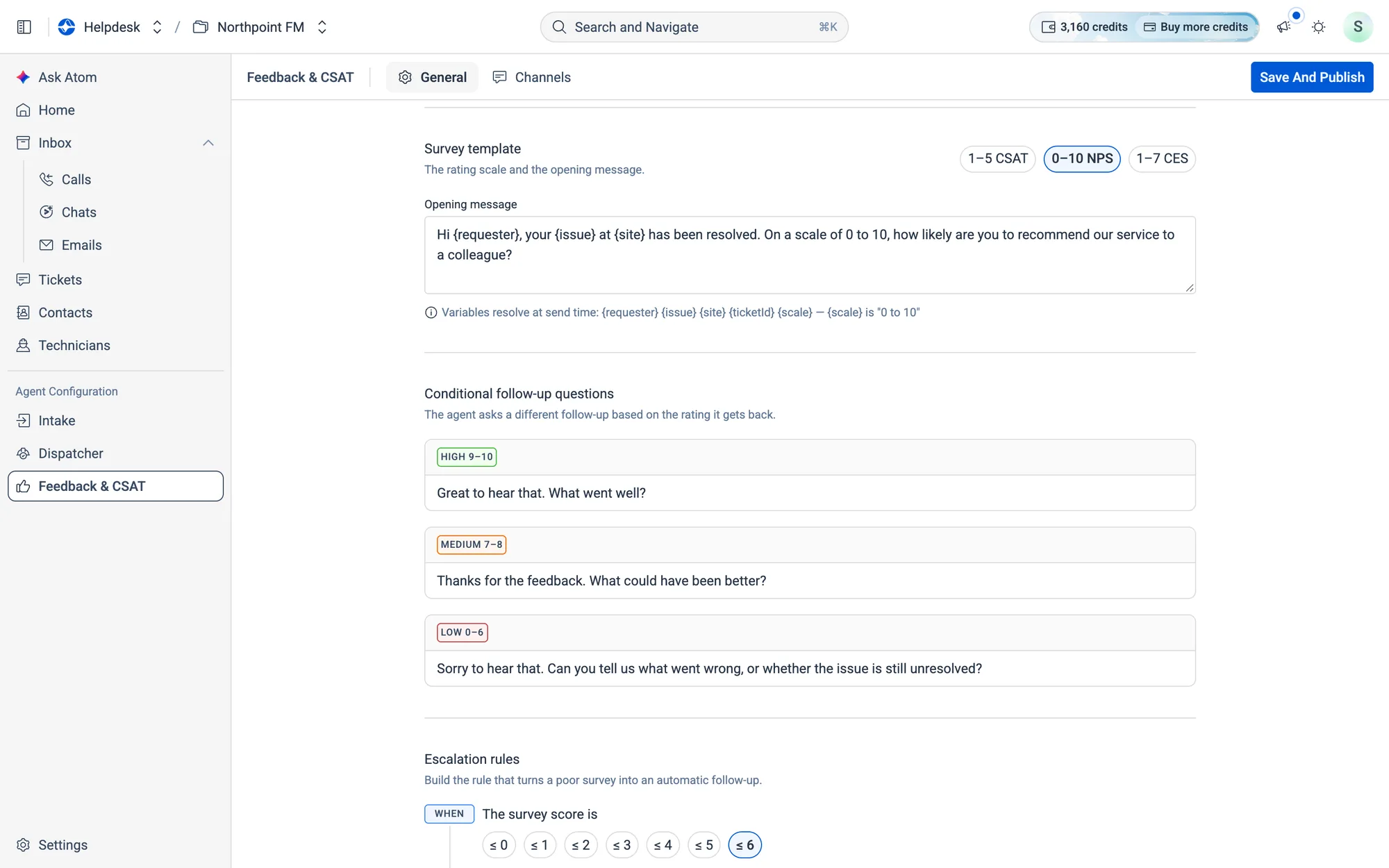
- 3The escalation threshold moves to fit the new scale. Check it under Escalation rules, then click
Save And Publish.
11.4Channels
The Channels tab
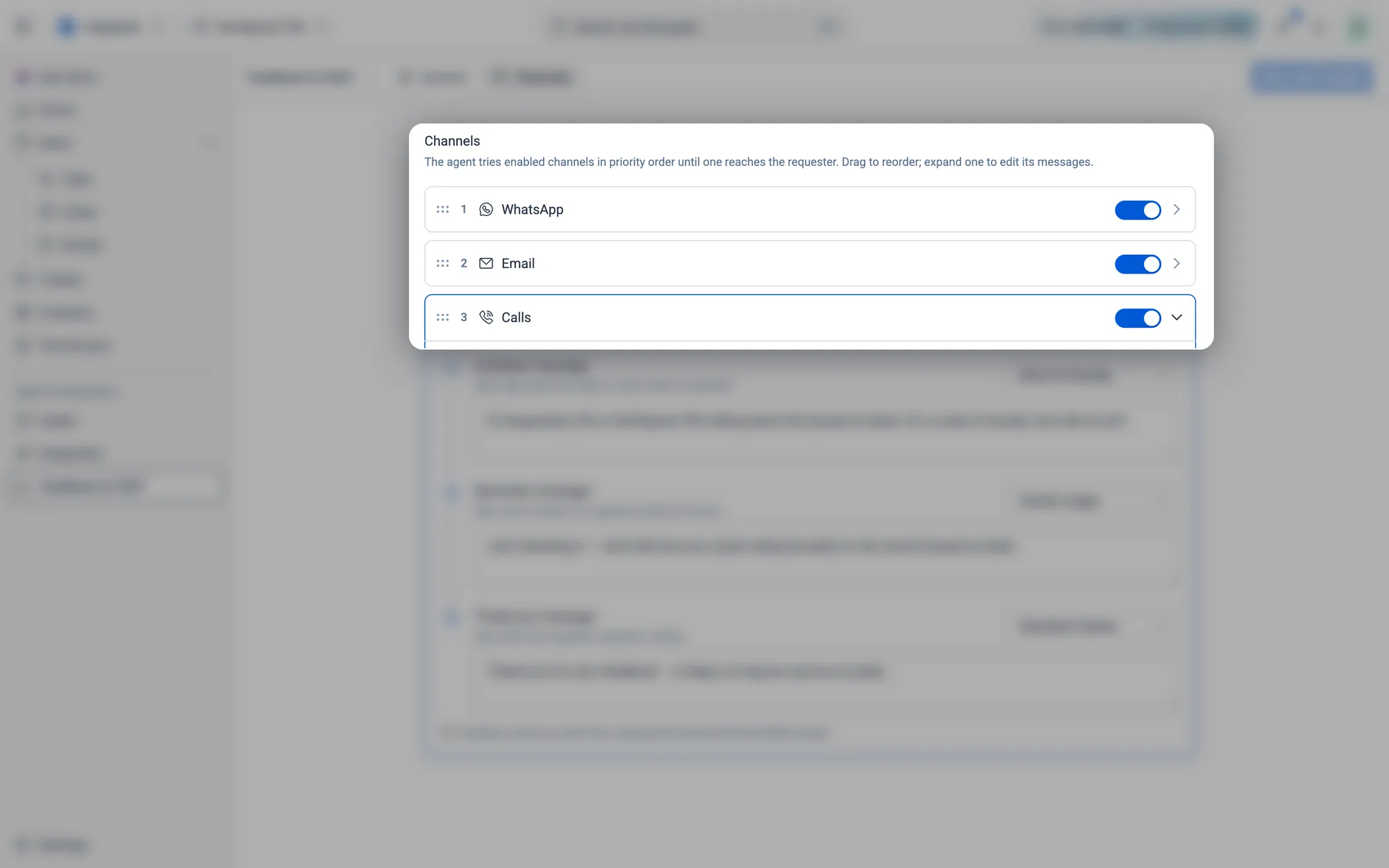
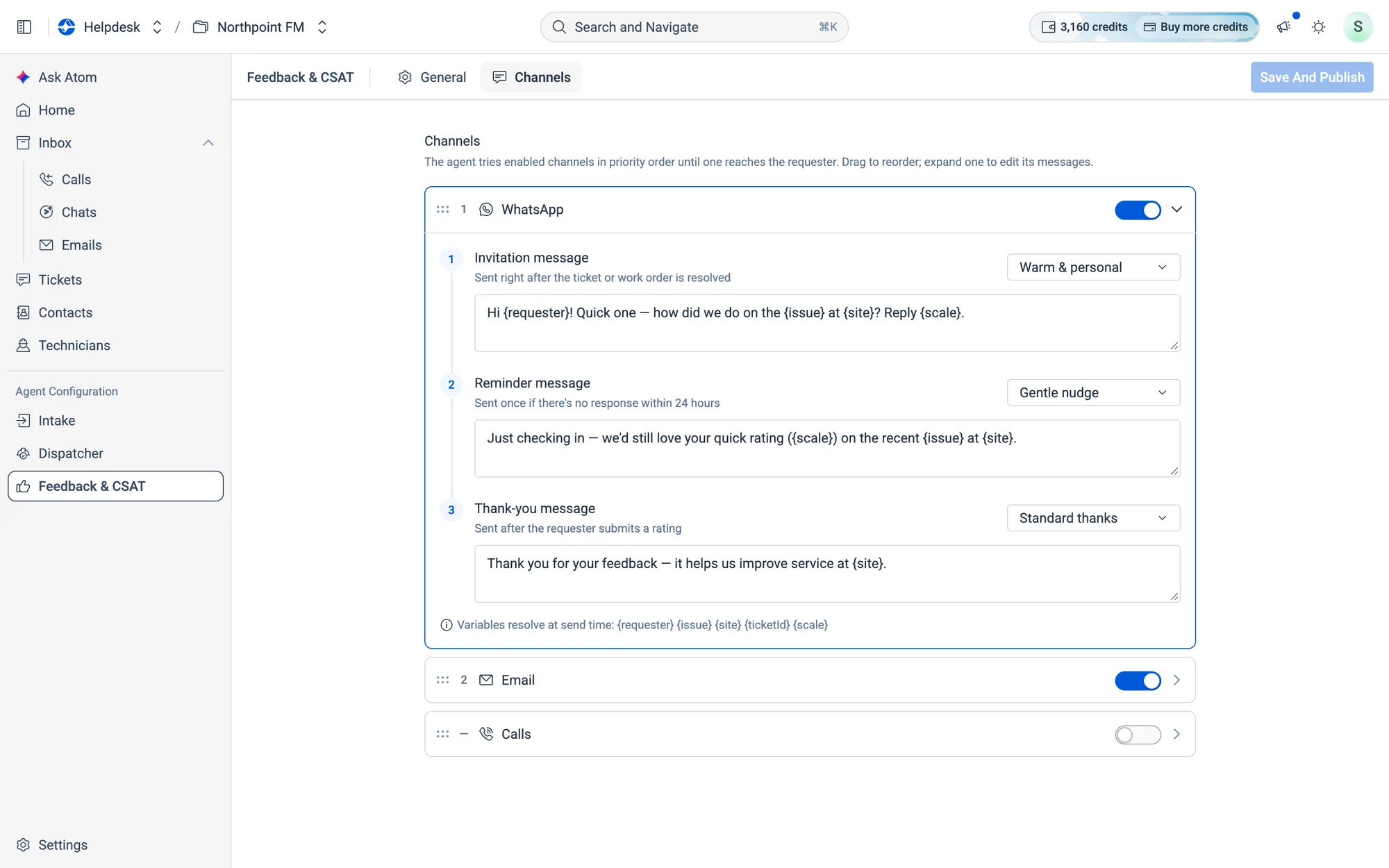
The agent tries the channels you've switched on in priority order, until one reaches the requester. Drag a channel by its grip to change the order. A channel that's switched off shows — instead of a number.
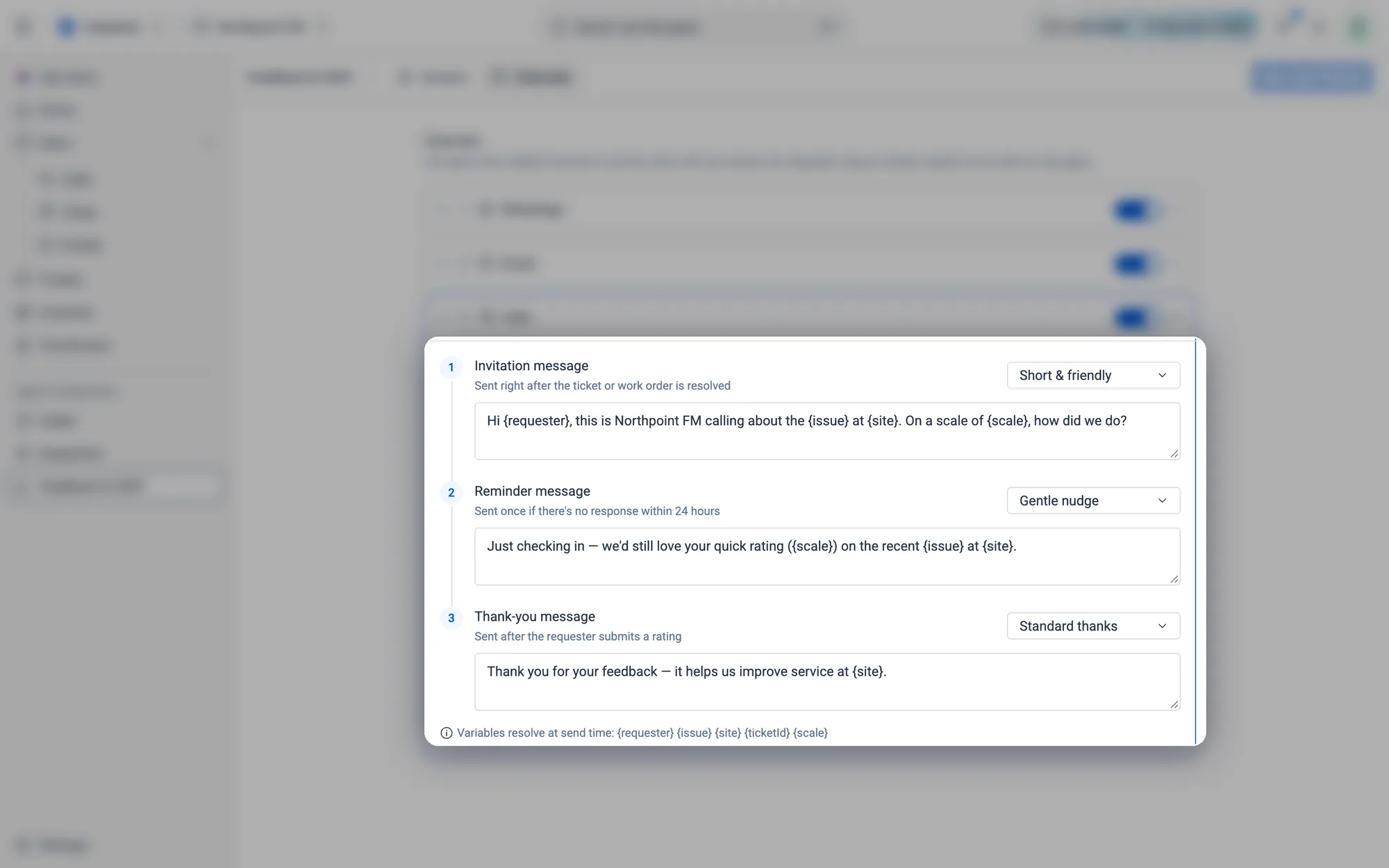
| Message | When it's sent |
|---|---|
| Invitation message | Right after the ticket or work order is resolved |
| Reminder message | Once, if there's no response |
| Thank-you message | After the requester submits a rating |
Tones: Short & friendly, Gentle nudge, Standard thanks, Warm & personal and Formal.
How to edit a channel's messages
- 1Open the Channels tab and click a channel to expand it.
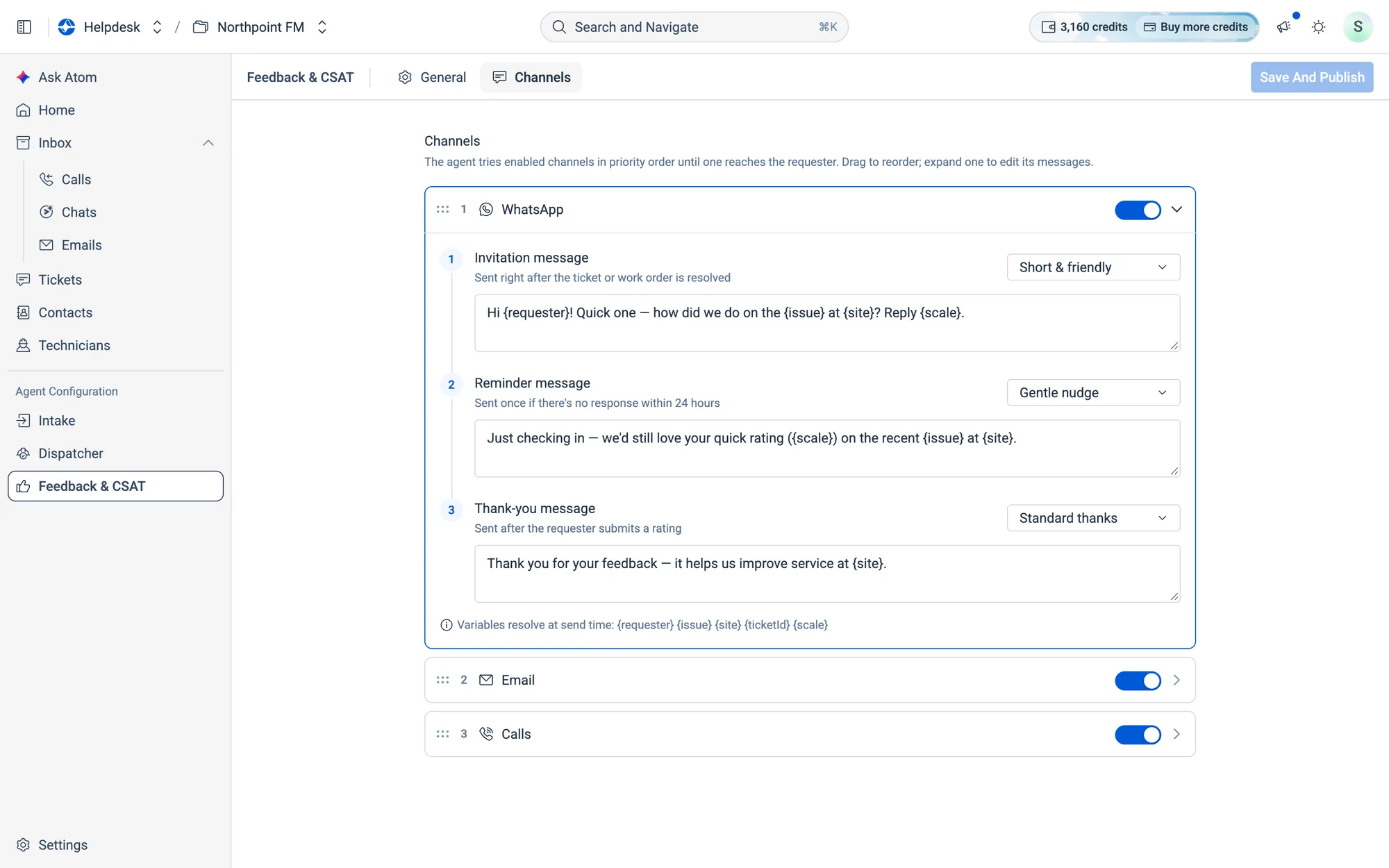
- 2Open the tone menu next to a message and pick a tone, then edit the message text if you like.
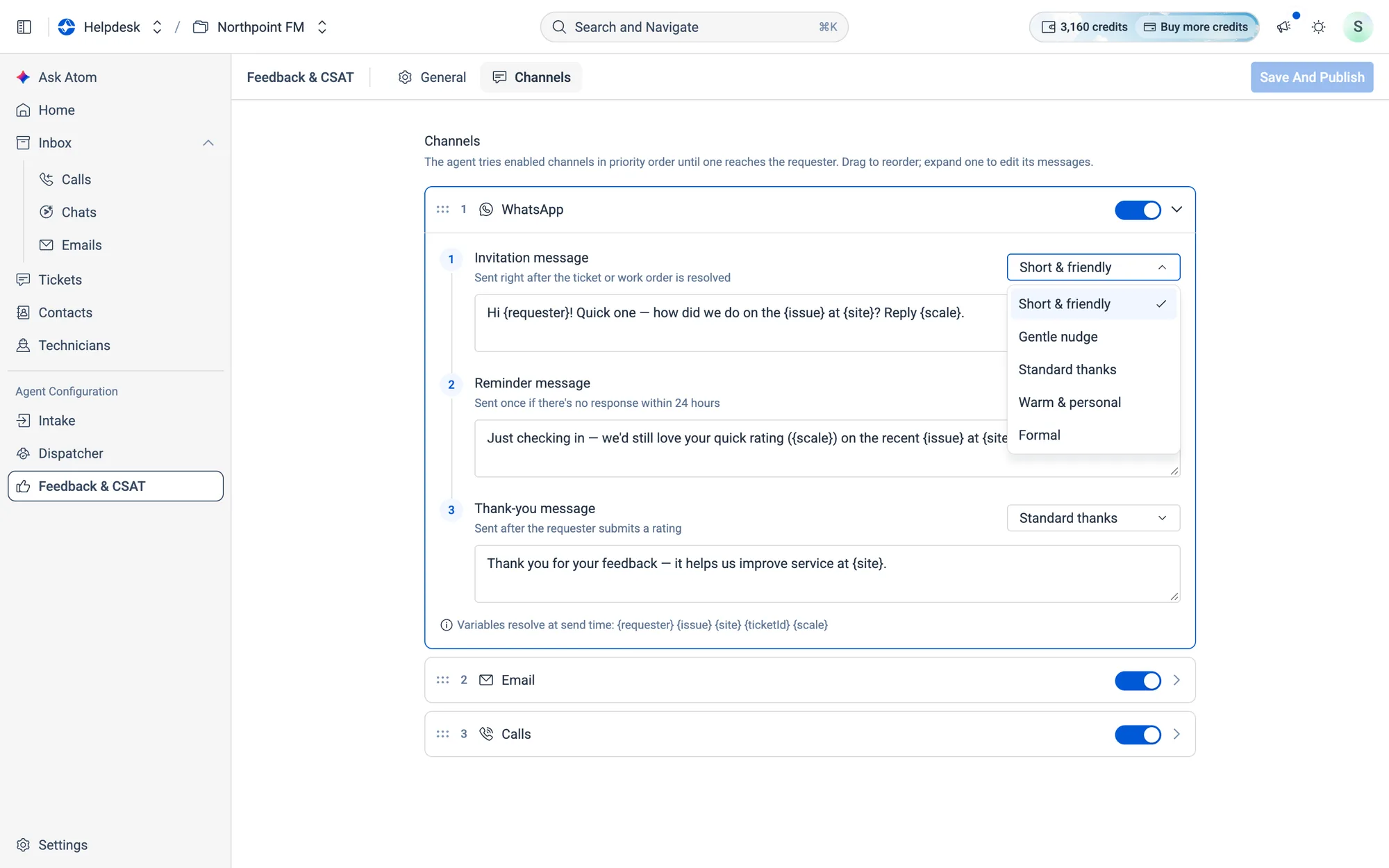
- 3To stop surveying on a channel, turn its switch off. Here Calls is switched off.
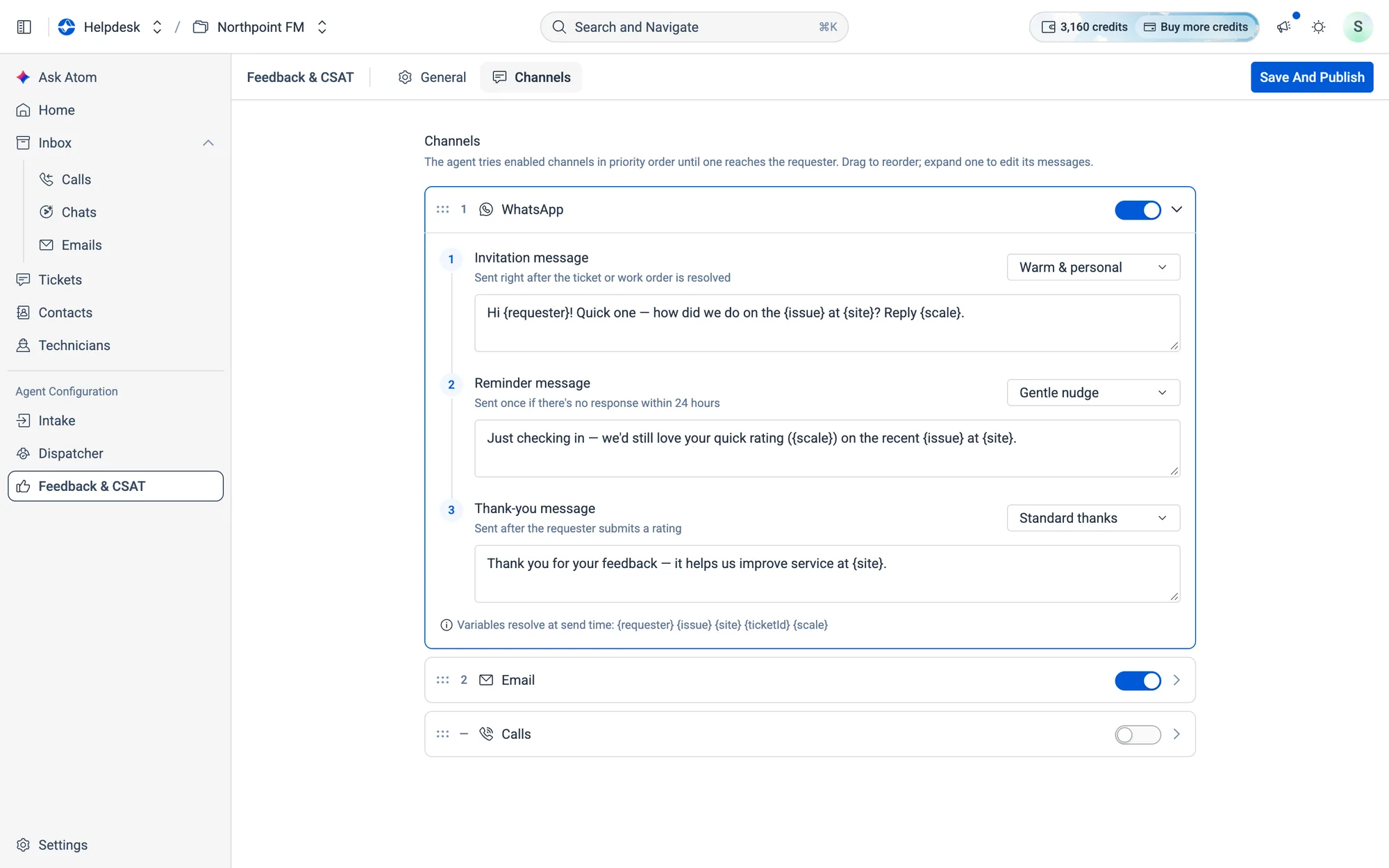
- 4Click
Save And Publish.
11.5Publish your changes
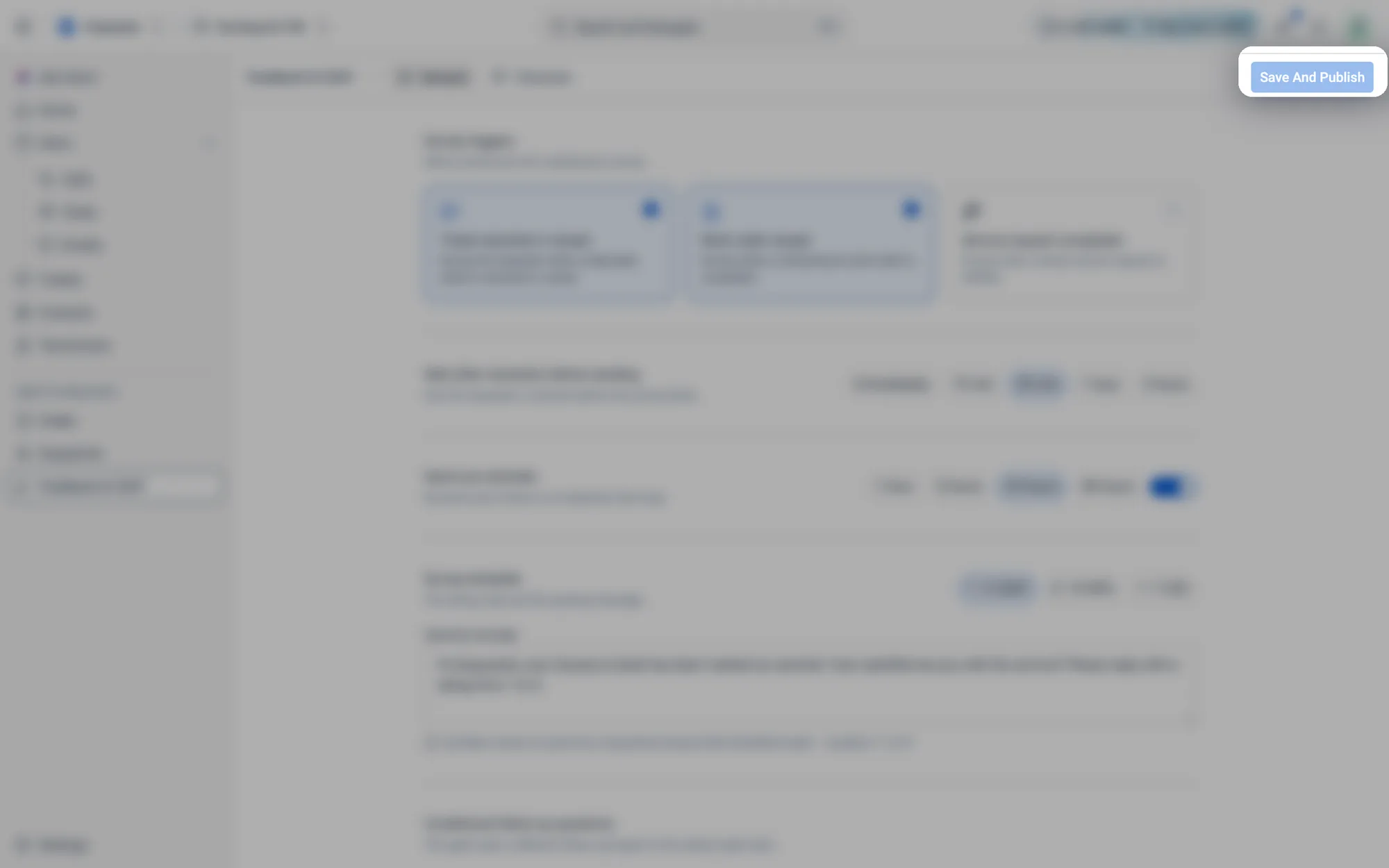
Save And Publish at the top right turns active as soon as something changes. It publishes both tabs together.