
Ask Atom
A chat assistant built into your helpdesk. Ask about your tickets and contacts in plain English, get help setting up the agent, or have Atom draft a scope of work for you.
03.1What you can ask
Ask Atom is the first item in the menu. It knows your helpdesk's own data and how the product works, so you can skip the menus and just ask.
| Group | Use it to… | Example prompt |
|---|---|---|
| Find | Look up tickets and contacts | "Show every urgent ticket that is still open and unresolved, sorted with the newest ones first" |
| Configure | Set up the Intake agent | "Add a WhatsApp channel to the Intake Agent and route incoming messages automatically" |
| Draft | Write content for the agent | "Draft a scenario for how the agent should respond to a power outage on multiple floors" |
| Help | Learn how something works | "How do tickets get created from calls and messages, and what do the different statuses mean?" |
03.2Chat with Atom
How to ask Atom a question
- 1Click Ask Atom in the menu. Pick a group (
Find,Configure,DraftorHelp) to see suggested questions.
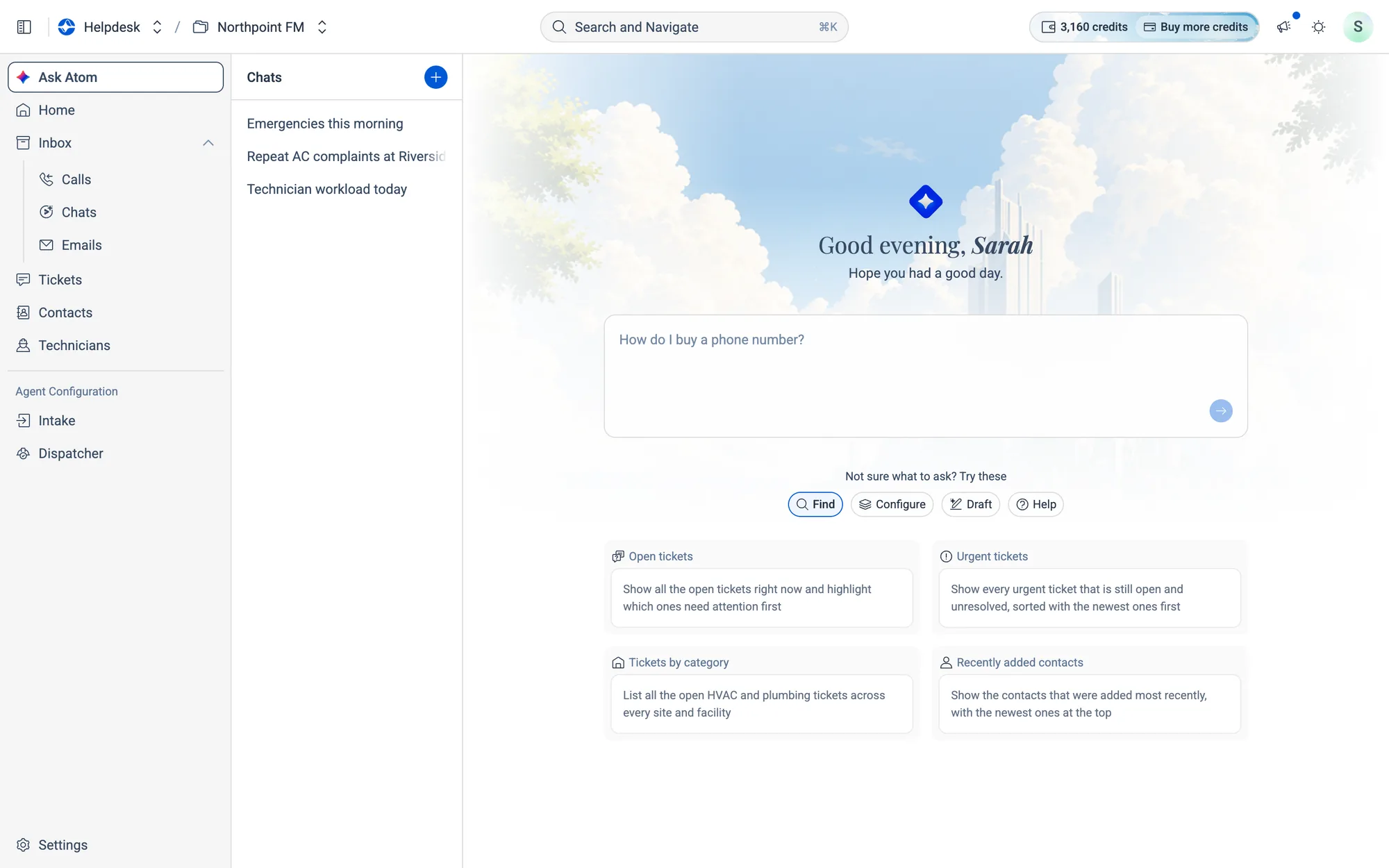
- 2Type your question, or click a suggestion.
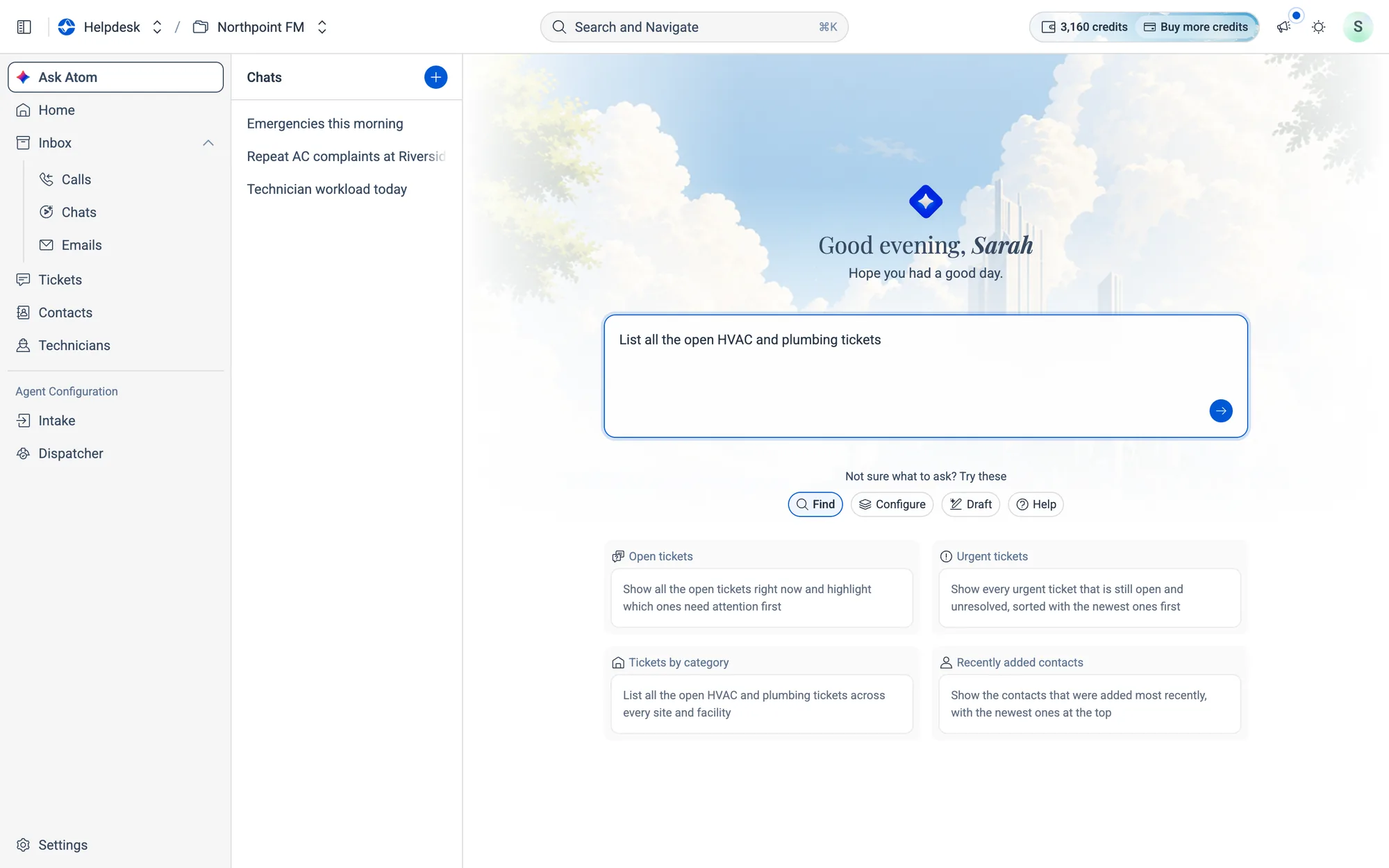
- 3Press Enter or click the send arrow. Atom shows Thinking, then the answer appears word by word.
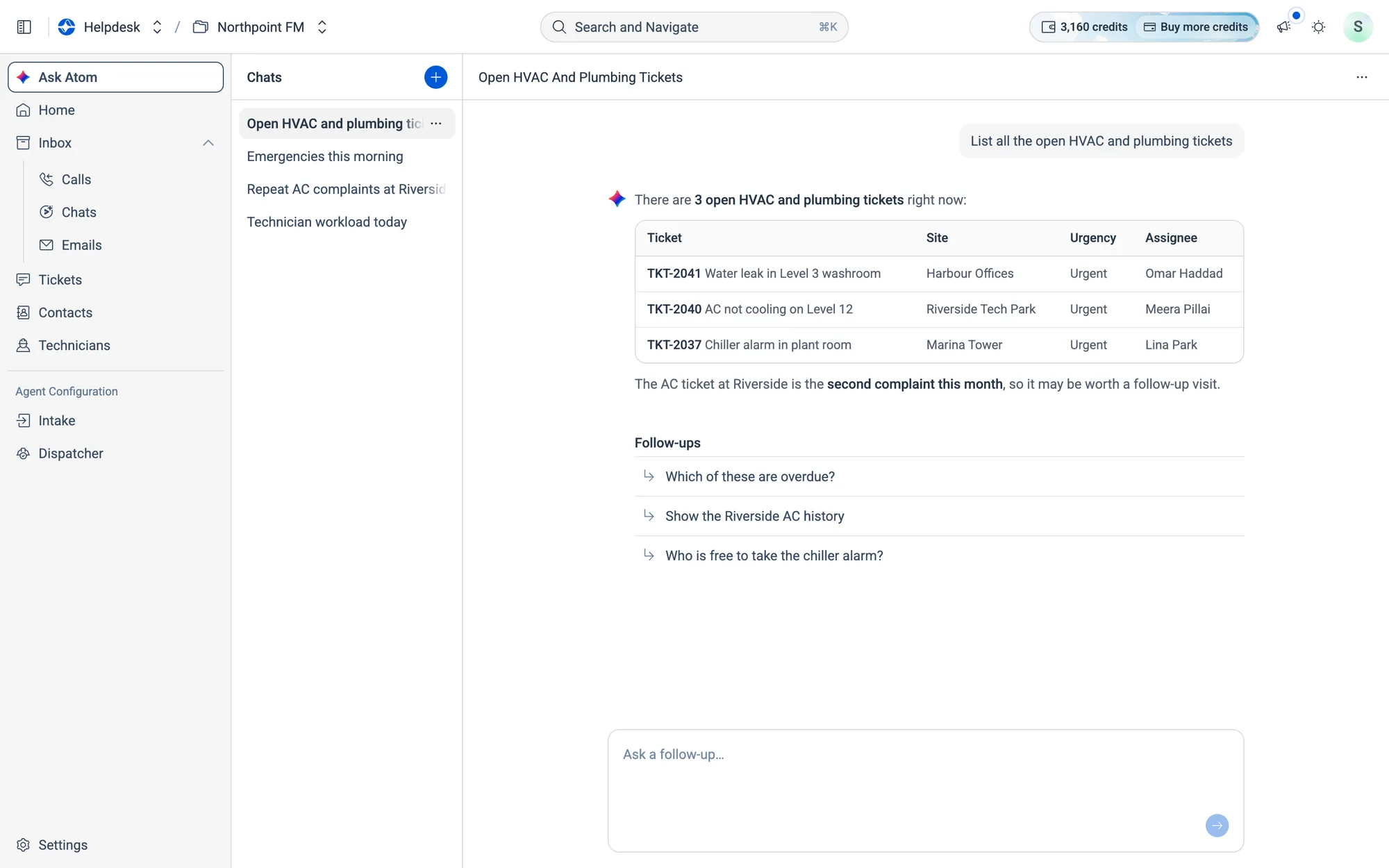
Answers can include tables, lists, links and copyable code. Click a Follow-up to send it straight away, or type your own into Ask a follow-up….
How to manage your chats
- Start a new chat: click the blue + next to Chats.
- Reopen a chat: click it in the Chats list. Each chat gets a title Atom writes for it.
- Rename or delete a chat: hover over it, open the ⋯ menu and choose
RenameorDelete. The same menu is at the top right of an open chat.
How to draft a scope of work with Atom
The scope tells your Intake agent what it should handle (see Intake agent). If you can't find a ready-made scope in the Scope Library, click Draft With AI there. Ask Atom opens with "Create a scope of work for " already typed. Finish the sentence, for example "…a hospital's facilities team", and send it.