
Technicians
The technicians and vendors the Coordinator works with, in-house and contractors, synced from the tools you already use. Each profile shows live status, contact details, skills and job history.
Find it inTechnicians
06.1Your team at a glance
Open Technicians in the menu to see everyone as a grid of cards. The total appears next to the title.
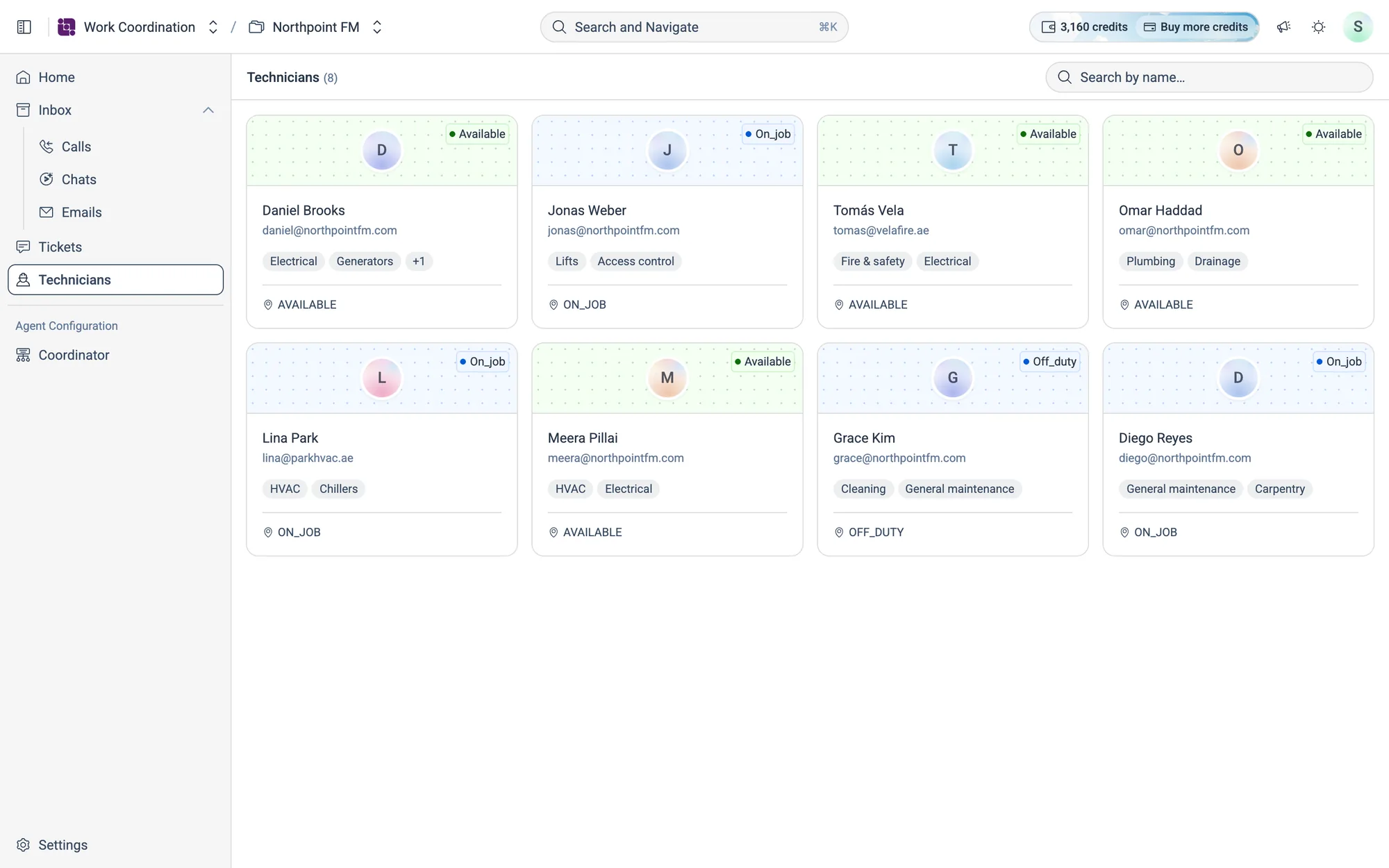
| Colour | Status |
|---|---|
| Green | Available or active |
| Yellow | Busy |
| Grey | Offline or unavailable |
| Blue | Any other status, for example on a job or off duty |
06.2Look up a technician
How to find a technician and open their profile
- 1Type a name into Search by name….
- 2Click the card. The Technician Profile opens on top of the list.
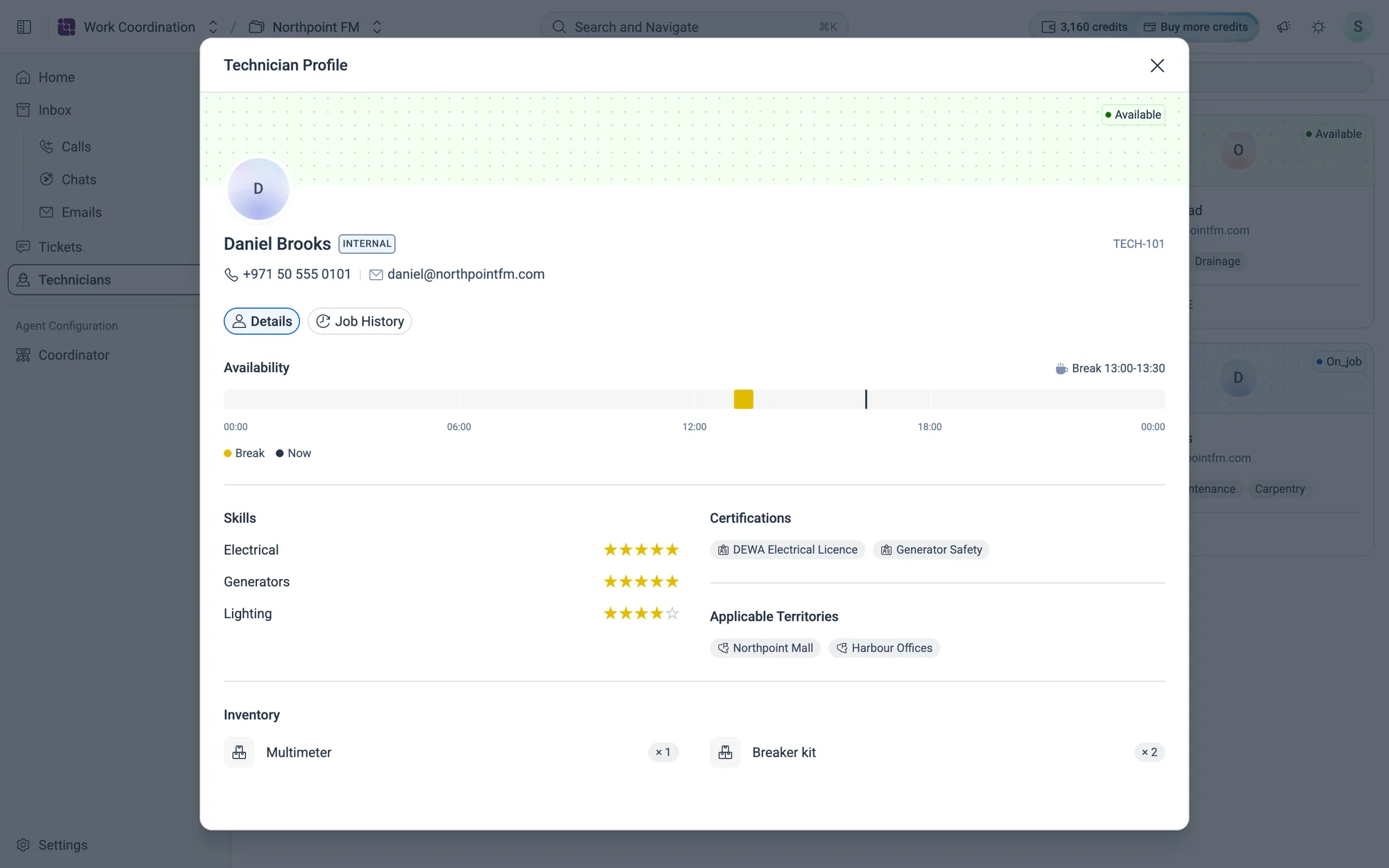
- 3Click
Job Historyto see the tickets assigned to this technician.
06.3Inside a profile
| Section | What it shows |
|---|---|
| Name and contact | Internal (your own staff) or External (a contractor), phone, email and their technician ID |
| Availability | Today on a 24-hour timeline, with breaks marked and a live Now line |
| Skills | Each skill rated from 1 to 5 stars |
| Certifications and Applicable Territories | Licences and qualifications, and the sites they cover |
| Inventory | Tools and parts they carry, with quantities |
06.4Adding technicians
Technicians aren't typed in by hand. They sync from the system your team already uses, such as Facilio. See Data Sources.