
Settings
Where admins manage the team, credits, phone numbers, the channels the Coordinator sends on, data sources and webhooks.
08.1Find your way around Settings
Click Settings at the bottom of the menu. The menu switches to the Settings list. Click ‹ Settings at the top to go back to where you were.
| Section | Pages |
|---|---|
| General | Profile, Users, Credit Usage |
| Telephony | Phone Numbers, Network Info |
| Channels | Voice, Whatsapp, Email |
| Integrations | Data Sources, Webhooks |
08.2Your profile
Your own name, phone number, photo and language.
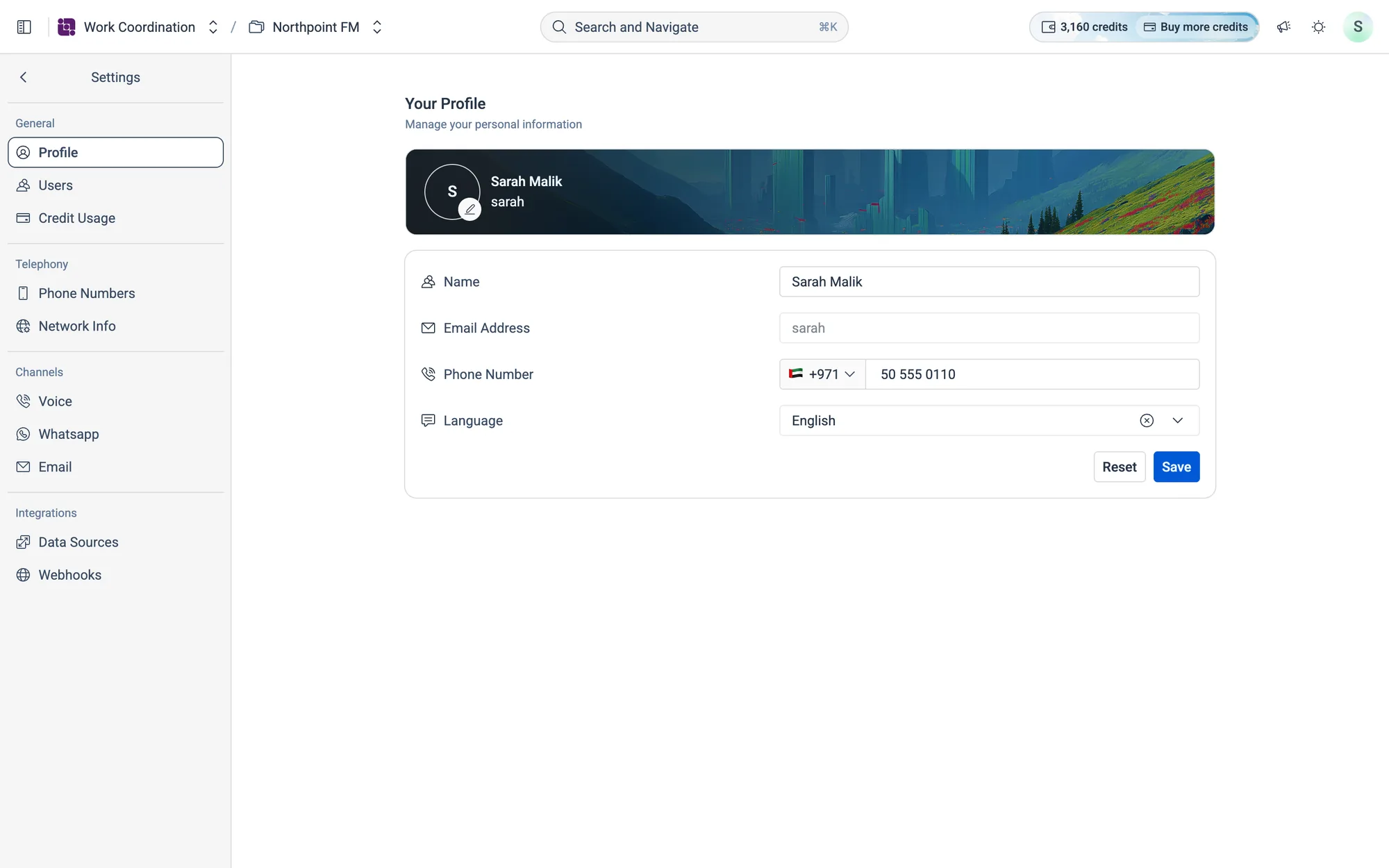
How to update your profile
- 1Open Settings. You land on Your Profile.
- 2To add a photo, click the picture in the banner and choose an image (under 5 MB).
- 3Change your Name, Phone Number or Language. Reset and Save buttons appear as soon as something changes.
- 4Click
Save.
08.3Your team
Invite teammates and see who has joined.
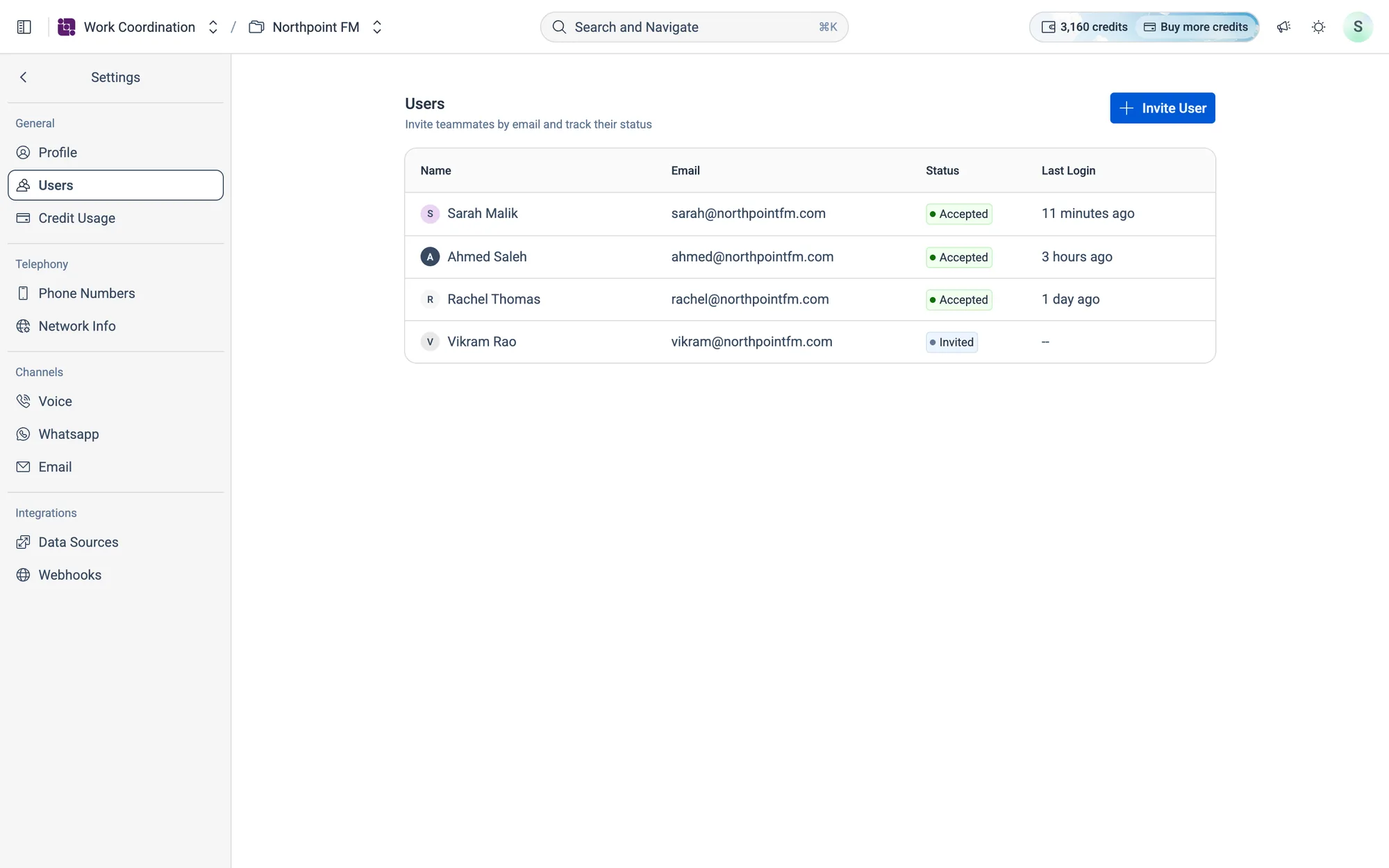
How to invite a teammate
- 1Go to Settings › Users and click
Invite User. - 2Type your teammate's work email under Email.
- 3Click
Send Invite, or press Enter. They appear in the list as Invited until they accept.
How to remove a teammate
- 1On Settings › Users, hover over the person's row. A delete icon appears at the end of the row.
- 2Click the delete icon, then confirm with
Delete.
08.4Credits
Work Coordination runs on AI credits. Calls, chats and emails with vendors all use them.
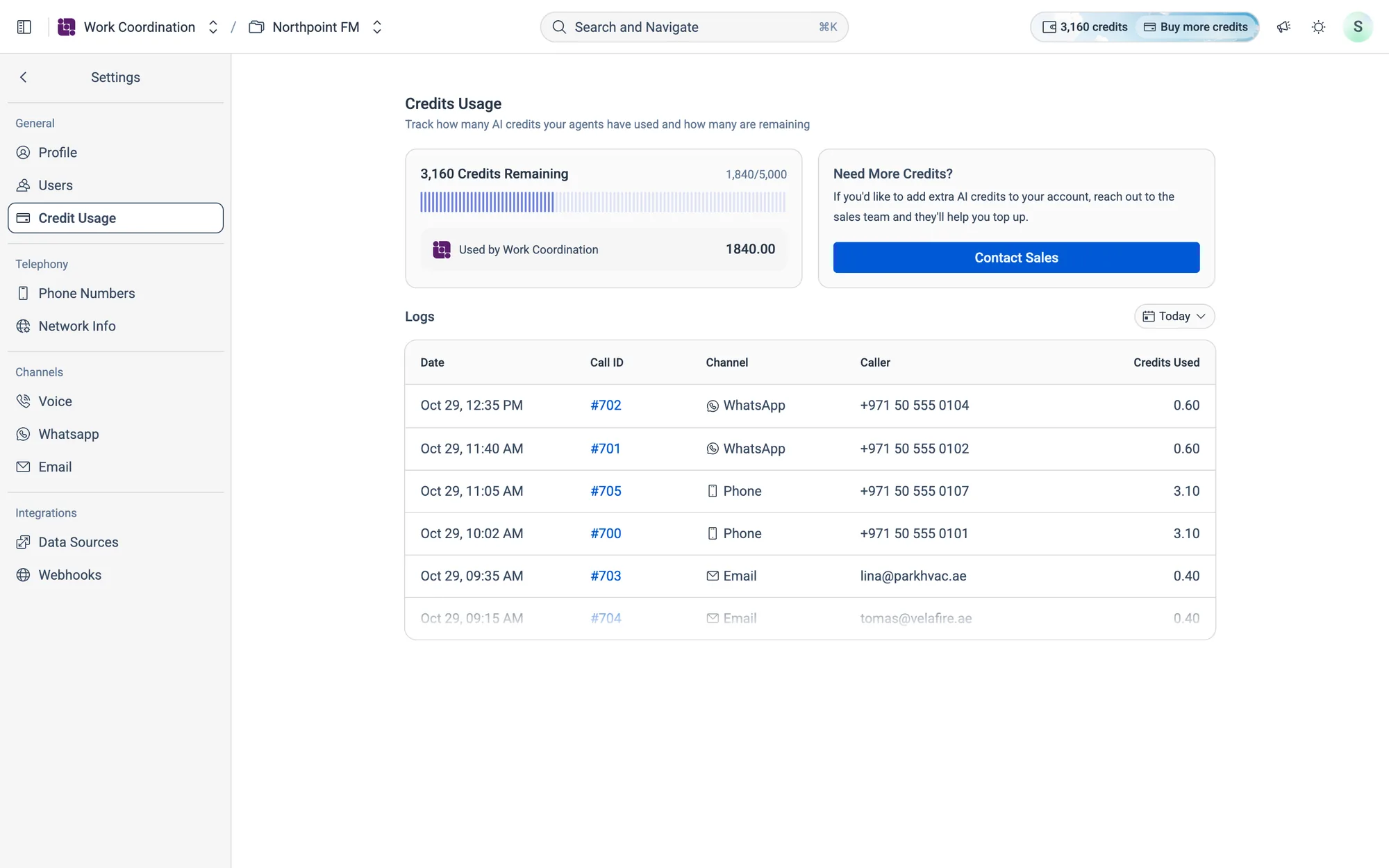
How to check your credit usage
- 1Go to Settings › Credit Usage.
- 2Credits Remaining shows your balance, and Used by Work Coordination shows what Work Coordination has used.
- 3Under Logs, each row is one conversation: its Date, Call ID, Channel, Caller and the Credits Used.
- 4Click the period chip next to Logs to change the range.
- 5Click a row to open that conversation in the Inbox.
- 6Need more credits? Click
Contact Sales.
08.5Phone numbers
The numbers the Coordinator calls from.
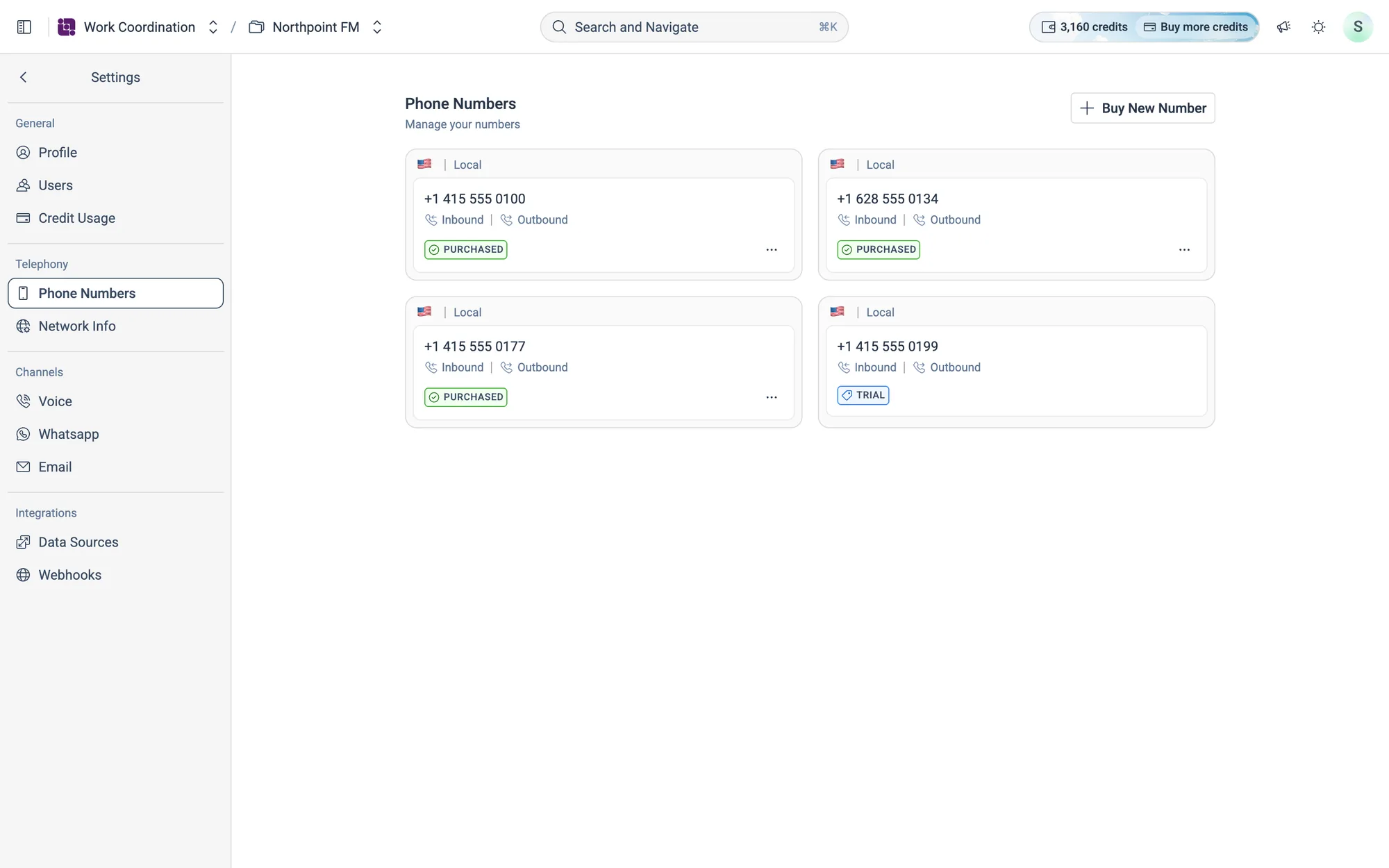
How to buy a phone number
- 1Go to Settings › Phone Numbers and click
Buy New Number. - 2Choose Local or Toll Free. For a local number, type a Preferred area code to narrow the list.
- 3Click the number you want.
- 4Click
Buy, check the details, then clickConfirm Purchase. The new number appears on the page, marked Purchased.
How to release a phone number
- 1On Settings › Phone Numbers, open the ⋯ menu on the number's card and choose
Release. - 2Click
Release Numberto confirm. Billing stops and the number disappears from the page.
08.6Network info
If calls go through your own phone system (SIP), your IT team needs to allow Facilio's IP addresses through your firewall. Settings › Network Info lists them by region.
08.7Channels the Coordinator sends on
The Coordinator sends jobs and chases vendors on the channels you connect here. Your Coordinator rules name which channel to use at each stage.
Voice
A voice channel links a name to one of your phone numbers, so you can tell your lines apart.
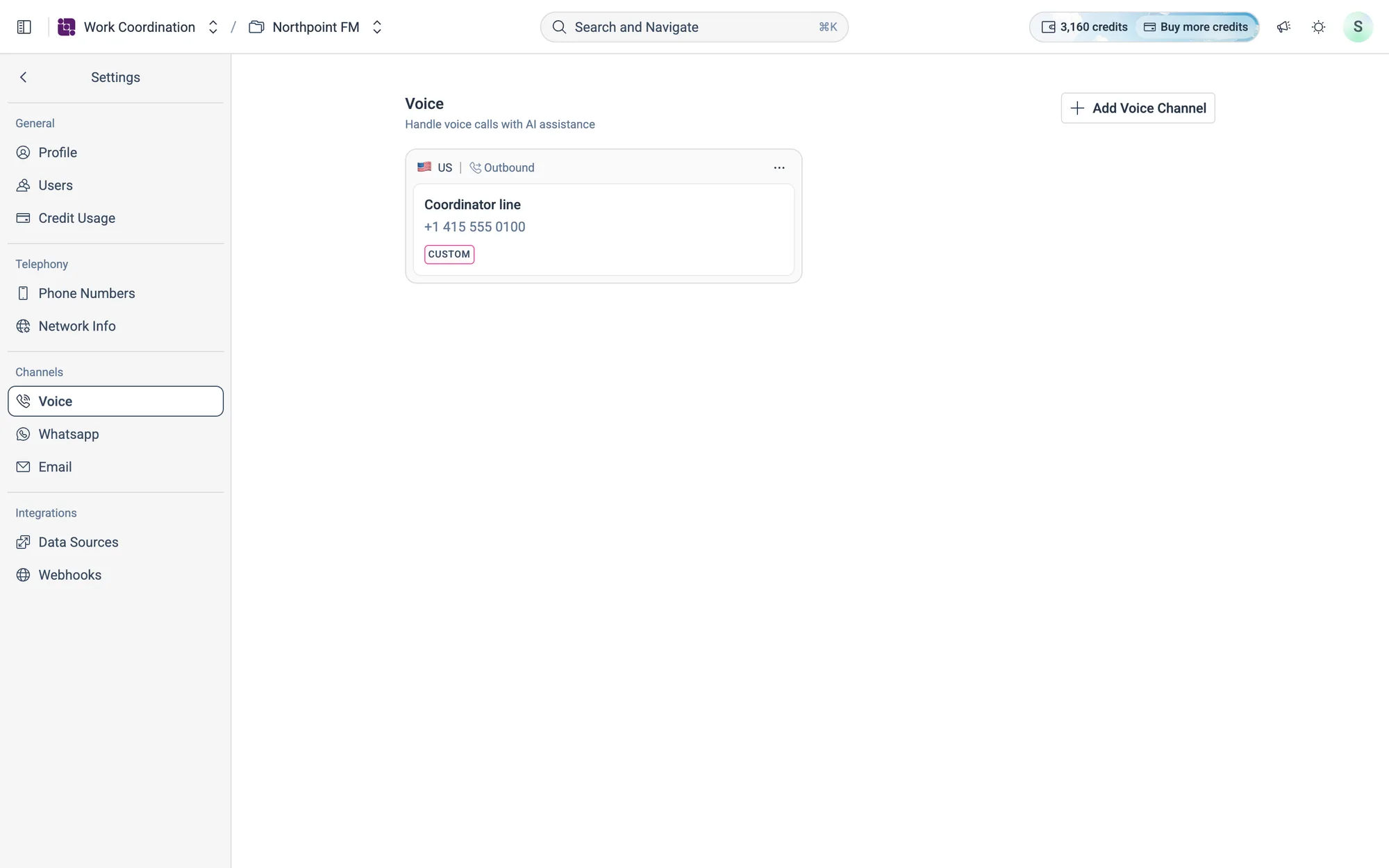
- 1To add one, go to Settings › Voice and click
Add Voice Channel. - 2Enter a Name, choose a Phone Number, and click
Save. - 3To delete one, open the ⋯ menu on its card and choose
Delete. The phone number stays in Phone Numbers.
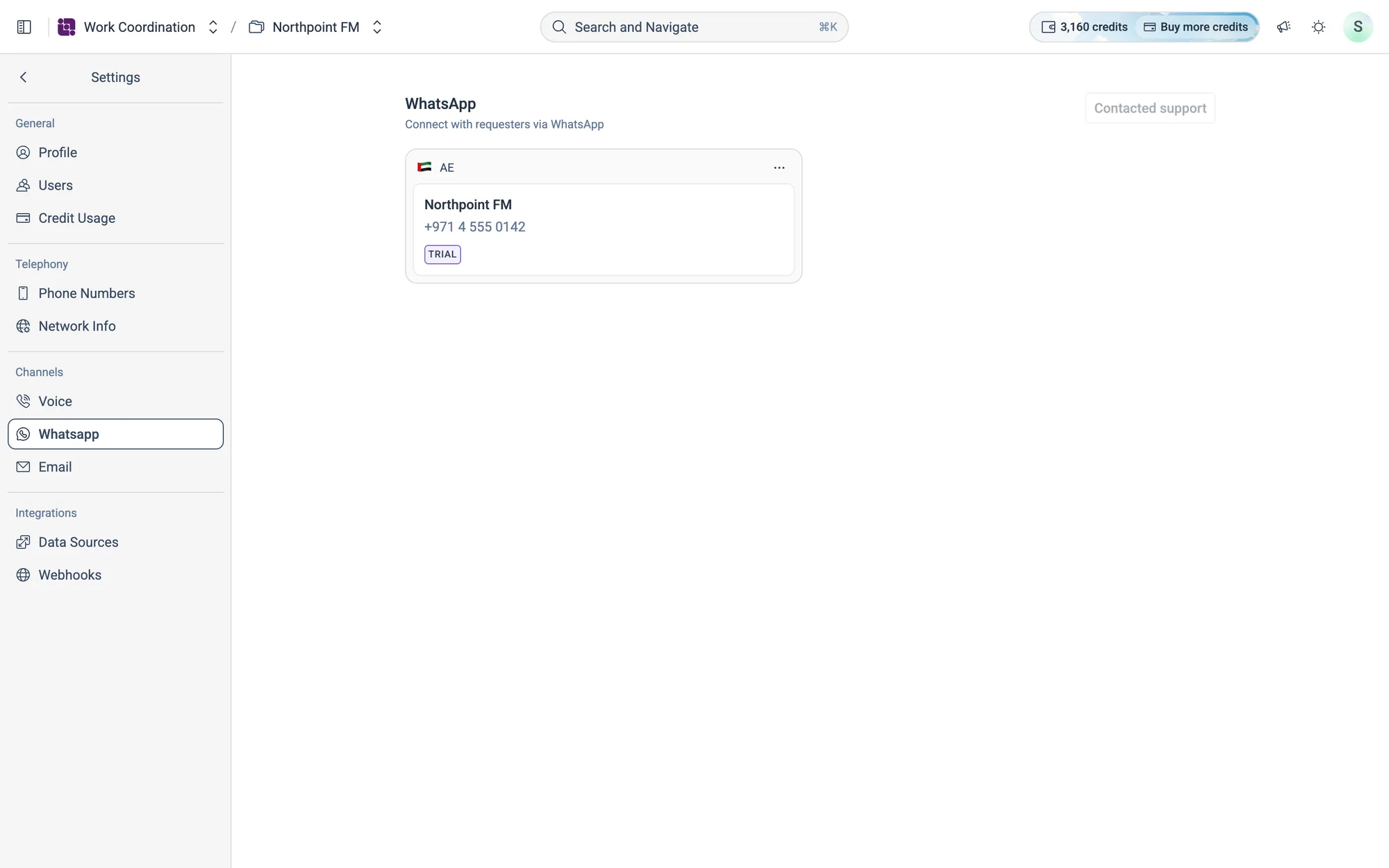
Settings › Whatsapp shows the WhatsApp numbers the Coordinator uses. To connect your own WhatsApp Business number, click Contact Sales and the Facilio team will set it up with you.
Each email channel is a mailbox the Coordinator sends jobs from and reads replies in.
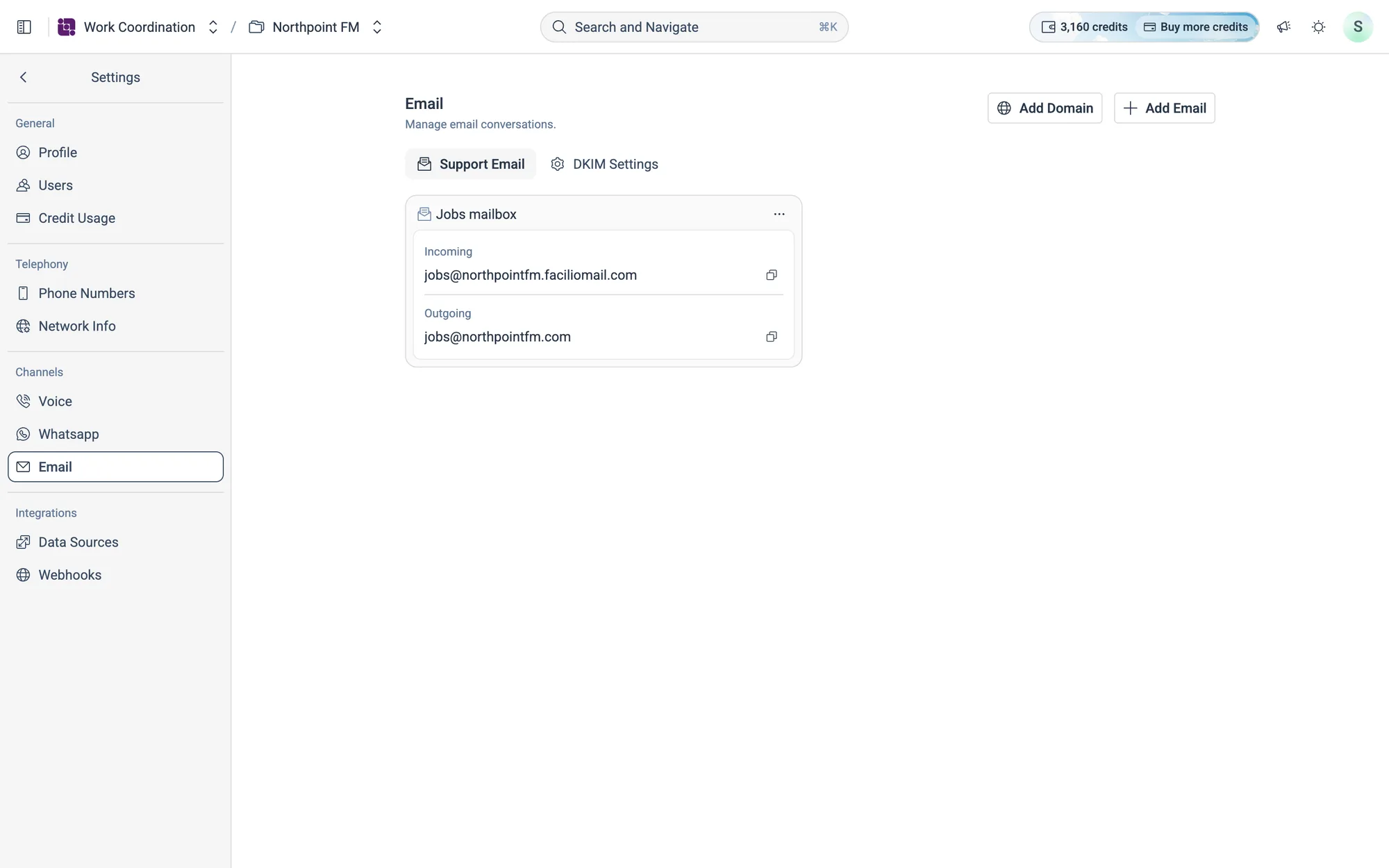
- 1To add one, go to Settings › Email and click
Add Email. - 2Enter a Display Name, and under Incoming Email, the Email Address. The domain is filled in for you.
- 3Copy the Forwarding Mail address and set your existing mailbox to forward to it. Click
Forwarding Stepsfor a step-by-step guide. - 4Under Outgoing Email, choose Same As Incoming, or Custom to send from your own domain.
- 5Click
Add Email.
08.8Data sources
Data Sources brings records from the systems you already use into Work Coordination. Each dataset maps one module from a connected system into Tickets or Technicians. Today the live connector is Facilio (the Facilio CMMS).
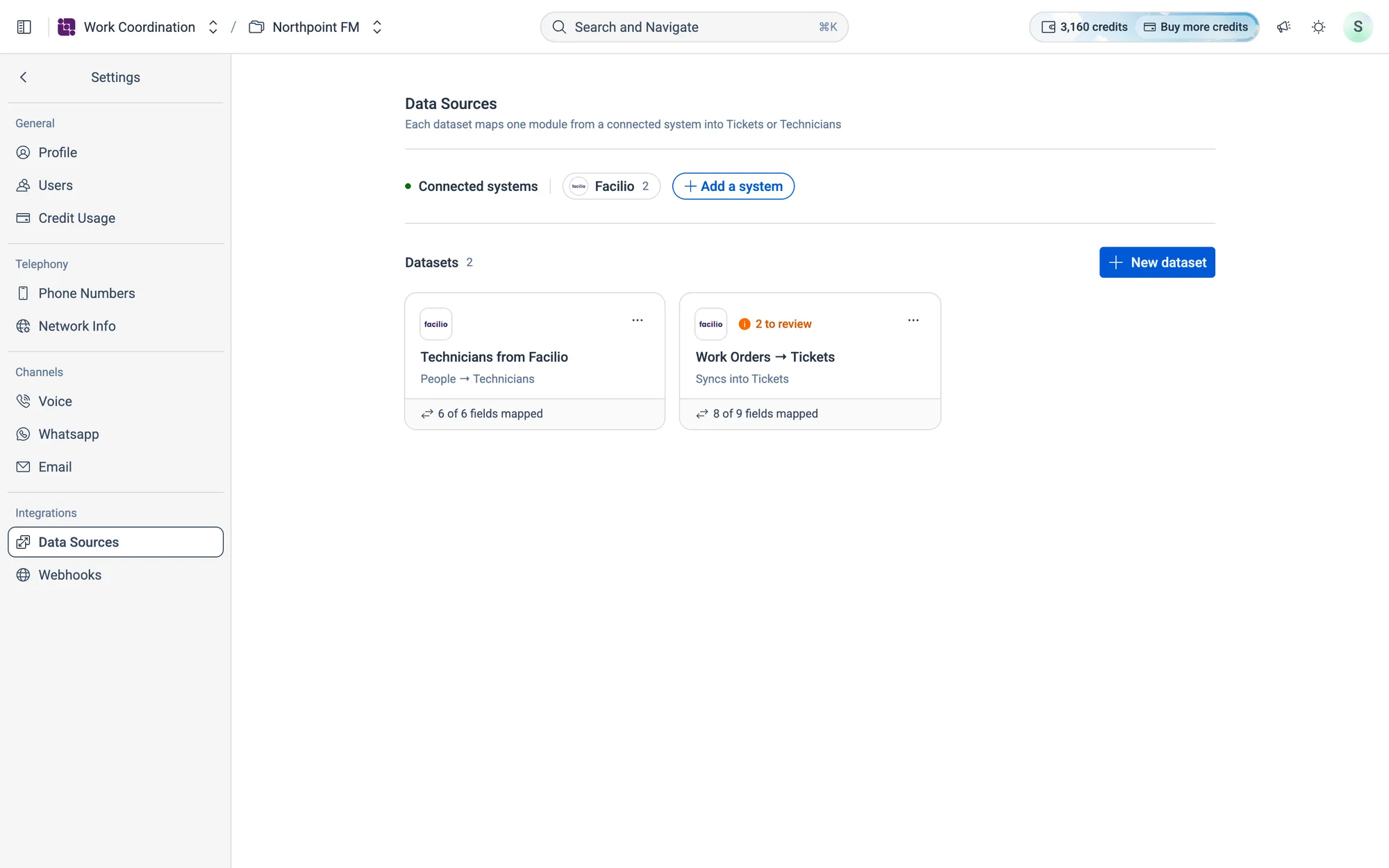
How to add a dataset
- 1Go to Settings › Data Sources and click
New dataset. - 2Under Sync into, choose Tickets or Technicians.
- 3Under Data source, choose Facilio. Atom checks your modules and lists the Best matching modules.
- 4Click a suggested module, or pick another under Module. The field mapping appears on the right.
- 5Read What this will do to check the result, then click
Save.
08.9Webhooks
A webhook runs an action in one of your connected apps the moment something happens, for example raising a work order in Facilio. You describe the rule to Atom in one line, and Atom builds it.
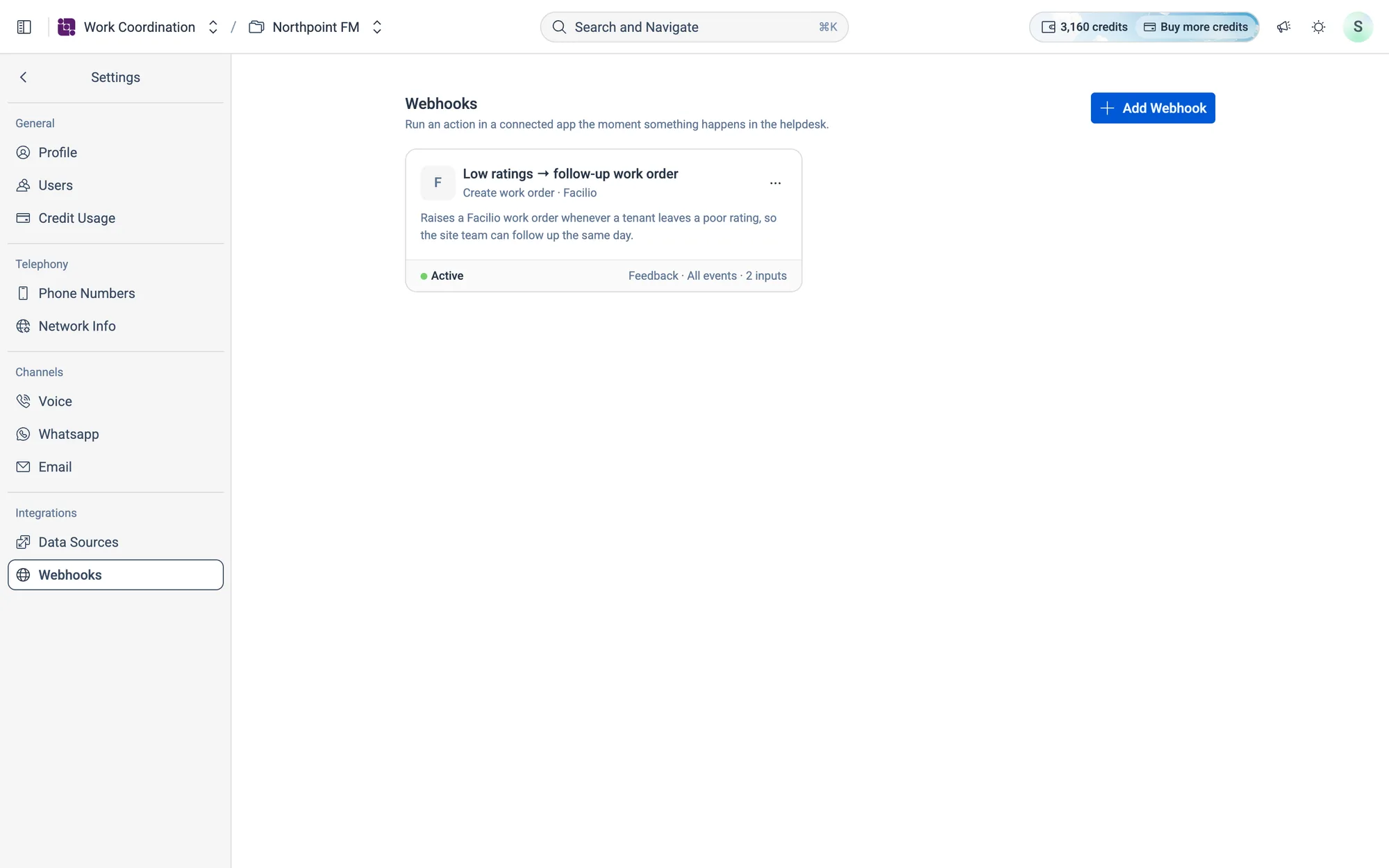
How to add a webhook
- 1Go to Settings › Webhooks and click
Add Webhook. - 2In Describe your webhook…, write what should happen, naming the event and the app. Press Enter.
- 3Atom fills in When it runs, What it does and What it sends. To change any part, tell Atom in the chat.
- 4Click
Add webhook. The new webhook appears as a card and starts running straight away.