
The Coordinator
The Coordinator is the agent that runs your jobs once they're assigned. It follows a set of rules, one for each stage of a job, written in plain language. You don't fill in forms to change them. You tell Atom what you want, and it rewrites the rules for you.
07.1How the Coordinator works
When a job is assigned to a technician or vendor, the Coordinator takes it from there. It sends the job out, waits for a reply, chases the vendor if they go quiet, moves the job along as they answer, asks for proof of the work, and checks the invoice. What it does at each step comes from your rules.
The rules are split into stages of a job. Each stage is one moment in the job's life, and says what the Coordinator does then. For example, Northpoint FM's rules have these five stages:
| Stage | What the rules cover |
|---|---|
| When a job is assigned | How the job is sent to the vendor, and what to do if that channel doesn't work |
| When they go quiet | How long to wait for a reply, how to chase, and who to tell if the vendor still doesn't answer |
| When they're on site | When to move the job to In progress |
| When the work is done | What proof to ask for, by when, and when to mark the job Completed |
| When the invoice comes in | Which quotes need sign-off, from whom, and when to close the job |
Your stages may be named differently, or there may be more or fewer of them, depending on your business and what you tell Atom.
07.2The Coordinator page
Open Coordinator under Agent Configuration in the menu.
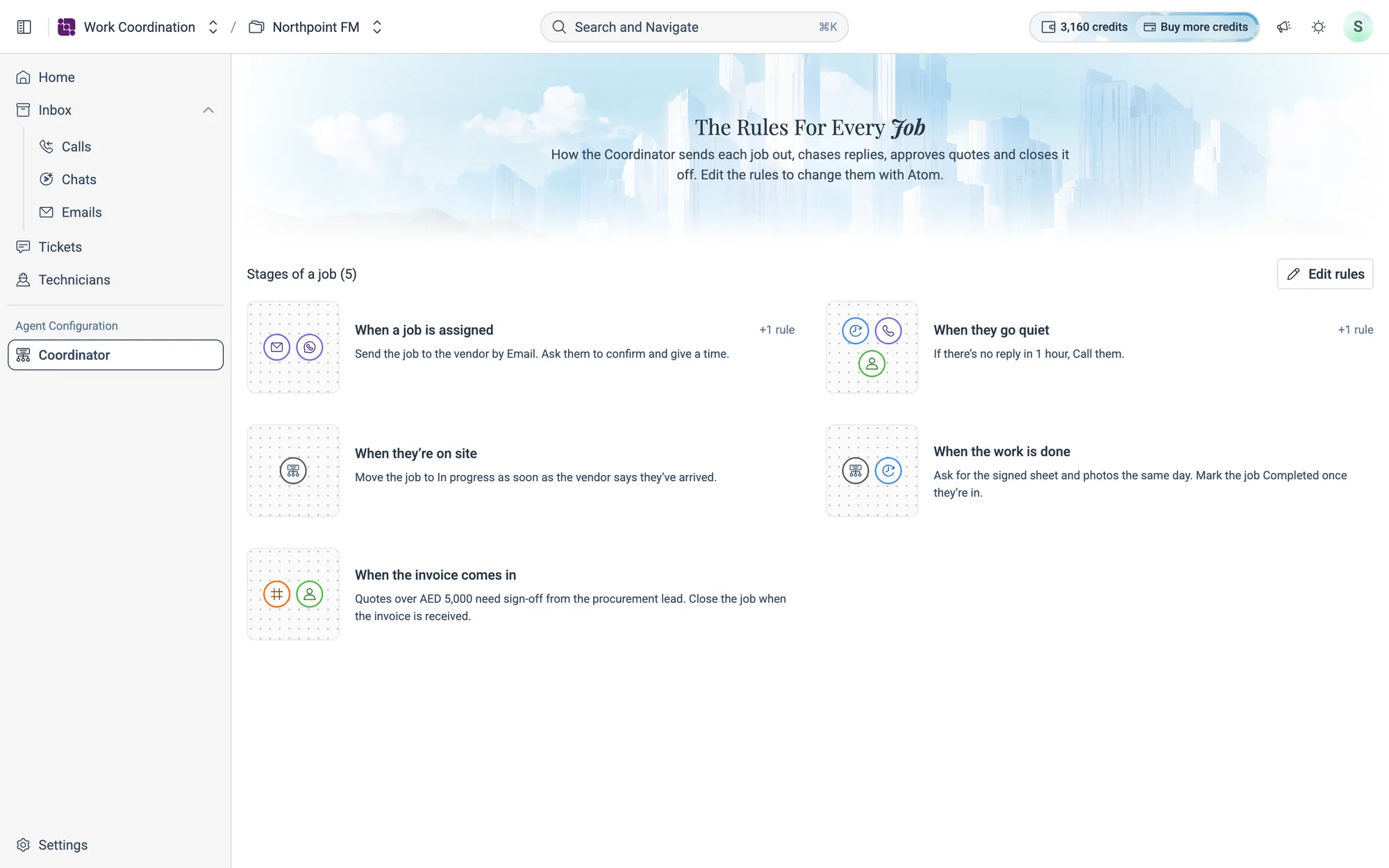
Each tile shows the stage's name and the first line of what the Coordinator does. The small icons on the left show what the stage depends on: a channel such as email or a call, a time, a person or an amount. +1 rule on the right means the stage has extra rules for when things don't go to plan.
Click Edit rules to change them (see Change the rules).
How to read all the rules for a stage
- 1Click a stage's tile. Its rules open in a window.
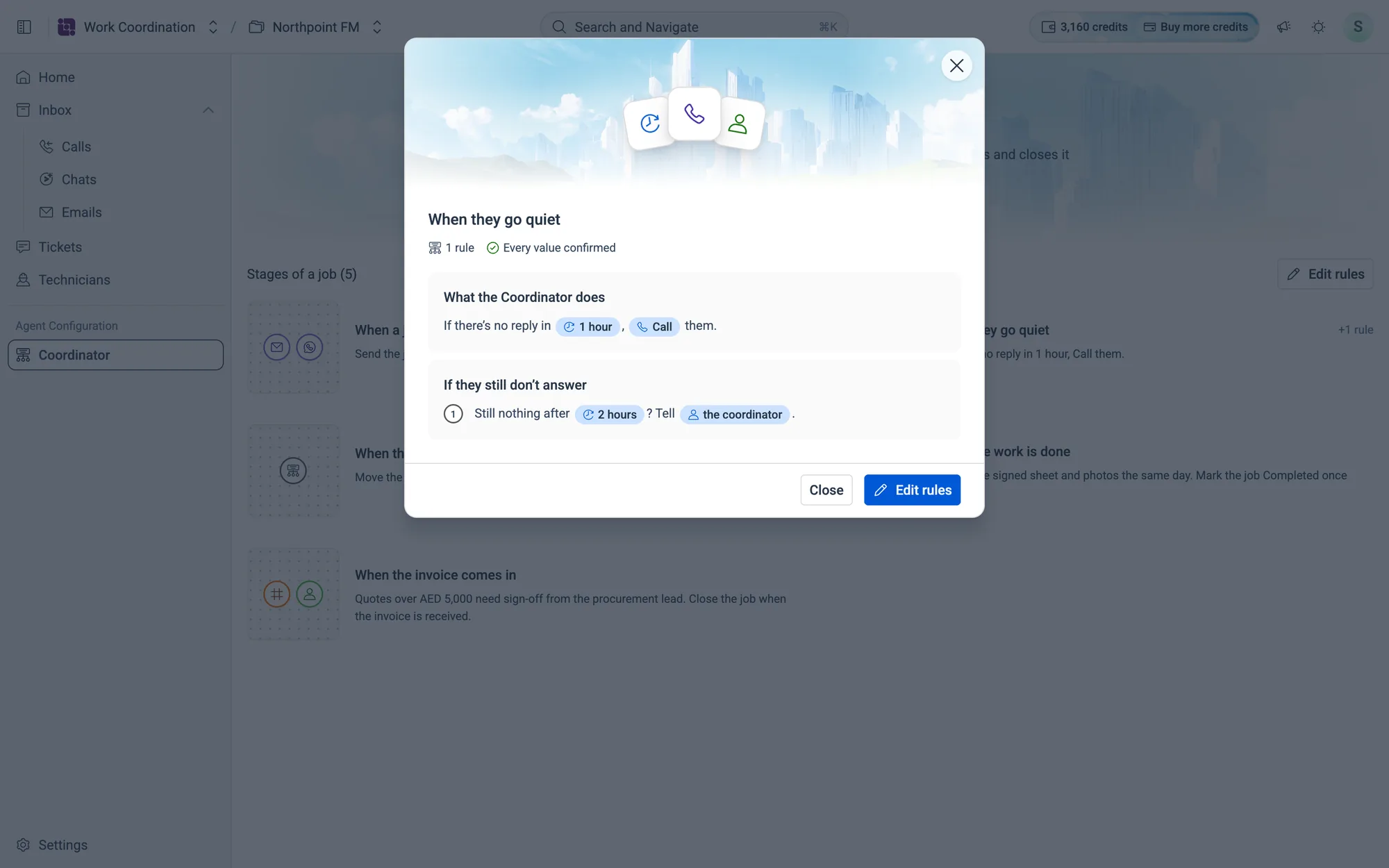
- 2Read the window from top to bottom:
- What the Coordinator does: the stage's main rule.
- The extra rules, in the order the Coordinator works through them. Here they're headed If they still don't answer.
- Good to know: anything worth spelling out that isn't a rule. This only shows when there is something.
- 3The line under the title says how many extra rules the stage has, and whether every value in it is confirmed.
- 4Click
Edit rulesto change this stage, orClose.
07.3Change the rules
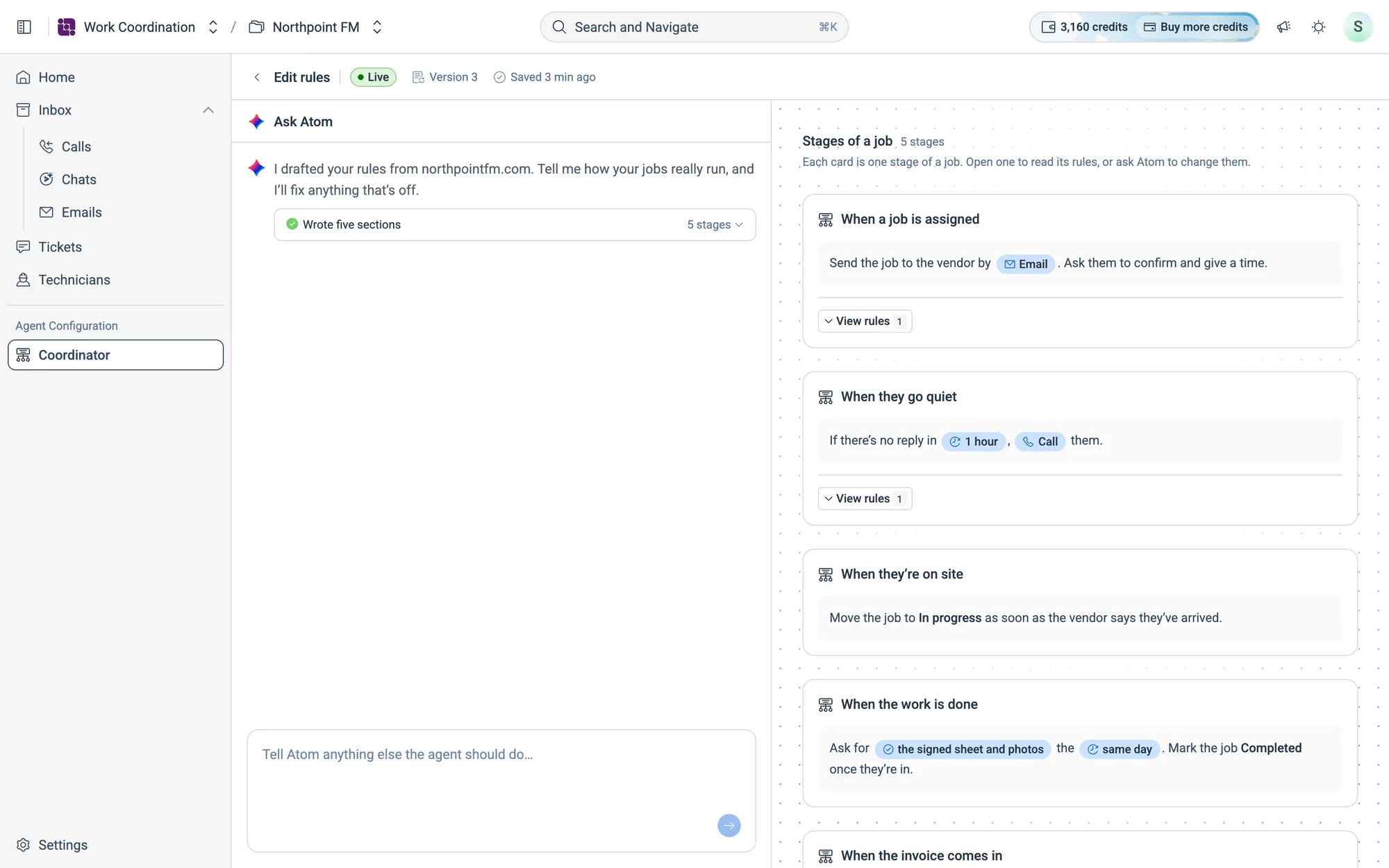
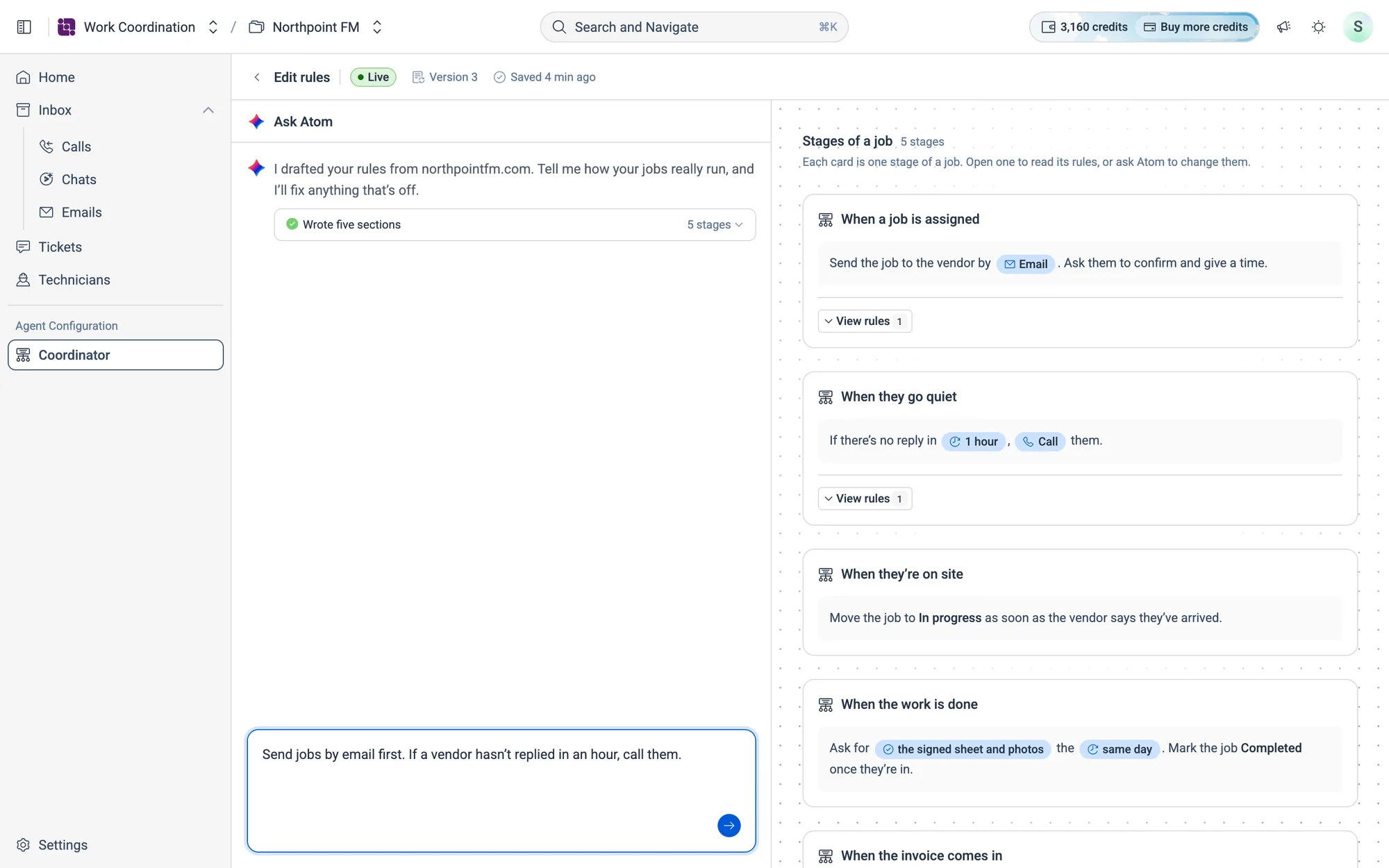
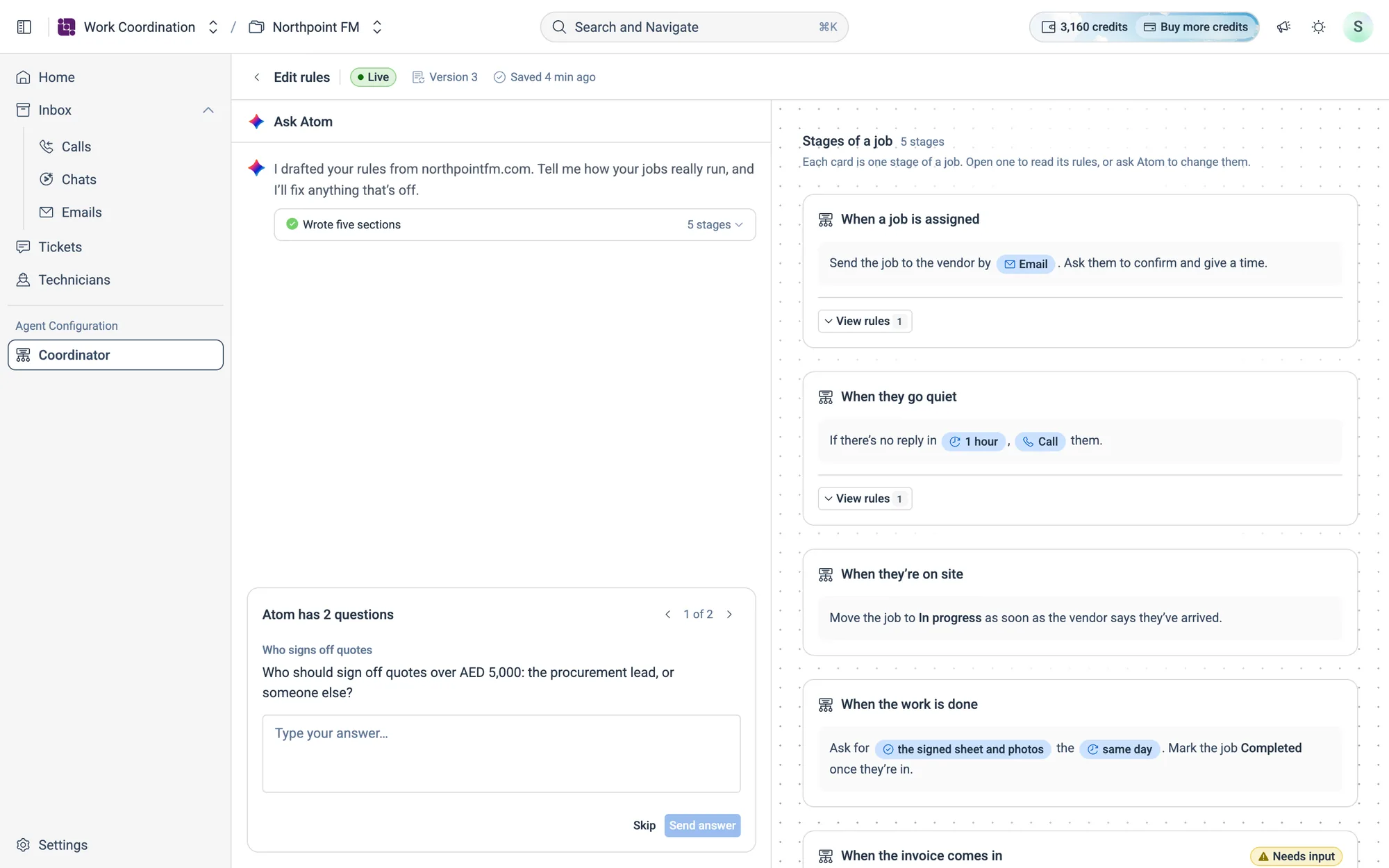
Click Edit rules on the Coordinator page. The editor opens with a conversation with Atom on the left and your rules on the right.
The top bar
The bar above the editor shows whether the rules are Live or a Draft, the version number and when they were last saved. There's no separate save or publish step: every change Atom makes is saved straight away, and the version number goes up by one. Click the arrow at the top left to go back to the Coordinator page.
To give the conversation more room, drag the edge between Ask Atom and Stages of a job. The editor remembers the width in this browser.
Your rules, stage by stage
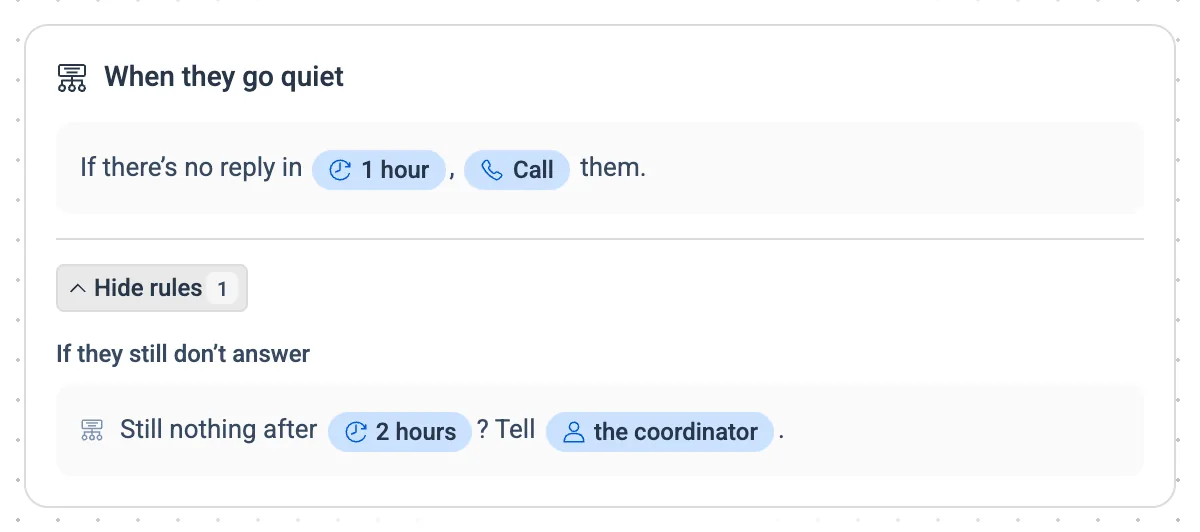
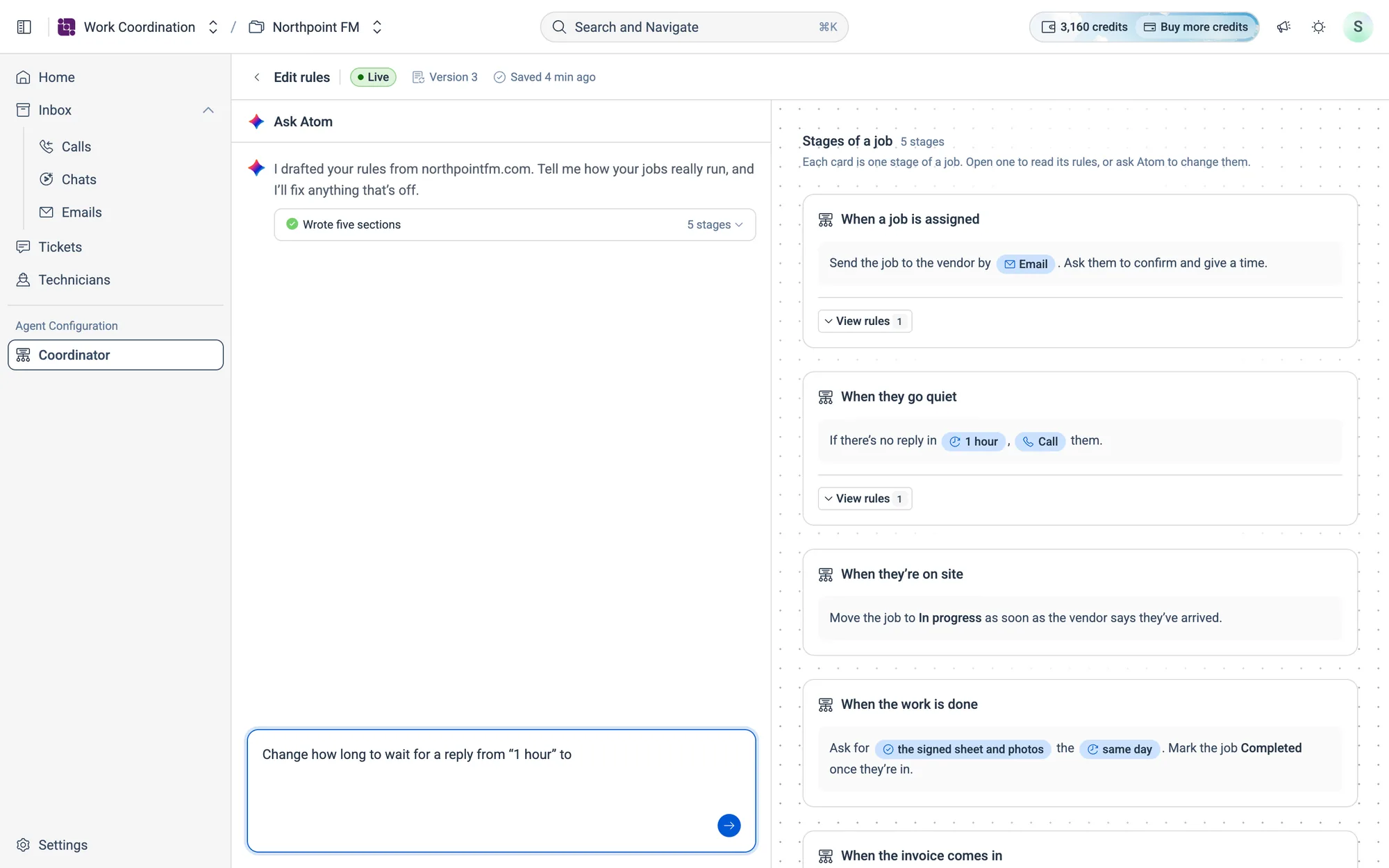
Each card on the right is one stage of a job. The grey panel holds what the Coordinator does. If the stage has extra rules, click View rules to unfold them, and Hide rules to fold them away.
How to change a rule by telling Atom
- 1Click
Edit ruleson the Coordinator page. - 2In the box at the bottom left, write what you want, the way you'd explain it to a new coordinator. For example: Send jobs by email first. If a vendor hasn't replied in an hour, call them.
- 3Press Enter. Atom shows Writing while it works.
- 4Atom replies, and the stages it changed light up on the right with an Updated badge. The top bar shows Updated just now.
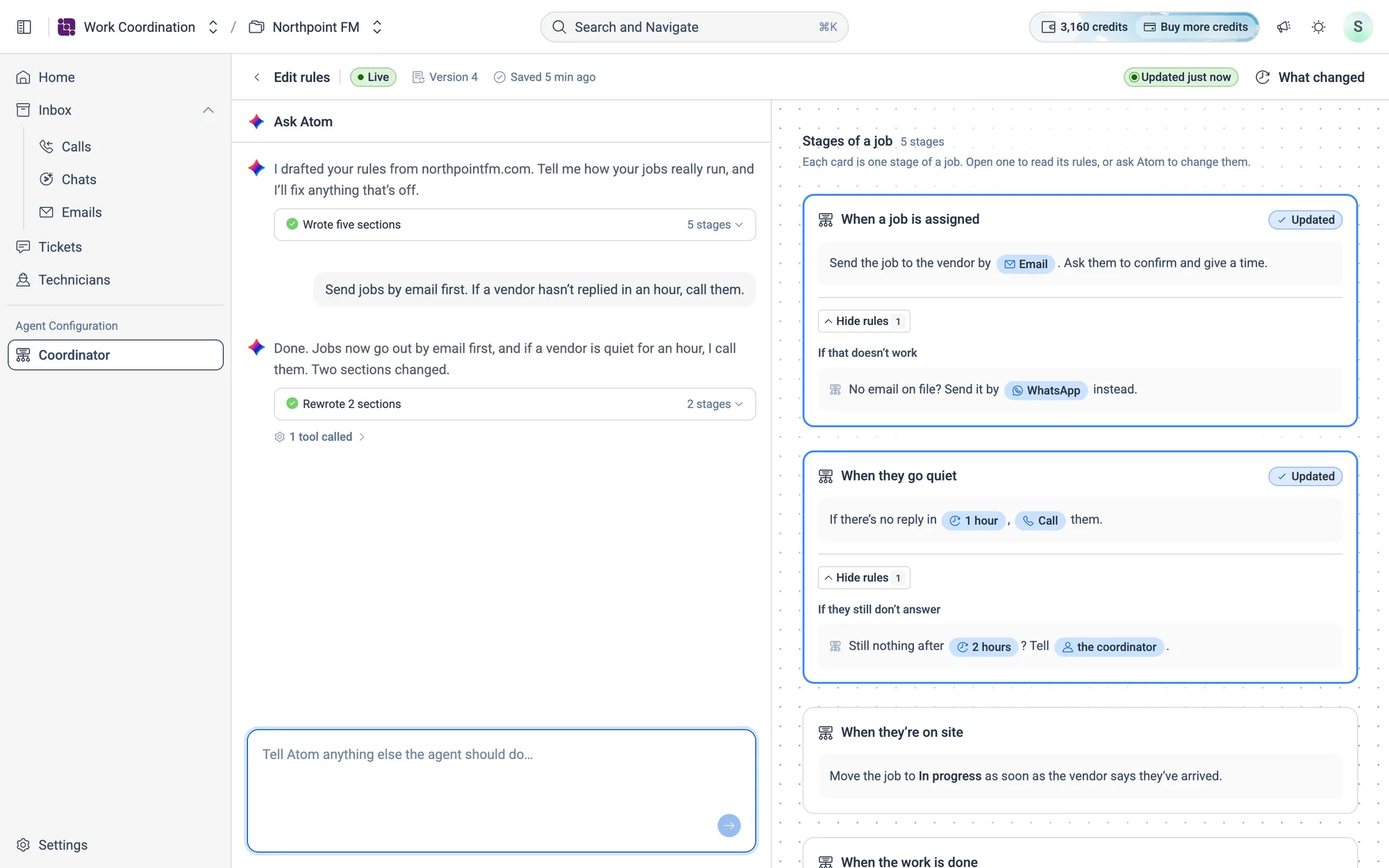
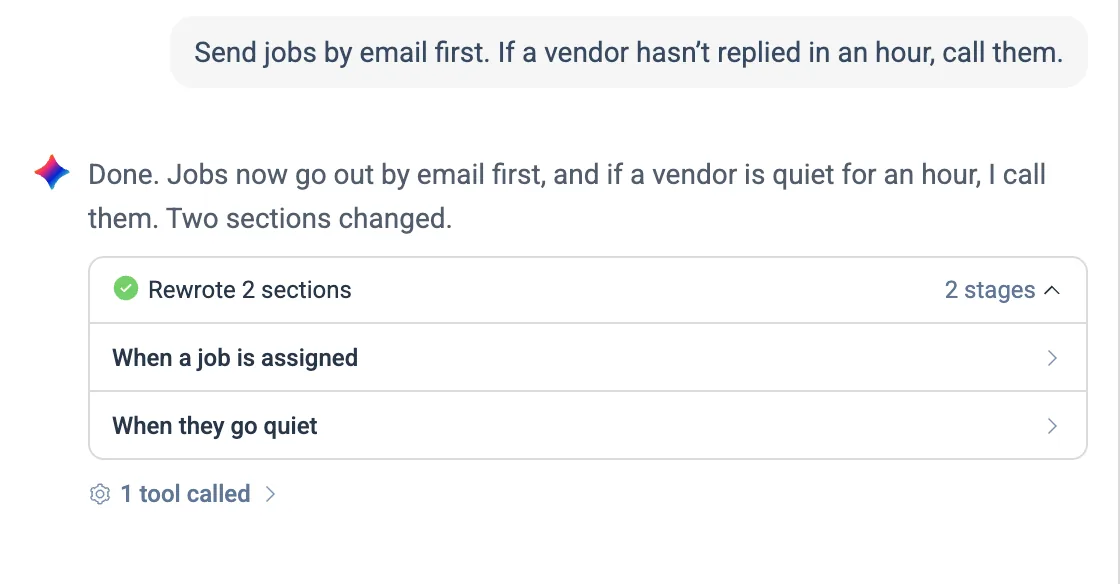
Under Atom's reply, a line such as Rewrote 2 sections shows how many stages changed. Click it to list them, and click a stage to jump to it.
How to see what changed
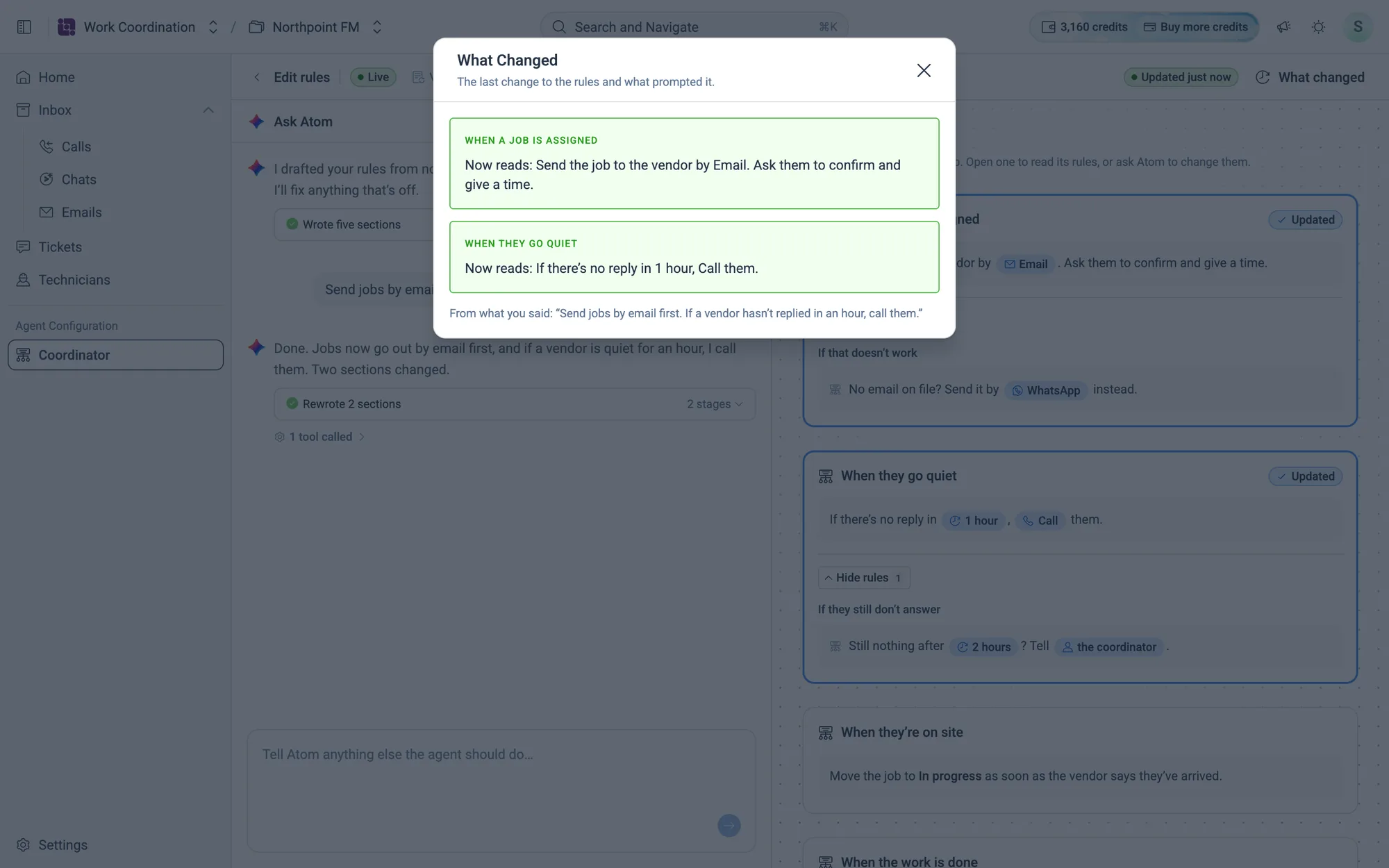
- 1After a change, click
What changedat the top right of the editor. - 2What changed lists each stage Atom rewrote and how it now reads, with what you said that prompted it.
How to change a value, such as a time or a channel
- 1Click the blue chip you want to change, for example 1 hour.
- 2Atom drafts the request in the box for you: Change how long to wait for a reply from “1 hour” to.
- 3Finish the sentence, for example 2 hours, and press Enter.
Hover over a time, person or amount chip to see Ask Atom to change this. Channel chips show a card instead (see Channels).
How to ask Atom about one rule
- 1Click
View ruleson a stage to unfold its extra rules. - 2Click the rule. Hover over it first to see Ask Atom about this rule.
- 3Atom drafts the start of a message about that rule in the box. Add your question or change, and press Enter.
How to start from scratch
If no rules are written yet, the Coordinator page says No rules yet and shows Edit rules. In the editor, the right side says Nothing is written yet, and Atom asks How do you coordinate a reactive job today?
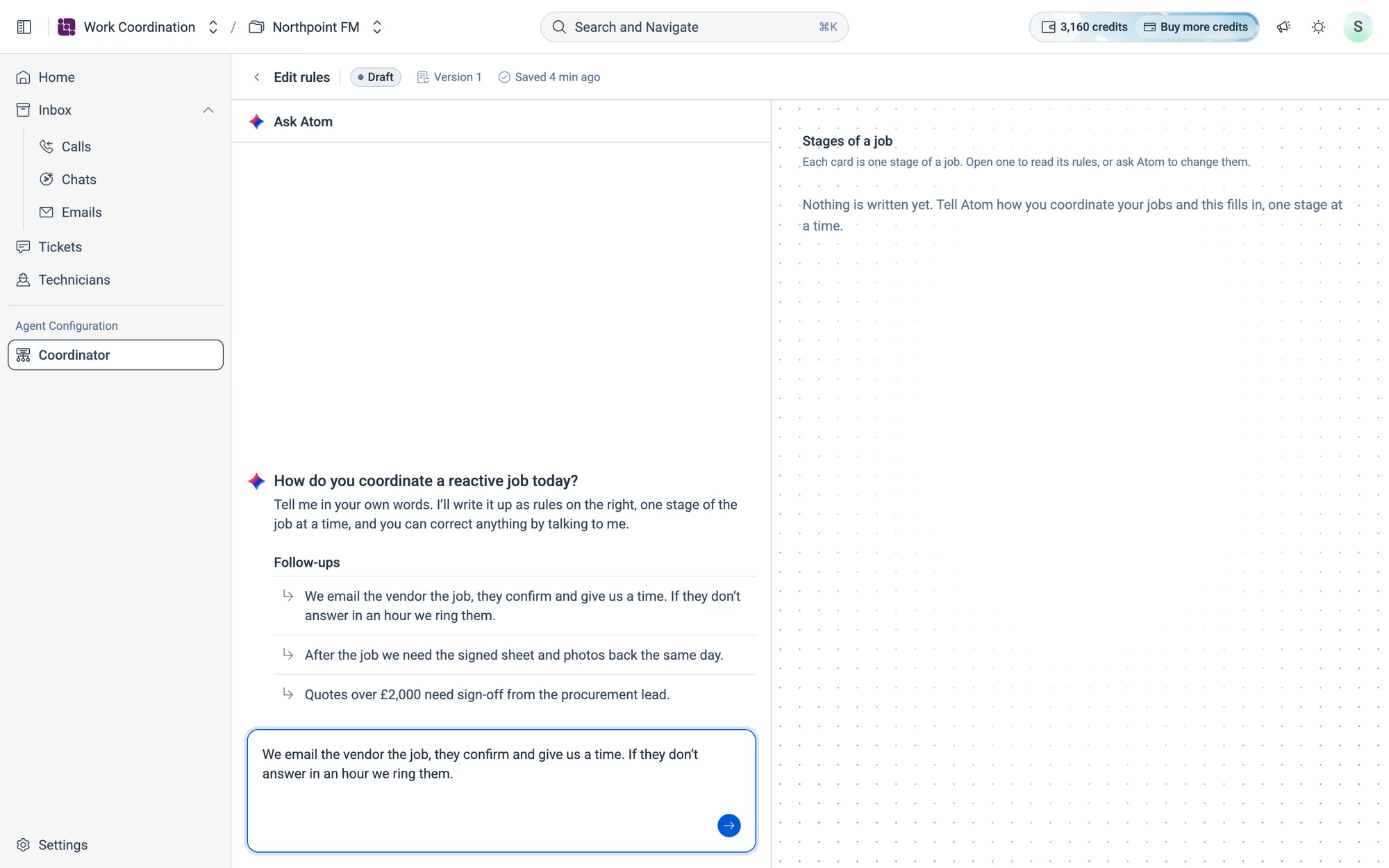
- 1Click one of the examples under Follow-ups to put it in the box, or write your own.
- 2Edit it to match how your team works, and press Enter.
- 3Keep going one stage at a time. Atom adds each stage on the right as you describe it.
07.4Channels
A blue channel chip, such as Email or Call, names a channel the Coordinator uses. Rest the pointer on it to see which one.
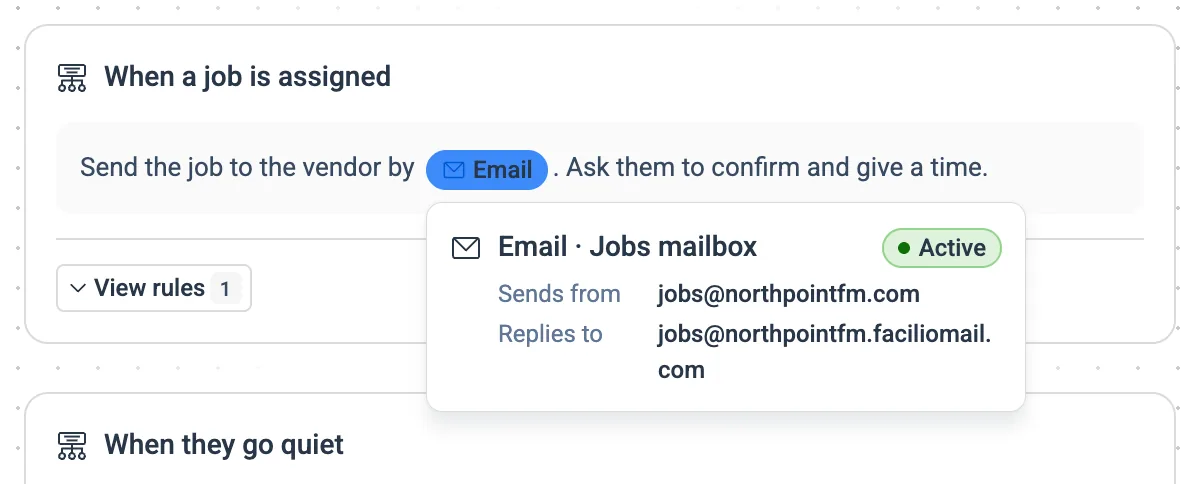
| Channel | What the card shows |
|---|---|
| Sends from and Replies to | |
| Number and Display name | |
| SMS | Sender |
| Call | Address, the number it calls from |
If a rule names a channel you haven't connected, the card says so. Click Connect Email (or whichever channel it is) to go to the right page in Settings, or Use another channel to ask Atom to switch.
07.5Answer Atom's questions
Sometimes Atom can't finish a rule without asking you, for example who should sign off large quotes. When that happens, the Coordinator page shows a yellow banner.
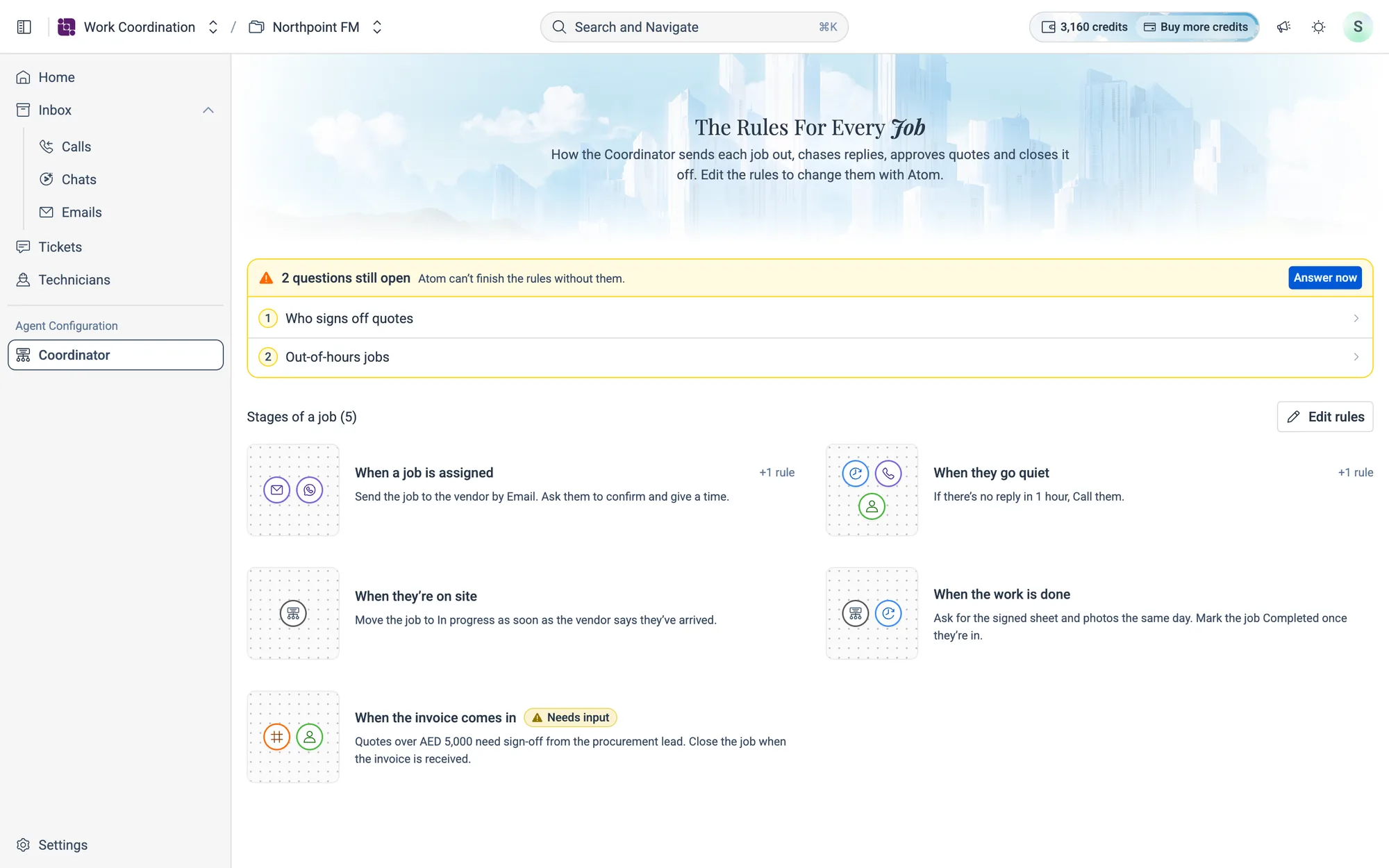

A value Atom had to guess is shown as an amber chip, and its stage has a Needs input badge.
If Atom has no questions left but some values are still guesses, the banner says how many, for example 2 values still to confirm. Its button is Confirm with Atom, which opens the editor so you can confirm or change them.
How to answer Atom's questions
- 1Click
Answer nowon the Coordinator page, or click a question in the banner. The editor opens with Atom's questions in place of the message box.
- 2Read the question and type your answer in Type your answer….
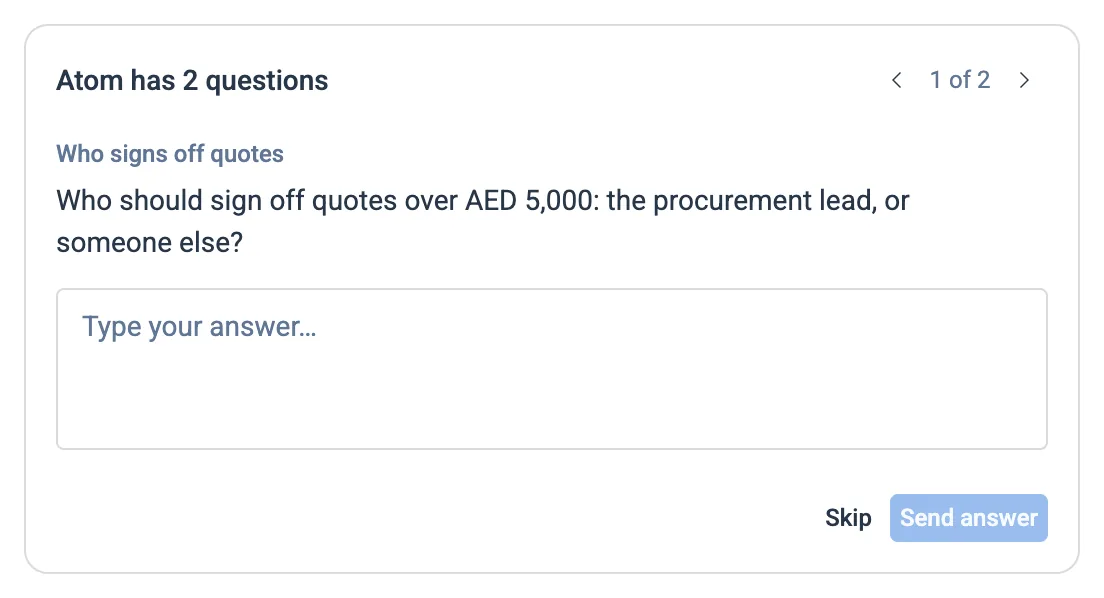
- 3Click
Send answer, or press Enter. Atom updates the rules with your answer. - 4To come back to a question later, click
Skip. Once you've skipped them all, the message box comes back, withAnswer nowabove it to bring the questions back.
How to see what Atom still needs
Rest the pointer on a Needs input badge. It lists each value Atom still needs from you, and what it's using for now.
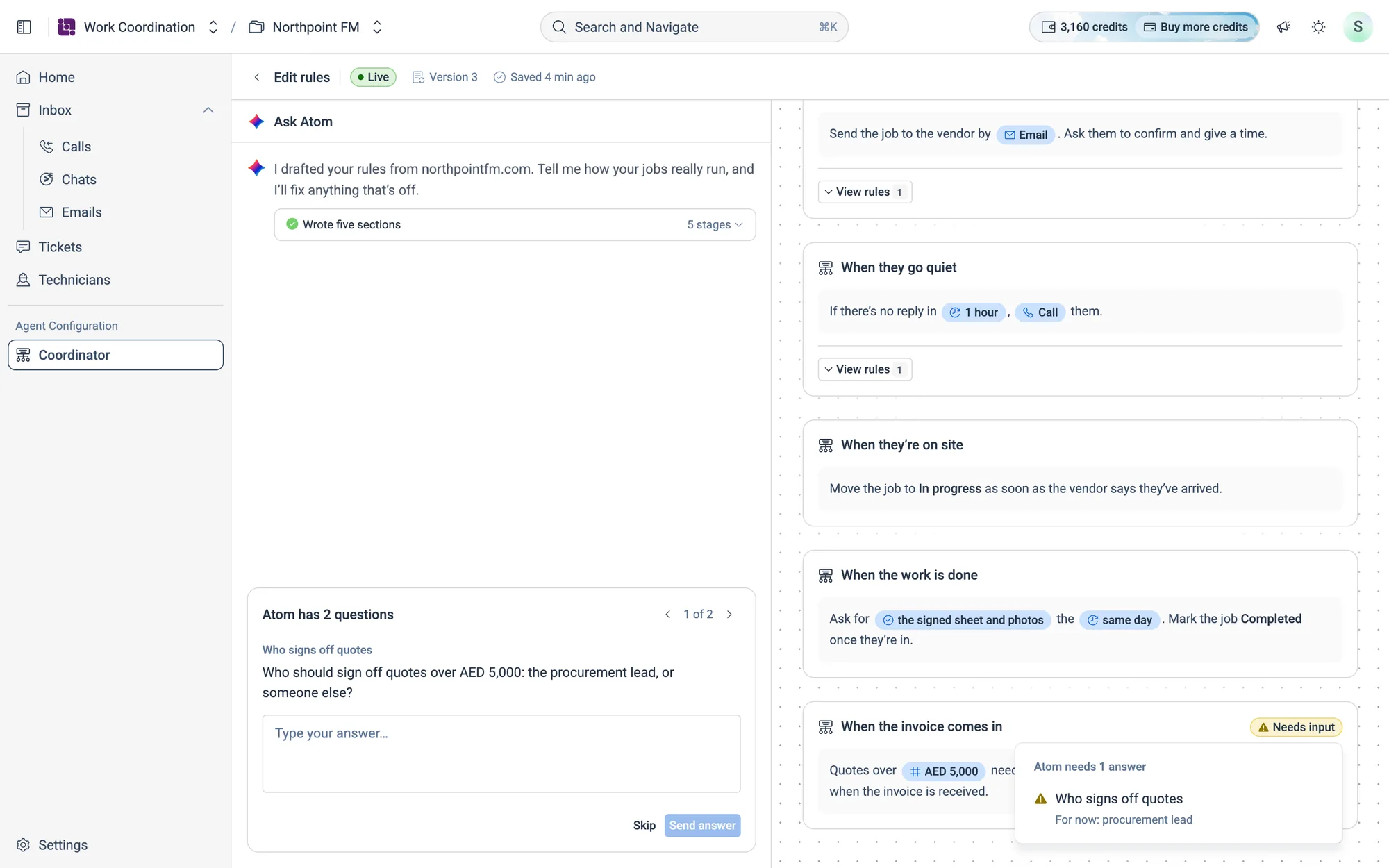
Click a row to start a message to Atom about it.