Tickets
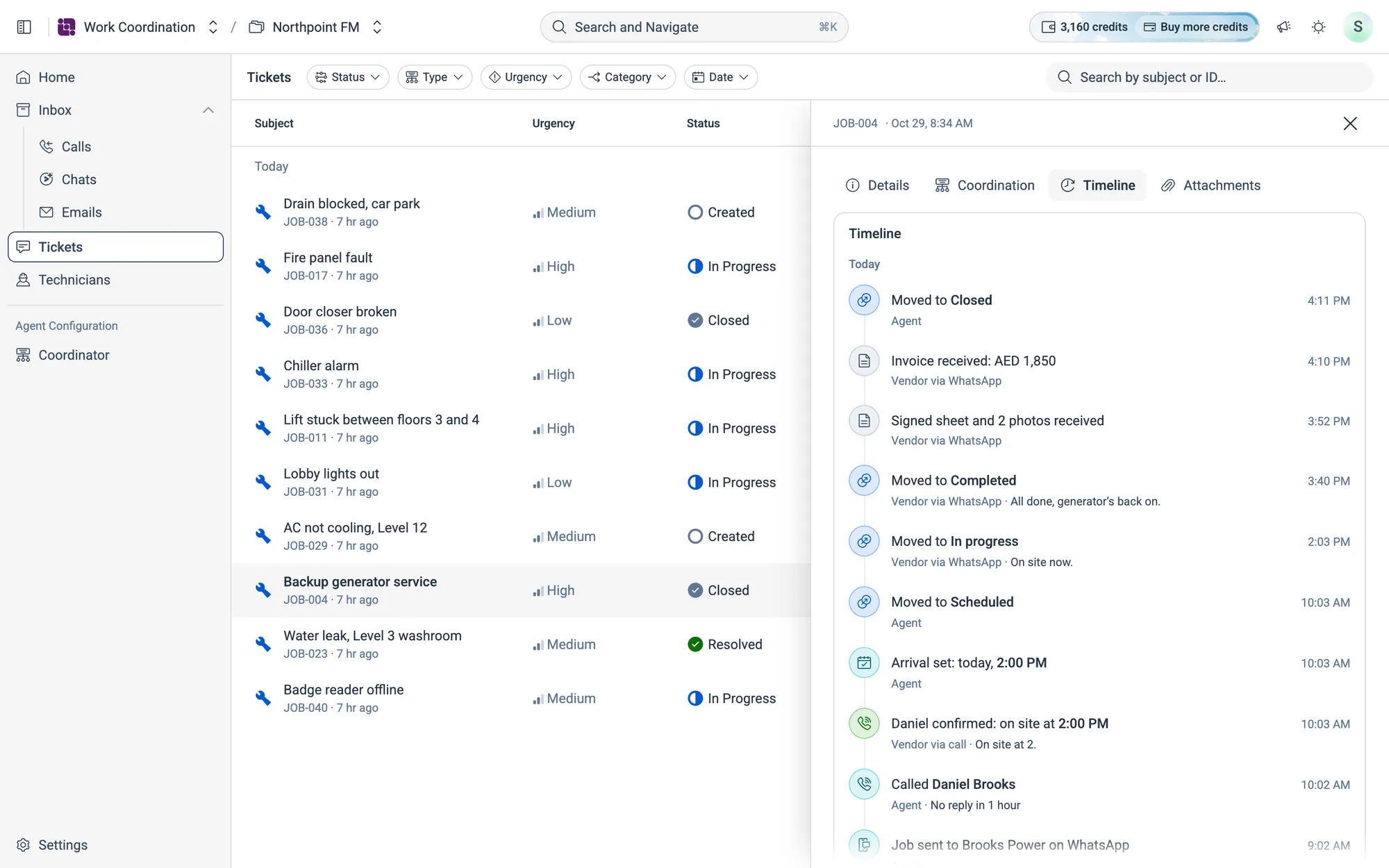
Every job the Coordinator is working on, in one list. Open a ticket to see where the job stands, when the vendor is due on site, when Atom will chase them next, and everything Atom has done so far.
04.1Where tickets come from
Each ticket is a job for a technician or vendor. Tickets sync in from the system your team already works in, such as Facilio, through Data Sources. When a ticket is assigned, the Coordinator picks it up and starts working on it, following your rules.
If no tickets have come in yet, the page says No tickets yet and offers Set up a data source.
04.2Read the list
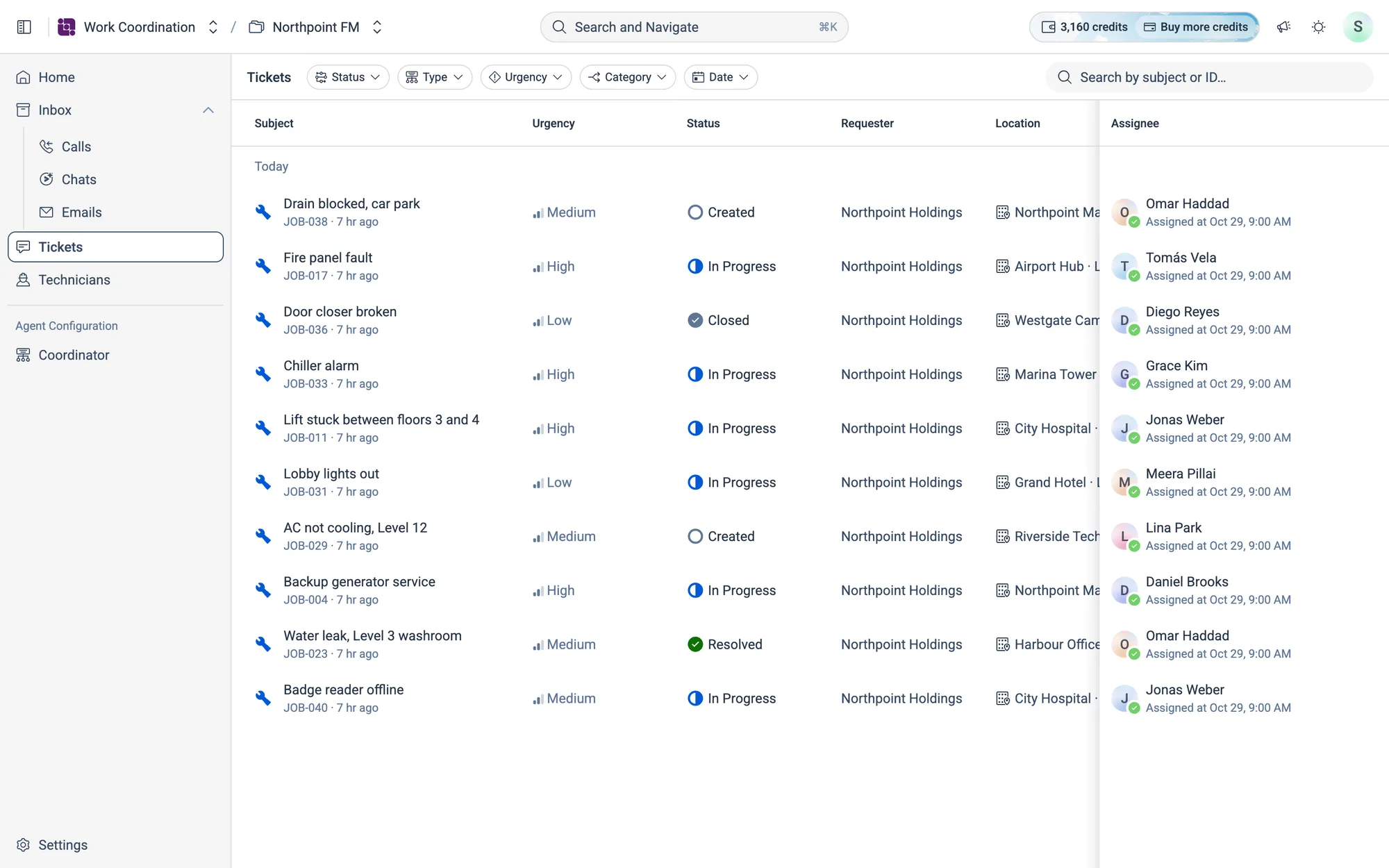
| Column | What it shows |
|---|---|
| Subject | What the job is, with its code and how long ago it came in |
| Urgency | How urgent the job is, as bars |
| Status | Created, In Progress, Resolved, Closed or Rejected |
| Requester | Who asked for the work |
| Location | The site and area, for example Northpoint Mall · Generator room |
| Category | For example HVAC, Plumbing or Electrical |
| Assignee | The technician or vendor who has the job, and when it was assigned |
How to find a ticket
- 1Type in Search by subject or ID… at the top right.
- 2Or narrow the list with the filters at the top:
Status,Type,Urgency,CategoryandDate. TheDatefilter offers Today, Yesterday, Last 7 days and Last 30 days. - 3Click
Clear allto remove every filter.
04.3Inside a ticket
Click a ticket and it opens in a panel on the right. Click × at the top to close it.
Move around a ticket with the tabs
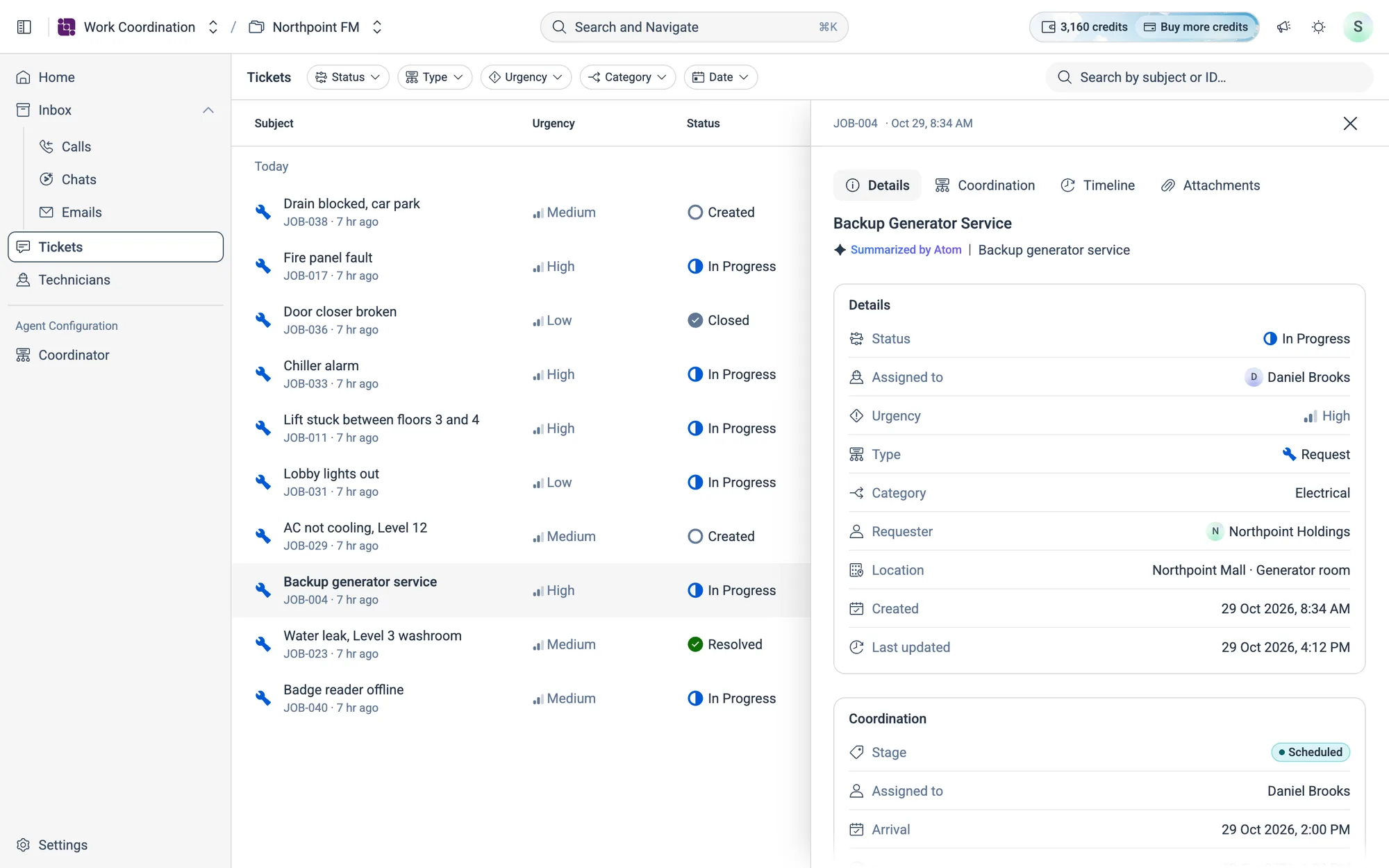
The tabs at the top of the panel take you to each part of the ticket: Details, Coordination, Timeline and Attachments.

- Click a tab to scroll straight to that part.
- Scroll the panel yourself, and the tab for the part you're reading lights up.
Details
The ticket's title, Atom's one-line summary, and the ticket's fields: Status, Assigned to, Urgency, Type, Category, Requester, Location, Created and Last updated.
Coordination
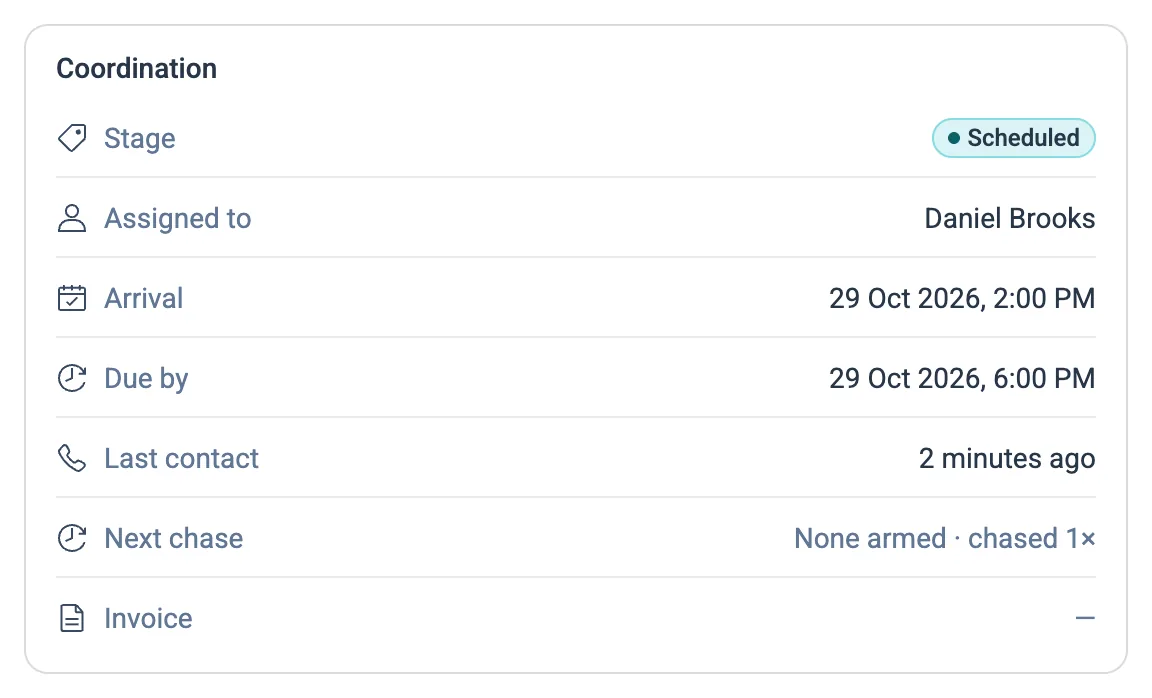
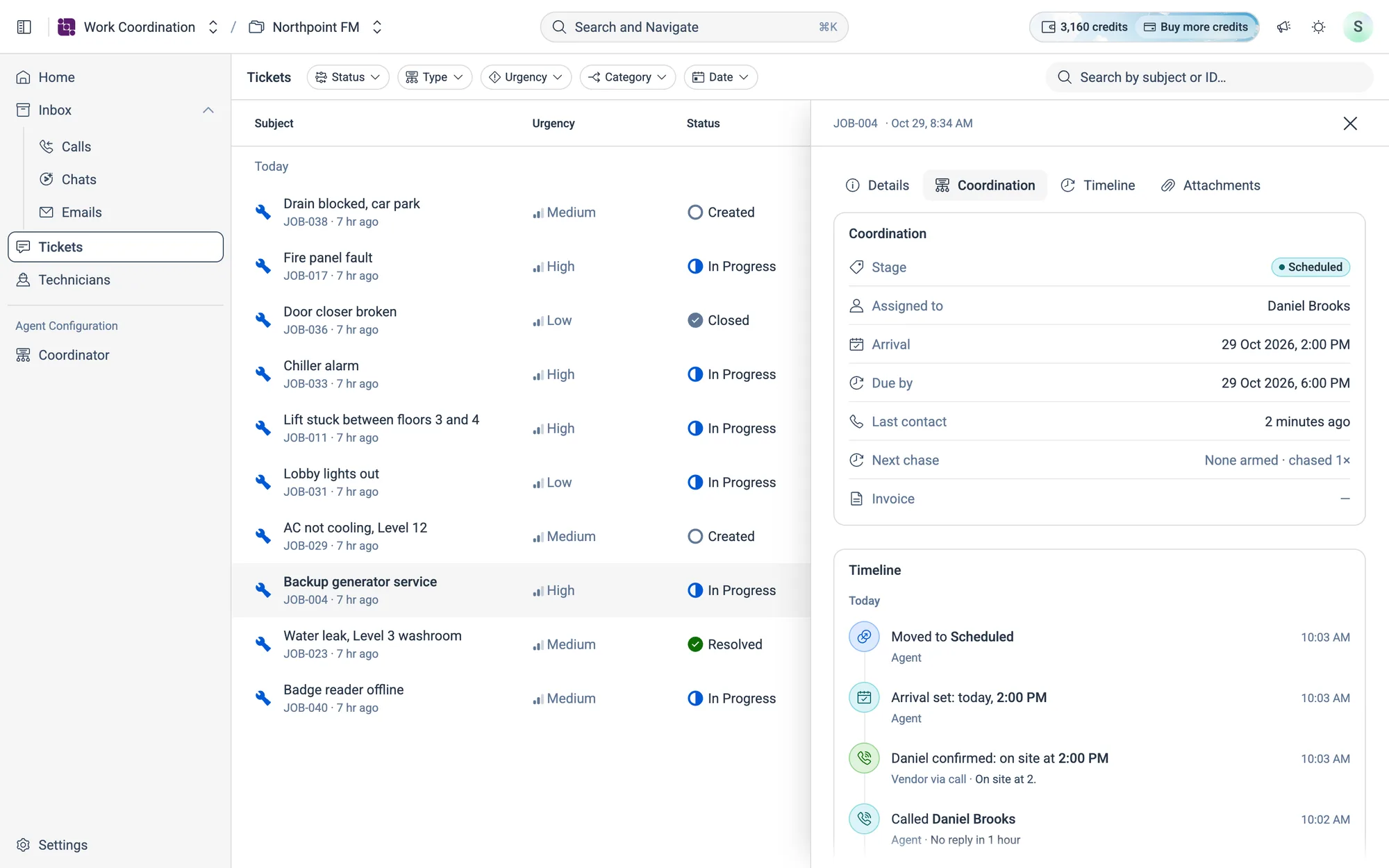
Coordination is where the job stands right now, as the Coordinator sees it.
| Row | What it shows |
|---|---|
| Stage | Where the job is: Open, Assigned, Scheduled, In progress, Completed, Closed or Cancelled |
| Assigned to | The technician or vendor, or Unassigned |
| Arrival | When the vendor agreed to be on site, or Not agreed yet |
| Due by | When the job is due |
| Last contact | When Atom last heard from or reached the vendor, or Not yet |
| Next chase | When Atom will chase the vendor next (due now if it's time). None armed means no chase is planned, and chased 1× says how many times Atom has chased so far |
| Invoice | Received, with the amount, once the invoice is in. Awaited once the job is Completed and the invoice hasn't arrived yet |
The Coordinator keeps these rows up to date as the job moves. They're read-only.
The Stage shows as a coloured badge. The same colour marks the stage in the Timeline, so you can spot where the job moved.
| Colour | Stage |
|---|---|
| Grey | Open, Closed |
| Violet | Assigned |
| Cyan | Scheduled |
| Blue | In progress |
| Green | Completed |
| Red | Cancelled |
Timeline
Timeline is everything that has happened on the job, newest first, grouped by day.
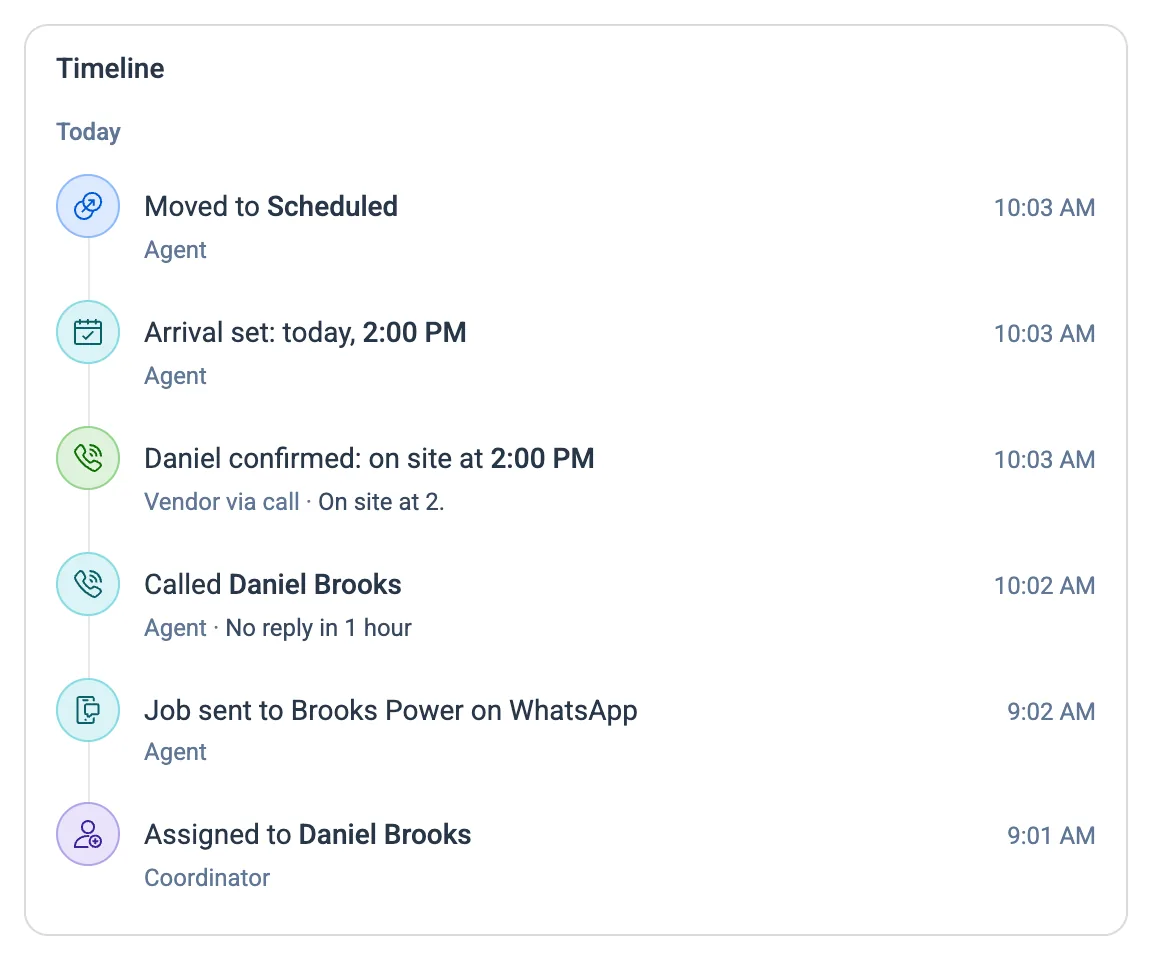
Each entry says what happened, when, and who did it, with the reason where there is one:
| Who | Meaning |
|---|---|
| Coordinator | Someone on your team |
| Agent | Atom, following your rules |
| Vendor via WhatsApp, Vendor via email, Vendor via call | The vendor, and the channel they answered on |
| Automation | An automatic step in the system |
The second line can also show what the vendor said, for example Vendor via call · On site at 2.
The day headings read Today, Yesterday, and then the date, for example Mon, 12 Oct.
Timeline icons and colours
Each entry has an icon for what happened, and a colour for the kind of moment it was. You can find the important ones without reading every line.
| Colour | Kind of moment | Examples |
|---|---|---|
| Grey | Housekeeping | Ticket created or edited, a note added, the job unassigned |
| Violet | Someone was put on the job | Assigned to Daniel Brooks |
| Cyan | Atom reached out | Job sent to the vendor, a chase call, a visit booked |
| Green | The vendor answered | The icon shows how: WhatsApp, email or a call |
| Red | Escalated | The job was escalated |
When the job moves to a new stage, the entry takes that stage's colour, the same as the Stage badge in Coordination.
Attachments
Files shared on the ticket, such as photos. When there are files, the heading and the Attachments tab show how many. Until then, it says Nothing shared yet.
04.4Follow a job from start to finish
How to see what Atom has done on a job
- 1Open Tickets and click the job.
- 2Click the Coordination tab to see its stage, arrival time and next chase.
- 3Click the Timeline tab to read everything that happened, newest first.
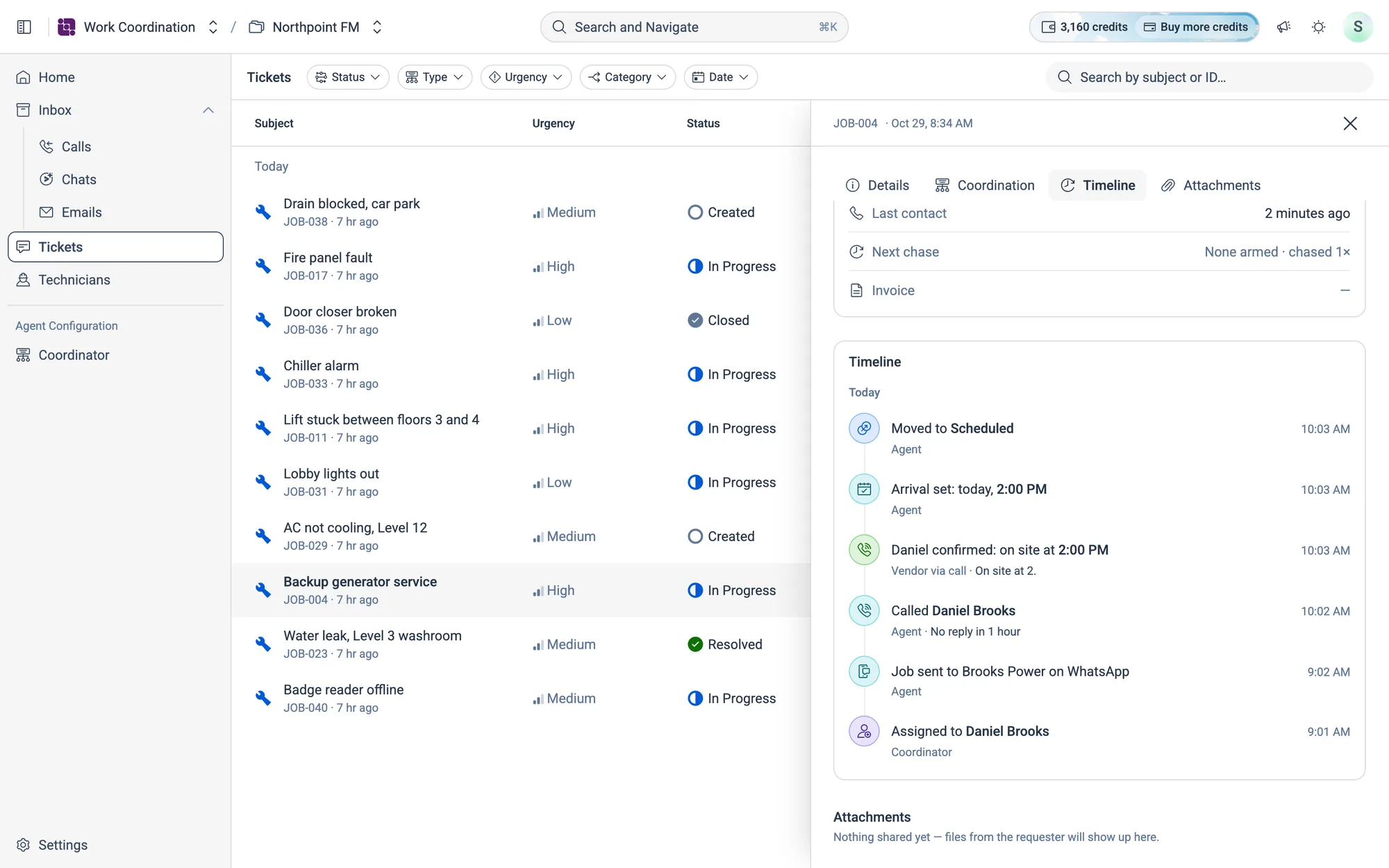
- 4To read the conversation itself, open it in the Inbox. The chase call to Daniel is under Inbox › Calls.
By the end of the day, the same timeline shows the whole job, from assignment to closing: