
The Inbox
Every call, WhatsApp chat and email between Atom and your vendors, with Atom's analysis on top and the full conversation underneath. Calls come with a recording you can play back.
05.1Three channels, one layout
Open Inbox in the menu and pick Calls, Chats or Emails. All three pages work the same way: a searchable list of conversations on the left, and the conversation you picked on the right.
| Page | What's in it |
|---|---|
| Calls | Calls Atom made to vendors, for example to chase a job nobody has answered |
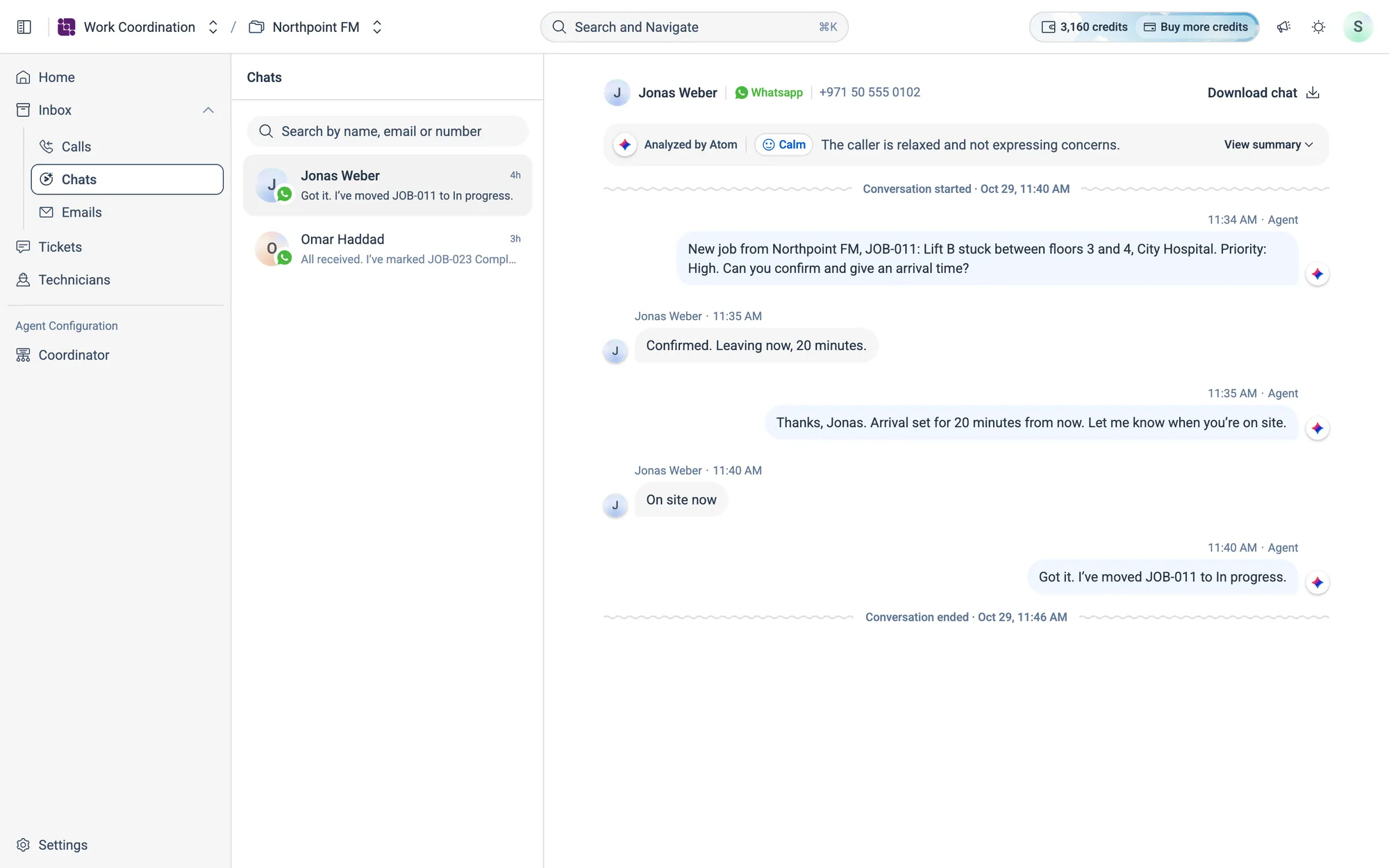
| Chats | WhatsApp conversations: jobs sent out, vendors confirming, photos of the finished work |
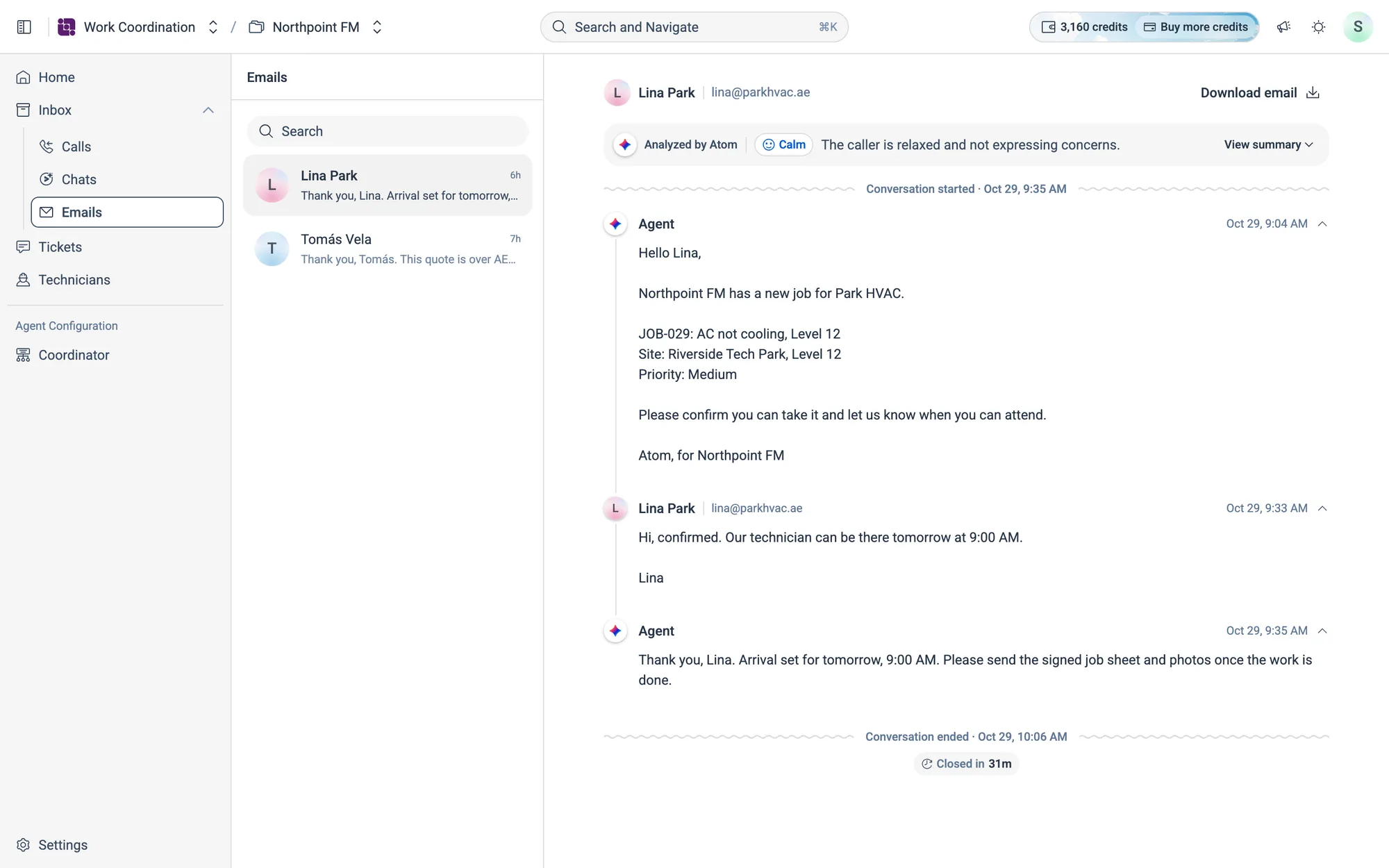
| Emails | Email threads, shown like a mail app: jobs sent out, confirmations and quotes |
05.2Inside a conversation
The conversation list
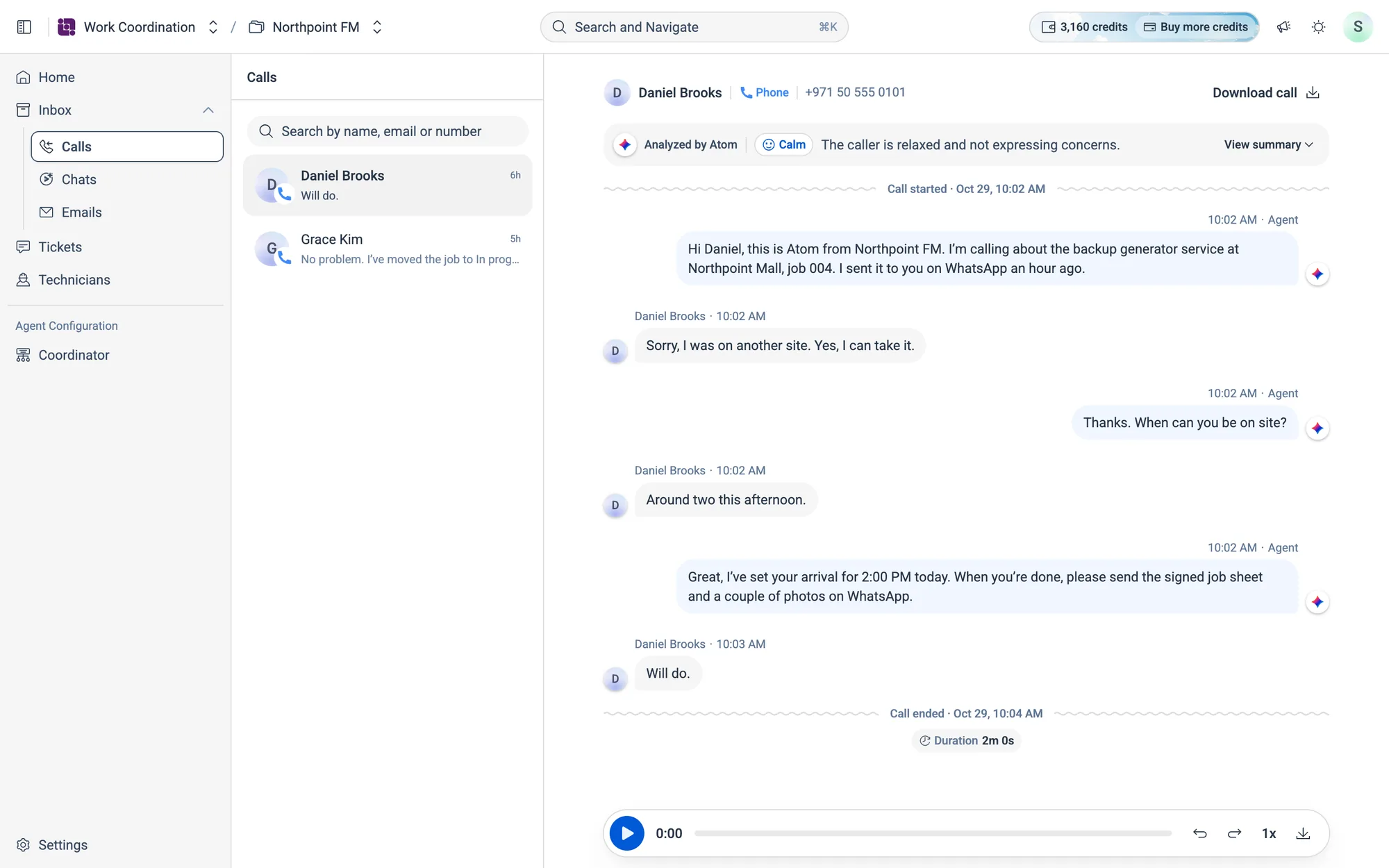
Each row shows who it was with, the last line of the conversation and how long ago it happened. The open conversation is highlighted. The newest conversation opens automatically.
Who it was with
The vendor's name, the channel and their number or address, with Download call (or Download chat, Download email) on the right.
Atom's analysis
Analyzed by Atom shows the tone Atom picked up, such as Calm, and a one-line read of the conversation. Click View summary to see Atom's full Summary, and Hide summary to fold it away.
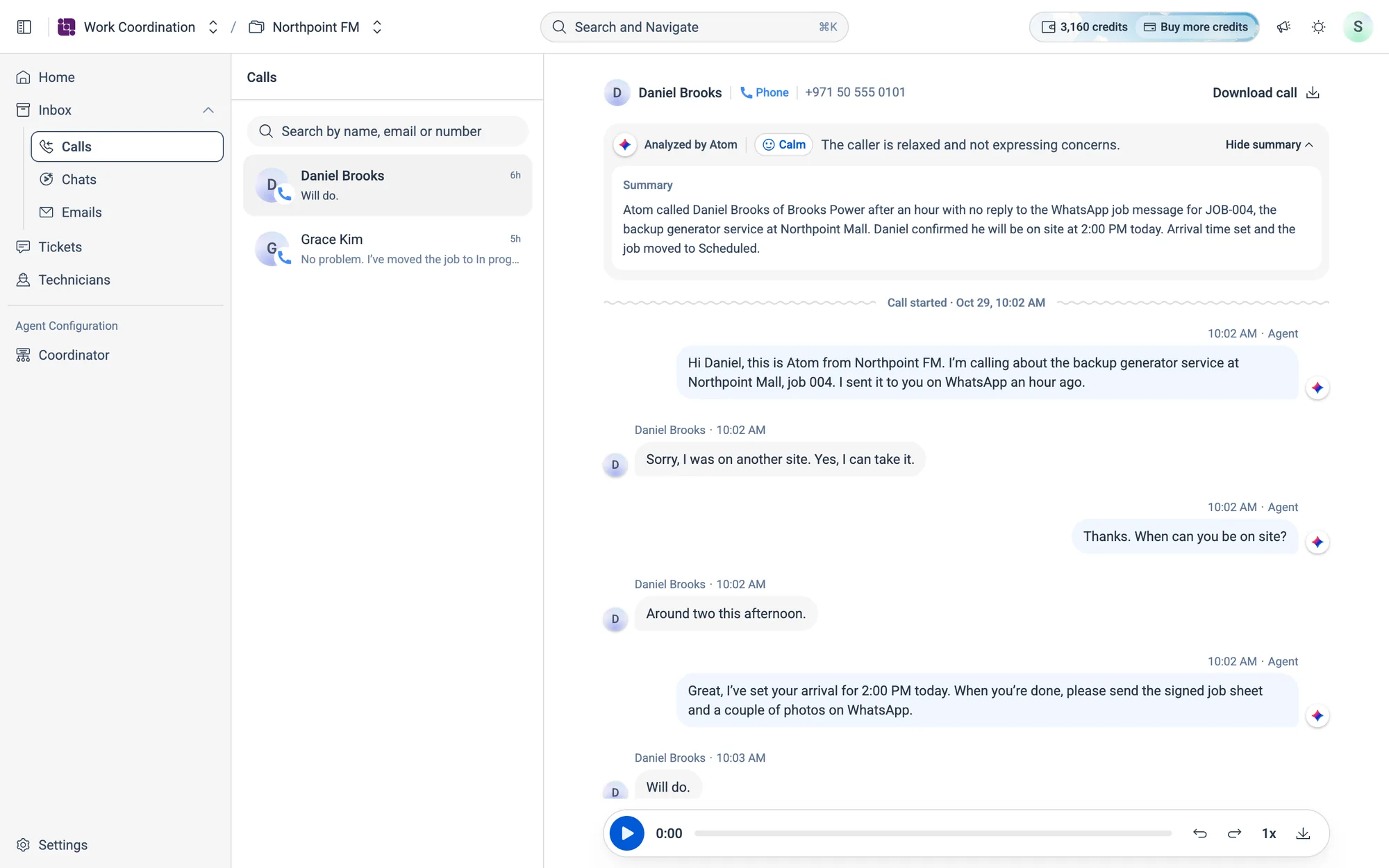
| Tone | What Atom picked up |
|---|---|
| Satisfied | Pleased, with no remaining issues |
| Calm | Relaxed and not expressing concerns |
| Concerned | Unsure or worried about the issue |
| Frustrated | Upset and having difficulty |
| Urgent | Needs immediate help or escalation |
The conversation
Atom's lines are marked Agent, and the vendor's show their name. Every line has a time. A call runs from Call started to Call ended, with its duration.
05.3Chats and emails
WhatsApp conversations look like a messaging app, with photos and documents shown in place. Email threads look like your mail app. Click a message header to collapse or expand it.
05.4Read conversations
How to find a conversation about a job
- 1Open Inbox and choose Calls, Chats or Emails.
- 2Type in the search box at the top of the list (Search by name, email or number, or Search on Emails). The list updates as you type.
- 3Click a conversation to open it.
More things you can do
- Play a call recording. Use the player at the bottom of a call to play it, skip back or forward, change the speed or download the recording.
- Translate a conversation. If it's in a different language from yours, click
Translate to English(or your language). Use the toggle to switch back to the original. - Download a conversation. Click
Download call,Download chatorDownload emailat the top right to save it as a text file.