Emirates ID (EID) Integration for Facilio
What is Emirates ID Integration?
The Emirates ID is the official national identity card issued to UAE citizens and residents. Facilio's Emirates ID Integration lets front-desk and facility teams read an Emirates ID directly from a connected card reader and automatically capture verified identity details during resident or guest check-in — removing manual data entry and improving the accuracy and compliance of records.
The card is read locally on the front-desk computer through a small, secure reader service. The captured details are shown for confirmation, compared against the existing resident record, and then logged in Facilio.
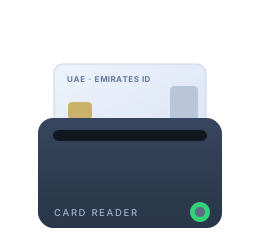
Use Case: Emirates ID Integration for Resident Check-in
For a CMMS (Computerized Maintenance Management System) or CAFM business managing accommodation — such as staff and labour camps, residential communities, or serviced properties — front-desk staff must record and verify the identity of every resident who checks in. Reading a physical ID by hand is slow, error-prone, and hard to audit.
With Facilio's Emirates ID Integration, front-desk teams can:
- Read an Emirates ID at the desk and auto-fill the check-in details.
- Verify identity against the existing resident record in real time.
- Detect mismatches and expired cards before completing check-in.
- Log every check-in with a complete, accurate record.
Example Scenario
A community manager checks a new resident into a labour-camp unit.
- The front-desk operator inserts the resident's Emirates ID into the card reader.
- Facilio reads the card and displays the resident's details — name, Emirates ID number, nationality, ID expiry, employer, and more.
- The app compares the scanned details with the resident's record and flags any identity mismatch or an expired card.
- Once the operator confirms, Facilio creates a check-in record and moves the resident's status to Checked In.
Benefits of Emirates ID Integration
- Faster Check-in: Details are read from the card in seconds instead of being typed in manually.
- Accurate, Verified Data: Identity information is captured directly from the official card, reducing manual errors.
- Built-in Verification: The app highlights identity mismatches between the card and the resident record, and warns when a card has expired.
- Improved Compliance: Standardizes how resident identity is verified and recorded at check-in.
- Complete Audit Trail: Every read is logged as a check-in record, giving a reliable history of movements.
- Reads Locally at the Desk: The card is read on the front-desk computer; identity data is not sent to any third-party service to perform the read.
How Emirates ID Integration Works
The integration has three parts that work together on the front-desk computer:
- Card Reader — A supported smart-card reader plugged into the computer.
- Facilio EID Bridge — A small background program that reads the Emirates ID chip (using a certified UAE ID Card Toolkit) and makes the details available securely to Facilio on the same machine. Staff never have to open it.
- Emirates ID Connected App — A Facilio web tab that requests the read, shows the details, checks them against the resident record, and saves the check-in.
The app also shows a live connection status — reader service, card reader, and card inserted — so staff know it is ready before scanning.
Setting Up the Integration
For your IT administrator
This is a one-time setup performed on each front-desk computer. Once it is done, front-desk staff simply open the check-in page and scan — there is nothing for them to start or configure.
What You Receive
Everything needed is inside the delivered package (a single .zip). Nothing else has to be downloaded.
| Item | Purpose |
|---|---|
| FacilioEIDBridge folder | The complete Bridge software — bundled Java runtime, card-reading engine, configuration, the Windows service tool, and the one-click install.bat / uninstall.bat scripts with a self-healing watchdog. |
| EnableLocalNetworkAccess-Chrome-Edge.reg | A one-click browser policy so Chrome or Edge can reach the local Bridge (required on Chrome/Edge 142 and later). |
| Installation Guide (PDF) | The full setup reference document. |
| API & Debugging Guide (PDF) | The Bridge's local API for web pages, plus a symptom-by-symptom debugging playbook for support teams. |
Before You Begin (Prerequisites)
| Requirement | How to check |
|---|---|
| 64-bit Windows 10 or 11 | Settings ▸ System ▸ About ▸ "64-bit operating system" |
| Smart-card reader (e.g. HID OMNIKEY) plugged in, with driver | Device Manager ▸ Smart card readers — appears with no warning icon |
| Windows "Smart Card" service running | services.msc ▸ Smart Card ▸ Running, Automatic (usually already on) |
| Administrator access | You can open Command Prompt "as administrator" |
Step 1: Connect the Card Reader
- Plug the smart-card reader into a USB port and let Windows install its driver.
- Confirm it appears under Device Manager ▸ Smart card readers with no warning icon.
Step 2: Copy the Bridge Software
- Copy the FacilioEIDBridge folder to
C:\FacilioEIDBridge. (If you received a.zip, extract it there.) - Keep the folder intact — do not delete the
dev,lib, orruntimesub-folders.
Quick test (optional, no browser needed)
Double-click start.bat. A console window shows ... listening on http://127.0.0.1:17777/. Open that address in a browser, insert an Emirates ID, and click Scan Emirates ID — the fields should fill. Close the console to stop. If this works, the reader, driver, and engine are all good.
Step 3: Install the Bridge as a Background Service
One click does everything — the service starts automatically on every boot, invisibly, and heals itself if it ever gets stuck.
- In
C:\FacilioEIDBridge, right-click install.bat ▸ Run as administrator.
The script removes any previous install, frees the port, registers and starts the Facilio EID Bridge Windows service, adds a watchdog (checks the Bridge every minute and restarts it automatically if it stops answering), and finishes by verifying the Bridge responds — it prints "Bridge is UP" on success.
You can manage the service any time with:
| Command (run as administrator, from C:\FacilioEIDBridge) | What it does |
|---|---|
install.bat | Full install or repair — service, auto-start, watchdog (safe to re-run) |
uninstall.bat | Full clean removal — watchdog, service, and frees the port |
FacilioEIDBridge.exe start / stop | Start or stop the Bridge now |
FacilioEIDBridge.exe restart | Restart it (after replacing files or editing config) |
Power on / off behaviour
- PC ON → Windows boots → the service starts automatically (no login, no window) → the Bridge is ready. If it crashes, Windows restarts it within about 10 seconds; if it hangs (for example after a forced power-off), the watchdog restarts it within about 2 minutes.
- PC OFF → the service stops with the PC.
Staff never start or stop it; it returns on every reboot and recovers on its own.
Quick health check
On the front-desk PC, open http://127.0.0.1:17777/health in a browser. A healthy Bridge replies instantly with its version and settings — a handy first check before calling support.
If scans work with the test but not as a service
The service runs as the LocalSystem account. Edit FacilioEIDBridge.xml, uncomment the service-account block, enter the front-desk Windows user's username and password, then run uninstall.bat and install.bat again.
Step 4: Allow the Browser to Reach the Bridge
Chrome and Edge version 142 and later block a web page from calling http://localhost. The included policy file turns that block off so the Facilio check-in page can reach the Bridge. (Firefox does not need this.)
- Copy EnableLocalNetworkAccess-Chrome-Edge.reg to the PC.
- Double-click it. When Windows asks "Are you sure you want to continue?", click Yes, then OK. (If a User Account Control box appears first, click Yes there too.)
- Fully restart the browser — type
chrome://restart, or close every window and reopen. - Confirm it applied: open
chrome://policy(oredge://policy) ▸ Reload policies ▸ find LocalNetworkAccessRestrictionsTemporaryOptOut = true, Status OK. - Make sure the Bridge is running and the reader is connected.
Setting up many computers
Instead of applying the .reg file on each PC, push the same policy (LocalNetworkAccessRestrictionsTemporaryOptOut = Enabled) through Group Policy using the Chrome or Edge ADMX templates.
Transitional policy
This is a temporary Chrome/Edge policy that will be removed after Chrome M152. Before then, the permanent replacement is for the Facilio Connected App to be granted permission to reach the local network directly. Facilio will provide this update ahead of the change, so no action is needed now.
Step 5 (Advanced): Allowed Web Addresses
For safety, the Bridge only answers web pages it recognises. All Facilio domains are pre-approved out of the box, so normally there is nothing to do here.
If the check-in page is ever hosted on a custom web address, add that address to the allowed_origins line in C:\FacilioEIDBridge\bridge.properties (subdomain wildcards such as https://*.facilioservices.com are supported), then run FacilioEIDBridge.exe restart.
Which address was blocked?
Open http://127.0.0.1:17777/health on the front-desk PC — if a page was refused, the reply shows it as lastRejectedOrigin, giving you the exact address to add.
Using the Emirates ID Integration
This section is for front-desk operators and facility staff who process check-ins.
Reading an Emirates ID Card
- Open the check-in page in the browser on the front-desk PC (the one with the card reader).
- Check the status header at the top — it shows three lights: reader service, card reader, and card. When all are green, scanning is ready. Nothing needs to be launched; the Bridge runs in the background.
- Insert the resident's Emirates ID fully into the card reader, chip first.
- Click Scan Emirates ID. Reading takes a few seconds; the resident's details fill in automatically.
- Review the details, resolve any mismatch or expired-card warning the app raises, add the booking details, and complete the check-in.
- Remove the card and return it to the resident.
Details Captured from the Card
When an Emirates ID is read, the following details are captured and shown for confirmation:
- Full Name (English and Arabic)
- Emirates ID Number
- Nationality
- Date of Birth
- Gender
- ID Expiry Date
- Card Number
- Occupation
- Employer / Company
- Passport Number, Country, and Expiry
Booking details such as Room Number and Booking Reference can also be entered alongside the scanned information before completing the check-in.
What Gets Recorded on Check-in
When the operator completes the check-in:
- A Check-In Details record is created, capturing the scanned information and the time of check-in.
- The resident record is updated with the details confirmed from the card (including Employer / Company), and the resident's status is moved to Checked In.
- Any identity mismatch between the card and the resident record is flagged to the operator before saving, and an expired card is clearly warned.
Troubleshooting
Start every investigation the same way: on the front-desk PC, open http://127.0.0.1:17777/health. If it replies, the Bridge is running and the reply itself tells you the version, the approved web addresses, and any page that was refused.
| What you see | Likely cause | What to do |
|---|---|---|
"Reader service not running" / /health does not reply | The Bridge is not running on this PC | Wait up to 2 minutes — the watchdog restarts a stuck Bridge automatically. Still down? Run install.bat as administrator (it repairs the install), then re-check /health. |
| "Card reader not connected" although it is plugged in | Reader unplugged, driver missing, or another program is holding the reader | Check Device Manager ▸ Smart card readers (most readers install automatically — only fetch a vendor driver if it is not listed cleanly). Close any other ID-reading software. The Bridge recovers a lost reader connection by itself within seconds. |
| Scan button stays disabled | No card inserted | Insert the Emirates ID fully into the reader, chip first. |
The check-in page cannot reach the Bridge, but http://127.0.0.1:17777/ works on the PC | One of the two browser-side gates | ① Open /health — if lastRejectedOrigin names your page, add that address to allowed_origins (Step 5) and restart the service. ② Otherwise re-apply the browser policy (Step 4) and fully restart the browser, then re-check chrome://policy. |
| Service seems stuck after a power cut or forced shutdown | Interrupted Windows state | Nothing to do — the watchdog restarts it within about 2 minutes. Manual fix if ever needed: FacilioEIDBridge.exe restart, or reboot the PC. |
Scan works with start.bat but not as a service | Service account permissions | See the service-account note in Step 3. |
| Some card fields come back blank | Normal — not every card carries every field | No action needed. |
Where the logs are: FacilioEIDBridge.out.log, FacilioEIDBridge.err.log, and watchdog.log, all inside C:\FacilioEIDBridge. The API & Debugging Guide (PDF) in the delivered package walks support engineers through every scenario in more depth.