KeyWatcher Integration for Facilio
Introduction
KeyWatcher is Australia’s leading key management system designed to provide secure, controlled access to physical keys across organizations of all sizes. With dependable hardware and robust auditing capabilities, KeyWatcher ensures that only authorized contractors and staff gain access to keys while providing complete traceability of every action.

Integrated with Facilio’s Connected CMMS, this solution enables:
- Automated contractor key access
- Real-time key tracking
- Full audit visibility
- Reduced manual coordination
- Support for both Site-level and Building-level devices
Configuring KeyWatcher Integration
1. Enabling KeyWatcher at Site or Building Level
To activate KeyWatcher for a location:
- Open the Site or Building record
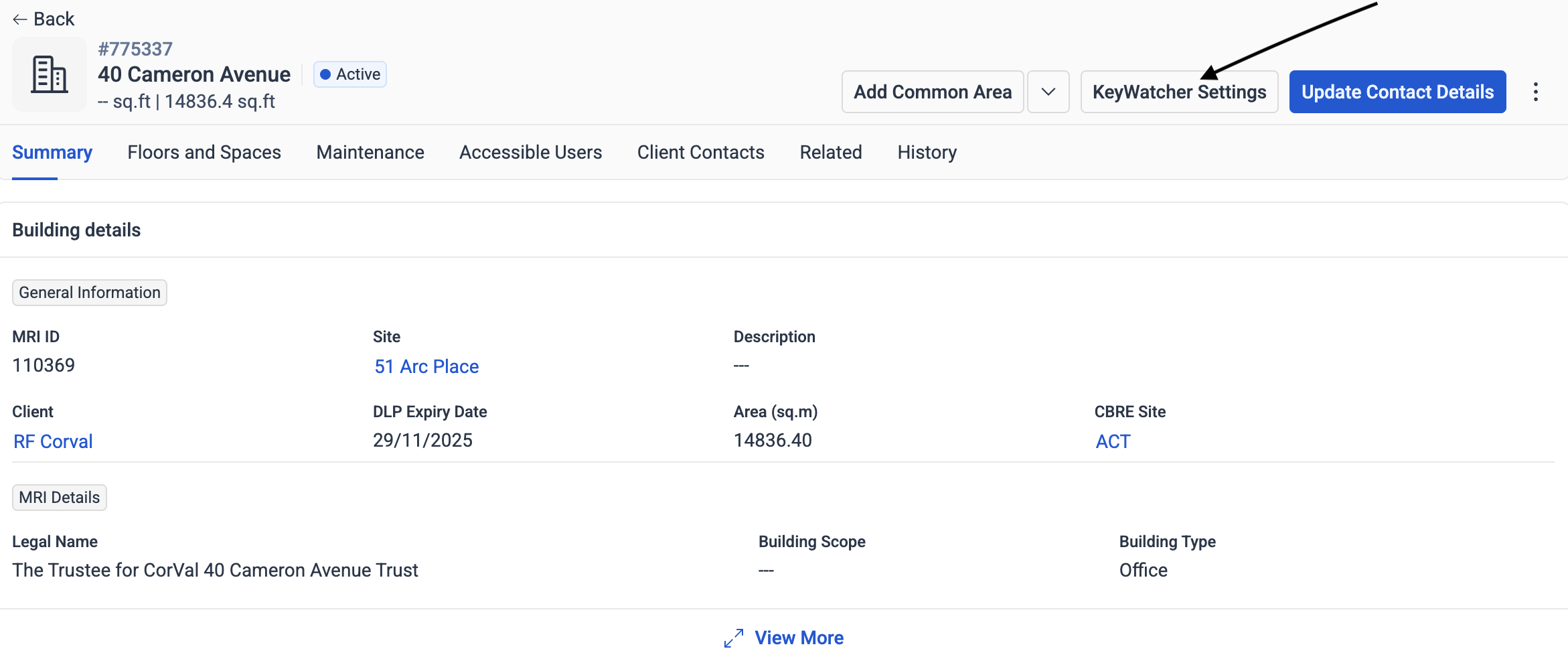
- Enable Has KeyWatcher Device
Once enabled, a KeyWatcher Settings button appears on the summary page.

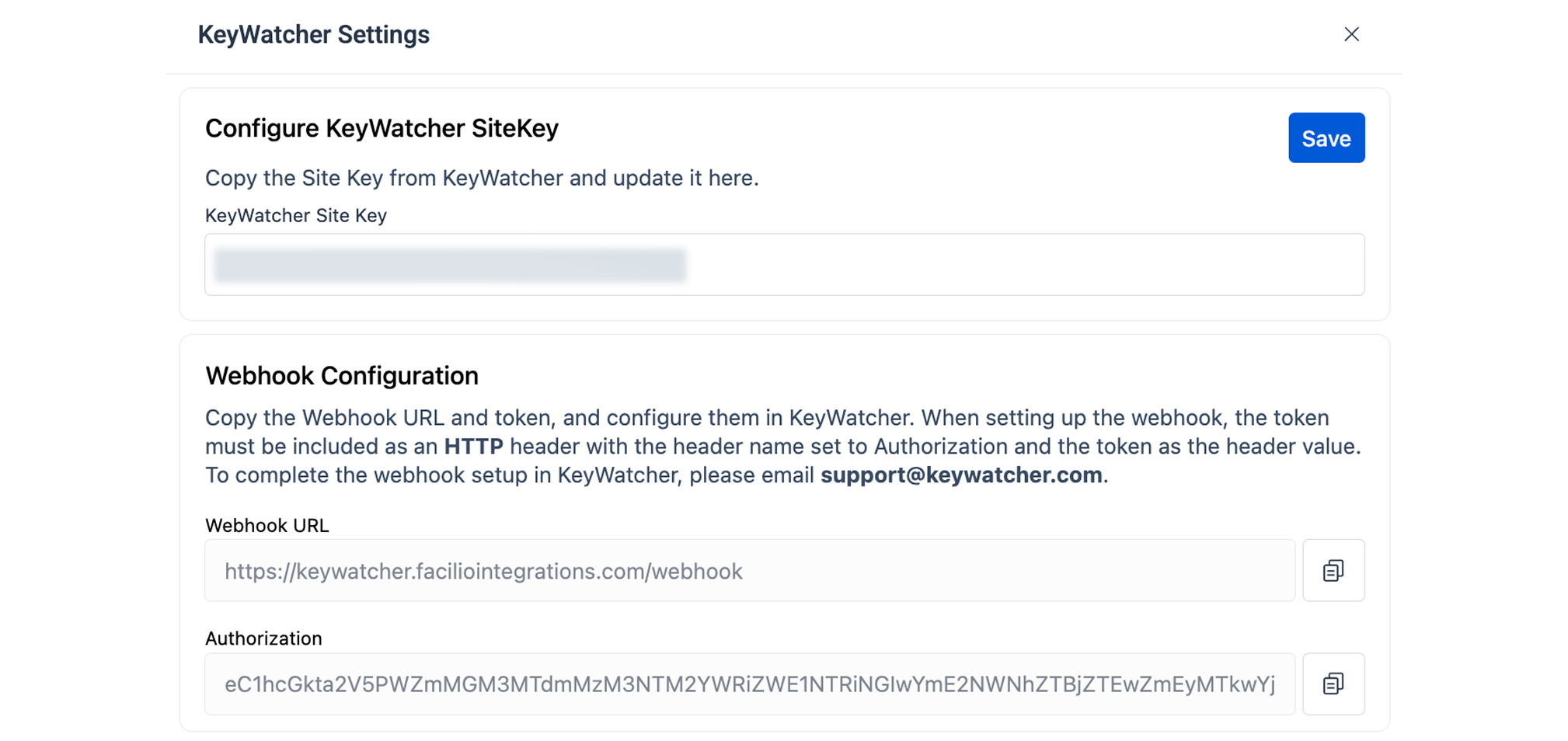
2. Configuring the KeyWatcher SiteKey
Click KeyWatcher Settings and enter the unique KeyWatcher SiteKey for that location’s device.
Rules:
- SiteKey must be unique
- Cannot be assigned to multiple locations
- If reused, Facilio displays an error and identifies the existing mapping
Webhook Configuration
Facilio provides:
- Webhook URL
- Authorization Token
KeyWatcher requires:
Authorization: <token>
Email these to support@keywatcher.com to complete device setup.
What is KeyCabinets?
The KeyCabinets module in Facilio defines how access to the KeyWatcher device is assigned to vendors and contractor contacts.
Each KeyWatcher device contains secured key compartments, and this module determines which vendor or vendor contact is authorized to access those keys through a configured access profile.
KeyCabinets serves as the connection between:
- A vendor or vendor contact
- A site or building equipped with a KeyWatcher device
- The specific key permissions configured for that location
This ensures that only vendors or vendor contacts configured in KeyCabinets are permitted to proceed with the KeyWatcher check-in process; anyone not present in KeyCabinets will not be allowed to check in for KeyWatcher access.
Configuring Access Profiles (KeyCabinets)
Navigate to:
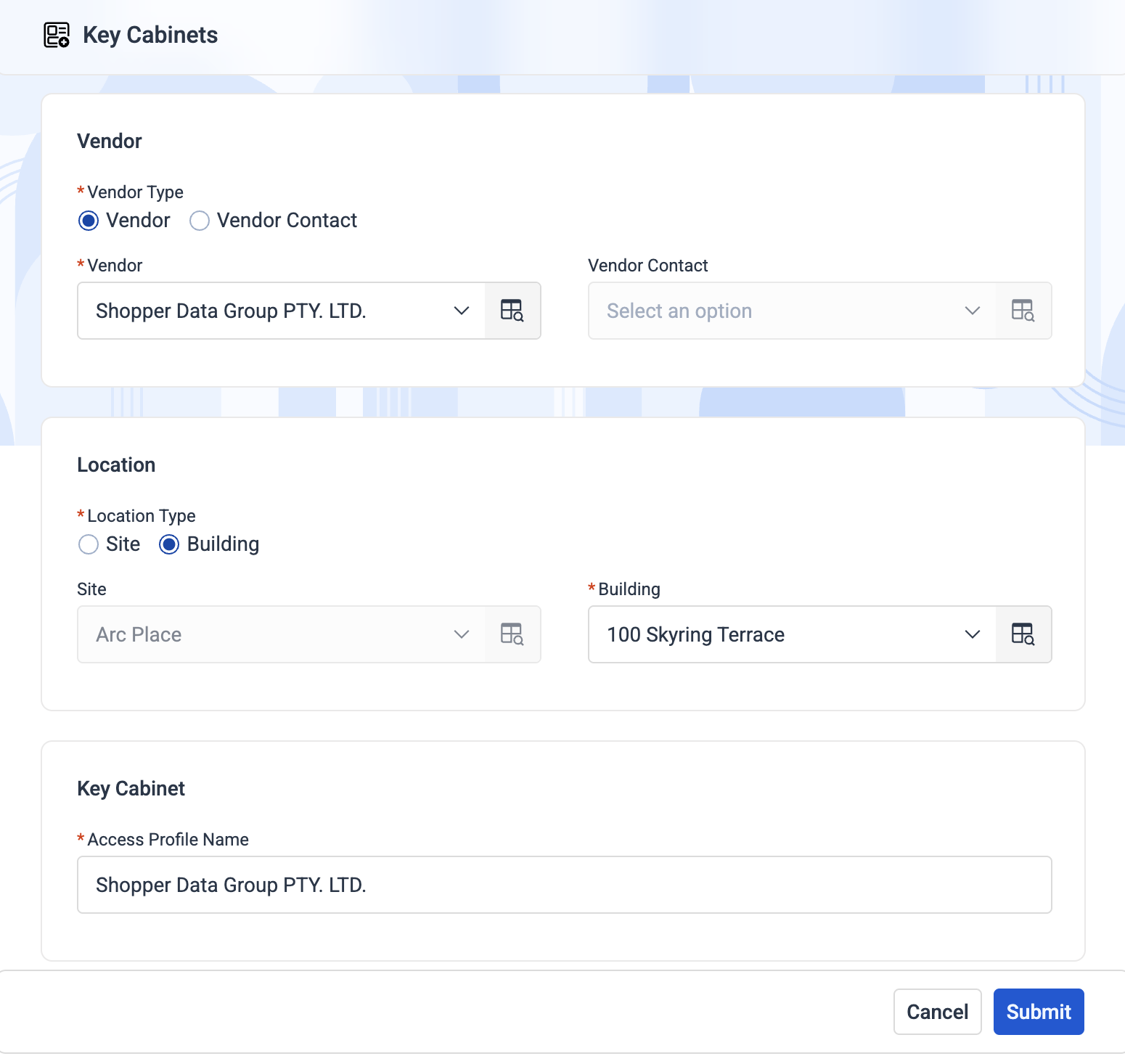
KeyWatcher Integration → KeyCabinets → Create/Edit
Vendor Section
| Field | Type | Description |
|---|---|---|
| Vendor Type | Radio | Select Vendor or Vendor Contact |
| Vendor | Lookup | Enabled if Vendor Type = Vendor |
| Vendor Contact | Lookup | Enabled if Vendor Type = Vendor Contact; Vendor auto-fills |
Location Section
Only Sites/Buildings with Has KeyWatcher Device = true appear.
| Field | Type | Description |
|---|---|---|
| Location Type | Radio | Choose Site or Building |
| Site | Lookup | Enabled when Location Type = Site |
| Building | Lookup | Enabled when Location Type = Building; Site auto-fills |
Access Profile Details
| Field | Description |
|---|---|
| Profile Name | Auto-generated from vendor/vendor contact name; editable |
Access Profile Validations
SiteKey required:
“KeyWatcher SiteKey not configured for this location.”Profile must already exist on KeyWatcher:
“Configure this profile in KeyWatcher before creating in Facilio.”
How the Integration Works
Contractor Check-In Flow
A contractor:
- Scans the QR code
- Enters email or phone number
- Facilio auto-fills their visit details
- Clicks Check-In to begin KeyWatcher validation
KeyWatcher validation is triggered only when:
- The location has KeyWatcher enabled
- The vendor has a valid access profile
- The contractor does not have an active KeyWatcher session
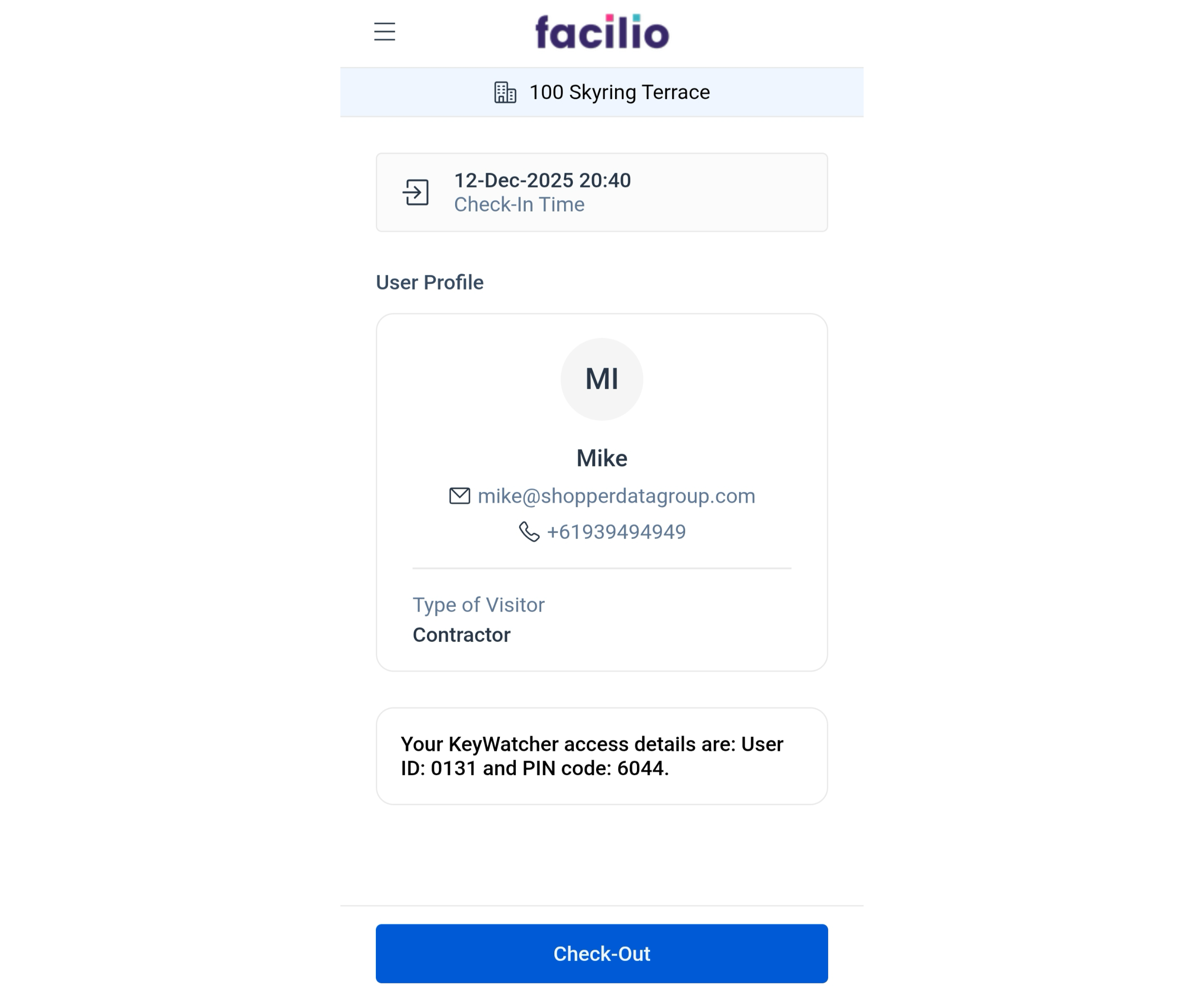
If check-in succeeds:
- KeyWatcher generates UserId + PIN
- Sends SMS and Email with device access credentials
- Facilio displays the PIN details on the Check-In page
If check-in fails:
- The check-in request fails
- Detailed error entries are saved in KeyWatcher Integration Logs
KeyWatcher Integration Logs
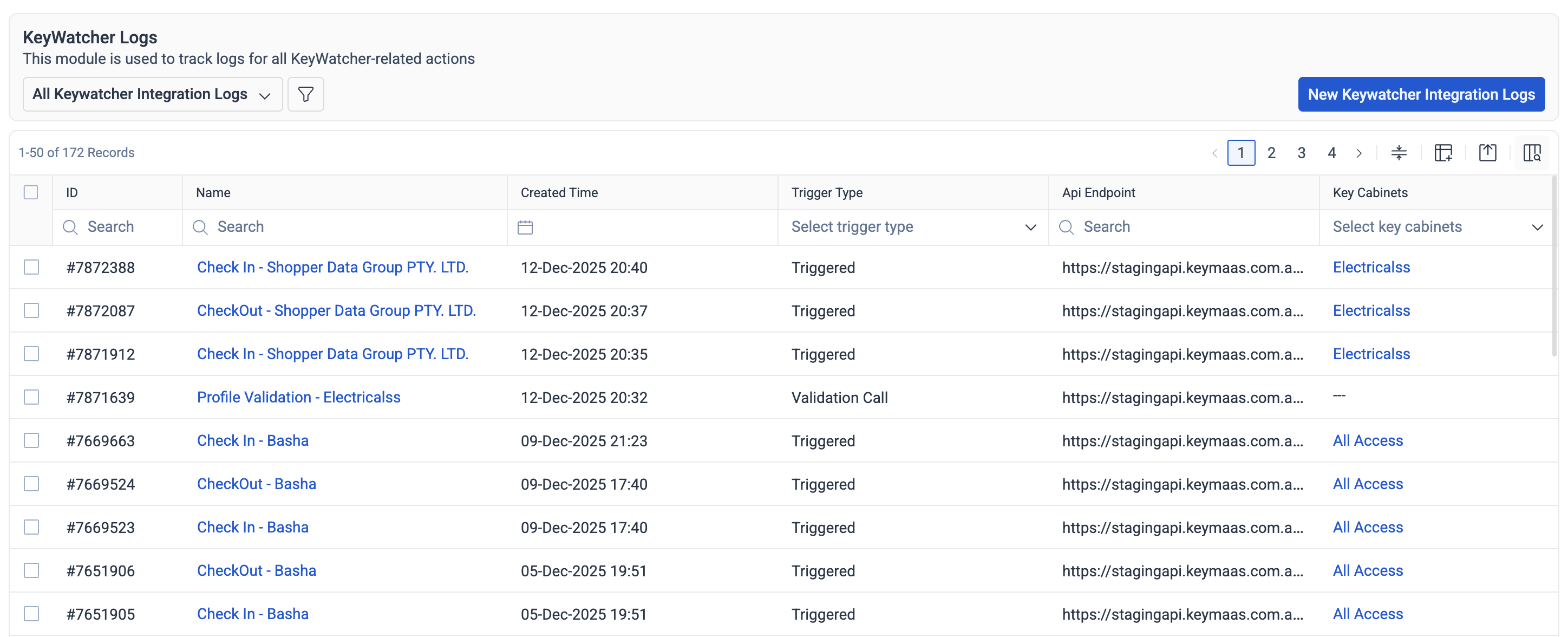
Logs provide a complete trace of KeyWatcher operations.
Logs contain:
- Check-in success events
- Check-in failures with error details
- Checkout success events
- Checkout failures with error details
- Cases where KeyWatcher validation was skipped
- e.g., “KeyWatcher SiteKey not configured — KeyWatcher validation skipped.”
Navigate to:
KeyWatcher Integration → KeyWatcher Integration Logs
VisitKeys Tracking
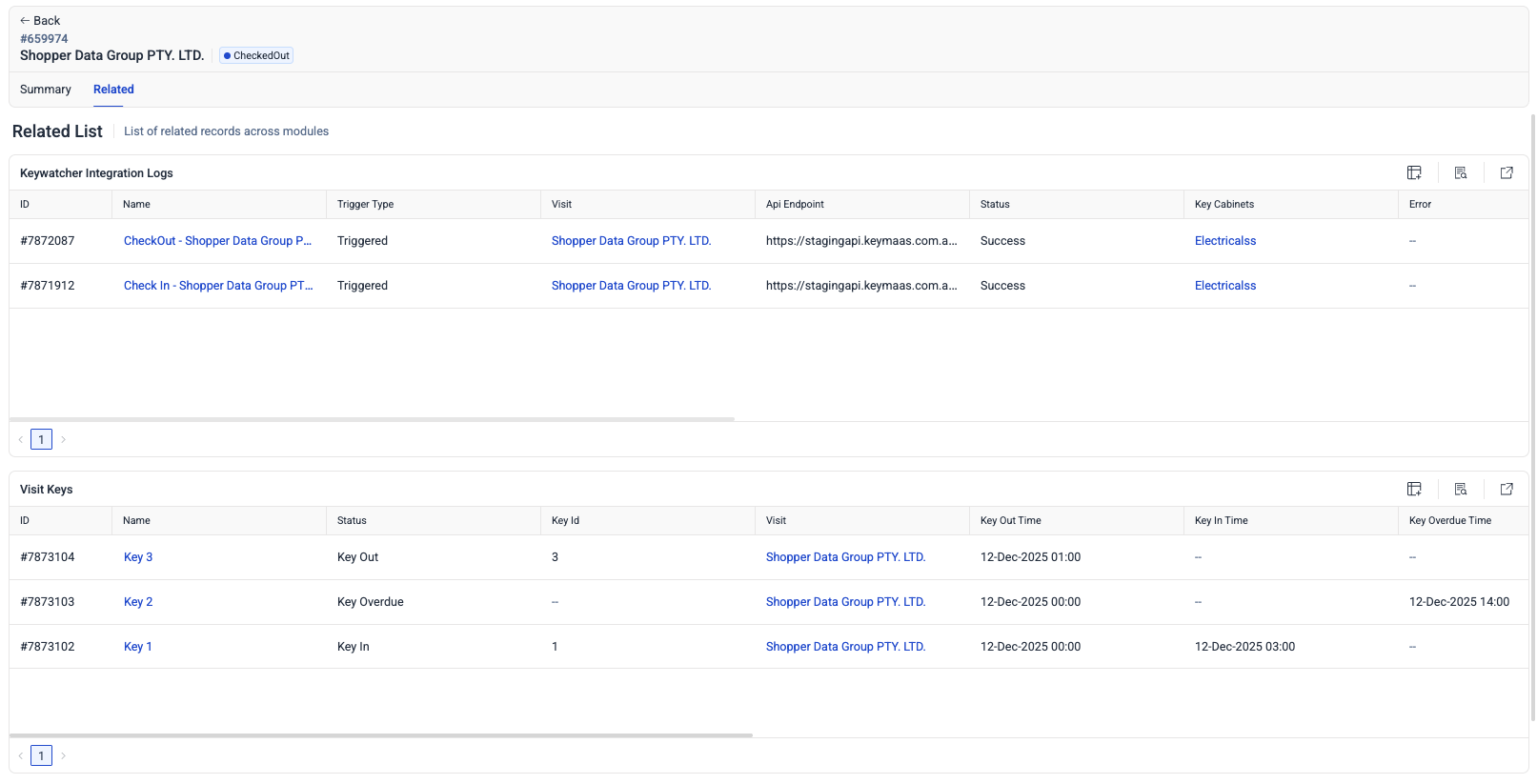
To see keys associated with a visit:
- Navigate to Visits
- Open the visit record
- Go to Related → VisitKeys
VisitKeys displays:
- Key Name
- Status
- Key-Out Time
- Key-In Time
- Overdue Time
- Key Group Name
- Panel
Contractor Checkout
Facilio does not allow checkout if the contractor still holds any keys.
All keys must be returned to the KeyWatcher device before checkout can proceed.
If keys are still out:
Checkout is blocked.
Frequently Asked Questions (FAQ)
Can a contractor check in if they already have an active KeyWatcher session?
What happens when a contractor is auto-checked out?
How do I send webhook details to KeyWatcher?
Why is checkout blocked?
Why is my access profile failing to create?
Can a KeyWatcher SiteKey be reused?
Summary
Facilio’s KeyWatcher integration delivers a secure, automated, and fully traceable key management process for contractors and operational teams. With synchronized check-ins, audit-ready logs, and real-time key activity monitoring, the integration ensures compliance while simplifying operations.
For support, contact integrations@facilio.com.